
← Back to How do I remove a computer from my account?
How do I add a computer to my account?
Short answer
GilbApp does not yet say where to get the command gilb-computer; if you have it, run gilb-computer add and approve it with your passkey.
Before you start
No GilbApp screen or help says yet where to get the command gilb-computer, so these steps work only for someone who already has it. You need it on the computer you want to add, and a browser where you are signed in to GilbApp. The pictures show a made-up person on a test site; your screen shows your own name and address.
Words used here (3)
- passkey
- A passkey is a sign-in kept on your device and unlocked the way you unlock the device, so you sign in with no e-mail code.
- GilbApp
- GilbApp is the app, opened in a web browser at https://gilb.com/app, where you open, fill and share your vaults.
- GilbPlatform
- GilbPlatform is the service that keeps people's and organisations' data in vaults, each at its own web address.
Steps
In Terminal on that computer, type gilb-computer add and press Return.
Open Terminal on the computer you want to add, type gilb-computer add and press Return. It prints a link to GilbApp and, under it, the computer's fingerprint, a short code of 8 characters that names this computer's key.
More about this
Terminal is the Mac's window for typing commands; the answer on opening the terminal shows how. If Terminal says command not found, the command is not on this computer, and no GilbApp screen or help says yet where to get it. If the computer was added before and is still active, it prints already added, and you are done. The computer names itself with its own name on the network; step 2 shows that name.
Open the link it prints in a browser where you are signed in to GilbApp.
On a Mac the link opens in your browser by itself; if it does not, copy it from Terminal into your browser's address bar. GilbApp opens a page that asks Did you just run gilb-computer add on this computer?
More about this
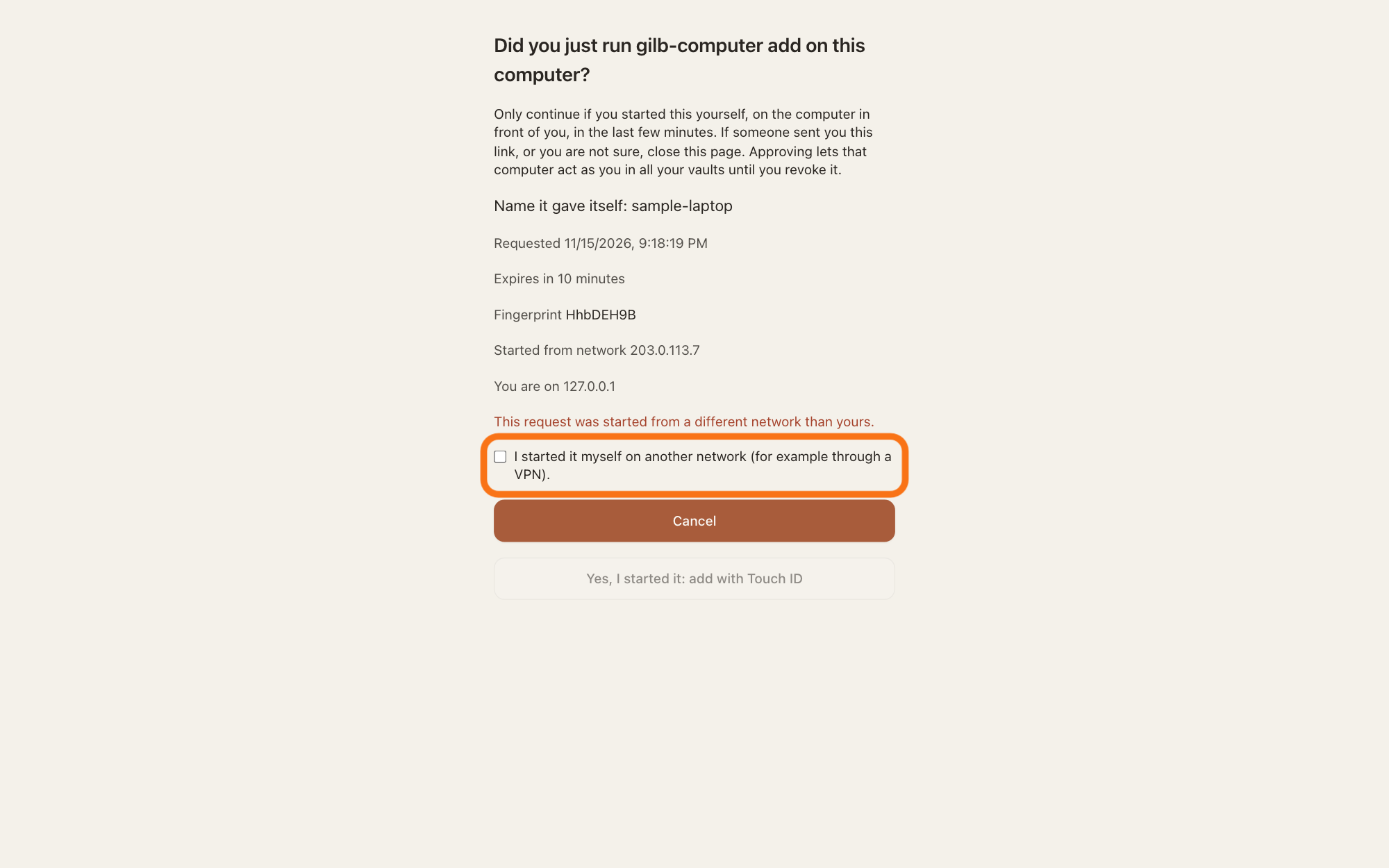
The page shows Name it gave itself: with the computer's name, when the request was made, Expires in and the minutes left, the Fingerprint, and two network addresses: Started from network and You are on. Check that the name and the fingerprint match what Terminal printed. The link works once and for 10 minutes; after that the page says "This request has expired or was already used. Run gilb-computer add again on the computer." If you are not signed in, it says Sign in to GilbApp first, then open this link again. If someone sent you this link, or you are not sure, press Cancel: it goes back to GilbApp and adds nothing.
If a red line says the request came from a different network, tick the box under it.
If the page says This request was started from a different network than yours., tick I started it myself on another network (for example through a VPN)., but only if you did. Until you tick it, the button in the next step stays grey.
Show as text
In the middle of the screen, GilbApp's page asks "Did you just run gilb-computer add on this computer?" and lists the computer's name, the minutes left, its fingerprint and the two networks. Under them a red line says the request was started from a different network than yours. The tick box under it, outlined in orange, says you started it yourself on another network; tick it only if you did.
More about this
The line shows when the computer and this browser reach GilbPlatform from different networks, for example when the computer uses a VPN, a service that sends its traffic through another network. If you did not start the request yourself, press Cancel instead.
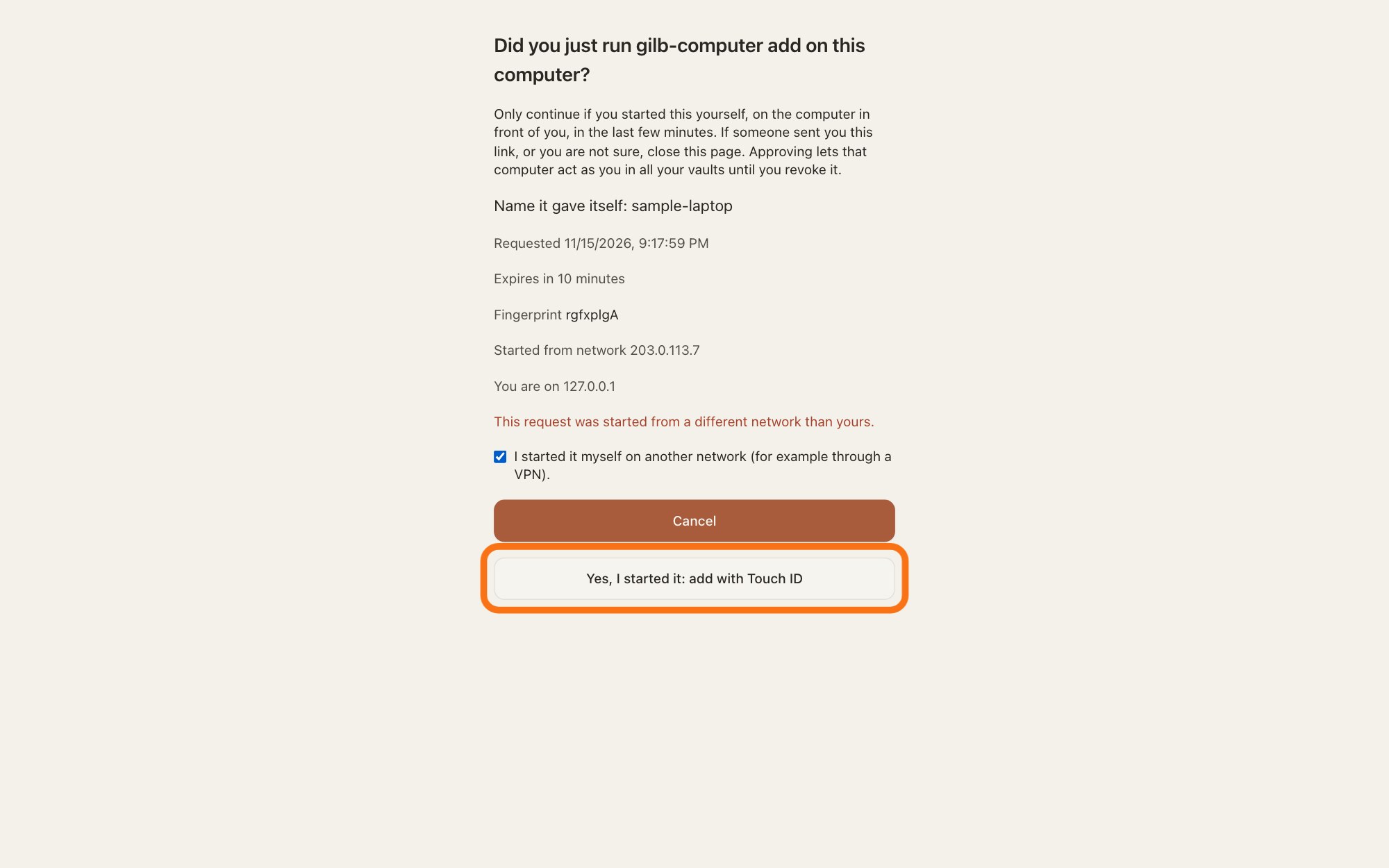
Press Yes, I started it: add with Touch ID.
Press Yes, I started it: add with Touch ID. Your browser then asks for your passkey.
Show as text
The page "Did you just run gilb-computer add on this computer?" shows the computer's name and fingerprint. At its foot are two buttons: "Cancel", which adds nothing, and under it "Yes, I started it: add with Touch ID", outlined in orange. Press it, then unlock your passkey when your browser asks.
More about this
A passkey is a sign-in kept on your device and unlocked the way you unlock the device. If your account has none yet, the page says You need a passkey first and the button reads Add a passkey (Touch ID): press it and make one, and GilbApp then asks for it once more to add the computer. The button says Touch ID on every computer. Cancel goes back to GilbApp and adds nothing.
Unlock your passkey the way you unlock your computer.
Unlock the passkey the way you unlock your computer, such as with Touch ID. The page then says Added. The computer is signed in; you can close this tab., and Terminal prints added:, the computer's name and its fingerprint.
More about this
If you stop the passkey request, the page says Touch ID was cancelled. Nothing was added.; press the button again. If your passkey is on another device, the page offers to add one on this computer too. GilbPlatform also e-mails you A computer was added to your Gilb account, with the computer's name, the time, the fingerprint and the network; it says If this was not you, revoke it now in GilbApp → Computers signed in. The computer now shows under COMPUTERS SIGNED IN in the pane of any of your vaults, marked ACTIVE.
Deeper
Also asked:
How do I add a computer to Computers signed in? You can only if you already have the command gilb-computer; no GilbApp screen or help says yet where to get it. With it, run gilb-computer add on that computer and approve it in GilbApp with your passkey. It then shows under COMPUTERS SIGNED IN, marked ACTIVE.
Why does GilbApp ask for Touch ID to approve a computer? Approving lets that computer act as you in all your vaults until you revoke it. So a computer is added only when someone signed in as you approves it with your passkey, which Touch ID unlocks on a Mac.
Where do I get gilb-computer? No GilbApp screen or help says yet. Without it, connect your AI with ▸ CONNECT AI instead; the answer How do I connect my computer to my vault? shows how. If you need this command, write to [email protected].
A computer here is one of your own computers that acts as you, added by running gilb-computer add on it. It is not a browser: a browser where you sign in to GilbApp needs only its own sign-in and is not in the list. An added computer is what the GilbPlatform connector uses when you add --as me to its commands, which signs in as this computer instead of as your AI.
An account can have up to 10 active computers. A computer not used for 90 days shows EXPIRED and no longer signs in, without anyone removing it. The answer How do I remove a computer from my account? shows the list and how to take a computer off it.
This answer is for a Mac: the steps use Terminal and Touch ID.
Source: GilbApp d5296208 (https://gilb.com/app/version.json, read 15 November 2026): src/App.tsx:28-39 (the page /computer/approve, outside the app's frame); src/components/computers/ComputerApprovePage.tsx:55-68 (Touch ID was cancelled. Nothing was added.), :139-194 (add; no passkey: add one, then one more add), :196-262 (missing link, expired or used, not signed in, Added. The computer is signed in; you can close this tab., already added), :265-335 (heading, warning text, Name it gave itself:, Requested, Expires in, Fingerprint, both networks, Started from network and You are on :283-284, the different-network line and tick box, You need a passkey first, Cancel, Add a passkey (Touch ID), Yes, I started it: add with Touch ID, the offer to add a passkey on this device); src/components/computers/ComputersSignedIn.tsx:115-142 (Computers signed in, Your own computers that act as you. Add one by running gilb-computer add on it.). GilbPlatform 0fc5a548 (https://id.gilb.com/version, read 14 November 2026): src/auth/computer-add-request.ts:12-13 (a request can be approved for 10 minutes); src/routes/computer.ts:54-55 (10 active computers), :412-520 (approval needs a passkey signed in as the person; different network must be confirmed), :500-515 and src/auth/send-otc-email.ts:297-330 (the e-mail A computer was added to your Gilb account). gilb-signin c548c79 node/gilb-computer.ts:88-134 (gilb-computer add prints the link and fingerprint, opens the link on a Mac, waits, prints added:; already added). Connector 0.6.1 README, as carried in GilbApp d5296208 (gilb-computer add, then --as me). Live answers, sentences shared: How do I remove a computer from my account?; How do I sign in with a passkey?; How do I connect my computer to my vault?; How do I publish my app from the terminal?
Checked against GilbApp d529620.