
← Who it is for (Stakeholders)
How do I add a stakeholder (organisation, system, other)?
Short answer
Press Main menu, choose Stakeholders, press + New, choose Create a new Stakeholder on its own, choose the type, type a name, press Create.
Before you start
You need to be signed in to GilbApp on a computer, with a vault you can write to, such as your own vault. The pictures show a made-up person on a test site; your screen shows your own name and address.
Words used here (4)
- GilbApp
- GilbApp is the app, opened in a web browser at https://gilb.com/app, where you open, fill and share your vaults.
- record
- A record is one piece of data with its own address, such as a person, a place, a thing or a note.
- virtual folder
- A virtual folder is a view that groups records and files without moving them; each may sit in several folders.
- agent
- An agent is your AI following one written procedure, its standing instructions, for one kind of work.
Steps
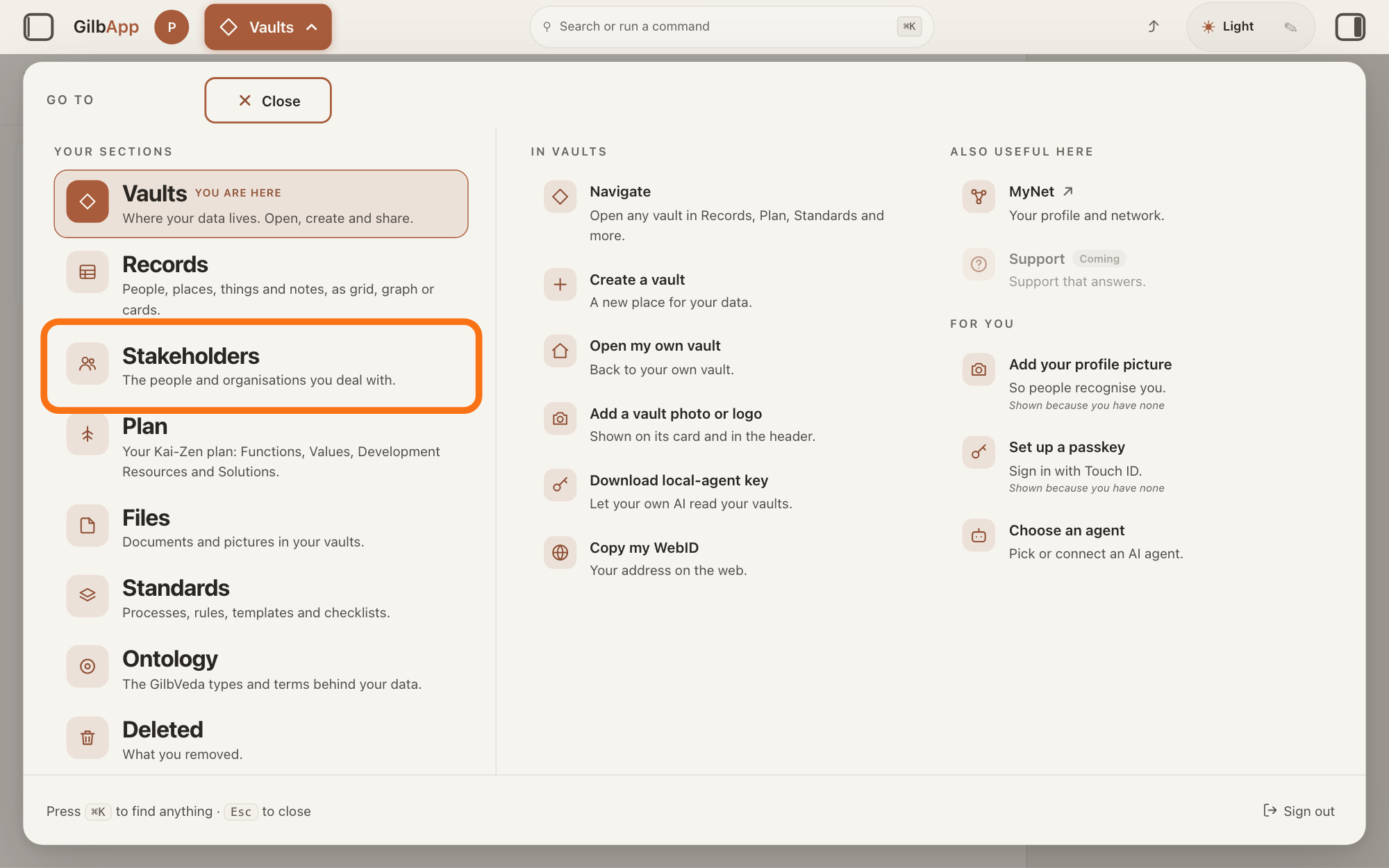
Press Main menu at the top left and choose Stakeholders.
Press Main menu, next to your profile picture at the top left, and under YOUR SECTIONS choose Stakeholders. A stakeholder is a person, group or system that cares whether a Value goes up or down.
Show as text
At the top left, press "Main menu" (it shows the name of the section you are in). In the panel headed "GO TO", look under "YOUR SECTIONS" and press "Stakeholders", "The people and organisations you deal with.", outlined in orange.
More about this
The button shows the name of the section you are in, such as Vaults. A panel headed GO TO opens; Stakeholders reads The people and organisations you deal with. You can also press the Stakeholders button on the card of a vault (the place where a person or a group keeps their records) in Vaults. The screen lists your stakeholders and has the views Grid, Graph, Both and Card. The list also holds organisations, systems and groups; the TYPE column says which are Person.
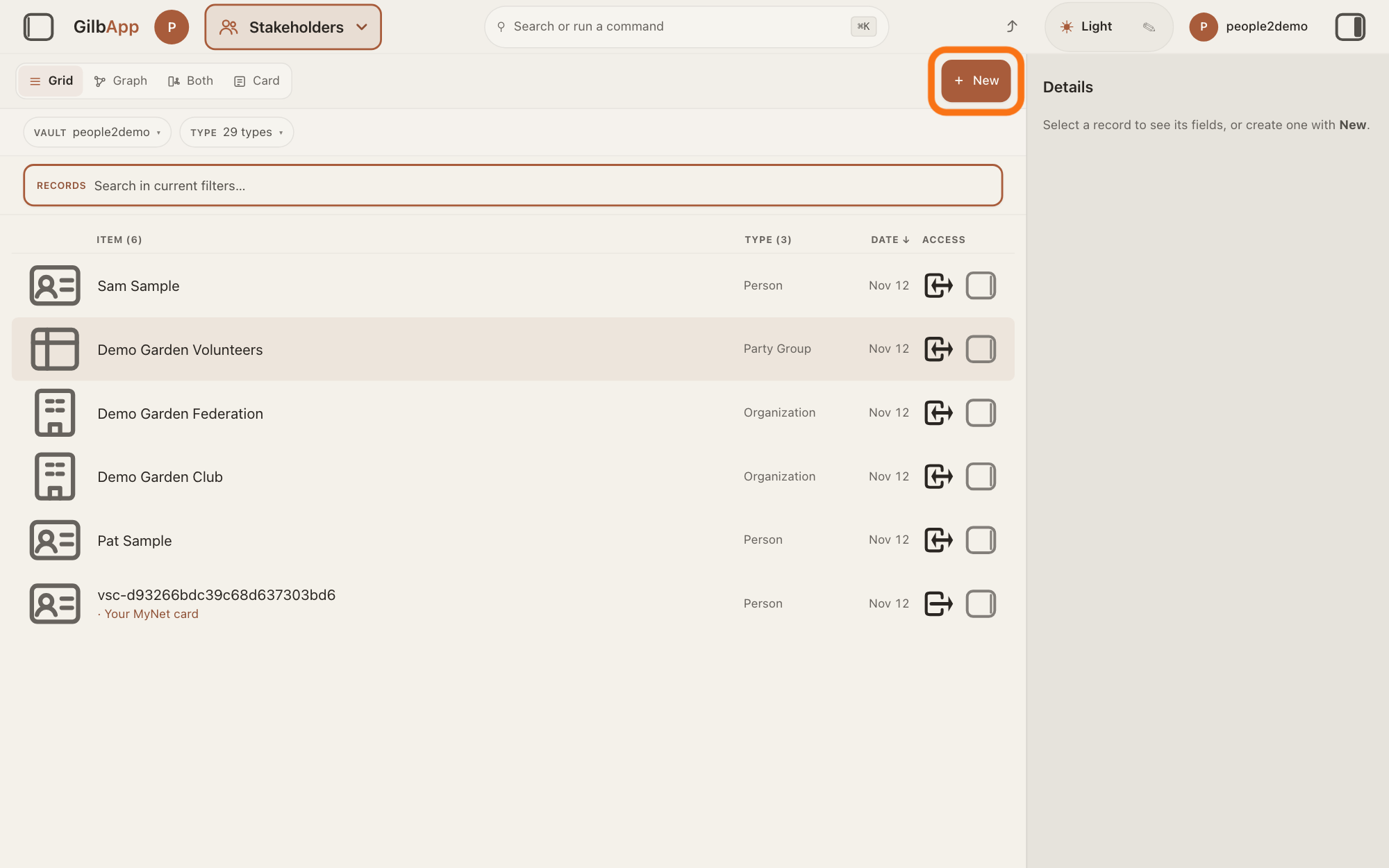
Press + New.
Press + New at the right end of the bar with the views Grid, Graph, Both and Card. With no record selected, New shows its choices at once.
Show as text
The "Stakeholders" screen lists people and organisations, with no record selected. At the right end of the bar with "Grid", "Graph", "Both" and "Card", press "+ New", outlined in orange.
More about this
If + New is greyed, hover on it for the reason; one reason is that the vault you are viewing is one you can only read. If a record is selected in the list, the linking choices are on: Create a new Stakeholder and link it to that record, and Link it to an existing Stakeholder. Choose the one on its own in step 3. The GO TO panel also has New stakeholder (Add a person or organisation.) under Stakeholders; it opens the same New dialog.
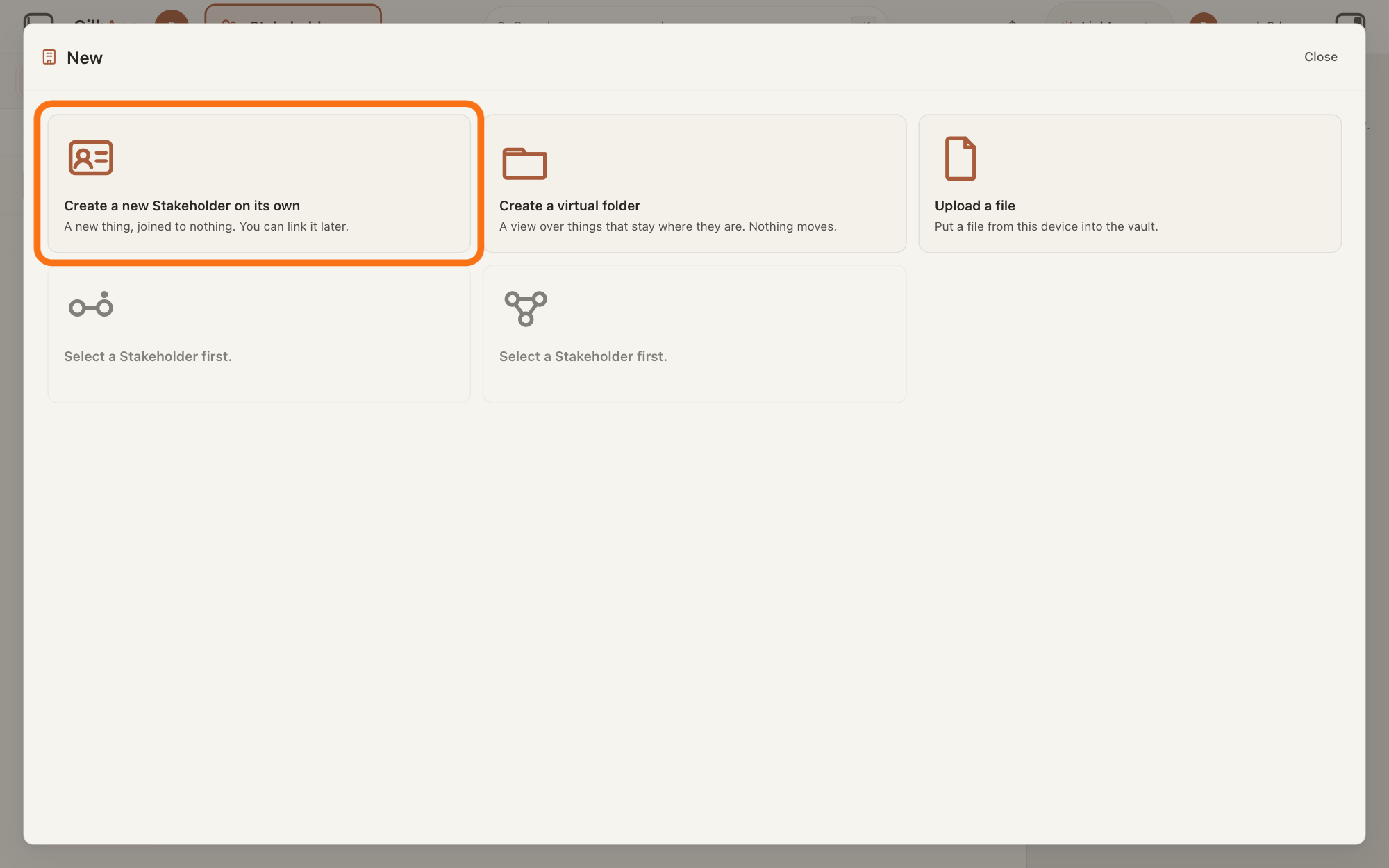
Choose Create a new Stakeholder on its own.
Under New, choose Create a new Stakeholder on its own. The dialog New Stakeholder opens.
Show as text
A dialog headed "New" opens. Press the first tile, "Create a new Stakeholder on its own", "A new thing, joined to nothing. You can link it later.", outlined in orange. The two tiles below read "Select a Stakeholder first."
More about this
The tile says A new thing, joined to nothing. You can link it later. The other choices do something else: Create a virtual folder and Upload a file. Two tiles are greyed and say Select a Stakeholder first.; they link a new record to one you have selected, and you do not need them. Close at the top of the dialog closes it and makes nothing.
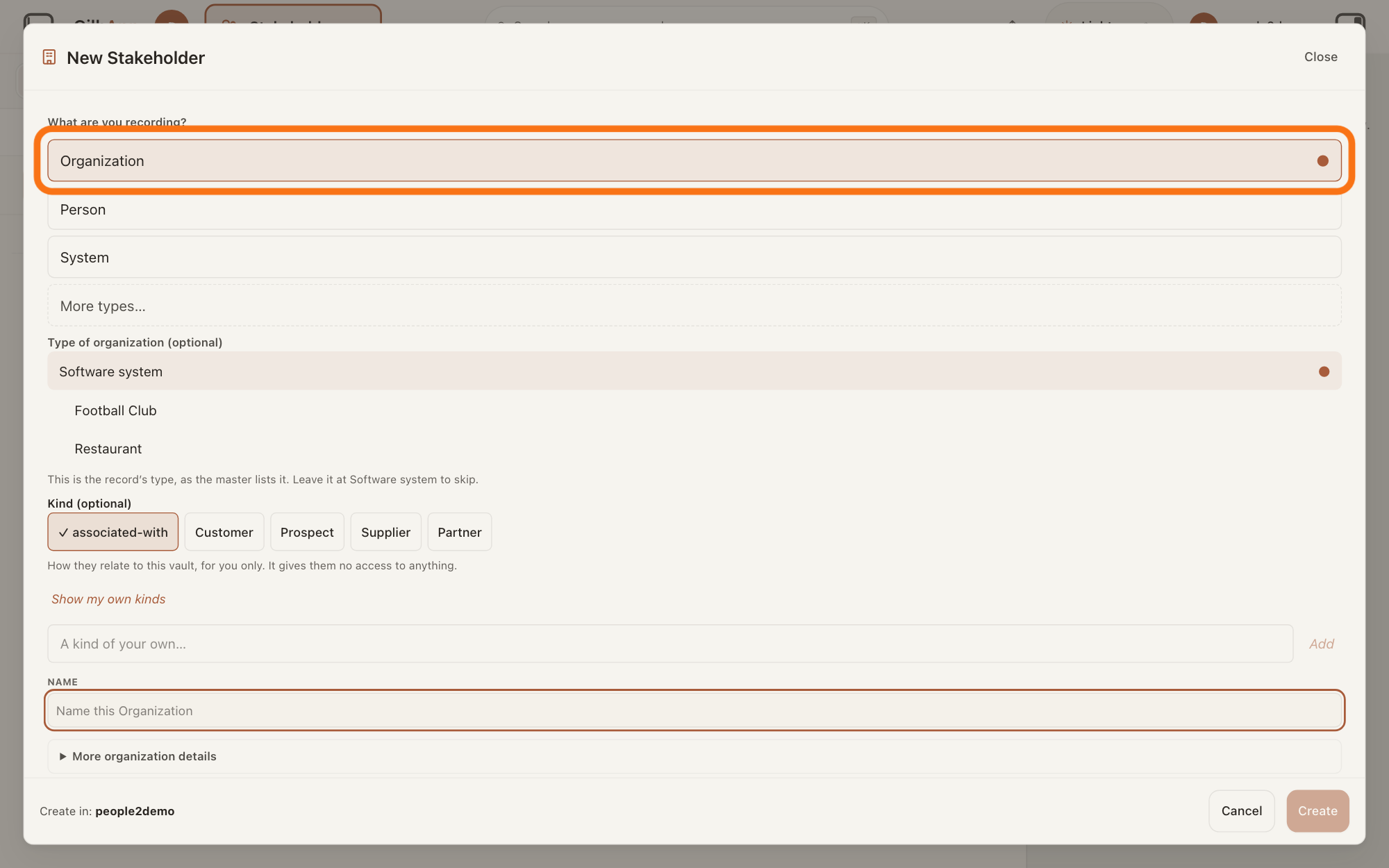
Under What are you recording?, choose the type.
Under What are you recording?, choose Organization for a company, a non-profit or an institution, or System for a software system, a program running on a computer, such as an AI agent or an app. For any other type, press More types… and select one in the list it opens.
Show as text
The dialog is now headed "New Stakeholder". Under "What are you recording?", choose the type. "Organization" is chosen and outlined in orange; "Person", "System" and "More types…" are below it.
More about this
Organization is chosen when the dialog opens; the chosen row shows ●. Person is the answer on adding a person as a stakeholder. More types… opens a list headed TYPE of the other types of stakeholder that GilbVeda, the shared list of terms, names; typing a few letters in the box that shows Search things — a boat, a note, a chair, a person… narrows it. Things is chosen; Functions, Values and All are not needed. A chosen type shows its DEFINITION; × brings the list back. Such a type gets no Kind (optional). With Organization and your own vault under CREATE IN, Kind (optional) can show as for a person; you do not need it.
If Type of system (optional) or Type of organization (optional) shows, choose a type or leave it.
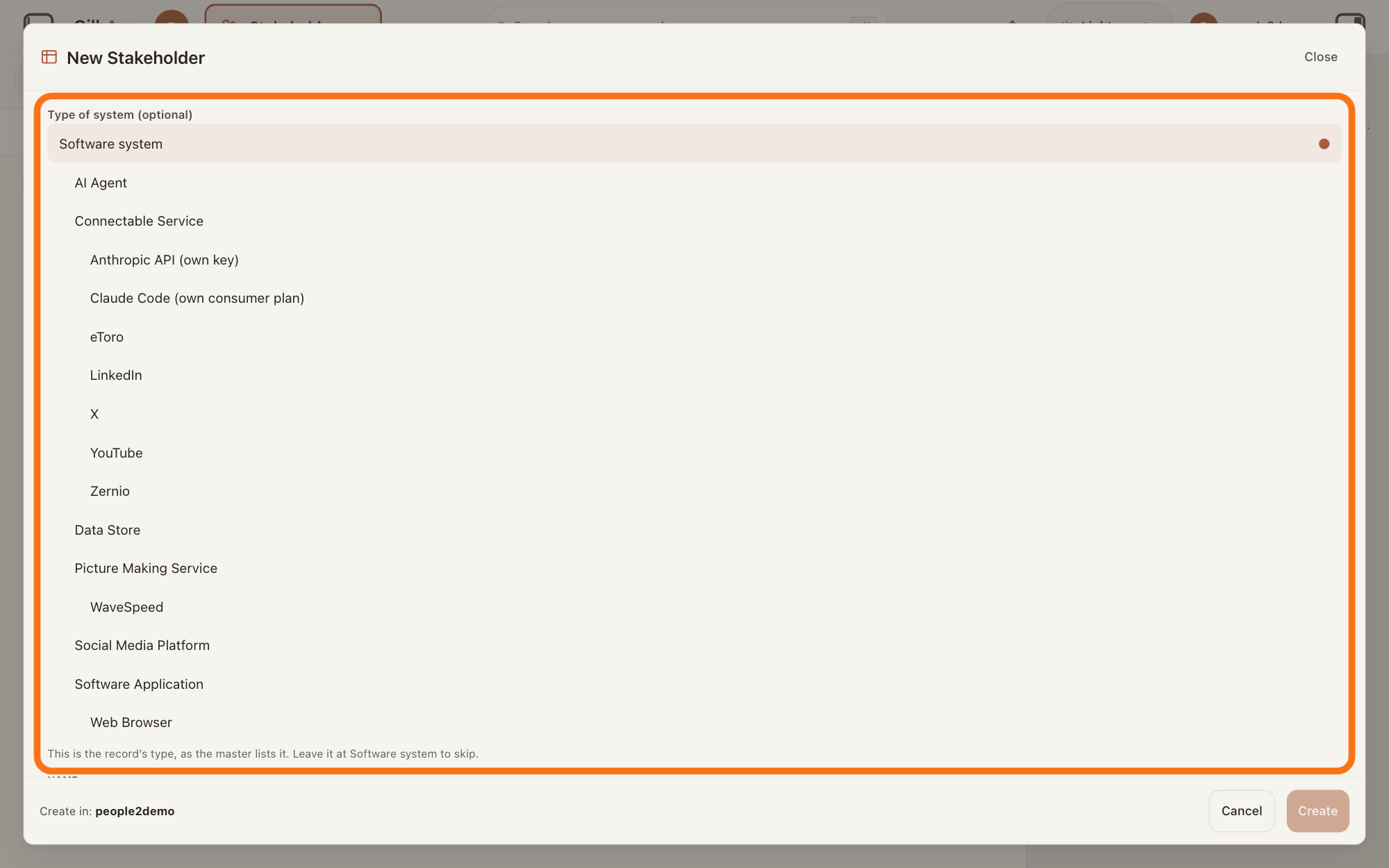
Under Type of system (optional) or Type of organization (optional), choose the more exact type, or leave the first row, Software system, chosen. The block shows after System, and after Organization when GilbVeda lists kinds of organisation.
Show as text
After you press "System", the block "Type of system (optional)" lists types such as "AI Agent", "Data Store" and "Software Application". "Software system" is chosen; leave it there to skip. The whole block is outlined in orange.
More about this
Its types come from GilbVeda, the shared list of terms, so they can change: for a system, such as an AI agent or a data store; for an organisation, such as a club or a restaurant. Under Organization the first row also reads Software system, but leaving it chosen keeps the record an organisation. The line under the block says "This is the record’s type, as the master lists it. Leave it at Software system to skip."; the master is GilbVeda. What you choose here is what the record is. A system has no Kind (optional) block.
Type the name in NAME.
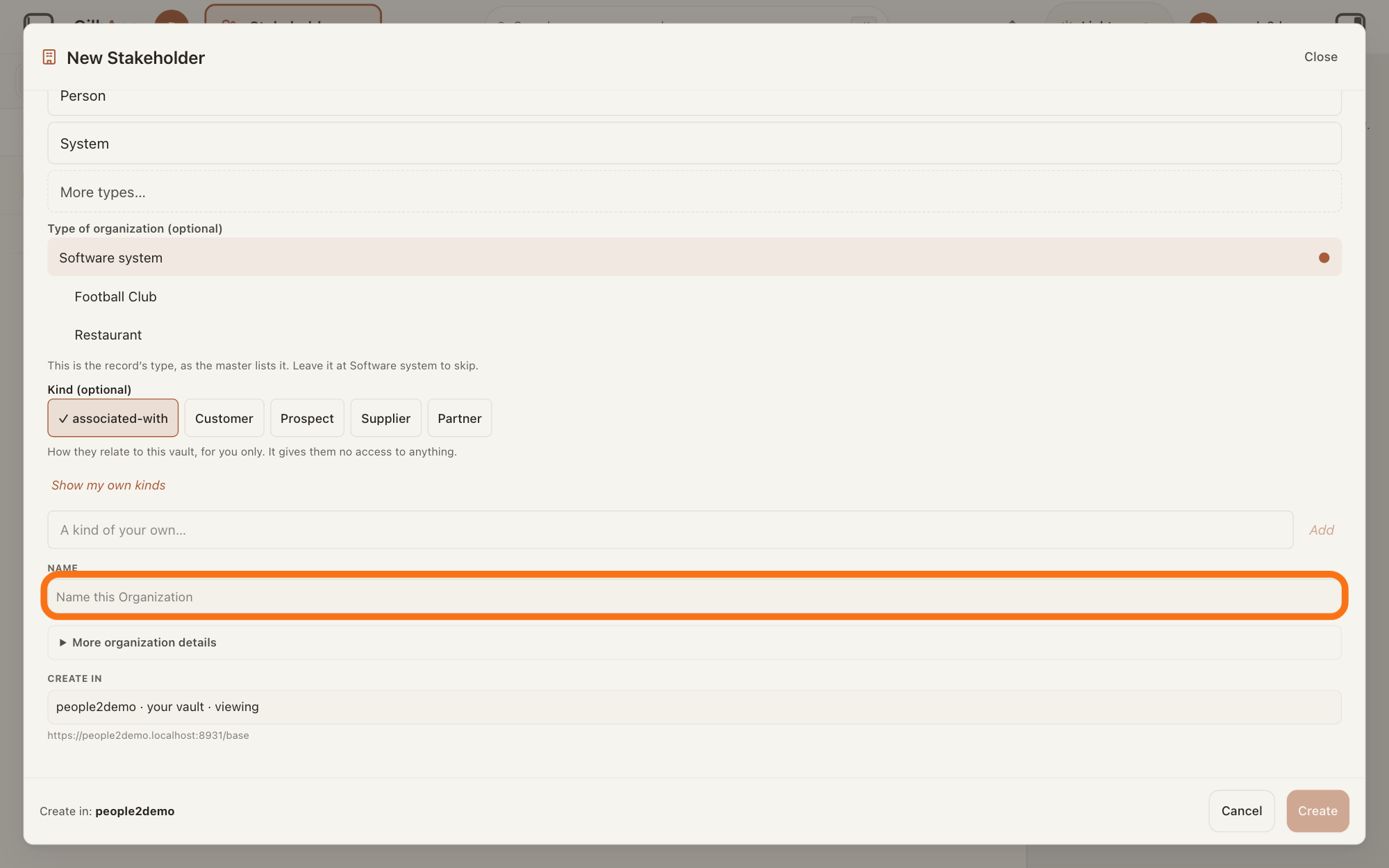
Type the organisation's or the system's name in NAME. Use the name you would look for in the list later.
Show as text
With "Organization" chosen, scroll down to "NAME" and type the name in the box that reads "Name this Organization", outlined in orange. "Create" at the bottom right stays greyed until you do.
More about this
Create stays greyed until the box holds a name. Pressing Enter in NAME does not create it: for an organisation it opens More organization details and moves you to its first line. After two letters the dialog may list stakeholders already in the vault under CREATE IN whose name holds what you typed (Already in this vault — open this one instead of making a new one:); pick one to open that card instead of making a second. The answer on avoiding adding the same person twice shows more.
If you want, open More organization details and type what you know.
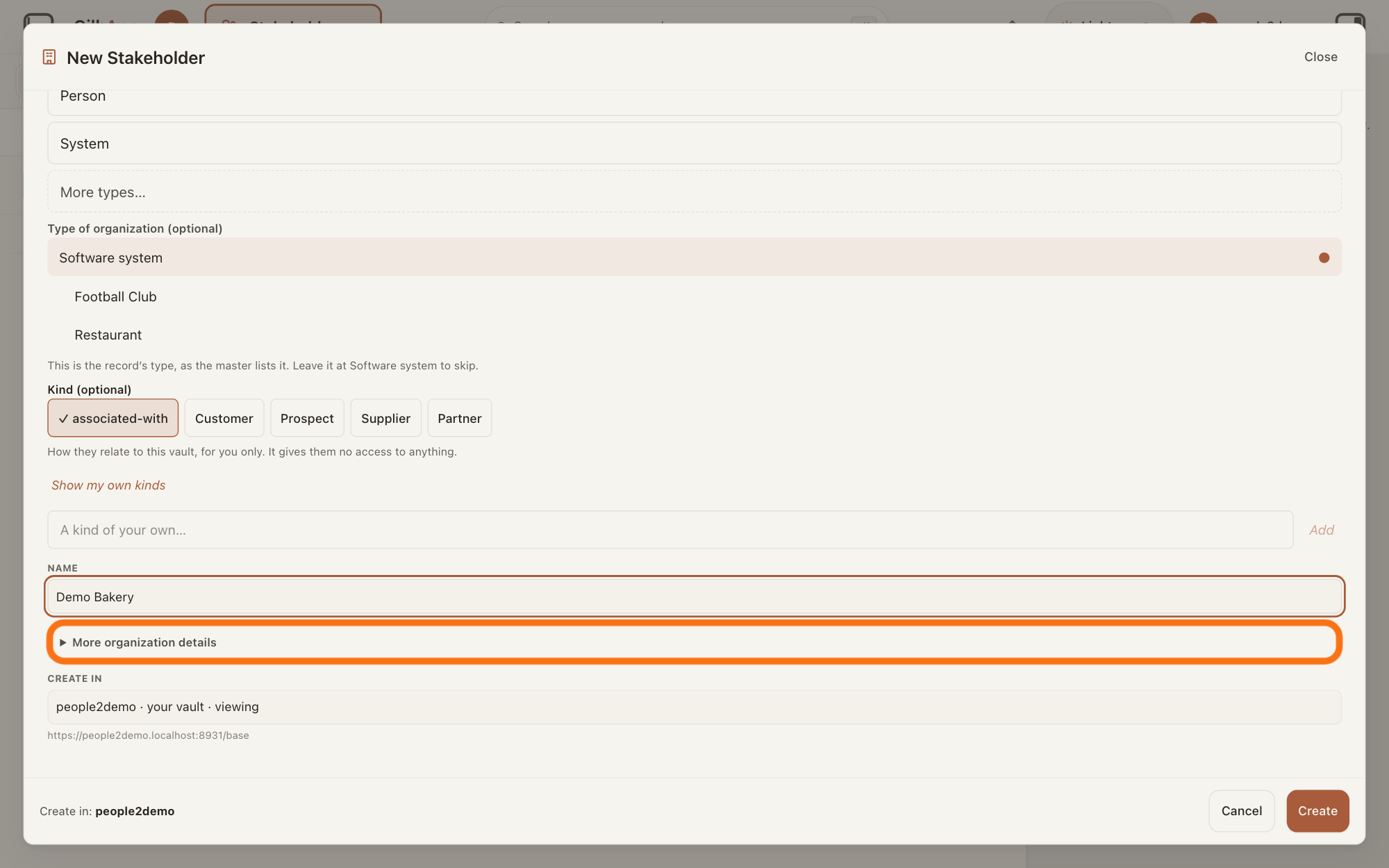
For an organisation, open More organization details, then type in any line you know. All lines are optional.
Show as text
Under the name you typed, press the fold "▶ More organization details", outlined in orange, to open boxes for e-mail, online account, phone, postal address and web address.
More about this
The lines come from GilbVeda, the shared list of terms, so they can change. Today they are EMAIL, ONLINE ACCOUNT, PHONE, POSTAL ADDRESS and WEB ADDRESS; each is a box you type in. An ONLINE ACCOUNT is a name you use on another website or app, and a WEB ADDRESS is the address of a web page. GilbVeda gives Software system no line but its name, so no such fold shows for it; a type chosen in step 5 may bring lines of its own.
Under CREATE IN, choose the vault if the one shown is not right.
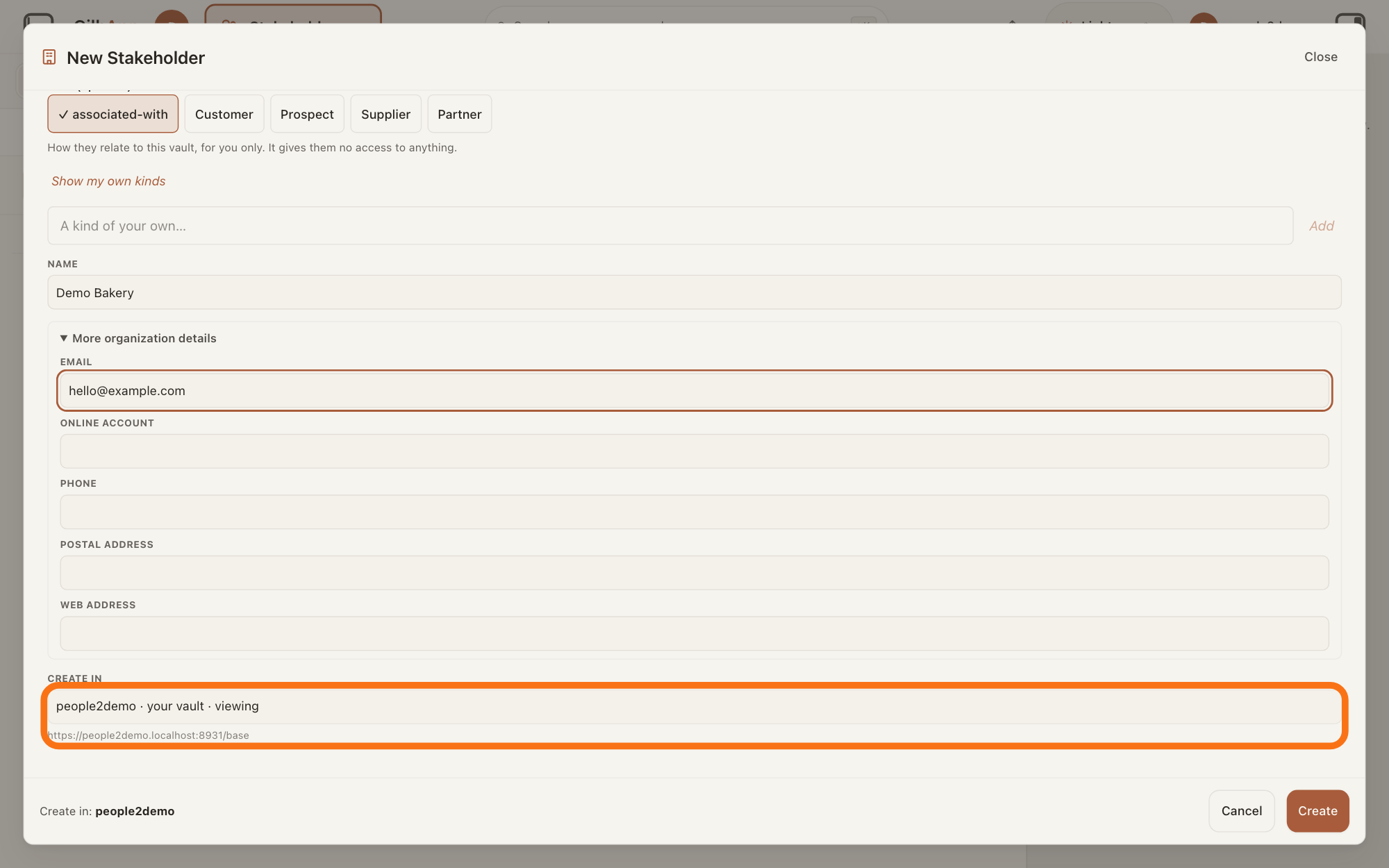
Look at CREATE IN and, if it shows the wrong vault, choose the right one in the list. The list holds the vaults you can write to.
Show as text
The open fold shows "EMAIL", "ONLINE ACCOUNT", "PHONE", "POSTAL ADDRESS" and "WEB ADDRESS". Below them, under "CREATE IN", read which vault the card goes into, with its address; that line is outlined in orange.
More about this
With one vault you can write to and none you can only read, CREATE IN is a plain line, not a list. Vaults you can only read say read only, you cannot create there and cannot be chosen. A line by Create says Create in: and the vault's name, and adds not the vault you are viewing when it is another one. Changing the vault can show or hide Kind (optional).
Press Create.
Press Create at the foot of the dialog. The dialog closes and the new stakeholder is opened.
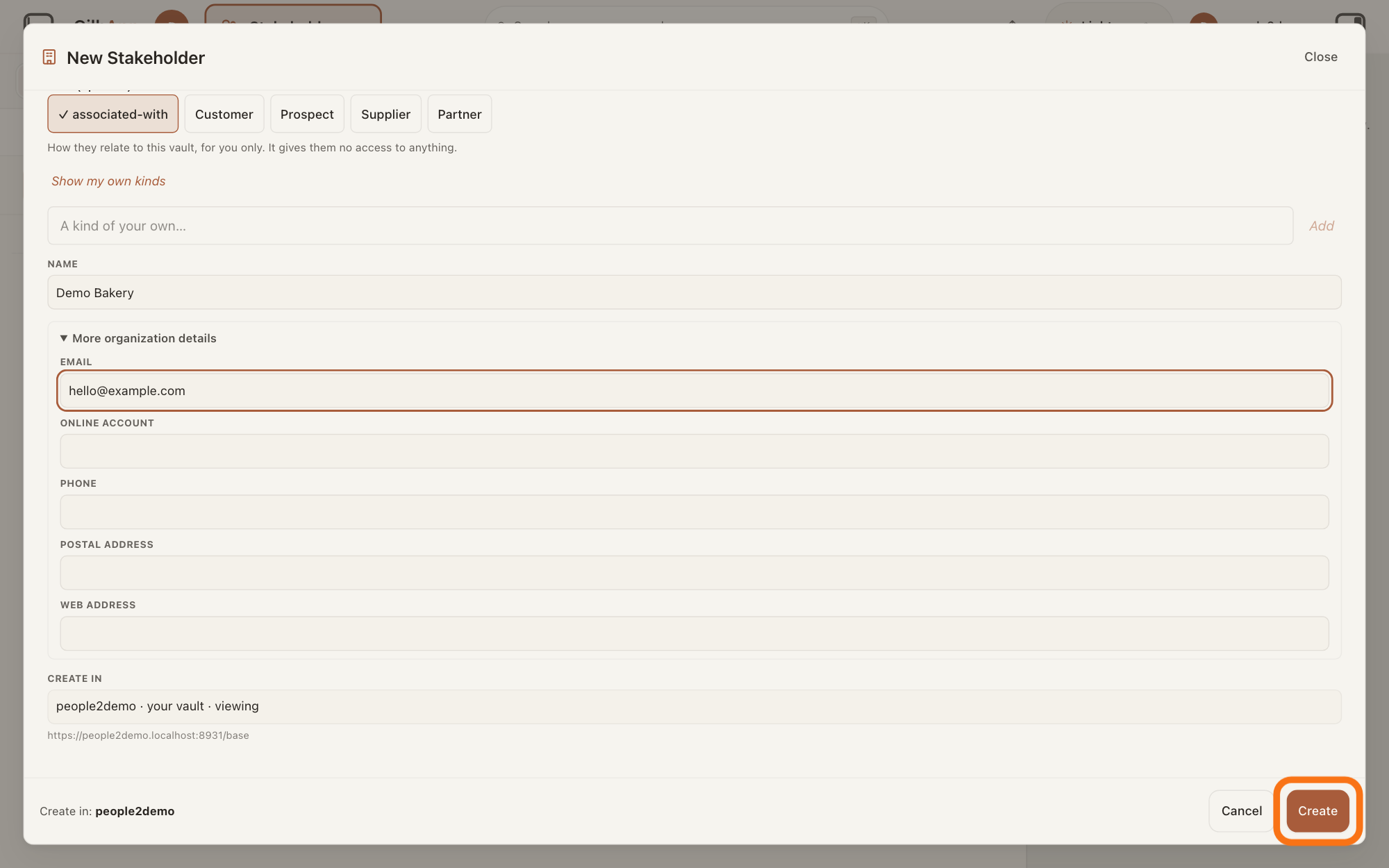
Show as text
At the foot of the dialog, "Create in:" names the vault. Press "Create" at the bottom right, outlined in orange, to make the card. "Cancel" beside it closes without saving.
More about this
Cancel closes the dialog and makes nothing. If you chose a vault other than the one you are viewing, the dialog stays open and says it was made there, not in the vault you are viewing. It is not drawn here., with an Open it button that opens it. If a kind could not be kept, the dialog says the stakeholder was made and that you can add the kind on the card.
Deeper
Only a name is needed to add a stakeholder. Create stays greyed until you type one, and a vault you can write to must be chosen.
This makes a card for the organisation or system in the vault you choose, with the name and any details you type. To say it has a stake in a record of your plan, search and select it under Stakeholder on that record's card.
What you choose under What are you recording? says what the record is. A Kind only says what it is to you, and never changes what it is.
Look in the Stakeholders list first (its search box shows Search in current filters…), so you do not make a second card for the same organisation.
This answer is written for a computer screen.
Source: GilbApp af0f04ee838a4d55887d2ff1f72edd49a4ff7ca0 (https://gilb.com/app/version.json, built 2026-11-09, read 2026-11-10, dirty false), read (package.json identical to package.json at af0f04ee). StakeholderStart.tsx:100, :156-162 (Kind (optional) only with a shortcut and own vault), :265-303 (What are you recording?, rows, ●, More types…), :306-328 (Type of {system} (optional), Software system, help line with &rsquo); stakeholderStart.ts:14-17 (System for Software System), :42-56 (shortcuts from a:createShortcut), :72-76 (More types = every non-shortcut type); useStakeholderCreate.ts:118-127 (moreSearch), :131-140 (boxes from the kind's field set); stakeholderCreate.ts:30-50 (More types search: part of the label or name, case-insensitive); TypeChooser.tsx:50-61 (tabs, placeholder), :168-171 (all four tabs when no planes are given), :278-283 (label Type, CSS uppercase), :380-392 (Definition, CSS uppercase); ConnectedCreateDialog.tsx:1596-1611 (in Stakeholders: no planes), :1571-1577 (Enter opens the extras only when there are some), :1966-2011 (More {label} details), :2053 (Create in:); recordPerson.ts:102-120 (only text fields get a box). GilbVeda public reads 2026-11-10: t:Stakeholder a:createShortcut Organization, Person, SoftwareSystem; vocab?carries=a:fieldOf: t:Organization text fields Email, Name, OnlineAccount, Phone, PostalAddress, WebAddress; t:SoftwareSystem: Name only; sub-types of t:SoftwareSystem: AI Agent, Connectable Service, Data Store, Picture Making Service, Social Media Platform, Software Application (all Suggested); t:Organization a:does (a company, non-profit, or institution); t:SoftwareSystem a:does (runs a stored program on a computer; an AI agent, a data store, a web service, an app). Live bundle gilb.com/app/assets/index-CEVUjjQB.js read 2026-11-10; gilb-stakeholders find in src-C9tqYdiG.js@56442 (candidates: records of the vault of a stakeholder kind whose label holds the text, case-insensitive). Published What is a Stakeholder? for the step 1 gloss.
Checked against GilbApp d529620.