
← Back to How do I link standards with hand-offs?
How do I add, edit, reorder or delete a unit (step, rule)?
Short answer
Choose a standard in Standards; type a step, press Add step; press its text, Save; drag its number; press 🗑 Delete step, Confirm delete.
Before you start
You need to be signed in to GilbApp on a computer, with a standard that already holds a step, in a vault you can write to, such as your own vault; the answer on writing a new standard shows how to make one. The pictures show a made-up person on a test site; your screen shows your own name and address.
Words used here (6)
- GilbApp
- GilbApp is the app, opened in a web browser at https://gilb.com/app, where you open, fill and share your vaults.
- record
- A record is one piece of data with its own address, such as a person, a place, a thing or a note.
- entry condition
- An entry condition is something that must be true before a process may start; a process starts only when its entry conditions hold.
- exit condition
- An exit condition is what must be true before a process may finish; when it is true, the process hands back.
- agent
- An agent is your AI following one written procedure, its standing instructions, for one kind of work.
- short name
- A short name is the one word you give one AI on one computer, such as gilb-example; it keeps that AI's key and tools apart.
Steps
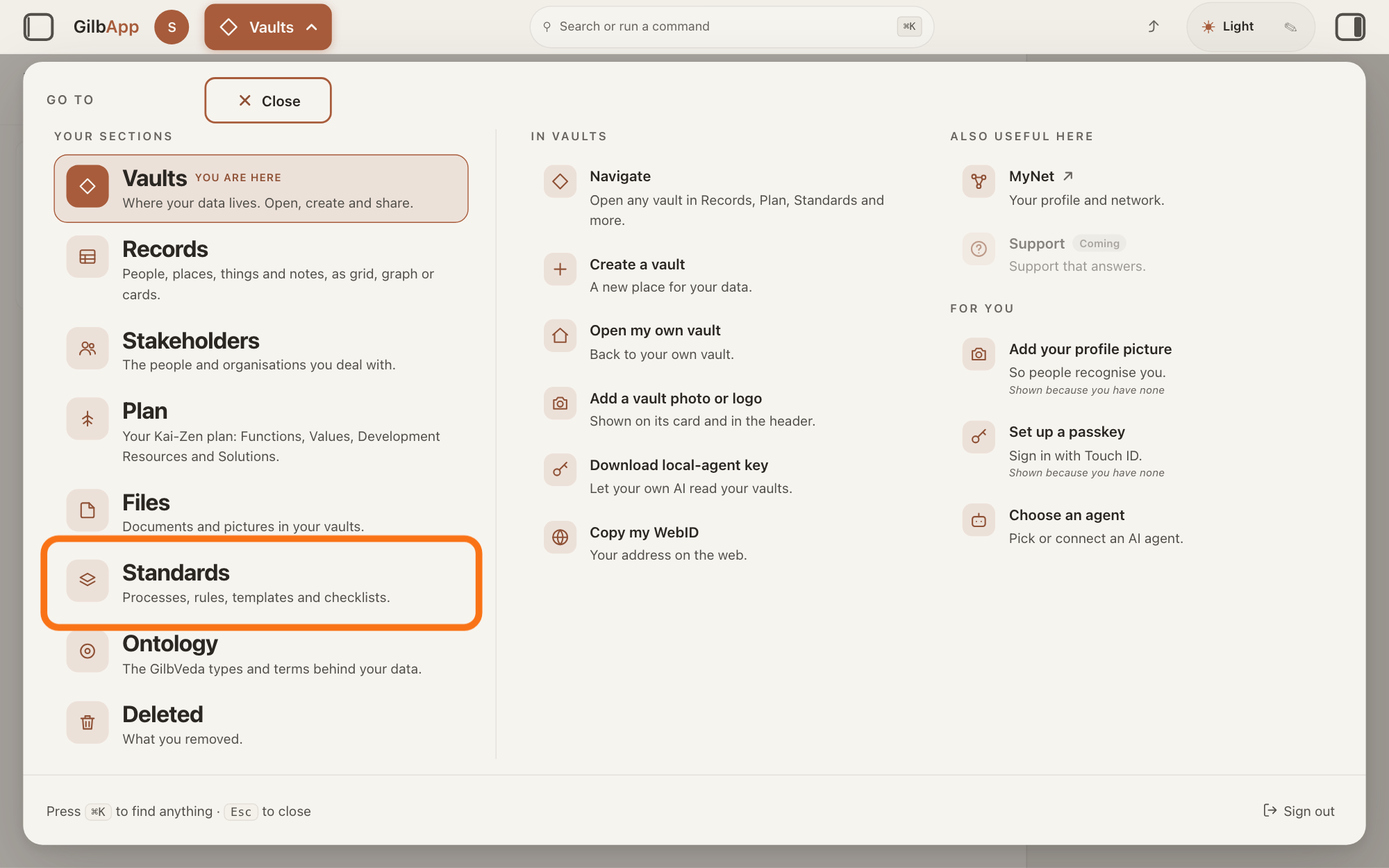
Press Main menu at the top left and choose Standards.
Press Main menu, next to your profile picture at the top left, and under YOUR SECTIONS choose Standards. The button shows the name of the section you are in, such as Vaults.
Show as text
The panel headed "GO TO" covers the screen. In the left column under "YOUR SECTIONS", the row "Standards" with the line "Processes, rules, templates and checklists." is outlined. Press it to open the Standards screen.
More about this
A panel headed GO TO opens; Standards reads Processes, rules, templates and checklists. Standards opens on the vault you picked in Vaults, or on your own vault if you picked none; a vault is the place where a person or a group keeps their records. It opens on the tab Processes, with Process chosen in the row under the tabs. A process is a standard that holds work: entry conditions, steps in order, and exit conditions; a standard is a written procedure, rule set, form or other guide that people and agents follow as they work. On the right, VAULT changes the vault, STANDARDS GROUP shows only the standards of one group, and + New group, shown only where you may write in the vault, makes a group; you need none of them here.
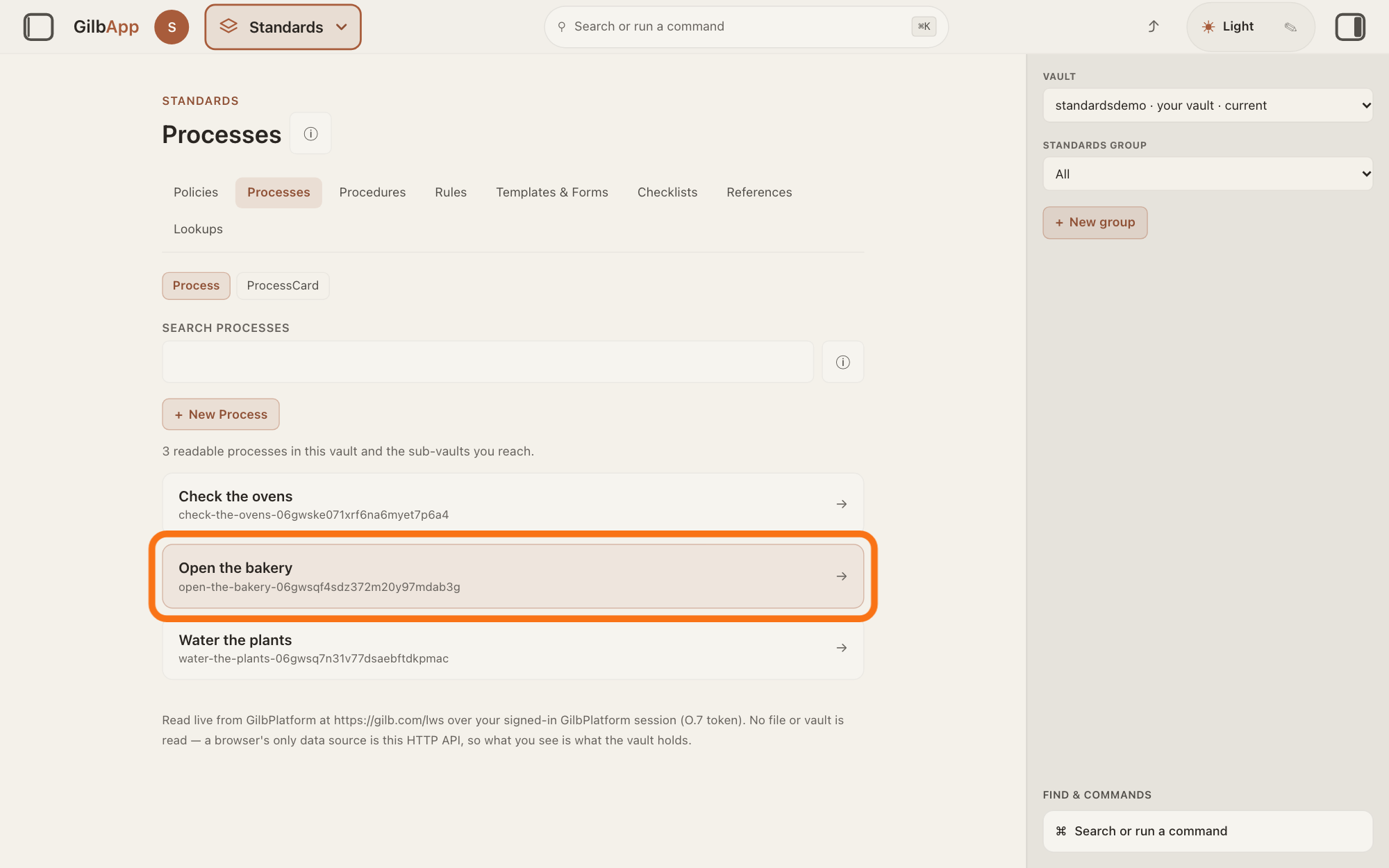
Choose the standard in the list.
Click the row of the standard you want to change, such as Open the bakery. It opens in the middle of the screen, with its units listed in order.
Show as text
In the middle, in the list of processes, the row Open the bakery is outlined. Press it to open the standard whose steps you want to change.
More about this
A unit is one point of a standard: a step of a process or a procedure, a rule of a rule document, a question of a checklist, and so on. If the standard is under another tab, such as Rules, press that tab first. The answer on reading a standard says what the open standard shows.
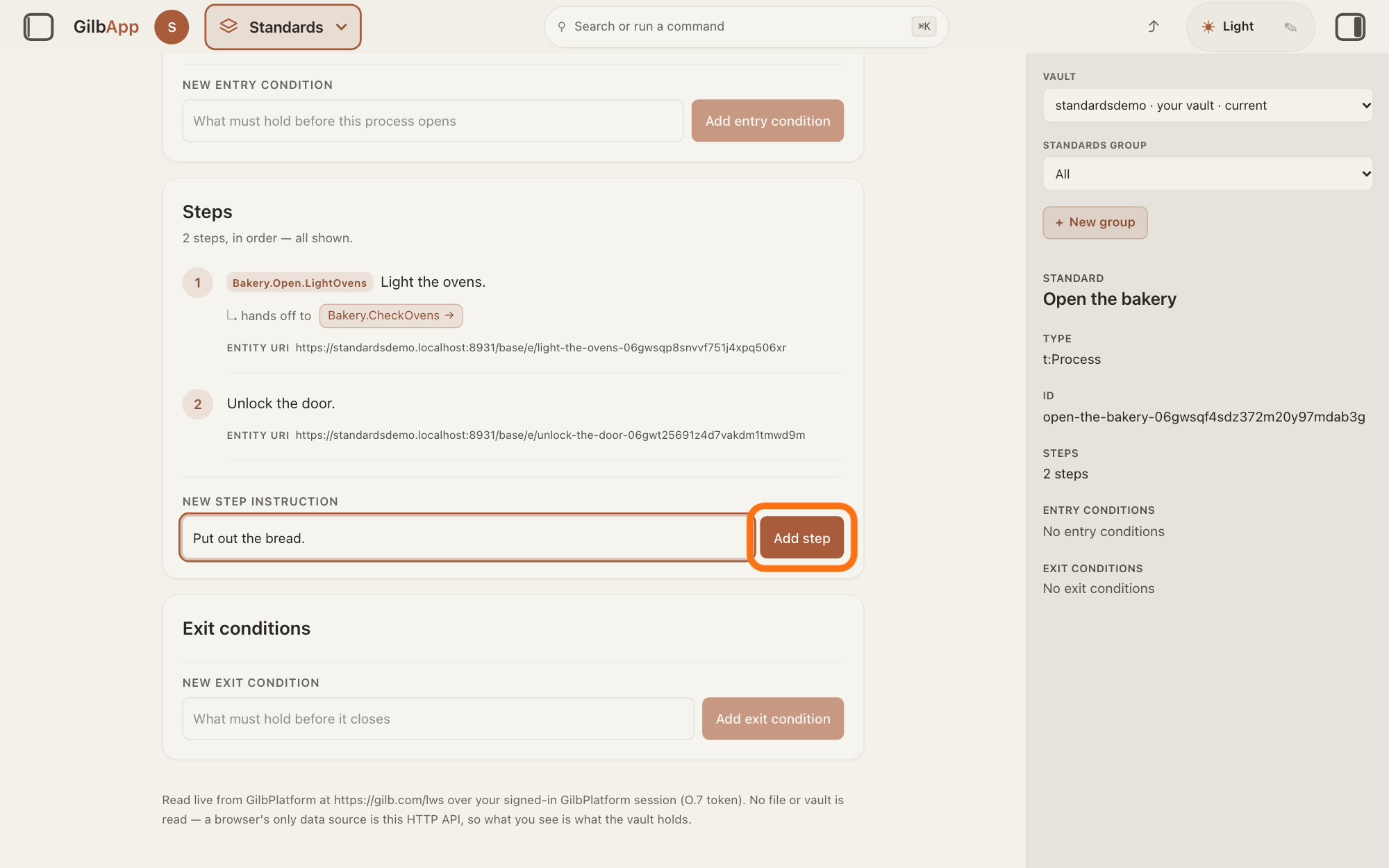
Type a step in What the follower does at this step and press Add step.
Under NEW STEP INSTRUCTION, type the new step in the box that shows What the follower does at this step, such as Put out the bread., and press Add step. The step is added at the end of the list and opens in Edit step on the right.
Show as text
In the card "Steps", two steps are listed: 1 Light the ovens. and 2 Unlock the door. Under "NEW STEP INSTRUCTION" the box holds Put out the bread., and the outlined button "Add step" is to its right. Press it.
More about this
Return in the box does the same as the button, which reads Adding… while it works. Other kinds have their own box and button, such as NEW RULE, What this rule requires and Add Rule on a rule document, or NEW QUESTION and Add question on a checklist. If GilbApp cannot add it, a red box above the standard says The step could not be added. and why. If the right pane is hidden, press the square button at the far right of the top bar.
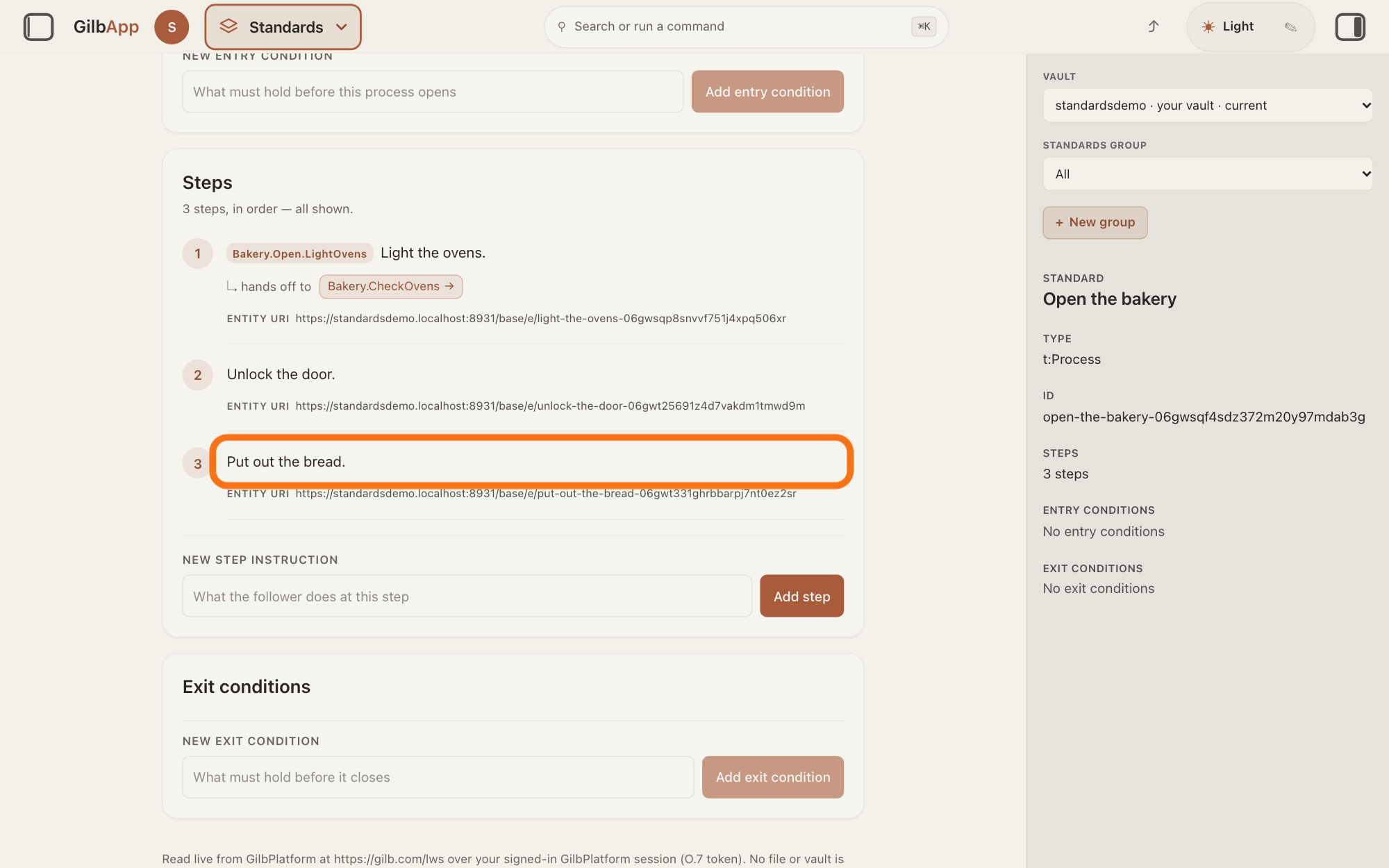
Press the text of the step you want to change.
Click the text of the step you want to change. The right pane shows Edit step with the step's TITLE, TAG, ENTITY URI (its address), TEXT and, under HANDS OFF TO, its links, or No hands-off links..
Show as text
The card "Steps" now reads "3 steps, in order — all shown." The text of step 3, Put out the bread., is outlined. Press the text of the step you want to change to open it on the right.
More about this
On another kind of standard the pane names its unit, such as Edit rule. Copy under ENTITY URI copies the address. HANDS OFF TO and the boxes under it link the step to another standard; the answer on linking standards with hand-offs shows how. ✕ or Cancel closes the pane without saving.
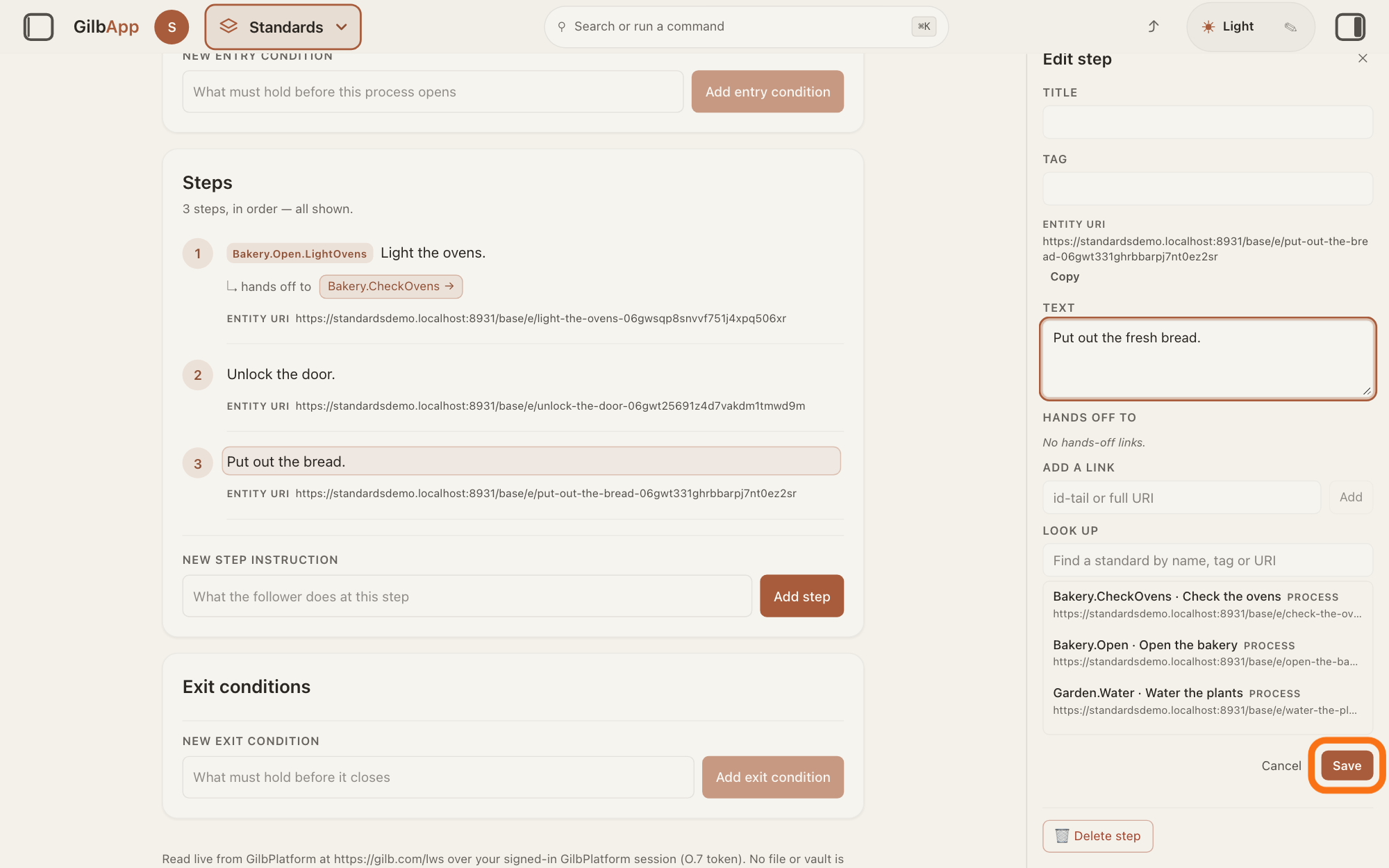
Type your change in TEXT and press Save.
Change the words in TEXT, and press Save at the foot of the pane. GilbApp saves the step and closes the pane.
Show as text
On the right, the pane "Edit step" shows the changed wording Put out the fresh bread. in the box under "TEXT". The card still shows the old text. At the foot, the outlined button "Save" is next to "Cancel". Press "Save".
More about this
The button reads Saving… while it works; if GilbApp cannot save, the pane stays open and says why. TITLE holds a short name shown in bold above the step's text. TAG holds the step's tag, its short fixed name, unique in the vault: the standard's tag, a dot and one keyword, such as Bakery.Open.Bread. A saved tag cannot be typed over: Clear tag empties it, and after Save you may type another.
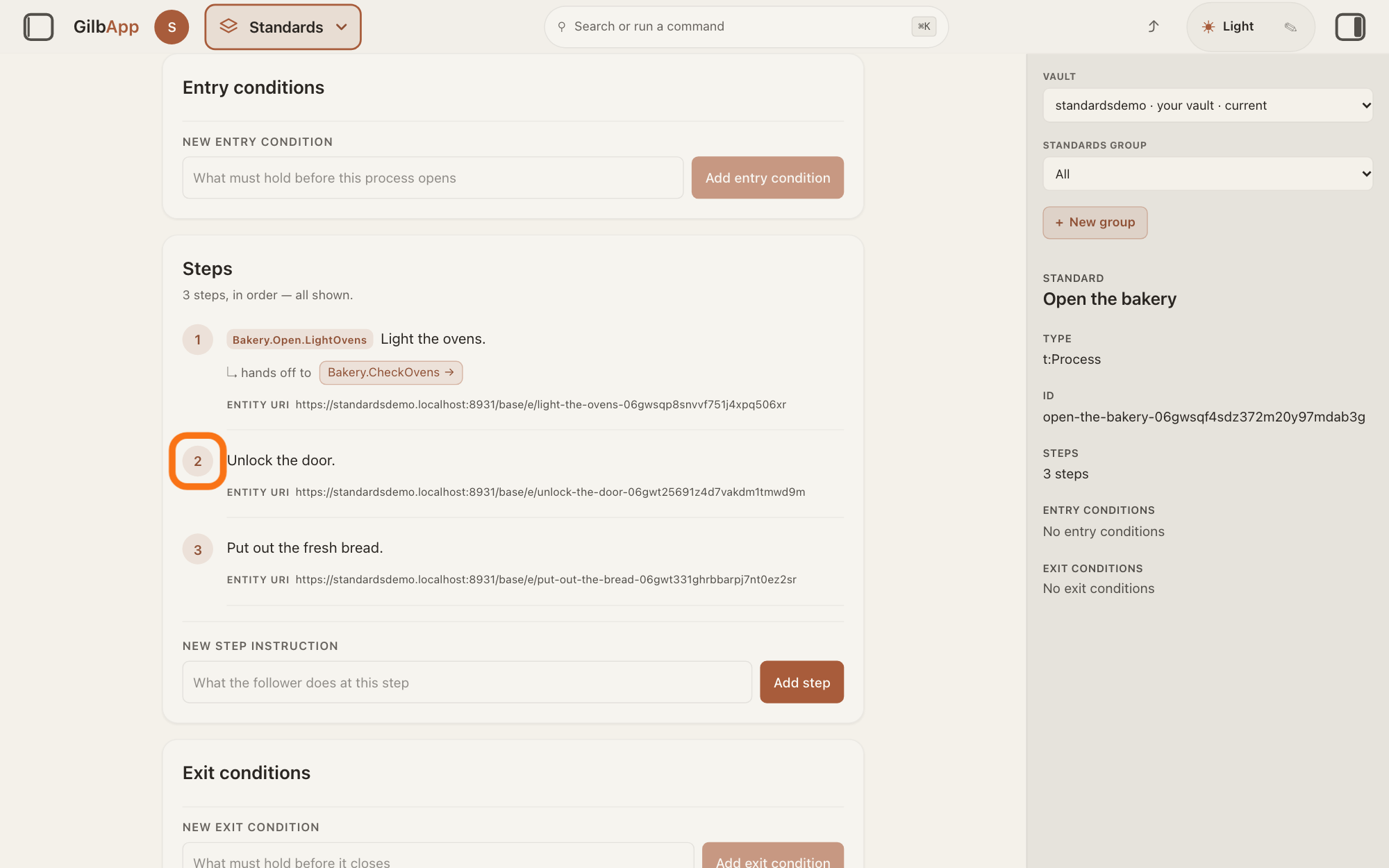
Drag a step by its number to its new place.
Drag a step by its round number, at the left of its row, up or down, and let go where it should be. GilbApp saves the new order at once and numbers the steps 1, 2, 3 and on again.
Show as text
In the card "Steps", the round number 2 at the left of Unlock the door. is outlined. Press and hold that number, drag it above step 1, and let go. The steps are numbered again in their new order.
More about this
While it saves, the numbers are greyed and cannot be dragged. If GilbApp cannot save the order, a red box above the standard says why. Rules and the other units move the same way, by their number.
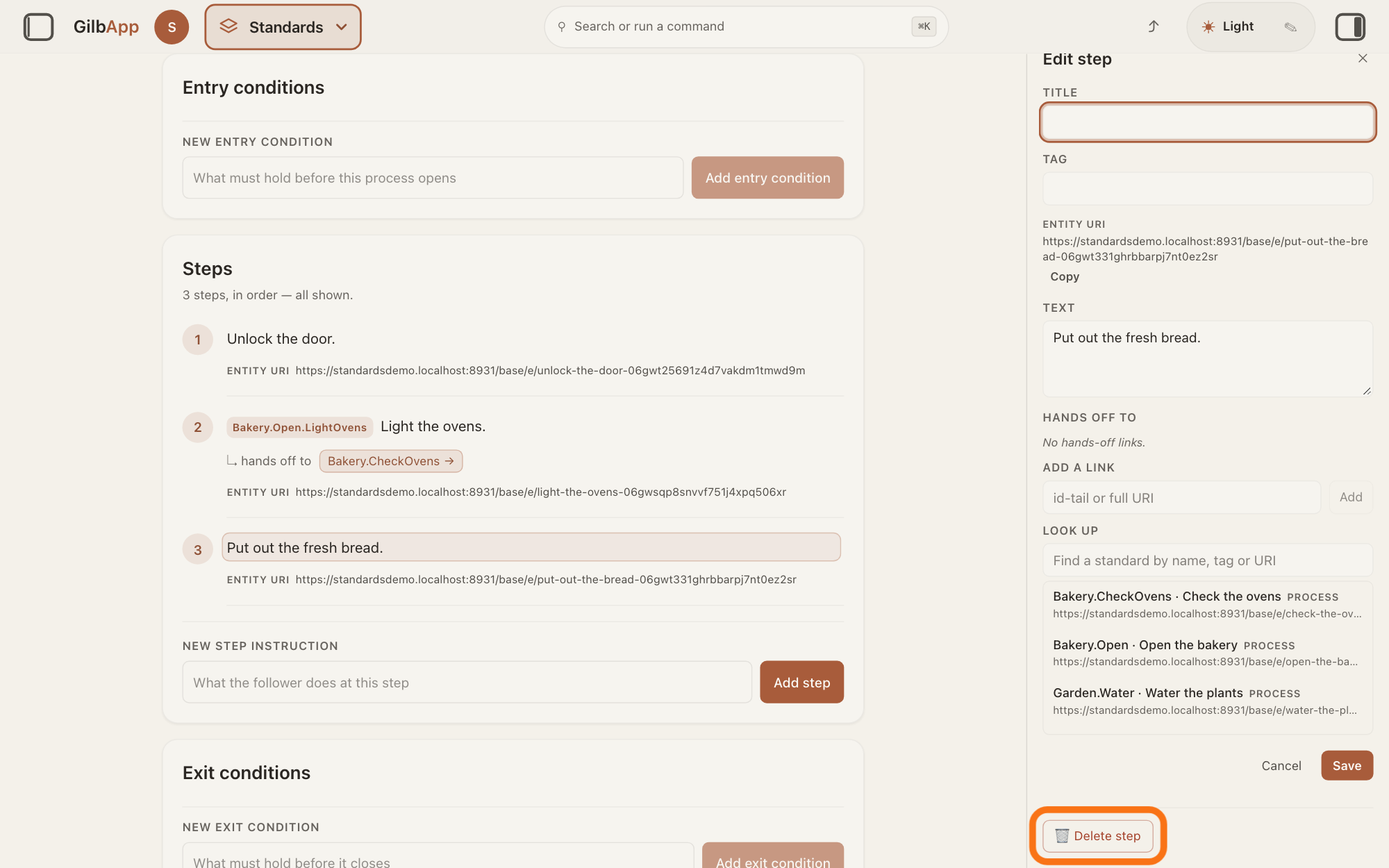
Press 🗑 Delete step in the step's pane.
Click the text of the step you want to delete, and in its pane press 🗑 Delete step at the foot. Nothing is removed yet: GilbApp first asks Delete with the step's text and ?.
Show as text
The steps now read 1 Unlock the door., 2 Light the ovens., 3 Put out the fresh bread. Step 3 is chosen and its pane "Edit step" is open. At the foot of the pane, the outlined button "Delete step" with the bin sign is shown. Press it.
More about this
The question also says "Only this step is removed. The process is not deleted and no other step is touched." Keep step closes the question and removes nothing. On a rule document the button reads 🗑 Delete rule.
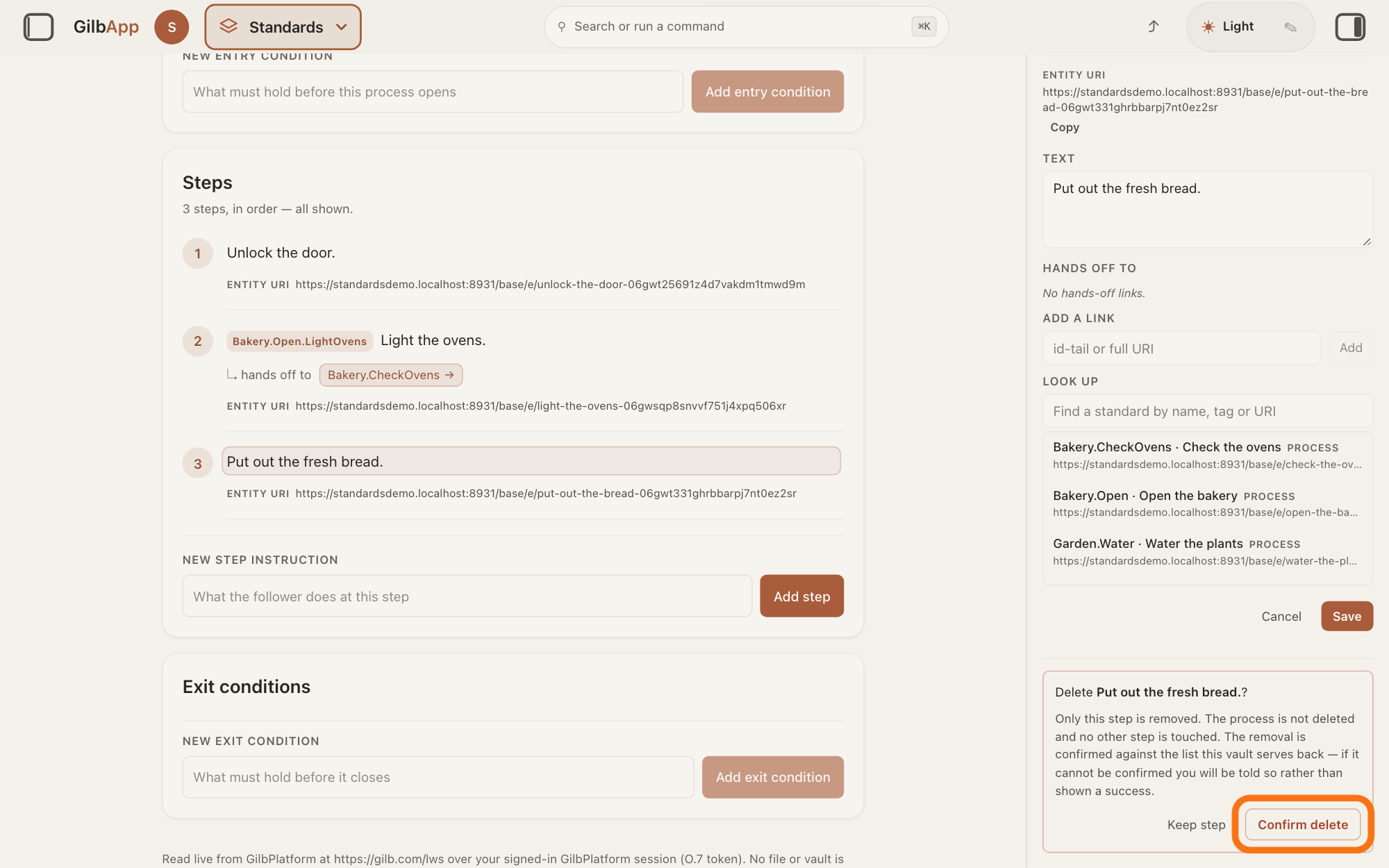
Press Confirm delete.
Press Confirm delete. It reads Deleting… while it works; then the pane closes and the step is gone from the list.
Show as text
Lower in the right pane a box asks "Delete Put out the fresh bread.?" and says only this step is removed. The outlined button "Confirm delete" is next to "Keep step". Press "Confirm delete".
More about this
If GilbApp cannot confirm the removal, the pane stays open and says why. GilbApp has no button to bring a deleted step back; to have it again, add it again.
Deeper
Also asked:
How do I change or delete my own agent? Your own agent is a procedure: open it under Standards, Procedures and change its steps as shown here; Rename procedure changes its name. To delete the whole agent, press 🗑 Delete procedure and Confirm delete.
GilbApp names the units of each kind of standard: steps on a process and a procedure, rules on a rule document, questions on a checklist, statements on a policy, specimens on a template, exhibits on a reference document and Lookup-Values on a lookup table. Each kind adds, changes, moves and deletes them the same way as steps.
Only someone who may write in the vault the standard is kept in can add, change, move or delete its units; GilbPlatform refuses anyone else. In GilbApp today the boxes and buttons show to everyone who can open the standard, so a person who may only read sees the refusal only after trying. In the Kai-Zen method an agent changes a standard only with the go of a person who may write in the vault the standard is kept in.
A standard's entry and exit conditions are added, changed and deleted in their own cards; the answer on writing entry and exit conditions shows how. Rename process, on the standard's own card, changes its name.
This answer is written for a computer screen. In a window narrower than 840 pixels, such as a phone, the side panes are hidden and the right pane is Detail in the bar at the bottom.
Source: GilbApp af0f04ee (https://gilb.com/app/version.json read 2026-11-10), code read: step 1; step 2 StandardsSection.tsx:427-448, ProcessViewer.tsx:168-361 (unit names per kind); step 3 ProcessViewer.tsx:168-206, :236-249 (New step instruction, Add step, What the follower does at this step; New Rule, Add Rule, What this rule requires; New question, Add question), :1652-1723 (labels uppercase; Return submits; Adding…), lib/base/processTypes.ts:1565-1578 (a new step at the end), StandardsSection.tsx:1104-1121 + ShellContext.ts:539-552 (the new step opens in the right pane), StandardsSection.tsx:369-392 (The step could not be added.); step 4 ProcessViewer.tsx:1295-1309 (the step's text is a button that opens the edit pane), StepEditPane.tsx:207-245 (Edit {unit}, ✕ (aria Close edit pane), Title uppercase), :255-290 (Tag, read-only once assigned, Clear tag), :397-406 + UnitIdentity.tsx:133-149 (Entity URI, Copy), :408-424 (Text), :433-447 (hands-off part); step 5 StepEditPane.tsx:157-173, :449-472 (Cancel, Save/Saving…, error in the pane), regions/RightRegion.tsx:277-283 (onSaved closes the pane); step 6 ProcessViewer.tsx:1273-1293 (the round number is the drag handle, greyed while pending), :1855-1910 (pointer drag, drop writes), :2135-2146, StandardsSection.tsx:935-949, :982-989 (reorder errors above), processTypes.ts:1481-1491 (dense 1..n after a move); step 7 StepEditPane.tsx:481-541 (🗑 Delete {unit}, question Delete <text>?, "Only this {unit} is removed. The {document} is not deleted and no other {unit} is touched.", Keep {unit}), standardsFamilies.ts:214-216, :315-316 (unit and document nouns); step 8 StepEditPane.tsx:517-524 (Confirm delete/Deleting…), :184-196 (closes on success, stays with the reason on failure), lib/base/processHooks.ts:1523-1620 (confirmed against the served list). Deeper: ProcessViewer.tsx:168-361; StandardsSection.tsx:1079-1091 (no client write check); StandardsDocumentActions.tsx:280-284. GilbPlatform 4d008a55: src/lws/routes.ts:815-853 (create), :1026-1066 (PATCH, write-gated), :1076-1100 (DELETE, write-gated). Standards (2026-11-10, 200): GilbPlatform.StandardRules.Owner, .Tag; GilbPlatform.ChangeStandard.Go. GilbApp 49467c2b (https://gilb.com/app/version.json, read 14 November 2026): src/lib/base/standardsFamilies.ts:689 (documentLabel procedure), src/components/process/StandardsDocumentActions.tsx:181, :247, :287 (Delete, Confirm delete, Rename). Live help pages: How do I make my own agent?; How do I delete a standards document?
Checked against GilbApp d529620.