
← What is the difference between …?
How do I attach a file to a record?
Short answer
In Records, search and select the record, press + Attach file under ATTACHMENTS, and choose the file in your computer's window.
Before you start
You need to be signed in to GilbApp on a computer, with the record in a vault you can write to, and the file on your computer. The pictures show a made-up person on a test site; your screen shows your own name and address.
Words used here (3)
- record
- A record is one piece of data with its own address, such as a person, a place, a thing or a note.
- GilbApp
- GilbApp is the app, opened in a web browser at https://gilb.com/app, where you open, fill and share your vaults.
- field
- A field is one named fact on a record, such as its title or a due date; its name comes from GilbVeda.
Steps
Press Main menu at the top left and choose Records.
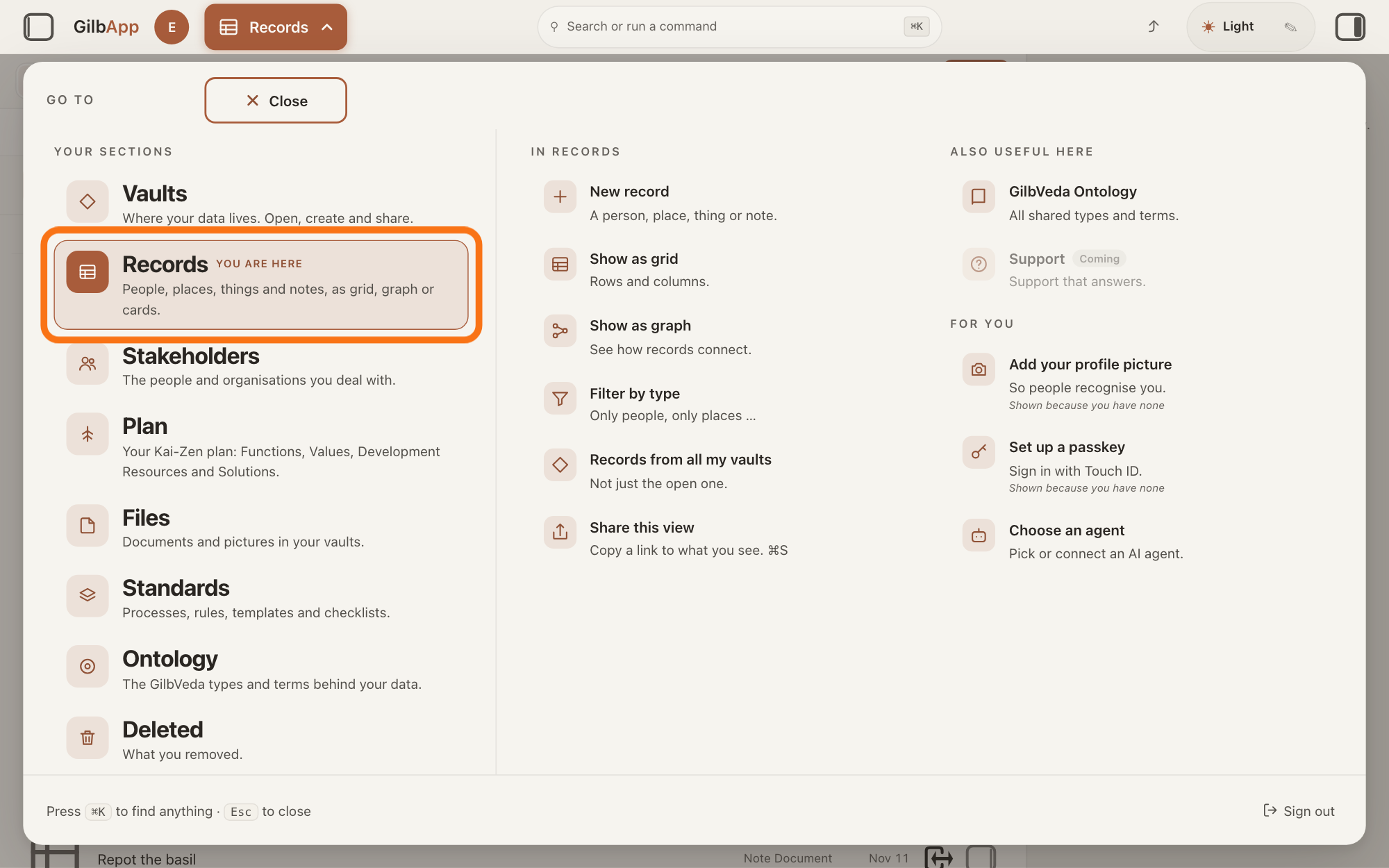
Press Main menu, next to your profile picture at the top left, and under YOUR SECTIONS choose Records. The button shows the name of the section you are in, such as Vaults.
Show as text
At the top left, the button with the section name is pressed and the panel headed "GO TO" covers the screen. In the left column under "YOUR SECTIONS", the outlined row reads "Records" with "People, places, things and notes, as grid, graph or cards." under it. It carries "YOU ARE HERE" because the Records screen is already open behind the panel. Click that row.
More about this
A panel headed GO TO opens; Records reads People, places, things and notes, as grid, graph or cards. A record is one piece of data with its own address, such as a person, a place, a thing or a note. Records shows the vault you picked in Vaults, or your own vault if you picked none; a vault is the place where a person or a group keeps their records. You can also press Records on a vault's card in Vaults.
Search and select the record in the list.
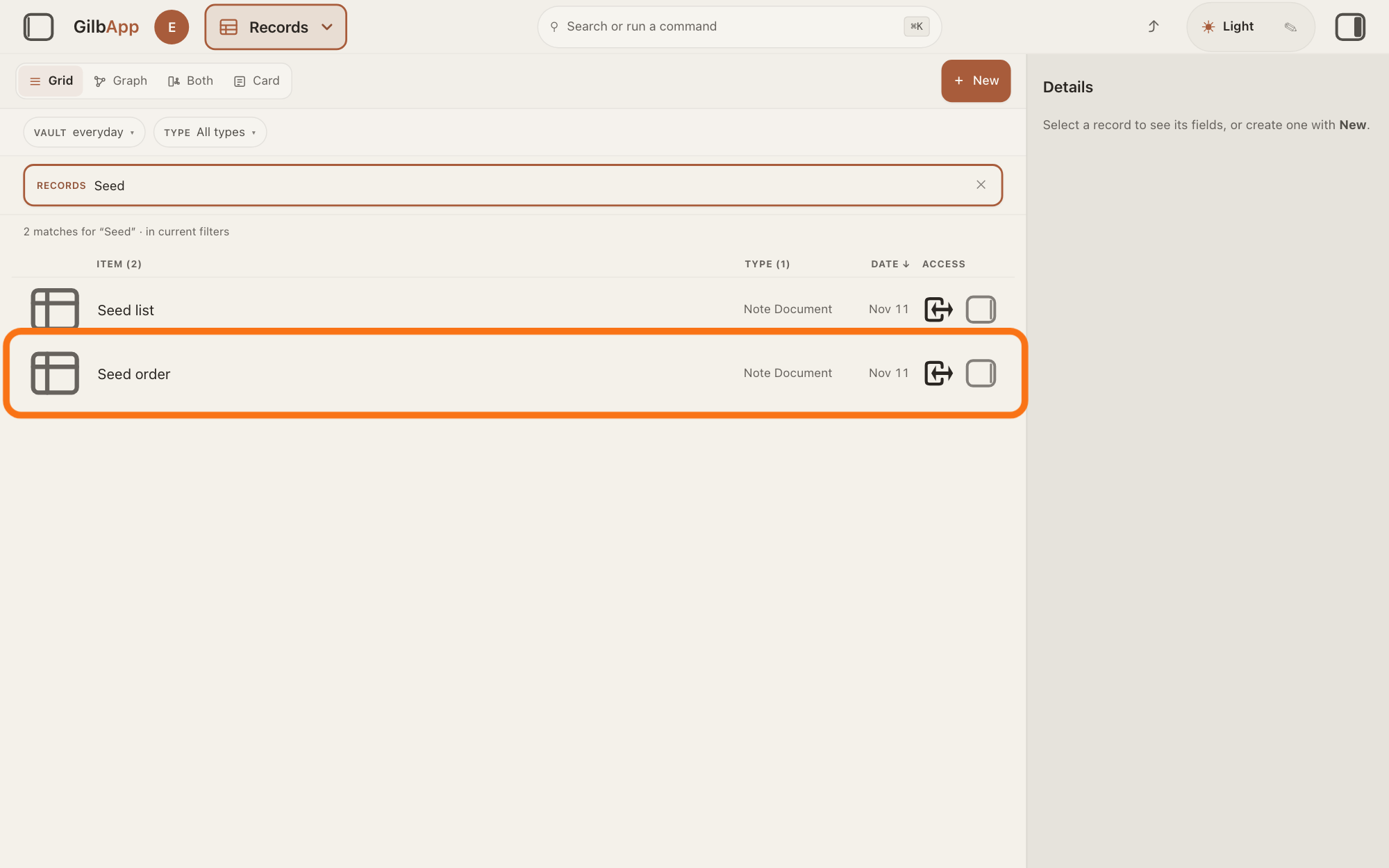
Type a word of the record's name in the search box marked RECORDS above the list, and click the record in the list. The record opens in the middle of the screen with its fields, and the right pane, headed Actions, holds what you can do with it.
Show as text
In the middle, "Seed" is typed in the search box marked "RECORDS". The line under it reads "2 matches for "Seed" · in current filters". The outlined row is the note Seed order. Click the row of the record you want.
More about this
With only a few records you can click the row without searching. The answer on finding a record explains the search, and the answer on sorting and filtering the list explains how to order and narrow the list.
Press + Attach file under ATTACHMENTS.
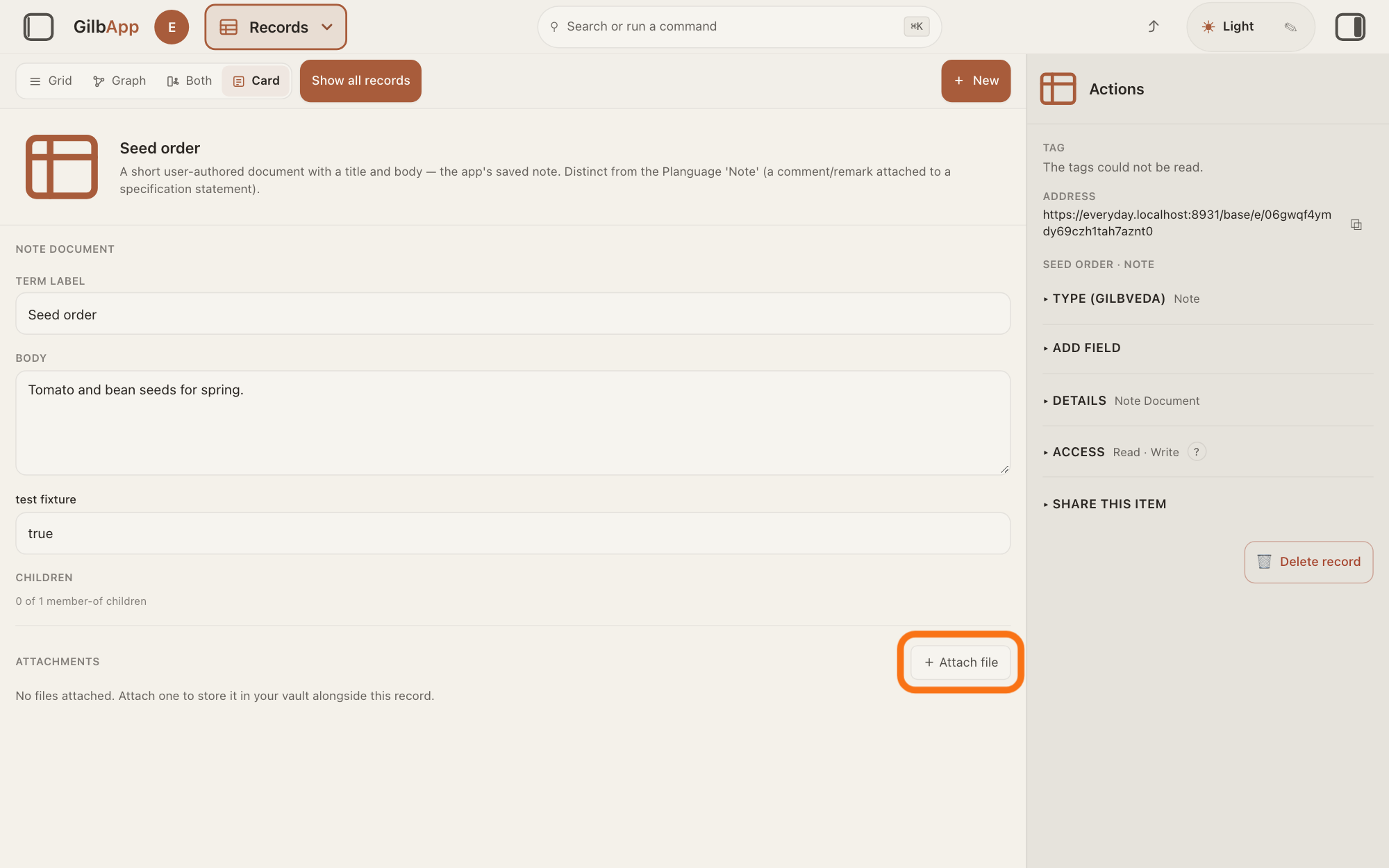
Scroll down the record to ATTACHMENTS and press + Attach file at its right. Your computer's window for choosing files opens.
Show as text
The note is open in the middle. Near the bottom, at the right end of the line "ATTACHMENTS", the outlined button reads "+ Attach file". Under it: "No files attached. Attach one to store it in your vault alongside this record." Click "+ Attach file".
More about this
The rest of the card is the record's own fields; the answer on editing a record explains them. Until a file is attached the section says No files attached. Attach one to store it in your vault alongside this record. The button is there only if you can write to the record's vault; if you can only read it, the files are listed and can be downloaded, but none can be attached. On a person's or an organisation's card, press Edit on the card first; if Attachments is not on it, press + Add Information and choose Attachments.
Choose the file in the window your computer opens.
Select the file in that window and confirm it there; you can select several files at once. GilbApp uploads them one after the other, and the button reads Uploading… meanwhile.
More about this
Each file then shows under ATTACHMENTS with 📎, its name and its size, and the number beside ATTACHMENTS counts the files. If a file does not land, the section says Couldn't upload with the file's name, then — try again.; the other files are still sent. GilbApp checks neither the size nor the kind of a file before it sends it. On each file's row, ⤓ downloads it and 🗑, shown when the pointer rests on the row, removes it; the answer on downloading or removing a file explains both. The window that chooses files is your computer's own, so it looks different on a Mac and on Windows.
Deeper
Also asked:
How do I put a picture on a record? Attach it as a file, as the steps show; it is then listed under ATTACHMENTS. Records has no button that makes a picture a record's own picture; Add picture is only on a GilbVeda type or a species in Ontology.
What is the difference between a record and a file? A record is one piece of data with its own address and fields, such as a person or a note. A file is a document or picture from your computer, kept as you sent it; it belongs to a record or sits in the vault on its own, with a record that describes it.
An attached file is stored in the record's vault and belongs to that record: it is listed on the record, and in Files with Attached to a record. GilbApp keeps the file as it was when you attached it; if you change it on your computer, attach it again.
A file can also go into the vault on its own, attached to no record. In Files, press + New and choose the file in your computer's window: Upload files into the vault, as its hover text says. Or in Records, press + New and choose Upload a file (Put a file from this device into the vault.): drop files on Drag files here, or use the button under or. Such a file reads Registered file in Files and in the TYPE column of Records. With a virtual folder, a view that groups records and files without moving them, selected, the same card reads Upload a file into the folder.
This answer is written for a computer screen.
Checked against GilbApp d529620.