
How do I browse GilbVeda's types?
Short answer
Press Main menu, choose Ontology, choose a row in TYPES, FUNCTIONS or VALUES, and choose a row under it to go one level down.
Before you start
You need to be signed in to GilbApp on a computer; without an account you can read GilbVeda too (Deeper). The pictures show a made-up person on a test site; your screen shows your own name and address.
Words used here (3)
- GilbApp
- GilbApp is the app, opened in a web browser at https://gilb.com/app, where you open, fill and share your vaults.
- Actual
- An Actual is how far a delivered step or Solution was measured to move a Value, or how much of a Development Resource it used.
- record
- A record is one piece of data with its own address, such as a person, a place, a thing or a note.
Steps
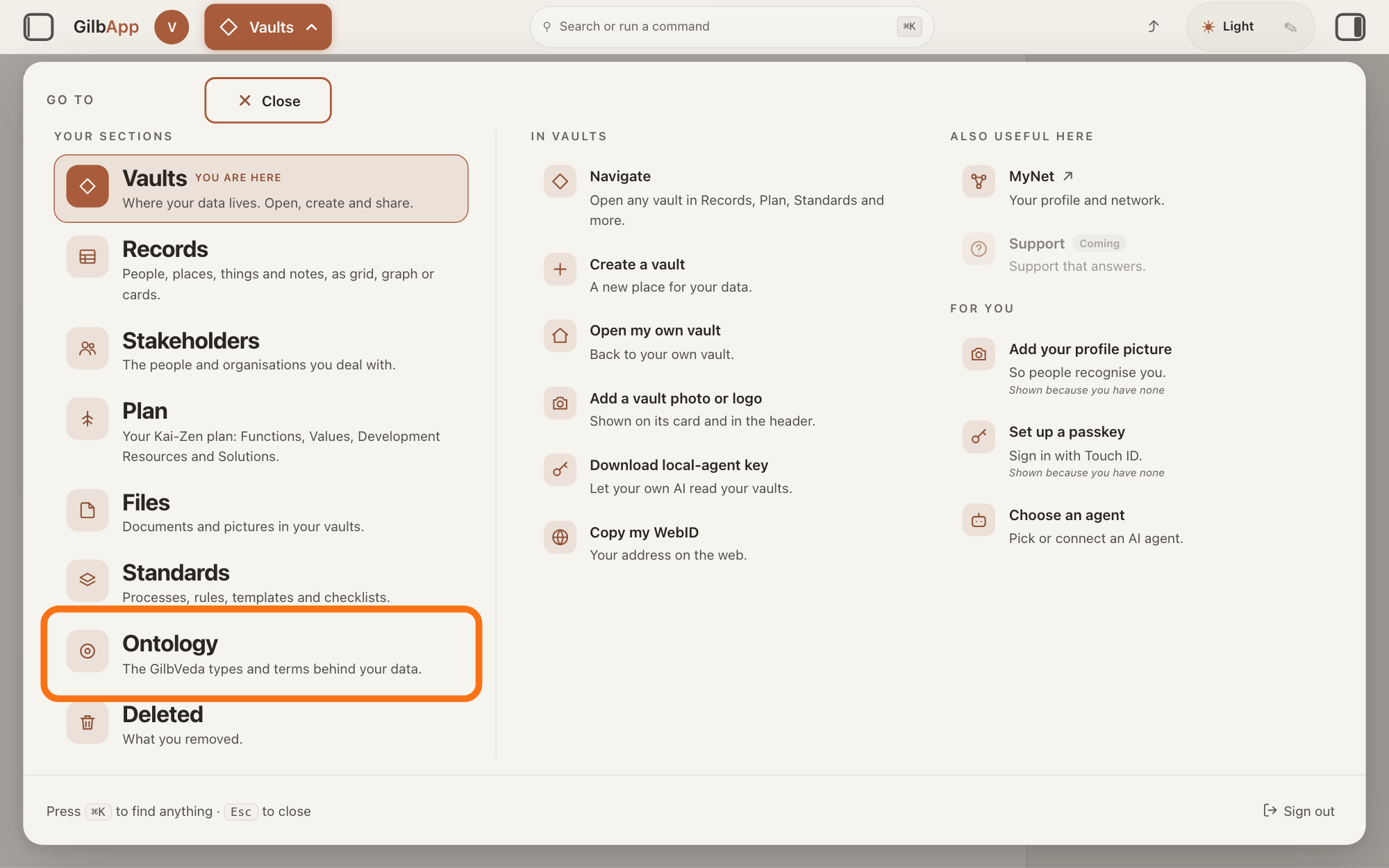
Press Main menu at the top left and choose Ontology.
Press Main menu, next to your profile picture at the top left, and under YOUR SECTIONS choose Ontology. The button shows the name of the section you are in, such as Vaults.
Show as text
The panel headed "GO TO" is open over the window. In the left column under "YOUR SECTIONS", near the bottom, the outlined row reads "Ontology" and "The GilbVeda types and terms behind your data." Click it to open the Ontology screen.
More about this
A panel headed GO TO opens; Ontology reads The GilbVeda types and terms behind your data. It always opens on GilbVeda, the shared list of terms: the button at the top left of the screen reads GilbVeda Ontology, the cursor is in the box marked CONCEPTS, and below are three columns, TYPES, FUNCTIONS and VALUES. A type is a kind of thing; a Function is what a system does, written as an action; a Value is a perceived benefit, measured as a number. A term is the shared name GilbVeda keeps for a kind of thing, a detail of it, a link between two things, or a species. The right pane says No concept selected. Resting the pointer on Ontology in the panel shows more choices under IN ONTOLOGY; you need none of them here.
Choose a row in TYPES, FUNCTIONS or VALUES.
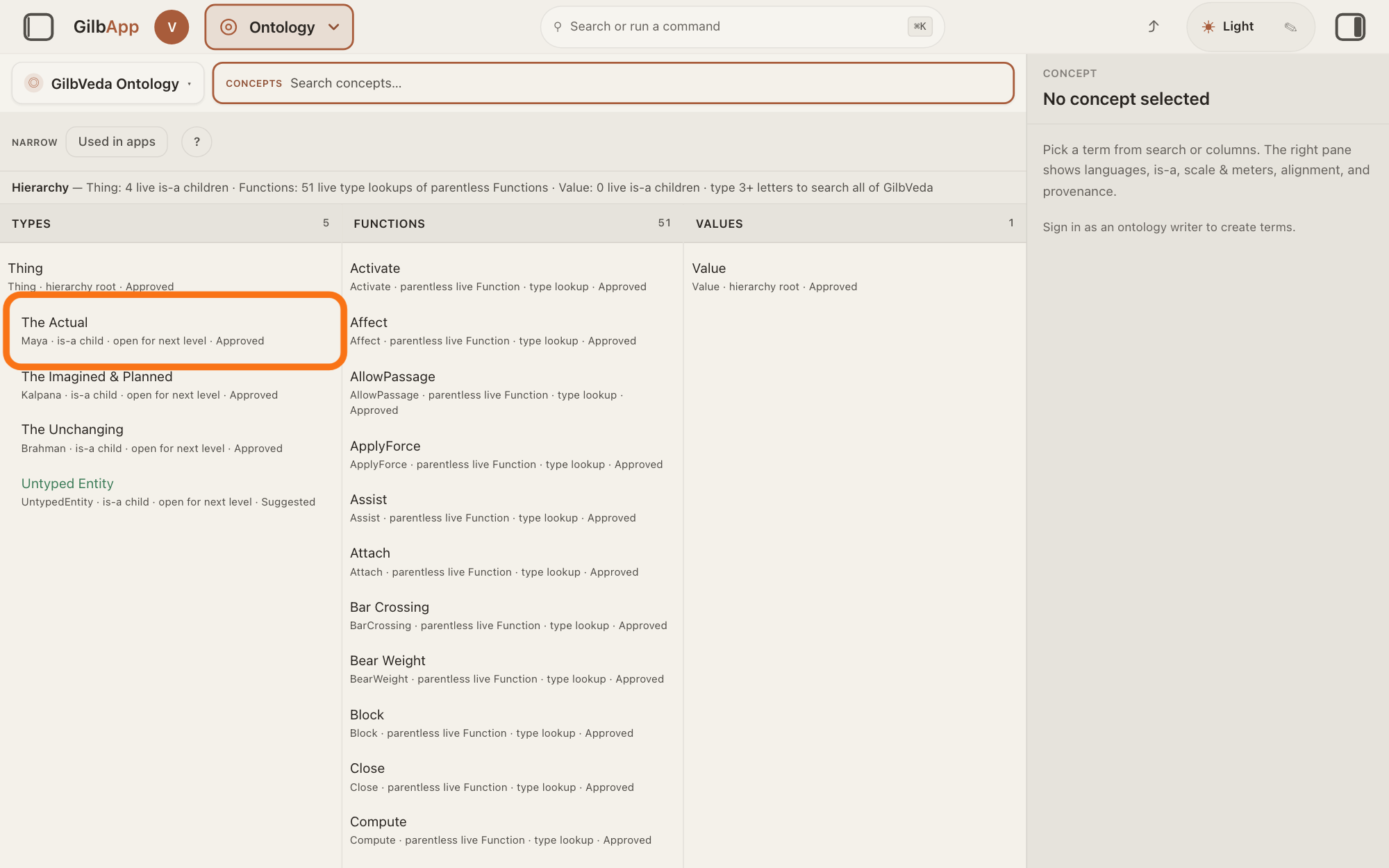
Click a row, such as The Actual under TYPES. The columns then show that term and the terms linked to it, and the right pane shows the term's details.
Show as text
The Ontology screen shows three columns, "TYPES", "FUNCTIONS" and "VALUES", at the first level. In "TYPES", under "Thing", the outlined row reads "The Actual" and "Maya · is-a child · open for next level · Approved". Click it to go one level down.
More about this
At first each column shows the top of its tree: TYPES starts with Thing, the root every type sits under, then its kinds, such as The Unchanging, The Imagined & Planned and The Actual; FUNCTIONS lists functions with no parent; VALUES starts with Value. Under each name a small line gives its technical name, its place, such as hierarchy root, the top, or is-a child · open for next level, a kind of the row above with kinds of its own, and its status, such as Approved. The number beside a column's heading counts its rows. The line above the columns begins Hierarchy and ends type 3+ letters to search all of GilbVeda; the answer on finding a term shows the search.
Choose a row under it to go one level down.
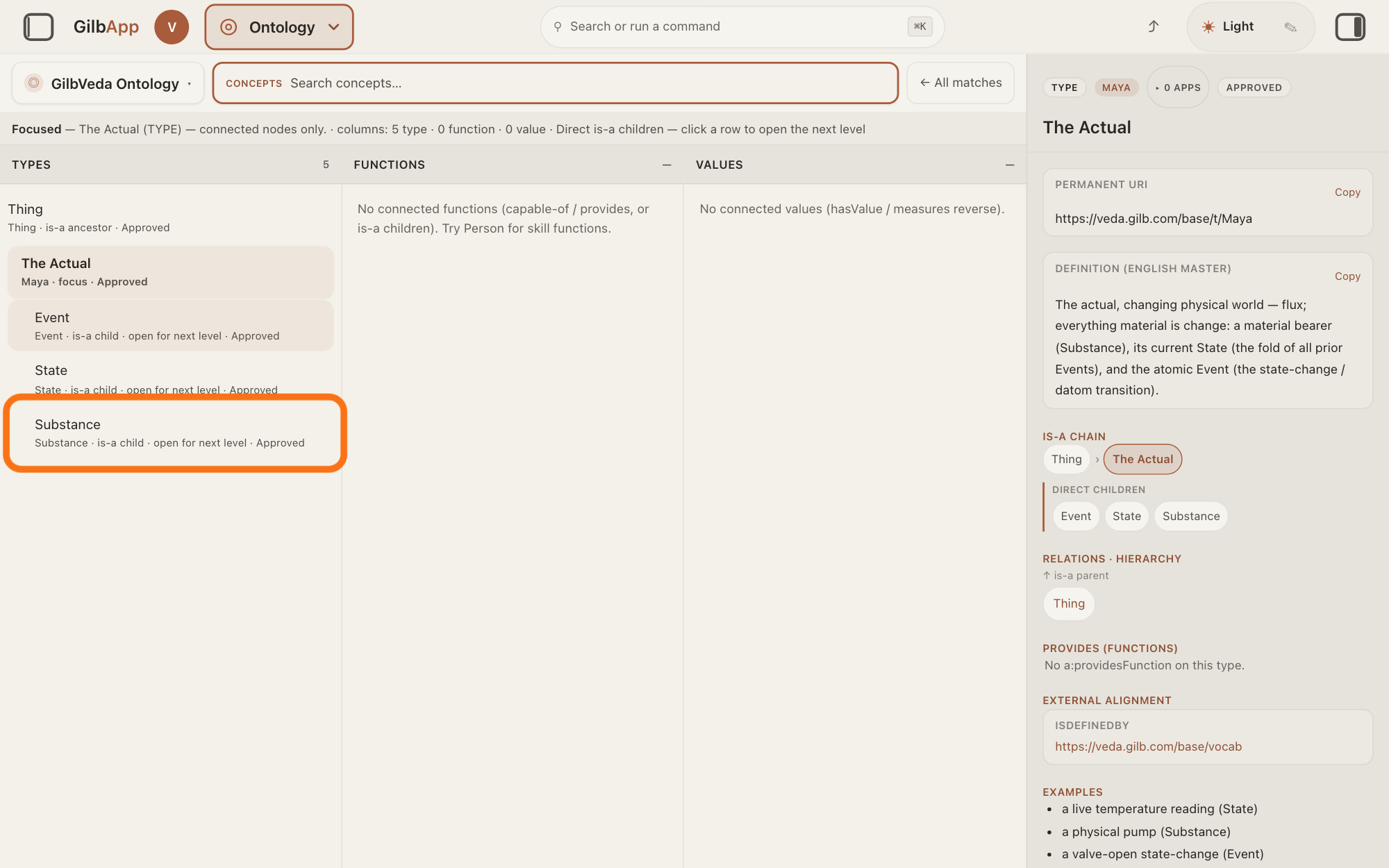
In the chosen term's column, the rows above it are the terms it is a kind of, marked is-a ancestor, and the rows below it are its own kinds, marked is-a child; open for next level means a row has kinds of its own. Click one to choose it in turn, or a row above to go back up.
Show as text
The line above the columns starts "Focused — The Actual (TYPE)". In "TYPES", the kinds of The Actual are listed under it: "Event", "State" and the outlined "Substance". Click "Substance" to go one level further down.
More about this
The line above the columns then begins Focused and names the term and its kind, such as The Actual (TYPE) — connected nodes only.. The other columns show terms linked to it: for a type, the functions it can do, marked capable / provides, and the values that measure it, marked has value. Click any row to move there. A grey row that cannot be clicked names a reference GilbVeda has no published term for.
Press ← All matches to leave the chosen term.
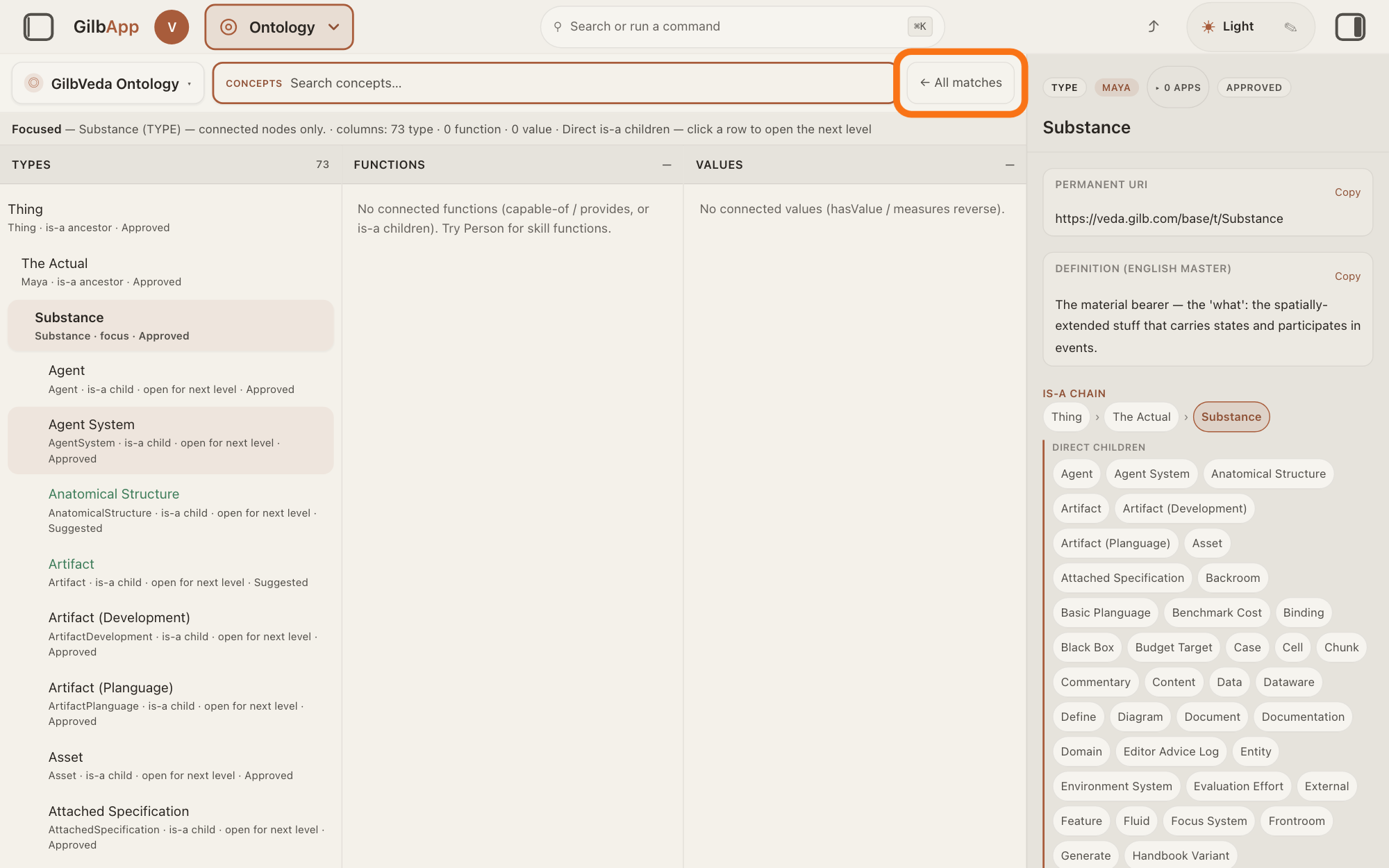
Press ← All matches at the right of the box marked CONCEPTS. With nothing typed in the box, the columns show the first level again.
Show as text
"Substance" is chosen, its kinds fill "TYPES" and the pane on the right shows "Substance". At the right of the box marked "CONCEPTS", the outlined button reads "← All matches". Press it to go back to the first level.
More about this
It shows only while a term is chosen; with a search typed in the box, it brings back the matches. Pressing the heading FUNCTIONS also clears the box and the chosen term and shows the first level.
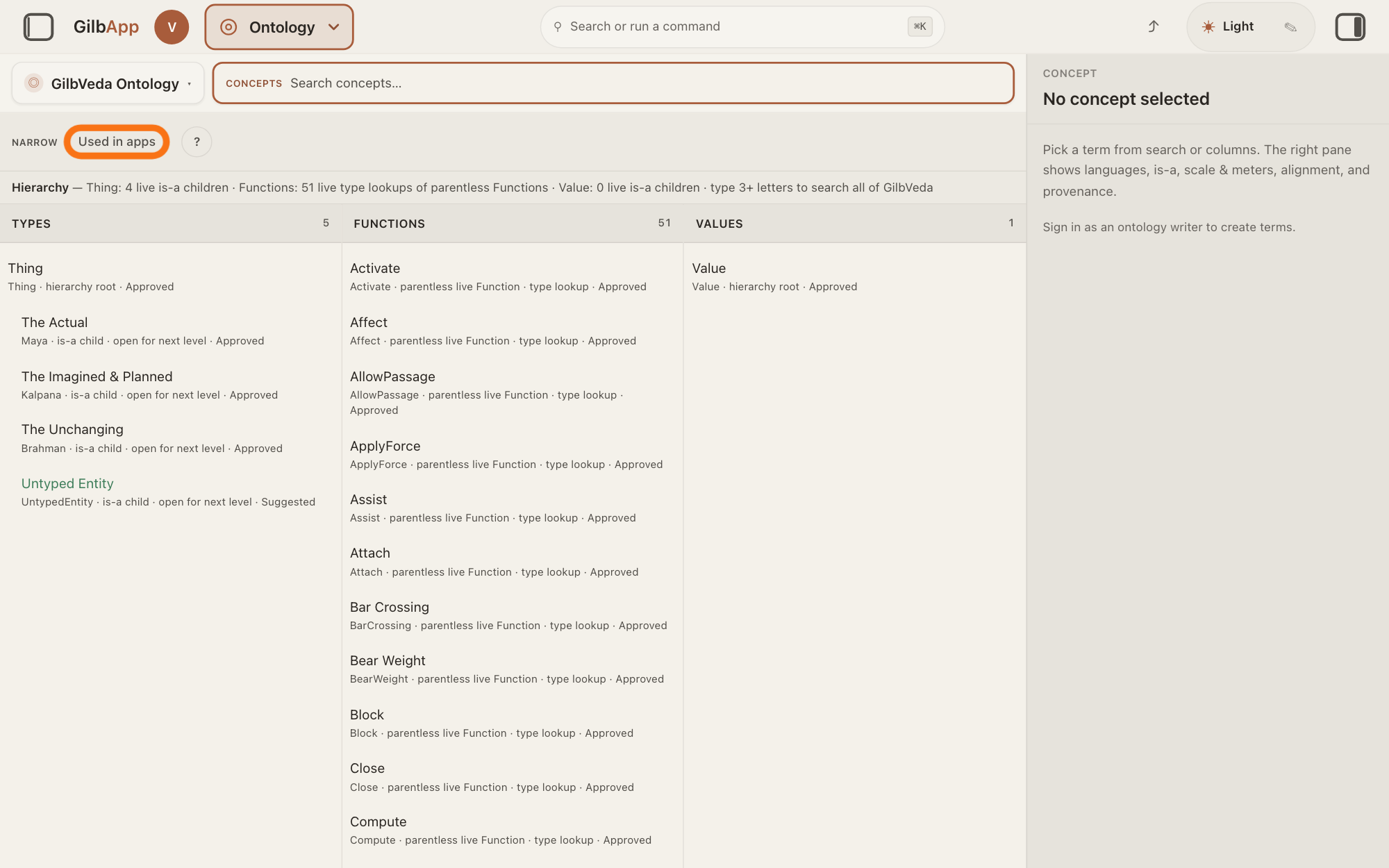
To list only terms apps use, press Used in apps.
Press Used in apps in the bar marked NARROW above the columns; press it again to list all. It keeps only terms an app has recorded that it uses.
Show as text
The columns are back at the first level and the pane reads "No concept selected". Under the box marked "CONCEPTS", in the bar "NARROW", the outlined switch reads "Used in apps". Press it to list only terms that apps use.
More about this
A term an app uses without a record of it is hidden too. A line under the bar says how many terms it hides, or Hiding nothing on this list.; if the records cannot be read, it says so and hides nothing. A column it empties says Nothing here matches the filter — hidden by a filter, not absent. Clear turns the filter off, and ? shows what each filter means. The bar is hidden while a term is chosen. The answer on seeing where a term is used says more about apps.
Deeper
Without an account, open https://gilb.com/app/?section=ontology in your browser: the same screen opens, read only, with no Main menu. The left pane says "You are reading GilbVeda Ontology, a public vault. Nothing here can be changed without signing in.", and the top of the right pane says Public, read-only. Sign in to change anything.; Sign in in either place opens the sign-in card. Steps 2 to 5 are the same.
Signed in, the button GilbVeda Ontology at the top left also opens the tree of life, life.gilb.com; the answer on browsing the tree of life (species) shows it. Without an account the tree opens only by its own address (the answer on browsing the tree of life (species) gives it).
The answer on reading a term's details and history shows the right pane. GilbApp lets you read GilbVeda here, not change it: unless your account may write to GilbVeda, the right pane says Sign in as an ontology writer to create terms. while no term is chosen. The answer on suggesting a new term shows how to have one made.
The line above the columns also counts what each column loaded; you need not read it. If a column could not be loaded, it says This hop failed — an honest empty, not a reading of the index.
This answer is written for a computer screen. In a window narrower than 840 pixels, such as a phone, the side panes are hidden and the right pane is Detail in the bar at the bottom; in a window narrower than 768 pixels the three columns also stand one under another.
Source: GilbApp ebd9415e (https://gilb.com/app/version.json read 2026-11-11; Ontology files identical to af0f04ee, unchanged between the two builds), code read. Step 1: shell/gilbAppMenuRows.ts:234-253 (Ontology, description, options Life, GilbVeda Ontology, Search Life, Find a type or term); section-menu package 0.2.4 SectionMenu.tsx:82-94 (Go to, Your sections, In <section>, drawn uppercase); OntologySection.tsx:48 and treeVaults.ts:13-18 (GilbVeda Ontology), :181-184 (cursor in the box on entry), :795-807 (Concepts uppercase, Search concepts…), :917-979 (columns Types, Functions, Values, uppercase in OntologyFacetColumn.tsx:97-111); OntologyConceptPane.tsx:915-929 (Concept, No concept selected). Step 2: ontologyBrowse.ts:795-860 (loadOntologyTopLevel: Thing children, parentless Functions, Value children; roles hierarchy root, is-a child · open for next level; note ... · type 3+ letters to search all of GilbVeda); OntologyFacetColumn.tsx:113-115 (count), :146-153 (sub-line: technical name · role · status); OntologySection.tsx:612-670 (banner phase Hierarchy); GilbVeda copy: Thing's kinds The Unchanging, The Imagined & Planned, The Actual, Untyped Entity. Step 3: ontologyBrowse.ts:1425-1660 (focus: focus, is-a ancestor, is-a child · open for next level, capable / provides, has value); OntologySection.tsx:636-654 (<label> (<KIND>) — connected nodes only.), ontologyBrowse.ts:311-315 (kindBadge TYPE/FUNCTION/VALUE); OntologyFacetColumn.tsx:155-169 (unresolved row, not a button). Step 4: OntologySection.tsx:826-834 (← All matches only in focus), :745-758 (clearFocus; FUNCTIONS header showFunctionRoots), OntologyFacetColumn.tsx:99-107. Step 5: OntologyNarrowingBar.tsx:107-199 (Narrow uppercase, toggle, Clear when active), :201-234 (? help), :260-275 (Hiding N terms (...) / Hiding nothing on this list.); ontologyNarrowing.ts:358-398 (Used in apps, declared use only, fail open with could not read the usage records — nothing has been hidden), :508-519 (Lifecycle search only); OntologyFacetColumn.tsx:121-127 (empty-column sentences); OntologySection.tsx:850 (bar hidden in focus). Deeper: AppShell.tsx at ebd9415e :715-739 (signed-out ?section=ontology opens GilbVeda read-only), :1919-1936 (left PublicLeftRegion, pane OntologyConceptPane publicView), :2110 (centre note below 840 px); PublicLeftRegion.tsx:9-48 (texts); treeVaults.ts:176-213 + public read https://gilb.com/base/vault/tree-vaults 2026-11-10 (life.gilb.com, publicRead true); OntologySection.tsx:1053 (Records); OntologyConceptPane.tsx:163-168, :938-952 (Sign in as an ontology writer to create terms.), ontologyWrite.ts:69-81 (write on veda.gilb.com); OntologyFacetColumn.tsx:123-124 (hop failed). GilbVeda gloss; Function and Value glosses; computer-screen sentence plus the column clause (OntologySection.tsx:918 grid-cols-1 md:grid-cols-3).
Checked against GilbApp d529620.