
How do I browse my files and pictures?
Short answer
Press Main menu, choose Files, and choose a file to see its details; a picture anyone may read shows small on its row.
Before you start
You need to be signed in to GilbApp on a computer, with files in a vault you can read, among them a picture anyone may read. The pictures show a made-up person on a test site; your screen shows your own name and address.
Words used here (2)
Steps
Press Main menu at the top left and choose Files.
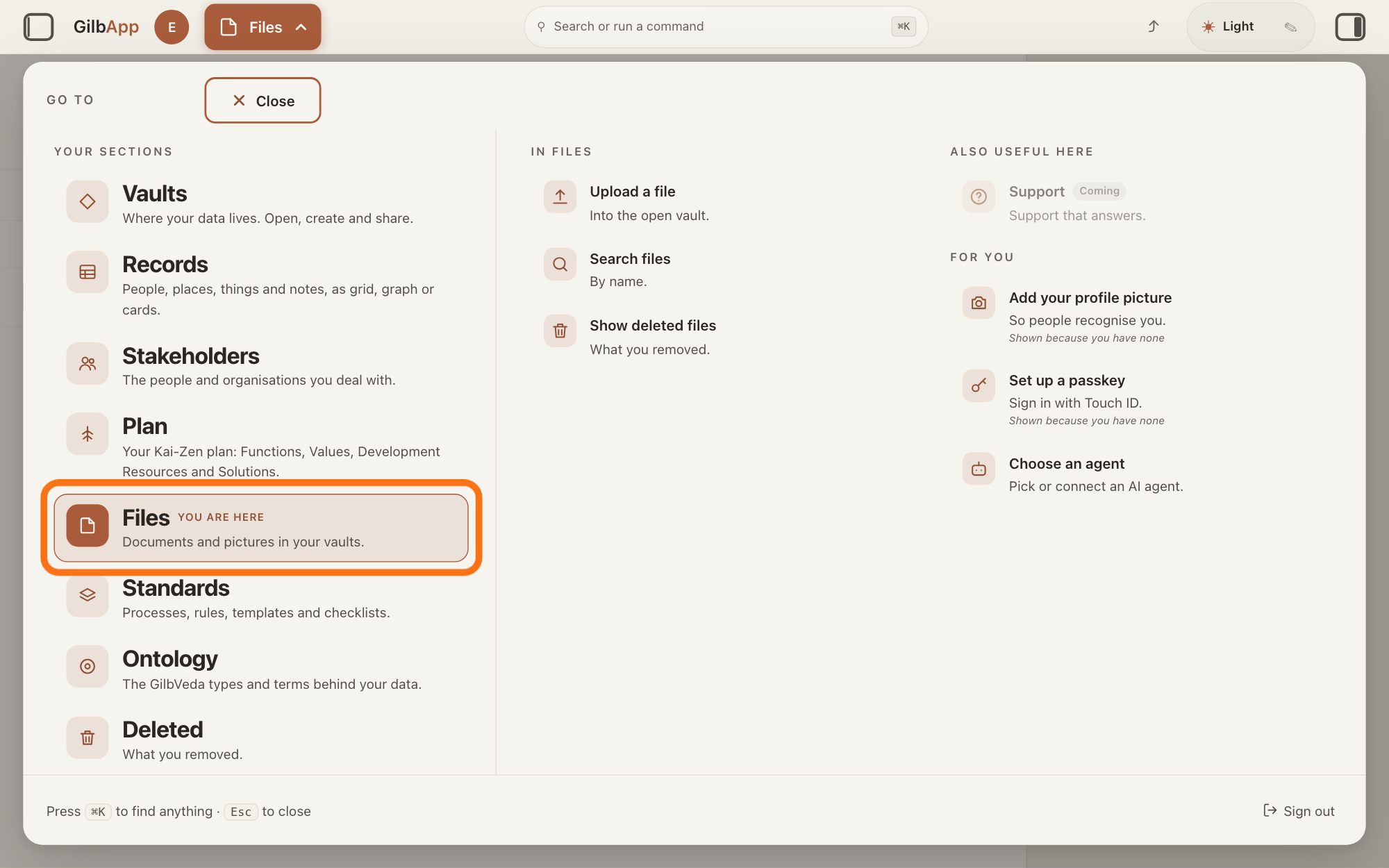
Press Main menu, next to your profile picture at the top left, and under YOUR SECTIONS choose Files. The button shows the name of the section you are in, such as Vaults.
Show as text
The Files screen is behind the open panel headed "GO TO". In the left column under "YOUR SECTIONS", the outlined row reads "Files", marked "YOU ARE HERE", with "Documents and pictures in your vaults." under it. Click that row.
More about this
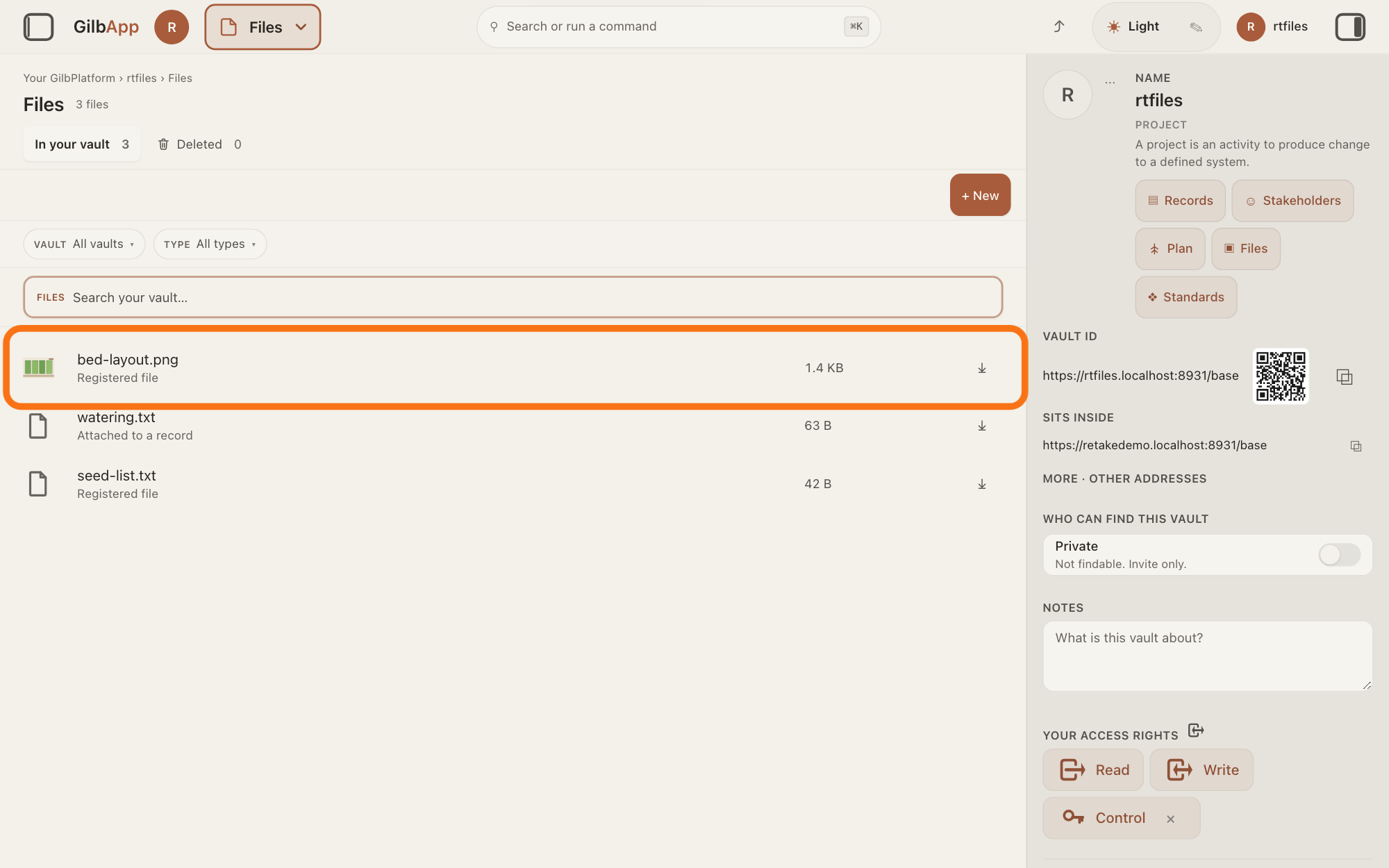
A panel headed GO TO opens; Files reads Documents and pictures in your vaults. Files shows the vault you picked in Vaults, or your own vault if you picked none; a vault is the place where a person or a group keeps their records. You can also press Files on a vault's card in Vaults. It lists the vault's files, newest first: a file attached to a record, one piece of data with its own address such as a person or a note, says Attached to a record, a file on its own Registered file. Over the list are the tabs In your vault and Deleted, + New, which uploads a file, the VAULT and TYPE buttons and the search box; the answer on sorting and filtering the list explains the two buttons.
Choose a file in the list.
Click the file's row. Its details open in the right pane.
Show as text
The "Files" list shows three files, newest first, under the tabs "In your vault" and "Deleted". In the outlined row at the top, a small copy of the picture sits at the left, with "Registered file" under its name. The other two rows show a plain page sign. Click the picture's row.
More about this
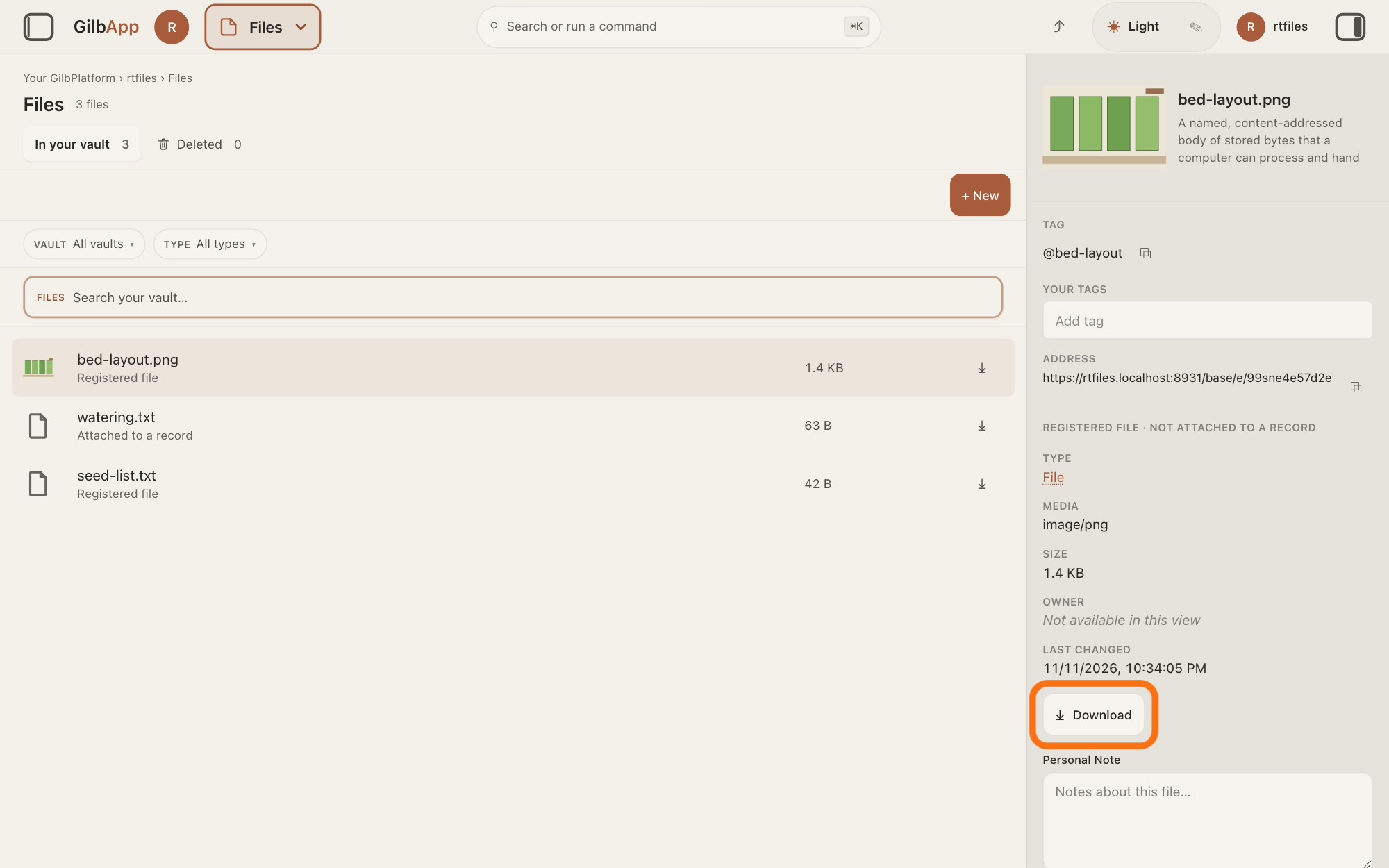
In the list, a picture anyone may read shows small at the left of its row; any other file, a private picture too, shows a small sign for its kind. A row also has the file's name, Attached to a record or Registered file, its size and ⤓. If the right pane is hidden, press the square button at the far right of the top bar. The details show a picture anyone may read a little larger beside the file's name, a line on what kind of file it is from GilbVeda, the shared list of terms, then TYPE, MEDIA, SIZE, OWNER and LAST CHANGED. The line REGISTERED FILE · NOT ATTACHED TO A RECORD shows there even for an attached file; the row in the list says which it is. TAG, YOUR TAGS with Add tag, ADDRESS, Comment, ▸ ADD FIELD, ▸ ACCESS, ▸ SHARE THIS ITEM, ▸ ADD TO FOLDER and 🗑 Remove from register have their own answers; you do not need them here.
To see a picture whole, press ⤓ Download.
Press ⤓ Download in the file's details, and open the saved file on your computer. Your browser saves the file under its name, as it saves any download.
Show as text
The right pane now holds the file's details: the picture a little larger at the top beside its name, then "TAG", "ADDRESS", "REGISTERED FILE · NOT ATTACHED TO A RECORD", "TYPE", "MEDIA", "SIZE", "OWNER" and "LAST CHANGED". Under them the outlined button reads "Download" with a down arrow. Press it to see the picture whole.
More about this
GilbApp shows a picture only small, in the list and in the details, and has no bigger view of it. ⤓ on the file's row does the same as ⤓ Download. Downloading copies the file to your computer and changes nothing in the vault; the answer on downloading or removing a file says more.
Deeper
Also asked:
How do I find a file by its name? In Files, type a word of its name in the search box marked FILES over the list; it finds files by name or kind, not by tags. Search or run a command in the top bar finds files by name too, in the open vault only.
Can other people see my files and pictures? Only those who may read the vault they are in, unless the vault is public, or you share or make public one file under its ▸ SHARE THIS ITEM. A picture anyone may read shows small on its row in Files.
What is the working set, as in Search files in working set? The vaults and types you chose above the list, under VAULT and TYPE. Search files in working set searches only the files that list holds now.
A photo you upload in Files or attach to a record is stored exactly as you sent it, with any place or camera details it holds, and GilbApp makes no small copy of it.
GilbPlatform makes a small copy of a picture, at most 256 pixels on its longest side, when a program asks for one. In GilbApp that happens for a picture added to a GilbVeda type or a species in Ontology, and for a profile photo. The type or species copy is never cut, and for a JPEG, the usual kind of photo file, it also removes the place the photo was taken and the camera's serial numbers. A profile photo's copy is cut to the area you marked, or is the whole picture if you marked none, and the profile photo itself is kept as you sent it. The small copy is a file of its own in the same vault; a picture already within 256 pixels and 15,000 bytes is its own small copy, unless you marked an area on it.
The search box marked FILES finds files by their name or their kind, not by their tags. Search or run a command in the middle of the top bar finds files by name too, in the open vault only.
Files has no folders of its own. A file that holds a folder path of its own shows FOLDER PATH in its details, with "The file records this path itself. It is not a folder membership — this file will not appear inside that folder in the list." ▸ ADD TO FOLDER in a file's details puts it in a virtual folder, a view that groups records and files without moving them; the answer on making a folder and putting records in it explains folders.
Programs can list a vault's files by folder or by tag, or only those not attached to a record, through GilbPlatform's interface for developers; the developer guide's Upload, read and end a file shows the list.
This answer is written for a computer screen. In a window narrower than 840 pixels, such as a phone, the side panes are hidden and the right pane is Detail in the bar at the bottom.
Checked against GilbApp d529620.