
← Back to Why does my plan need Solutions, and who chooses them?
How do I challenge a Solution?
Short answer
Press Main menu, choose Choose an agent, choose Kai-Zen - Master Agent of Planning, type that it should sharpen the Solution, and press Send.
Before you start
A project Kai-Zen set up for you, with the Solution in its plan, and your own AI, Claude Code or Grok, connected in GilbApp's chat. The pictures show a made-up person on a test site; your screen shows your own name and address.
Words used here (7)
- agent
- An agent is your AI following one written procedure, its standing instructions, for one kind of work.
- Kai-Zen
- Kai-Zen is the planning agent: it finds out what you want, chooses the way, hands the work to other agents and reports back.
- project
- A project is work to bring about a change you want, such as a new app or a better way of doing something.
- GilbApp
- GilbApp is the app, opened in a web browser at https://gilb.com/app, where you open, fill and share your vaults.
- Jackfruit
- Jackfruit is the vault agent: it finds, reads, writes and links records in your vaults, and makes new vaults for you.
- GilbPlatform
- GilbPlatform is the service that keeps people's and organisations' data in vaults, each at its own web address.
- short name
- A short name is the one word you give one AI on one computer, such as gilb-example; it keeps that AI's key and tools apart.
Steps
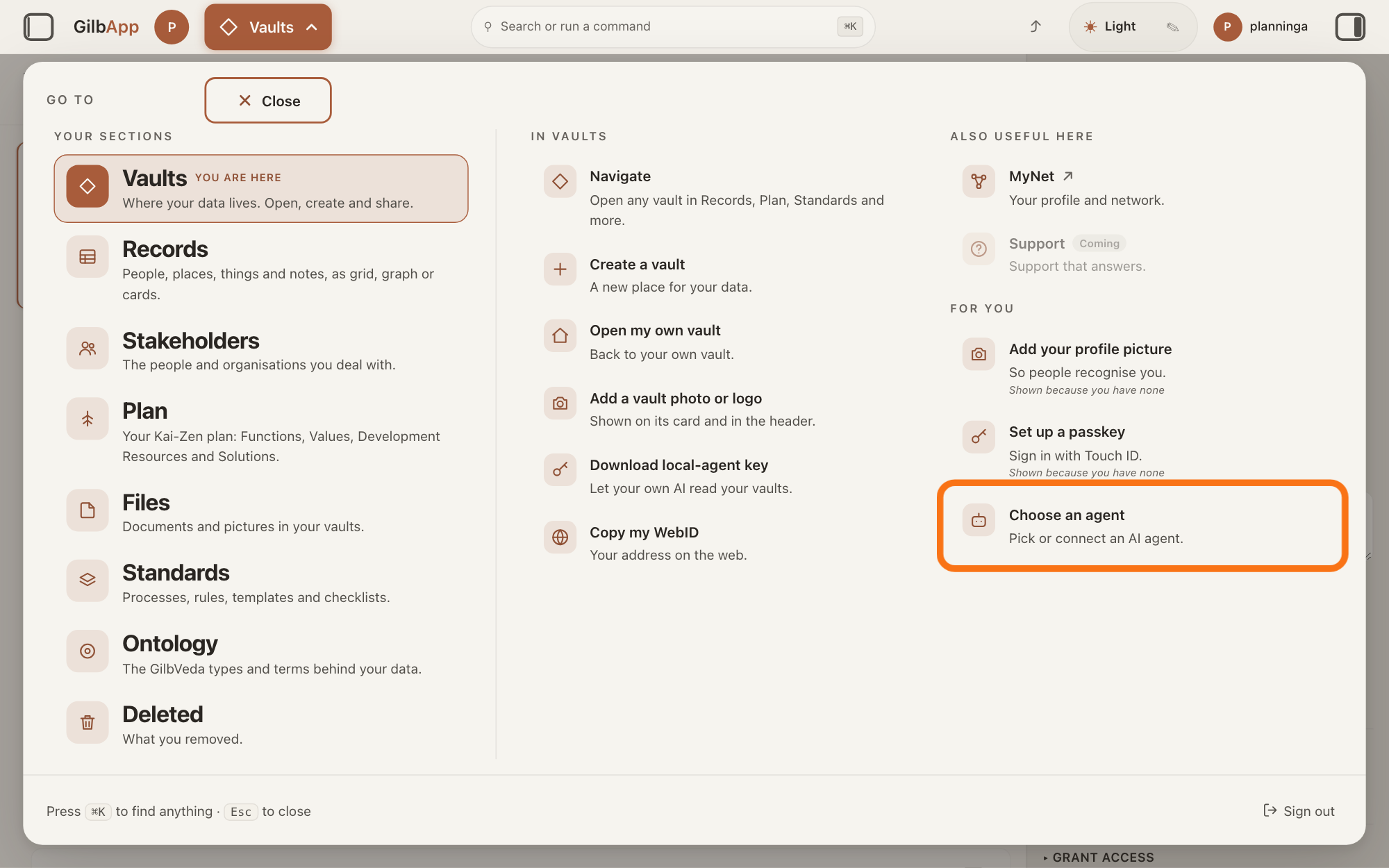
Press Main menu at the top left and choose Choose an agent.
Press Main menu, next to your profile picture at the top left, and under FOR YOU choose Choose an agent (Pick or connect an AI agent.). The button shows the name of the section you are in, such as Vaults. GilbApp opens the left pane, where you chat, and puts the cursor on the agent list at the top of it.
Show as text
The "GO TO" panel is open. In the right column under "FOR YOU", the outlined row is "Choose an agent", with the line "Pick or connect an AI agent." Press it; the chat opens in a pane on the left.
More about this
The square button at the far left of the top bar also shows or hides the left pane. You can also search for Choose an agent in Search or run a command.
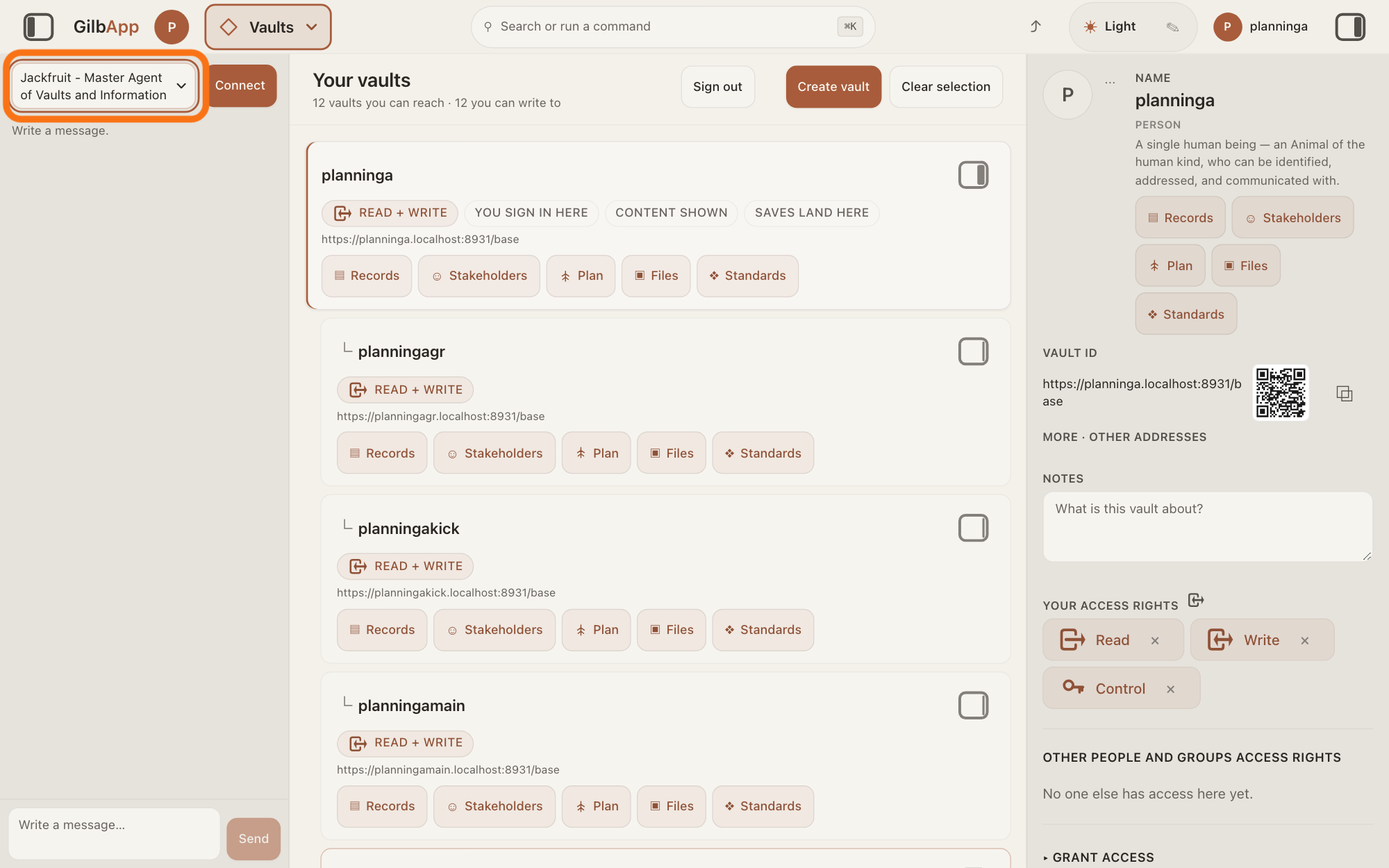
Choose Kai-Zen - Master Agent of Planning in the agent list.
Press the agent list at the top of the left pane and choose Kai-Zen - Master Agent of Planning. Each agent has its own chat, and the list shows which one you are in.
Show as text
The chat pane is open on the left. At its top is the outlined agent list, showing "Jackfruit - Master Agent of Vaults and Information". Open it and choose "Kai-Zen - Master Agent of Planning". Beside the list, the picture shows "Connect"; your screen shows your connected AI there.
More about this
A new chat starts on the first agent in the list, Jackfruit - Master Agent of Vaults and Information. The list comes from GilbPlatform each time the chat opens. GilbApp keeps your choice for this browser tab. While an agent is answering, the list is greyed out.
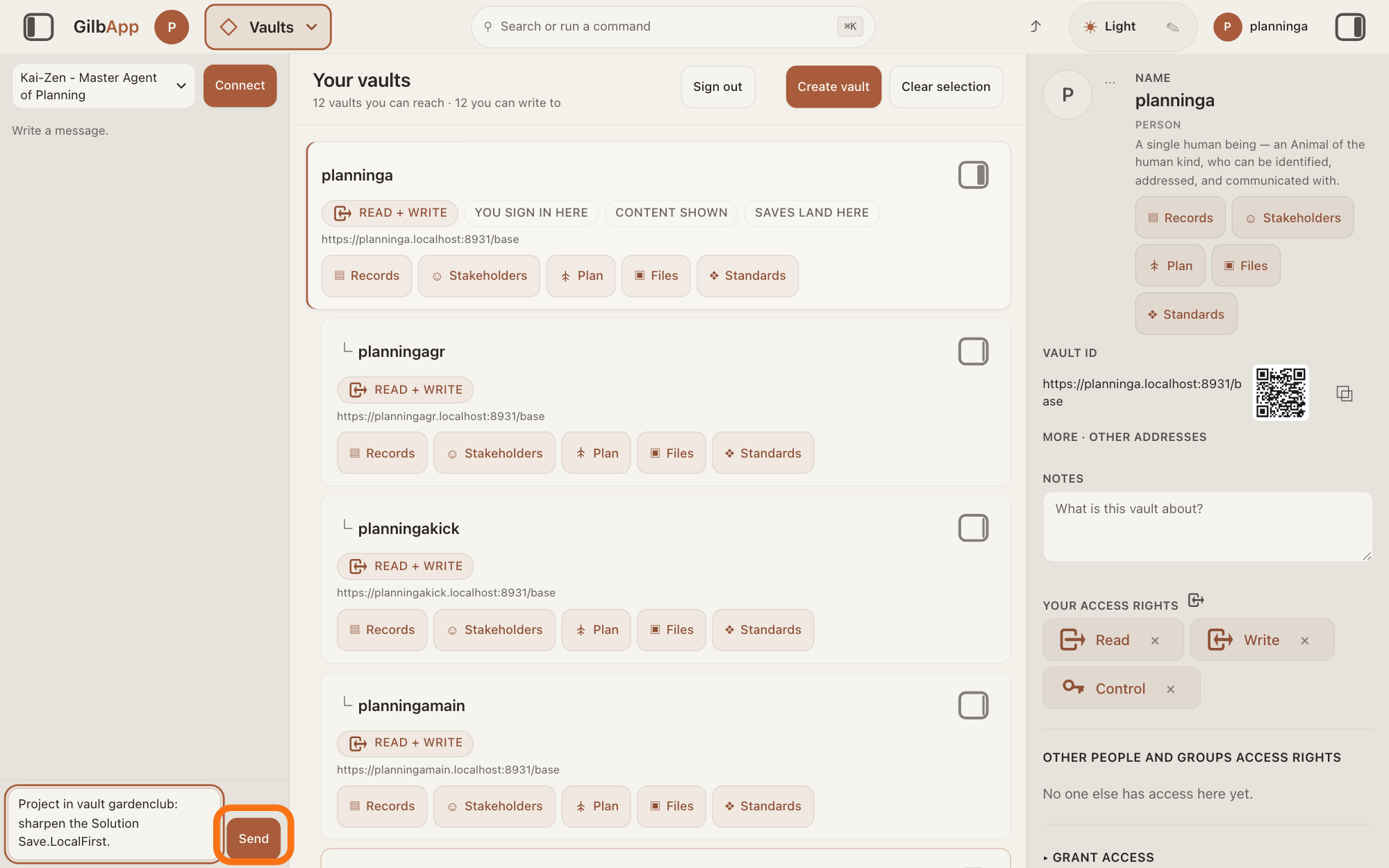
Type the Solution to sharpen in Write a message… and press Send.
In Write a message…, name the project's vault and the Solution's tag (its short name), type that Kai-Zen should sharpen that Solution, and press Send. A Solution is how a Function (what a system does) gets done; sharpening it includes challenging it twice: each time Kai-Zen weighs it against one alternative and keeps the winner.
Show as text
"Kai-Zen - Master Agent of Planning" is chosen at the top of the chat pane. In the box at the bottom, a request is typed: the project's vault and "sharpen the Solution Save.LocalFirst." Press the outlined "Send" button to the right of the box.
More about this
Return also sends; Shift and Return starts a new line. To sharpen the whole plan, say so instead of naming one Solution: Kai-Zen then challenges every Solution in it. If you do not say where the project is kept, Kai-Zen looks for it in the vaults you can reach; if several fit, it asks which one. While it works, the pane says The agent is writing…, then Ran and the name of each tool it uses, and Send reads Queue. At the end it asks for one approval of the whole result; the answer on answering Kai-Zen's questions shows how to reply. For example:
Project in vault gardenclub: sharpen the Solution Save.LocalFirst.
Deeper
Also asked:
How do I question a Solution? Ask Kai-Zen to sharpen it: in Choose an agent, choose Kai-Zen - Master Agent of Planning, name the Solution and press Send. Kai-Zen finds one other way of doing it and keeps whichever gives more Value for its cost.
You need not always ask. Kai-Zen sharpens a new project's plan after it has written its levels, sharpens it again with what was learned after each round of delivery, and sharpens it after you add or change a spec, a requirement written in your plan.
Sharpening starts by going up the plan, one item at a time. For each Solution, Kai-Zen asks whether the plan has the right Product Values to judge how good it is; for each Product Value, whether the plan has the right Stakeholder Values to judge how well it performs; and for each Stakeholder Value, the right Business Values. These are the Values at the Product, Stakeholder and Business levels of the plan (the answer on the levels of a plan); a Value is a perceived benefit, measured as a number. Where one is missing, Kai-Zen sharpens a Value or adds one. Values you set yourself it keeps as they are, and lists them for your approval at the end.
Then it goes down from Business, one item at a time. For each Value it asks whether the Values below deliver to it, and whether it meets its Goal (the number you plan to reach) when every Value below meets theirs; where not, it adds or changes the Values below. For each Product Value it asks whether the plan has the right Solutions to meet it, and adds the missing ones or changes them. Then it works out each Value Decision Table (VDT) again with what changed: a VDT ranks options by how much they move the level's Values for their cost.
Then Kai-Zen challenges every Solution, one at a time, after reading the VDTs already stored. For each Solution it finds one alternative, a completely different way of doing it or a variation of it, and scores the pair against the Product Values in a Value Kick-out Table (VKT), which picks one of several options. An option that leaves a Value below its Tolerable (the survival limit), or breaks a constraint, something that must be done because a named person requires it, is out; the best ratio of Value to cost among the rest wins. Kai-Zen makes its own estimates, costs included, if none are given. It keeps the winner and drops the loser from the choice without asking you and without offering it again, and writes one line in the work's log: the choice, the winner and its ratio; in the chat, that line ends its answer. Ending a record, though, is one of the acts Kai-Zen always stops and asks you about first.
A Solution you chose yourself, in so many words, counts as a constraint: the VKT does not remove it, even when its alternative wins. Kai-Zen lists it for your approval at the end instead.
Then Kai-Zen challenges every Solution once more, the winners of the first round too, each against a new alternative: a different way, an adjustment or a variation. It keeps the winner and drops the loser from the choice again, then works out the VDT from Product to the Solutions again with the Solutions that are left; the answer on comparing Solutions in a VDT shows such a table. Before it ends, it scores again every cell of a stored VDT whose Value or Solution changed, and checks that no cell is empty, that each Value has a Status (where it stands now), a Tolerable and a Goal, and that each card has a level (the part of the plan it belongs to).
You can also challenge a Solution yourself in GilbApp: write the alternative as a second Solution, as the answer on writing a Solution in your plan shows, and compare the two in a VKT, as the answer on choosing between options with a VKT shows. GilbApp has no control that challenges a Solution by itself.
From GilbApp's chat Kai-Zen works only with the vault, unless you choose a code folder while Claude Code is connected; otherwise a project kept in a folder on your computer needs Claude Code in Terminal. The answer How do I let my AI build in a folder on my computer from GilbApp's chat? shows how. In Claude Code in Terminal you can continue a project the same way. Start Claude Code, type this line with your own short name, the one you gave your AI when you connected your computer, and press Return:
/mcp__gilb-<short name>__agent
Then say which project and which Solution to sharpen, and press Return.
This answer is written for a computer screen.
Source: GilbApp af0f04ee838a4d55887d2ff1f72edd49a4ff7ca0 (https://gilb.com/app/version.json read 2026-11-09, buildTime 2026-11-09.522Z, dirty false); code read at af0f04ee (no checkout). screen words re-read at af0f04ee: sectionMenuList.ts:330 (Choose an agent, Pick or connect an AI agent.), LeftRegion.tsx:16-20 (opens the left pane, focuses the agent list), AgentSelector.tsx:15-16 (option text <name> - <description>), :57-79 (list; disabled while busy), chatAgents.ts:67-75 (choice kept for the tab). Production agent list https://gilb.com/base/ai/agents read 2026-11-09: picks Jackfruit Master Agent of Vaults and Information, Kai-Zen Master Agent of Planning, Agent.Concept, Agent.Coder. Step 3: AgentChat.tsx:1046 (Write a message…), :1063 (Send/Queue), :711 (Return sends unless Shift), :545 and :888 (The agent is writing…). No challenge or sharpen control in GilbApp: the code shows only sign-in and computer-key code (webauthn challenge). Standards (2026-11-09, all 200): Kai-Zen.Sharpen (Entry.Specs the project's specs, or the part to sharpen; Up; Down; Challenge; Repeat; Exit), Kai-Zen.New step Sharpen (after Down), Kai-Zen.Cycle step Improve (Sharpen the specs with what was learned), Kai-Zen.Existing steps Read, Evaluate (re-plan or sharpen), Change (then sharpen), Replan (IF it asks to re-plan or to sharpen → sharpen), Kai-Zen.VKT (Ends, Options, Table, Execute, Log In a chat, put that line at the end of your answer), Kai-Zen.VKTRules (Alternatives, TolerableFirst, NoHuman, Estimate, HumanSet, Constraints), Kai-Zen.ConstraintRules.Options, Kai-Zen.AskRules (Stop: ending a record always stops that part; EndApproval), Jackfruit.End (End a record only when the person asks for that record), Agent.Architect (Sharpen hands each Solution to it). GilbVeda public read 2026-11-09: t:ValueKickOutTable (chooses exactly one of several alternative options), t:ValueDecisionTable. Shift and Return starts a new line." and ending a record. Code-folder exception: GilbApp 49b1ae53 (https://gilb.com/app/version.json, read 13 November 2026), src/components/agent/AgentChat.tsx:677-692 and :1084-1090 (Choose a code folder, Code in, Claude Code only); live answer How do I let my AI build in a folder on my computer from GilbApp's chat?
Checked against GilbApp d529620.