
How do I change a record's type?
Short answer
Press Main menu, choose Records, search and select the record, open ▸ TYPE (GILBVEDA) in the right pane, and choose the new type.
Before you start
You need to be signed in to GilbApp on a computer, with a record in a vault you can write to; the answer on creating a record shows how to make one. The pictures show a made-up person on a test site; your screen shows your own name and address.
Words used here (4)
- record
- A record is one piece of data with its own address, such as a person, a place, a thing or a note.
- GilbApp
- GilbApp is the app, opened in a web browser at https://gilb.com/app, where you open, fill and share your vaults.
- field
- A field is one named fact on a record, such as its title or a due date; its name comes from GilbVeda.
- record's type
- A record's type says what kind of thing a record is, such as a note, a task or a person, taken from GilbVeda.
Steps
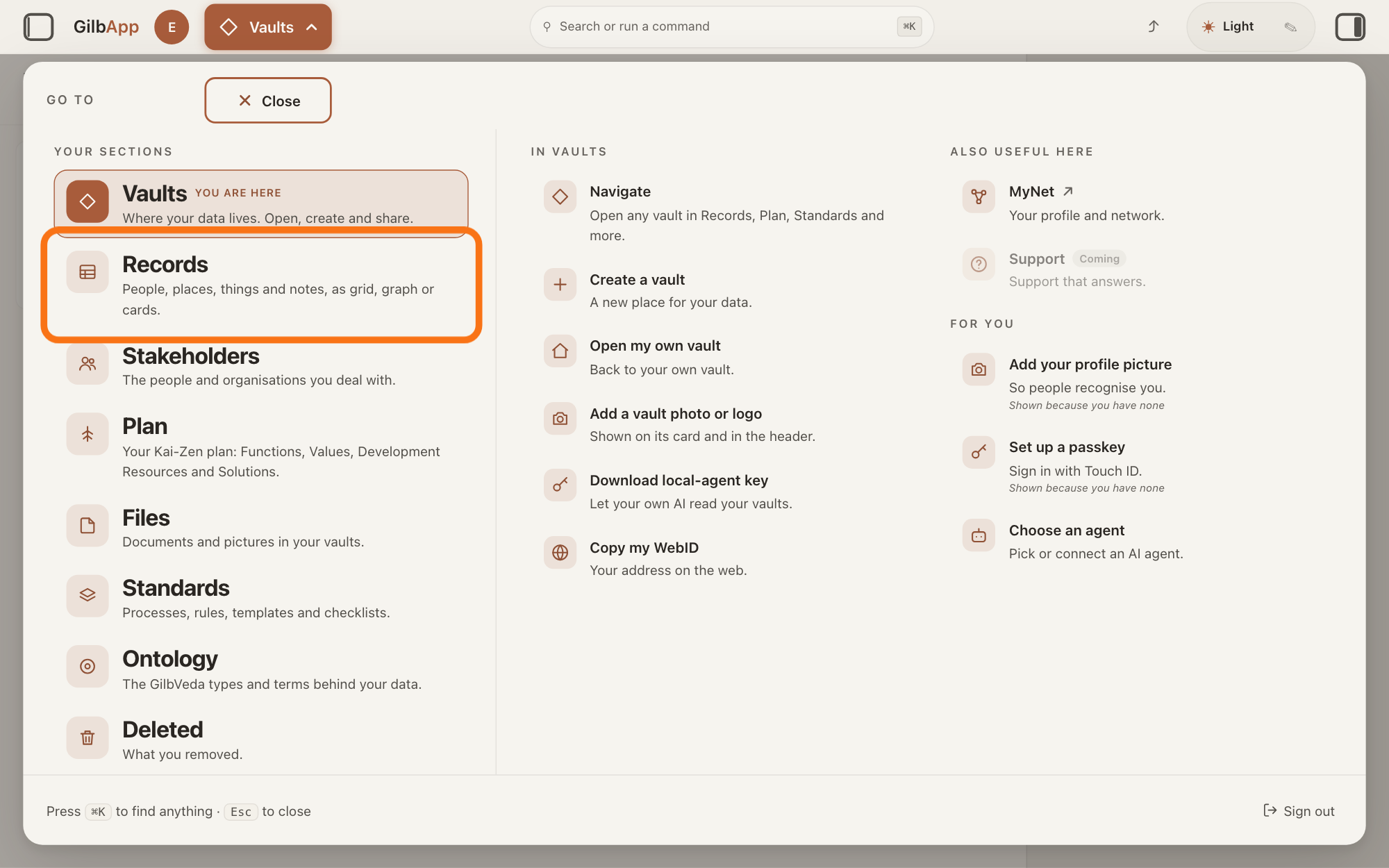
Press Main menu at the top left and choose Records.
Press Main menu, next to your profile picture at the top left, and under YOUR SECTIONS choose Records. The button shows the name of the section you are in, such as Vaults.
Show as text
The panel headed "GO TO" is open over "Your vaults". In the left column under "YOUR SECTIONS", the outlined row is "Records", the second row, under "Vaults". Click it.
More about this
A panel headed GO TO opens; Records reads People, places, things and notes, as grid, graph or cards. A record is one piece of data with its own address, such as a person, a place, a thing or a note. Records shows the vault you picked in Vaults, or your own vault if you picked none; a vault is the place where a person or a group keeps their records. You can also press Records on a vault's card in Vaults.
Search and select the record in the list.
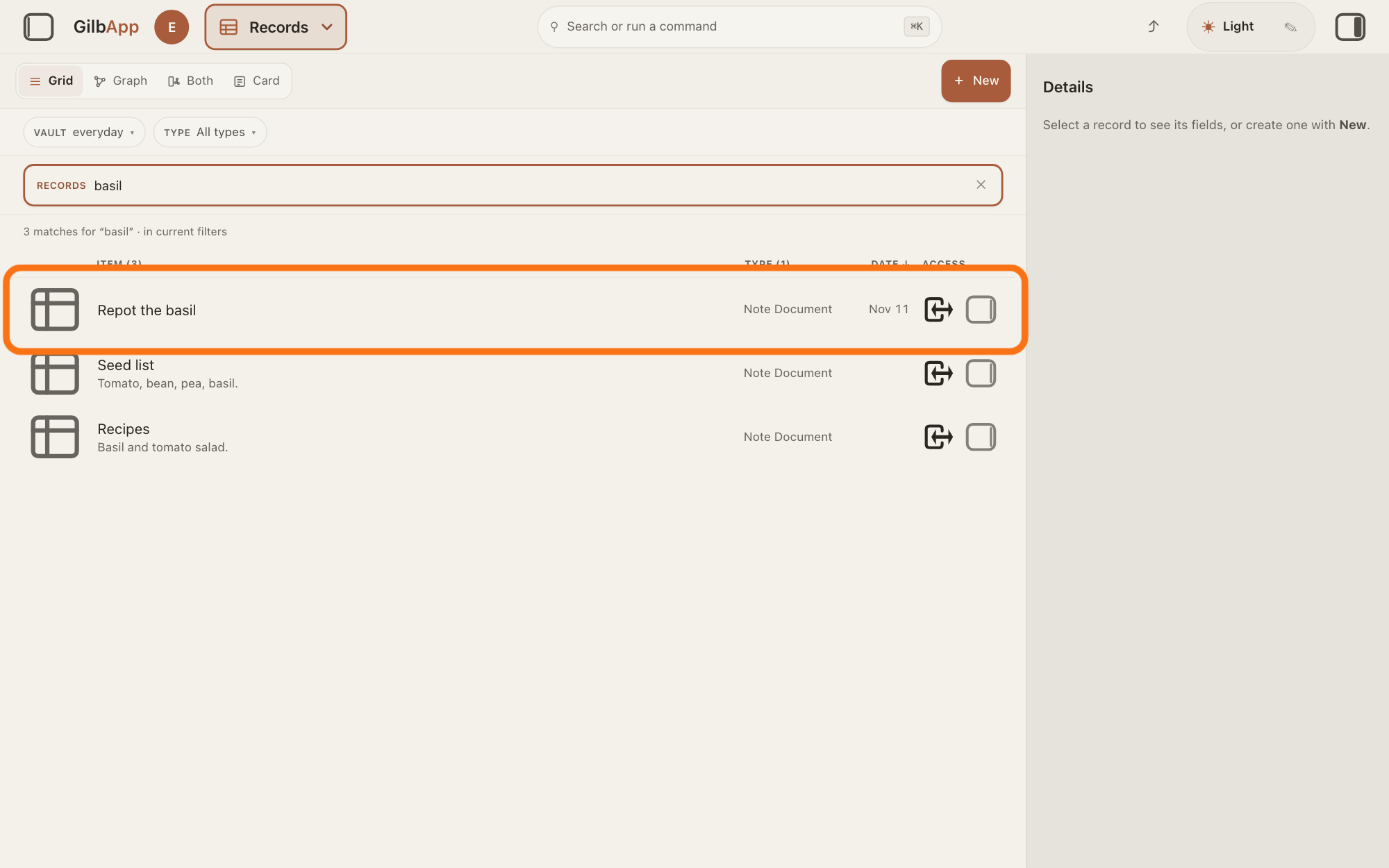
Type a word of the record's name in the search box marked RECORDS above the list, and click the record in the list. The record opens in the middle of the screen with its fields, and the right pane, headed Actions, holds what you can do with it.
Show as text
In the middle, "basil" is typed in the search box marked "RECORDS", and the list shows three records. The first row, outlined, is the note Repot the basil. Click the row of the record whose type you want to change.
More about this
The answer on finding a record shows more about the search. A folder's row opens the folder instead. The small square button at the right end of a row, with the hover text Show card info, shows the record in the right pane and keeps the list; ▸ TYPE (GILBVEDA) is then in that pane too. If the right pane is hidden, press the square button at the far right of the top bar. Show all records, in the bar with the views, right of Card, brings the list back.
Open ▸ TYPE (GILBVEDA) in the right pane.
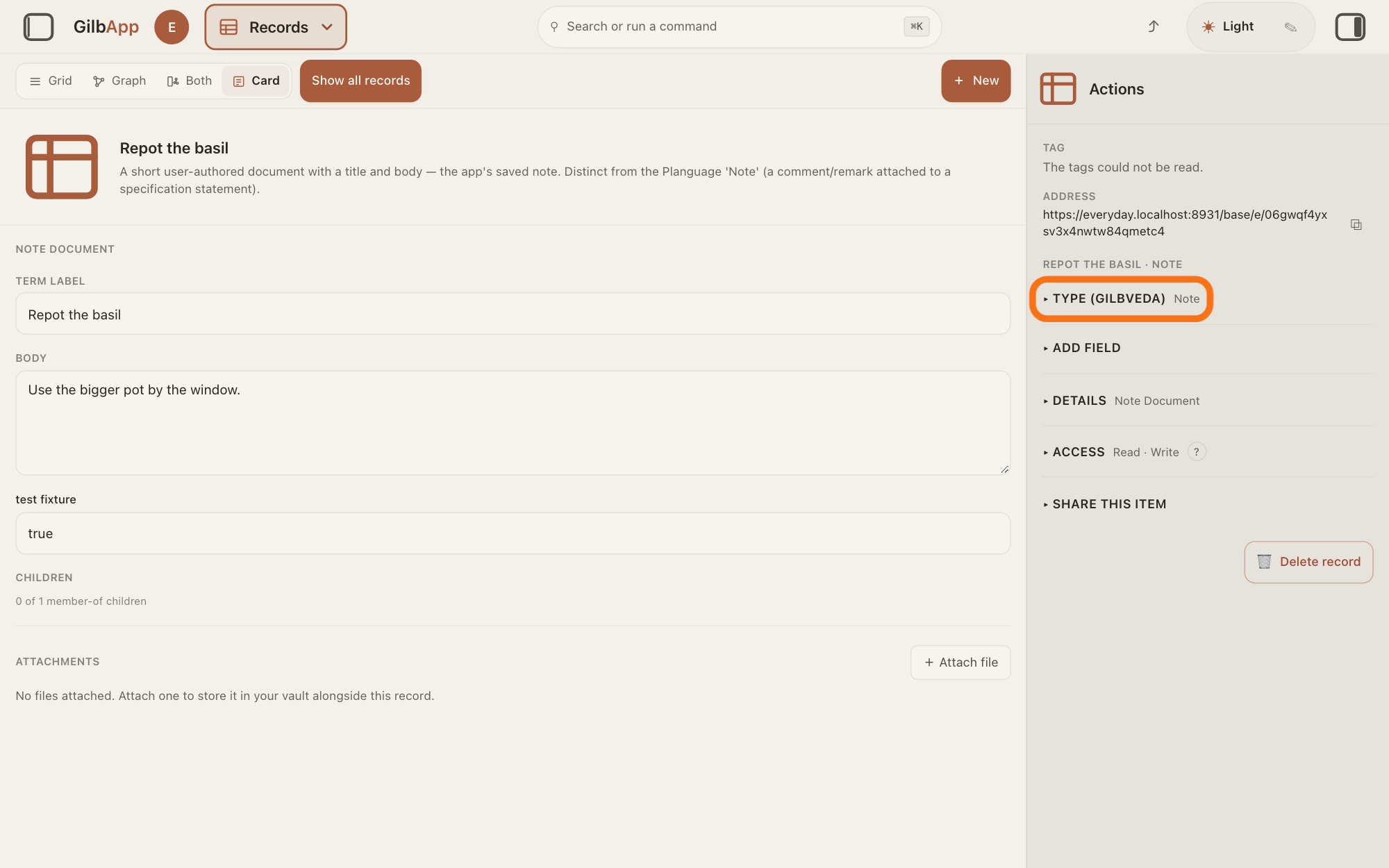
In the right pane, open ▸ TYPE (GILBVEDA); beside it is the record's type now, such as Note. The list of types opens under it.
Show as text
The note is open in the middle. In the right pane headed "Actions", under "ADDRESS", the outlined fold reads "▸ TYPE (GILBVEDA)" with "Note" beside it. Click it to open it.
More about this
A record's type says what kind of thing it is, taken from GilbVeda, the shared list of terms. The fold is not there on a record you may only read. The other controls in the pane are named in the answer on editing a record and have their own answers.
Choose the new type.
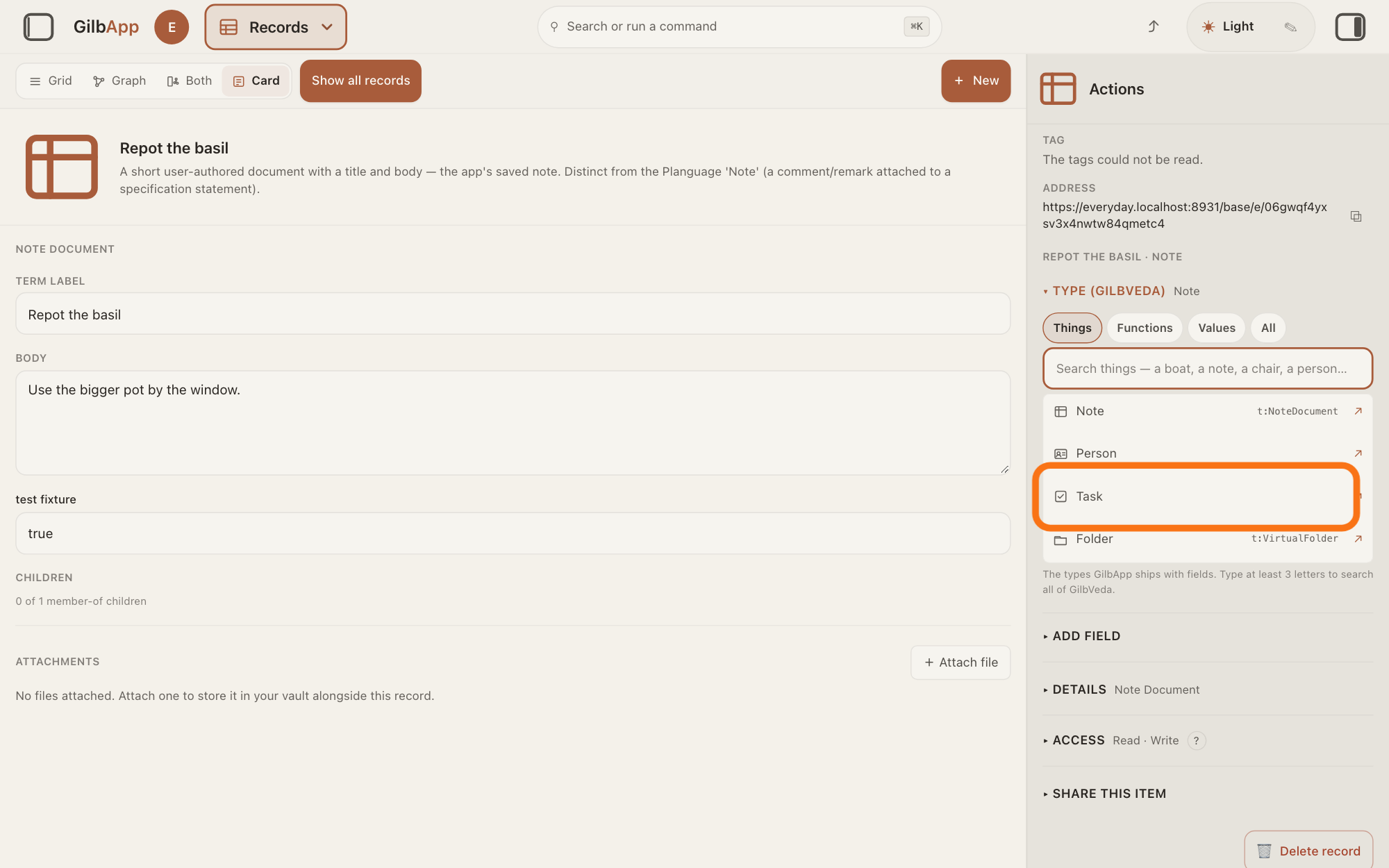
Choose the new type: the list holds Note, Person, Task and Folder. For another type, type at least 3 letters in the box that shows Search things — a boat, a note, a chair, a person… and select one.
Show as text
In the right pane the fold now reads "▾ TYPE (GILBVEDA)". Under it are the tabs "Things", "Functions", "Values", "All", a search box, and the list "Note", "Person", "Task", "Folder". The outlined row is "Task". Click the type you want.
More about this
GilbApp changes the type at once, with no question. It shows Changing type…, then closes the list and says Type set to and the type, such as Type set to Task. The record keeps its address, its vault and its name. The middle shows the boxes of the new type; a field the new type does not have stays on the record, under its own name. There is no undo button; to change the type back, choose the old type again. Things, Functions, Values and All switch what the search looks among; ↗ shows what GilbVeda says about a type. If the record was changed elsewhere meanwhile, GilbApp says "This record was changed elsewhere, so its type was not changed. The latest is shown. Pick the type again."
Deeper
Also asked:
I chose the wrong kind for a record. How do I change it? Change its type: select the record in Records, open ▸ TYPE (GILBVEDA) in the right pane and choose the right type. The record keeps its address, its vault and its name.
What is a type, as in TYPE (GILBVEDA)? A record's type says what kind of thing it is, such as a note, a task or a person, taken from GilbVeda, the shared list of terms. It decides the boxes the record shows.
Changing a record to Person makes it a person's card, with that card's own boxes; the answer on adding a person as a stakeholder shows the card.
Jackfruit, the vault agent, also finds, reads, writes and links records in your vaults when you ask it; the answer on working with Jackfruit shows how.
This answer is written for a computer screen. In a window narrower than 840 pixels, such as a phone, the side panes are hidden and the right pane is Detail in the bar at the bottom.
Checked against GilbApp d529620.