
← Choosing and talking to an agent in GilbApp
How do I chat with an agent in GilbApp?
Short answer
Choose an agent in the list at the top of the chat, type your message in Write a message… and press Send.
Before you start
You need to be signed in to GilbApp on a computer, with your own AI connected in the chat: Claude Code or Grok. The pictures show a made-up person on a test site; your screen shows your own name and address.
Words used here (5)
- agent
- An agent is your AI following one written procedure, its standing instructions, for one kind of work.
- GilbApp
- GilbApp is the app, opened in a web browser at https://gilb.com/app, where you open, fill and share your vaults.
- Jackfruit
- Jackfruit is the vault agent: it finds, reads, writes and links records in your vaults, and makes new vaults for you.
- Kai-Zen
- Kai-Zen is the planning agent: it finds out what you want, chooses the way, hands the work to other agents and reports back.
- GilbPlatform
- GilbPlatform is the service that keeps people's and organisations' data in vaults, each at its own web address.
Steps
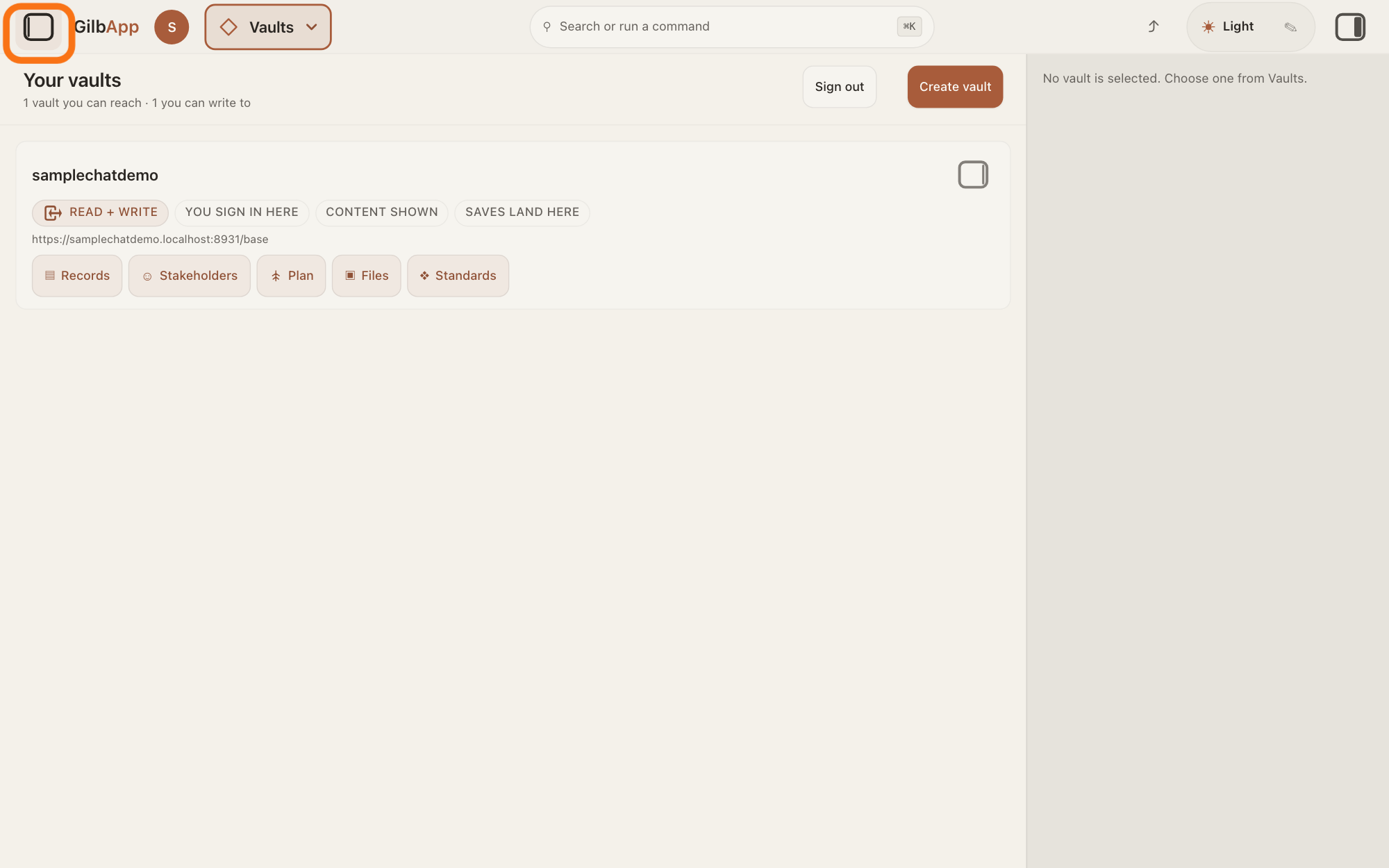
Press the square button at the far left of the top bar.
If the chat is not showing on the left, press the square button at the far left of the top bar. The left pane opens with the chat: the agent list at its top, the box Write a message… at its bottom.
Show as text
At the top left of the screen, the square button outlined in orange is the first thing in the top bar, before the word GilbApp. No chat shows on the left yet; "Your vaults" fills the middle. Press that button to open the chat on the left.
More about this
The pane is hidden when you first use GilbApp, and the same button hides it again. Main menu at the top left opens it too: under FOR YOU, choose Choose an agent, which also puts you on the list. To the right of the list, your AI's name, Claude Code or Grok, shows with Disconnect under it; Connect there means none is connected.
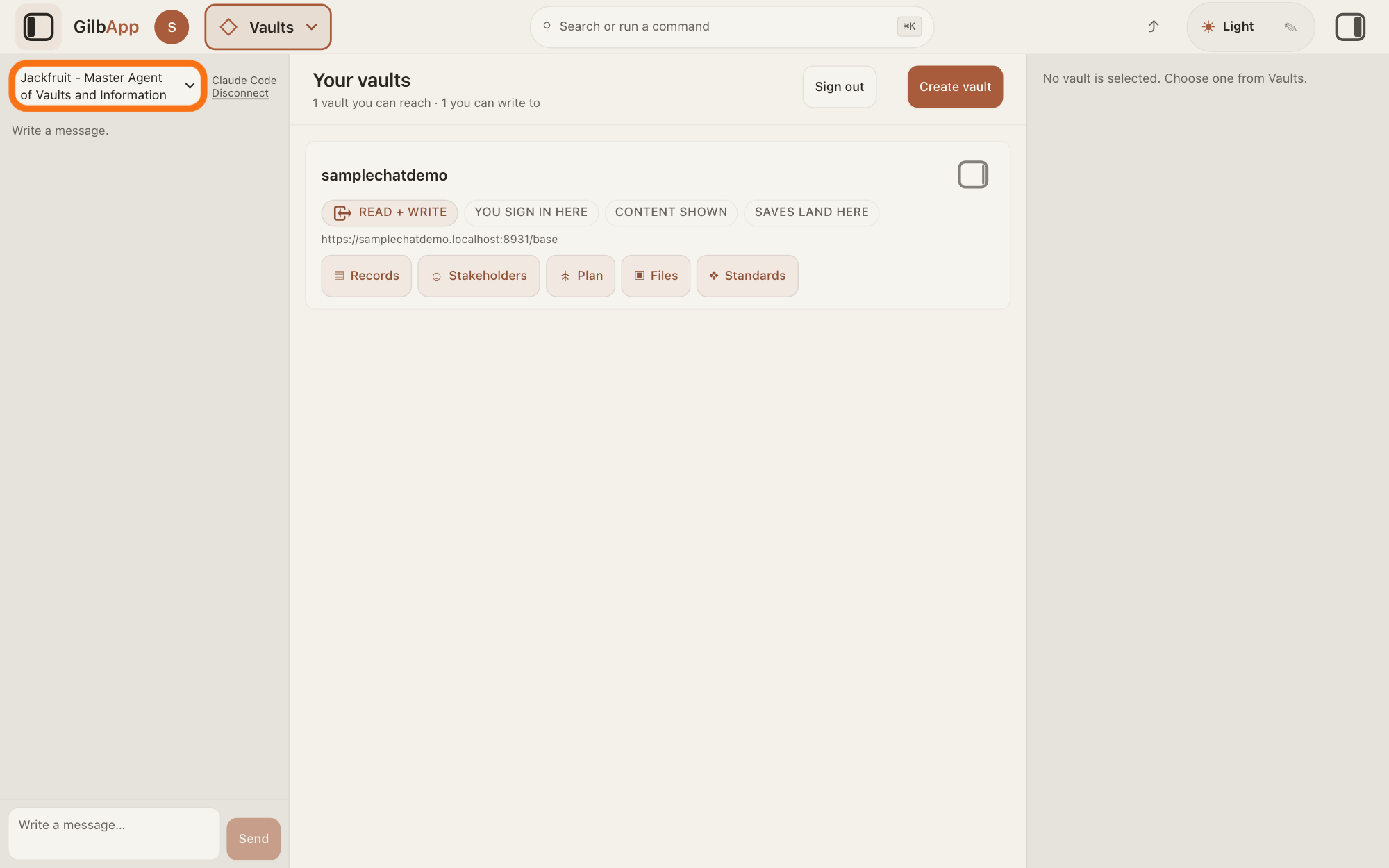
Choose an agent in the list at the top of the chat.
Click the list at the top of the chat and choose an agent, such as Jackfruit or Kai-Zen. An agent is your AI following one written procedure, its standing instructions, for one kind of work.
Show as text
The chat is open on the left. At its top, the agent list outlined in orange shows an agent's name, here "Jackfruit - Master Agent of Vaults and Information"; click it to choose an agent. Beside it are "Claude Code" and "Disconnect", and under it the chat reads "Write a message."
More about this
An agent with a short description shows it after its name and a hyphen; which agent to use for what has its own answer. Agents written in vaults you own are listed under My agents. On first opening, the chat starts on the first agent in the list. Each agent keeps its own conversation: choosing another shows that agent's, and clears a message you had not sent. The list cannot be changed while an agent is writing. No agent is offered. in its place means there is no agent to write to.
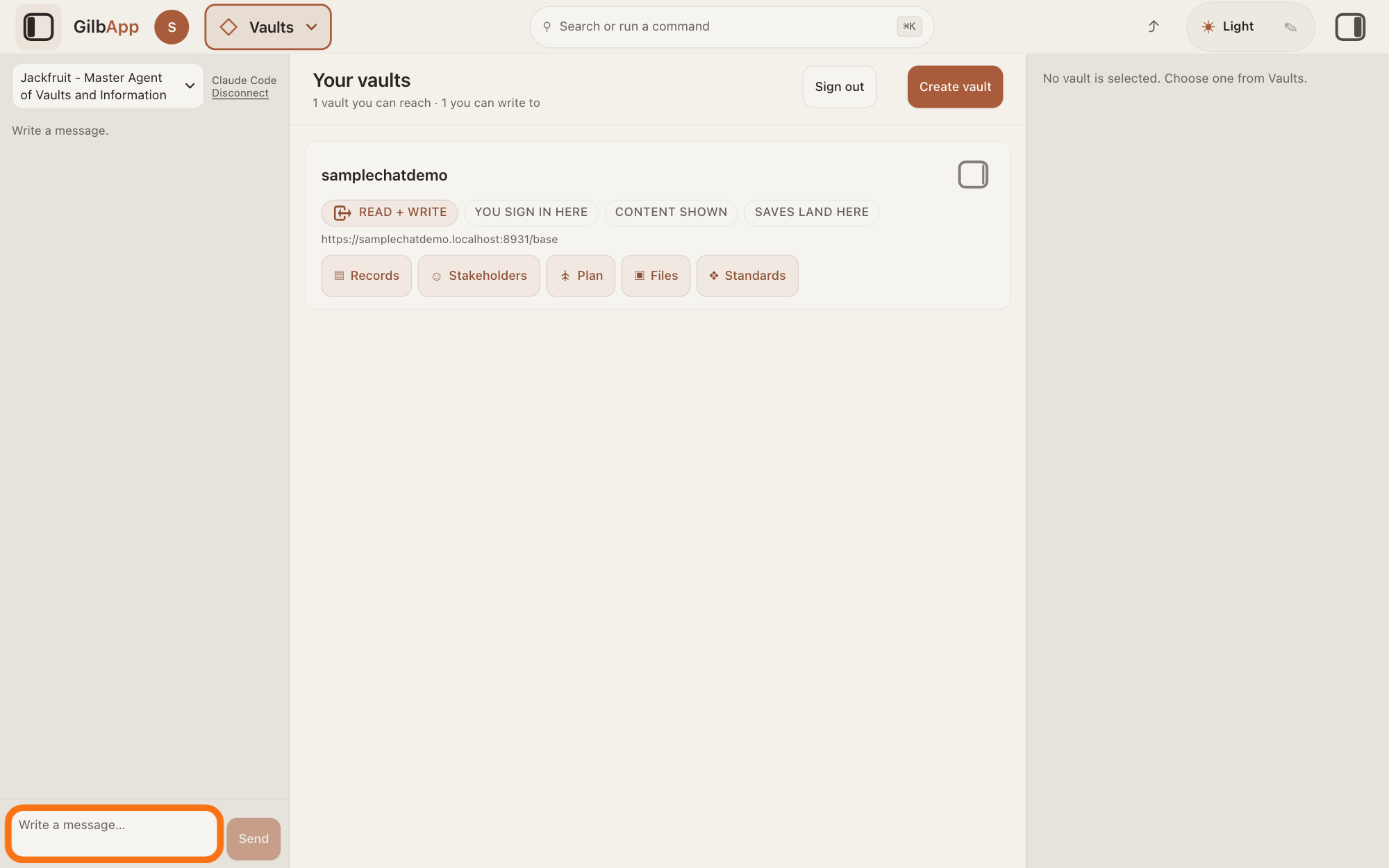
Type your message in Write a message….
Click the box Write a message… at the bottom of the chat and type what you want the agent to do or answer.
Show as text
At the bottom of the chat on the left, click the box with the grey words "Write a message…", outlined in orange, and type what you want the agent to do or answer. The "Send" button to its right is still pale. The agent you chose shows at the top of the chat.
More about this
The box grows as you type. Return sends the message; Shift+Return starts a new line.
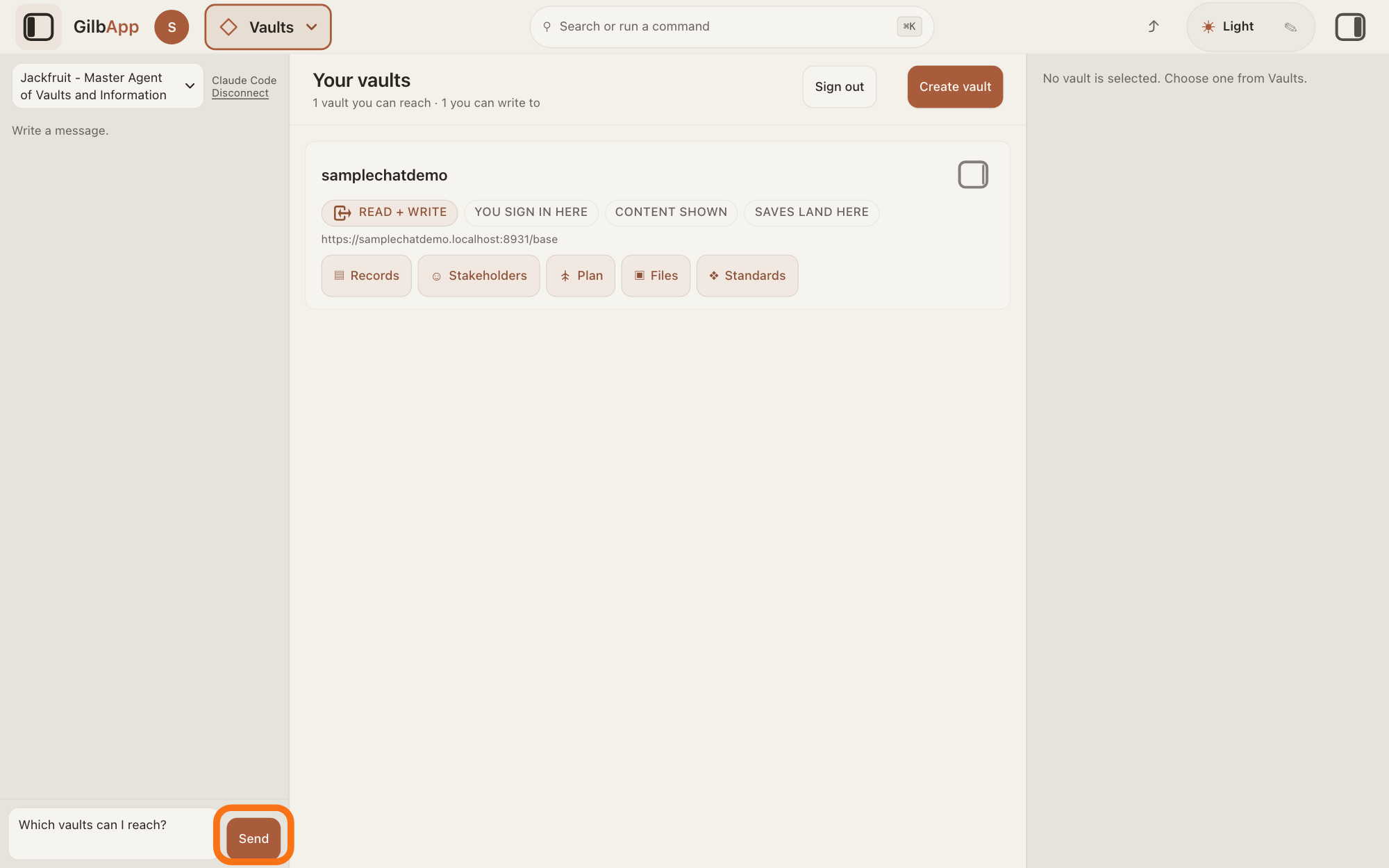
Press Send.
Press Send, to the right of the box. Your message shows on the right; while the agent works, the pane shows The agent is writing…, then Ran and the name of each tool it uses; its answer shows on the left.
Show as text
Your message, here "Which vaults can I reach?", is typed in the box at the bottom left of the screen. Press the dark "Send" button to the right of the box, outlined in orange. Return in the box sends it too.
More about this
While it works, the line names each tool, a small action it takes in your vaults, as it runs it: Ran and the tool's name. Under an answer from your own AI, a small line names the AI model and who pays: your Claude subscription for Claude Code, your SuperGrok for Grok; an answer without that line came from GilbPlatform's shared AI. While the agent writes, Send reads Queue: a message you send then waits under Waiting to send until the agent is done. Slip in now hands it to the agent at its next step; Edit and Remove change or drop it; Send now, shown when a message still waits after the agent stopped, sends it.
Deeper
Also asked:
How do I choose which agent I talk to, or switch to another agent in the middle of a chat? Click the list at the top of the chat and choose an agent, such as Jackfruit or Kai-Zen; between answers you can switch, as the list is greyed out while an agent answers. Each agent keeps its own conversation, so the new one does not see what you told the other.
How do I stop an agent in the middle of its answer? With Claude Code and Code in switched on, press Stop under the Working line; it stops the answer that is running. Otherwise you cannot stop an answer that is running. When the chat goes on by itself, after the turn ran out of tool rounds, Stop stops it after the turn that is running.
How do I stop an agent while it is working? With Claude Code and Code in switched on, Stop under the Working line stops the turn that is running. Otherwise a turn that is running cannot be stopped: Stop shows only while the chat goes on by itself, and it stops the chat after the turn that is running.
Can I see my earlier chats? Only in this browser tab: each agent's last 32 messages are kept there, and closing the tab ends them. Choosing another agent shows that agent's conversation.
Does the chat keep my old conversations? Not for long: it keeps only the last 32 messages, in this browser tab only. Closing the tab ends them.
The chat says the agent answers WITHOUT its standing instructions. What does that mean? The agent is answering without its written procedure, for example because the vault that keeps it could not be read, so its answer may not follow that agent's way of working.
The chat says The turn ran out of tool rounds. What does it mean? With Claude Code, a long job used all the steps it may take in one turn. The chat then goes on by itself, up to 15 times; Stop stops it after the turn that is running, and continue goes on.
The agent list says No agent is offered. Why, and what do I do? GilbPlatform's list of agents offers none to you, and you have no agent of your own, so there is no agent to write to. If it stays that way, write to [email protected].
If a line above the box says The agent is answering WITHOUT its standing instructions, or with only part of its standing instructions, the agent is answering without all of its written procedure, and the line says why, such as that the standards vault, the vault that keeps the agents' procedures, could not be read. Its answer may then not follow that agent's way of working.
The agent works in your vaults as you, with your own access, in the vaults the middle of the screen lists, unless you name another vault in your message. You can ask it to list your vaults, find and read records, and create records and the links between them, and delete records; it can reach only what you can reach.
Notices about the Claude Code bridge, such as Your Claude Code bridge is out of date., are explained in the answer on connecting your AI.
With Claude Code, a long job can run out of tool rounds, the steps it may take in one turn. The chat then goes on by itself, up to 15 times, and says "The turn ran out of tool rounds, so I am going on by myself (1 of 15). Press Stop to stop." Stop stops it after the turn that is running; send continue to go on.
The conversation stays in this browser tab only, and only its last 32 messages: closing the tab ends it.
Without your own AI, the chat answers only if GilbPlatform has switched on its shared AI; otherwise it says Connect your own AI first — press Connect. Your AI works only for you.
This answer is written for a computer screen.
Checked against GilbApp d529620.