
← Back to What are circles, and how do I use them?
How do I choose how I know someone (relationship kinds)?
Short answer
Press Main menu, choose Stakeholders, search and select the person, press Edit, press + Kind, choose a kind, and press Done.
Before you start
You need to be signed in to GilbApp on a computer, with the person's card in your own vault. The pictures show a made-up person on a test site; your screen shows your own name and address.
Words used here (5)
- GilbApp
- GilbApp is the app, opened in a web browser at https://gilb.com/app, where you open, fill and share your vaults.
- record
- A record is one piece of data with its own address, such as a person, a place, a thing or a note.
- field
- A field is one named fact on a record, such as its title or a due date; its name comes from GilbVeda.
- Circle
- A Circle label, such as Professional Inner Circle, says whether you know a contact personally or through work, and how closely; it grants no access.
- circle in MyNet
- A circle in MyNet is a group of people you placed, personal or professional, close or wider; it decides what of yours they see.
Steps
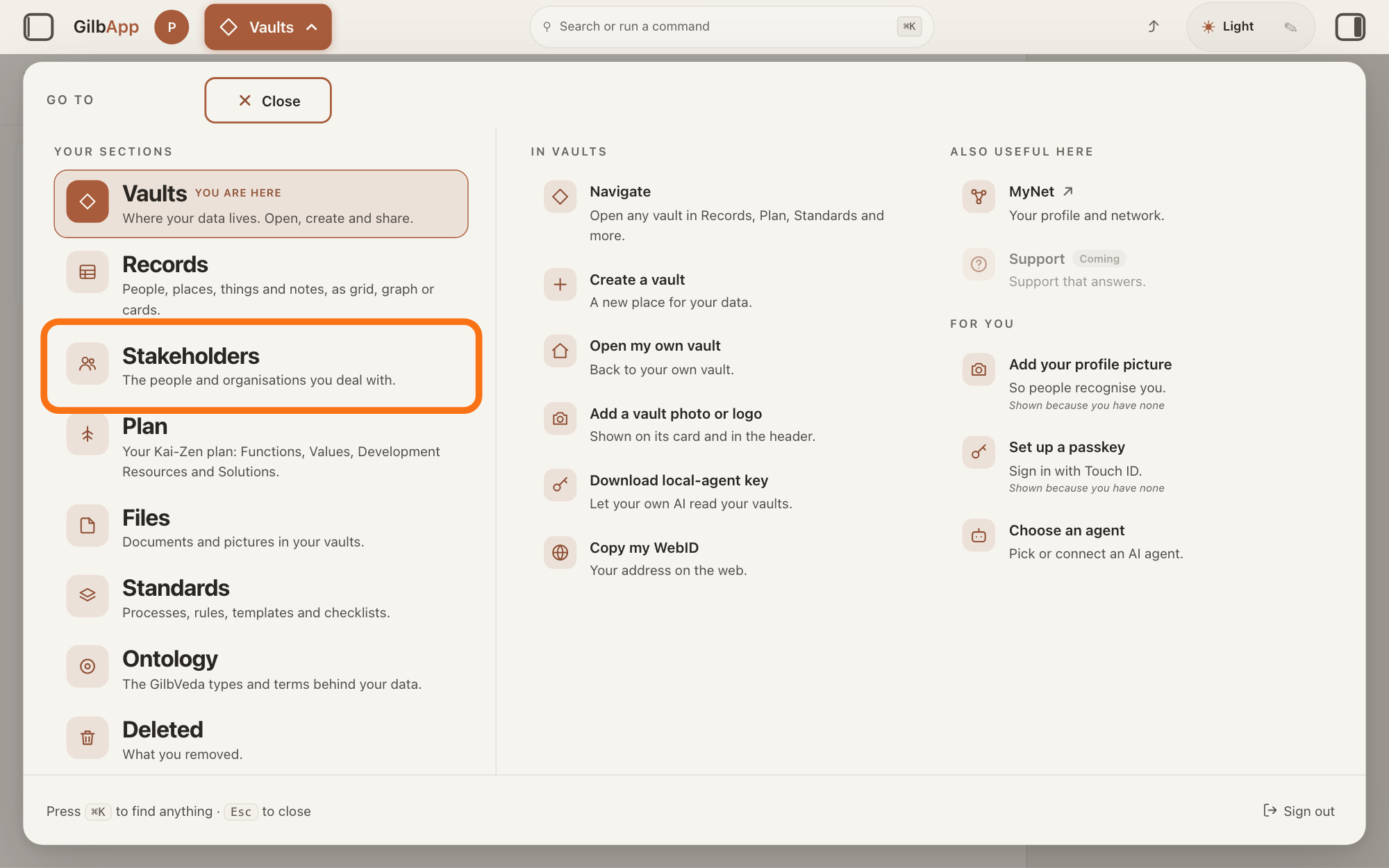
Press Main menu at the top left and choose Stakeholders.
Press Main menu, next to your profile picture at the top left, and under YOUR SECTIONS choose Stakeholders. A stakeholder is a person, group or system that cares whether a Value goes up or down.
Show as text
At the top left, press "Main menu" (it shows the name of the section you are in). In the panel headed "GO TO", look under "YOUR SECTIONS" and press "Stakeholders", "The people and organisations you deal with.", outlined in orange.
More about this
The button shows the name of the section you are in, such as Vaults. A panel headed GO TO opens; Stakeholders reads The people and organisations you deal with. You can also press the Stakeholders button on the card of a vault (the place where a person or a group keeps their records) in Vaults. The screen lists your stakeholders and has the views Grid, Graph, Both and Card. The list also holds organisations, systems and groups; the TYPE column says which are Person.
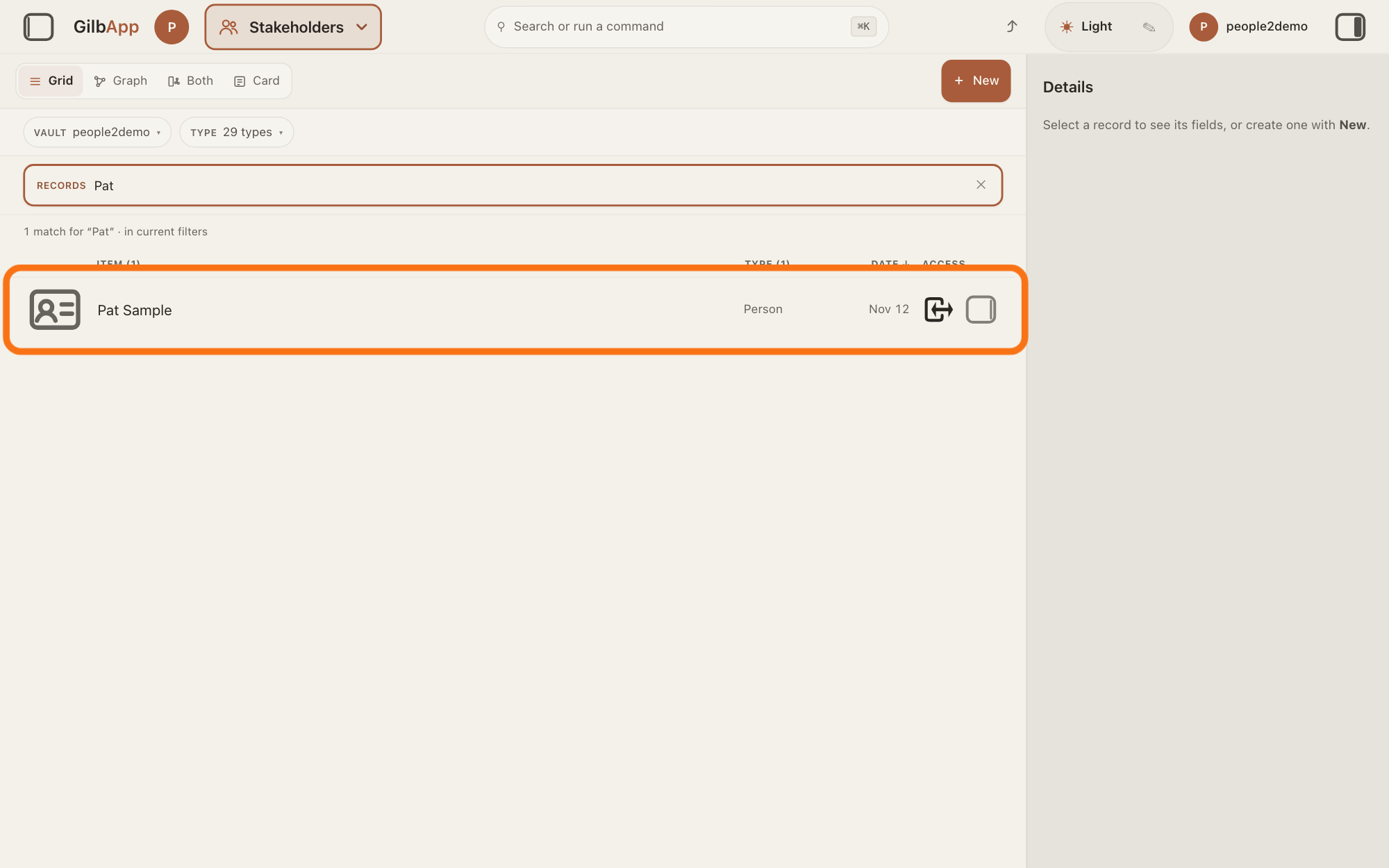
Search and select the person in the list.
Type a word of the person's name in the search box marked RECORDS above the list, and click the person in the list. The person's card opens in the middle of the screen, and the right pane, headed Actions, holds what you can do with it.
Show as text
In the box marked "RECORDS" above the list, type a word of the person's name. The line under the box counts the matches. Press the person's row, outlined in orange, to open their card.
More about this
The answer on avoiding adding the same person twice shows more about the search. Kinds can be set on a person's or an organisation's card, and only on a card in your own vault: on a card in another vault the kinds show but cannot be changed. Your own card has no kinds.
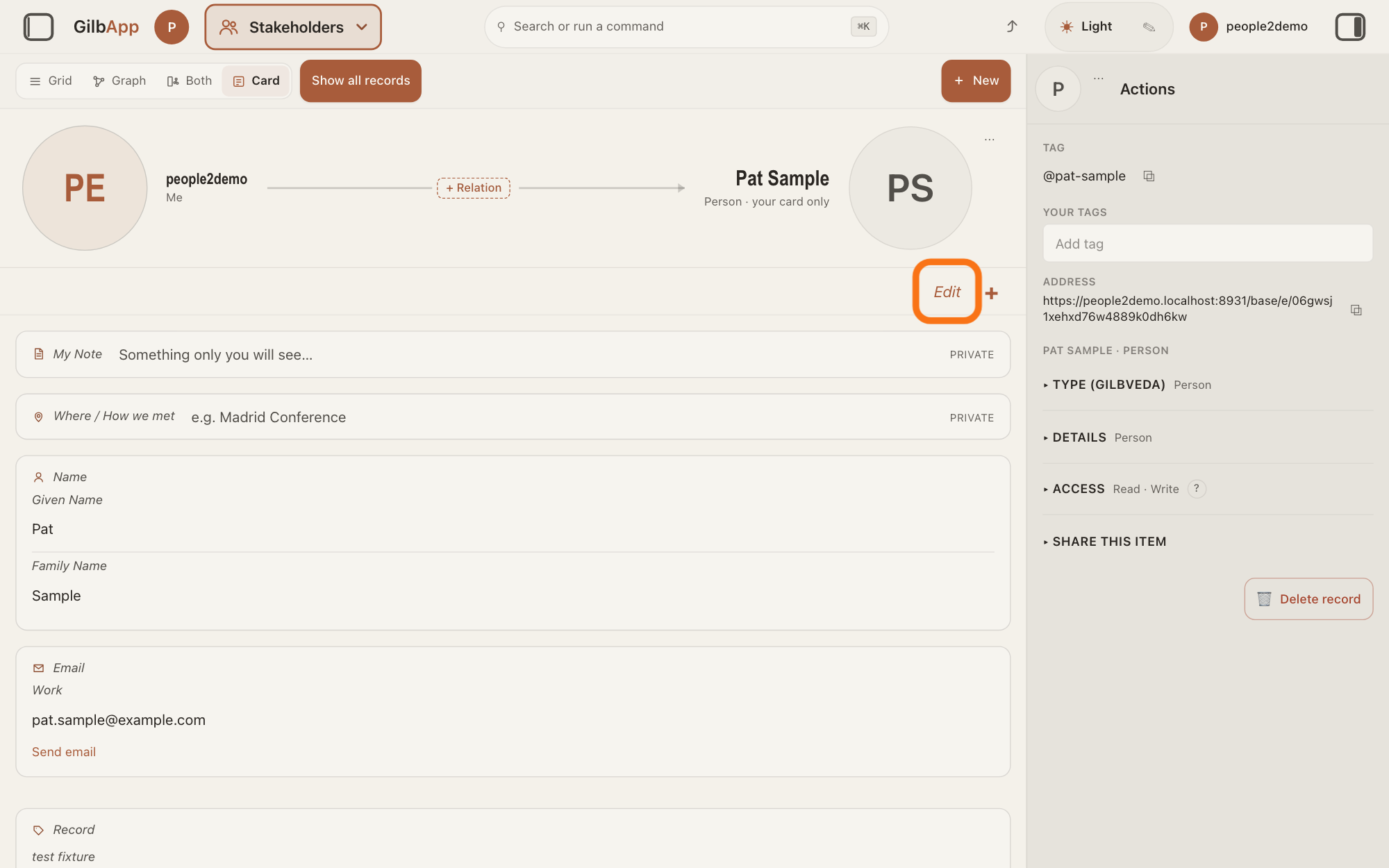
Press Edit at the top right of the card.
Press Edit at the top right of the card, beside +. The card can now be changed, and Edit reads Done.
Show as text
The person's card opens in the middle, not being edited. At the top right of the card, under its header, press "Edit", outlined in orange; "+" is beside it.
More about this
Clicking a value on the card also does this. The card says Editing. Changes save as you leave a field. The + beside Done at the top right and + Add Information at the foot of the card both open the list headed Add information, for other kinds of information; you do not need them here. Editing ends when you press Done or Esc, or click outside the card. On a card you may only read, Edit is not there.
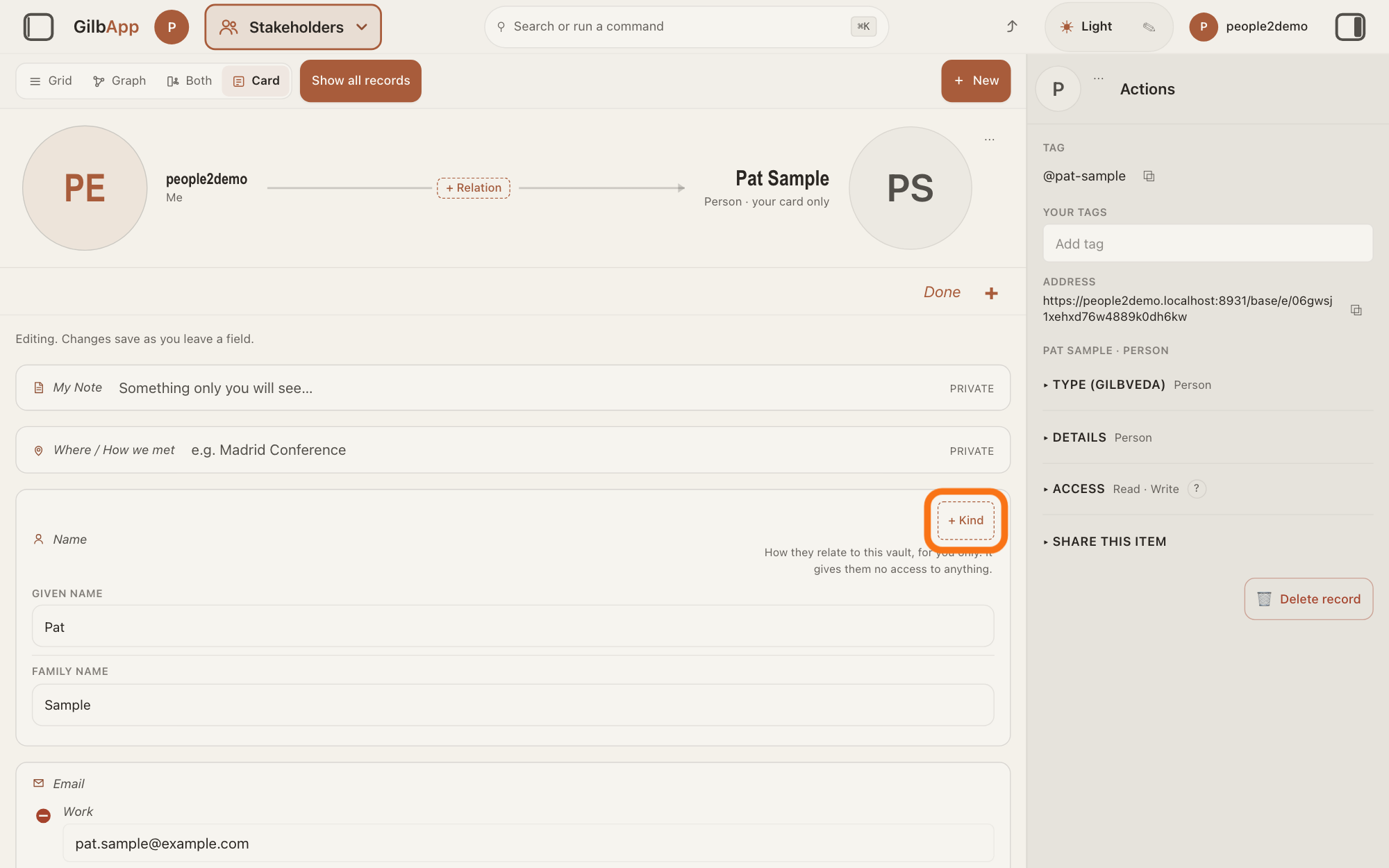
Press + Kind beside Name.
Press + Kind at the right of the title Name at the top of the card. A window opens with the kinds you can add.
Show as text
The card is being edited: "Done" shows at the top right, with "Editing. Changes save as you leave a field.". In the "Name" group, press "+ Kind" at its right, outlined in orange.
More about this
Under the kinds the card already has, the line says "How they relate to this vault, for you only. It gives them no access to anything." Each kind shows as a chip, a small label; a red round minus sign at its left removes it. + Kind is not there when nothing is left to add, or when the card is not in your own vault.
Choose a kind in the window.
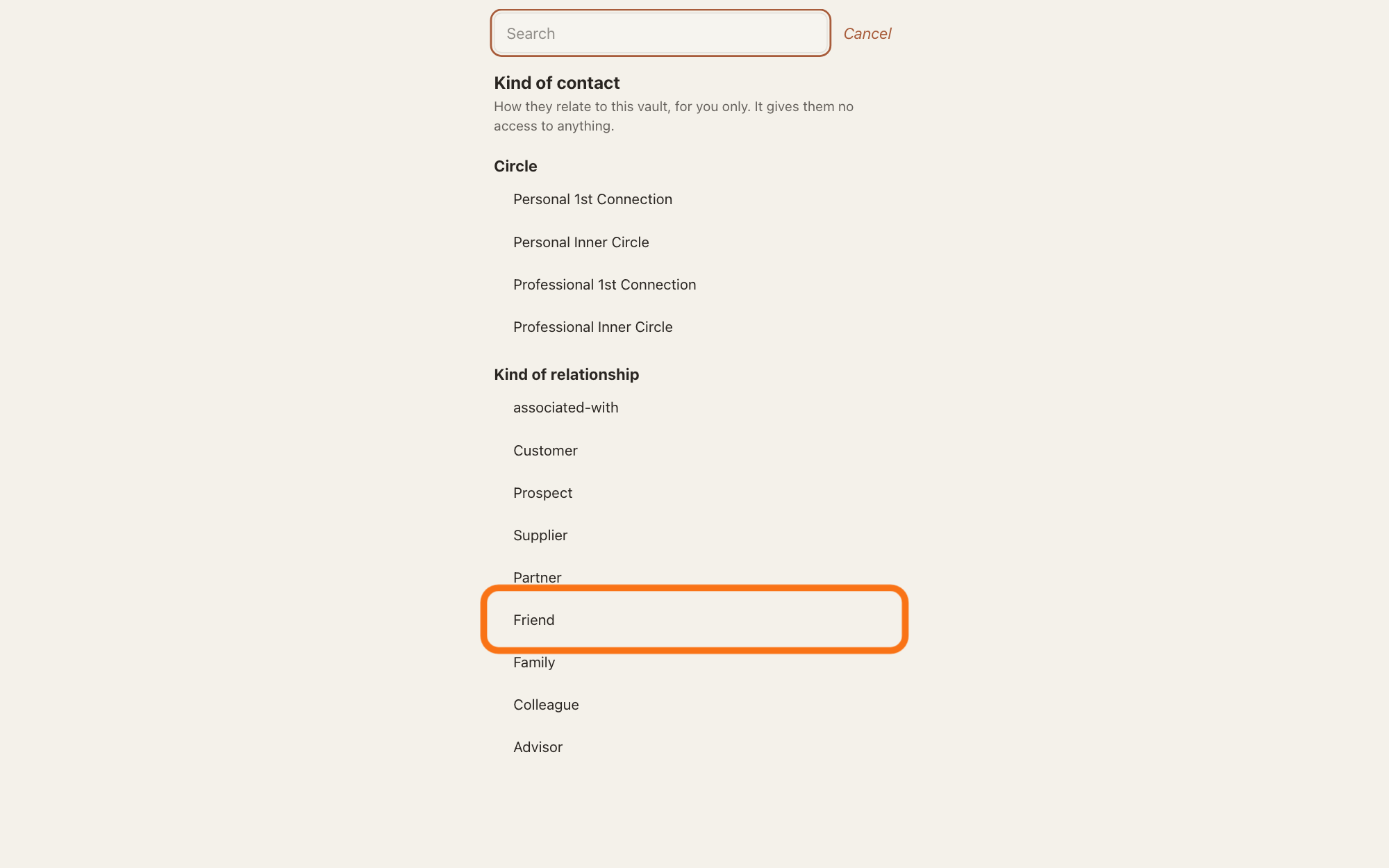
Choose a line under Circle or Kind of relationship. The window closes and the kind shows as a chip beside Name; GilbApp saves it at once.
Show as text
A list headed "Kind of contact" opens: "How they relate to this vault, for you only. It gives them no access to anything." Under "Kind of relationship", press a kind; "Friend" is outlined in orange. "Circle" is above it.
More about this
Circle holds Personal 1st Connection, Personal Inner Circle, Professional 1st Connection and Professional Inner Circle: how you know the person. Unlike a circle in MyNet, Gilb's app for your profile and network, they give no one access. Kind of relationship holds the kinds GilbVeda, the shared list of terms, gives this type of card, such as Customer or Friend, and your own kinds. While the card has no kind of relationship, the general tie, associated-with, is offered too; a more exact kind replaces it. Search narrows the lists (Nothing matches. if none); Cancel closes the window. Everything is already on this contact. means nothing is left.
Press Done.
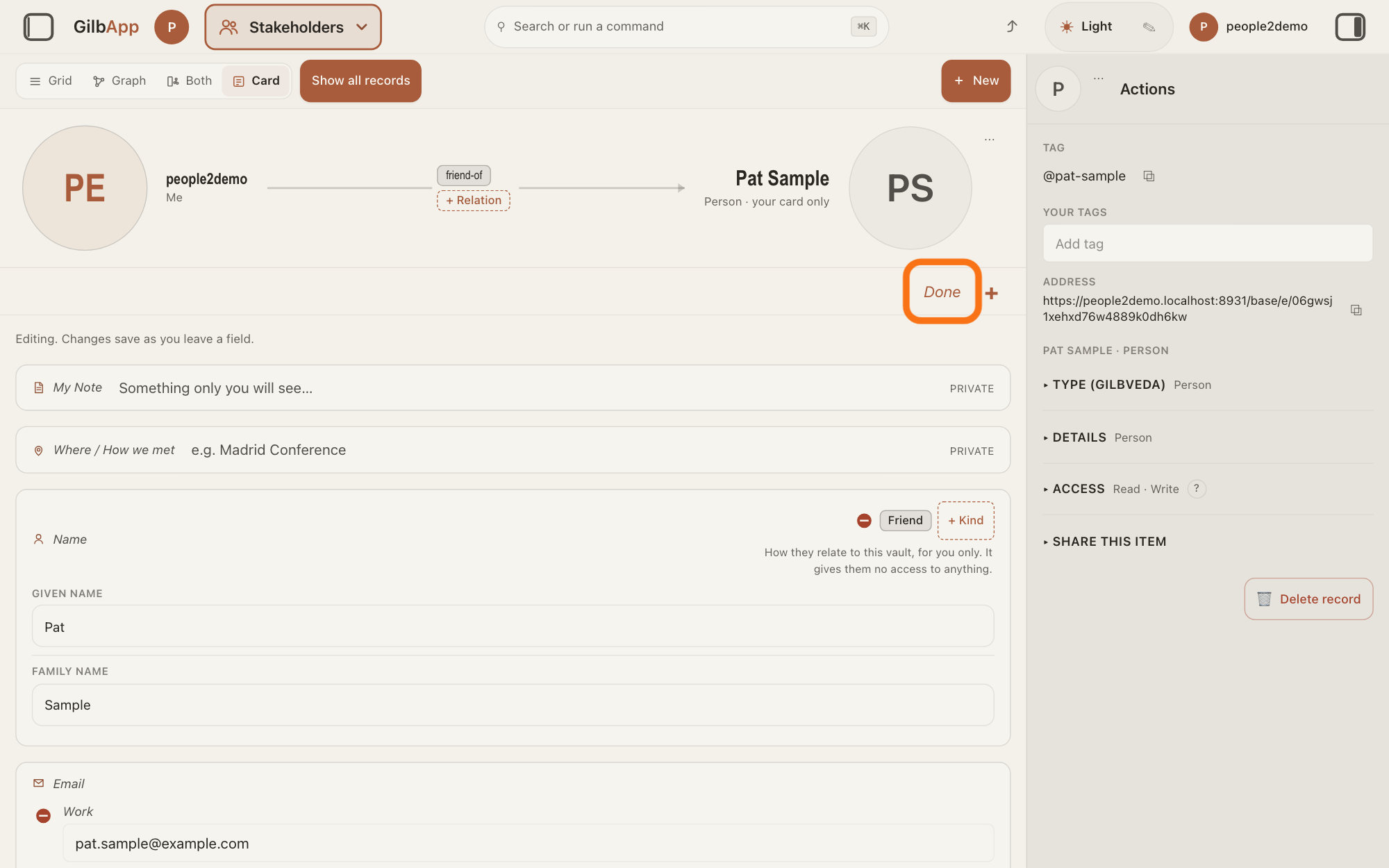
Press Done at the top right of the card. The kinds stay beside Name as plain words.
Show as text
The kind now shows as a chip, "Friend", beside "+ Kind" in the "Name" group, and as "friend-of" in the card's header. Press "Done" at the top right, outlined in orange.
More about this
When the card is not being edited, the chips have no minus sign. Removing the last exact kind of relationship puts associated-with back; removing associated-with itself leaves none.
Deeper
A kind is for your own knowing. It says what the person is to you, gives them no access to anything, and never changes what the card is: a Person stays a Person.
When you add a person, the block Kind (optional) in the dialog sets the same kinds; the answer on adding a person as a stakeholder shows it. Only there can you make a kind of your own: type it in the box that shows A kind of your own… and press Add. It is saved in your vault at once, for that type of card, and the window of step 5 offers it from then on. In the dialog, Show my own kinds lists the ones you made; with none it says You have no kinds of your own yet.
A kind of relationship is kept as a private link from the card to your vault; a Circle chip and a kind of your own are kept as private labels.
This answer is written for a computer screen.
Source: GilbApp af0f04ee (https://gilb.com/app/version.json read 2026-11-10). RecordDetail.tsx:1676-1700 (no kinds on the own card: `ownCardLocked`), ContactCardSlots.tsx:71-86 (edit only in the signed-in person's own vault: `annotationsFit`; elsewhere read-only chips), RecordDetail.tsx:709-710 (person or organisation card). Step 3: cardMode.tsx:1-15 (on: a click on a value or Edit; off: Done, Escape, a click outside, Tab out), :232-282 (Edit/Done and +, only when the card may be written), :296-302 (Editing. Changes save as you leave a field.), RecordDetail.tsx:1817-1825 (the buttons at the top right), headerLayout.ts:33-38 (words, not icons, at 440 px and wider), AddInformation.tsx:21-35 (+ Add Information). Step 4: RecordDetail.tsx:2018 (group Name with the chips as its aside), CardGroup.tsx:244-252, ContactKindChips.tsx:83 (Kind), :108-140 (+ Kind only in editing with something to add; RemoveControl), RemoveControl.tsx (red minus-circle SVG), ContactCardSlots.tsx:33 (help line). Step 5: ContactKindChips.tsx:180-270 (window: Search, Cancel, help, Circle, Kind of relationship, Reading the kinds…, Nothing matches., Everything is already on this contact.), contactKindModel.ts:79-81; useContactLabels.ts:293-325 (offers: circle labels, kinds fitted to the type and the vault, own kinds; associated-with while no tie), :380-420 (floor rule; replace, never both); kindRelation.ts:792-812. Step 6: ContactKindChips.tsx:13-15, :108-112 (presentation: text, no minus). Deeper: StakeholderStart.tsx:139-154, :199-249 (own kind: A kind of your own…, Add, Show my own kinds, You have no kinds of your own yet.), ownKinds.ts:1-10; startKinds.ts:1-10; ContactCardSlots.tsx:1-20. GilbVeda public reads 2026-11-10: RelationshipKind entries Customer, Prospect, Supplier, Partner (Person, Organization), Friend, Family, Colleague, Advisor (Person), Competitor, Investor, Public authority, Non-profit (Organization, no predicate, so not offered); CircleLabel four entries; t:AssociatedWith label associated-with; t:RelationshipKind a:does (a label only, grants no access, never a record type). Published What is a Kind?.
Checked against GilbApp d529620.