
← What is the difference between …?
How do I connect a card to the person's own online card?
Short answer
In Stakeholders, search and select the person, press Find their online card, search for their name, and press This is them: connect.
Before you start
You need to be signed in to GilbApp on a computer, with the person's card in Stakeholders, in a vault you can write to, such as your own vault. The answer on adding a person as a stakeholder shows how to make one.
The person must have made themselves findable by name where you may see it. The pictures show a made-up person on a test site; your screen shows your own name and address.
Words used here (4)
- online card
- An online card is the card a person keeps about themselves on GilbPlatform; others see only what the person shares with them.
- GilbApp
- GilbApp is the app, opened in a web browser at https://gilb.com/app, where you open, fill and share your vaults.
- record
- A record is one piece of data with its own address, such as a person, a place, a thing or a note.
- GilbPlatform
- GilbPlatform is the service that keeps people's and organisations' data in vaults, each at its own web address.
Steps
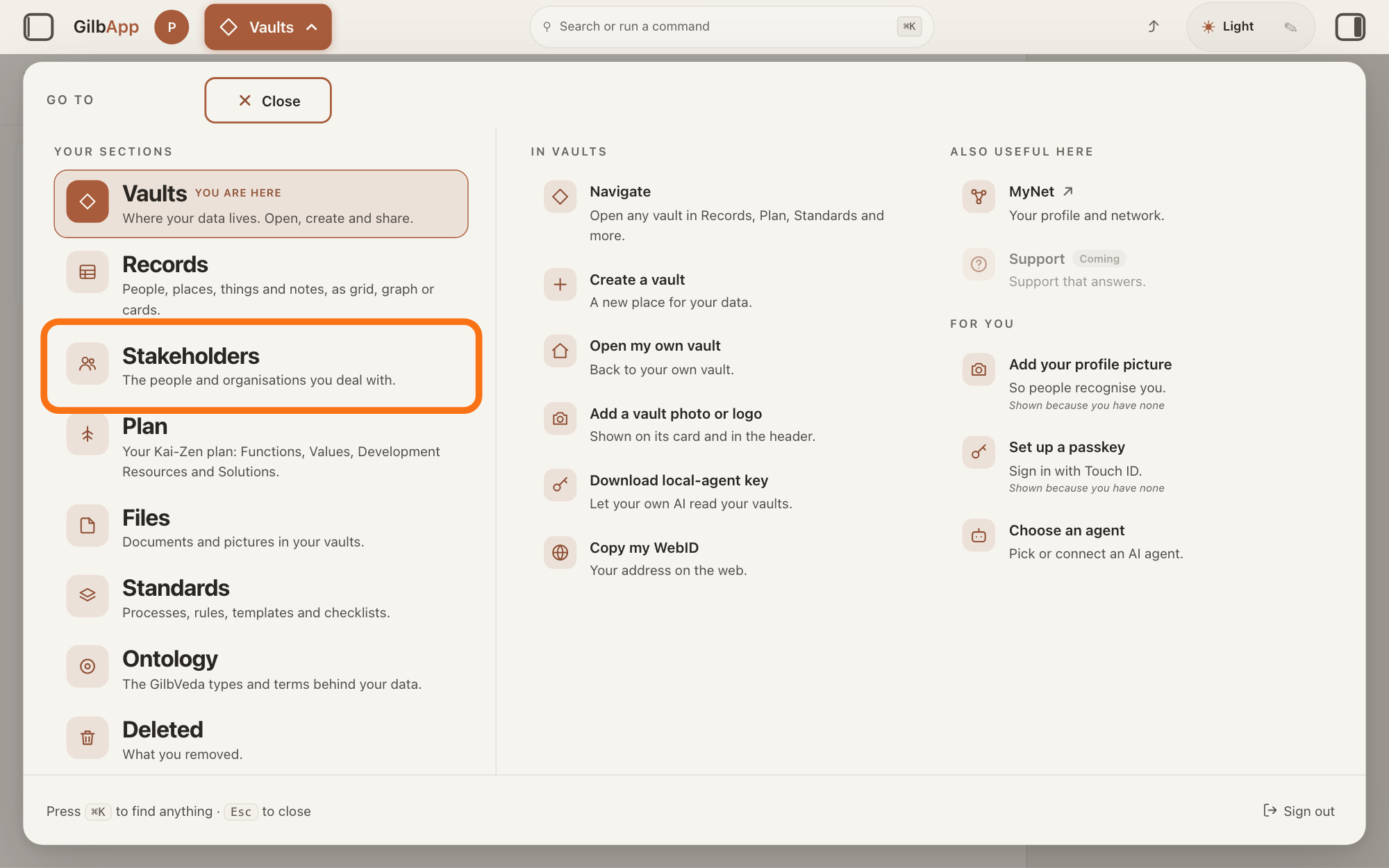
Press Main menu at the top left and choose Stakeholders.
Press Main menu, next to your profile picture at the top left, and under YOUR SECTIONS choose Stakeholders. A stakeholder is a person, group or system that cares whether a Value goes up or down.
Show as text
At the top left, press "Main menu" (it shows the name of the section you are in). In the panel headed "GO TO", look under "YOUR SECTIONS" and press "Stakeholders", "The people and organisations you deal with.", outlined in orange.
More about this
The button shows the name of the section you are in, such as Vaults. A panel headed GO TO opens; Stakeholders reads The people and organisations you deal with. You can also press the Stakeholders button on the card of a vault (the place where a person or a group keeps their records) in Vaults. The screen lists your stakeholders and has the views Grid, Graph, Both and Card. The list also holds organisations, systems and groups; the TYPE column says which are Person.
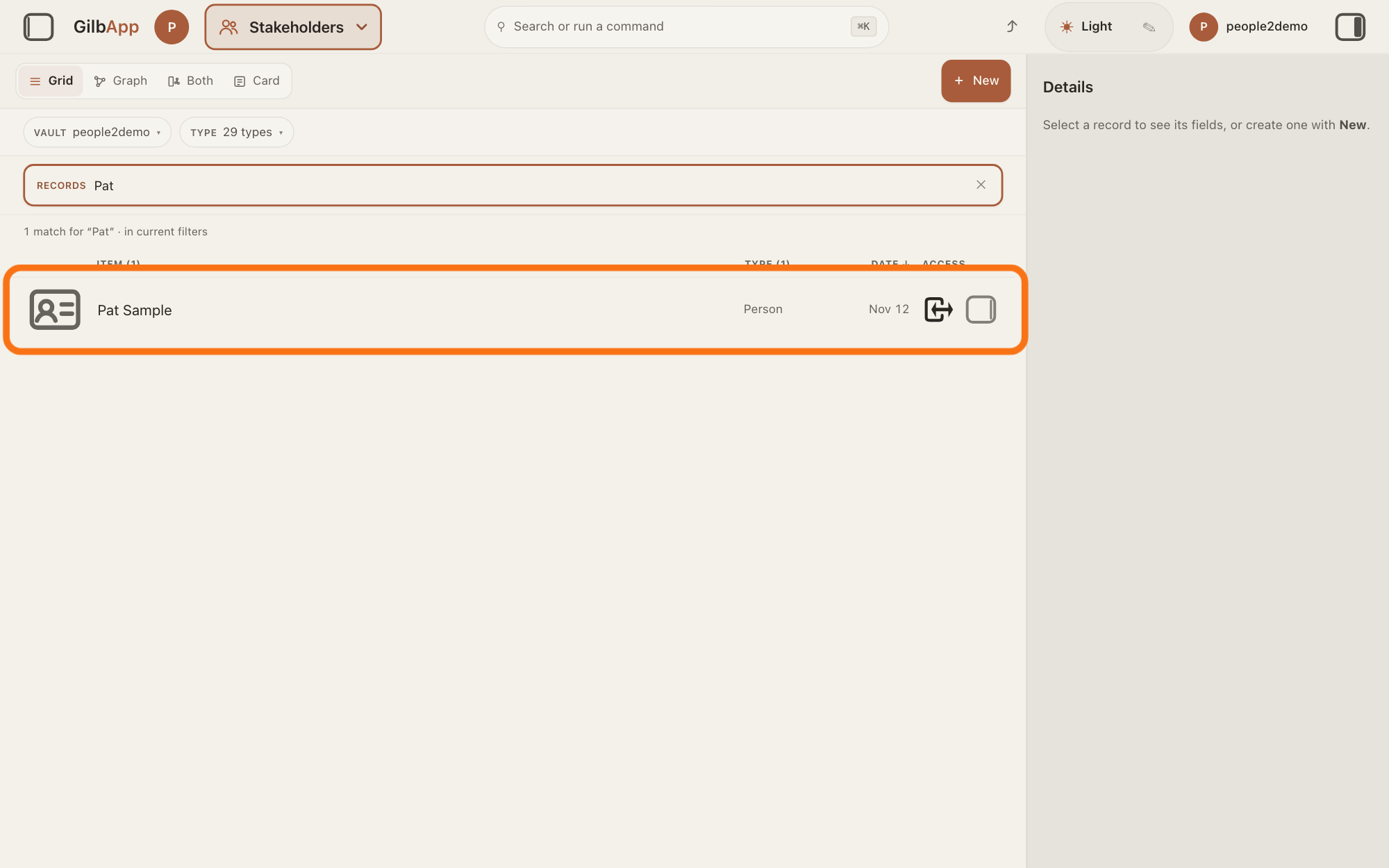
Search and select the person in the list.
Type a word of the person's name in the search box marked RECORDS above the list, and click the person in the list. The person's card opens in the middle of the screen, and the right pane, headed Actions, holds what you can do with it.
Show as text
In the box marked "RECORDS" above the list, type a word of the person's name. The line under the box counts the matches. Press the person's row, outlined in orange, to open their card.
More about this
The answer on avoiding adding the same person twice shows more about the search. Only a person's card can be connected, and only one in a vault you can write to; an organisation's card and your own card have no Find their online card. You do not need the right pane here.
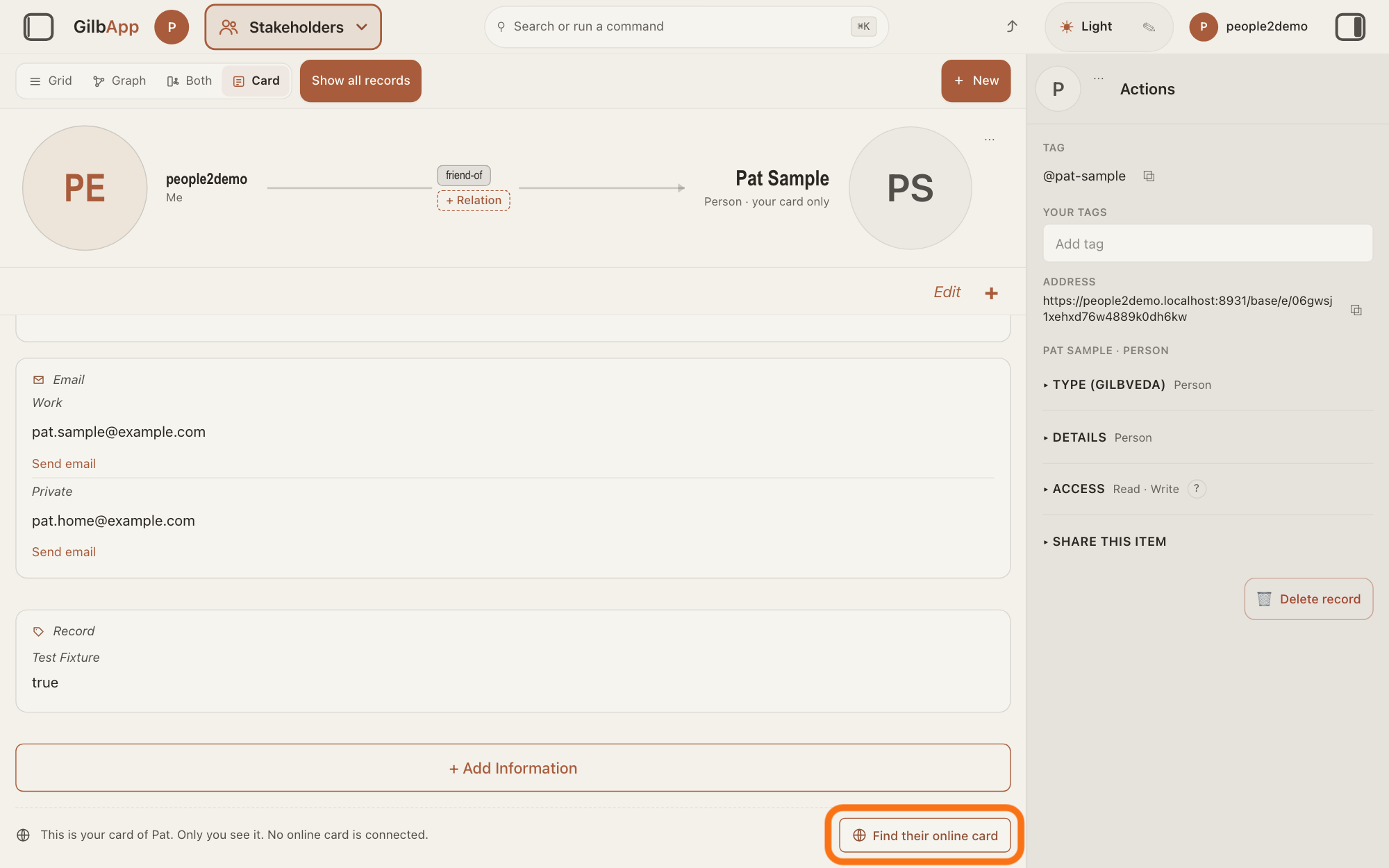
Press Find their online card at the foot of the card.
Scroll down to the foot of the person's card, below + Add Information, and press Find their online card, the button with a small globe; an online card is the card a person keeps about themselves on GilbPlatform. A box headed Their name opens, holding the card's name, with the cursor in it.
Show as text
Scroll to the foot of the card. Under "+ Add Information", a line says this is your card, only you see it, and no online card is connected. Press "Find their online card" at its right, outlined in orange.
More about this
The line beside the button says This is your card of, the first name, and Only you see it. No online card is connected.; whoever may read the card's vault can read the card too. On a card in a vault you can only read, the line says No online card is connected. and there is no button.
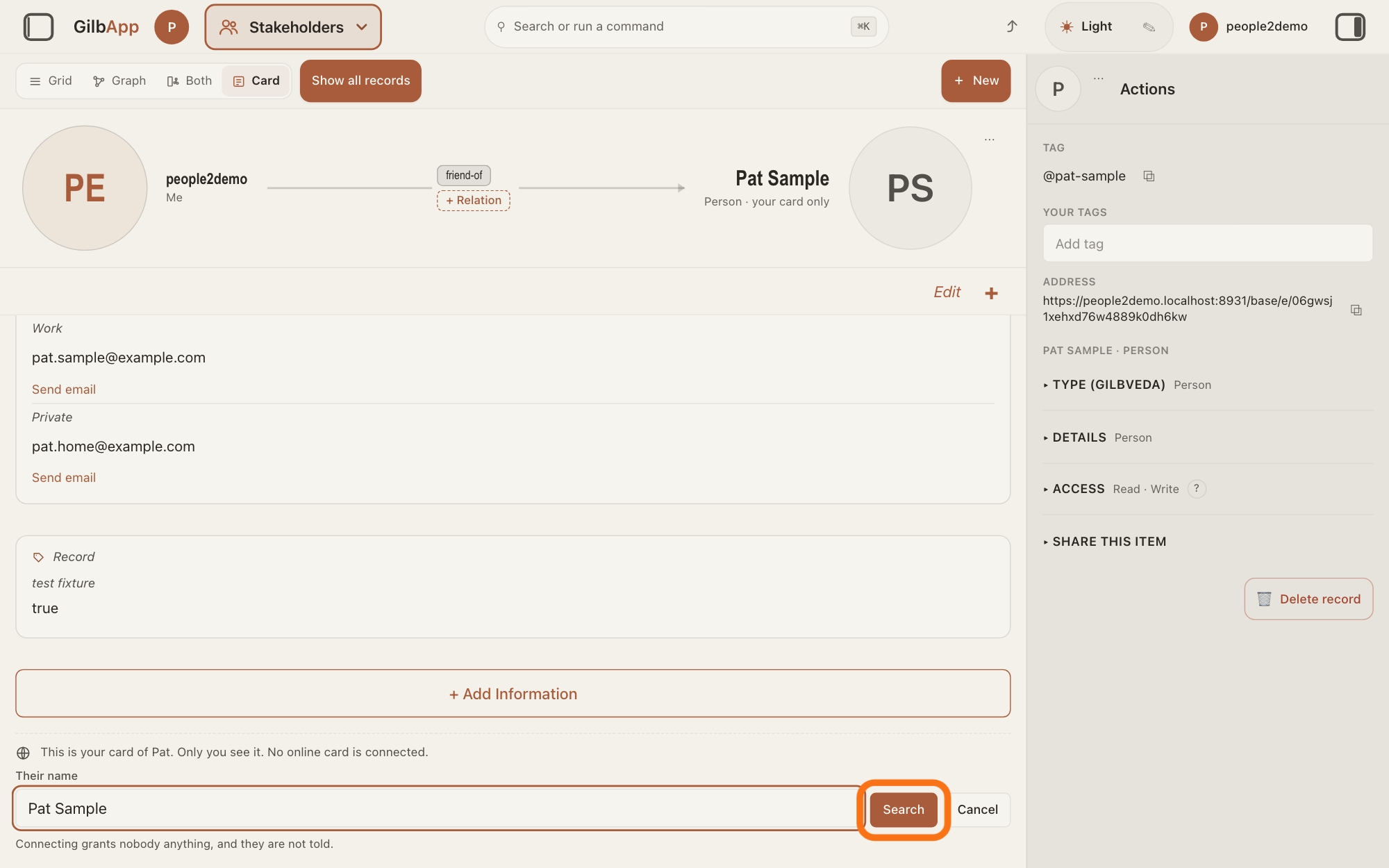
Search for the person by a word of their name.
In Their name, keep the card's name or type the name the person may use instead, and press Search. Each person found is listed with their name and the contact points, such as an e-mail address, that they publish to you.
Show as text
A box headed "Their name" appears, already holding the card's name. Change it if you need to, then press "Search", outlined in orange. Under it: "Connecting grants nobody anything, and they are not told."
More about this
First and last names are searched: the start of a word is enough, and any one of your words may match. Searching… shows while it looks. No one you can see matches and your words means no one was found. With more people than it lists, a line starts Showing 5 of and asks you to add more of their name. Cancel or Esc closes the search and changes nothing. If the search cannot be made, it says The search could not be made. Nothing was changed. and why.
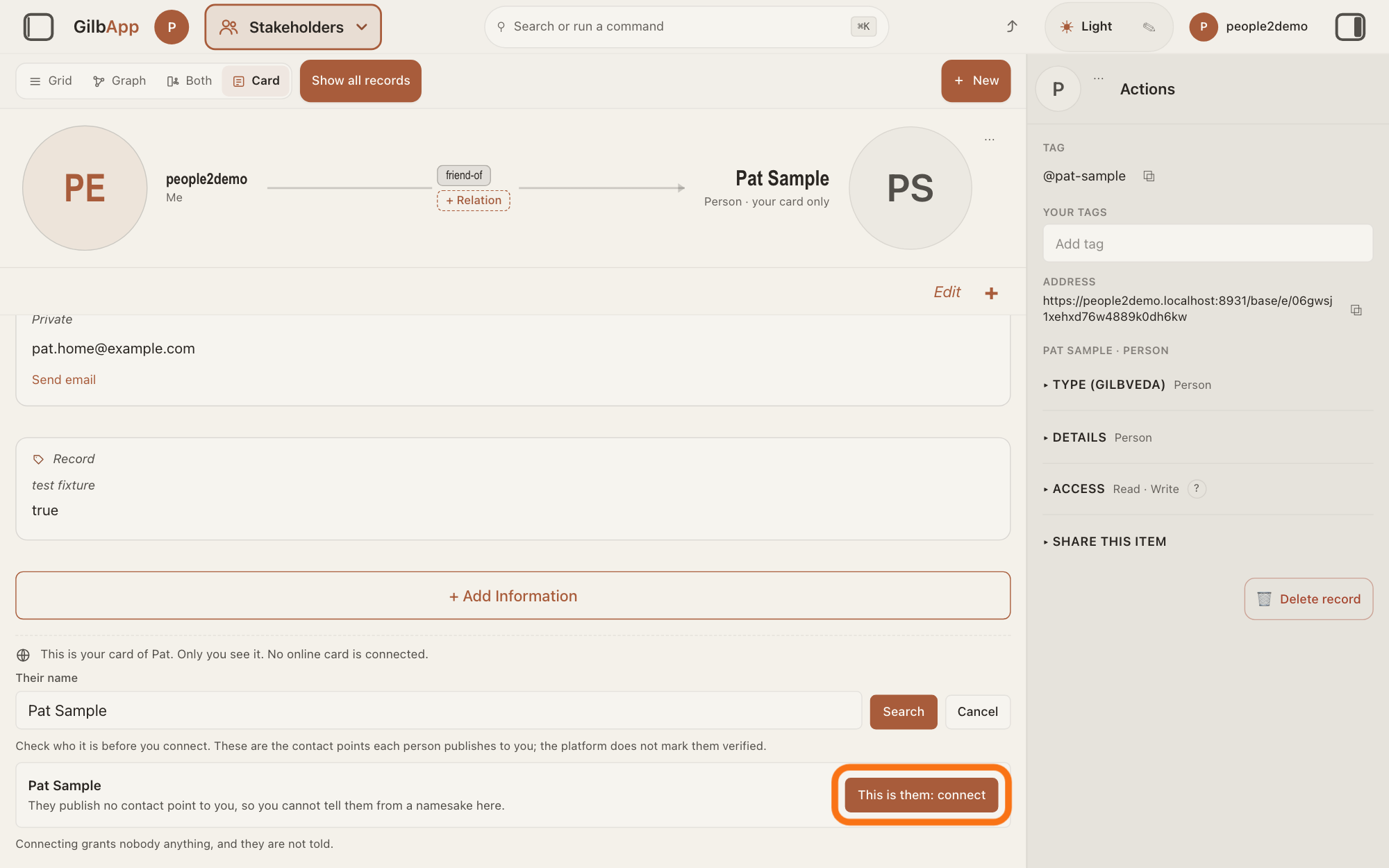
Press This is them: connect beside the right person.
Check the contact points under the name, then press This is them: connect on that person's line. It reads Connecting…, and then the card shows their details too.
Show as text
Under "Check who it is before you connect.", each match is listed. This one says "They publish no contact point to you, so you cannot tell them from a namesake here." Press "This is them: connect" on the right line, outlined in orange.
More about this
Above the list GilbApp says "Check who it is before you connect. These are the contact points each person publishes to you; the platform does not mark them verified." "They publish no contact point to you, so you cannot tell them from a namesake here." means two people of that name cannot be told apart here. Under the list: Connecting grants nobody anything, and they are not told. Afterwards their details sit shaded in the card's groups, each with a chain-link sign, the foot reads Connected to their online card., and the line under the name ends · online card, not · your card only. If it fails, the foot says Their online card could not be connected. Nothing was changed. and why.
Deeper
Also asked:
What is the difference between my card of a person and their own online card? Your card is a record in your own vault that you write. Their online card is the one they keep in MyNet: only they can change it, and you see what they share with you. Connecting links the two; nothing is copied.
The search finds only people, and only by a first or last name they placed in MyNet, Gilb's app for your profile and network, where you may see it: for everyone, for everyone signed in, or for one of their circles in MyNet that they placed you in. A name they keep private is never found. The answer on making yourself findable by name shows how a person does it.
Connecting writes one link on your card, in your vault; nothing of theirs is copied into it. Their details show as they share them with you, and only they can change them; + Add your own adds yours beside them. The link gives no one access to anything.
To undo it, press Unlink beside Connected to their online card. at the foot of the card. GilbApp asks first: "Removes the link between your card and their online card. Your own fields and notes stay on your card; their fields leave it." Press Unlink again, or Keep to leave it.
Your own card cannot be connected: a band at its top says it is your own card and whether MyNet shows it, with Edit in MyNet, which opens MyNet in a new tab, where your own card is changed.
A person you placed in a circle in MyNet but hold no card of is a row in Stakeholders with a chain-link sign. Open it and press + Add your own to make your card of them in your own vault, already connected.
This answer is written for a computer screen.
Source: GilbApp af0f04ee838a4d55887d2ff1f72edd49a4ff7ca0 (https://gilb.com/app/version.json read 2026-11-10, built 2026-11-09, dirty false); live bundle gilb.com/app/assets/index-CEVUjjQB.js (saved) for the gilb-stakeholders words. step 2 first part. records/OneCardFind.tsx:5-12 (foot words; Find only for a holder who may write; nothing read until a search), :44-175 (FindPanel: Their name :64-67, focus :51-53, Search/Searching… :87, Cancel :96, error :101, No one you can see matches :107, Showing … of … :113, Check who it is… :117, no contact point :138, This is them: connect/Connecting… :148-163, noGrant :171), :190-208 (This is your card of <first name>. Only you see it. No online card is connected.; a reader: No online card is connected.), :269-281 (button only with write; opens with the card's name), :292 (connect error); OneCardBody.tsx:16 (nothing of theirs written into the record), :154-185, :263 (OneCardFoot); RecordDetail.tsx:702-703 (personNames: a person card), :812-831 (own card read only; controller only for a ready person card, not the own card; canWrite = may write), :1963 (OwnCardBand), :1987-2011; StakeholderContactHeader.tsx:270 (caption Person · your card only / · online card / · linked, not open to you now), bundle gsh-badge title Live link to their account — not a copy; lib/base/onlineCard/onlineCardWiring.ts:7, :50-52 (the link is a patch of a:sameAs on the holder's own record); OwnCardBand.tsx:13-26, :80-88 (own card band words, Edit in MyNet in a new tab); OnlineStakeholderCard.tsx:1-12, :164, :260-262 (+ Add your own makes one record in the own vault and links it); RecordGrid.tsx:1627 + ConnectedMarker.tsx (list row Connected). Bundle: Bp {findTitle Find their online card, noGrant Connecting grants nobody anything, and they are not told., onlineHelp}; Pee (GET /base/connect/find-by-name?name=…&limit=50, the first 5 people read, total kept); hb {connected Connected to their online card., unlink Unlink, unlinkAsk, keep Keep, theirsTitle}; Lse (OneCardFoot: Unlink asks first); vb {button + Add your own}. GilbPlatform 4d008a55 (https://id.gilb.com/version read 2026-11-10): src/routes/connect-name.ts:1-18 (the searchable set is first name + last name and nothing else), :215 (card: anonymous public only, signed in the fields the viewer's rungs entitle), :942-943 (anonymous: public postings only); src/baseconnect/name-find.ts:9-16 (audience filter in the SQL), :37-45 and :221-239 (token prefix of any word, tokens OR'd), :47-51 (a private name is never materialised); src/baseconnect/audience-key-projection.ts:106-124 (viewer keys: public, the viewer, signed-in, the viewer's groups); PersonTwinsOnly (connect-name.ts:935, :1082). GilbVeda public read 2026-11-10: t:VaultSelfCard (the online card), t:SameAsAssertion (a:sameAs, the link), t:SignedInGrantee, t:VisibilityTier.
Checked against GilbApp d529620.