
How do I create a record?
Short answer
Press Main menu, choose Records, press + New, choose Create a record on its own, choose the type, type a name, and press Create.
Before you start
You need to be signed in to GilbApp on a computer, with a vault you can write to. The pictures show a made-up person on a test site; your screen shows your own name and address.
Words used here (5)
- record
- A record is one piece of data with its own address, such as a person, a place, a thing or a note.
- GilbApp
- GilbApp is the app, opened in a web browser at https://gilb.com/app, where you open, fill and share your vaults.
- virtual folder
- A virtual folder is a view that groups records and files without moving them; each may sit in several folders.
- record's type
- A record's type says what kind of thing a record is, such as a note, a task or a person, taken from GilbVeda.
- vault's address
- A vault's address is the web address that names one vault, made from the vault's name, such as https://example-name.gilb.com/vault.
Steps
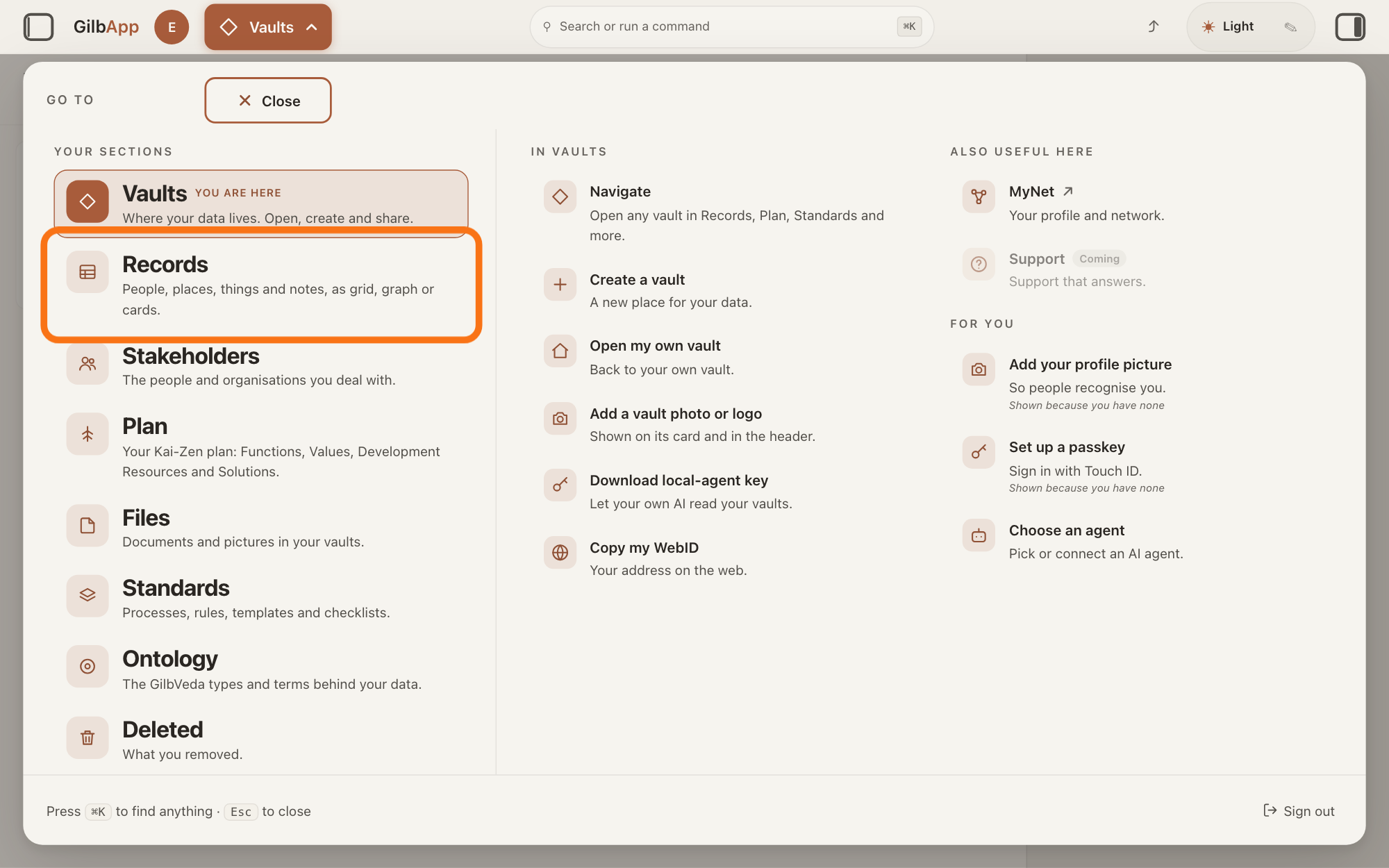
Press Main menu at the top left and choose Records.
Press Main menu, next to your profile picture at the top left, and under YOUR SECTIONS choose Records. The button shows the name of the section you are in, such as Vaults.
Show as text
The panel headed "GO TO" is open over "Your vaults". In the left column under "YOUR SECTIONS", the outlined row is "Records", the second row. Click it.
More about this
A panel headed GO TO opens; Records reads People, places, things and notes, as grid, graph or cards. A record is one piece of data with its own address, such as a person, a place, a thing or a note. Records shows the vault you picked in Vaults, or your own vault if you picked none; a vault is the place where a person or a group keeps their records. You can also press Records on a vault's card in Vaults. New record under IN RECORDS, shown when the pointer rests on Records in the panel, opens the window of step 2.
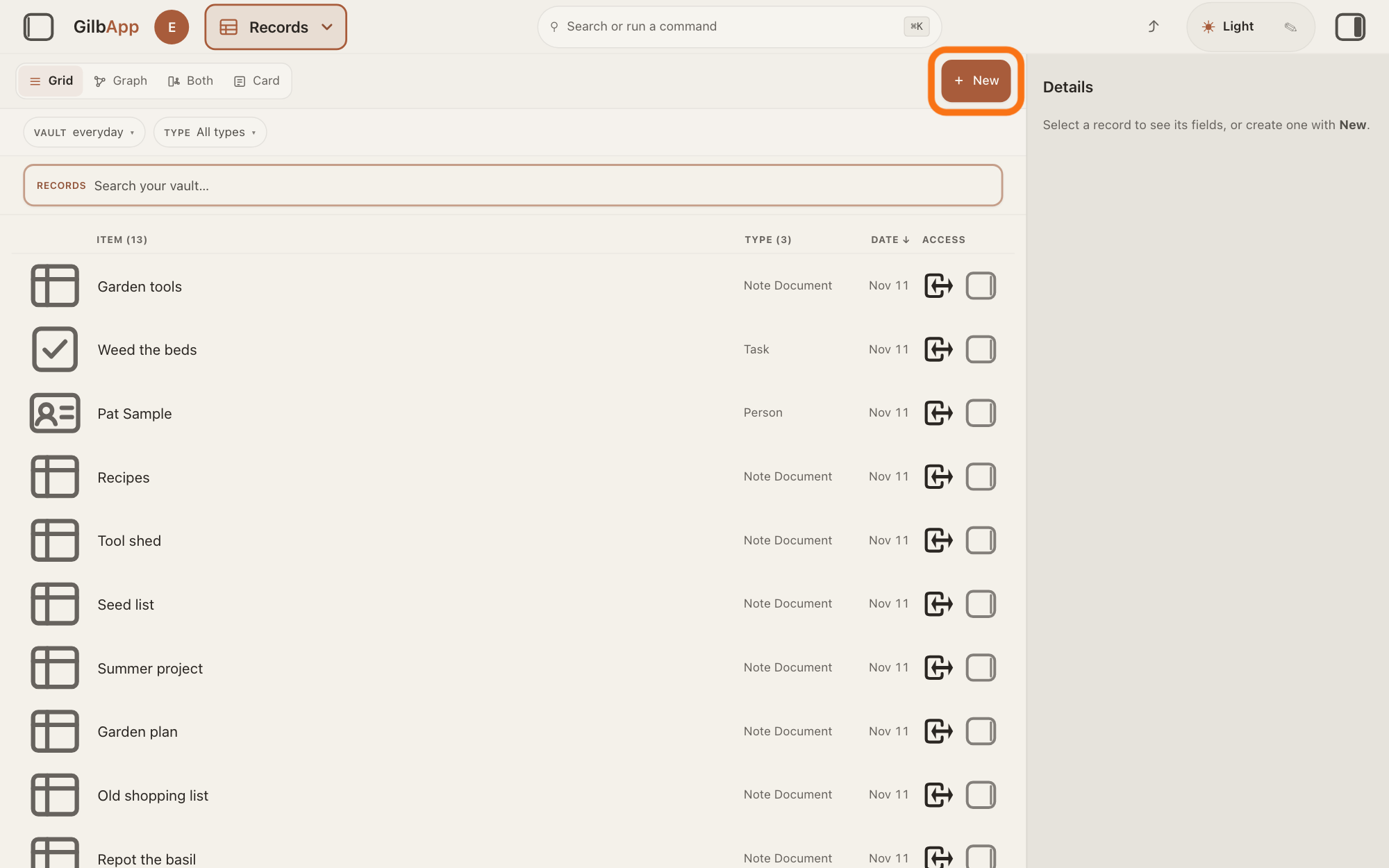
Press + New.
Press + New at the right end of the bar with Grid, Graph, Both and Card. A window headed New opens over the screen.
Show as text
The Records screen shows the list in "Grid", with nothing selected; the right pane says "Select a record to see its fields, or create one with New." At the top right of the middle, the outlined button reads "+ New". Click it.
More about this
If + New is grey, its hover text says why, such as You hold write on no vault, so there is nowhere to create. Grid, Graph, Both and Card change only how the records are shown; you do not need them. Below the bar, VAULT and TYPE narrow the list and the box that shows Search your vault… searches it; the answers on finding a record and on sorting and filtering the list show them. You can also search for new record in Search or run a command and select New record.
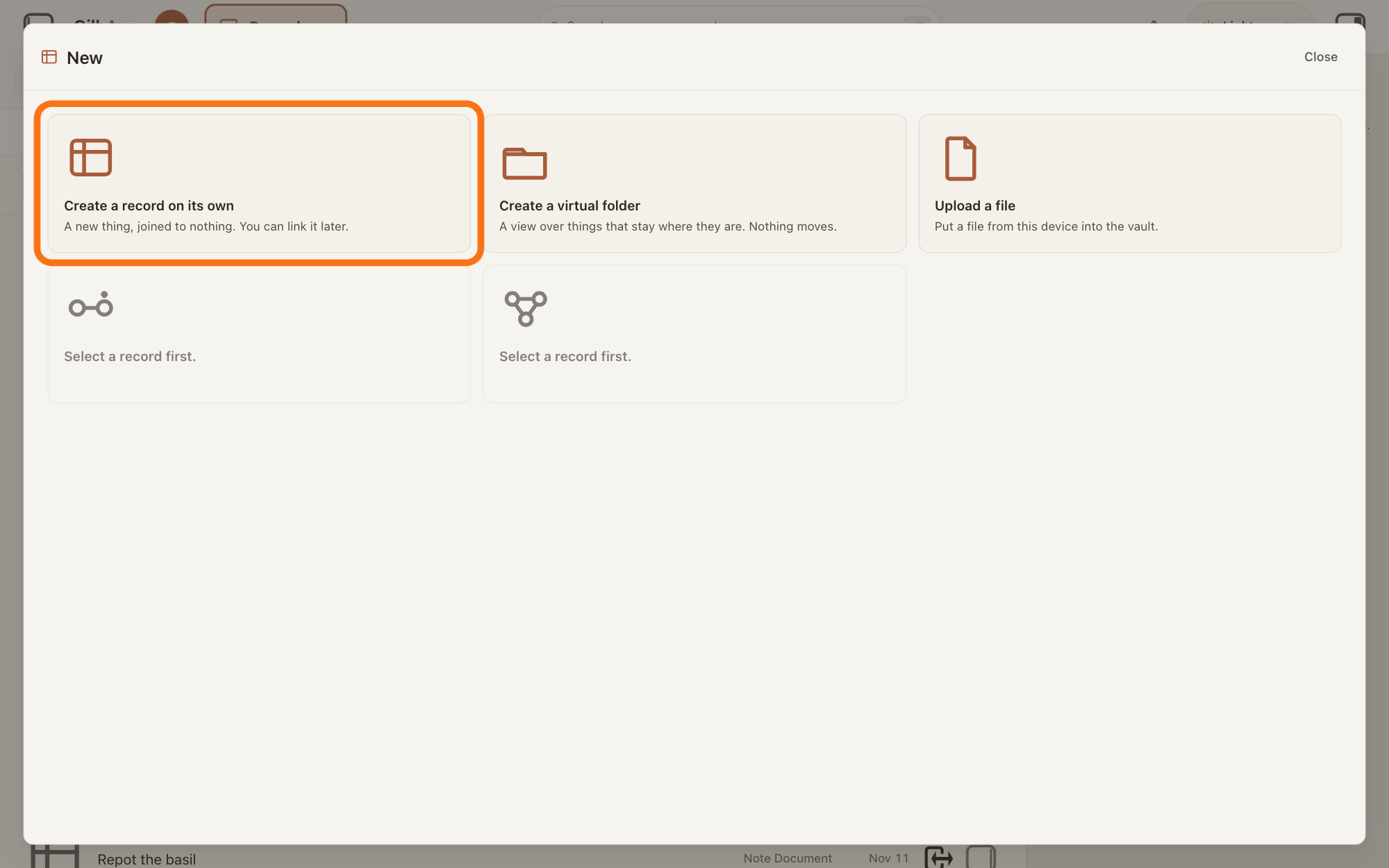
Choose Create a record on its own.
Choose the card Create a record on its own. The window shows the form for the new record, headed New record.
Show as text
A window headed "New" shows five cards. The first card, outlined, reads "Create a record on its own" and "A new thing, joined to nothing. You can link it later." The two cards in the second row read "Select a record first." Click the outlined card.
More about this
The card says A new thing, joined to nothing. You can link it later. Create a virtual folder makes a folder, a view over records that stay where they are; that is the answer on making a folder and putting records in it. Upload a file puts a file from your computer into the vault; that is the answer on attaching a file to a record. With no record open, two more cards read Select a record first.; with a record open they come first and begin Create a record and link it to and Link. The answer on linking two records shows them. Close at the top right, Esc, or a click outside the window closes it and makes nothing.
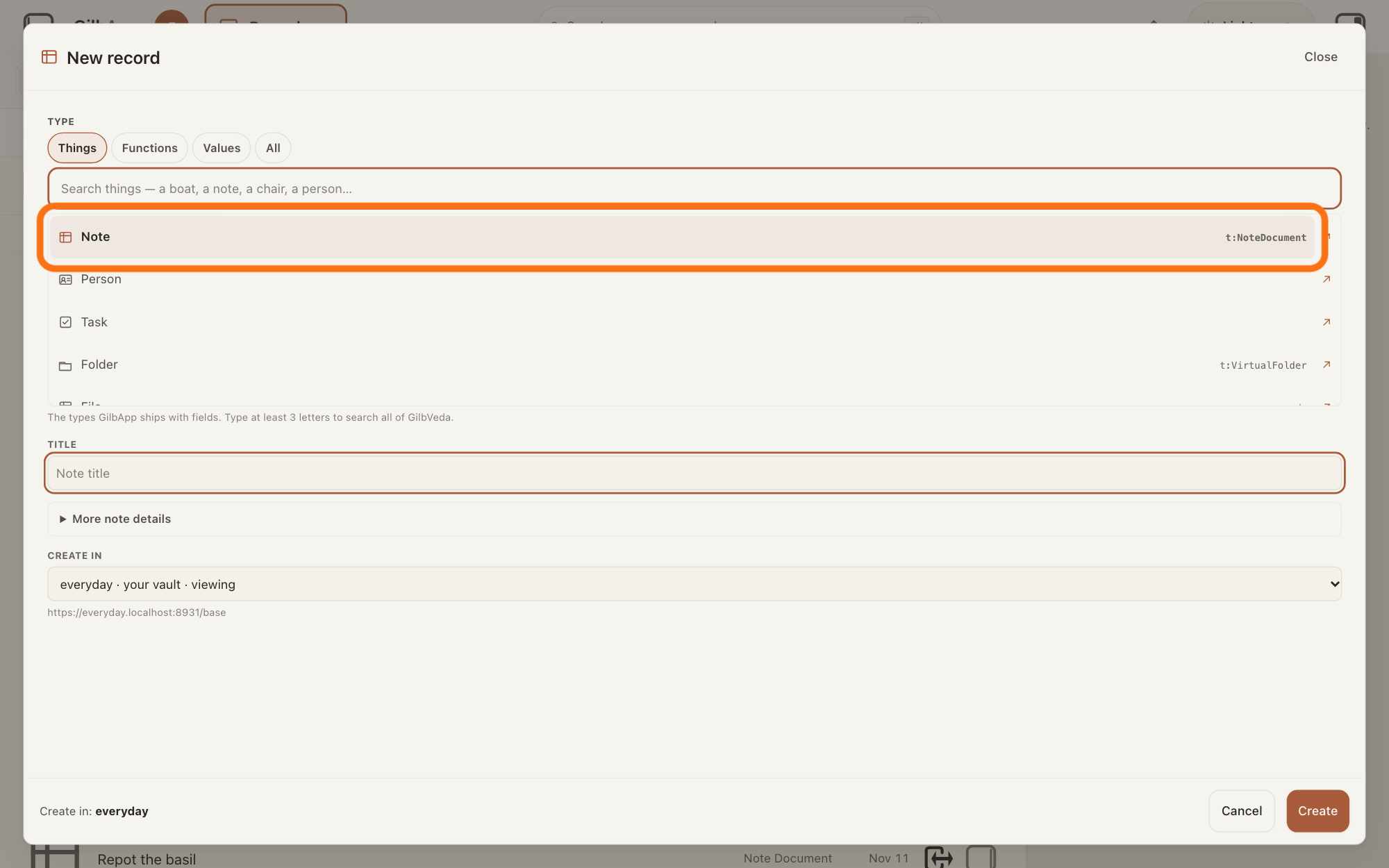
Under TYPE, choose the type.
Under TYPE, choose what the record is: Note is chosen when the window opens, and the list also holds Person, Task, Folder and File. For another type, type at least 3 letters in the box that shows Search things — a boat, a note, a chair, a person… and select one.
Show as text
The window is now headed "New record". Under "TYPE" are the tabs "Things", "Functions", "Values", "All", a search box, and a list. The first row of the list, outlined, reads "Note" with "t:NoteDocument" at its right. Click the type you want.
More about this
A record's type says what kind of thing it is, taken from GilbVeda, the shared list of terms, and decides the boxes the form shows. Beside a row, t:NoteDocument and the like name the GilbVeda term the record will carry; name only means the form has a name box only; ↗ shows what GilbVeda says. Things, Functions, Values and All switch what the search looks among; Things is chosen. Once chosen, the type shows with its DEFINITION; × brings the list back. With File, Create opens the upload screen.
Type a name in TITLE.
Type the record's name in the box under the type: TITLE for a note or a task, NAME for a person, a folder or a type found by the search. You can leave it empty; the record then shows as Untitled.
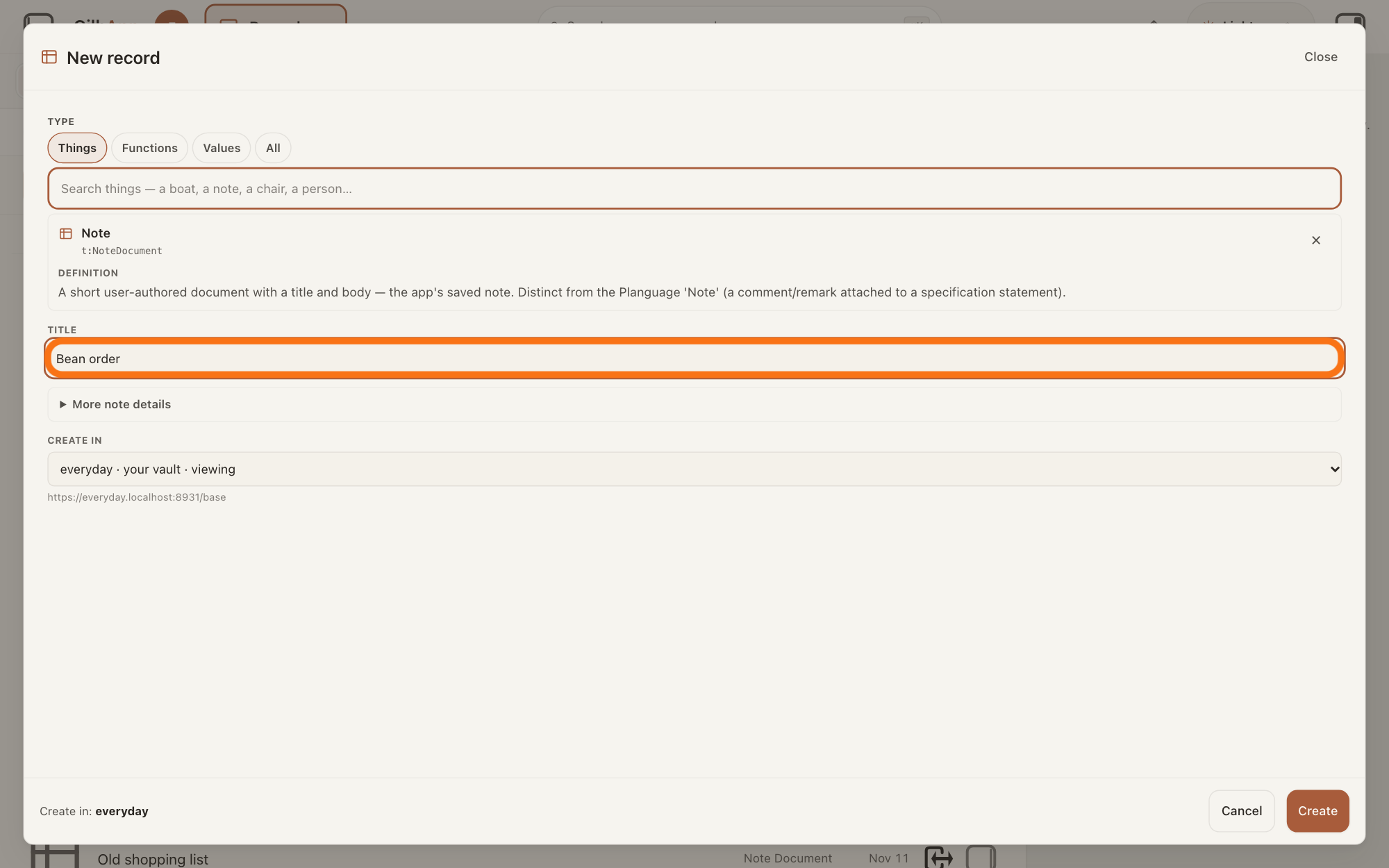
Show as text
Under "TYPE" the chosen type "Note" is shown with "t:NoteDocument" and its "DEFINITION". Below it, the outlined box under "TITLE" holds the name typed, here Bean order. Type the name of your record there.
More about this
Return in the box moves to the next box. More note details (More task details for a task) opens the other boxes, such as BODY for a note, or STATUS and DUE for a task; you can fill them now or later on the record.
Under CREATE IN, choose the vault.
Under CREATE IN, choose the vault the record goes in. It starts on the vault you are looking at if you may write to it, otherwise on your own vault; if the only vault you can see is one you may write to, it names that vault and there is nothing to choose.
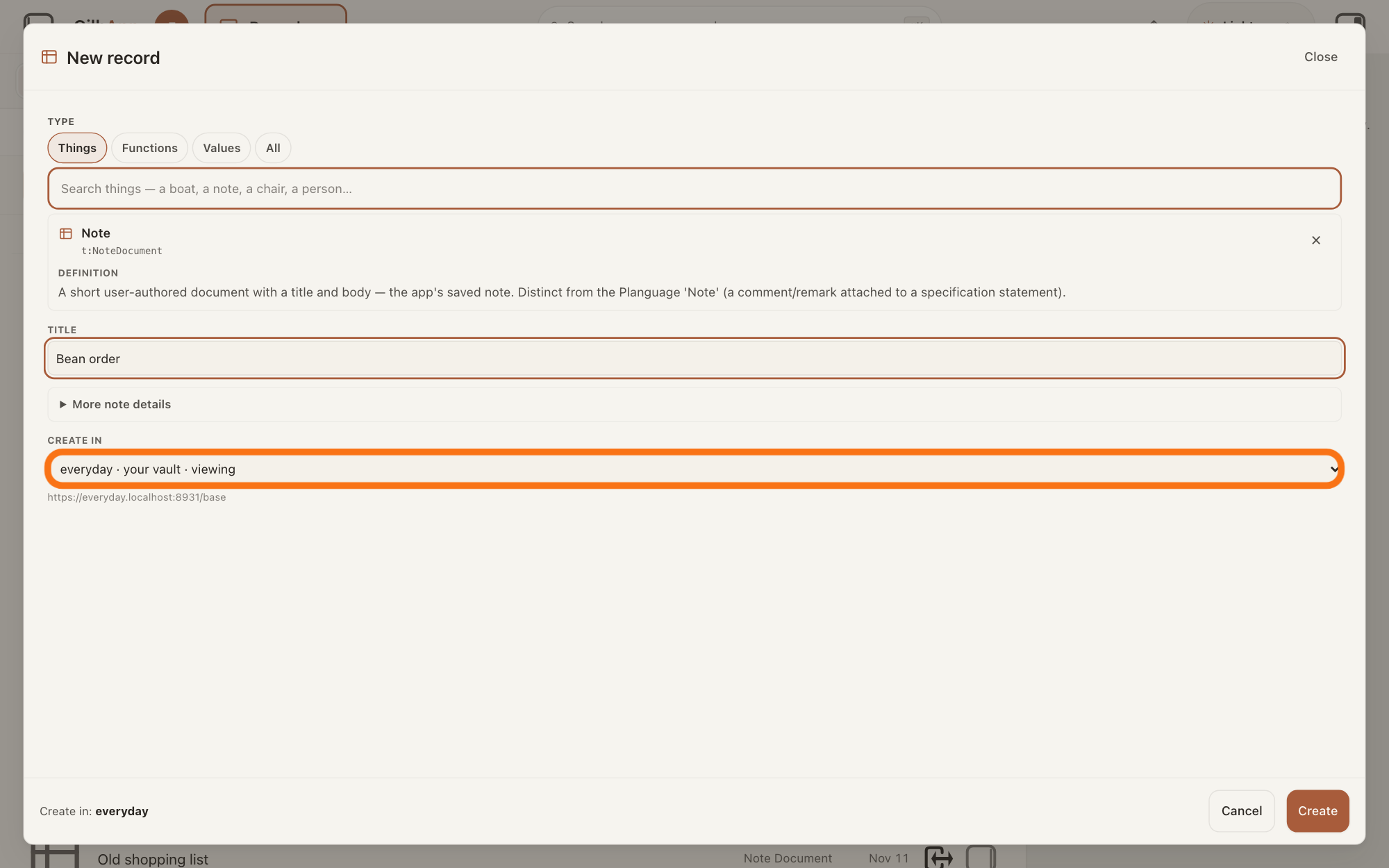
Show as text
Under "CREATE IN", the outlined list shows your vault's name followed by "your vault · viewing", with the vault's address in small letters under it. Open this list to pick another vault, or leave it.
More about this
Under it is the vault's address. Each vault in the list says what it is to you: your vault, inside your vault or shared with you; viewing marks the one on screen. A vault you can only read shows read only, you cannot create there and cannot be chosen. Beside Create, the line Create in: names the vault again and adds — not the vault you are viewing when it is another. While this browser tab stays open, GilbApp keeps your choice for the vault on screen.
Press Create.
Press Create at the bottom right of the window. It reads Creating… while it works; then the window closes and the new record opens in the middle of the screen.
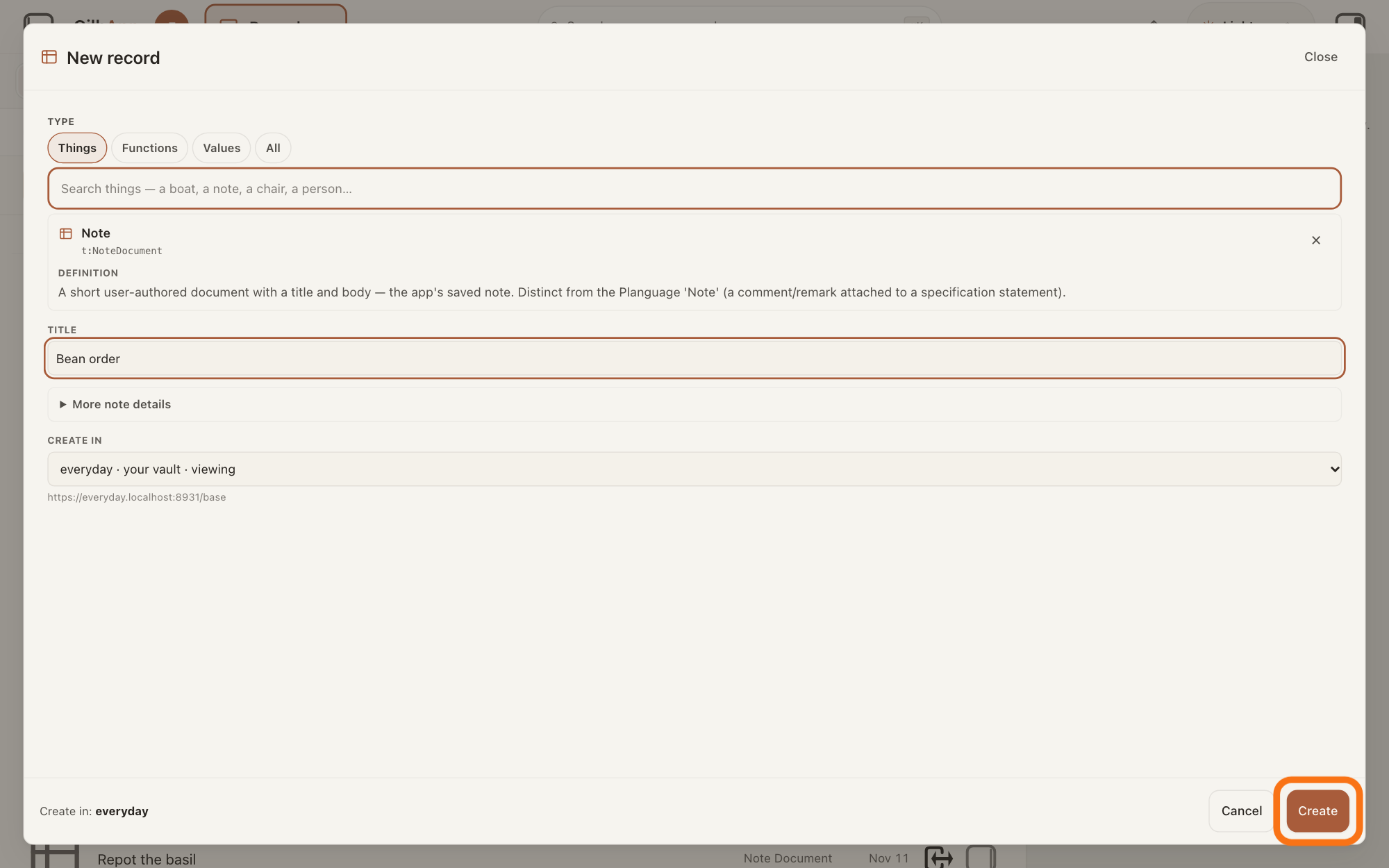
Show as text
At the bottom of the "New record" window, "Create in:" names the chosen vault at the left, and "Cancel" and "Create" sit at the right. The outlined button is "Create". Click it.
More about this
In the views Graph or Both it opens in the right pane instead. If you chose a vault the screen is not showing, the window stays open and says Created, the name and that vault, then not in the vault you are viewing. It is not drawn here.; press Open it to go to the record. Cancel closes the window and makes nothing; with a record open it reads Back and returns to the five cards, and Close closes the window. If the record could not be made, the window says so, such as Could not create the record.
Deeper
Also asked:
How do I add a person, a place, a thing or a note to my vault? Create a record: in Records, press + New, choose Create a record on its own, choose its type, such as Note or Person (search for others, such as a place or a thing), type a name and press Create.
GilbApp says No vault is open, so there is nowhere to save. What do I do? Choose a vault first: press Main menu, choose Vaults and press Records on the card of a vault you can write to. Then make the record again.
Only a type is needed to create a record; the name and everything else can be added on the record later. The answer on editing a record shows how.
Jackfruit, the vault agent, also finds, reads, writes and links records in your vaults when you ask it; the answer on working with Jackfruit shows how.
In the Graph view, dragging from a record into empty space opens the same window, to make a record linked to it; the answer on linking two records shows it.
In Plan and Stakeholders, + New opens a window of the same kind for the records those sections make; the answers on writing a Value in your plan and on adding a person as a stakeholder show them.
This answer is written for a computer screen.
Checked against GilbApp d529620.