
← Back to How do I create my first vault?
How do I create another vault?
Short answer
Press Main menu, choose Create a vault, type a name under Vault name, choose what the vault is, and press Create vault.
Before you start
You need to be signed in to GilbApp on a computer, with your first vault made. The pictures show a made-up person on a test site; your screen shows your own name and address.
Words used here (9)
- GilbApp
- GilbApp is the app, opened in a web browser at https://gilb.com/app, where you open, fill and share your vaults.
- agent
- An agent is your AI following one written procedure, its standing instructions, for one kind of work.
- relation
- A relation is a named link between two records, such as part-of or connected-to, that says how they are related.
- parent vault
- A parent vault is the vault another vault is made inside; the vault made inside it is its child.
- AI vault
- An AI vault is a small vault that stands for your AI; your AI reaches only the vaults you grant it.
- GilbPlatform
- GilbPlatform is the service that keeps people's and organisations' data in vaults, each at its own web address.
- vault's address
- A vault's address is the web address that names one vault, made from the vault's name, such as https://example-name.gilb.com/vault.
- project
- A project is work to bring about a change you want, such as a new app or a better way of doing something.
- vault's type
- A vault's type says what the vault stands for, such as a project, an organization or a person, chosen from the types in GilbVeda.
Steps
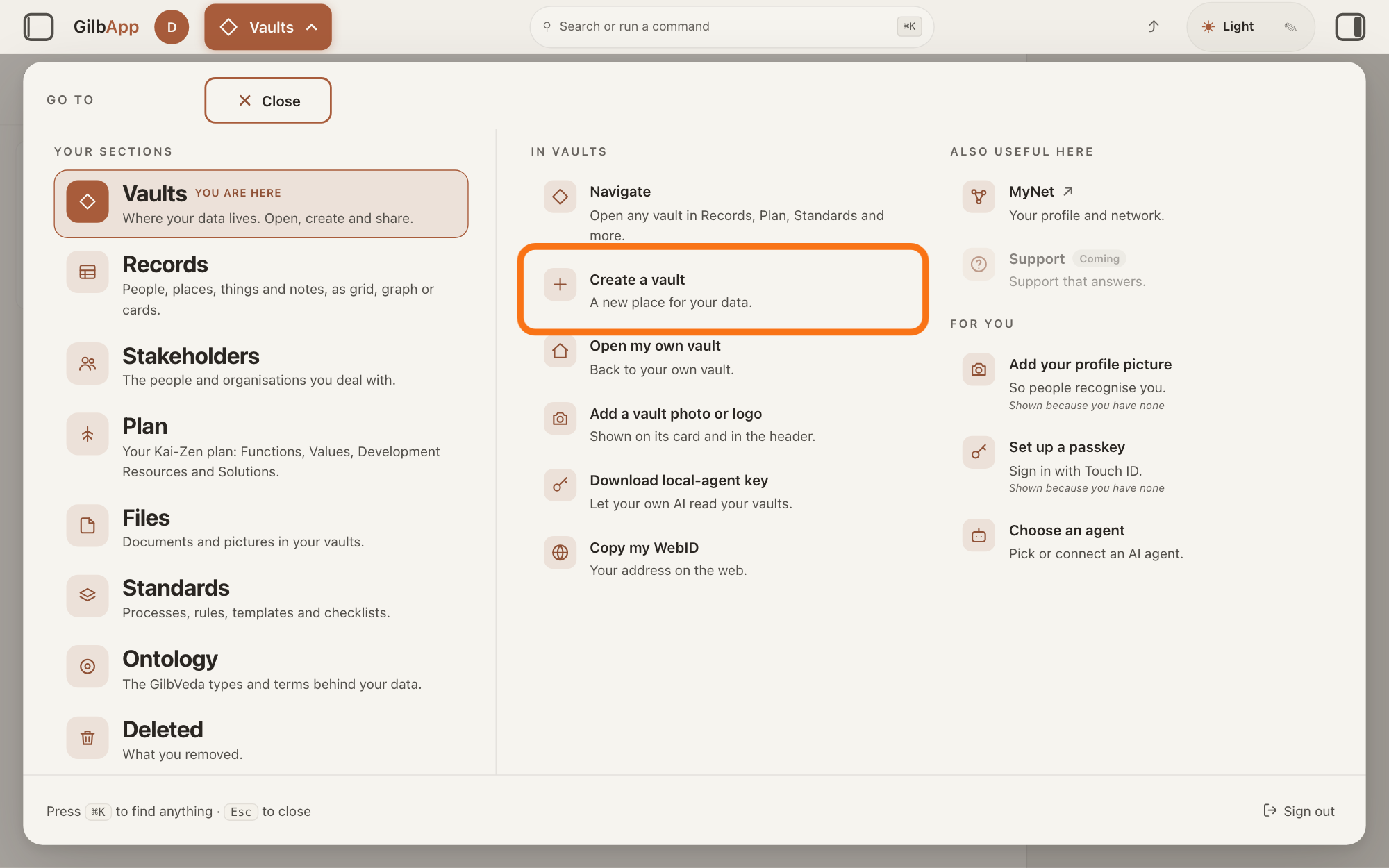
Press Main menu at the top left and choose Create a vault.
Press Main menu, next to your profile picture at the top left, and under IN VAULTS choose Create a vault. The window Create a vault opens over the Your vaults screen.
Show as text
The panel "GO TO" is open over the screen, with "Vaults" marked "YOU ARE HERE" in its left column. In the middle column, under "IN VAULTS", choose the second row, "Create a vault", outlined in orange, just below "Navigate".
More about this
The button shows the name of the section you are in, such as Vaults. If you are in another section, rest the pointer on Vaults in the panel first, so that its options show beside it. IN VAULTS also holds Navigate, Open my own vault, Add a vault photo or logo, Download local-agent key and Copy my WebID; you do not need them. You can also press Create vault at the top of Your vaults, or search for create in Search or run a command and select Create a vault. Under its title the window says "Each vault gets its own place — e.g. yours.gilb.com. Hierarchy is a link between vaults, not part of the name."
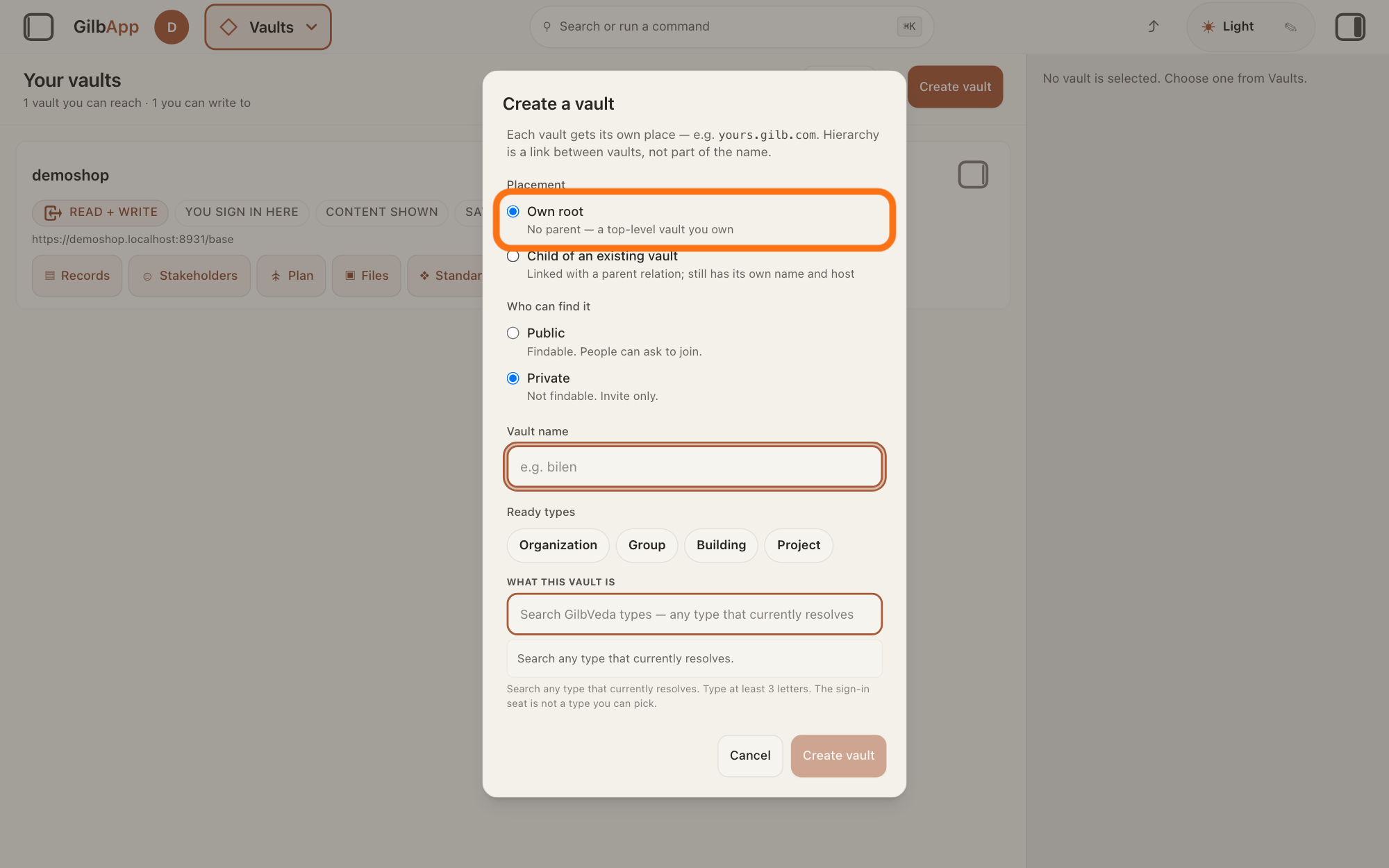
Under Placement, choose Own root or Child of an existing vault.
Choose Own root, No parent — a top-level vault you own, for a vault on its own. Choose Child of an existing vault to make it inside another vault, and choose that vault under Parent vault.
Show as text
In the middle of the screen the window "Create a vault" sits over "Your vaults". Near its top, under "Placement", choose "Own root", outlined in orange, which reads "No parent — a top-level vault you own". The choice under it is "Child of an existing vault".
More about this
The window starts on Child of an existing vault when a vault you can write to is picked in Your vaults. A child is Linked with a parent relation; still has its own name and host: it keeps its own address and is listed under its parent. A person or group given Read or Write on the whole parent vault also reaches the child, except an AI vault; Append and Control stay on the parent. Parent vault lists every vault you can write to, but GilbPlatform makes a child only inside a vault you made yourself, and, from this window, never inside an AI vault; for a vault you did not make it says You do not own parent vault, for your AI vault Refused: nesting under an AiAgent vault., and makes nothing.
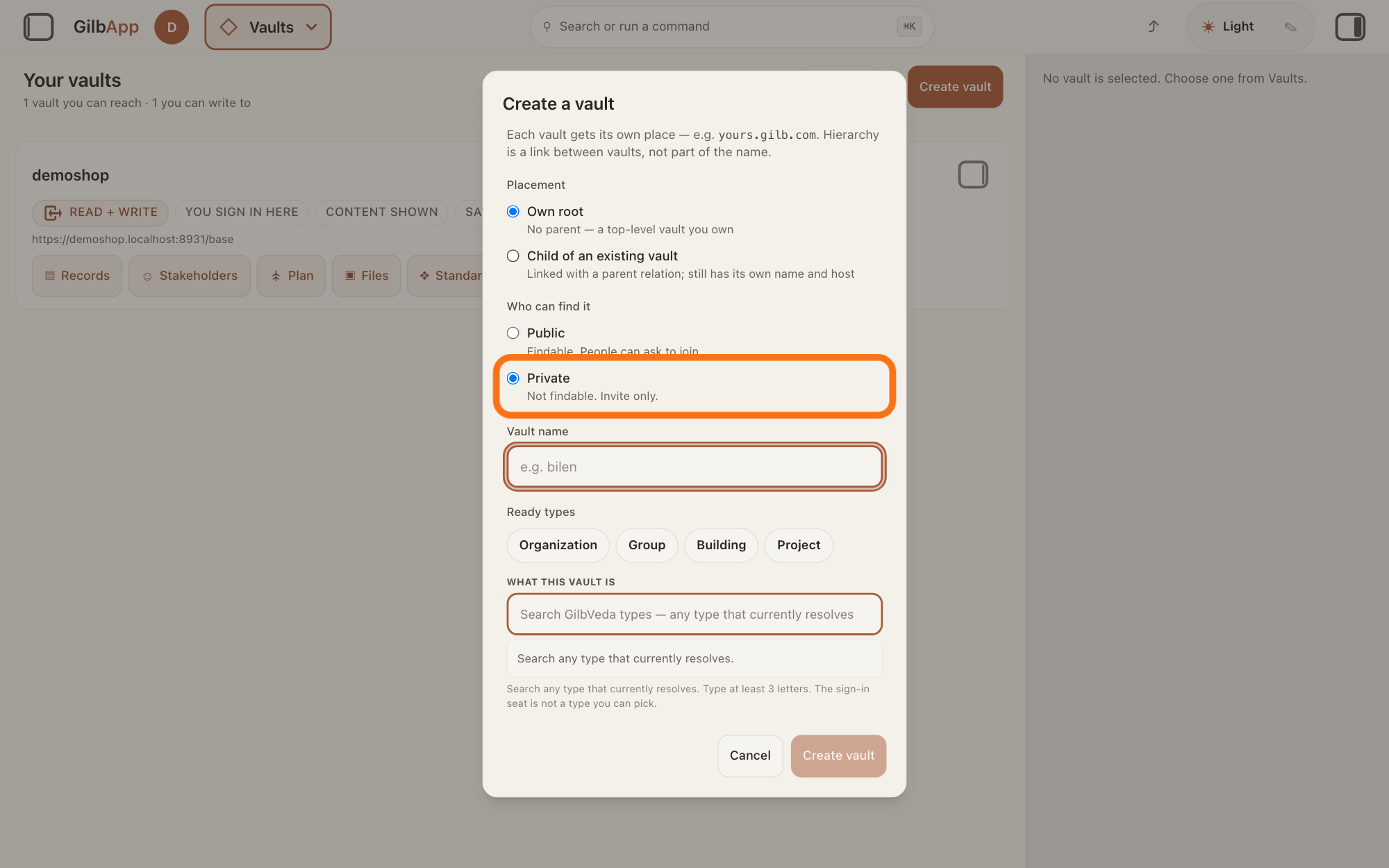
Under Who can find it, choose Public or Private.
Choose Private or Public; Private is chosen when the window opens.
Show as text
Lower in the same window, under "Who can find it", are two choices: "Public" and, below it, "Private", outlined in orange and already chosen, with the words "Not findable. Invite only." Choose one of them.
More about this
Private says Not findable. Invite only. and Public says Findable. People can ask to join. Choosing Public here does not make the vault findable: it stays Private until you switch it in its pane under WHO CAN FIND THIS VAULT. Neither lets anyone read the vault: only giving access does that, and Make public under ▸ GRANT ACCESS is what makes a vault readable by everyone.
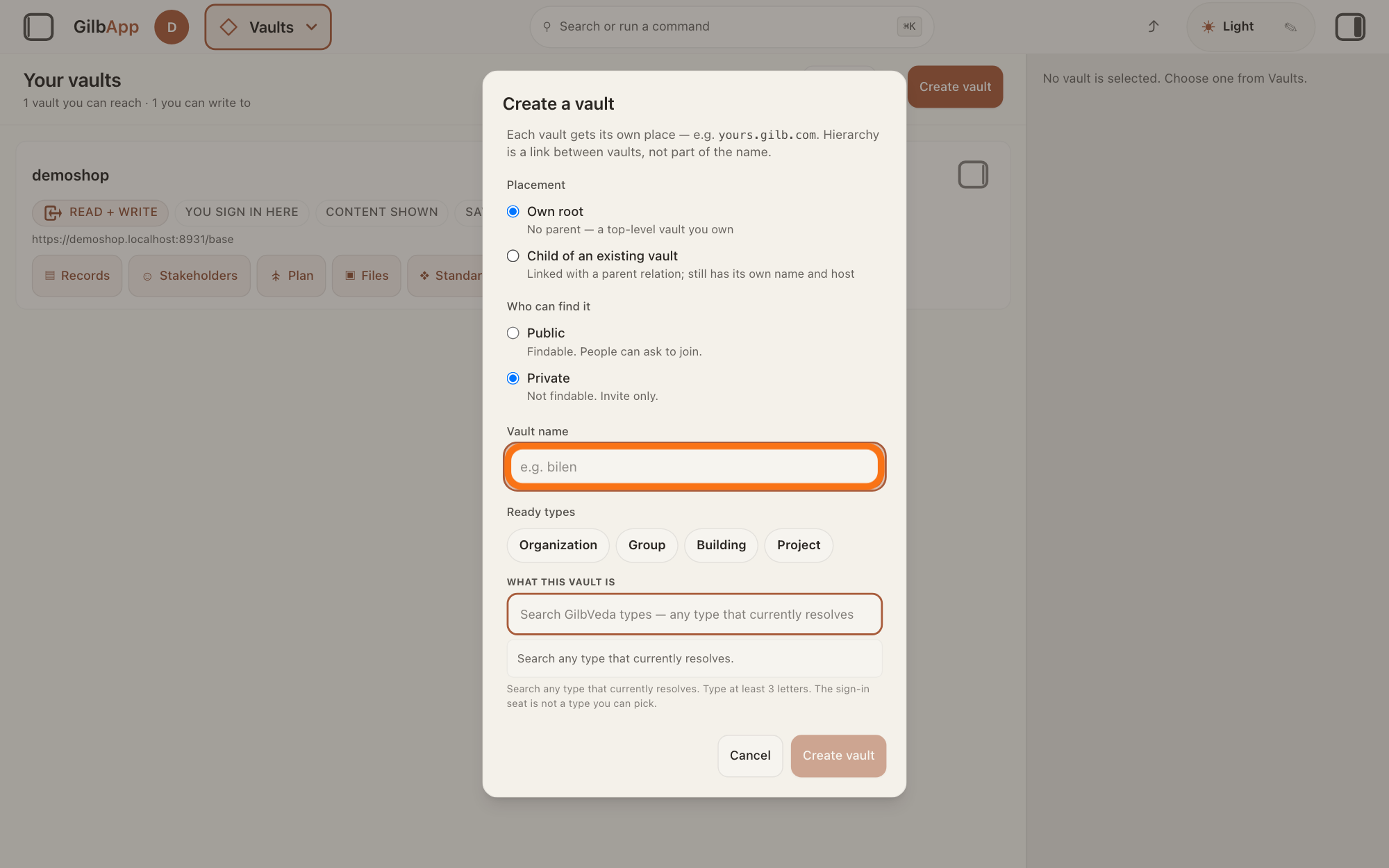
Type a name under Vault name.
Click the box under Vault name, which shows e.g. bilen, and type a name in letters and digits. The name becomes the new vault's address, as for your first vault.
Show as text
Further down the window, under the label "Vault name", click the empty box with the grey words "e.g. bilen", outlined in orange, and type a name in letters and digits. Below it come "Ready types" and "WHAT THIS VAULT IS"; "Create vault" at the bottom right is still pale.
More about this
Capitals become small letters, and anything other than a to z and 0 to 9 is dropped. Unlike at sign-up, this window does not check the name while you type. A reserved name, one GilbPlatform keeps for itself, such as kaizen, veda, id and support, or any name shorter than 3 letters or digits, is refused when you press Create vault, and the window shows the reason in red. If the name is taken, GilbPlatform either refuses it in the same way or gives the vault a free name close to yours; the new vault's card shows the name it got.
Choose what the vault is under Ready types.
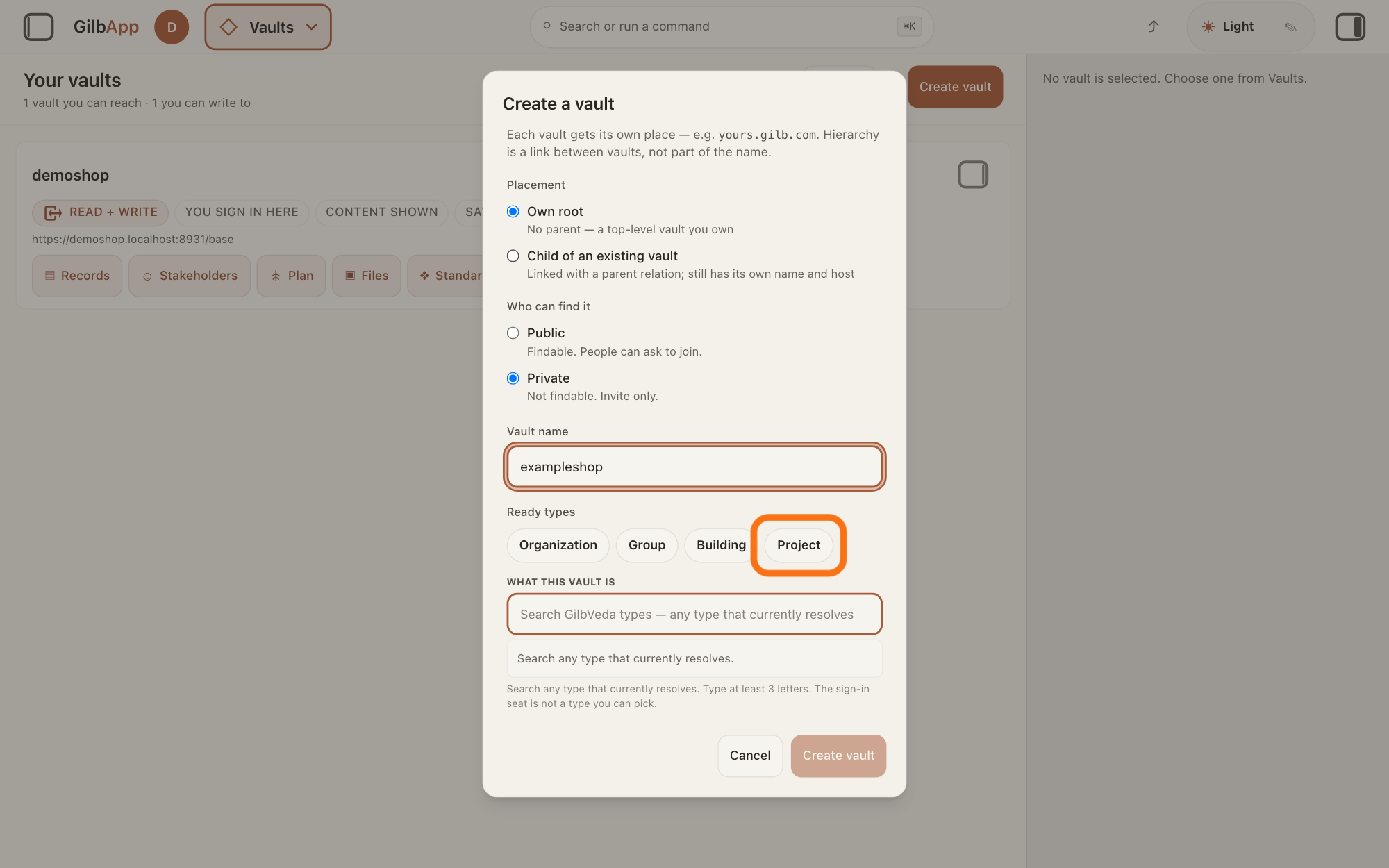
Press one of the Ready types: Organization for a company, non-profit or institution, Group for a group acting together, Building for a building, or Project for a project. Or search and select another type under WHAT THIS VAULT IS.
Show as text
Below "Vault name", where a name is now typed, the row "Ready types" shows four buttons: "Organization", "Group", "Building" and "Project". Press the one that fits; here "Project", at the right end of the row, is outlined in orange. Or search for a type under "WHAT THIS VAULT IS" just below.
More about this
A vault's type says what the vault stands for, taken from GilbVeda, the shared list of terms; the search box shows Search GilbVeda types — any type that currently resolves. You must choose one: Create vault stays grey until the vault has a name and a type. Only the ready types GilbPlatform can read at that moment are shown.
Press Create vault.
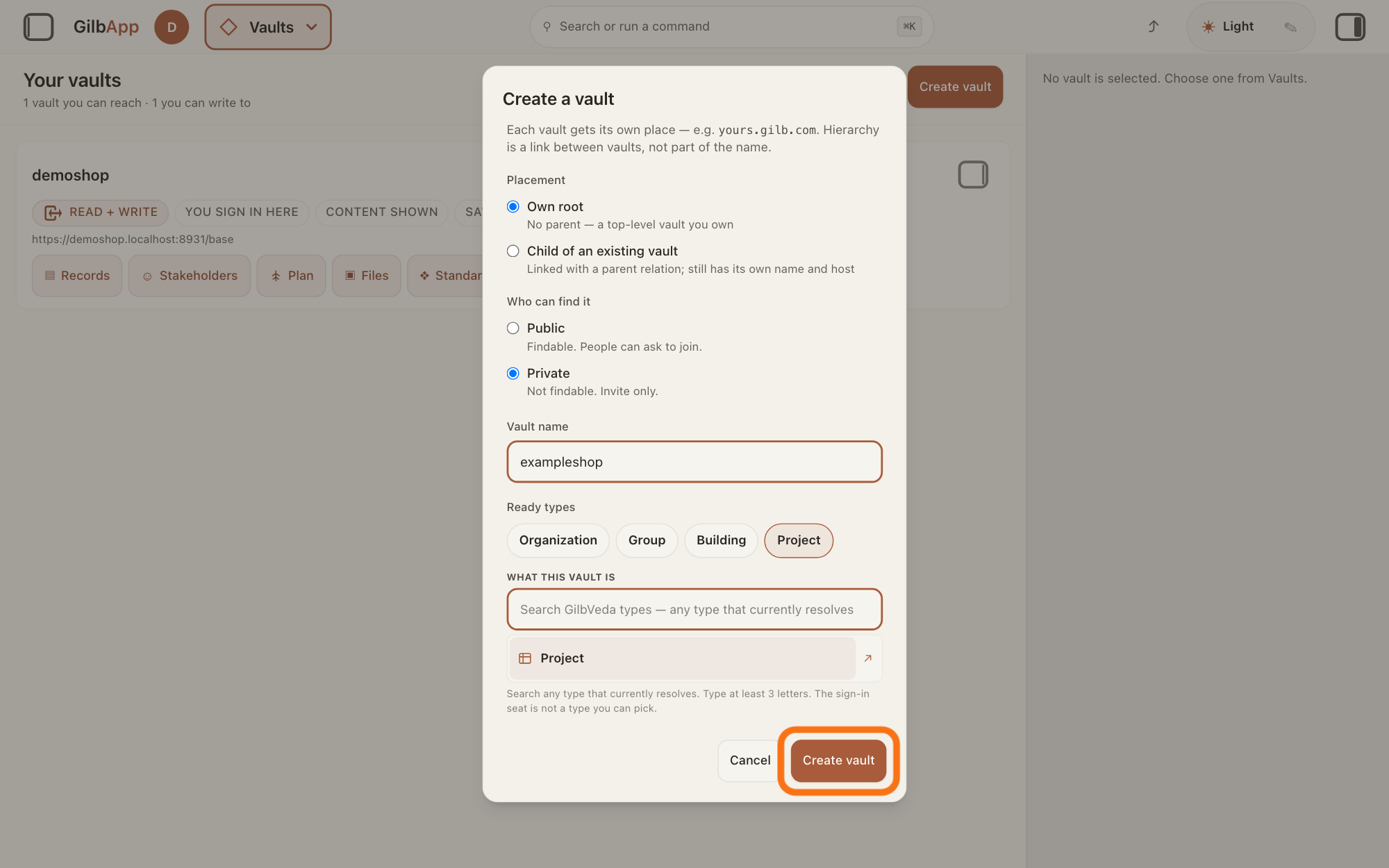
Press Create vault at the bottom right of the window. It reads Creating… while it works; then the window closes and Your vaults shows the new vault, picked.
Show as text
The name is typed, "Project" is chosen under "Ready types", and "Project" also shows in the list under "WHAT THIS VAULT IS". At the bottom right of the window, "Create vault" is now dark: press it, outlined in orange. "Cancel" to its left closes the window and makes nothing.
More about this
You hold Control on the new vault, so you decide who else gets access. Cancel, or a click outside the window, closes it and makes nothing. If the window stays open with a message in red about the listing, the vault may have been made already: look in Your vaults before you press Create vault again.
Deeper
Also asked:
What is Vaults admin for: register, hierarchy and access? It is for people who manage vaults, and it changes no records. Vaults register lists the vaults to search and sort; Hierarchy shows which vault sits under which; Access gives one vault access to another, or cuts it.
What does Change type on a vault do? It changes what the vault stands for, such as a project or an organization. Only the type changes. The vault keeps its name, address, content and access. It shows to people with Control, not on your own vault or an AI vault.
Your first vault was made when you signed up; this answer is for every vault after it.
An agent in GilbApp's chat can also make a vault for you, as you, when you ask it; chatting has its own answer. Your own AI can make vaults from Claude Code while This AI may create vaults is ticked in ▸ CONNECT AI: each one sits inside its AI vault, with Read, Write and Control for you. A vault for your AI itself, an AI vault, is made with Mint AI vault; making an AI vault has its own answer. Vaults admin, shown in the GO TO panel only to people who manage vaults, has other ways to make vaults; this answer does not cover them.
A vault's type and Who can find it give no one access. Only you can reach the new vault until you give someone access, unless it sits inside a vault where a person or group has Read or Write on the whole vault; an AI vault is the exception.
This answer is written for a computer screen.
Checked against GilbApp d529620.