
← Back to How do I choose between options with a VKT?
How do I create my first vault?
Short answer
Type a new e-mail on the GilbApp card, press Send Code to Email, type a name under Vault name, and type the 6-digit code.
Before you start
You need an e-mail address that has no account yet, its inbox open, and the GilbApp sign-in card at gilb.com/app in a browser where you are not signed in. The pictures show a made-up person on a test site; your screen shows your own name and address.
Words used here (5)
- GilbApp
- GilbApp is the app, opened in a web browser at https://gilb.com/app, where you open, fill and share your vaults.
- vault name
- A vault name is the short name your vault is known by on GilbPlatform: small letters and digits, the first part of its address.
- vault's address
- A vault's address is the web address that names one vault, made from the vault's name, such as https://example-name.gilb.com/vault.
- GilbPlatform
- GilbPlatform is the service that keeps people's and organisations' data in vaults, each at its own web address.
- sign-in code
- A sign-in code is a 6-digit number GilbPlatform e-mails to you; typing it proves the address is yours and signs you in.
Steps
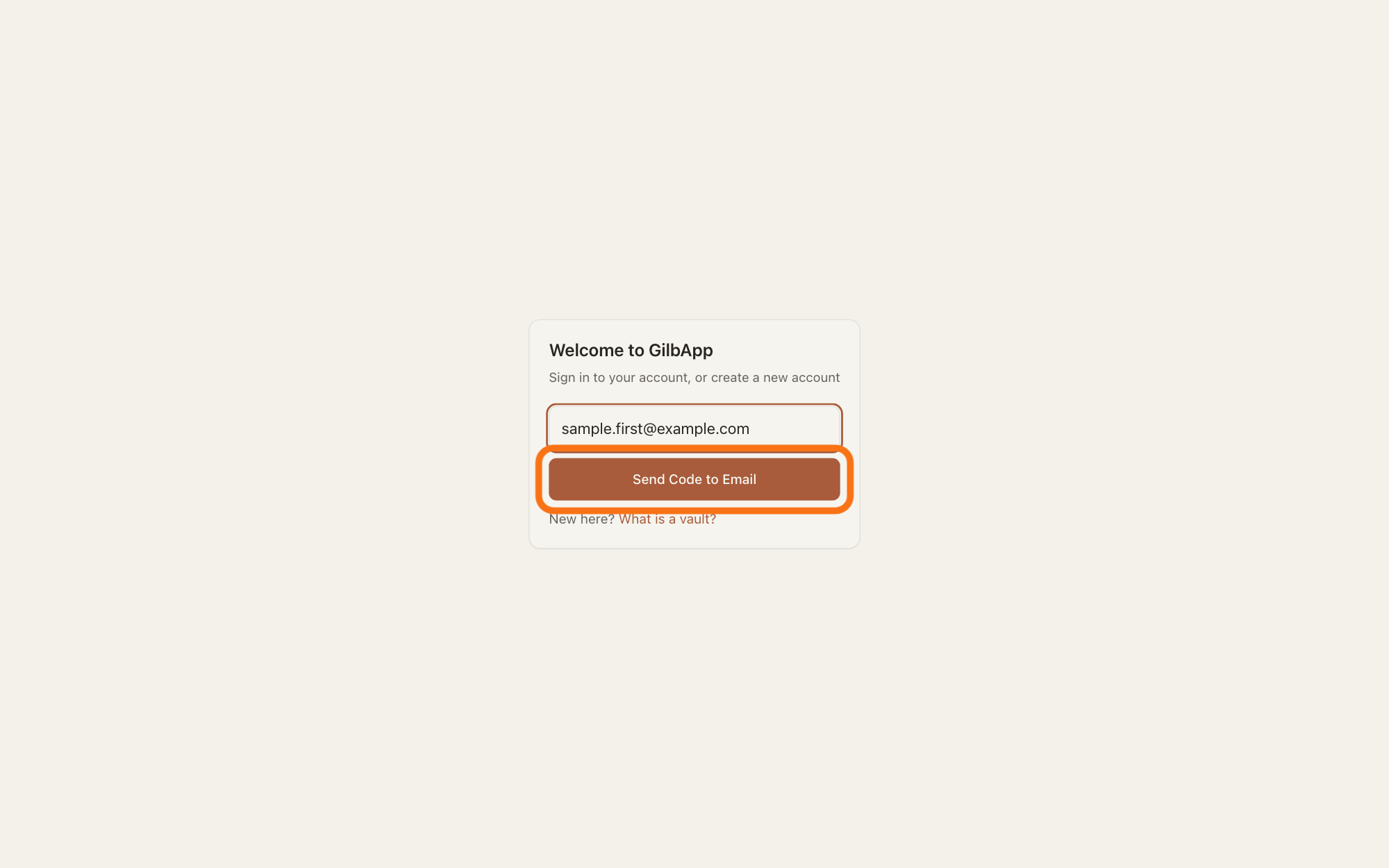
On the GilbApp card, type your e-mail and press Send Code to Email.
Type your e-mail in the box that shows [email protected] and press Send Code to Email. The card adds Vault name for an e-mail that has no account.
Show as text
In the middle of the screen, the card "Welcome to GilbApp" has your e-mail address typed in its box. Press the dark button "Send Code to Email" right under the box, outlined in orange. "New here? What is a vault?" at the bottom of the card is not needed.
More about this
The card then says Choose a vault name, then enter the code from your email. An e-mail that has an account gets no Vault name: it has a vault already, and the code signs you in to it. New here? What is a vault? under the button opens a page about vaults in a new tab; you do not need it.
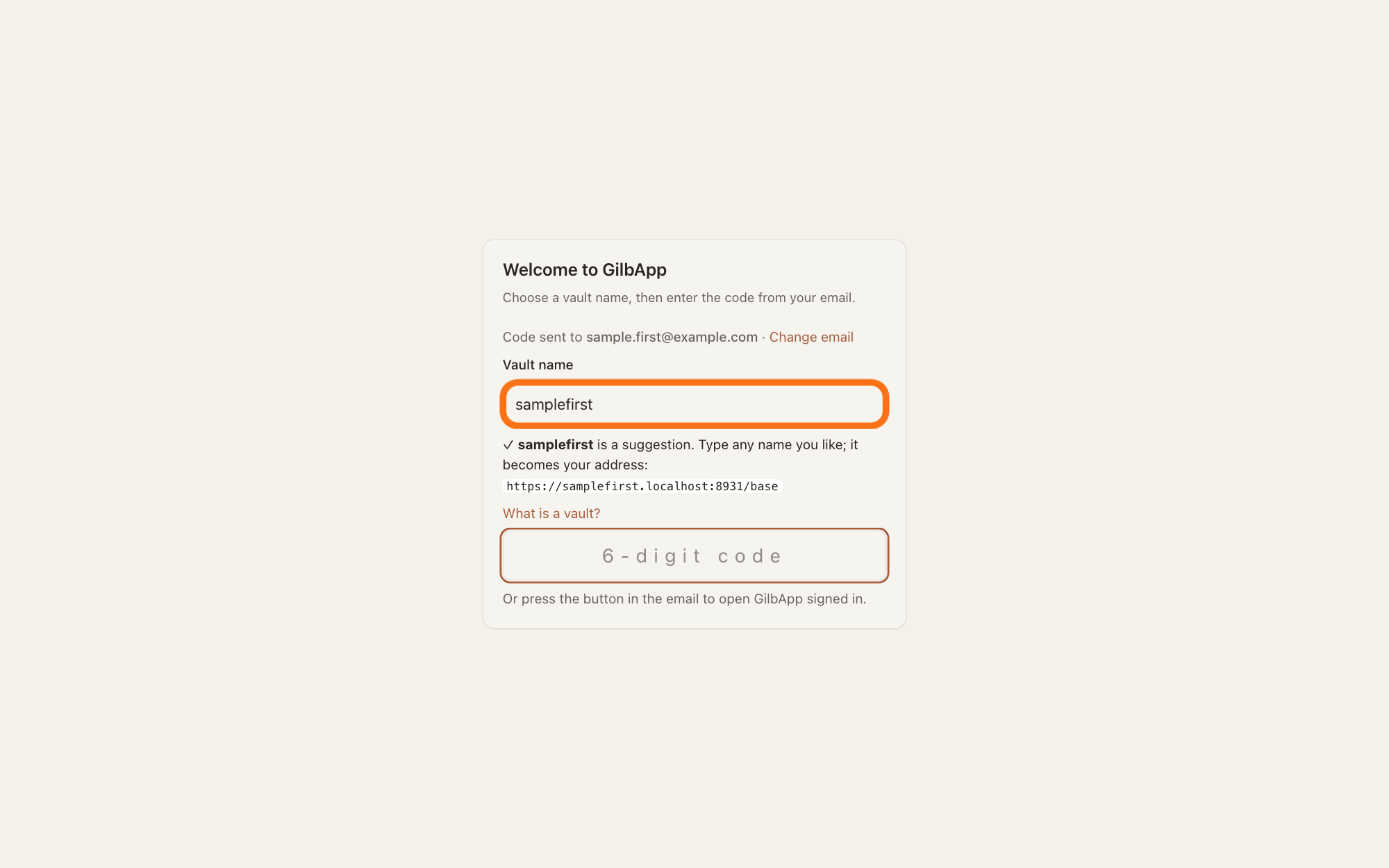
Type the name you want under Vault name.
Type the name you want in the box under Vault name, in letters and digits. It holds a name made from your e-mail address; to keep that one, leave it as it is.
Show as text
The card now says "Choose a vault name, then enter the code from your email." In the middle, under the label "Vault name", the box outlined in orange holds a name made from your e-mail address. Keep it, or click the box and type the name you want. The ✓ line under it says the name "is a suggestion" and shows the address it gives your vault.
More about this
Capitals become small letters, and anything other than a to z and 0 to 9 is dropped, so example-shop becomes exampleshop. The name becomes your vault's address: https://, the name, then .gilb.com/vault. While you keep the suggestion, the line under the box says is a suggestion. Type any name you like; it becomes your address: and the address. For a name you type it says is available — it becomes your address: and the address. What is a vault? under the box opens a page about vaults in a new tab; you do not need it. Change email beside your address goes back to the e-mail box if you made a typo.
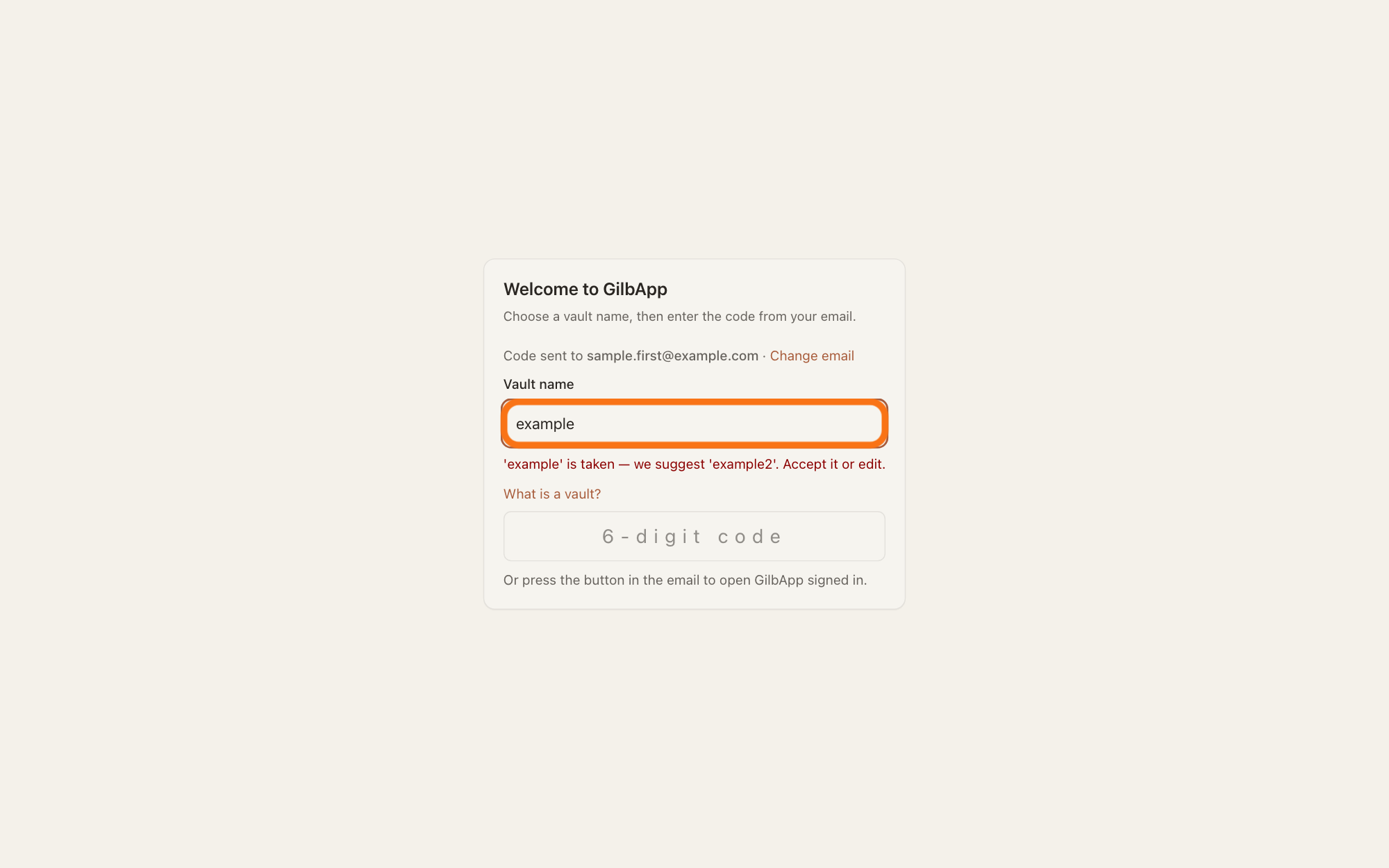
If the line under the box says the name is taken or reserved, type another name.
If the line says is taken — we suggest a name and Accept it or edit., or is a reserved name — please choose another., type another name. To take the suggested name, type it; there is no button to accept it.
Show as text
Under the label "Vault name" in the middle of the card, the box outlined in orange holds a name someone already has. Right under it a red line says the name is taken, offers another name, and asks you to accept it or edit. Click the box and type another name; to take the offered one, type it, as there is no button for it.
More about this
The picture shows a name someone already has; any such name gives this line. A reserved name is one GilbPlatform keeps for itself, such as kaizen or support, or any name shorter than 3 letters or digits. The line checks each name a moment after you stop typing and says Checking availability… meanwhile. Could not check that name. Try again. means the check did not get through; type the name again, or go on, and GilbPlatform decides when the code is accepted.
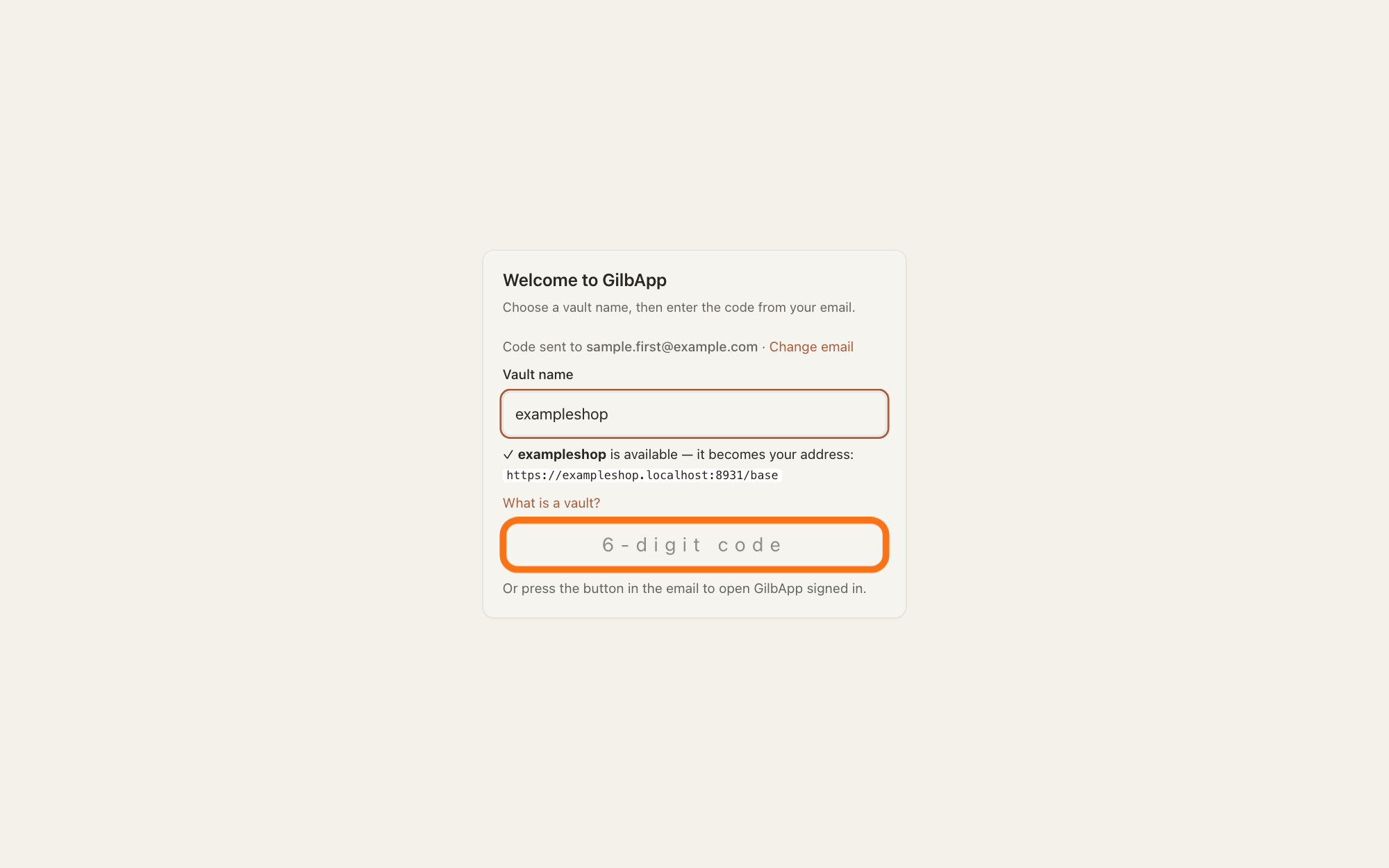
Type the code from the e-mail in the box that shows 6-digit code.
Type the code from the e-mail Your GilbApp sign-in code in the box that shows 6-digit code. At the sixth digit GilbApp makes your vault and opens it.
Show as text
The ✓ line under "Vault name" now says the name you typed "is available — it becomes your address:" with the address under it. Lower on the card, under "What is a vault?", click the wide box "6-digit code", outlined in orange, and type the code from the e-mail. At the sixth digit GilbApp makes your vault.
More about this
The card shows Signing in…, then GilbApp opens on Vaults with your new vault. If the box under Vault name is empty, the card says Choose a vault name first. and waits. The related answer on the e-mail code tells what to do when a code does not work.
If GilbApp asks for a vault name again, type one and press Create my vault.
If the name was taken while you typed the code, the card shows Create your vault — choose a name (you can change the suggestion). Type a free name under Vault name and press Create my vault.
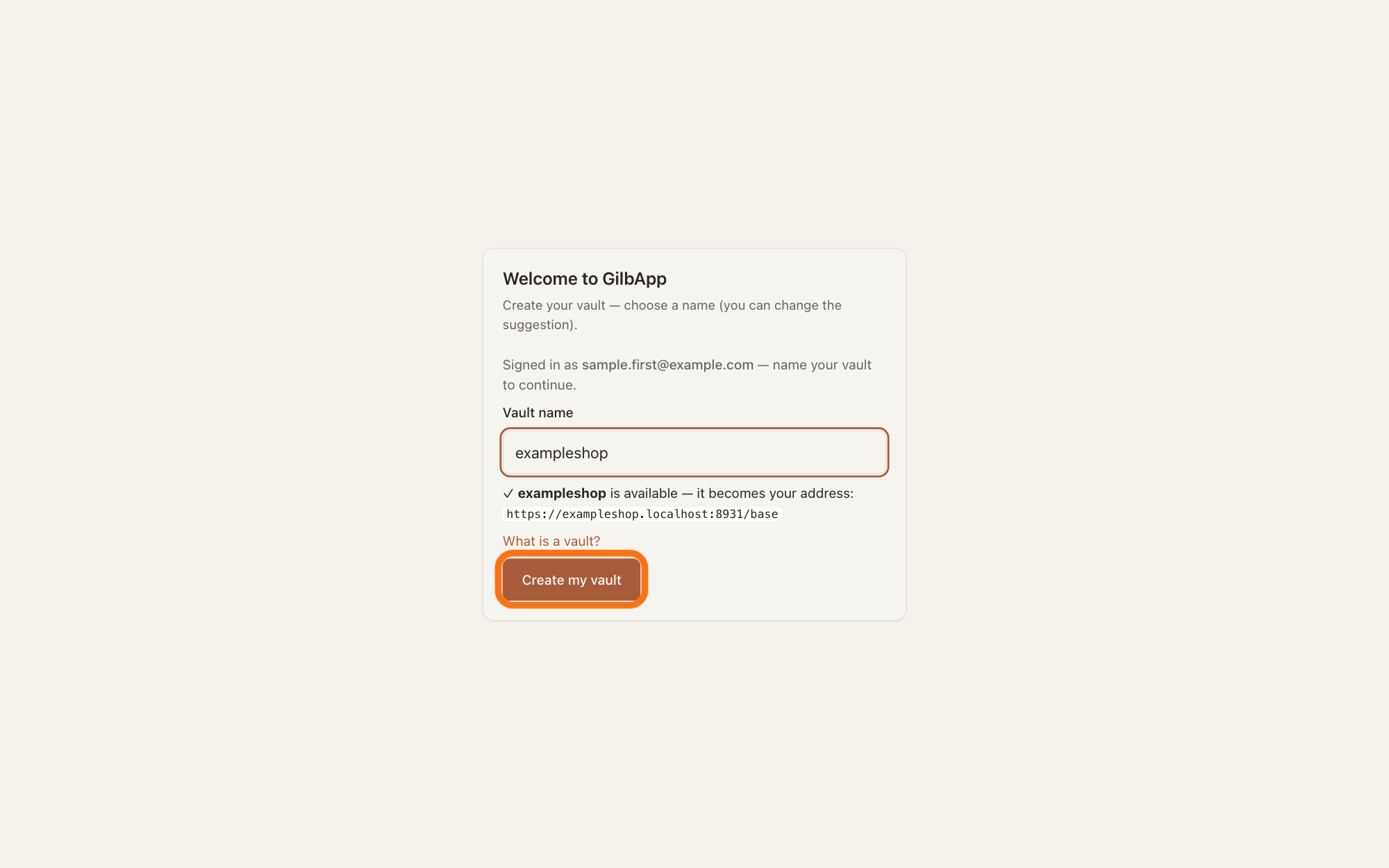
Show as text
The card "Welcome to GilbApp" says "Create your vault — choose a name (you can change the suggestion)." and that you are signed in. Under "Vault name" a free name is typed, and the line under it starts with a tick and "is available". Press the outlined button "Create my vault" at the foot of the card.
More about this
You are signed in already; only the vault is missing, and the card says Signed in as, your e-mail, and name your vault to continue. The button stays grey until the line under the box says the name is available, or that it could not be checked, and reads Creating your vault… while it works. If the name goes in the meantime, the reason shows above the line; type another. The same card shows when you press the button in the code e-mail instead of typing the code, and when you come back to GilbApp signed in with no vault.
Deeper
Your first vault is made as part of signing up: when the code is accepted, or, if its name was taken then or you used the button in the e-mail, when you press Create my vault. A later vault is made inside GilbApp; that has its own answer.
A vault name is used once on GilbPlatform: a name someone has is taken. Names GilbPlatform keeps for itself, such as kaizen, veda, id and support, are reserved, and so is any name shorter than 3 letters or digits.
One account gets one first vault. Signing in again opens the vault you have and never makes a second one.
On the page Create your vault at id.gilb.com the name box works the same way; there a taken name also shows a button Use with a free name in it.
This answer is written for a computer screen. On a Mac the steps are the same in any browser; the key Enter is called Return there.
Checked against GilbApp d529620.