
How do I decide to keep or throw away a step's result?
Short answer
Press Main menu, choose Plan, search and select the Value Tracking Table, compare each ACTUAL with its ESTIMATE, then decide.
Before you start
You need to be signed in to GilbApp on a computer. The Value Tracking Table needs a delivered step with its Actuals entered; the answer on tracking estimates and actuals shows how. The pictures show a made-up person on a test site; your screen shows your own name and address.
Words used here (10)
- Value Tracking Table
- A Value Tracking Table (VTT) follows a project's Values and Development Resources across its steps: the Estimate of each step, then its Actual.
- GilbApp
- GilbApp is the app, opened in a web browser at https://gilb.com/app, where you open, fill and share your vaults.
- Actual
- An Actual is how far a delivered step or Solution was measured to move a Value, or how much of a Development Resource it used.
- Kai-Zen
- Kai-Zen is the planning agent: it finds out what you want, chooses the way, hands the work to other agents and reports back.
- record
- A record is one piece of data with its own address, such as a person, a place, a thing or a note.
- short name
- A short name is the one word you give one AI on one computer, such as gilb-example; it keeps that AI's key and tools apart.
- Estimate
- An Estimate is the change a step or a Solution is expected to make on a Value or Development Resource, written before it is built.
- Value Delivery Step
- A Value Delivery Step, or step, is the Solutions, or parts of them, delivered together in one short cycle to move some Values.
- Budget
- A Budget is the most of a Development Resource you plan to use, such as the money for one month.
- project
- A project is work to bring about a change you want, such as a new app or a better way of doing something.
Steps
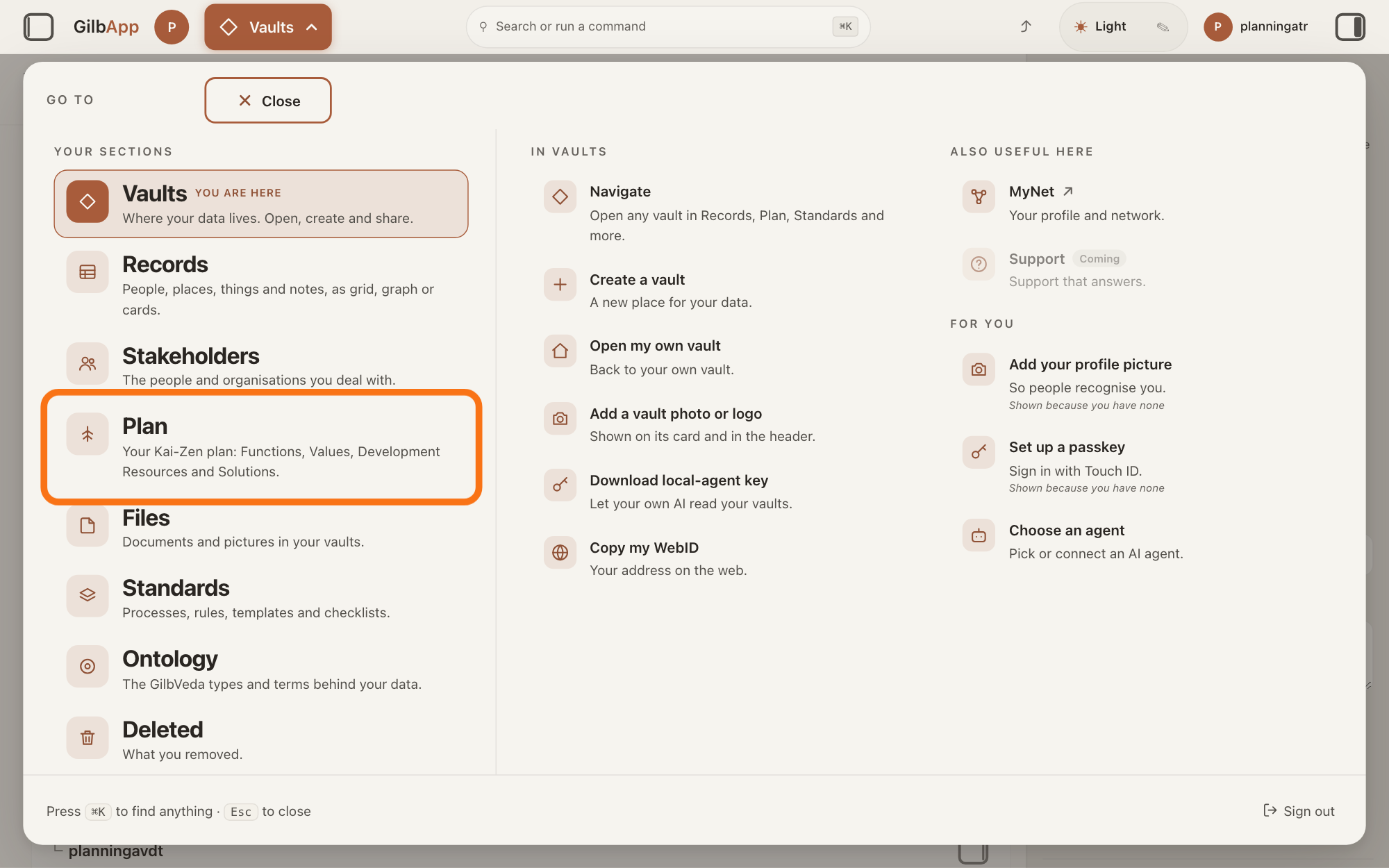
Press Main menu at the top left and choose Plan.
Press Main menu, next to your profile picture at the top left, and under YOUR SECTIONS choose Plan. The button shows the name of the section you are in, such as Vaults.
Show as text
The "GO TO" panel is open over the screen. Look in the left column under "YOUR SECTIONS": the outlined row is "Plan", with the line "Your Kai-Zen plan: Functions, Values, Development Resources and Solutions." Press it to open the Plan screen.
More about this
A panel headed GO TO opens; Plan reads Your Kai-Zen plan: Functions, Values, Development Resources and Solutions. You can also press the Plan button on the card of a vault (the place where a person or a group keeps their records) in Vaults. The Plan screen lists your plan records and has the views Grid, Graph, Both and Card.
Search and select the Value Tracking Table in the list.
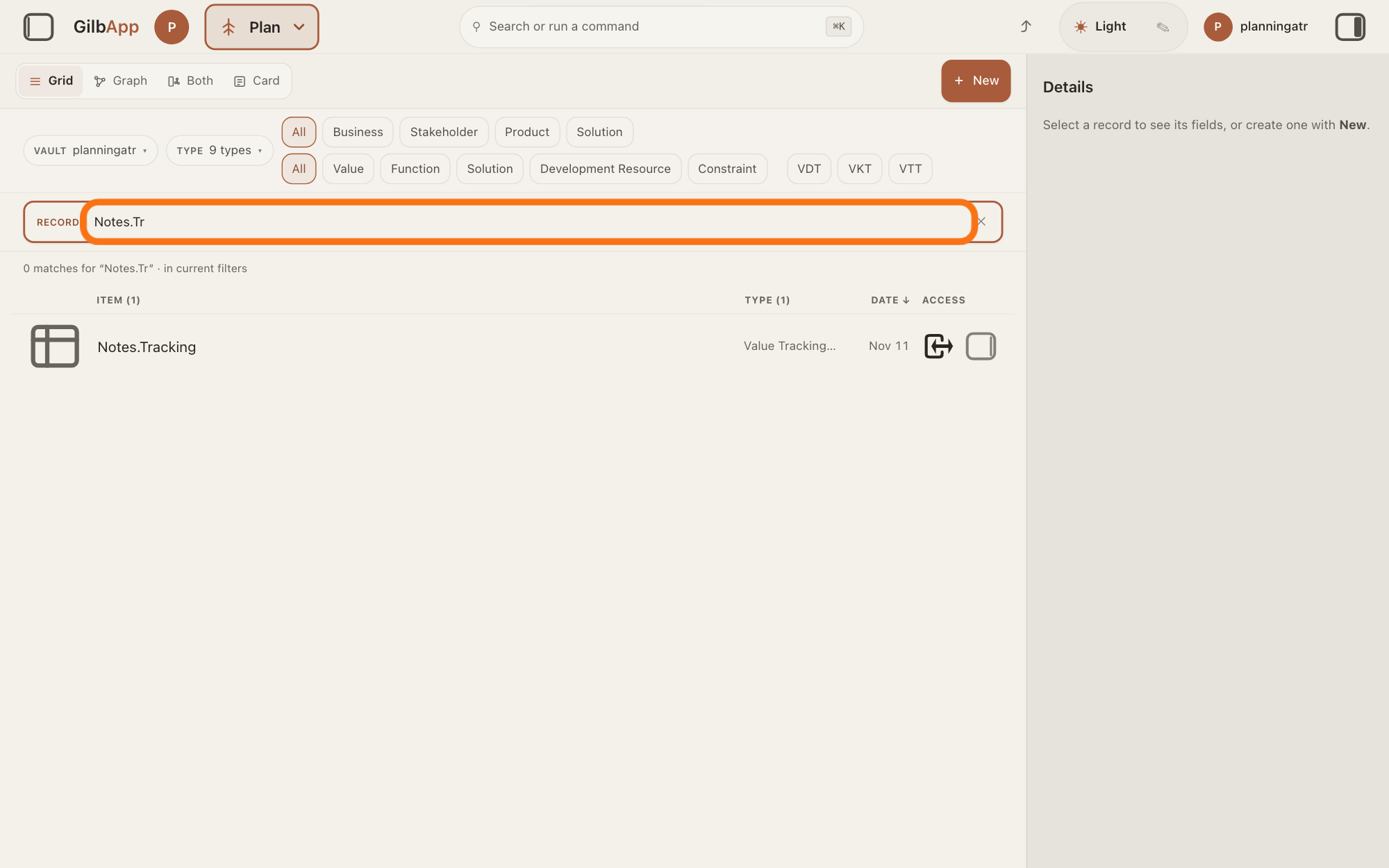
Type part of the table's tag (its short name) in the search box and select the Value Tracking Table in the list. The table opens in the middle of the screen.
Show as text
You are on the "Plan" screen in "Grid" view. The outlined search box under the filter rows holds the start of the table's tag, and the list below shows one hit, the Value Tracking Table. Press that row to select it.
More about this
A Value Tracking Table (VTT) follows your Values and Development Resources across your steps: one column for each step, and in each cell the Estimate made before the step is built, then the Actual measured after it is delivered. A Value is a perceived benefit, measured as a number; a Development Resource is what the work uses up, such as money or time. A step, a Value Delivery Step, is the Solutions, or parts of them, delivered together in one short cycle to move some Values. The search box shows Search in current filters… while a filter is on, and Search your vault… otherwise. The button VTT in the row of kinds shows only Value Tracking Tables.
Find the step's column in the table.
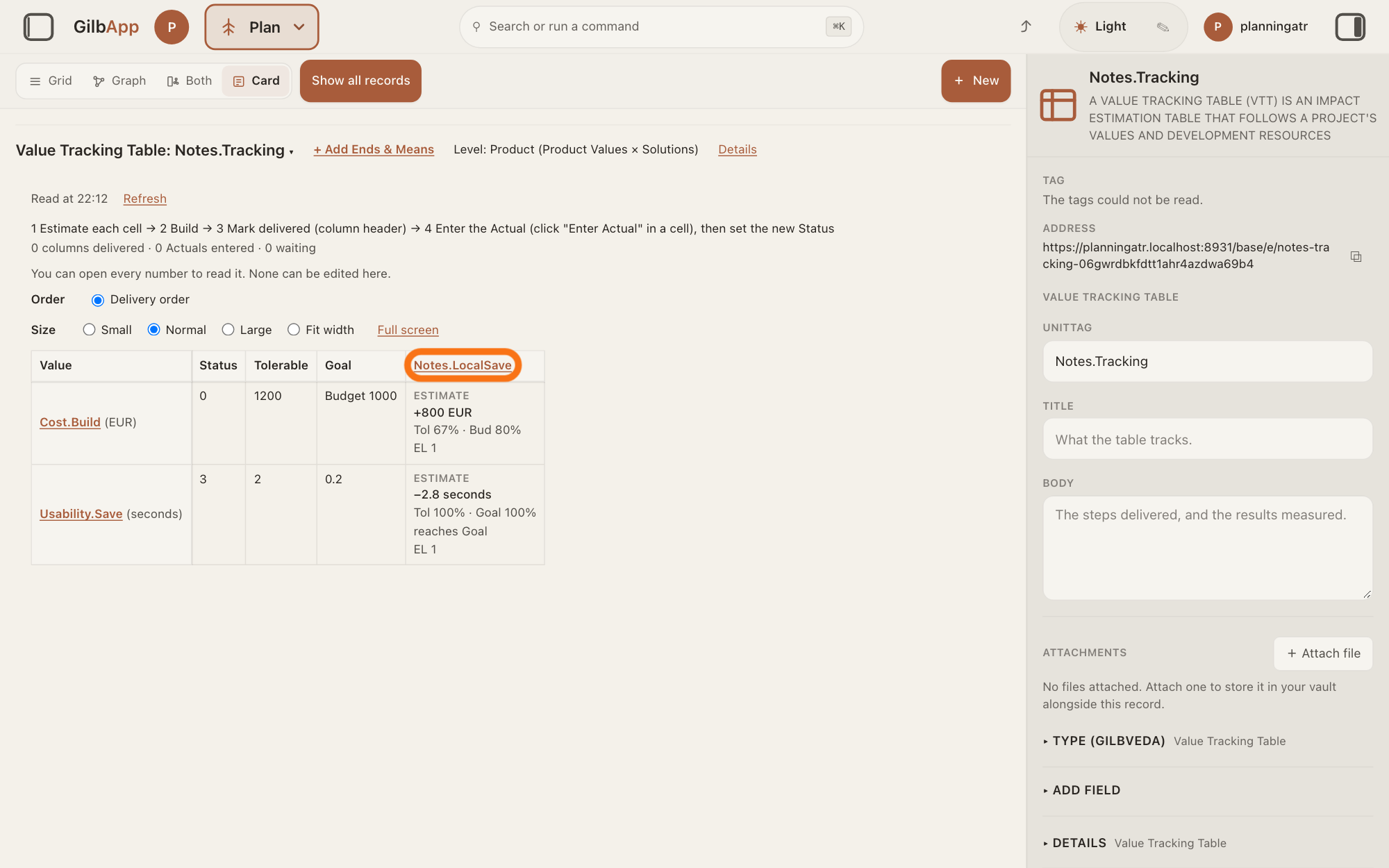
The table has a row for each Value and Development Resource and a column for each step, in delivery order. If it shows in the right pane instead, press Open the table there.
Show as text
The Value Tracking Table is open in the middle of the screen, with a row for each Value and Development Resource and a column for the step. The outlined link is the step's column heading, at the top of its column right of "Goal". Find this column; each cell in it shows "ESTIMATE".
More about this
Each row shows its Status (where it stands now), Tolerable (the survival limit) and Goal (the number you plan to reach; Budget for a Resource). A line above the table names its four steps, from estimating each cell to entering the Actual, and under it how many columns are delivered and how many Actuals are entered. The top line holds + Add Ends & Means, which chooses rows and columns if you may write the table, Details, which shows the table's own details, and the tag, which lists the vault's tables to open another. Order, Size and Full screen change only how it is shown, and Refresh reads the vault again. You need none of them.
In the step's column, compare each ACTUAL with its ESTIMATE.
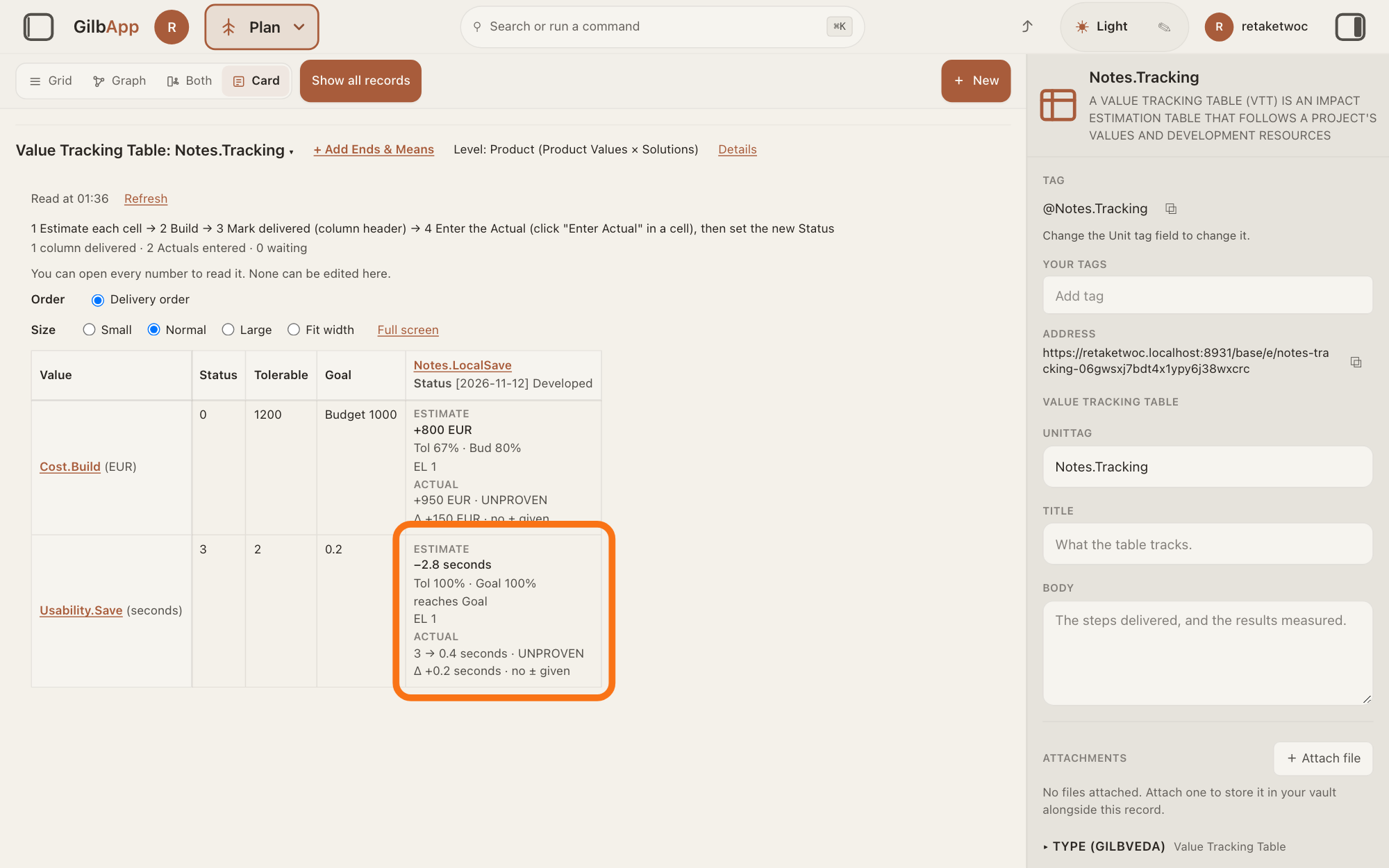
In the step's column, read each cell: under ESTIMATE the change expected before the step was built, under ACTUAL what was measured after it was delivered. The line under them, starting with Δ, gives the difference in the row's unit, then inside or outside the estimate's ± range, or no ± given.
Show as text
In the step's column, each cell shows "ESTIMATE", then "ACTUAL", then a line starting with "Δ". Compare the two numbers in each row; the outlined cell is one example.
More about this
Δ — means one of the two could not be read as a number; units differ means they were written in different units, so no difference is given. A column that is not delivered yet shows Mark delivered under its tag, and a delivered cell with no Actual shows Enter Actual, or Not entered yet if you may not enter it; the answer on tracking estimates and actuals shows them. Pressing a cell opens its numbers in the right pane; you do not need it. Nothing is added up across a row.
Decide to keep the Solution, throw it away or change it.
Decide what to do with what the step delivered: keep the Solution, throw it away, or change it. In the Kai-Zen method, throwing a Solution away puts each Value's Status back, and the Development Resources used stay used.
More about this
GilbApp has no control for the choice: the table has no row for it, and nothing in GilbApp keeps or throws away a Solution for you. To change a Solution, open its card; the answer on writing a Solution in your plan shows its lines. To ask Kai-Zen to make the change, use GilbApp's chat; the answer on continuing a project with Kai-Zen shows how to ask it for a change. In the Kai-Zen method each Actual is also compared with its Estimate before the next step is picked, and the difference is used to estimate better.
Deeper
You need not always decide this yourself. In each round of delivery, after a step is live and you have checked it, Kai-Zen has each Value the step aims at measured with its Meter (how a person, an AI or a test checks it), by an agent other than the builder. An agent is your AI following one written procedure, its standing instructions, for one kind of work. Kai-Zen writes the Actuals in the step's column and then decides: keep the Solution, throw it away, or change it.
Then it updates each Status, sharpens the plan with what was learned (the answer on challenging a Solution shows what sharpening does), and shows you the measured Values and the next step. If the spend so far is over Budget, or a Value is still below Tolerable where the plan expected it above, it stops and asks you whether to go on. Otherwise it goes on to the next step, unless you say to re-plan or that you are done.
In the Kai-Zen method a step is also a round of learning. Kai-Zen compares each Actual with its Estimate before it picks the next step, and uses the difference to estimate better. It writes what worked, what did not, how to deliver the Values, and what the stakeholders actually want in the step's Learned line, and carries that into the next pick and into sharpening. A stakeholder is a person, group or system that cares whether a Value goes up or down. GilbApp's step card has no Learned line: besides its tag, title and description, it holds what the step delivers, its impacts and its Status.
Some acts Kai-Zen always stops and asks you about first, such as a release, ending a record, or changing a Value or a level you set yourself. If carrying out a choice needs one of them, Kai-Zen stops that part, asks you, and goes on with the rest.
An ESTIMATE is written before the step is built, and an ACTUAL after the step is delivered and measured with each Meter. A step counts as delivered when real stakeholders can use it, and it is measured there, not on a test copy.
I do not like what was built. Say so. When Kai-Zen asks you to check a step live, send back what is wrong: it fixes it, puts it live again and asks again, until you approve. To throw the result away, tell Kai-Zen in your own words, for example: I do not want this, throw it away. In the plan, throwing a Solution away puts each Value's Status back. To take it out of the code too, ask your AI to undo it: Agent.Coder, the agent that writes your app's code, adds a new saved version that reverses it, and the earlier versions stay. If it was already live, the earlier version is put live again only with your go. The answer Can I undo what I've built, or go back to an earlier version? tells more.
From GilbApp's chat Kai-Zen works only with the vault, unless you choose a code folder while Claude Code is connected; otherwise a project kept in a folder on your computer needs Claude Code in Terminal. The answer How do I let my AI build in a folder on my computer from GilbApp's chat? shows how.
This answer is written for a computer screen.
Source: GilbApp af0f04ee838a4d55887d2ff1f72edd49a4ff7ca0 (https://gilb.com/app/version.json read 2026-11-09, buildTime 2026-11-09.522Z, dirty false); code read from the unpack (at af0f04ee). Step 1: identical to (gilbAppMenuRows.ts:160-163, section menu 0.2.4). Step 2: RegisterScopedSearch.tsx:73-74 (search placeholders); planFilterRows.ts:19-29 (kind button VTT, title Value Tracking Table); TableCard.tsx:1-3 (in the right pane the table card shows its fields and Open the table). Step 3: TableCard.tsx:776-800 (OpenTable: Open the table puts the main pane on the card view; absent when already open there); PlanTable.tsx:517-545 (VTT_STEPS four steps, counts columns delivered · Actuals entered · waiting), :830-832 (Status, Tolerable, Goal heads), :1786 (Refresh), :1865-1870 (Order, Size, Full screen); TableCard.tsx:367 (delivery order). Step 4: PlanTable.tsx:392-399 (Estimate, Actual, Enter Actual, Not entered yet; labels drawn uppercase by CSS, blockLabel), :470-510 (cell blocks and the learn line), :547-551 (Mark delivered under a column not delivered), :650 (no Combined columns: Kai-Zen.VTTRules.NoRowSum); impactActual.ts:150-193 (learnOf/learnWords: Δ <difference> · inside|outside ±<range>, no ± given, Δ —, units differ). Step 5 and Deeper: no Keep / Throw away / Change control and no Act row in GilbApp (no Throw or Act in the code at af0f04ee); step card lines planKinds.ts:186-187 (STEP_LINES = status; generic Tag, Title, Description; Contents and Impacts sections). Standards (2026-11-09, all 200): Kai-Zen.VTTRules (Estimate, Actual, Status, Act, Learn, NoRowSum), Kai-Zen.VTTTemplate (Act row), Kai-Zen.ValueDeliveryStepRules (Learning, Delivered), Kai-Zen.ValueDeliveryStepTemplate (Learned line), Kai-Zen.Cycle (Live, Human, Measure, Update, Improve, Next), Kai-Zen.AskRules (Stop, Decide), Kai-Zen.ValueRules.HumanSet, Kai-Zen.Existing. GilbVeda public read 2026-11-09: t:ValueTrackingTable, t:EvoStep. Kai-Zen.HumanCheck (Fix), Kai-Zen.VTTRules.Act, Proc_v_Rollback (only when the person asks; revert, nothing deleted), Kai-Zen.GoLive. Live answer, sentences shared: Can I undo what I've built, or go back to an earlier version? Code-folder exception: GilbApp 49b1ae53 (https://gilb.com/app/version.json, read 13 November 2026), src/components/agent/AgentChat.tsx:677-692 and :1084-1090 (Choose a code folder, Code in, Claude Code only); live answer How do I let my AI build in a folder on my computer from GilbApp's chat?
Checked against GilbApp d529620.