
How do I define a Value's Scale, Endpoint and Meter?
Short answer
Search and select the Value, press Edit, type Unit, Rate, Context, choose Better, search and select a Subject, press + Meter, type its lines.
Before you start
You need to be signed in to GilbApp on a computer, with a vault you can write to, such as your own vault, and a Value in your plan; the answer on writing a Value in your plan shows how to make one. The pictures show a made-up person on a test site; your screen shows your own name and address.
Words used here (6)
- GilbApp
- GilbApp is the app, opened in a web browser at https://gilb.com/app, where you open, fill and share your vaults.
- Kai-Zen
- Kai-Zen is the planning agent: it finds out what you want, chooses the way, hands the work to other agents and reports back.
- record
- A record is one piece of data with its own address, such as a person, a place, a thing or a note.
- short name
- A short name is the one word you give one AI on one computer, such as gilb-example; it keeps that AI's key and tools apart.
- field
- A field is one named fact on a record, such as its title or a due date; its name comes from GilbVeda.
- project
- A project is work to bring about a change you want, such as a new app or a better way of doing something.
Steps
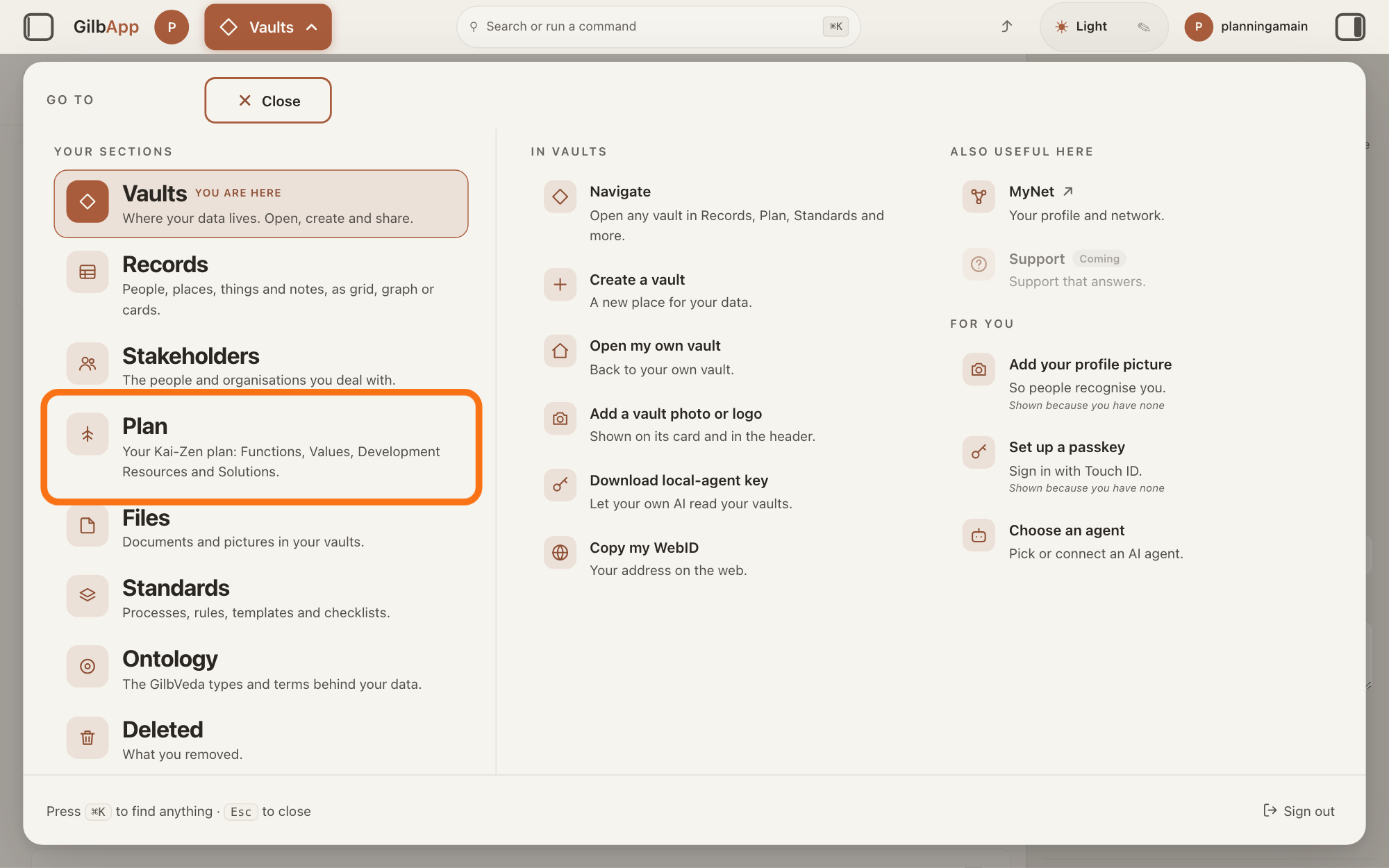
Press Main menu at the top left and choose Plan.
Press Main menu, next to your profile picture at the top left, and under YOUR SECTIONS choose Plan. The button shows the name of the section you are in, such as Vaults.
Show as text
The "GO TO" panel is open over the screen. Look in the left column under "YOUR SECTIONS": the outlined row is "Plan", with the line "Your Kai-Zen plan: Functions, Values, Development Resources and Solutions." Press it to open the Plan screen.
More about this
A panel headed GO TO opens; Plan reads Your Kai-Zen plan: Functions, Values, Development Resources and Solutions. You can also press the Plan button on the card of a vault (the place where a person or a group keeps their records) in Vaults. The Plan screen lists your plan records and has the views Grid, Graph, Both and Card.
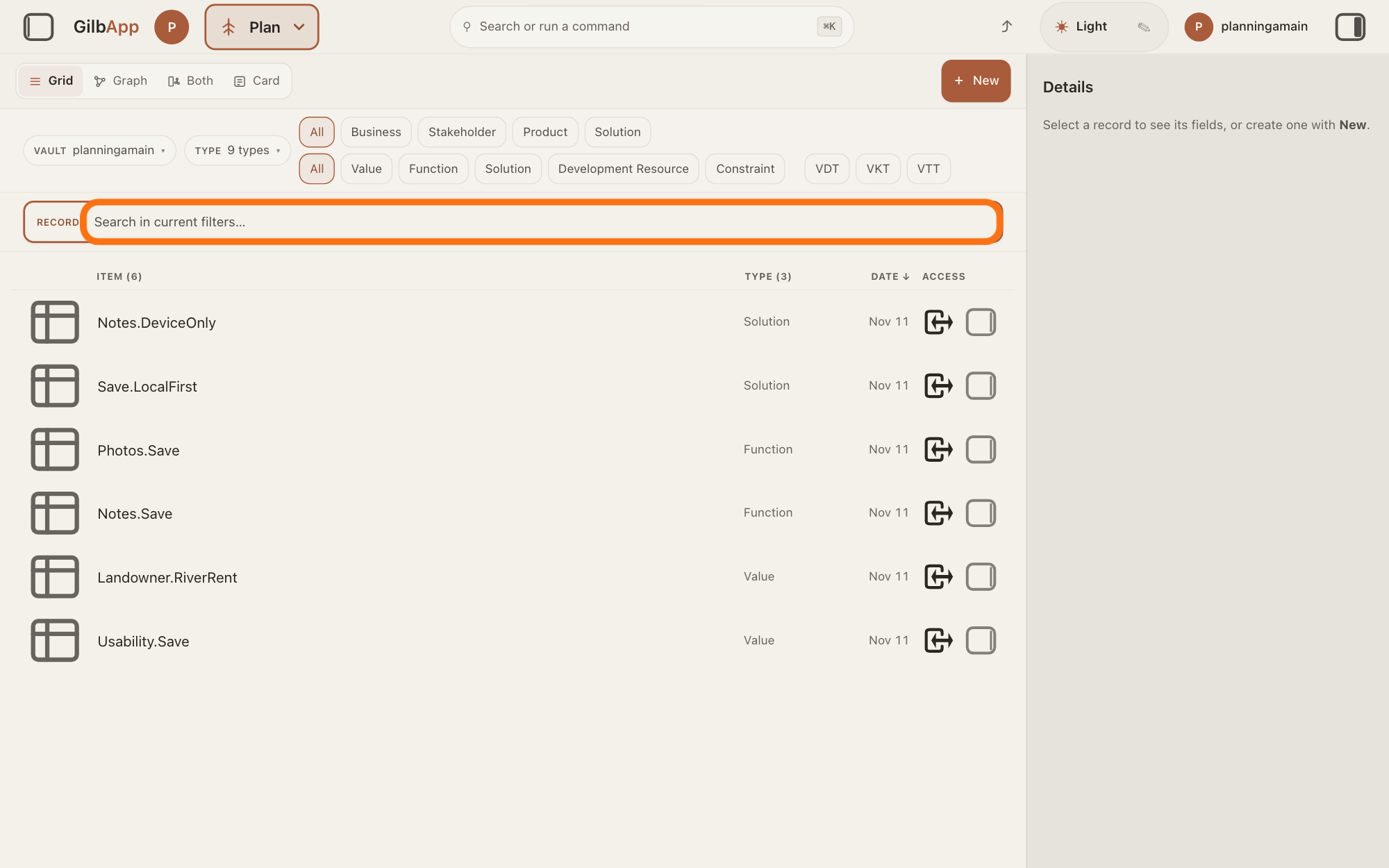
Search and select the Value in the list.
Type part of the Value's tag (its short name) in the search box and select the Value in the list. A Value is a perceived benefit, measured as a number.
Show as text
You are on the "Plan" screen in "Grid" view. The outlined box is the search box under the filter rows, marked "RECORDS" and "Search in current filters…". Type part of the tag of the record you want; the list below shows the matching records.
More about this
The search box shows Search in current filters… while a filter is on, and Search your vault… otherwise. The button Value in the row of kinds shows only Values.
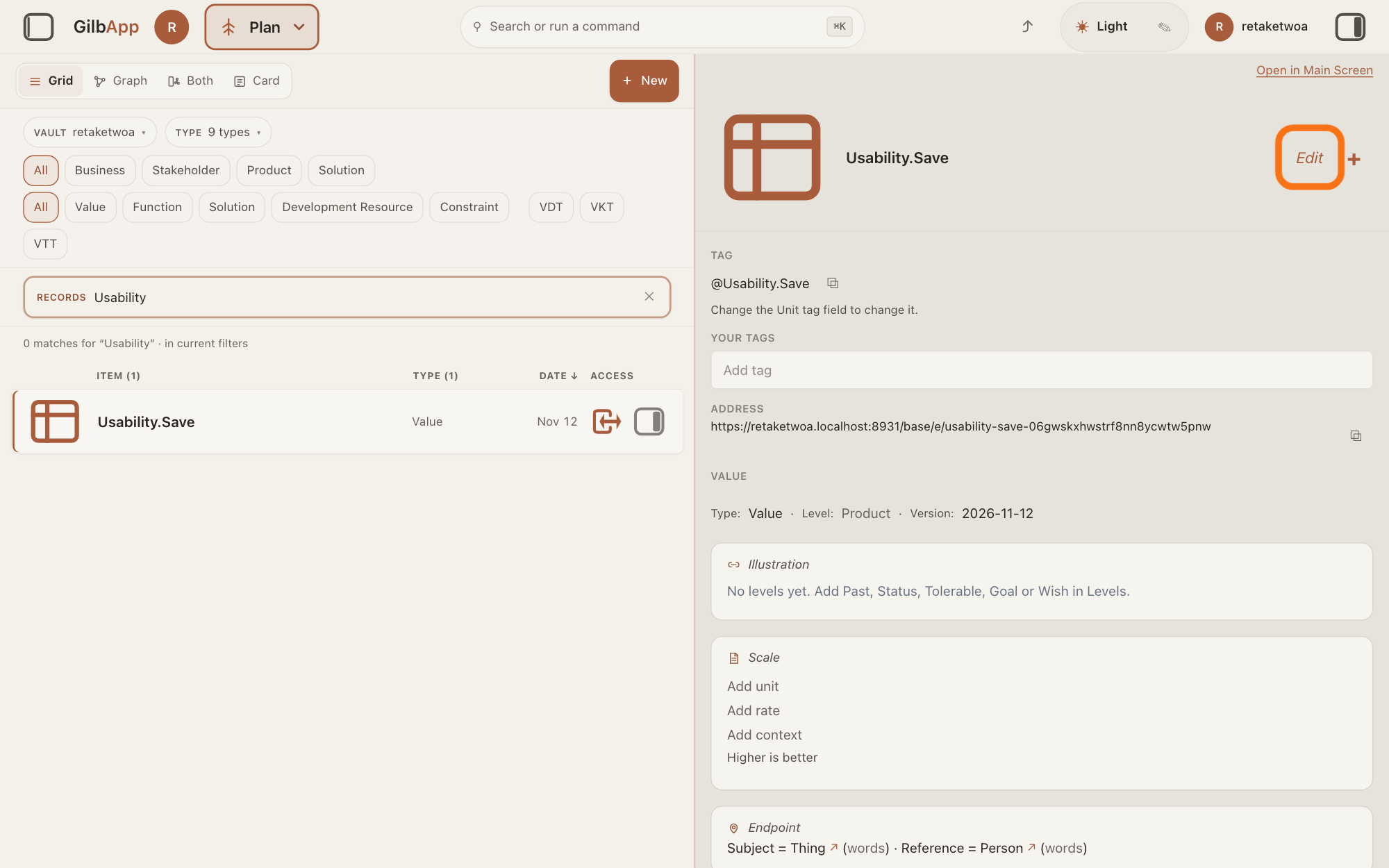
Press Edit.
At the top right of the Value's card, press Edit. The button then reads Done.
Show as text
Look at the right pane: under "Illustration" it says "No levels yet.", and the "Scale" box lists "Add unit", "Add rate", "Add context" and "Higher is better". Press the outlined "Edit" at the top right of the card, beside the "+".
More about this
The card says Editing. Changes save as you leave a field. There is no Save button. Beside Done, a + does what + Add Information at the foot of the card does; you do not need it. The card shows Edit only to a person who may write in its vault. Without Edit, empty lines show words such as Add unit, Add rate and Add context, which you can press to fill one line at a time; Edit opens all the boxes at once, as the pictures show.
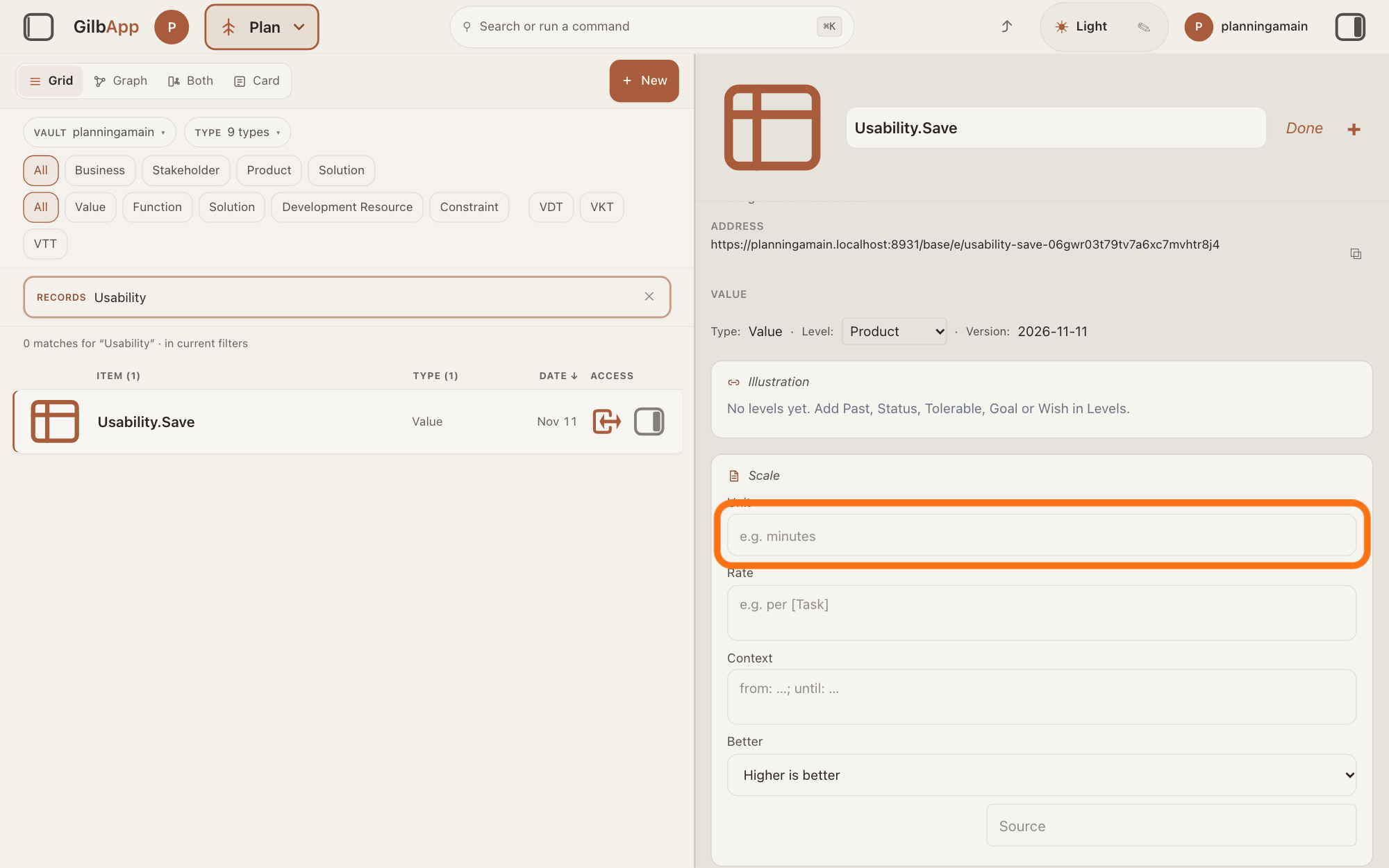
Under Scale, type the Unit.
Under Scale, type in the Unit box what you count in, such as seconds. The Scale is the ruler the Value is measured on, and the Unit is what you count in.
Show as text
The card is in edit mode ("Done" at the top right; the pane is widened here). Under "Scale" are the boxes "Unit", "Rate", "Context" and the list "Better". Click the outlined "Unit" box and type the unit, for example seconds, then press Tab.
More about this
The box shows e.g. minutes until you type; what you type is saved when you leave the box or press Enter. When Kai-Zen writes a Scale, it first asks what has value if it improves and puts that on the Scale, not a stand-in, an activity or a score. It looks in GilbVeda, the shared list of terms, for a Scale and a Meter that fit, and reuses one or adapts the closest. A Scale has a unit, a rate if any, and a context; Kai-Zen never uses a score, or a rating not tied to anything counted. Example from Kai-Zen's own Value Usability.Save: Unit seconds, Rate per save operation, Context on a [Device]; from: clicking save; until: GUI ready for next command.
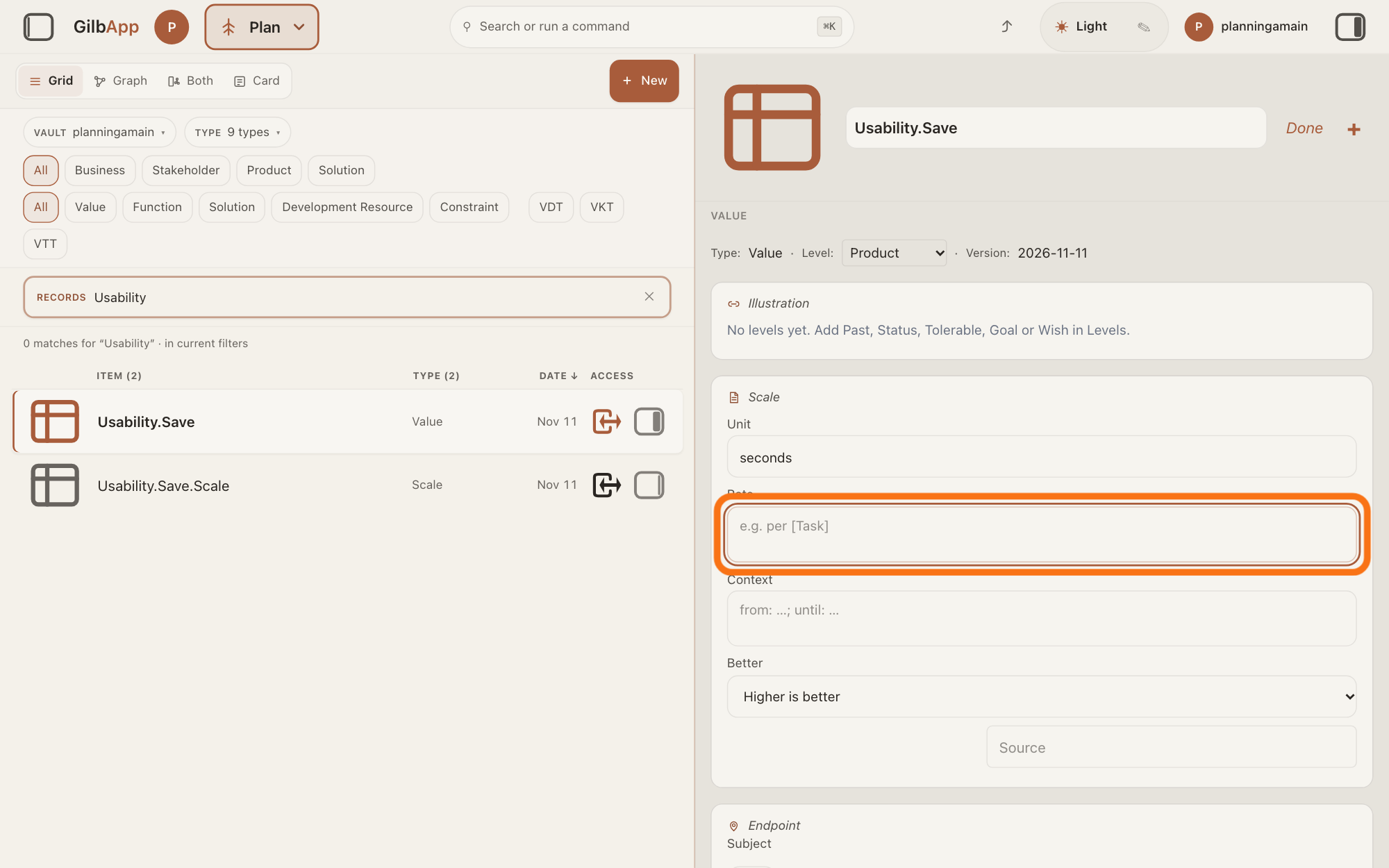
Type the Rate.
In the Rate box, type per what the Unit is counted, such as per save operation, or leave it blank when the Unit already says it. The Rate says per what the Unit is counted.
Show as text
"Unit" now holds seconds. The outlined box below it is "Rate", showing "e.g. per [Task]". Type the rate, for example per save operation, then press Tab.
More about this
The box shows e.g. per [Task]. When a Scale counts things, Kai-Zen always fills the Rate: per week, another time that fits better, or in total. A word in square brackets, such as [Task], is a qualifier: a part of the Scale that can vary. Step 9 gives it its options.
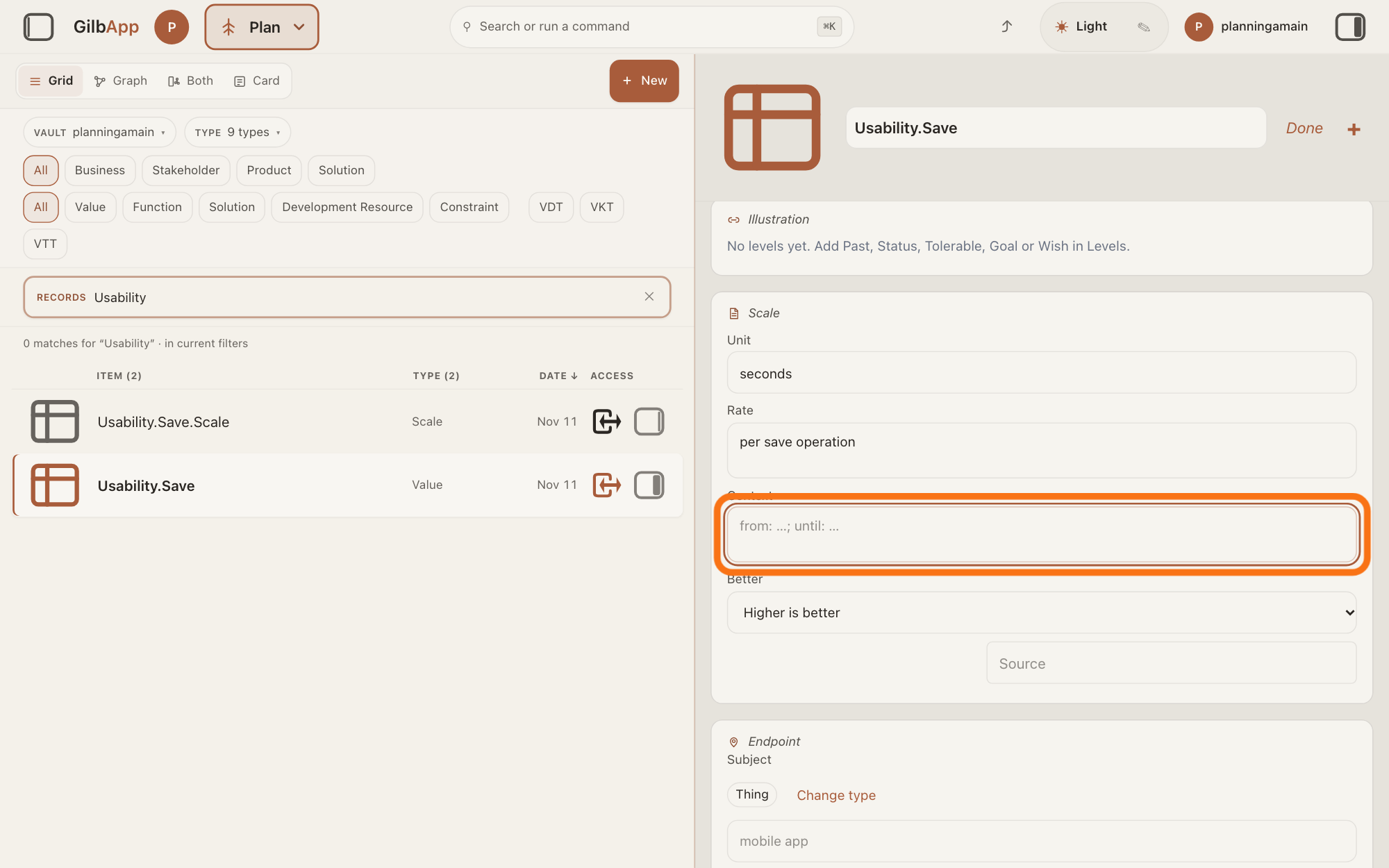
Type the Context.
In the Context box, type what is measured and where; for a time, where counting starts and stops, as from: …; until: …. Put each part that can vary in square brackets, such as on a [Device].
Show as text
"Unit" and "Rate" are filled. The outlined box below them is "Context", showing "from: …; until: …". Type where and when the level is read, then press Tab.
More about this
The box shows from: …; until: …. Each [Name] in the Unit, Rate or Context gets its own row under Qualifiers (step 9). Outside edit mode a [Name] in the Rate or Context shows as a coloured word; pressing it takes you to its row.
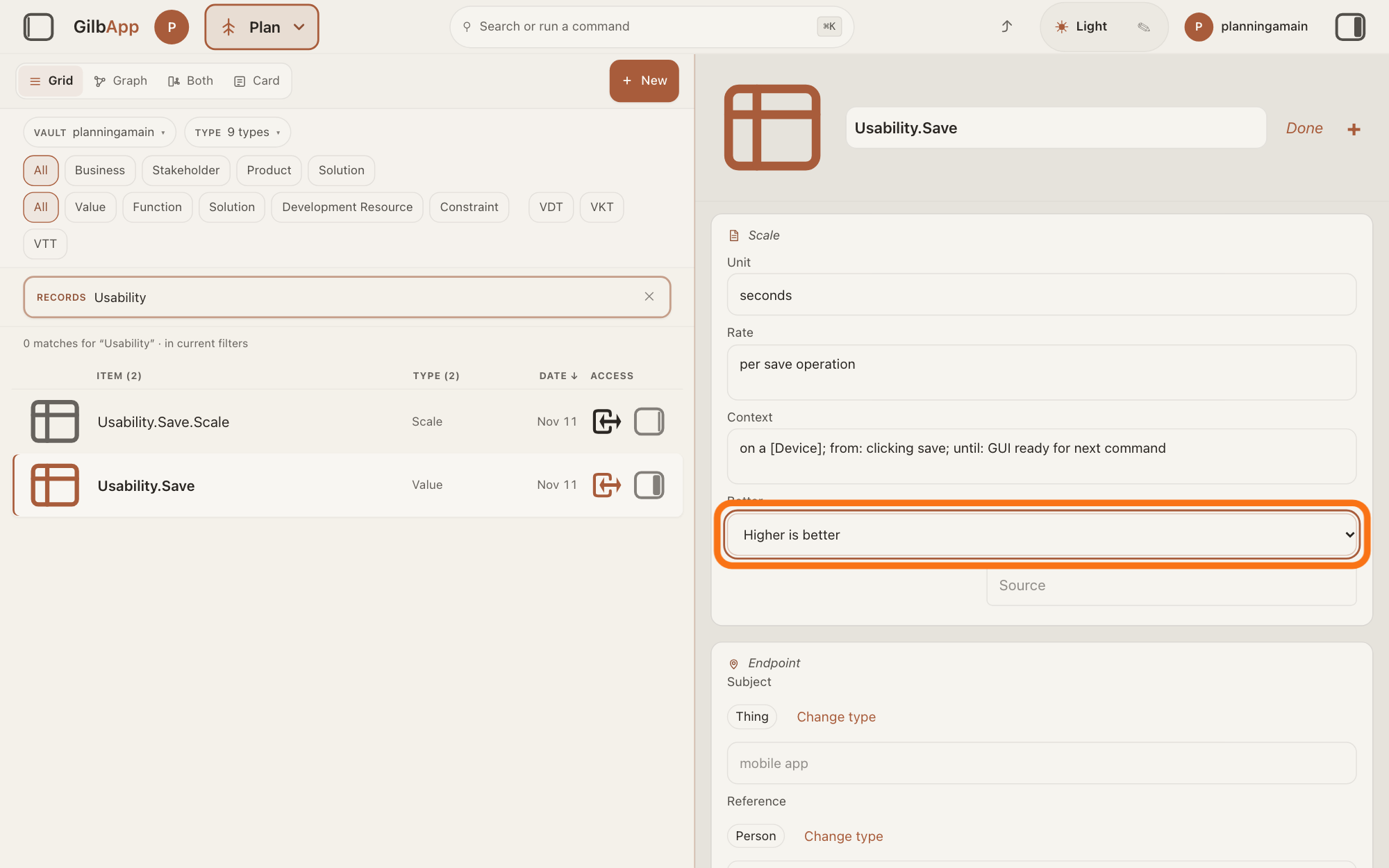
Under Better, choose which way is better.
Open the list under Better and choose Lower is better, Higher is better or Target range. Better says which way is good on the Scale.
Show as text
"Unit", "Rate" and "Context" are filled. The outlined list below them is "Better", still showing "Higher is better". Open it and choose which way is better, for example "Lower is better".
More about this
The list shows Higher is better until you choose, and your choice is saved at once. Kai-Zen chooses Target range when the Value has a low and a high limit, such as a room temperature; the answer on setting a Goal and a Tolerable level shows how to give such a Value its two sides. A Source box under Better can name who said the Scale; it is optional.
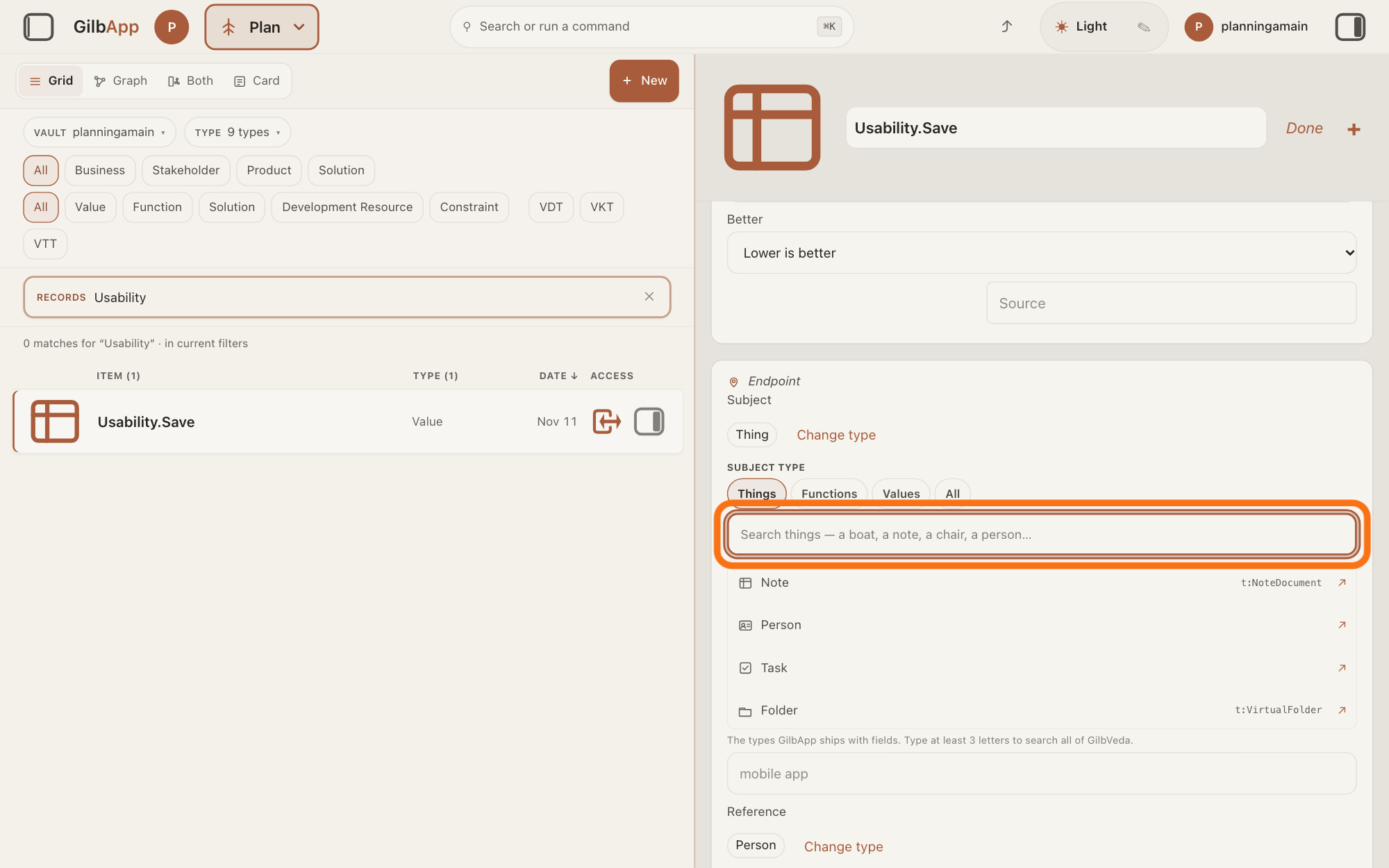
Under Endpoint, search and select the Subject type.
Under Subject, press Change type, type in the search box that opens, such as app, and select the GilbVeda type of what the Value is measured about; then type it in your own words in the box that shows mobile app. The Endpoint says between which two things the Scale measures: the Subject and the Reference.
Show as text
The card is scrolled to "Endpoint". Under "Subject", "Change type" has been pressed, so "SUBJECT TYPE" shows the tabs "Things", "Functions", "Values", "All" and the outlined search box "Search things — a boat, a note, a chair, a person…". Type at least 3 letters and choose the type.
More about this
A new Value's Subject starts as Thing and its Reference as Person. The search box shows Search things — a boat, a note, a chair, a person…, with the tabs Things, Functions, Values and All. Under Reference, do the same for the other end, such as the user who gets the Value, or leave it empty; once it is filled, No reference empties it. Pressing the type shows what GilbVeda says about it. Kai-Zen's Subject follows the level: at Product the product the project builds, at Stakeholder the stakeholder who holds the Value, and at Business the owner, by name. A Source box under it is optional.
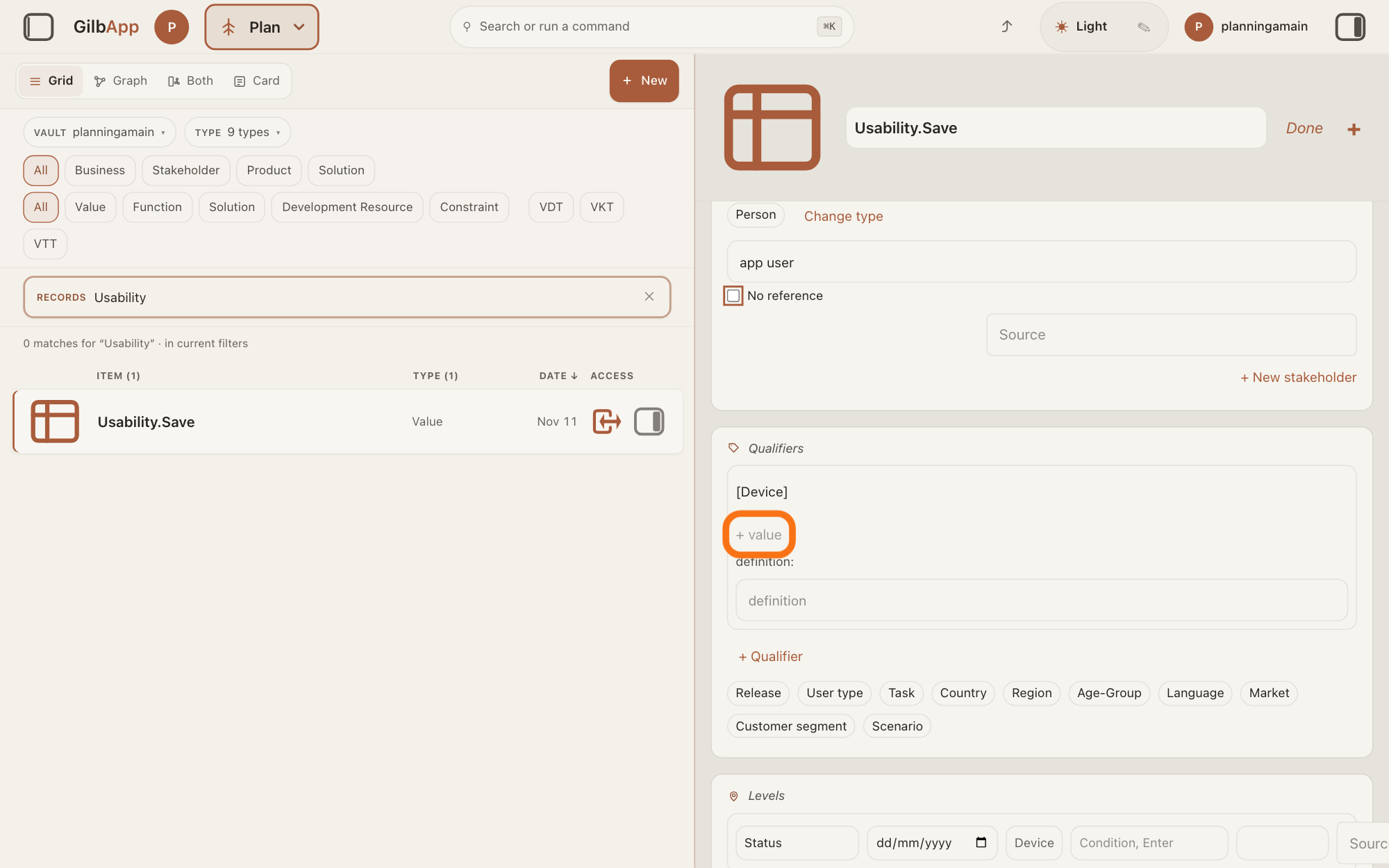
Under Qualifiers, press + value and type the options.
On the qualifier's row, such as [Device], press + value, type its options, such as Phone, Laptop, and press Enter; then choose the default in the list that shows No default. A Qualifier narrows when or where a number on a Scale holds, such as for one device.
Show as text
The card is scrolled to "Qualifiers", which holds the row [Device] made from the Context. Press the outlined "+ value" under [Device] and type the options, for example Phone, Laptop, then press Enter.
More about this
A comma between options makes two. To add a qualifier you did not type in step 6, press a name shown under the rows, such as Device, Task or Release, or press + Qualifier and type one in the box that shows Qualifier name, Enter; GilbApp adds for [Name] to the end of the Context. Under definition: you can type what the qualifier means. + Option adds an option, each with a Definition (optional) box and a ×; the × beside the row's name removes the qualifier. Kai-Zen gives each [Name] its options and one default: a level that names no qualifier holds for the default. This step is optional.
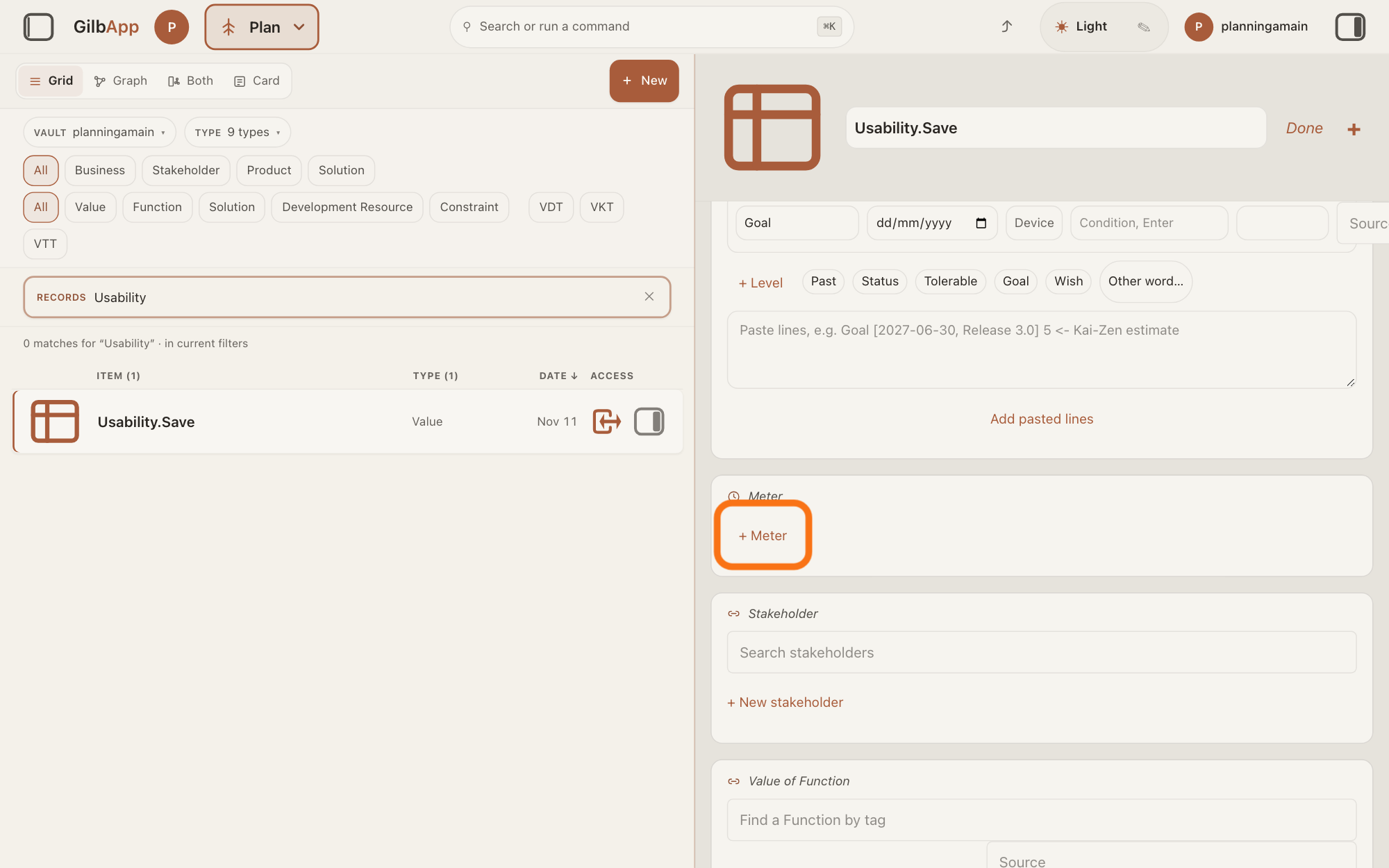
Under Meter, press + Meter and type how the level is read.
Under Meter, press + Meter, then type how the current level is found in one or more of its lines: HumanAgent for a person, AiAgent for an AI and Instrument for a test, counter or log. The Meter says how someone reads the current level off the Scale.
Show as text
The card is scrolled to "Meter", below "Levels". There is no meter yet, only the outlined "+ Meter" button. Press it and type how the level is read.
More about this
You do not need all three lines. The box at the top, Qualifier, e.g. During Development, says when or where this Meter applies; with a [Name] in the Scale, the + value beside it adds one of its options, such as Device = Phone. A Meter with nothing typed is not saved. + Meter again adds another, for example one per season, and × removes one. Each line has an optional Source box. Kai-Zen's Meter says how to find the current level without restating the Scale; when it takes a reading it reads the Meter whose qualifier fits now, and replaces a reading taken during development with a real one at the first chance. When you have finished, press Done; what you typed is already saved.
Deeper
Also asked:
What are Scale, Meter and Endpoint? Scale is the ruler the Value is measured on: its Unit, Rate and Context. Meter says how a person, an AI or a test reads the Value's level. Endpoint names what the Value is about, its Subject, with a Reference beside it.
How do I measure something like easy to use? Ask what gets better for the people who use your app when it is easier, and count that, such as the seconds a person needs to save a note. Kai-Zen never uses a score, or a rating not tied to anything counted.
Only the tag is needed to save a Value; every line on this page is optional to GilbApp. In Kai-Zen's own form for a Value, each Value has a Scale with Unit, Rate, Context and Better, an Endpoint and a Meter, and it has Qualifiers only when the Scale holds a [Name].
To measure something soft, such as easy to use: ask what gets better for the people who use your app when it is easier, and count that, such as the seconds a person needs to save a note. Kai-Zen asks this first, and never uses a score, or a rating not tied to anything counted. It also looks in GilbVeda, the shared list of terms, for a way of counting it that fits, and reuses it. You need not know the numbers: Kai-Zen sets them as well as it can and marks each as its estimate, which you can change.
Kai-Zen's example Value Usability.Save reads: Unit seconds, Rate per save operation, Context on a [Device]; from: clicking save; until: GUI ready for next command, Better lower; [Device] with the options Phone and Laptop and the default Phone; Endpoint with the Subject notes app and the Reference User; and a Meter whose HumanAgent line times five saves with a stopwatch and places the middle time on the Scale, whose AiAgent line runs five scripted saves in the app and reports the middle time, and whose Instrument line is the app's own timer, which logs each save and takes the middle time of the last 100.
Kai-Zen's rules name the Subject per level, and they differ: at Product the Subject is the product the project builds and the Reference the stakeholder or system that gets the Value; at Stakeholder the Subject is the stakeholder who holds the Value, not the product; at Business it is the owner who holds the Value, by name. GilbApp's Subject is a GilbVeda type with your own words beside it, so the name goes in the words box.
If you change a [Name] in the Scale later, its old row stays, marked Not in the Scale, with Add to Scale to put it back and its options kept. When exactly one old name has gone and one new name has come, the row offers Rename [Device] to [Platform]? (with your names), which renames the qualifier and the levels that used it.
A level can then name one option, such as Device = Phone; a level that names none holds for the default. The answer on setting a Goal and a Tolerable level covers the levels.
A Function and a Solution have a Meter too, with the same three lines HumanAgent, AiAgent and Instrument, but only one Meter, with no qualifier box and no + Meter. In edit mode the three boxes show at once; outside it they show Add humanagent, Add aiagent and Add instrument. There the Meter says how to check where the Function or Solution stands: Planned, Building, Developed, Production or Retired. The answer on writing a Function in your plan shows it.
This answer is written for a computer screen.
Source: GilbApp af0f04ee838a4d55887d2ff1f72edd49a4ff7ca0 (https://gilb.com/app/version.json read 2026-11-10, buildTime 2026-11-09.522Z, dirty false). Card lines: lib/base/planKinds.ts:101-112 (labels Scale, Qualifiers, Endpoint, Meter, Levels, Illustration), :160-173 (VALUE_LINES order); PlanFunctionForm.tsx:1439-1463 (value groups always shown, empty=false). Edit: cardMode.tsx:257-278 (Edit/Done), :301 (Editing. Changes save as you leave a field.). Scale: PlanValueLines.tsx:102-106 (DIRECTION_WORDS), :221 (inPlace = can edit and not editing), :797-860 (view: Add unit, Add rate, Add context, [Name] chips :735-790 Go to qualifier), :862-889 (edit: Unit e.g. minutes, Rate e.g. per [Task], Context from: …; until: …, Better select, Source), :120-160 (CommitText saves on blur / Enter); lib/base/planValue.ts:343-346 (scaleDirectionOf default higher), :1577-1590 (scaleQualifierNames from unit, rate, context). Qualifiers: PlanValueLines.tsx:892-945 (+ Qualifier, Qualifier name, Enter, preset chips), :947-985 (AddValues + value, Value, Enter, comma split), :1013-1027 (Not in the Scale, Add to Scale), :1046-1053 (addToScale appends for [Name] to Context), :1215-1365 (edit rows: [Name], ×, Rename [from] to [to]?, default select No default, option Option and Definition (optional), + Option, definition:); planValue.ts:1625-1646 (renameCandidate, PRESET_QUALIFIERS Release, User type, Task, Device, Country, Region, Age-Group, Language, Market, Customer segment, Scenario). Endpoint: PlanValueLines.tsx:1367-1655 (Subject/Reference labels, TypeChooser search, words box mobile app, Change type, No reference checkbox only once filled, Source); TypeChooser.tsx:50-62 (tabs Things, Functions, Values, All; placeholder Search things — a boat, a note, a chair, a person…). Meter: PlanValueLines.tsx:107-112 (HumanAgent, AiAgent, Instrument), :525-615 (UnsetQualifiers, caption meter face + value), :1698-1727 (meterPicks: <Name> = <option>), :1784-1835 (edit: Qualifier, e.g. During Development, ×, three lines, Source, + Meter). Function/Solution Meter: PlanFunctionForm.tsx:144 (METER_LABEL), :1832-1869 (one Meter, three lines, no qualifier); mynet/FieldRow.tsx:323 (Add <label lower case>); planKinds.ts:114-158 (meter on Function, Function Constraint, Solution, Solution Constraint). Standards (read 2026-11-10): Kai-Zen.ValueTemplate (Blank.OneSided, Example.OneSided Usability.Save, Example.Bipolar), Kai-Zen.ValueRules (Essence, ScaleLookup, RealScale, Meter, CountRate, Better, Qualifiers, MeterWhen), Kai-Zen.ProductLevelRules.Endpoint, Kai-Zen.StakeholderLevelRules.Endpoint, Kai-Zen.BusinessLevelRules.Endpoint, Kai-Zen.FunctionRules.Meter, Kai-Zen.FunctionTemplate. GilbVeda public read 2026-11-10: t:Scale, t:Meter, t:Qualifier, t:ScaleQualifier, t:MeterLine, t:ValueEndpointSubject, t:ValueEndpointReference, t:SoftwareApplication, t:User. Value gloss; Scale and Unit gloss; Rate gloss (What is a Rate?); Better gloss (What is Better?); Endpoint gloss (What is an Endpoint?); Qualifier gloss (What is a Qualifier?); Meter gloss and the three Meter lines; GilbVeda gloss; Add humanagent. Soft-quality paragraph: Kai-Zen.ValueRules, rules 2, 3, 4 and 18, read 2026-11-12.
Checked against GilbApp d529620.