
← Back to How do I remove a computer from my account?
How do I disconnect my AI?
Short answer
At the top right of the chat, press Disconnect under your AI's name, Claude Code or Grok.
Before you start
You need to be signed in to GilbApp in the browser where you connected Claude Code, or in the tab where you connected Grok. The pictures show a made-up person on a test site; your screen shows your own name and address.
Words used here (2)
- GilbApp
- GilbApp is the app, opened in a web browser at https://gilb.com/app, where you open, fill and share your vaults.
- GilbPlatform
- GilbPlatform is the service that keeps people's and organisations' data in vaults, each at its own web address.
Steps
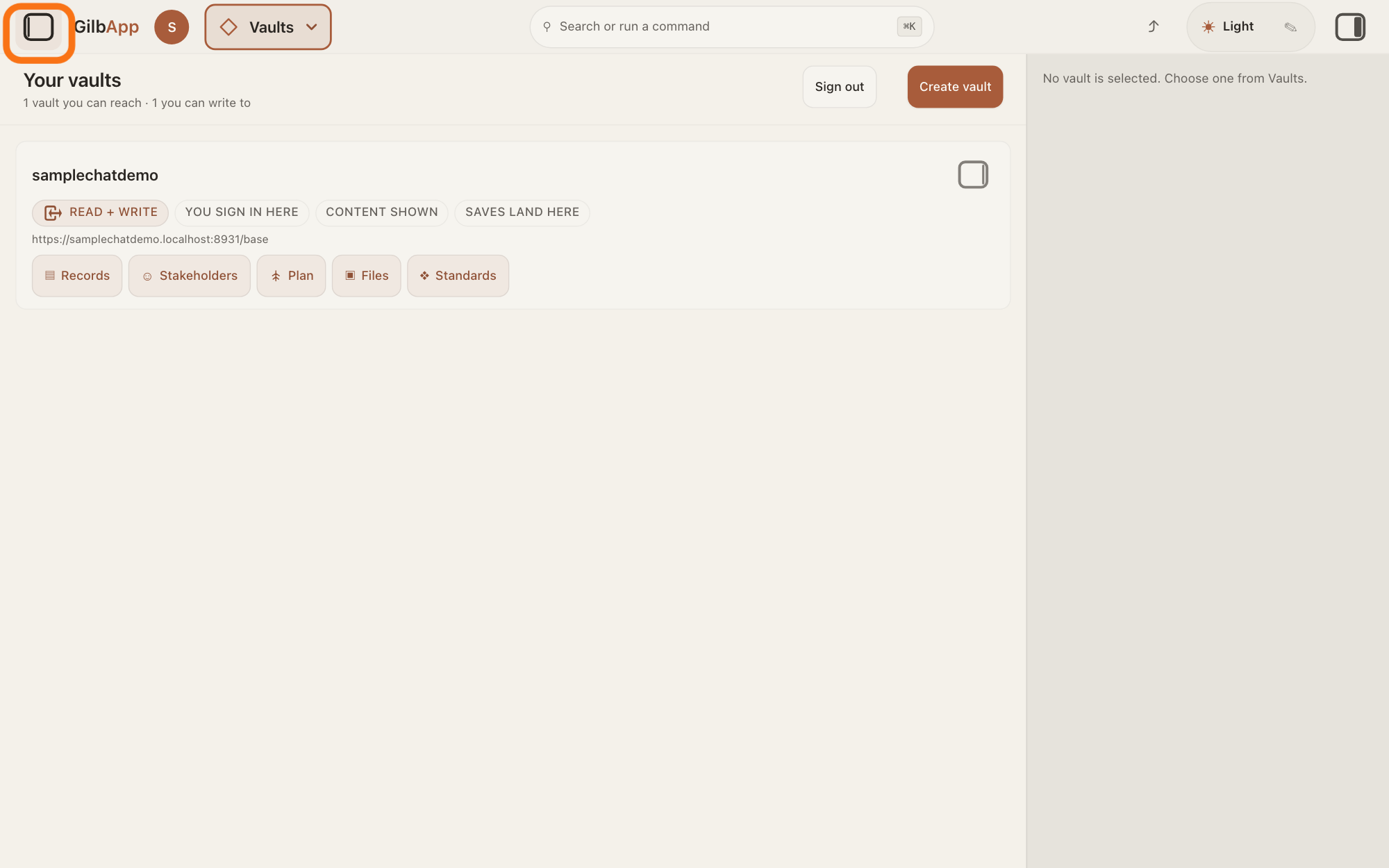
Press the square button at the far left of the top bar.
If the chat is not showing on the left, press the square button at the far left of the top bar. The chat opens; at its top right it shows your AI's name, Claude Code or Grok, with Disconnect under it.
Show as text
Look at the top bar, at its far left, before the word "GilbApp". The square button there is outlined in orange: click it to open the chat on the left. Before you do, the screen shows only "Your vaults" with your vault card in the middle and, on the right, "No vault is selected. Choose one from Vaults."
More about this
If it shows Connect there instead, none of your AIs is connected in this browser tab.
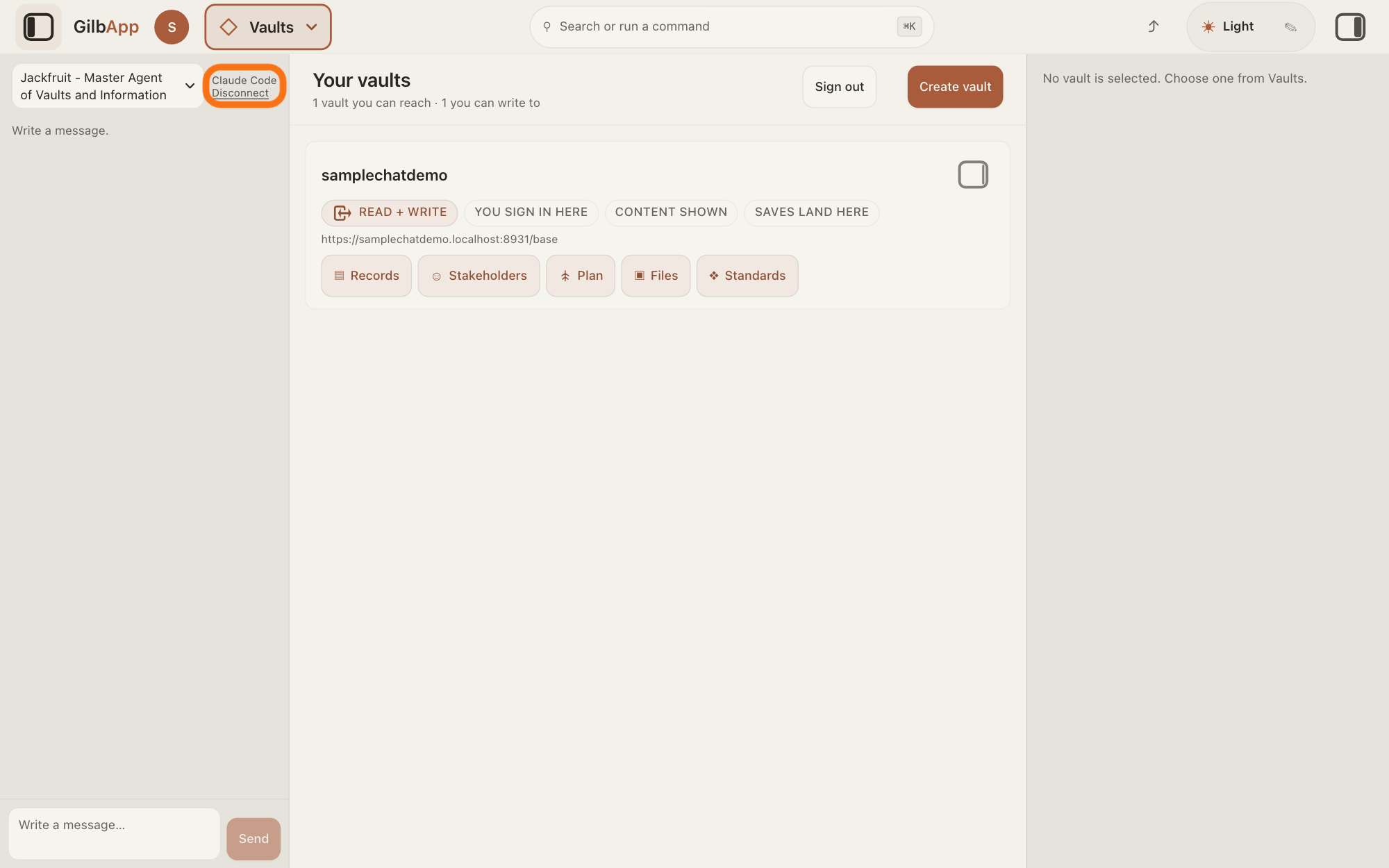
Press Disconnect.
Press Disconnect under Claude Code or Grok. The name goes, and Connect shows in its place.
Show as text
The chat is now open in the left pane. At its top is the agent list, and to its right, in small type, your AI's name "Claude Code" with the underlined word "Disconnect" just under it. The orange outline is around that pair: click "Disconnect". The name then goes and "Connect" shows in its place. The box "Write a message..." and "Send" stay at the bottom of the pane.
More about this
For Claude Code, GilbApp forgets that this browser is paired with your Claude Code, in every GilbApp tab of this browser, and asks the bridge on your Mac, the small GilbPlatform program that links the chat to your Claude Code, to forget it too; an answer still being written is stopped, with Claude Code was disconnected, so the turn was stopped. For Grok, GilbApp forgets the connection in this tab. Your conversation stays.
Deeper
Also asked:
What is the difference between signing out and pressing Disconnect for my AI? Disconnect ends the link between GilbApp's chat and your AI, and keeps you signed in. Signing out ends your sign-in, but not that link.
How do I disconnect my AI from the chat? At the top right of the chat, press Disconnect under your AI's name, Claude Code or Grok.
Disconnect does not cancel your Claude or SuperGrok subscription, and does not sign Claude Code out on your Mac. It does not touch an AI you connected to your vaults in Terminal, or its AI vault; taking that AI's access away has its own answer.
With Option Always On, the bridge still starts each time you log in. To remove it, paste this line in Terminal and press Return:
node ~/.gilb-claude-code-bridge.mjs --uninstall
Terminal answers Removed com.gilb.claude-code-bridge. The bridge no longer starts at login. With Option One Session, close the Terminal window the bridge runs in.
A pairing made in another browser (that browser's link to your Claude Code) stays there until you press Disconnect in that browser or it goes unused for 30 days. Signing out of GilbApp does not end a pairing, and Disconnect does not sign you out; the answer on signing out says what it ends.
Without your own AI, the chat answers only if GilbPlatform has switched on its shared AI; otherwise it says Connect your own AI first — press Connect. Your AI works only for you. To connect again, or to change to the other AI, press Connect; that has its own answer. Claude Code then needs a new pairing code.
This answer is written for a computer screen.
Checked against GilbApp d529620.