
← Back to How do I download a copy of my vault?
How do I download or remove a file?
Short answer
In Files, press ⤓ on the file's row to download it; to remove it, choose the file and press 🗑 Remove from register.
Before you start
You need to be signed in to GilbApp on a computer, with the file in a vault you can read; to remove it, one you can write to. The pictures show a made-up person on a test site; your screen shows your own name and address.
Words used here (2)
Steps
Press Main menu at the top left and choose Files.
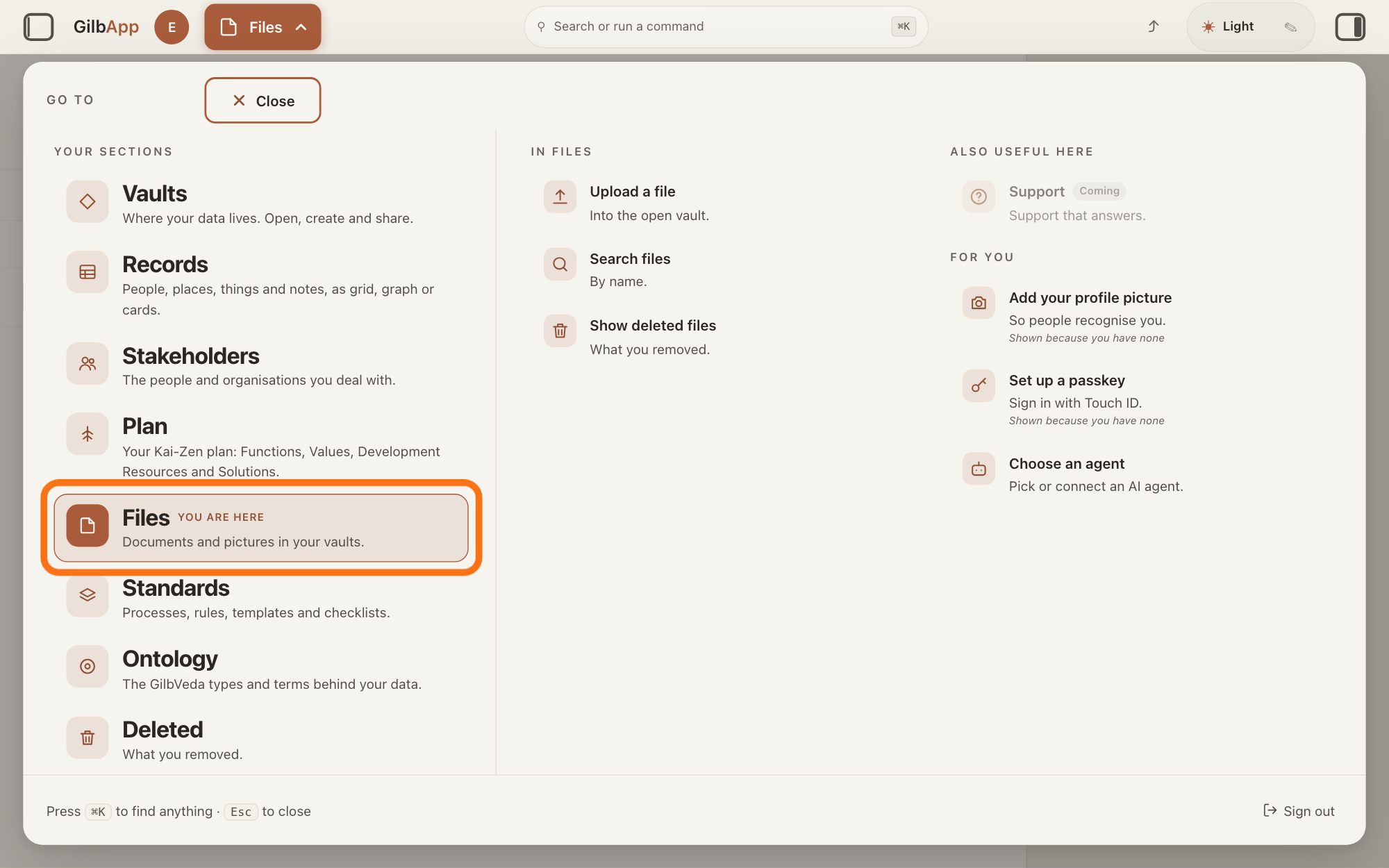
Press Main menu, next to your profile picture at the top left, and under YOUR SECTIONS choose Files. The button shows the name of the section you are in, such as Vaults.
Show as text
The Files screen is behind the open panel headed "GO TO". In the left column under "YOUR SECTIONS", the outlined row reads "Files", marked "YOU ARE HERE", with "Documents and pictures in your vaults." under it. Click that row.
More about this
A panel headed GO TO opens; Files reads Documents and pictures in your vaults. Files shows the vault you picked in Vaults, or your own vault if you picked none; a vault is the place where a person or a group keeps their records. You can also press Files on a vault's card in Vaults. It lists the vault's files, newest first: a file attached to a record, one piece of data with its own address such as a person or a note, says Attached to a record, a file on its own Registered file. Over the list are the tabs In your vault and Deleted, + New, which uploads a file, the VAULT and TYPE buttons and the search box; the answer on sorting and filtering the list explains the two buttons.
Press ⤓ on the file's row.
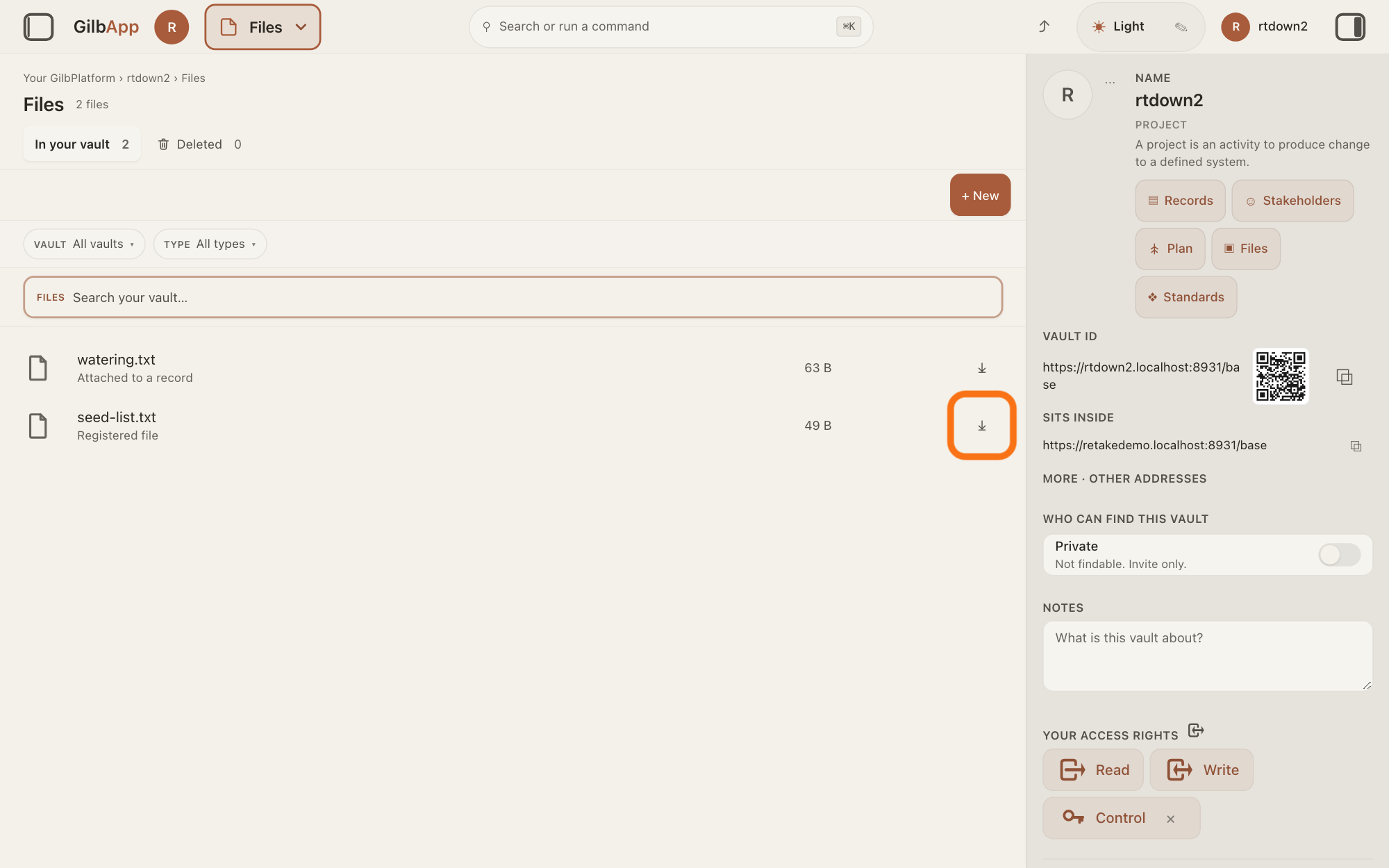
Press ⤓ at the right end of the file's row; its hover text is Download. Your browser saves the file under its name, as it saves any download.
Show as text
The "Files" list shows two files, each with a small down arrow at the far right end of its row. The outlined arrow is the one on the lower row, the file on its own marked "Registered file". Press that arrow to download the file. Your browser saves it.
More about this
The button shows … while it works. If the download fails, a line under the file's name says why, such as that you are not allowed to read it or that the vault could not be reached; GilbApp says a file is no longer in your vault only when the vault says so. The file's details, in step 3, have the same act as ⤓ Download. On a record, each attached file has its own ⤓ under ATTACHMENTS. Downloading copies the file to your computer and changes nothing in the vault.
To remove a file, choose it in the list.
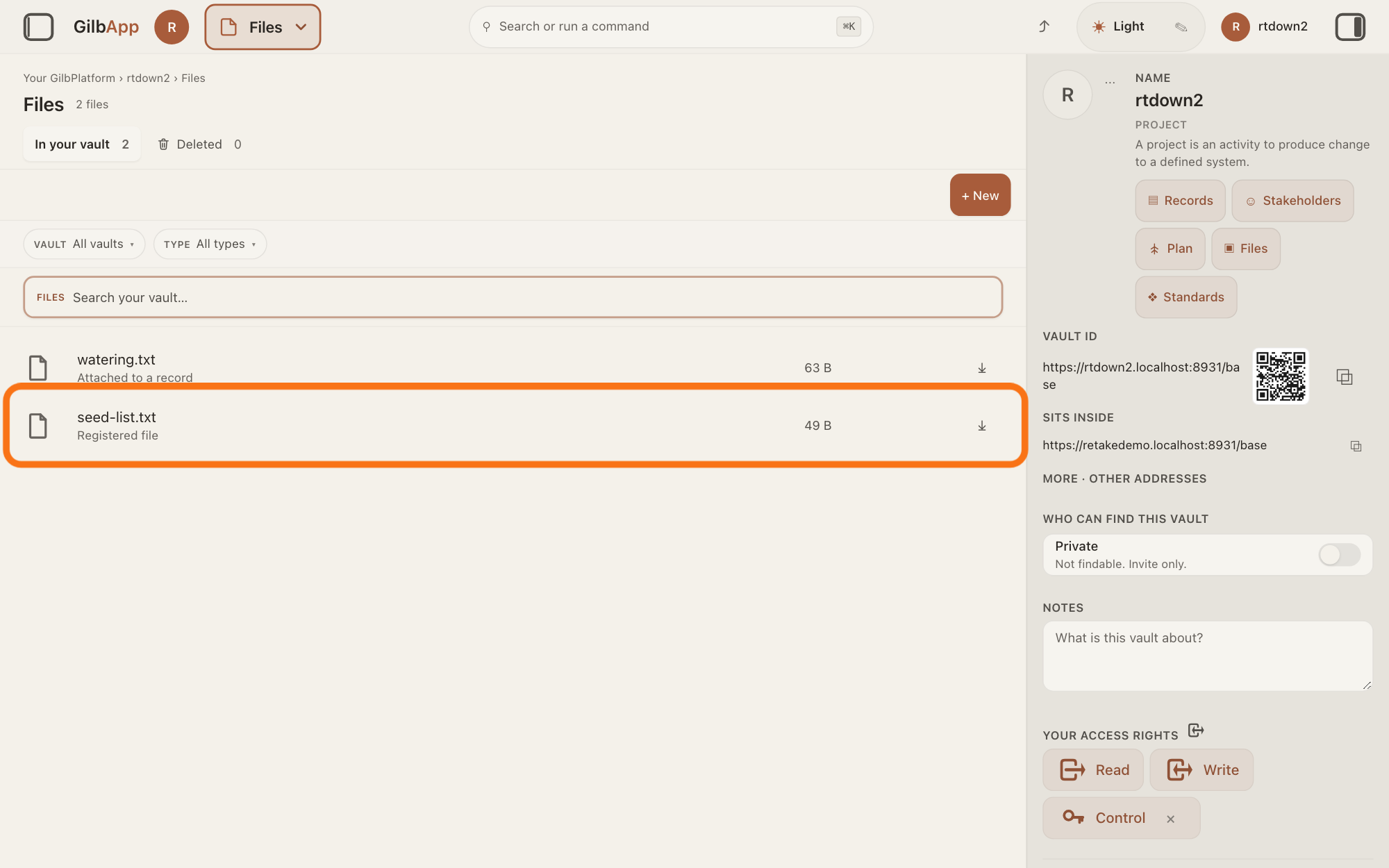
Click the file's row. Its details open in the right pane.
Show as text
The same list of two files, with the lower row outlined from its small page sign at the left to its size at the right. It reads "Registered file" under the name. Click anywhere on that row, but not on the down arrow, to open the file's details in the right pane.
More about this
If the right pane is hidden, press the square button at the far right of the top bar. The details show the file's name, TYPE, MEDIA, SIZE, LAST CHANGED and ⤓ Download. The line REGISTERED FILE · NOT ATTACHED TO A RECORD shows there even for an attached file; the row in the list says which it is. The details also hold TAG, YOUR TAGS with the box Add tag, ADDRESS, a Comment box that shows Notes about this file…, ▸ ADD FIELD, ▸ ACCESS, ▸ SHARE THIS ITEM and ▸ ADD TO FOLDER; you do not need them here.
Press 🗑 Remove from register.
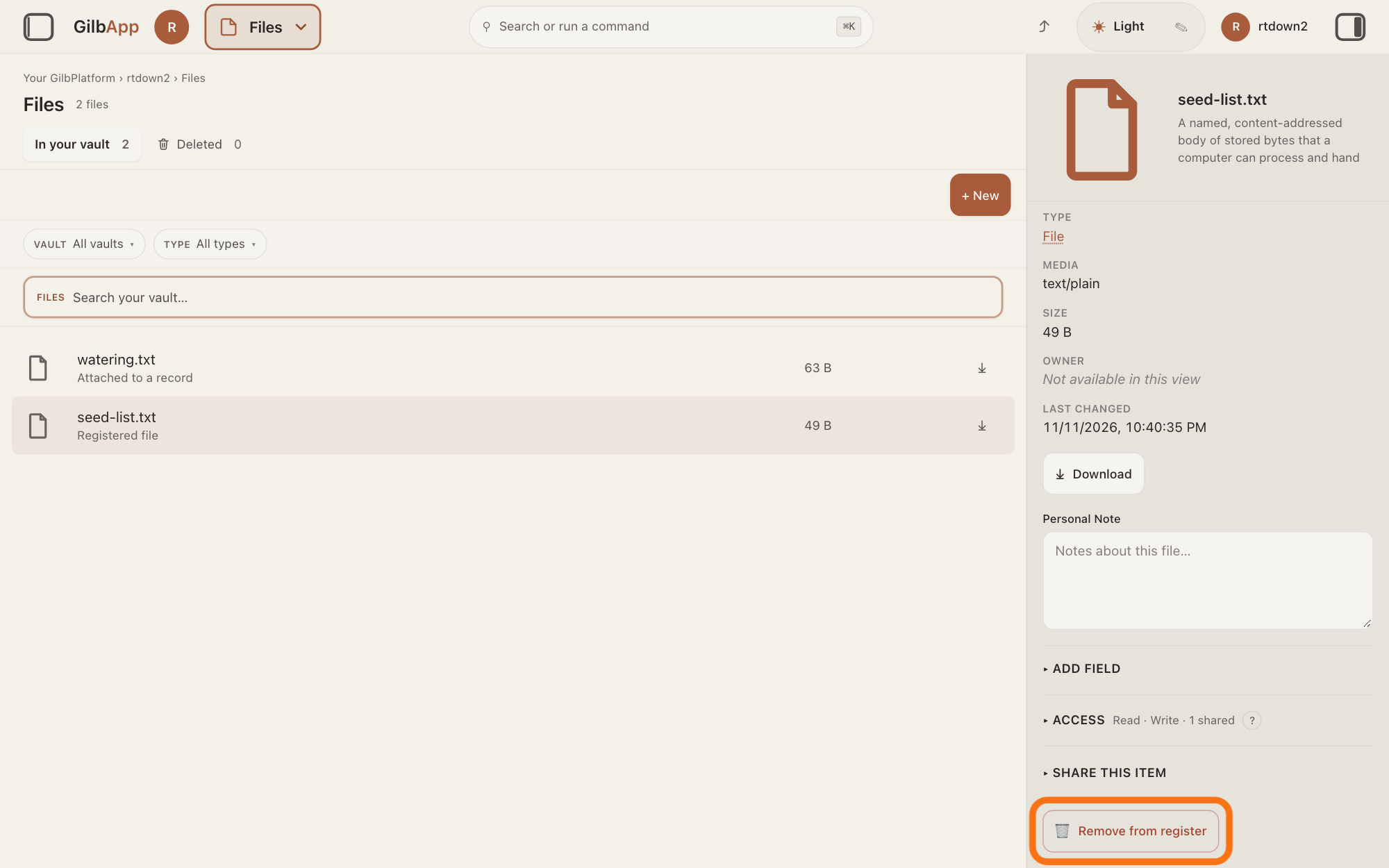
Press 🗑 Remove from register at the bottom of the details. GilbApp asks nothing first: the details close and the file leaves the list.
Show as text
The right pane now shows the file's details: its name at the top, then "TYPE", "MEDIA", "SIZE", "OWNER", "LAST CHANGED" and a "Download" button, and lower down the folds "ADD FIELD", "ACCESS" and "SHARE THIS ITEM". At the very bottom the outlined button, with a bin sign, reads "Remove from register". Press it.
More about this
The file is not destroyed: it moves to Deleted, where it can still be downloaded, and the vault keeps the file's contents and its history. GilbApp has no button to bring it back. The button is not there if you can only read the vault (This vault is read-only here — download still works.) or if the file is a record's picture: "This file is a record’s picture, so it can’t be removed here. Replace it with Change picture on that record." On a record, the 🗑 on an attached file's row, shown when the pointer rests on the row, removes that file the same way, also without asking; the record stays.
To see removed files, press Deleted.
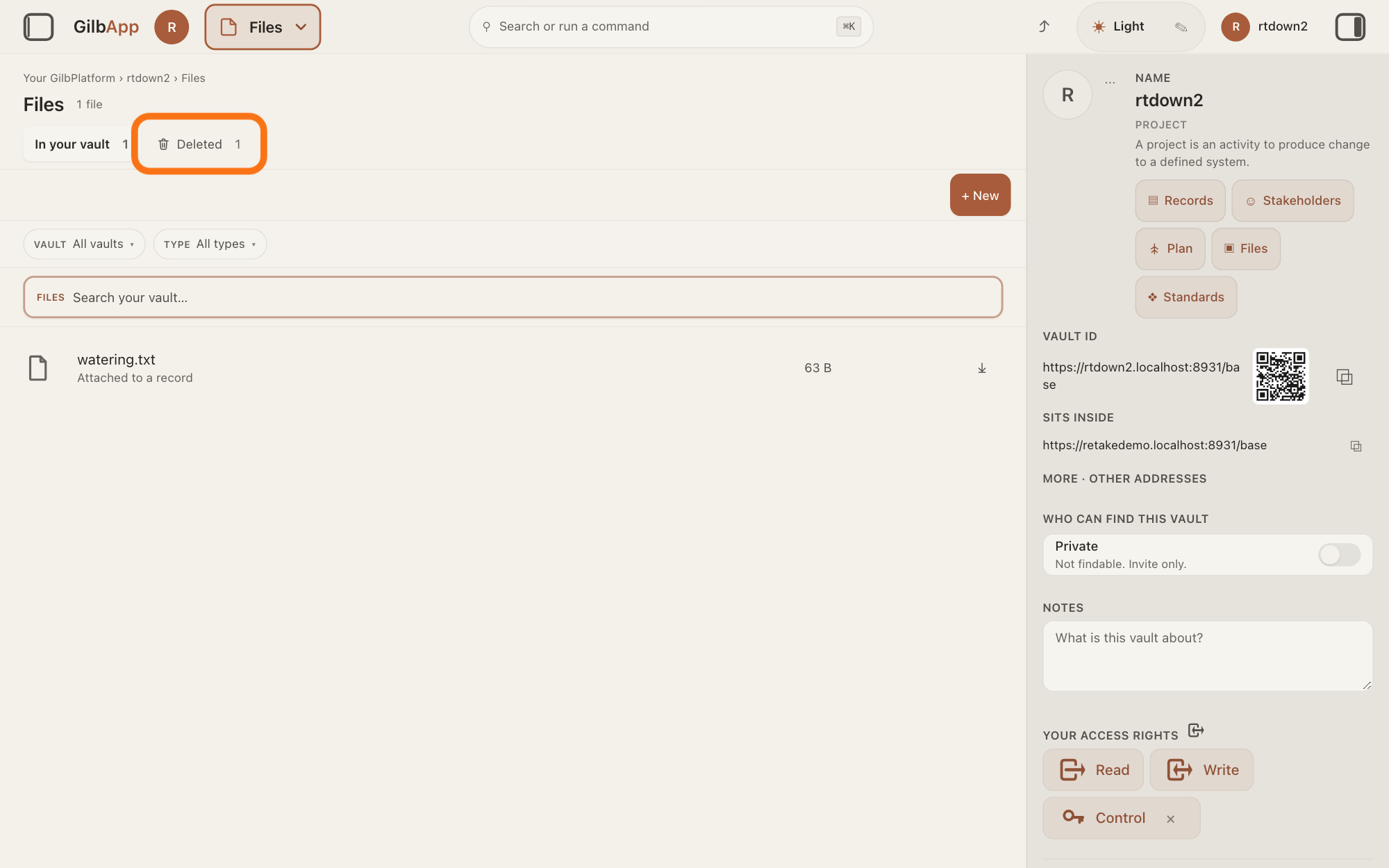
Press the tab Deleted at the top of Files. It lists what was removed from the vault, with · ended after each file's kind.
Show as text
The "Files" list under the heading now has one file left; the heading reads "1 file". Above the list, next to the tab "In your vault", the outlined tab reads "Deleted" and now counts 1. Press "Deleted" to see the file you removed.
More about this
Main menu at the top left opens the same list: choose Deleted (What you removed.) under YOUR SECTIONS, or Show deleted files under IN FILES. ⤓ on a row there still downloads the file. The list also holds deleted records, marked Ended node or You ended this node (a node is a record); the answer on deleting a record and getting it back explains records. In your vault goes back to the files in use.
Deeper
Also asked:
What is Deleted in the menu, and where do removed things go? Deleted (What you removed.) lists the files and records removed from the vault you are in. They are kept with their history, not erased; ⤓ still downloads a removed file, but GilbApp has no button to bring anything back.
Can I get back a file I removed? Not with a button: GilbApp has none to bring it back. It stays in Deleted, where ⤓ still downloads it, so you can put it in the vault again as a new file.
Removing a file ends it rather than erasing it: it is hidden from the lists of files in use, but its contents and its history are kept, and Deleted still lists it and downloads it.
Removing a file that is attached to a record takes it off that record too; the record itself stays.
This answer is written for a computer screen.
Checked against GilbApp d529620.