
← Back to How do I add more information to a card?
How do I edit a person's e-mails, phones and links?
Short answer
In Stakeholders, search and select the person, press Edit, press ⊕ add email, ⊕ add phone or ⊕ add online account, type it, press Done.
Before you start
You need to be signed in to GilbApp on a computer, with the person's card in a vault you can write to, such as your own vault. The answer on adding a person as a stakeholder shows how to make one. The pictures show a made-up person on a test site; your screen shows your own name and address.
Words used here (3)
- GilbApp
- GilbApp is the app, opened in a web browser at https://gilb.com/app, where you open, fill and share your vaults.
- record
- A record is one piece of data with its own address, such as a person, a place, a thing or a note.
- field
- A field is one named fact on a record, such as its title or a due date; its name comes from GilbVeda.
Steps
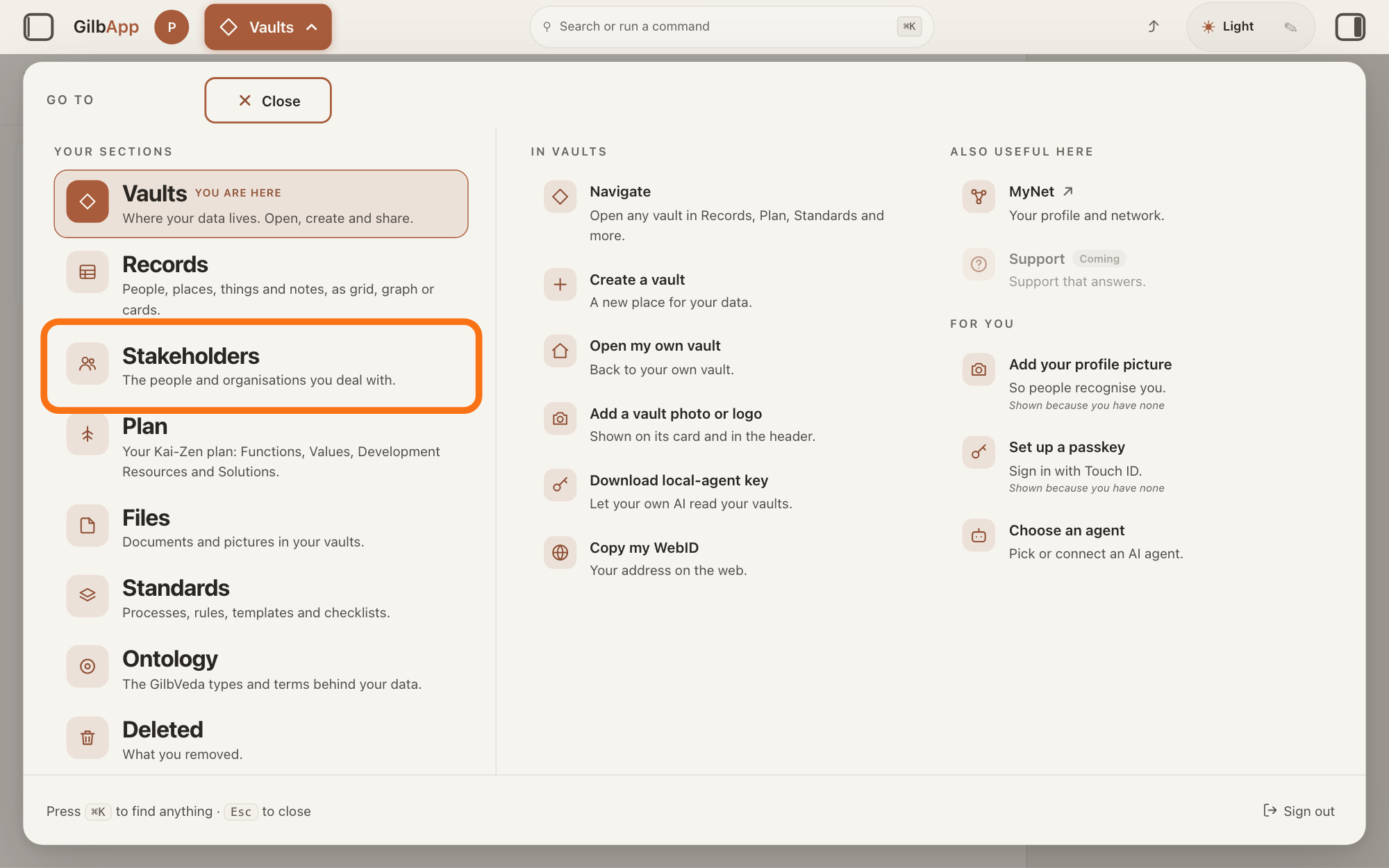
Press Main menu at the top left and choose Stakeholders.
Press Main menu, next to your profile picture at the top left, and under YOUR SECTIONS choose Stakeholders. A stakeholder is a person, group or system that cares whether a Value goes up or down.
Show as text
At the top left, press "Main menu" (it shows the name of the section you are in). In the panel headed "GO TO", look under "YOUR SECTIONS" and press "Stakeholders", "The people and organisations you deal with.", outlined in orange.
More about this
The button shows the name of the section you are in, such as Vaults. A panel headed GO TO opens; Stakeholders reads The people and organisations you deal with. You can also press the Stakeholders button on the card of a vault (the place where a person or a group keeps their records) in Vaults. The screen lists your stakeholders and has the views Grid, Graph, Both and Card. The list also holds organisations, systems and groups; the TYPE column says which are Person.
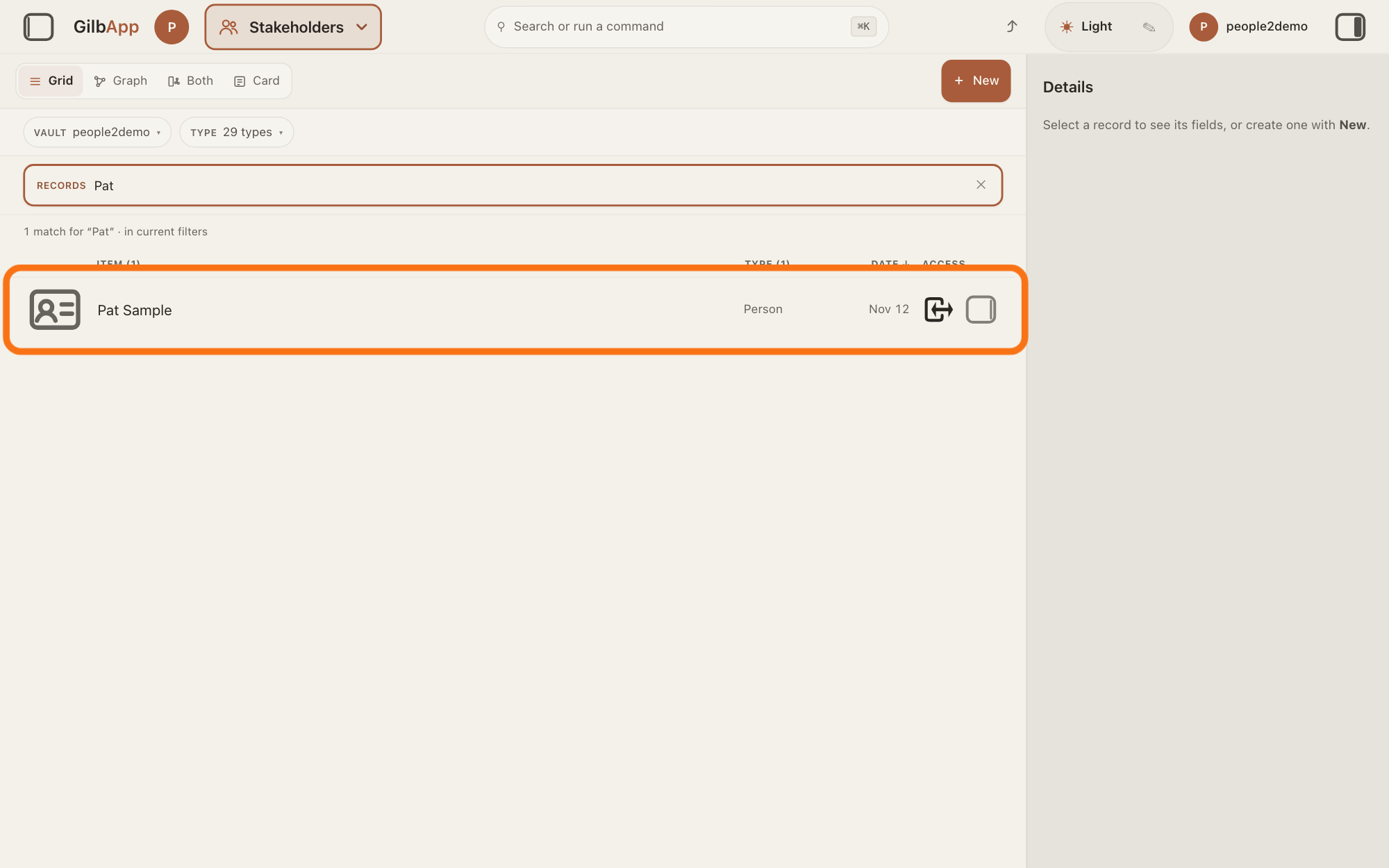
Search and select the person in the list.
Type a word of the person's name in the search box marked RECORDS above the list, and click the person in the list. The person's card opens in the middle of the screen, and the right pane, headed Actions, holds what you can do with it.
Show as text
In the box marked "RECORDS" above the list, type a word of the person's name. The line under the box counts the matches. Press the person's row, outlined in orange, to open their card.
More about this
The answer on avoiding adding the same person twice shows more about the search. An organisation's card has the same Email, Phone and Online Account groups, and these steps work there too.
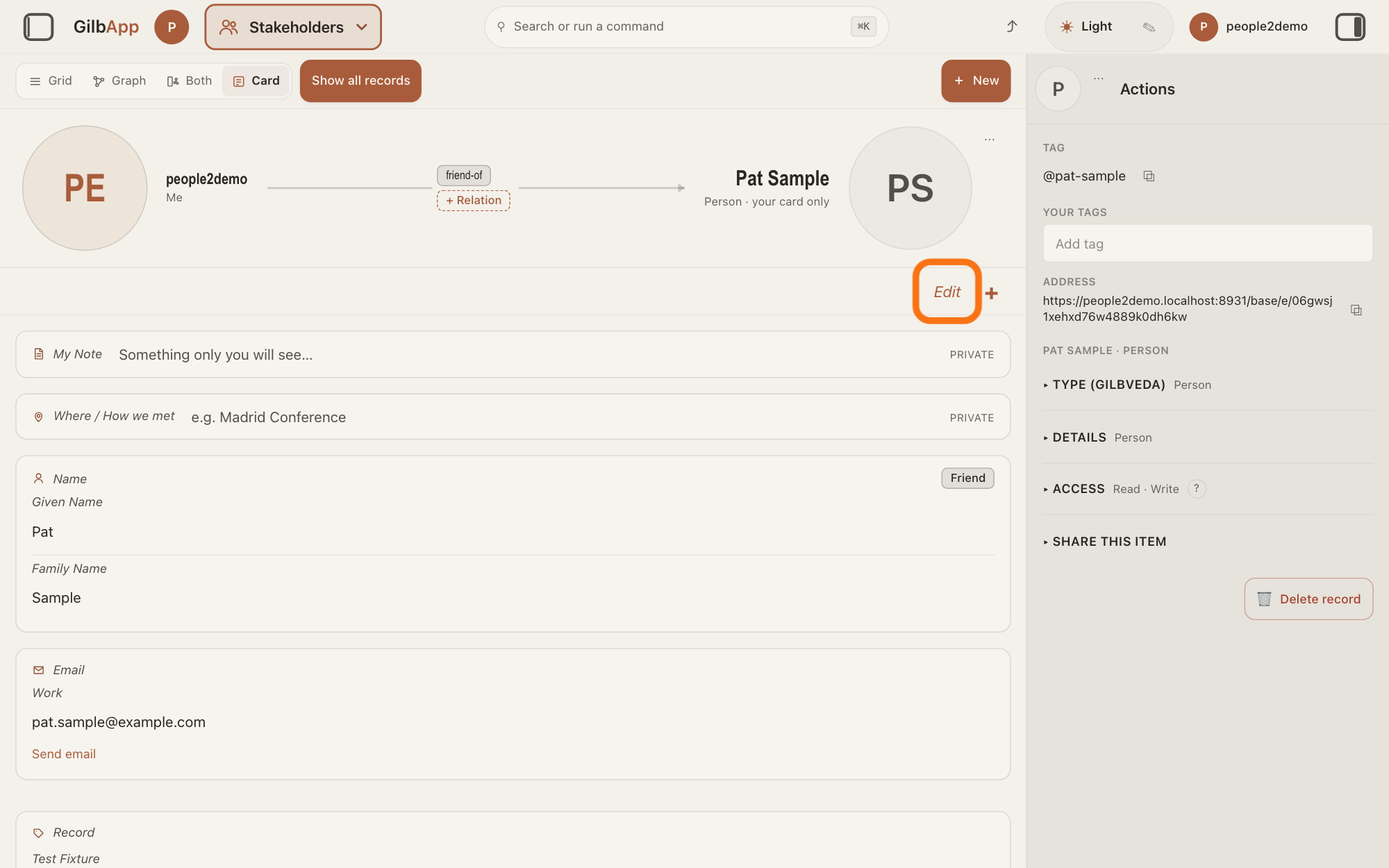
Press Edit at the top right of the card.
Press Edit at the top right of the card, beside +. The card can now be changed, and Edit reads Done.
Show as text
The person's card opens in the middle, not being edited. At the top right of the card, under its header, press "Edit", outlined in orange; "+" is beside it.
More about this
Clicking a value on the card also does this. The card says Editing. Changes save as you leave a field. The + beside Done at the top right and + Add Information at the foot of the card both open the list headed Add information, for other kinds of information; you do not need them here. Editing ends when you press Done or Esc, or click outside the card. On a card you may only read, Edit is not there.
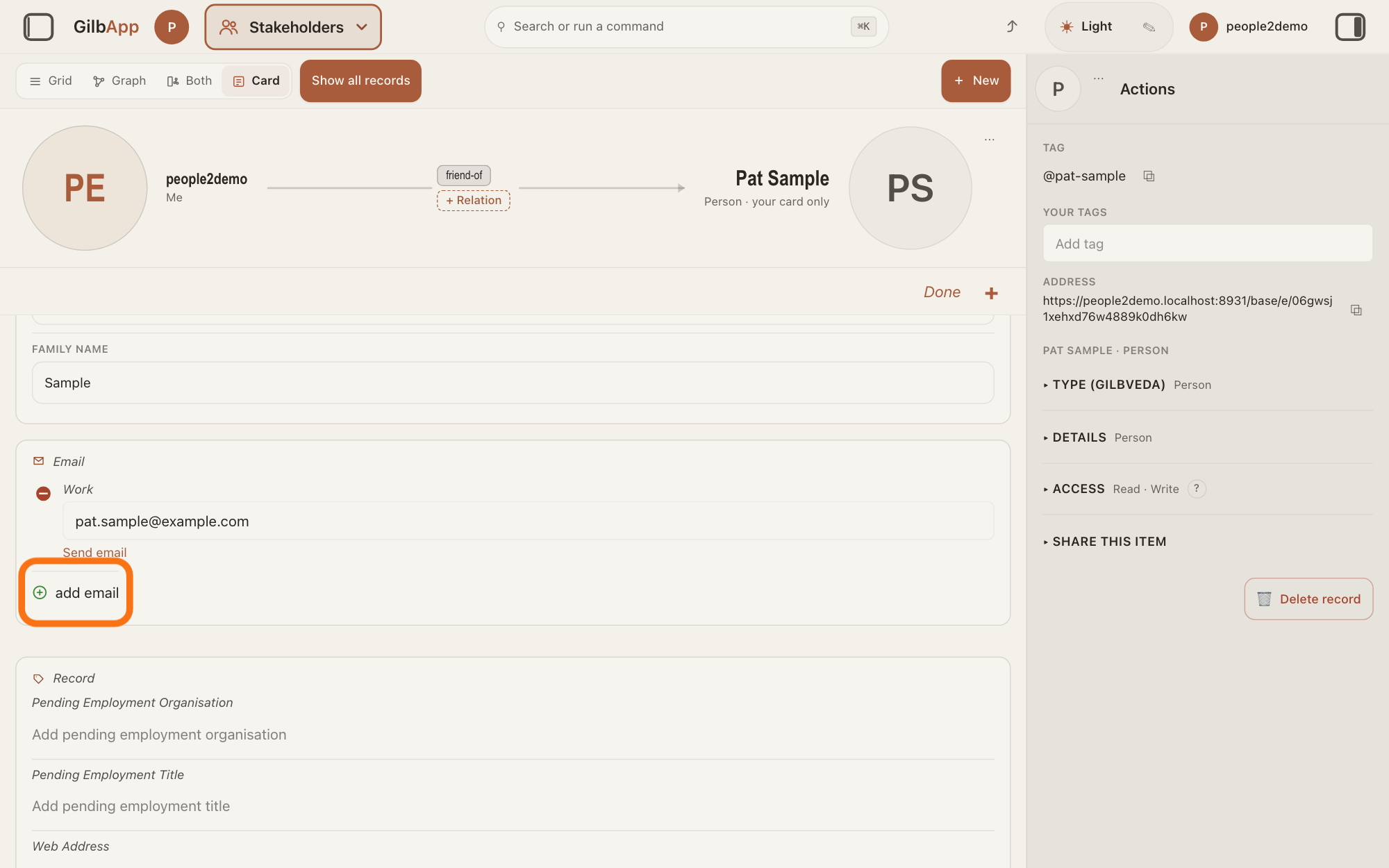
Press ⊕ add email under Email.
Under Email, press ⊕ add email; a new empty line opens with the cursor in it. For a phone it is ⊕ add phone under Phone, and for the person's page on a site, ⊕ add online account under Online Account, which takes a web address, not just the person's name on that site.
Show as text
In edit mode, the "Email" group shows the address marked "Work" with "Send email" under it. Press "add email", with the plus sign, at the foot of the group; it is outlined in orange.
More about this
A group with nothing in it is not shown: scroll down to the foot of the person's card and press + Add Information, or press the + beside Done at the top right; in the list headed Add information, under Connection points, choose Email, Phone or Online Account, and the new line opens by itself. To change a detail already there, click it and type over it. The red round minus sign at the left of a line removes it at once.
Type the address and press Return.
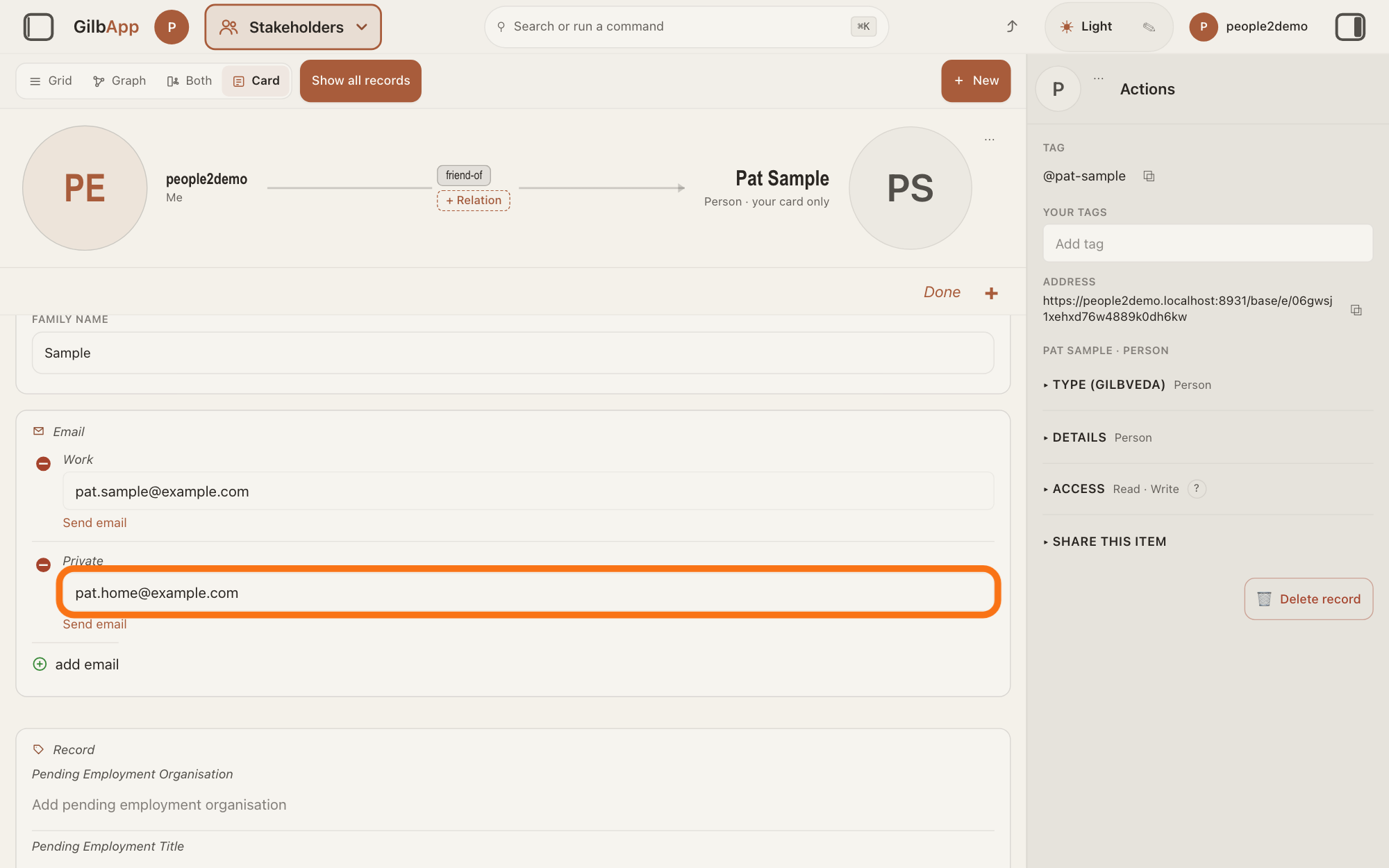
Type the address, such as [email protected], and press Return or leave the box. GilbApp saves it by itself; there is no Save button.
Show as text
A new line marked "Private" appears in the "Email" group. Type the address in its box, outlined in orange, and press Return.
More about this
A new e-mail is marked Work, or Private when one is already Work; click the mark to switch it (hover text Switch between Work and Private). An address that is not one says That is not an email address. Use [email protected]. and nothing under Email is saved until it is fixed. For a phone, type the country code in the small box that starts with +, then the number in the box beside it. For a link, type the page's address; anything else says That is not a web address. Use e.g. linkedin.com/in/name. GilbApp keeps it as a full address and names a site it knows, such as LinkedIn, with its sign. Saving… shows while it saves.
Press Done.
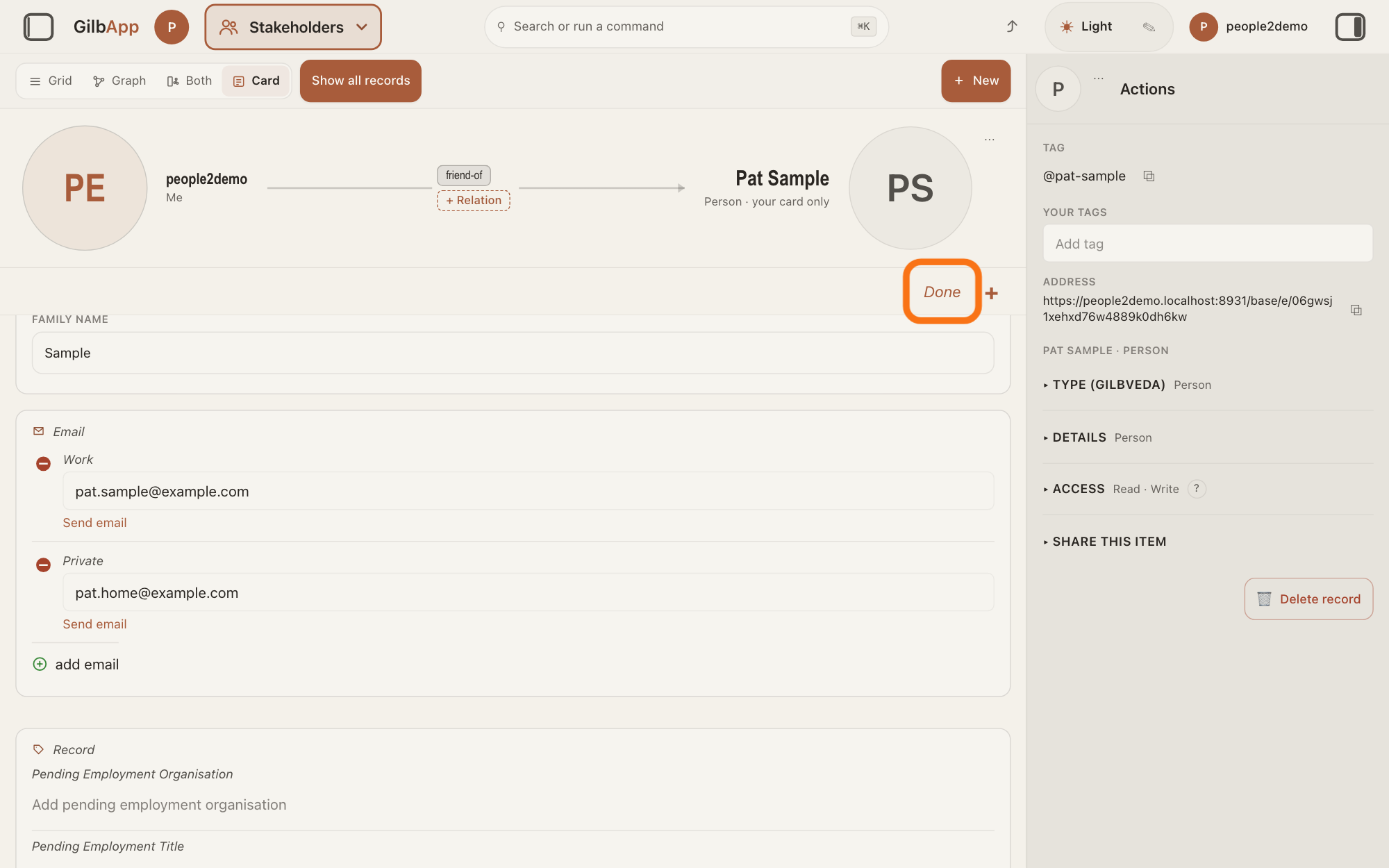
Press Done at the top right of the card. Each detail shows as plain words, with what you can do with it under it.
Show as text
Both addresses now show, "Work" and "Private", each with "Send email" under it. Press "Done" at the top right of the card, outlined in orange, to finish editing.
More about this
Under an e-mail address, Send email hands the address to your computer's e-mail program for a new message. Under a phone number, Call and Text hand the number to the program your computer uses for calls or messages, if it has one. Under a link, Open link ↗ opens the page in a new tab. They show only under an address, number or link GilbApp can use, and also while you edit; what your computer then does is outside GilbApp.
Deeper
Also asked:
What is an Online account? A link to the person's page on another site, such as linkedin.com/in/name; press ⊕ add online account and type it. It must be a web address; GilbApp adds https:// and names well-known sites, such as LinkedIn.
These details are kept on your card of the person, in its vault. GilbApp has no setting for who sees each one: whoever may read the card sees them all, and a card about someone else publishes nothing. Sharing the card or the vault has its own answers.
A card linked to the person's own online card, the card a person keeps about themselves on GilbPlatform, also shows their details, shaded; you cannot change those. + Add your own adds yours beside them: Saved on your card, private. Their online card is not changed.
If a change cannot be saved, the group says so, such as The email could not be saved. On a card you may only read, the details show but cannot be changed.
This answer is written for a computer screen.
Source: GilbApp af0f04ee (https://gilb.com/app/version.json read 2026-11-10); live bundle gilb.com/app/assets/index-CEVUjjQB.js for gilb-stakeholders-ui's + Add your own words. RecordDetail.tsx:683-686 (email, phone, account fields), :709-710 (person or organisation card), :736-753 (groups email, phone, address, social…), :1618-1632 (title = the master's label: GilbVeda a:email Email, a:phone Phone, a:account Online Account), :820 (canEdit = may write). ContactRows.tsx:1-25 (header; No audience pill … publishes nothing (its sharing is the record's Access)), :102-118 (presentation vs edit; noun = email or the title in small letters), :150-165 (nothing saved while an address does not fit; online account must be a web address), :166-175 (stored as a full link, platform label), :225-230 (The {noun} could not be saved…), :455-497 (minus sign left, saves at once; Work/Private switch and its title), :540-600 (phone parts; text input saved on leaving, Return blurs), :600-627 (⊕ + add {noun}, new row label Work then Private), :629 (Saving…), :647-762 (PresentRow; RowActions: Call tel:, Text sms:, Send email mailto:, Open link ↗ new tab, only for a usable value). PhoneValue.tsx:100-160 (code box starts +, number box; Add phone); useHomeDial.ts:9-11 (no home code in GilbApp). emailFormat.ts:13; onlineAccount.ts:24, :28-30, :74-85. CardGroup.tsx:20-33 (Connection points), :161-176 (an empty group is hidden unless opened from the chooser), :36-45 (a pick presses the group's add control); AddInformation.tsx:38-145 (Add information); cardMode.tsx:232-282. Bundle: vb = {button + Add your own, hint Saved on your card, private. Their online card is not changed.}; Bp.onlineHelp (What they publish on their own vault …).
Checked against GilbApp d529620.