
← Back to Can people cancel or move a booking themselves?
How do I edit a record?
Short answer
Press Main menu, choose Records, search and select the record, and type your change in its field; GilbApp saves it by itself.
Before you start
You need to be signed in to GilbApp on a computer, with a record in a vault you can write to; the answer on creating a record shows how to make one. The pictures show a made-up person on a test site; your screen shows your own name and address.
Words used here (6)
- record
- A record is one piece of data with its own address, such as a person, a place, a thing or a note.
- field
- A field is one named fact on a record, such as its title or a due date; its name comes from GilbVeda.
- GilbApp
- GilbApp is the app, opened in a web browser at https://gilb.com/app, where you open, fill and share your vaults.
- agent
- An agent is your AI following one written procedure, its standing instructions, for one kind of work.
- relation
- A relation is a named link between two records, such as part-of or connected-to, that says how they are related.
- record's address
- A record's address is the web address that names one record for good: it never changes and is never given to another record.
Steps
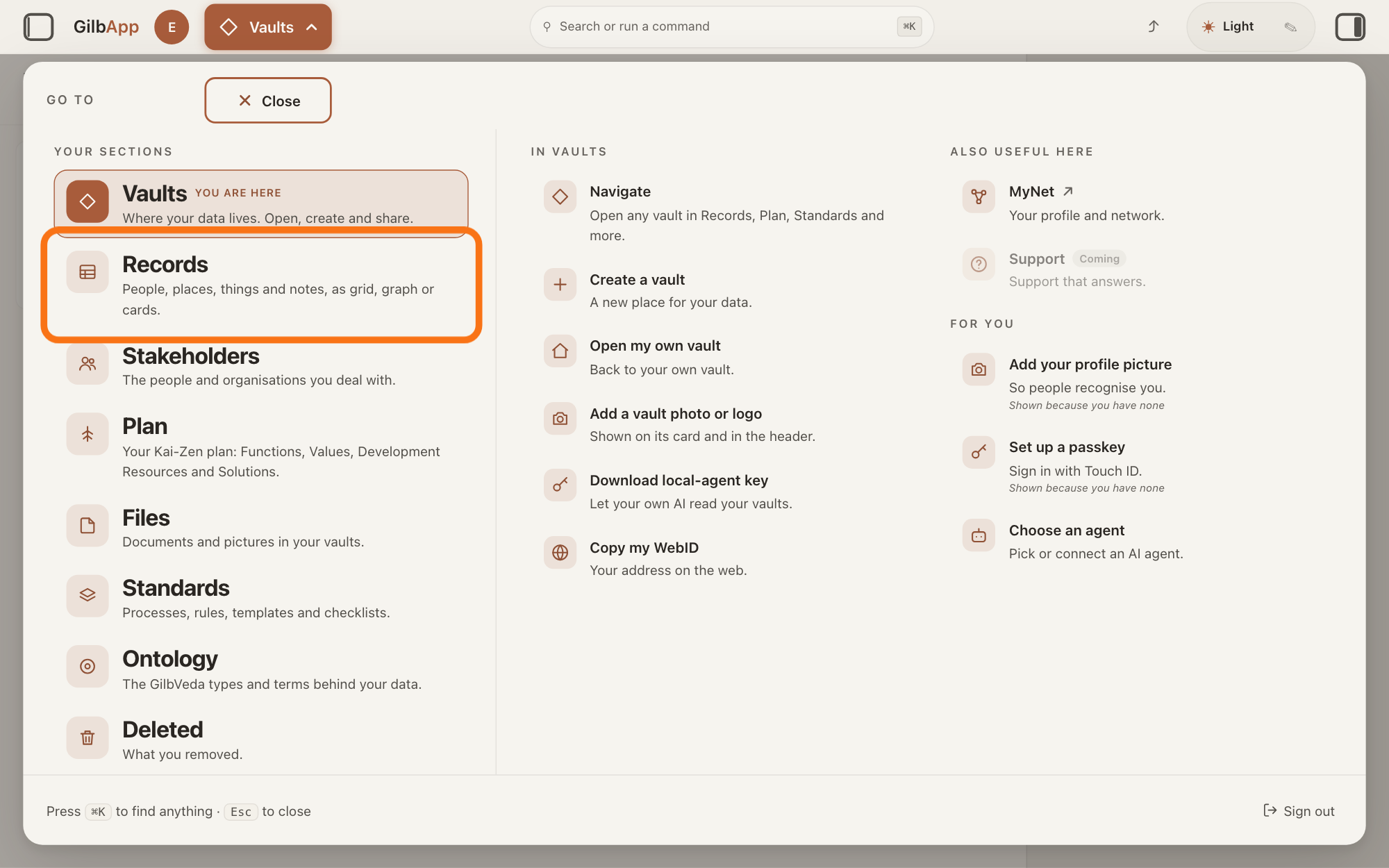
Press Main menu at the top left and choose Records.
Press Main menu, next to your profile picture at the top left, and under YOUR SECTIONS choose Records. The button shows the name of the section you are in, such as Vaults.
Show as text
The panel headed "GO TO" is open over "Your vaults". In the left column under "YOUR SECTIONS", the outlined row is "Records". Click it.
More about this
A panel headed GO TO opens; Records reads People, places, things and notes, as grid, graph or cards. A record is one piece of data with its own address, such as a person, a place, a thing or a note. Records shows the vault you picked in Vaults, or your own vault if you picked none; a vault is the place where a person or a group keeps their records. You can also press Records on a vault's card in Vaults.
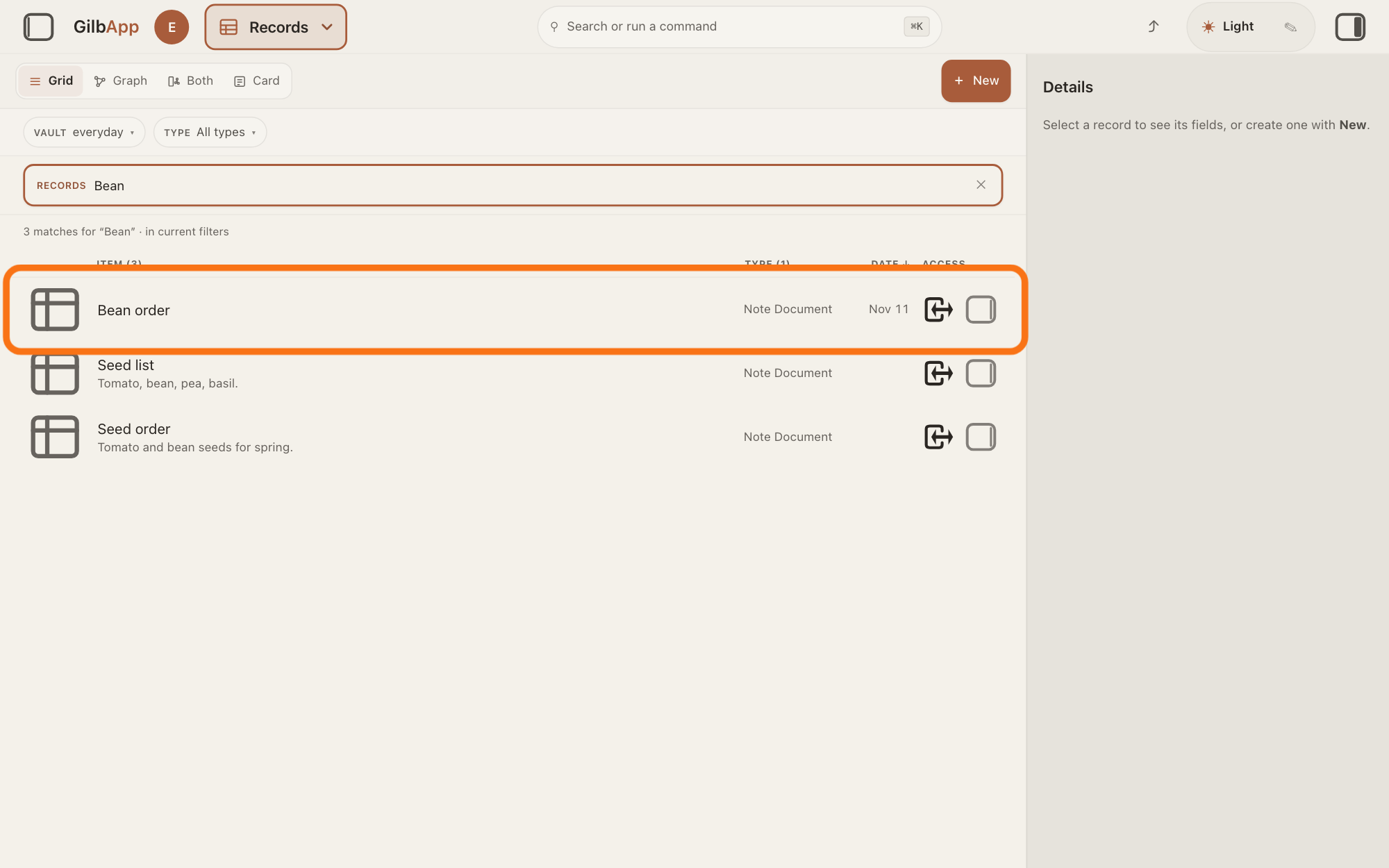
Search and select the record in the list.
Type a word of the record's name in the search box marked RECORDS above the list, and click the record in the list. The record opens in the middle of the screen with its fields, and the right pane, headed Actions, holds what you can do with it.
Show as text
In the middle, "Bean" is typed in the search box marked "RECORDS", and the list shows three records. The first row, outlined, is the note Bean order. Click the row of the record you want to change.
More about this
The answer on finding a record shows more about the search. A folder's row opens the folder instead. The small square button at the right end of a row, with the hover text Show card info, shows the record in the right pane and keeps the list; its fields and both folds of steps 4 and 7 are then in that pane. If the right pane is hidden, press the square button at the far right of the top bar. Show all records, in the bar with the views, right of Card, brings the list back.
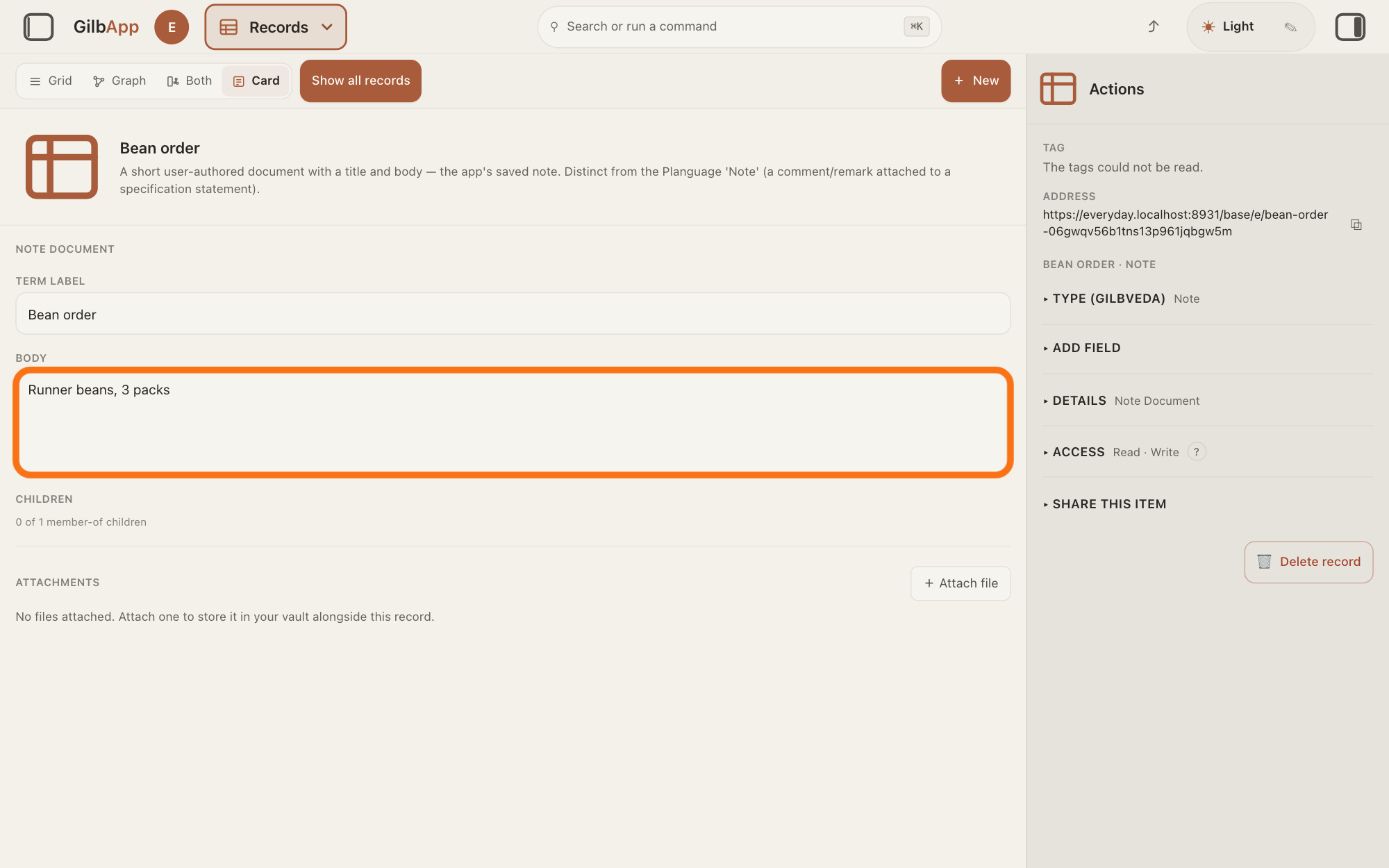
Type your change in a field.
Click the box of the field you want to change, such as TITLE or BODY for a note, and type. GilbApp saves the change by itself a moment after you stop typing, and when you leave the box; there is no Save button.
Show as text
The note is open in the middle with "TERM LABEL" and "BODY". The outlined box under "BODY" holds the changed text, here "Runner beans, 3 packs". Click in a box, type your change, then click outside the box.
More about this
On a card in the plan or a person's card, if a field you changed was also changed elsewhere meanwhile, GilbApp shows the latest and says "This record changed elsewhere. The latest is shown; your change to a field that was also changed there was not saved." On other records, such as a note, GilbApp does not check and the last save is kept; the answer Two of us changed the same record at the same time. Whose change is kept? says more. Any other failed save says Couldn't save — your change was rolled back. Try again. On a record you may only read, the boxes cannot be changed and the card says You can read this item but not edit it. Below the fields, ATTACHMENTS and + Attach file belong to the answer on attaching a file to a record.
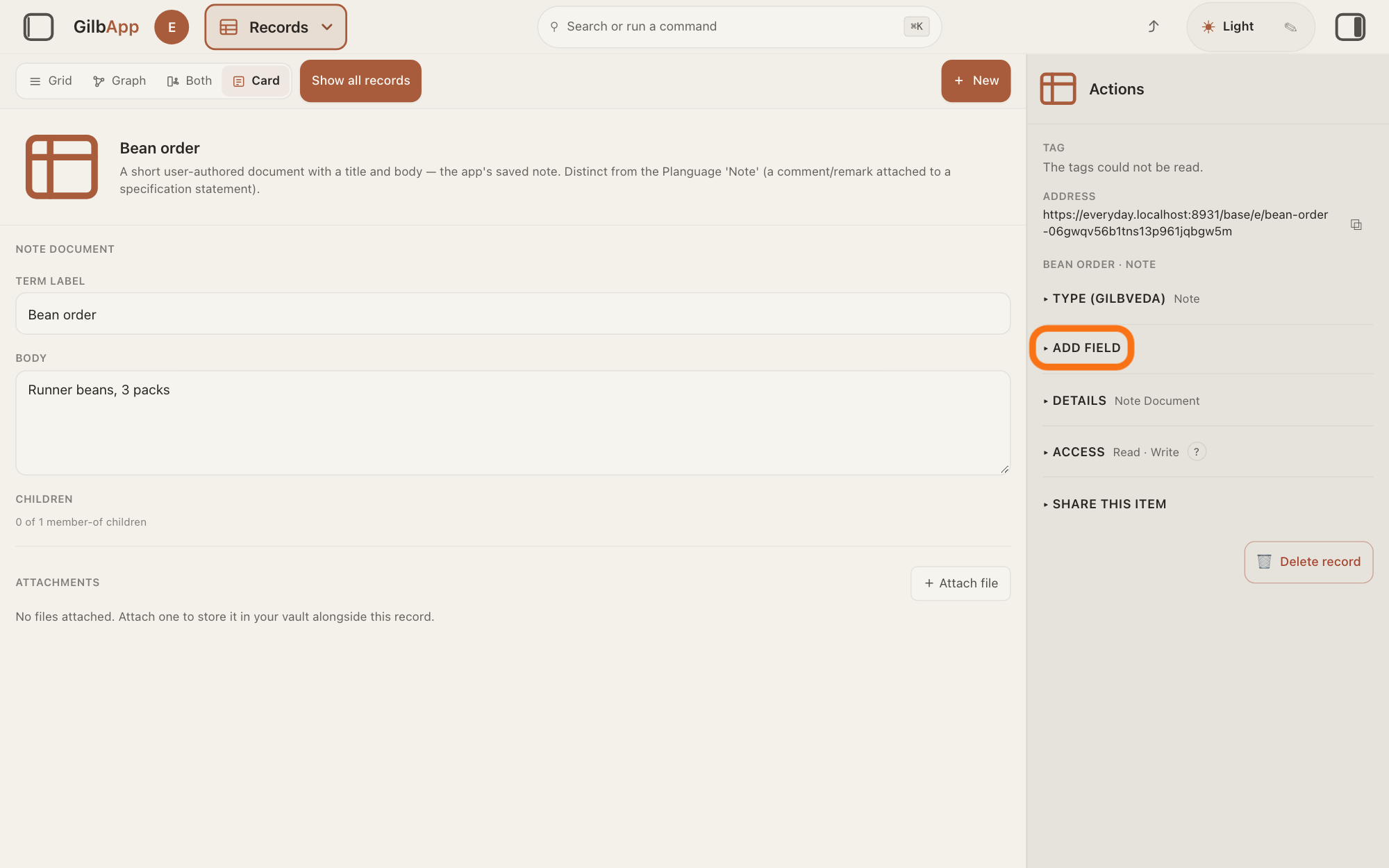
Open ▸ ADD FIELD in the right pane.
In the right pane, open ▸ ADD FIELD. A box that shows Search attributes… opens under it.
Show as text
In the right pane headed "Actions", under "TYPE (GILBVEDA)", the outlined fold reads "▸ ADD FIELD". Click it to open it.
More about this
A field is one named fact on a record, such as its title or a due date; its name comes from GilbVeda, the shared list of terms. ▸ ADD FIELD is not there on a record you may only read. The rest of the pane has its own answers, and you do not need it here: TAG, YOUR TAGS, Add tag and ADDRESS at the top, then ▸ TYPE (GILBVEDA), ▸ DETAILS, ▸ ACCESS, ▸ SHARE THIS ITEM, ▸ ADD TO FOLDER and 🗑 Delete record.
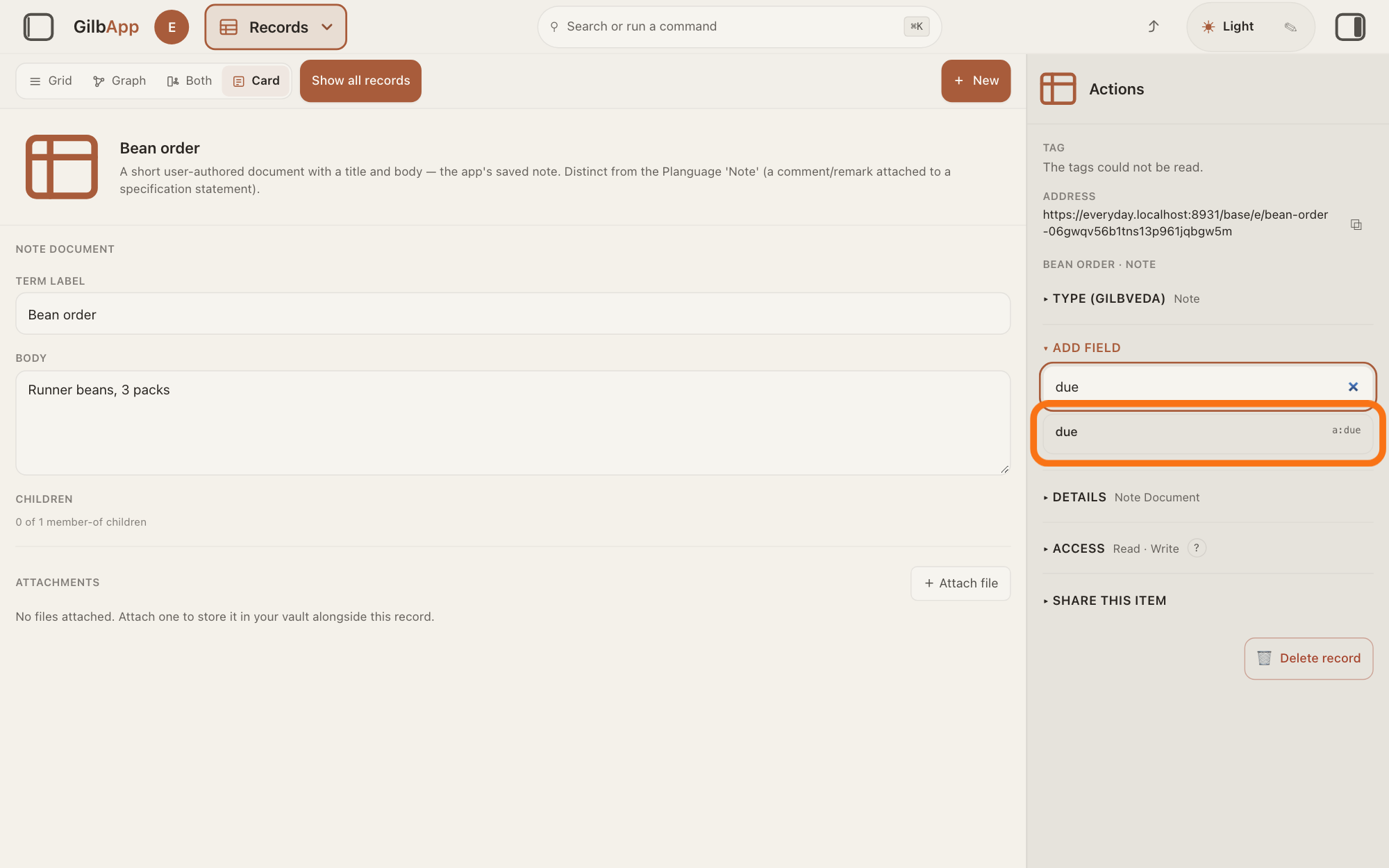
Search and select the field.
Type a few letters of the field's name in Search attributes… and select it. The new field shows as an empty box under its name, below the record's other fields in the middle of the screen.
Show as text
In the right pane the fold reads "▾ ADD FIELD". In its search box "due" is typed, and under it the outlined line reads "due" with "a:due" at its right. Type part of the field's name and click the line you want.
More about this
When you click the box, before you type, it lists up to 40 of GilbVeda's fields; typing narrows the list. Each line shows the field's name and its term, such as a:due; a field the record already has is not listed. No match. Try an exact slug. means nothing matched; a slug is a term's short code, such as due. GilbApp makes no new term here. For a field GilbVeda lacks, ask Agent.Concept, the agent that finds and makes GilbVeda's terms.
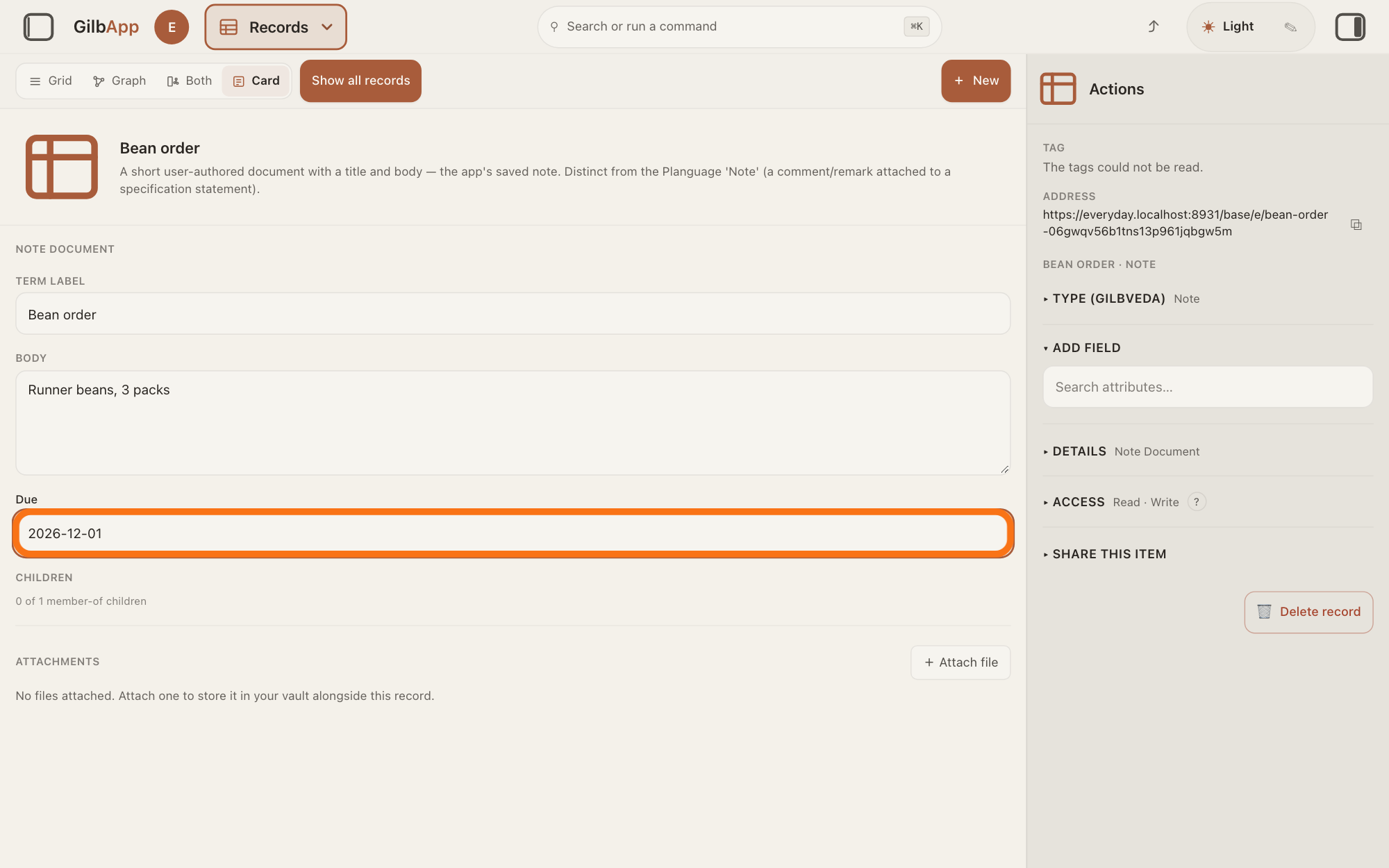
Type the value in the new box.
Click the new box and type the value. GilbApp saves it by itself, as in step 3.
Show as text
In the middle, under "BODY", a new label "Due" has appeared with a box under it. The outlined box holds "2026-12-01". Type the value there, then click outside the box.
More about this
The field is added to this record only; other records of the same type do not get it.
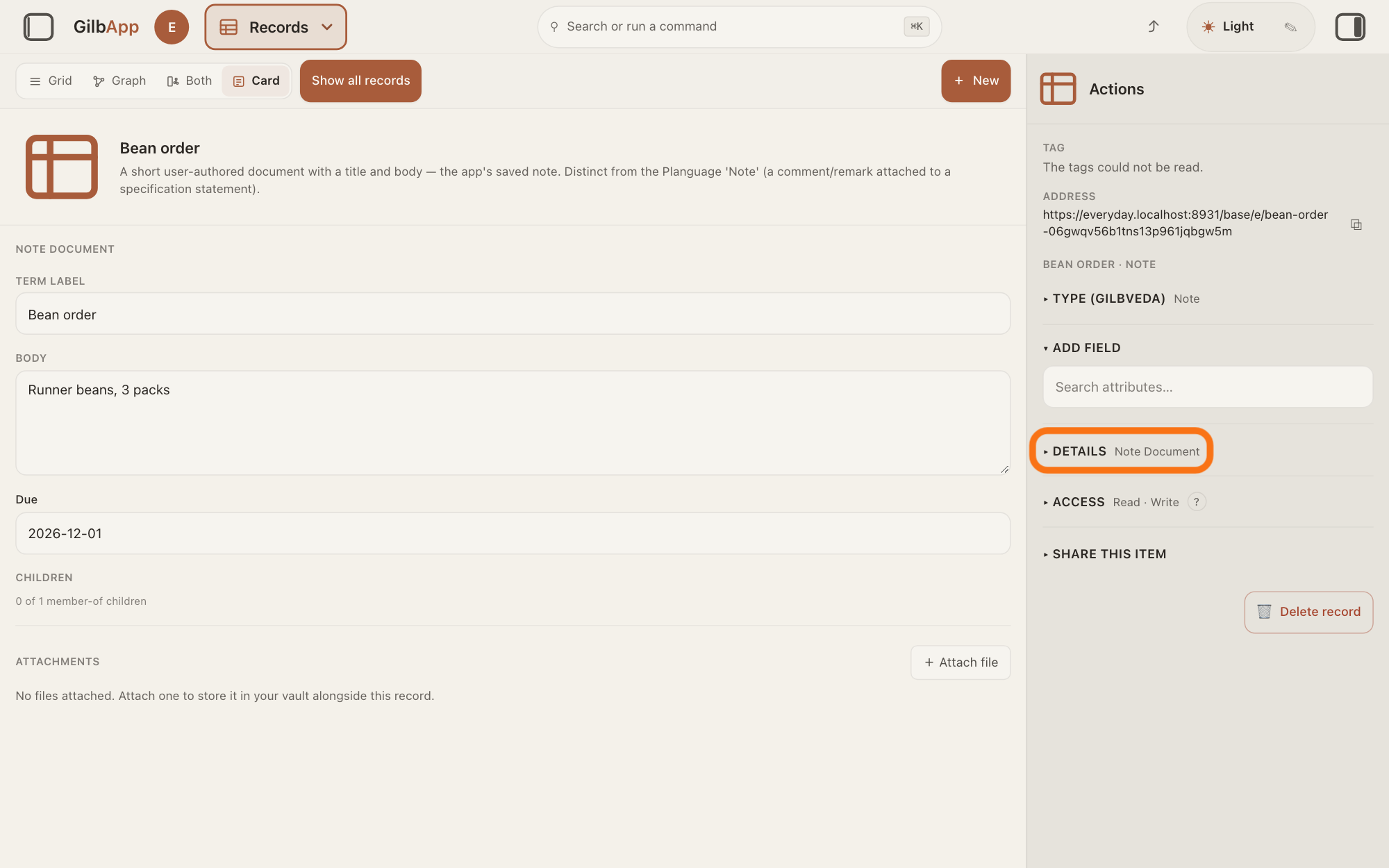
Open ▸ DETAILS to see the type and last change.
In the right pane, open ▸ DETAILS. It lists the record's Type, Owner and Last changed, then RELATIONS.
Show as text
In the right pane, under "ADD FIELD" and its search box, the outlined fold reads "▸ DETAILS" with "Note Document" beside it. Click it to see the type and the last change.
More about this
Type is a link: it opens that type in Ontology, where GilbVeda explains it. Owner reads Not available in this view; so does Last changed when GilbApp has no date for the record, such as one opened from a search. OTHER FIELDS, when there are any, lists facts the record holds that have no box. RELATIONS lists the records it is linked to, or says No relations to other entities. The record's address is under ADDRESS at the top of the right pane; the answer on copying a record's address shows how to copy it.
Deeper
Also asked:
How do I change what a record says, and do I have to press Save? Select the record in Records and type your change in its field. There is no Save button: GilbApp saves by itself a moment after you stop typing, and when you leave the box.
What do Stated by, Added by and Last changed on a record mean? Last changed, under ▸ DETAILS, is when the record last changed. Added by names who added a note or a detail, Added by you if you did. Stated By is the same fact as GilbPlatform keeps it: who stated it.
GilbPlatform never writes over a fact: a change closes the old fact and adds the new one. Seeing a record as it was before has its own answer.
Jackfruit, the vault agent, also finds, reads, writes and links records in your vaults when you ask it; the answer on working with Jackfruit shows how.
To change what kind of thing a record is, use the answer on changing a record's type.
A person's or an organisation's card works with Edit and Done instead; the answer on adding a person as a stakeholder shows it.
This answer is written for a computer screen. In a window narrower than 840 pixels, such as a phone, the side panes are hidden and the right pane is Detail in the bar at the bottom.
Checked against GilbApp d529620.