
How do I find a person on GilbPlatform?
Short answer
Press Main menu, choose MyNet, search for the person by a word of their name, and press their name to open their card.
Before you start
You need to be signed in to GilbApp on a computer. The person must have made themselves findable by name where you may see it. The pictures show a made-up person on a test site; your screen shows your own name and address.
Words used here (2)
Steps
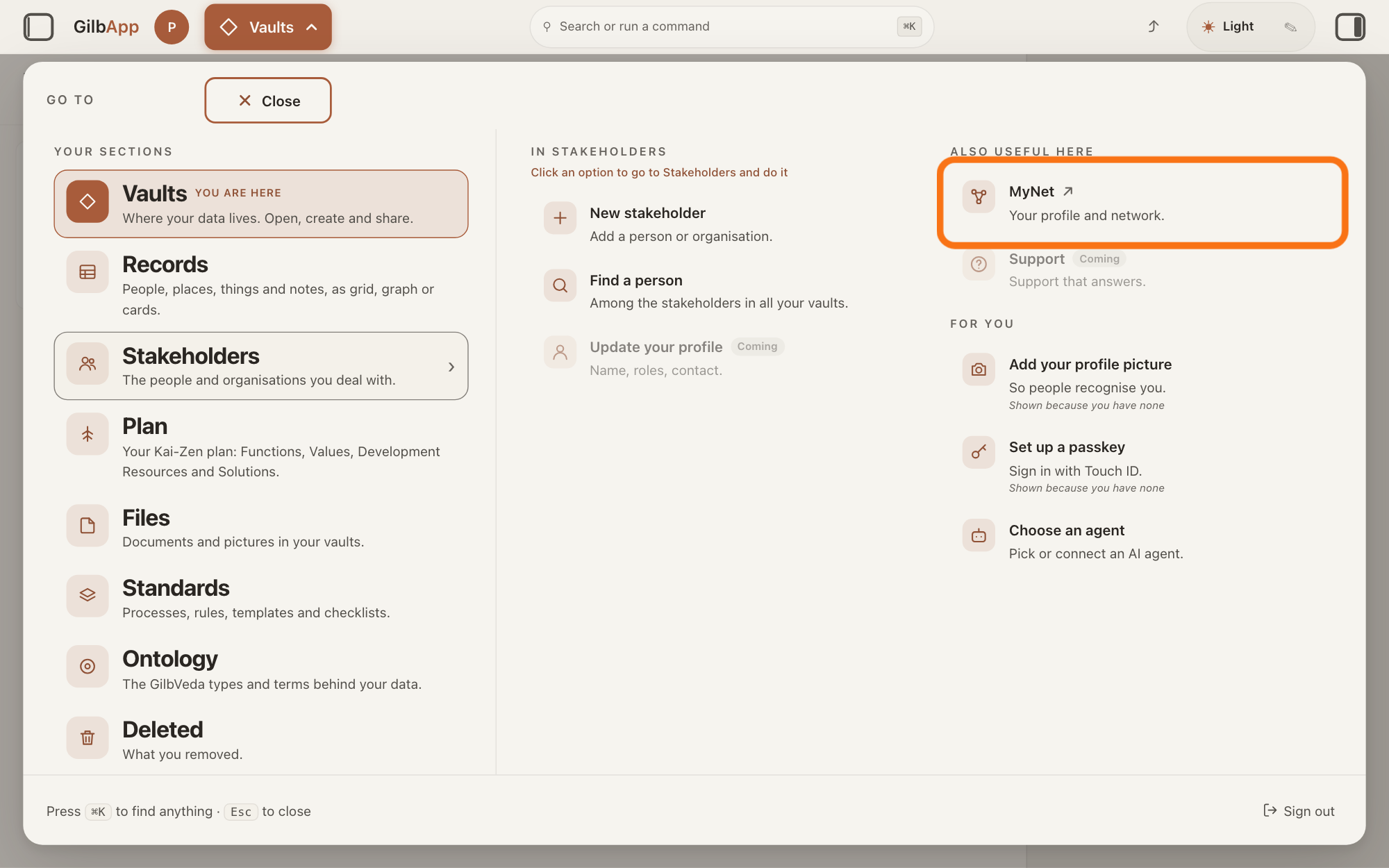
Press Main menu at the top left and choose MyNet.
Press Main menu, next to your profile picture at the top left, rest the pointer on Stakeholders and choose MyNet under ALSO USEFUL HERE. MyNet, Gilb's app for your profile and network, opens in a new tab.
Show as text
Press "Main menu" at the top left and rest the pointer on "Stakeholders". In the right-hand column "ALSO USEFUL HERE", press "MyNet ↗", "Your profile and network.", outlined in orange. MyNet opens in a new tab.
More about this
The button shows the name of the section you are in, such as Vaults. MyNet reads Your profile and network., and ↗ beside it means it opens in a new tab. MyNet may ask you to sign in first, with your e-mail address and a code, as GilbApp does. You can also type https://gilb.com/mynet in your browser's address bar. On your own card in Stakeholders, Edit in MyNet opens your profile at once.
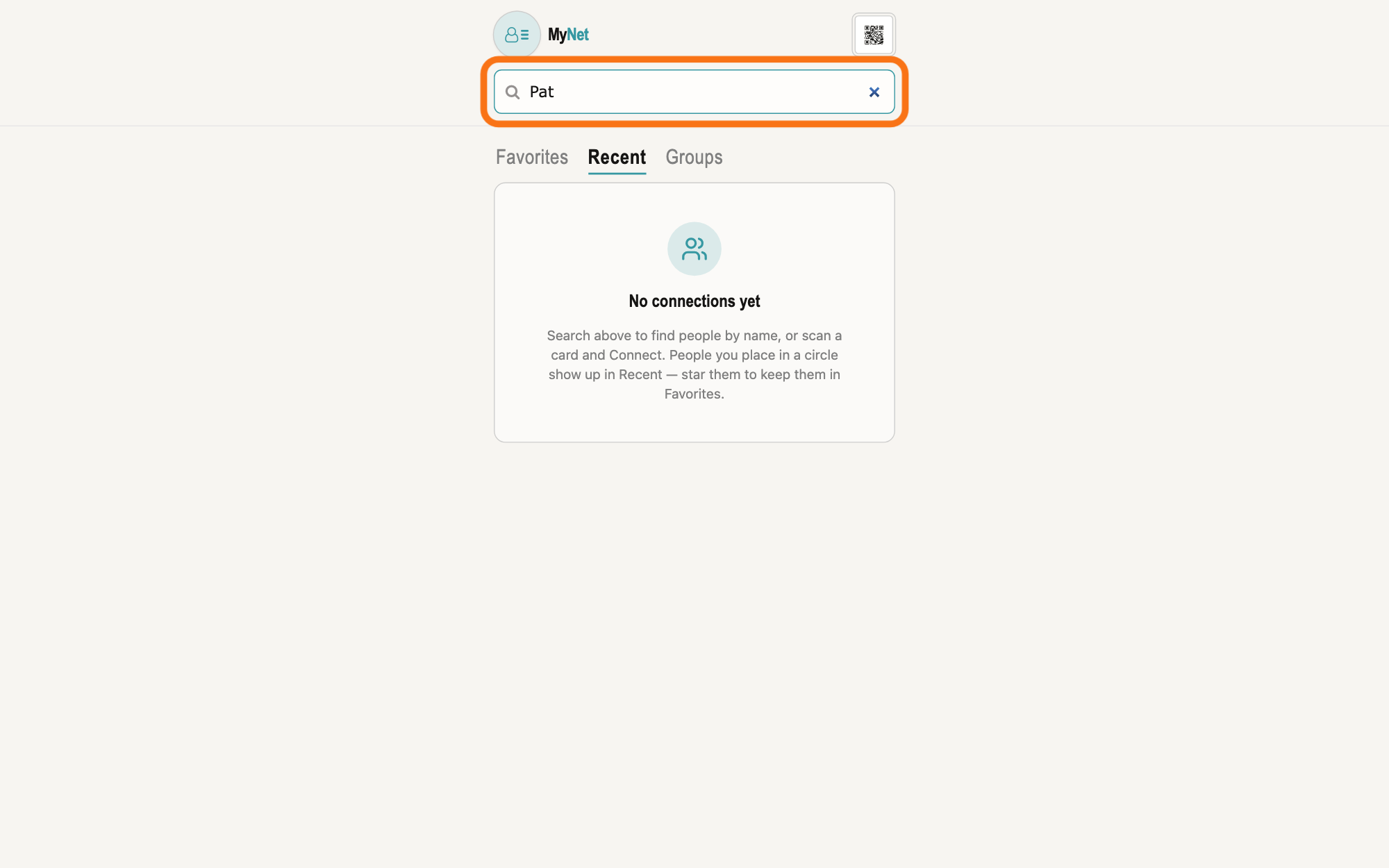
Search for the person by a word of their name.
Type a word of the person's first or last name in the box that shows Search your network at the top of MyNet, and press Return. Each person found is listed with their name and why they were found, such as First Name · Public.
Show as text
MyNet's home screen in its new tab. At the top, under the MyNet name, the outlined box "Search your network" holds the start of a first name. Press Return to search. Below it are the lists "Favorites", "Recent" and "Groups".
More about this
The start of a word is enough, and any one of your words may match. No people match and your words means no one you may see matches by name or skill; it says "Try another name or skill, or paste a WebID, card link, or principal URI in the search field above." In your network under a name means you have placed them in one of your circles; a circle is a group you put people in, which decides what of yours they can see.
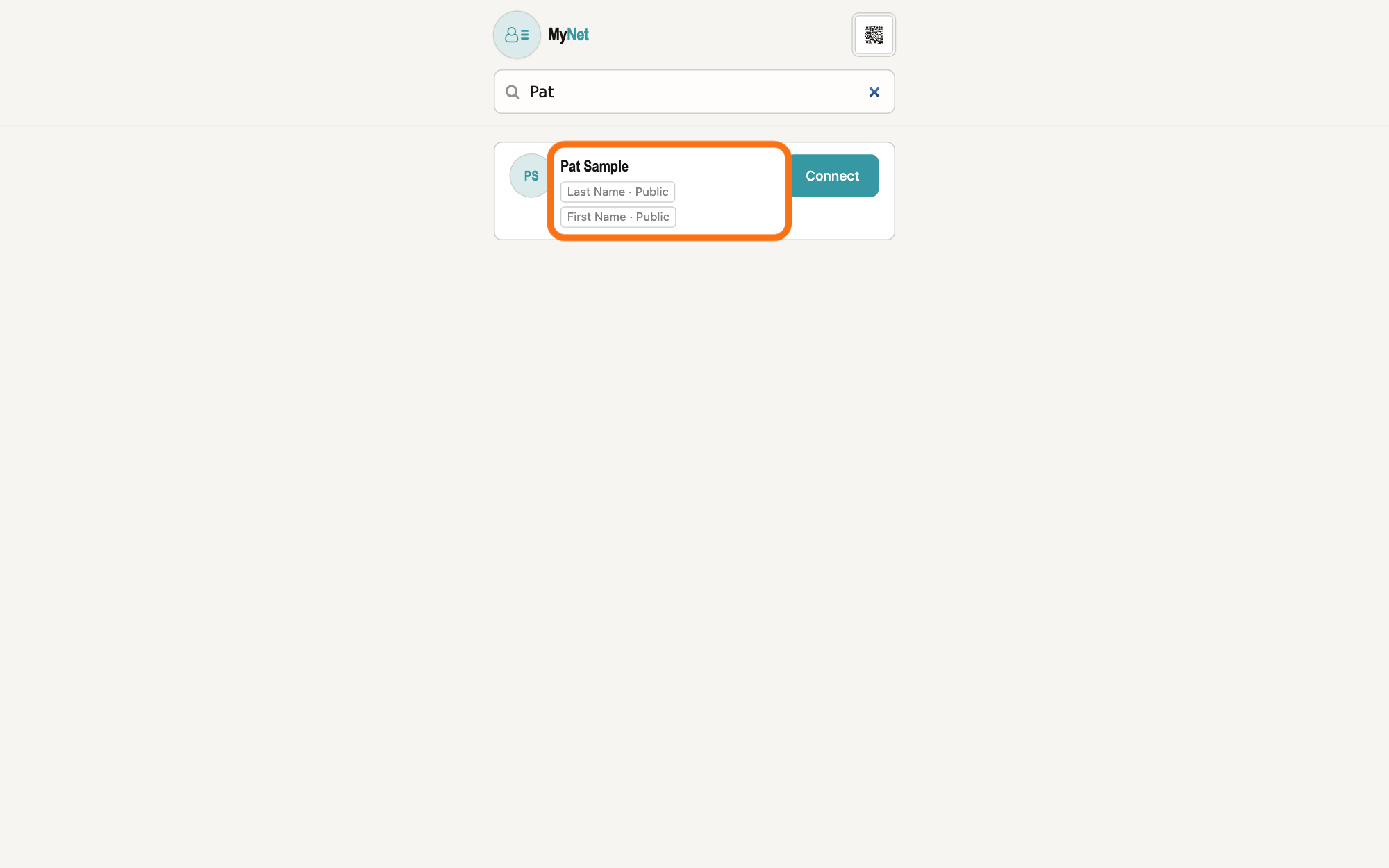
Press the person's name to open their card.
Press the person's name in the list. Their card opens, showing only what they share with you.
Show as text
Under the search box, one person is found. Their name is outlined, with the labels "Last Name · Public" and "First Name · Public" under it, which say why they were found. Press the name to open their card. "Connect" is at the right of the row.
More about this
Open card, beside a person already in your network, does the same. Beside anyone else, Connect opens a panel to place them in one of your circles first, and Cancel closes it. The person is not asked first: they see a notice on their MyNet home screen. A picture shows only where the person shares it with you.
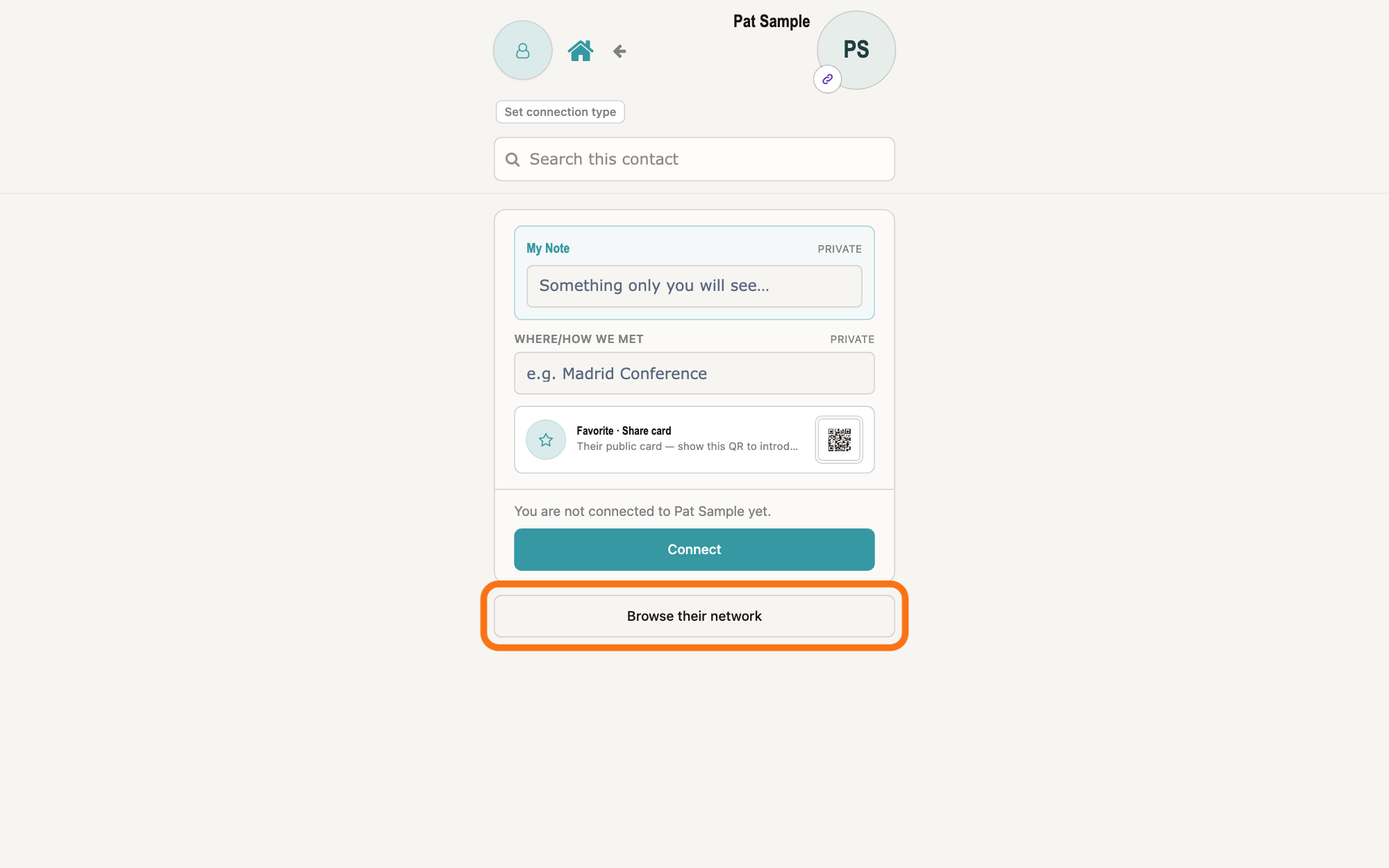
If you want, press Browse their network to see who they know.
Below the person's card, press Browse their network. A screen headed with their name and network lists the people in their circles whose names you may see.
Show as text
The person's card is open, with their name at the top right and "Set connection type" at the left. The card holds "My Note", "Where/How we met" and "You are not connected to" them, with "Connect". Below the card, the outlined button "Browse their network" lists who they know.
More about this
It never says which of their circles anyone is in. A line says how many connections it shows, or They have no connections visible yet. The box that shows Search by name or skill… narrows the list. ← Back to and their name returns to their card.
Deeper
By a name, you find only people who made themselves findable by name where you may see it; the answer on making yourself findable by name shows how a person does that. Anyone else is not listed by name, and the list gives no sign of them.
Find a person in GilbApp's GO TO panel looks only among your own stakeholders, not on GilbPlatform. To connect your card of someone to the person you found, use the answer on connecting a card to the person's own online card.
The same box in MyNet also finds people by a skill, and opens a person's card from a pasted WebID, the web address GilbPlatform knows a person by, or from a card link. Connect places a person in one of your circles, as the answer on circles shows; you need not connect to open a card.
This answer is written for a computer screen.
Source: MyNet served build e894951bcfda372a6218c512c15bb4b582c1a794 (https://gilb.com/mynet/version.json read 2026-11-10, dirty false); words checked in the live bundle gilb.com/mynet/assets/index-Bw15VNOy.js; source at the same commit (e894951b): components/AppShell.tsx:299-305 (Search your network on the home screen), :535-570 (the search form; Return submits), pages/Contacts.tsx:1-30 (the server decides who is returned; the page drops no one), :397-460 (No people match and the hint, the result list), lib/base/findPeople.ts:1-40 (name via GET /base/connect/find-by-name with the full query; the same box finds by skill; pasted WebID or card link resolves), components/search/SearchResultList.tsx:1-6, :100-240 (name opens the card; In your network; badges First Name · <level>, Skill · …, Place · …; Open card for someone in your network, else Connect, which opens a placement panel, and Cancel), :234-244 (field and level words), components/connection/ContactCard.tsx:1215-1233 (Browse their network), components/connection/NetworkBrowseSection.tsx:175-195, :350-430 (<name>'s network / Their network, count line, They have no connections visible yet., Search by name or skill…, no-match line, Sign in to browse their network.), pages/BrowseNetwork.tsx:44 (← Back to <name>). GilbPlatform 4d008a55 (https://id.gilb.com/version read 2026-11-10): src/routes/connect-name.ts:1-18 (the name search reads first and last names only), :942-943 (anonymous: public only); src/baseconnect/name-find.ts:9-16 (an unauthorised row is never loaded or counted), :221-239 (start of a word; any word); src/routes/connect-audience-rung.ts:363-395 (GET /base/connect/network-of: the people in that person's circles whose own level already reaches the viewer, and nobody else; no circle shown; counts over the filtered set); connect-name.ts:215 (a card shows the viewer only the fields placed for them). GilbApp af0f04ee: gilbAppMenuRows.ts:152-153 (Find a person: Among the stakeholders in all your vaults.); records/PersonPlacementChips.tsx:19 (circle gloss). Shared:. findPeople.ts:771-830 (name, skill and place facets on one submit); SearchResultList.tsx:1-3 ('Placement is still unilateral and immediate (no request)'); PlacementNotices.tsx:1-3 ('a placement is never silent — this is how the placed person learns'), shown on MyNet home (pages/Contacts.tsx:486).
Checked against GilbApp d529620.