
← Back to How do I read a standard?
How do I find a standard?
Short answer
Press Main menu, choose Standards, press the tab of its kind, then search and select the standard in the search box above the list.
Before you start
You need to be signed in to GilbApp on a computer, with standards in a vault you can read, such as your own vault. The pictures show a made-up person on a test site; your screen shows your own name and address.
Words used here (6)
- GilbApp
- GilbApp is the app, opened in a web browser at https://gilb.com/app, where you open, fill and share your vaults.
- record
- A record is one piece of data with its own address, such as a person, a place, a thing or a note.
- entry condition
- An entry condition is something that must be true before a process may start; a process starts only when its entry conditions hold.
- exit condition
- An exit condition is what must be true before a process may finish; when it is true, the process hands back.
- agent
- An agent is your AI following one written procedure, its standing instructions, for one kind of work.
- standards group
- A standards group is a named set of a vault's standards that govern one body of work, such as a project.
Steps
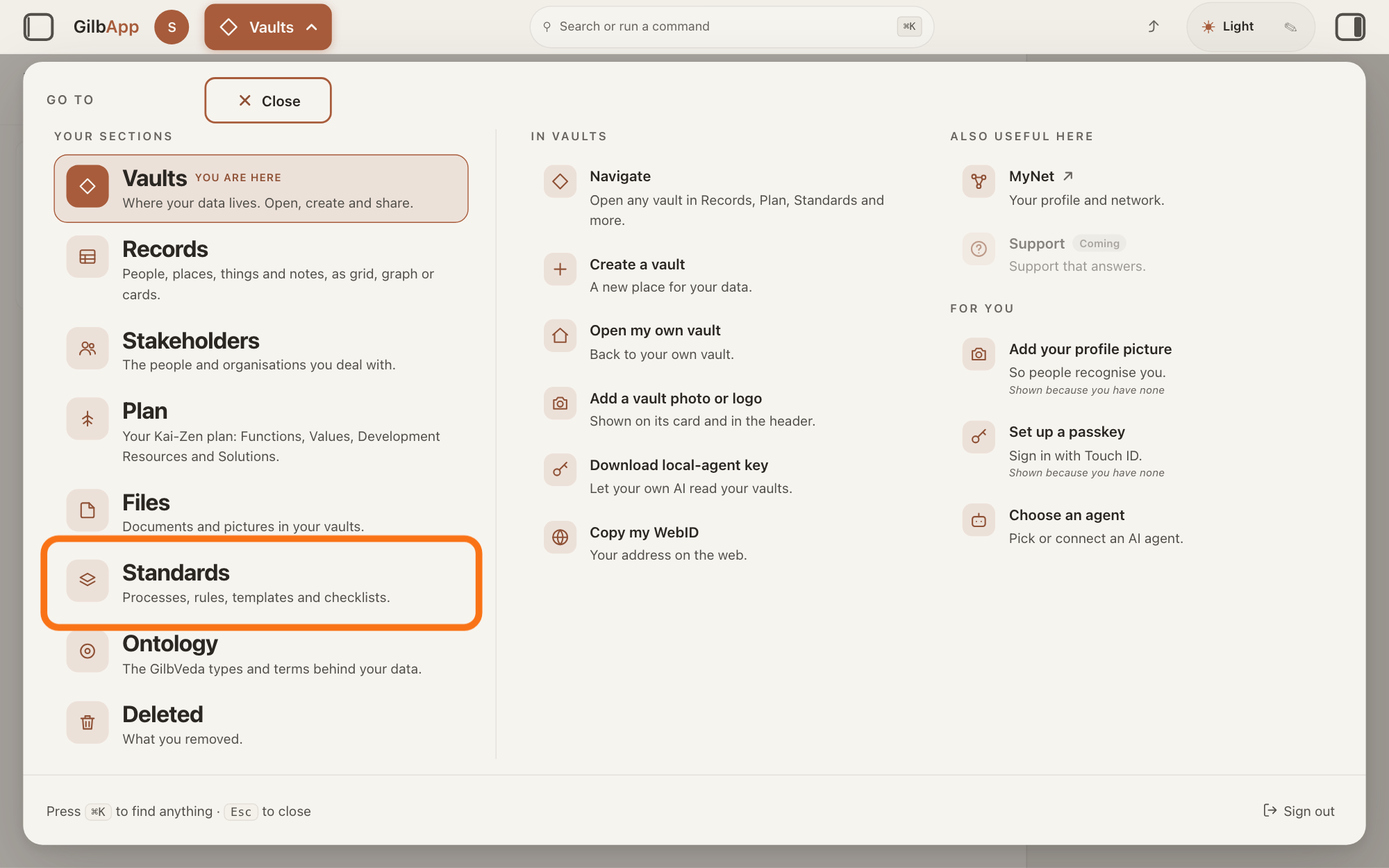
Press Main menu at the top left and choose Standards.
Press Main menu, next to your profile picture at the top left, and under YOUR SECTIONS choose Standards. The button shows the name of the section you are in, such as Vaults.
Show as text
The panel headed "GO TO" covers the screen. In the left column under "YOUR SECTIONS", the row "Standards" with the line "Processes, rules, templates and checklists." is outlined. Press it to open the Standards screen.
More about this
A panel headed GO TO opens; Standards reads Processes, rules, templates and checklists. Standards opens on the vault you picked in Vaults, or on your own vault if you picked none; a vault is the place where a person or a group keeps their records. It opens on the tab Processes, with Process chosen in the row under the tabs. A process is a standard that holds work: entry conditions, steps in order, and exit conditions; a standard is a written procedure, rule set, form or other guide that people and agents follow as they work. On the right, VAULT changes the vault and STANDARDS GROUP shows only the standards of one group, as the next steps show.
Choose the vault under VAULT, if it is another vault.
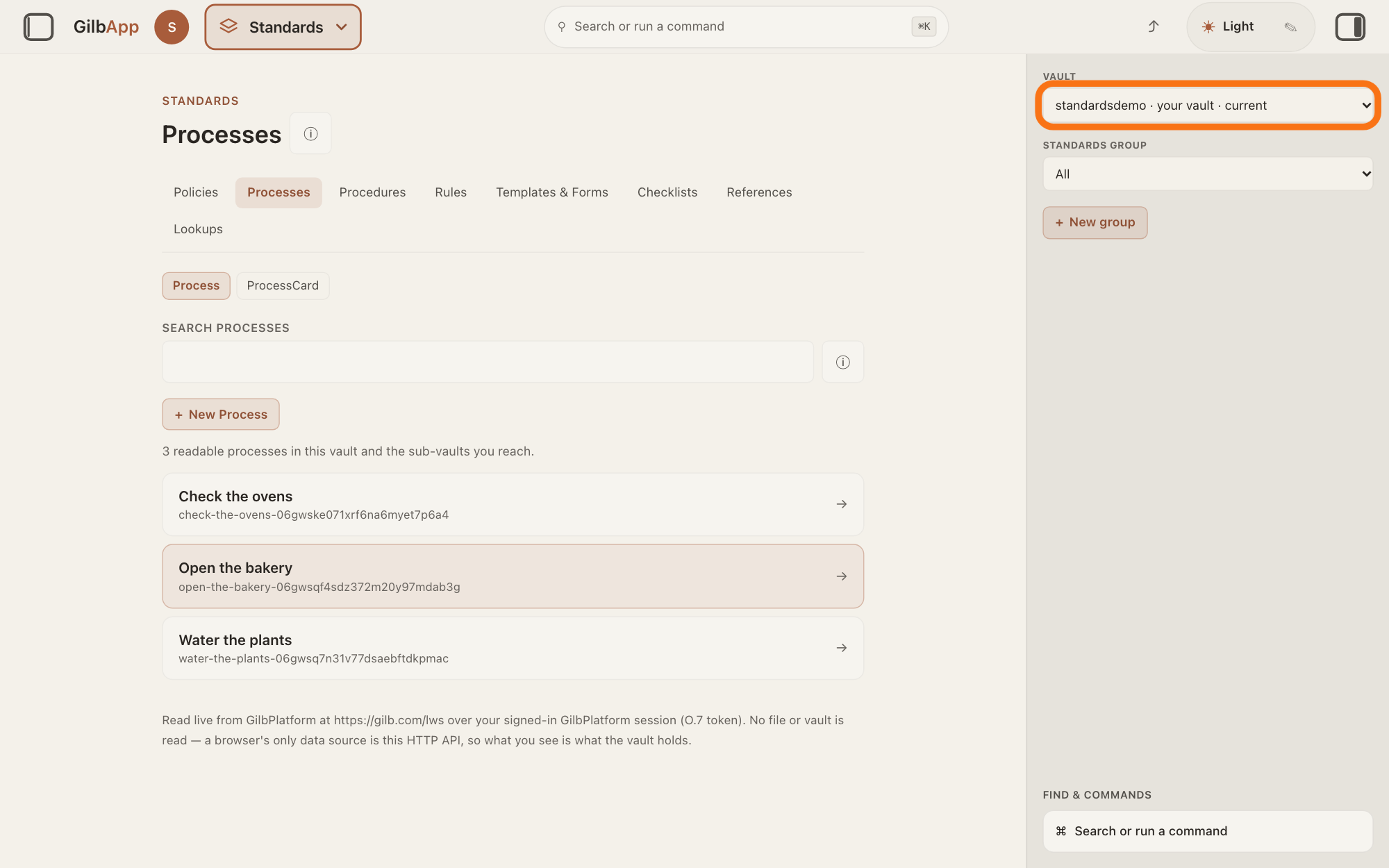
If the standard is in another vault, choose that vault in the list under VAULT on the right. Standards then shows that vault's standards.
Show as text
At the top of the right pane, the list under "VAULT" reads "your vault · current" after the vault name and is outlined. Open it and choose another vault if the standard is kept there. The middle lists three made-up processes.
More about this
The list holds the vaults you have been given access to; your own vault reads · your vault, and the one on screen · current. Choosing a vault closes any standard you had open. If the right pane is hidden, press the square button at the far right of the top bar.
Choose the group under STANDARDS GROUP, if you know it.
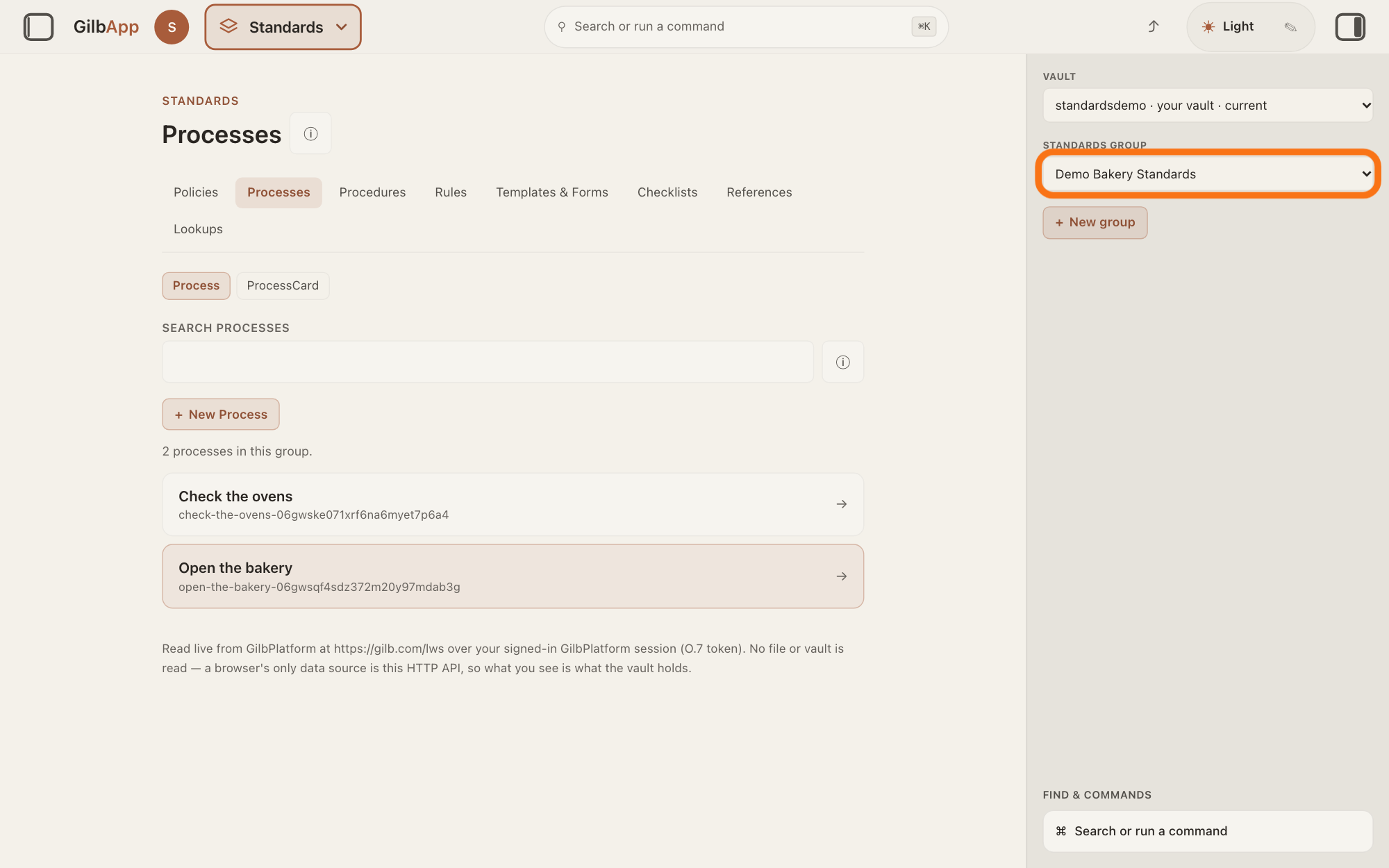
If you know the standard's group, choose it in the list under STANDARDS GROUP. Every list in Standards then shows only the standards of that group; All shows them all again.
Show as text
In the right pane the list under "STANDARDS GROUP" now shows the group you chose and is outlined. The middle says "2 processes in this group." and lists only the processes in that group.
More about this
A standards group is a named set of standards kept together in one vault. A standard belongs to a group only when it names that group itself, so a standard that names none shows only under All. If a tab holds no member, it says so, such as "No processes are members of this standards group. Nothing was invented — a record belongs to a group only when it names that group itself." + New group, shown only where you may write in the vault, makes a group; the answer on making a standards group shows it.
Press the tab of the standard's kind.
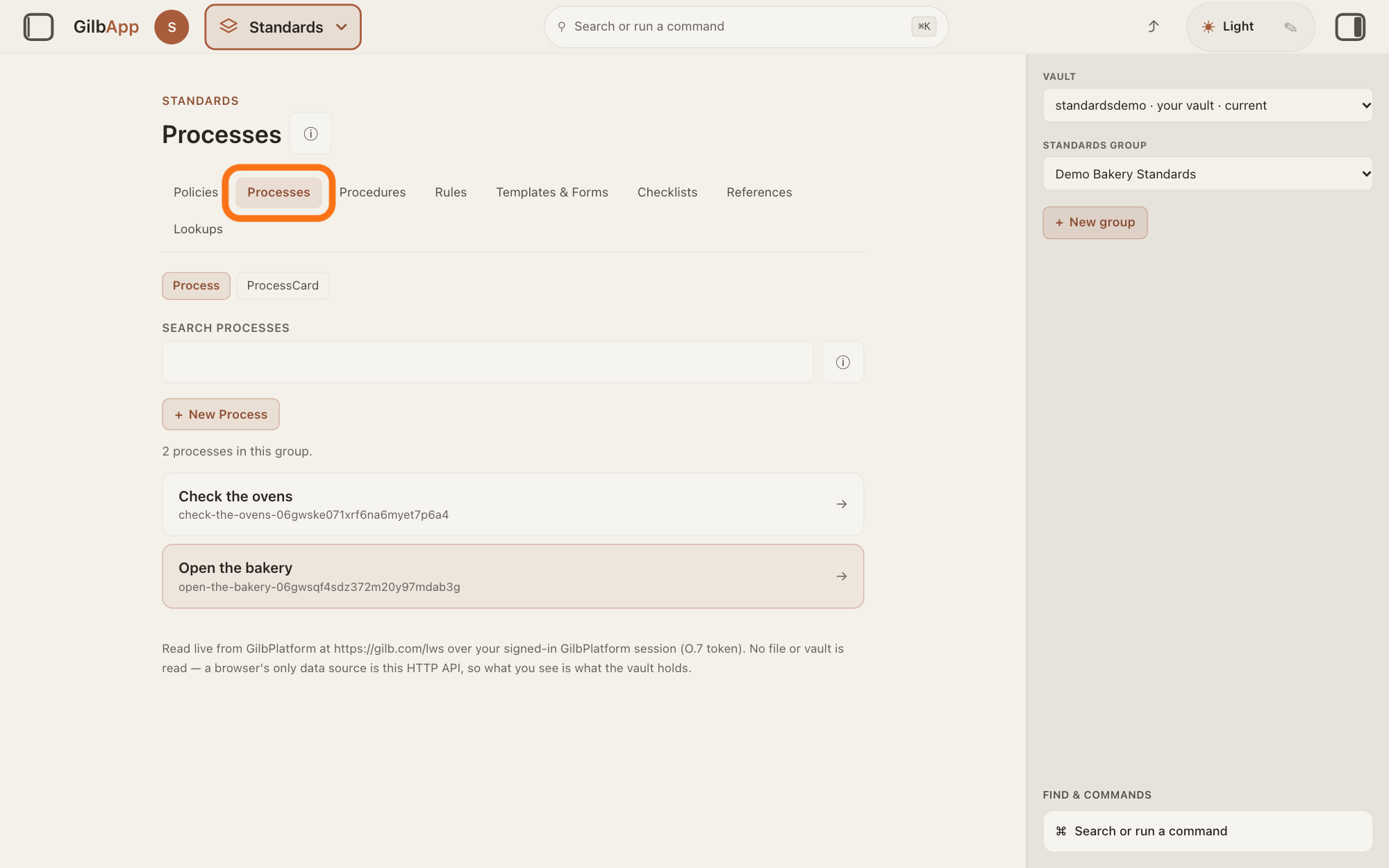
In the row of tabs, press the one for the standard's kind, such as Processes or Rules. The tab lists every standard of that kind in the vault on screen.
Show as text
Near the top of the middle, in the row of tabs, the tab "Processes" is outlined. Press the tab of the standard's kind. The group chosen on the right stays as it was.
More about this
The answer on what a standard is says what each kind holds. Under Processes, Process and ProcessCard choose between processes and process cards. If you do not know the kind, look in each tab in turn: the search in the next step looks only in the tab on screen.
Search and select the standard in SEARCH PROCESSES.
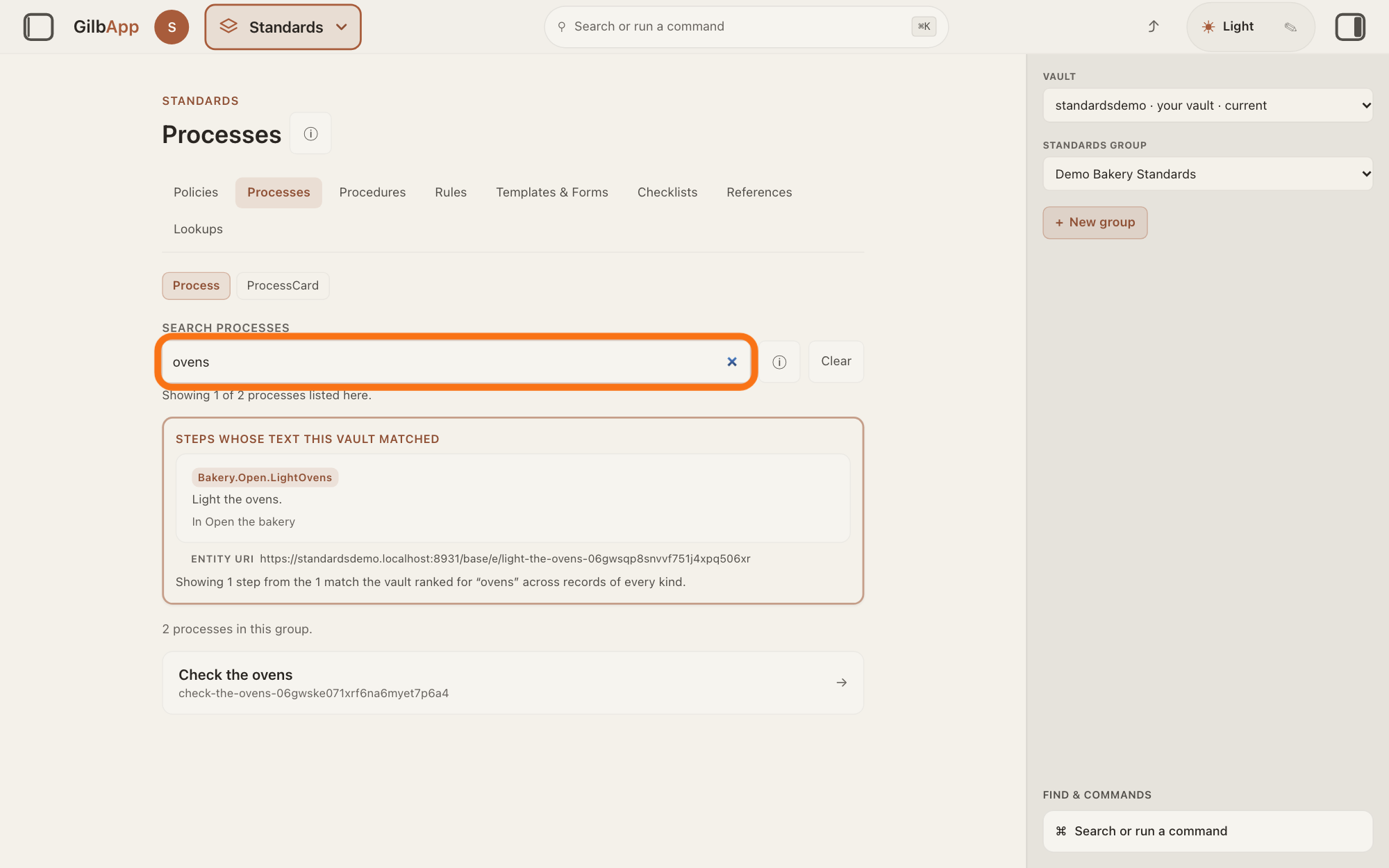
Type a word of the standard's name in the box under SEARCH PROCESSES, or under the search box of the tab you are in, and click the standard in the list. The list keeps only the standards whose name, or the last part of whose address, holds every word you typed; part of a word is enough.
Show as text
The box under "SEARCH PROCESSES" holds ovens and is outlined. Under it: "Showing 1 of 2 processes listed here." A box "STEPS WHOSE TEXT THIS VAULT MATCHED" shows Light the ovens. "In Open the bakery"; the row Check the ovens is lower down. Press a match to open it.
More about this
A line says how many match, such as Showing 1 of 2 processes listed here.; with none, No processes listed here match and your words. Clear empties the box. On the other tabs it also looks in each standard's steward's note, a note for the people who look after it. After two letters and a short pause, GilbApp also asks the vault for your words inside the standards' steps, rules or other points, from the start of a word, and lists the points it finds under the box, each with its tag and In and its standard's name; click one to open that standard. ⓘ beside the box says what the search reaches.
Deeper
The search looks only in the tab on screen and its list. The list holds the standards you can read in the vault on screen and in the vaults inside it that you can reach; the search inside the points looks only in the vault on screen, among the 20 best matches GilbPlatform finds for records of every kind. A word found only by its end, not its start, is not found inside the points.
In GilbApp today, VAULT does not list a vault you have not been given access to, even one anyone may read, such as one that keeps GilbPlatform's own standards; the answer on the standards packs tells more.
If a list is too long for one page, the search looks only at the standards on that page, and its ⓘ says so.
This answer is written for a computer screen. In a window narrower than 840 pixels, such as a phone, the side panes are hidden and the right pane is Detail in the bar at the bottom.
Source: GilbApp af0f04ee (https://gilb.com/app/version.json read 2026-11-10), code read: step 1; step 2 components/process/StandardsControls.tsx:24-97 (label Vault drawn uppercase; options vaultLabel + · your vault + · current; selectVault clears ?std=/?rec=/?rs=/?sg=, :17-19), AppShell.tsx:478 (only reachable vaults selectable); step 3 StandardsControls.tsx:101-151 (Standards group, options All and each group title), :159-184 (+ New group with write only), standardsGroupScope.ts:6-8, :25-31 (membership is a:partOf only; the no-member sentence), StandardsSection.tsx:459-462, :539; step 4 standardsTabs.ts:9-24, StandardKinds.tsx:35-43; step 5 StandardsSearchBox.tsx:209-222 (every typed word, case-insensitive substring), :263-267 (reach sentence), :337-395 (label Search {label} uppercase, Clear, ⓘ What this search reaches, result lines Showing N of M {label} listed here. and No {label} listed here match “…”. …), StandardsSection.tsx:547-581 (processes: names and ids), RulesTab.tsx:533-534, PoliciesTab.tsx:470-471, ChecklistsTab.tsx:345-346, ProceduresTab.tsx:491-492, TemplatesTab.tsx:340-341, LookupTab.tsx:232-233, ReferenceTab.tsx:239-240 (titles, ids and steward's notes; tags too for lookups and references), StandardKinds.tsx:135 (process cards: titles and ids); lib/base/standardsTextFind.ts:59-69 (2 letters, 300 ms, page of 20), :282-314 (whole-word and prefix asks, vault on screen), :401-411 (reach clause: start of a word, not the end, vault on screen only), StandardsTextMatches.tsx:140-175 (hit row: tag, text, In {title}, click opens). GilbPlatform 4d008a55: src/authz/reachable-vaults.ts:242-243. GilbVeda t:StandardsGroup (public read 2026-11-10: A named grouping of the standards one pod holds).
Checked against GilbApp d529620.