
← Finding your way: the Main menu and sections
How do I find my way around GilbApp?
Short answer
Press Main menu and choose Vaults, press Records on your vault's card, and search in Search or run a command.
Before you start
You need to be signed in to GilbApp on a computer, with your first vault made. The pictures show a made-up person on a test site; your screen shows your own name and address.
Words used here (2)
Steps
Press Main menu at the top left and choose Vaults.
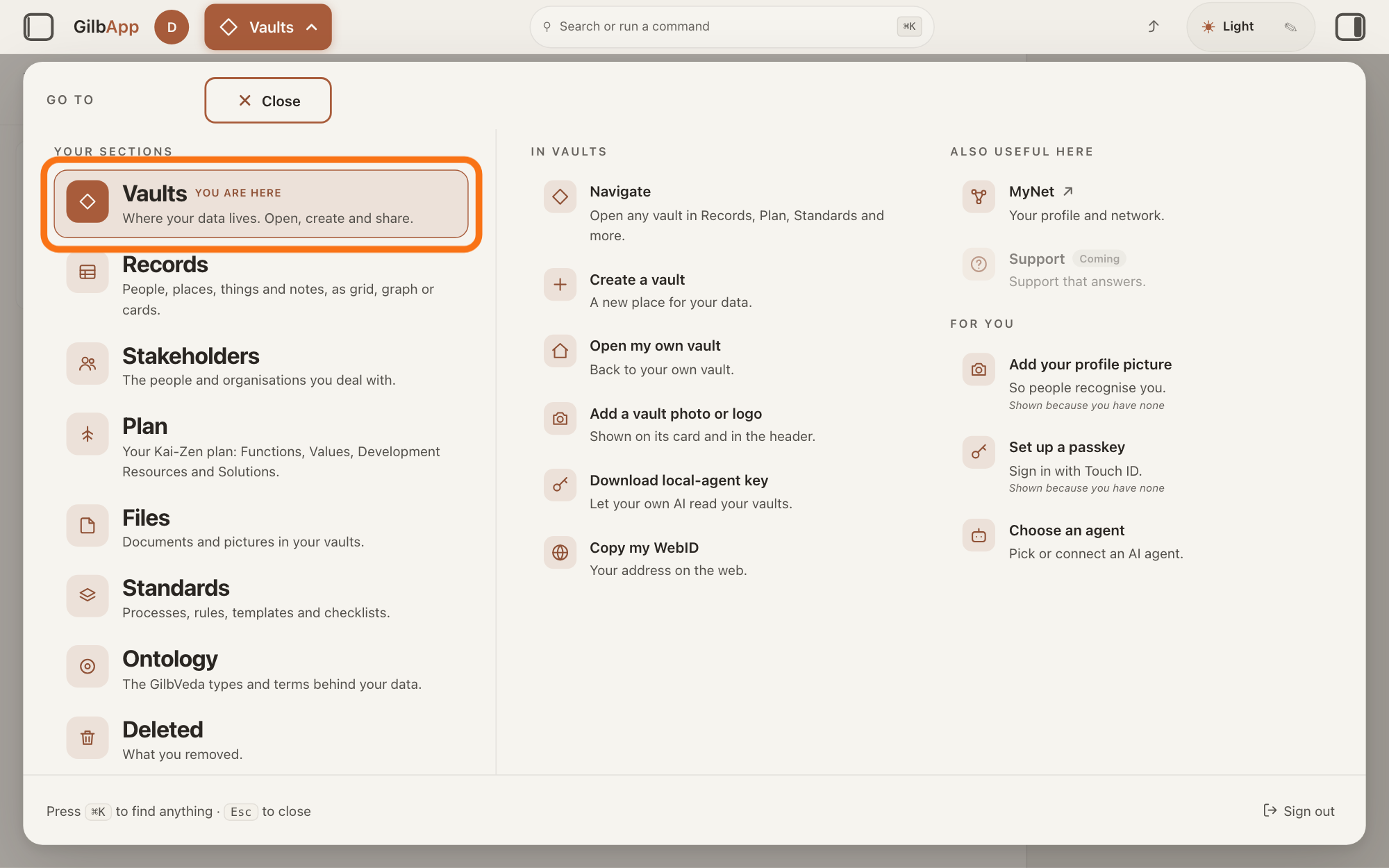
Press Main menu, next to your profile picture at the top left, and under YOUR SECTIONS choose Vaults. The button shows the name of the section you are in, such as Vaults.
Show as text
At the top left, the button next to your profile picture, reading "Vaults", is pressed, and the panel "GO TO" covers the screen. In its left column under "YOUR SECTIONS", choose the first row, "Vaults", outlined in orange. The columns "IN VAULTS" and "ALSO USEFUL HERE" list what you can do; "Close" is at the top and "Sign out" at the bottom right.
More about this
The panel headed GO TO lists your sections in this order: Vaults, Records, Stakeholders, Plan, Files, Standards, Ontology and Deleted, each with one line on what it holds. YOU ARE HERE marks the one you are in. The columns to the right list what you can do there, such as Create a vault under IN VAULTS. The panel also opens when the pointer rests on the button. Close or Esc closes it; Sign out at its bottom right signs you out.
Press the panel button at the top right of your vault's card.
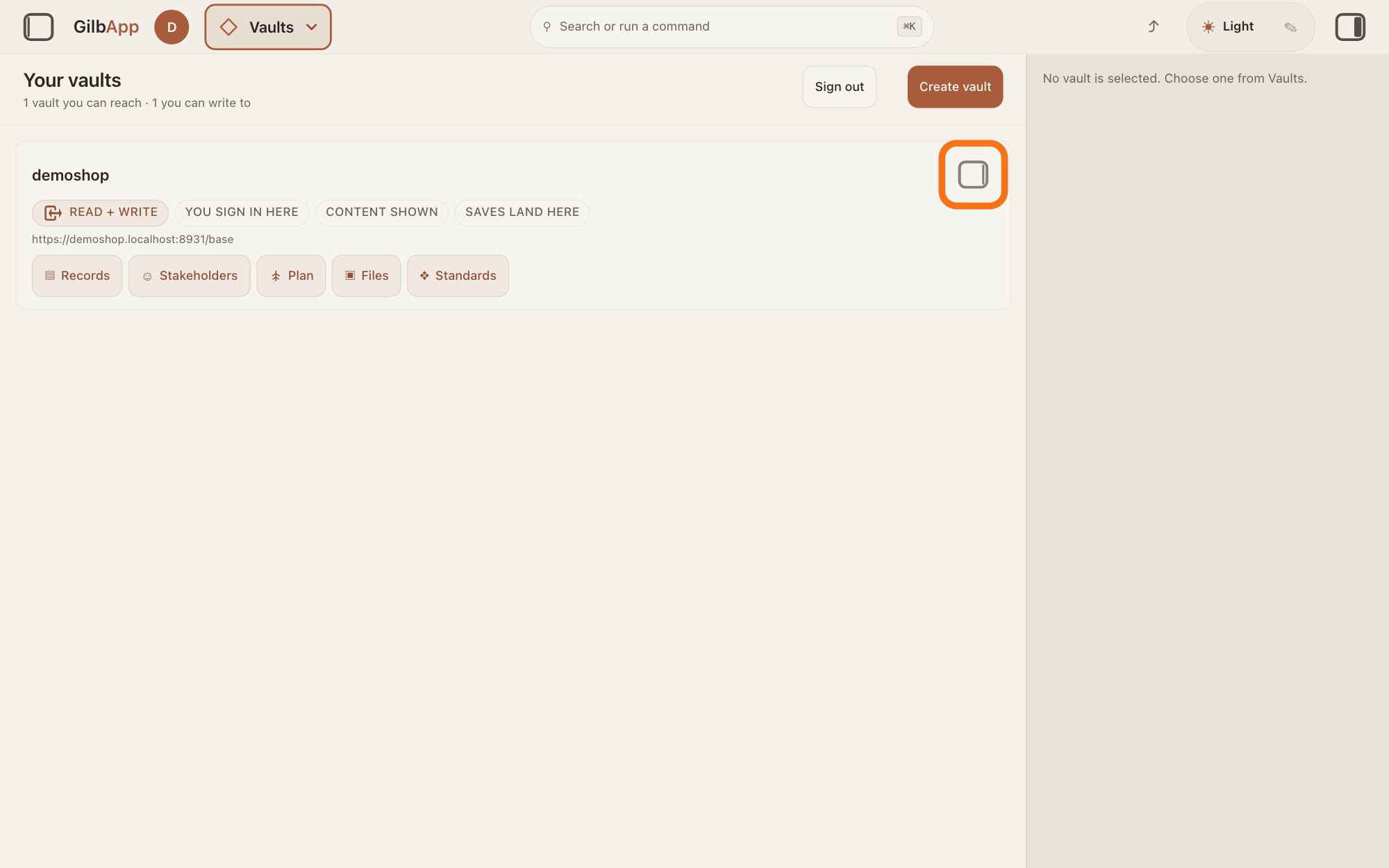
On Your vaults, press the small square button at the top right of your vault's card; its hover text is Show vault info. The pane on the right shows that vault's details.
Show as text
Under "Your vaults" your vault has one card, with its name and labels such as "READ + WRITE" and "YOU SIGN IN HERE". Press the small square button at the top right of that card, outlined in orange. Until you do, the pane on the right says "No vault is selected. Choose one from Vaults." "Sign out" and "Create vault" are at the top.
More about this
Before this, the pane says No vault is selected. Choose one from Vaults. Your vaults lists every vault you can reach, one card each; a vault made inside another is listed under it. A card's labels say what you may do there, such as READ + WRITE, and YOU SIGN IN HERE marks your own vault. Clicking the card itself only selects the vault: it shows in the right pane only while that pane is open, and it never opens the pane. Press the same button again to hide the pane. The square button at the far right of the top bar shows or hides that pane; in a window narrower than 840 pixels it is Detail in the bar at the bottom. At the top of Your vaults, Create vault makes a new vault, Sign out signs you out, and Clear selection, shown once a vault is picked, clears the pick.
Press Records on your vault's card.
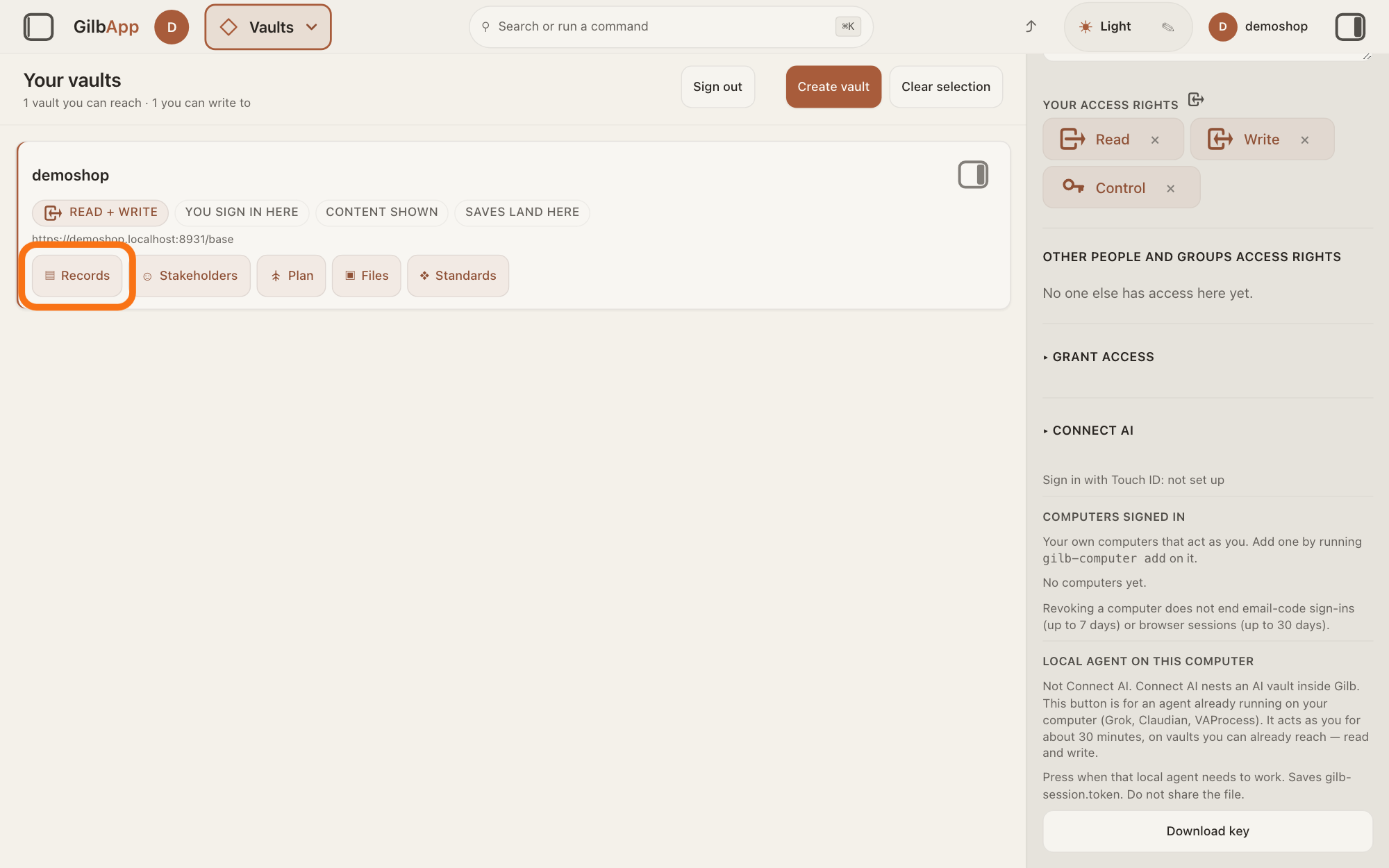
On your vault's card, press Records. GilbApp opens the Records section on that vault: its records, each one piece of data with its own address, such as a person, a place, a thing or a note.
Show as text
The pane on the right now shows the vault's details: "NAME", "VAULT ID", "NOTES" and "YOUR ACCESS RIGHTS". On the vault's card on the left, the row of buttons reads "Records", "Stakeholders", "Plan", "Files" and "Standards". Press the first one, "Records", outlined in orange.
More about this
The buttons next to it, Stakeholders, Plan, Files and Standards, open the same vault in those sections. A grey button says under the row why it is off. Above the list, Records and Plan can show it as Grid, Graph, Both or Card. To come back to your vaults, press Main menu at the top left and choose Vaults.
In Search or run a command, search and select what you want.
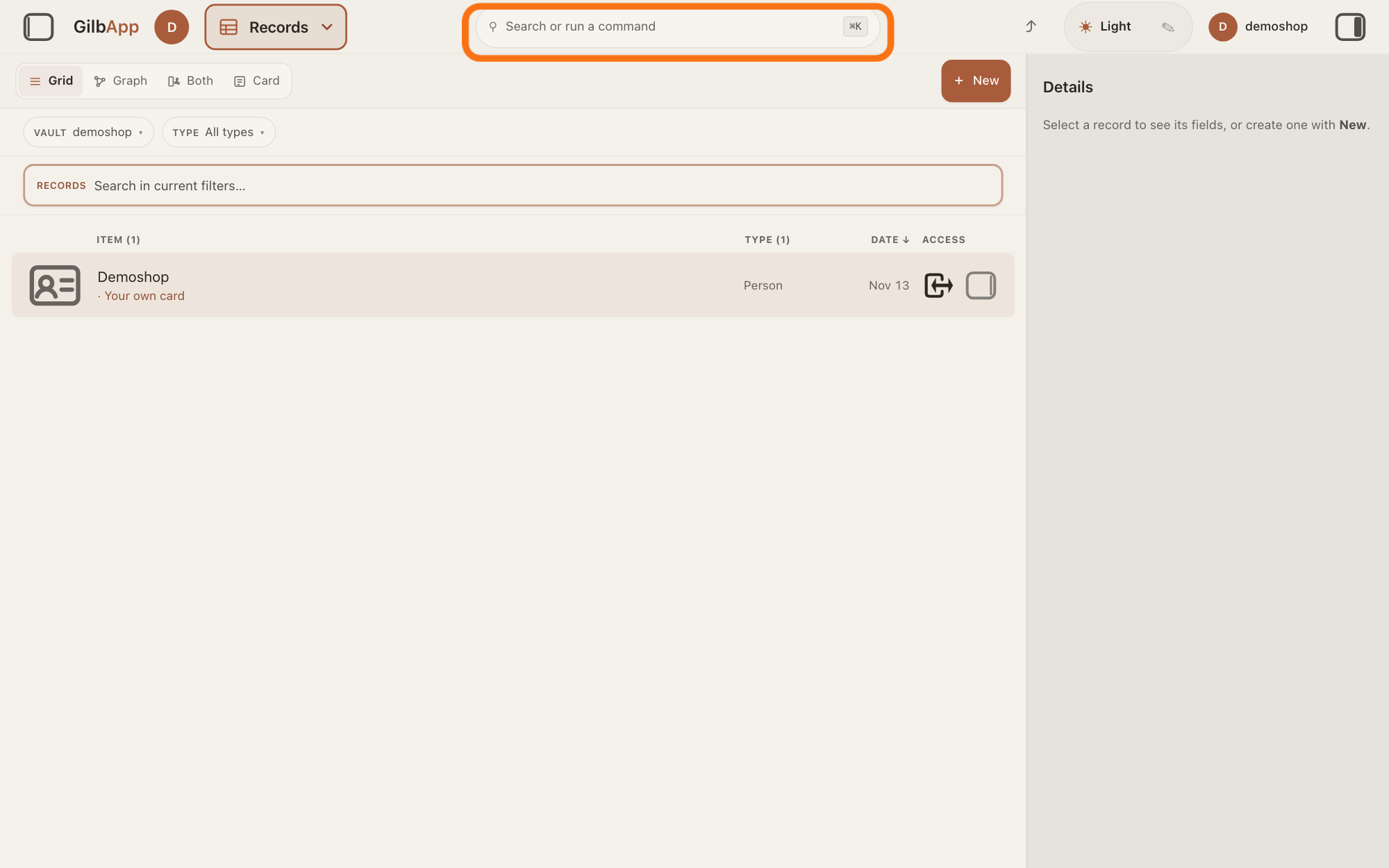
Press Search or run a command in the middle of the top bar, or press ⌘K, and type a whole word of the record you want, or a few letters of a section, command, colour or vault. Select a line with the mouse, or with the arrow keys and Return.
Show as text
The button at the top left now reads "Records", and the vault's records fill the middle of the screen under "Grid", "Graph", "Both" and "Card". Press the bar "Search or run a command" in the middle of the top bar, outlined in orange, or press ⌘K; then type what you look for and select a line.
More about this
The box searches all your vaults and runs commands. Under COMMANDS are the acts of the GO TO panel, such as Create a vault; under THEME the colours; under VAULTS one line per vault, Open and its name, which opens it in Records. Records in your vaults, and files in the open vault, that match what you typed are listed under JUMP TO · and the vault's name. A record is found only by a whole word it holds, so a few letters of its name find nothing; a file is found by a part of its name. Esc closes the box. On Windows the keys are Ctrl+K.
Deeper
Also asked:
What are the sections in the Main menu, and what is each one for? Vaults: where your data lives; Records: people, places, things and notes; Stakeholders: people and organisations you deal with; Plan: your Kai-Zen plan; Files: documents and pictures; Standards: processes and rules; Ontology: the types behind your data; Deleted: what you removed.
What do GO TO and YOU ARE HERE in the menu mean? GO TO heads the list of sections in Main menu: press one to go there. YOU ARE HERE marks the section you are in now.
Why can't I see Vaults admin in my menu? It shows only to people given the right to manage vaults. You make and manage your own vaults from Vaults.
What are the left pane, the middle and the right pane for? The left pane is the chat with an agent; the middle shows the section you are in, such as Vaults or Records; the right pane shows the details of the vault or record you picked.
How do I show or hide a side pane, or make it wider? The square buttons at the far left and far right of the top bar show or hide the left and right panes; if the chat is gone, press the left one to get it back. Drag the line between two panes to make one wider. On a phone (under 840 pixels wide) the side panes are hidden: use the bar at the bottom.
How do I switch to another vault? Press Main menu and choose Vaults to see all your vaults, then press Records on the other vault's card. Or type its name in Search or run a command and choose Open and its name.
How do I know which vault I am working in right now? Once you pick a vault, its picture and name show at the top right; press them to open its details.
What do the buttons on a vault's card do (Records, Plan, Standards …)? Each opens that vault in the section of the same name: Records, Stakeholders, Plan, Files or Standards. A grey button is off, and the line under the row says why.
GilbApp opens on Vaults after you sign in. Your profile picture at the top left opens your own vault's details. Once you pick a vault, its picture and name at the top right show the vault you are looking at; press it for its details.
The square button at the far left of the top bar shows or hides the left pane, where you chat with an agent. It is hidden when you first use GilbApp; chatting has its own answer. Drag the thin line between two panes to make one wider.
Vaults admin shows in the GO TO panel only to people who manage vaults.
This answer is written for a computer screen. In a window narrower than 840 pixels, such as a phone, the side panes are hidden and a bar at the bottom holds Selection, Search and Detail.
Checked against GilbApp d529620.