
How do I find people by skill or by what they value?
Short answer
Press Main menu, choose MyNet, type a skill or a place, such as a city, in Search your network and press Return.
Before you start
You need to be signed in to GilbApp on a computer. The pictures show a made-up person on a test site; your screen shows your own name and address.
Words used here (5)
- GilbApp
- GilbApp is the app, opened in a web browser at https://gilb.com/app, where you open, fill and share your vaults.
- GilbPlatform
- GilbPlatform is the service that keeps people's and organisations' data in vaults, each at its own web address.
- Skill
- A Skill is something a person can do, such as nursing or selling, named from a shared catalogue; it is not a diploma.
- sharing level
- A sharing level says who may see one thing you share in MyNet, from Public, for everyone, to Private, for you alone.
- Circle
- A Circle label, such as Professional Inner Circle, says whether you know a contact personally or through work, and how closely; it grants no access.
Steps
Press Main menu at the top left and choose MyNet.
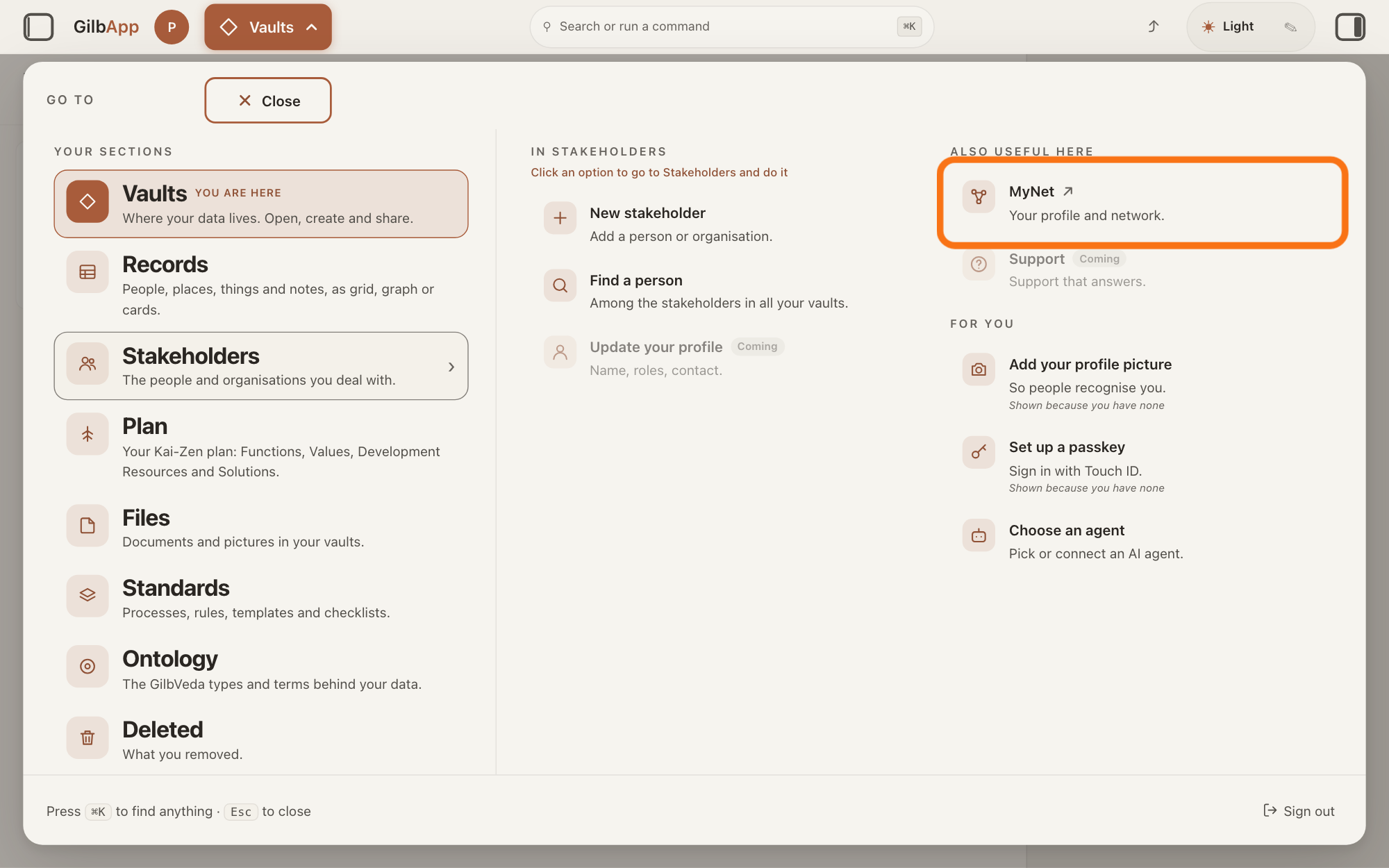
Press Main menu, next to your profile picture at the top left, rest the pointer on Stakeholders and choose MyNet under ALSO USEFUL HERE. MyNet, Gilb's app for your profile and network, opens in a new tab.
Show as text
Press "Main menu" at the top left and rest the pointer on "Stakeholders". In the right-hand column "ALSO USEFUL HERE", press "MyNet ↗", "Your profile and network.", outlined in orange. MyNet opens in a new tab.
More about this
The button shows the name of the section you are in, such as Vaults. MyNet reads Your profile and network., and ↗ beside it means it opens in a new tab. MyNet may ask you to sign in first, with your e-mail address and a code, as GilbApp does. You can also type https://gilb.com/mynet in your browser's address bar. On your own card in Stakeholders, Edit in MyNet opens your profile at once.
Search for a skill or a place in Search your network.
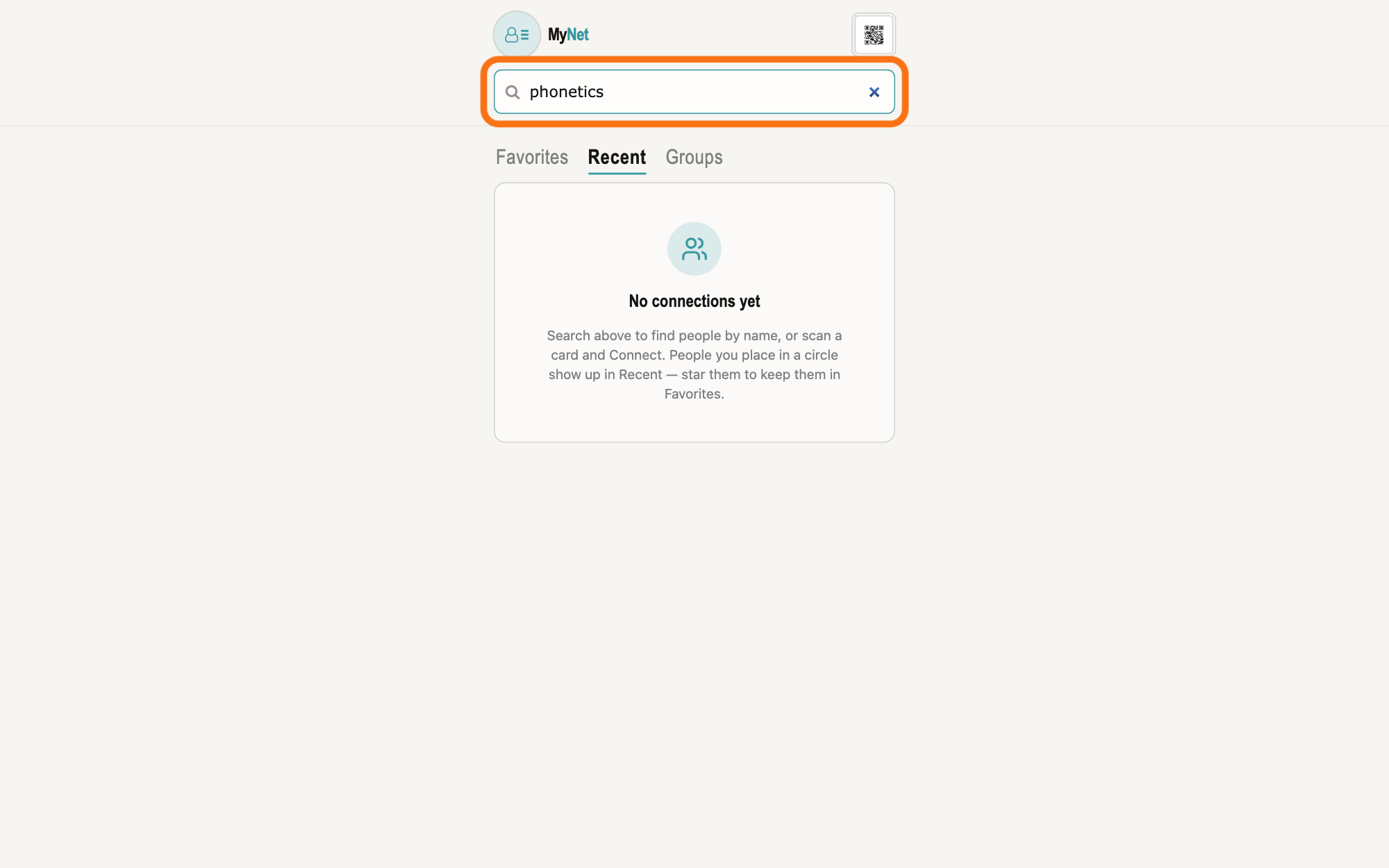
On MyNet's home screen, type a skill, such as phonetics, or a city, region or country in the box Search your network at the top, and press Return. The search runs only when you press Return.
Show as text
MyNet's home screen. At the top, the outlined box "Search your network" holds the skill word phonetics. Press Return to search; the search runs only then. Below the box are "Favorites", "Recent" and "Groups".
More about this
A skill is a term from the skill catalogue in GilbVeda, the shared list of terms, and is looked for from 2 letters on; a place comes from a shared catalogue of places. The same box also finds people by their first or last name, and a pasted WebID, the web address GilbPlatform knows a person by, or a link to someone's card opens that person's card. Above the box are your picture, MyNet, which brings you back home, and at the right a button with the hover text Share your card, which shows your own card as a QR code, a square pattern a phone camera can read. Below the box, Favorites, Recent and Groups list the people and groups you have, and People who shared with you, when shown, lists people who placed you in their circles.
Choose a person in the list to open their card.
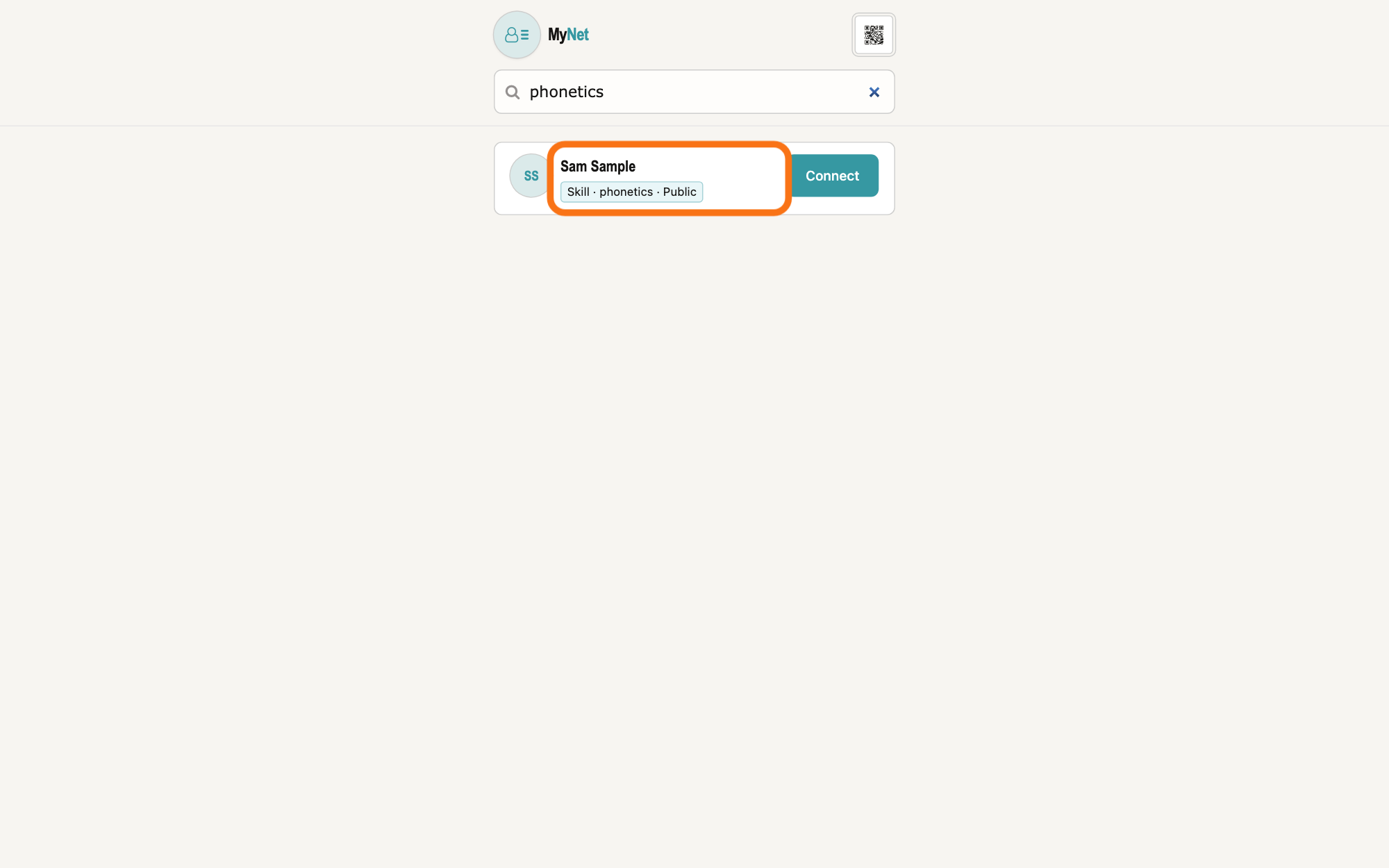
Click a person's name in the list to open their card. Each label under a name says why they were found: it starts Skill, Place, First Name or Last Name, names the skill or place, and ends with the sharing level the person chose for it (who may see it), such as Public.
Show as text
Under the search box, one person is found by the skill. Their name is outlined, and the label under it reads "Skill · phonetics · Public": the skill and the sharing level they chose. Press the name to open their card, or "Connect" at the right.
More about this
In your network and Open card mark people you have already placed in one of your circles, the groups of people you choose to share more with. For anyone else, Connect opens a panel for placing them in your circles, which the answer on circles explains, and Cancel closes it. Groups you can already reach whose name matches are listed under GROUPS. If no one is found, MyNet says No people match and what you typed. Red text in a box means part of the search did not work; it is not the same as no match.
To be found by a skill yourself, press your picture at the top left.
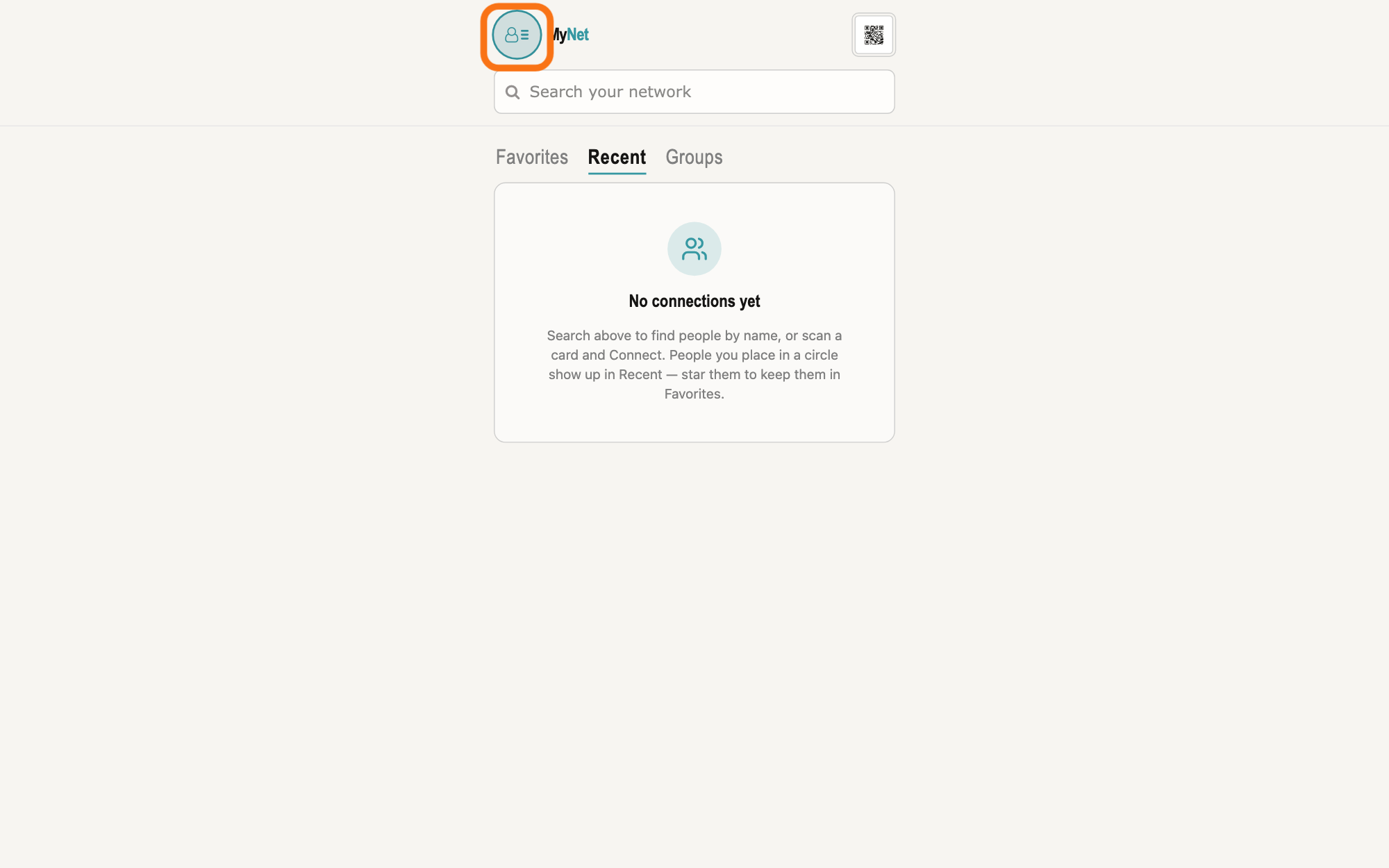
On the person's card, press your picture at the top left, whose hover text there is Go home, or the house button beside it, to go back to MyNet's home screen. There, press your picture again, whose hover text is Open your profile, to open your profile: the card about yourself that you share with others.
Show as text
Back on MyNet's home screen. At the top left, left of the MyNet name, your picture is outlined; resting the pointer on it shows "Open your profile". Press it to open the card about yourself.
More about this
While it holds no skill, the section Skills says Share your skills. At the top right, Edit turns on edit mode, where entries can be removed, and then reads Save, which turns it off; the + button, named Add new property, adds other kinds of entry. The search box now reads Search your profile and only narrows what your profile shows. The house button next to MyNet takes you home; your picture here opens the menu for your photo.
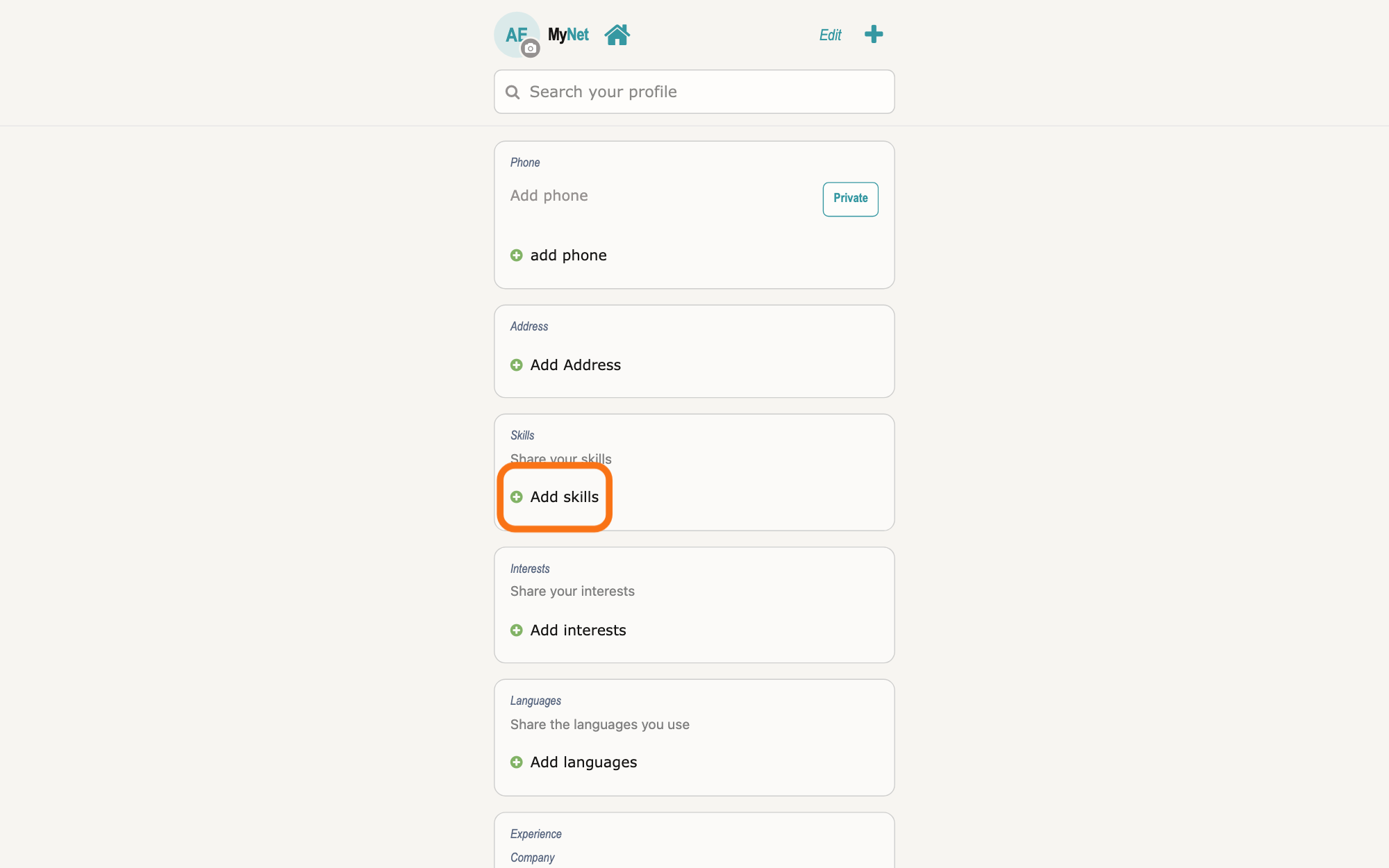
Press Add skills under Skills.
Press Add skills, with a plus in a circle at its left, under Skills. A panel headed Add skills opens from the bottom of the window, with a search box.
Show as text
Your profile is open, with a box for each kind of detail: "Phone", "Address", "Skills", "Interests", "Languages". In the box "Skills", under "Share your skills", press the outlined "Add skills" with the plus at its left.
More about this
The panel says Search the live skill catalogue (~16,000 concepts, 29 languages). Until you type, it lists nothing and offers example words you can press, such as phonetics. Close at its top right, or a click above the panel, closes it without adding anything. + Add Information at the foot of your profile, then Skill (search / browse), opens the same panel.
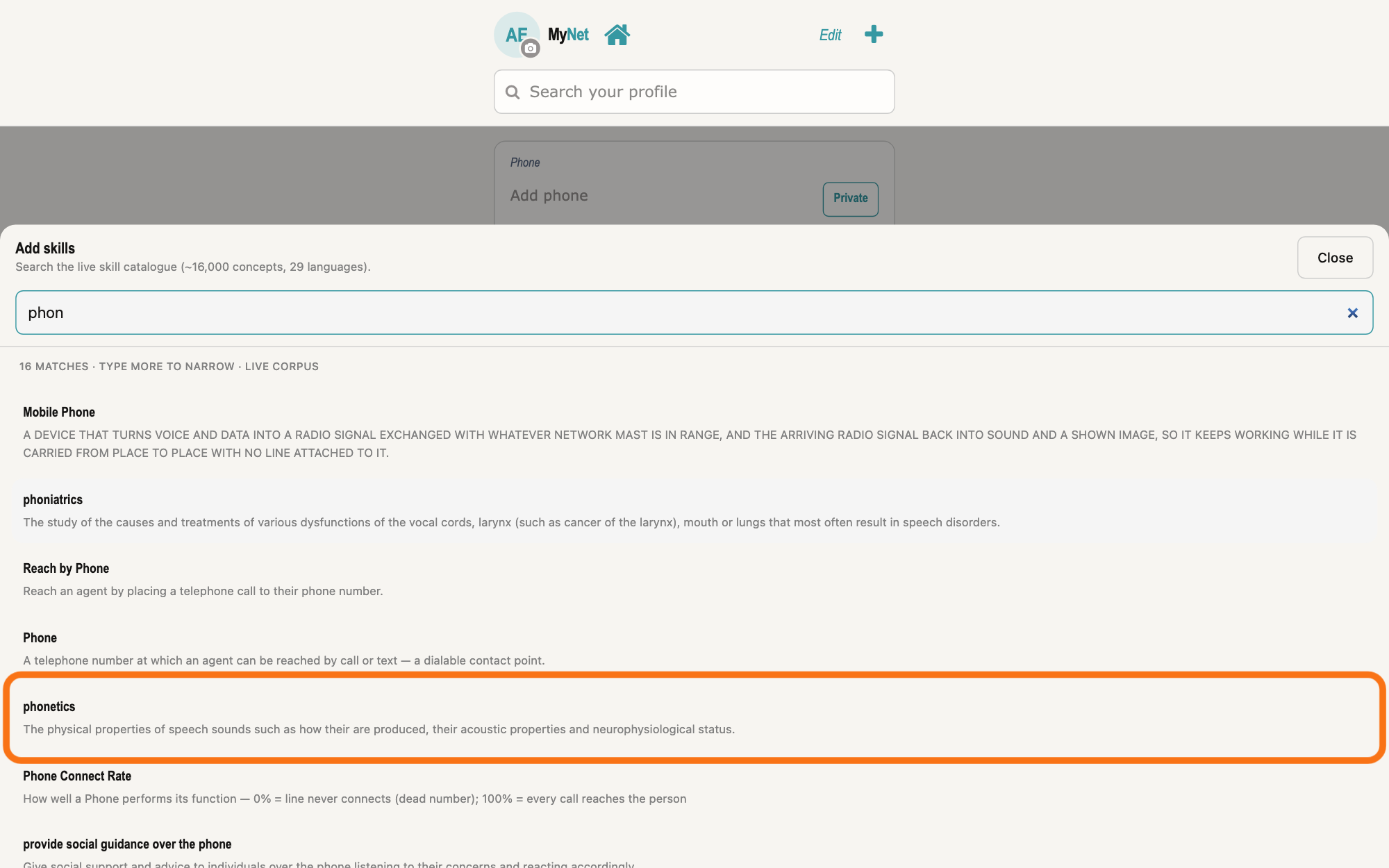
Search and select your skill.
Type a word of your skill in the box, which shows Search skills (e.g. sykepleie, krankenpflege, phonetics)…, and click your skill in the list. MyNet saves it on your profile at once, with the sharing level Public.
Show as text
The panel "Add skills" covers the lower part of the window. Its box holds phon, and the list below shows "16 matches" from the live skill catalogue, each with a line about it. The row "phonetics" is outlined; click it to add it to your profile. "Close" is at the top right.
More about this
With 1 letter the panel says Keep typing — enter at least 2 characters to see matches. No skills match and what you typed means it found none; Skill search failed means the search did not work, not that the skill does not exist. Skills already on your profile are not offered again. Under a saved skill, About this skill shows Add a note about this skill: click it to say more, such as your level; the note has its own sharing level. In edit mode the red round minus sign at the left of a skill removes it.
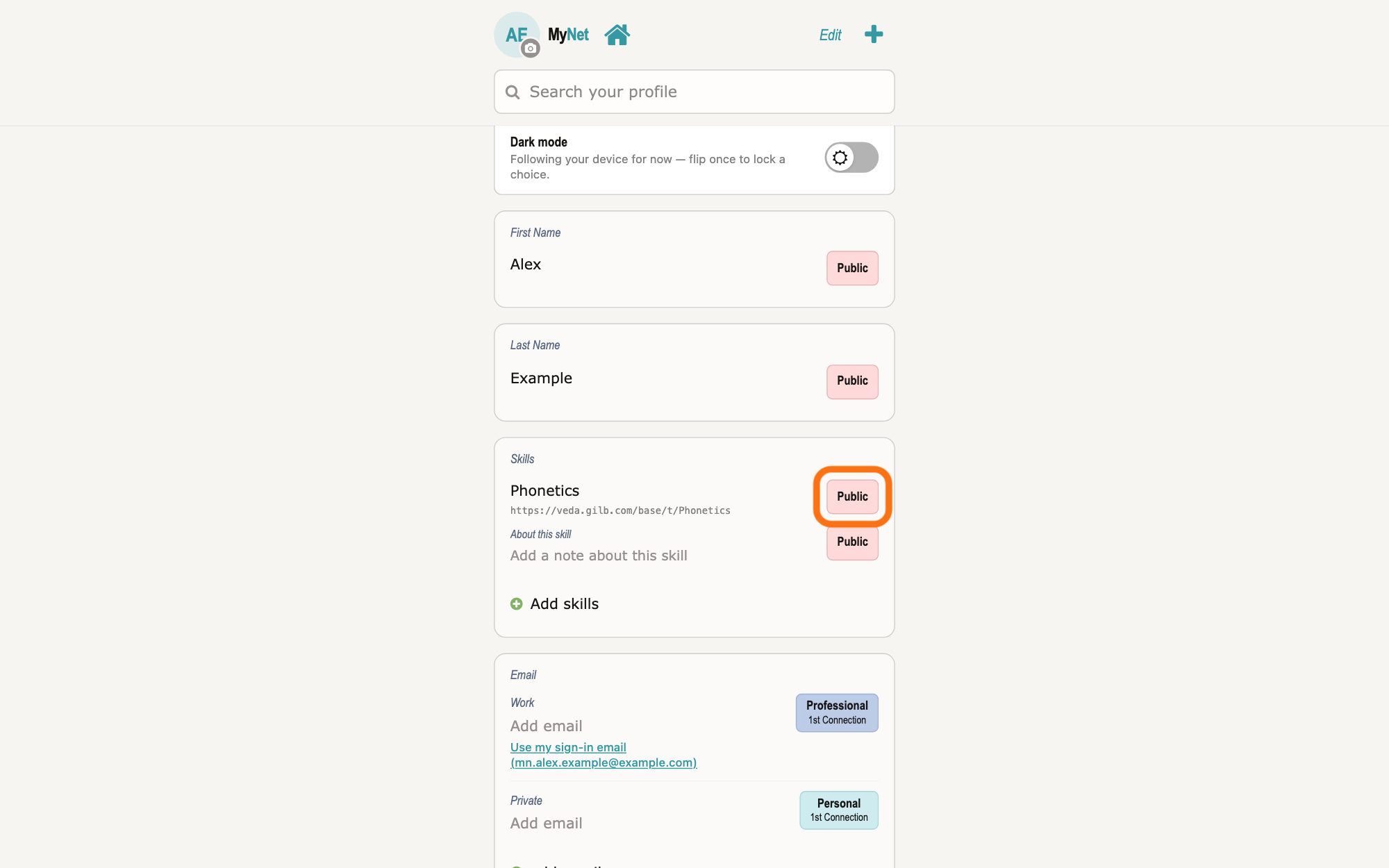
Press the sharing level beside your skill and choose who may find you.
Press the label at the right of your skill, which first reads Public, and choose a line in the list. MyNet saves your choice, and the label shows it; if the save fails, the label goes back.
Show as text
The panel has closed. In your profile's box "Skills", Phonetics now shows with the address of its term under it. At its right, the outlined label reads "Public": press it and choose who may find you by this skill. "About this skill" below has its own label.
More about this
Public lets anyone find you by the skill, and GilbPlatformPublic anyone signed in to GilbPlatform. A line starting Professional, Personal or Pers & Pro lets only the people you placed in that circle find you; Pers & Pro means either one, and a 1st Connection line also reaches the people in your 1st Inner Circle. Private (For your eyes only) lets no one find you by it. Under each line it says what that level grants, such as Read, and a tick marks the one chosen. The answer on circles explains them.
Deeper
GilbPlatform checks each person's sharing level before it answers, so you only find people by what they let you see: a skill or a place at Public is found by anyone, at GilbPlatformPublic by anyone signed in, at a circle level only by the people they placed in that circle, and at Private by no one. Two people can get different lists for the same word.
MyNet has no search for what a person values or cares about. Besides a name and a skill, the one other kind of detail it looks for is a place: a city, region or country a person added under Address on their profile. MyNet never searches a street, an address line or a postal code. GilbPlatform can find people by any kind of detail that GilbVeda, the shared list of terms, marks as findable; programs ask for it through GilbPlatform's interface for developers, and MyNet asks it only for a place.
On a person's card, Browse their network has its own box, Search by name or skill…, which searches only the people in their circles.
GilbApp today has no search by skill or by place.
MyNet shows the same narrow column on a computer as on a phone; the pictures show a computer window.
Source: MyNet e894951bcfda372a6218c512c15bb4b582c1a794 (https://gilb.com/mynet/version.json, built 2026-10-27, read 2026-11-10). components/AppShell.tsx:13 and :631-632 (375px-first, max-w-md column at every width), :275-297 (home search runs on submit; profile and contact filter in place), :299-305 ('Search members', 'Search this contact', 'Search your profile', 'Search your network'), :467-468 and components/profile/Avatar.tsx:137-145 (hover 'Open your profile' / 'Go home'), :477-485 ('MyNet', title 'Home'), :498-515 ('Edit'/'Save', 'Add new property'), :517-527 and components/card/ShareCardPanel.tsx:102-103 ('Share your card'), :533-565 (search box); components/ui/home-button.tsx:56-61 (house, 'Home'); pages/Contacts.tsx:11-13 (one box; a pasted WebID or card link opens the card), :16-34 (the server decides who is found; nothing filtered here), :423-432 (loading, red error card, groups), :446-450 ('No people match …', 'Try another name or skill, or paste a WebID, card link, or principal URI in the search field above.'), :486-487; components/connection/MyConnectionsList.tsx:385-405 ('Favorites', 'Recent', 'Groups'); lib/base/findPeople.ts:36-51 (skill facet: typed label to GilbVeda term, then /base/connect/find?skill=), :61-62 (place facet); lib/skills/searchSkillsRemote.ts:4, :24 (veda term search, 2 characters); lib/base/findPlace.ts:1-17 (typed place to catalogue ids, then /base/connect/find-by-value?attr=a:claimPlace), :37-45 (street, address lines, postal code never asked), :70-71 (2 characters), :154-176 and lib/base/placeClaim.ts:93 (city, region, country); lib/base/valueFind.ts:1-6; components/search/SearchResultList.tsx:109-148 (name opens the card; 'In your network'; name and 'Skill · <label> · <level>' badges), :161-179 ('Place · <place> · <level>'), :182-217 ('Open card', 'Connect', 'Cancel'), :251-263 ('First Name', 'Last Name', level words); components/profile/GroupSearchHits.tsx:1, :28-46 (reachable groups, heading 'Groups' in CSS capitals); pages/Profile.tsx:474-475, :504-512 ('Skills', 'Share your skills', 'Add skills'), :590-598 ('+ Add Information'), :610-612 and model/profile.ts:600 ('Skill (search / browse)' opens the same picker), :630-643 (a picked skill is saved at 'public'; skills already held are excluded); components/profile/QuickAdd.tsx:10-24 (plus-circle icon); components/profile/SkillPickerSheet.tsx:118-215 ('Add skills', catalogue line, 'Close', placeholder, 'Keep typing — enter at least 2 characters to see matches.', 'Searching the live catalogue…', 'Skill search failed: … This is not a statement that the skill does not exist.', 'No skills match …. Try another word (any of 29 languages).', examples); components/profile/FieldRow.tsx:213-215 (remove in edit mode), :230-299 (level label, 'About this skill', 'Add a note about this skill', note level); components/profile/RemoveControl.tsx:40-49 (red minus-circle); components/profile/AccessTag.tsx:52-60 (label, second line), :255-321 (list 'Sharing level', grant line, tick); model/profile.ts:169-179, :315-354 (the nine levels: 'Public' 'Public / Read', 'GilbPlatformPublic' 'Anyone signed in can Read', Professional/Personal/Pers & Pro · 1st Connection / 1st Inner Circle 'Read', 'Private' 'For your eyes only'); lib/base/hooks.ts:2784-2806 (a skill's level is written to its claim first; a failed write puts the label back); components/connection/ConnectionPlacement.tsx:7-8 (placing in Inner also stores 1st); components/connection/ContactCard.tsx:1226-1234 ('Browse their network') and NetworkBrowseSection.tsx:387-426 ('Only people in their circles. Search by name or skill in one box.', 'Search by name or skill…'); components/connection/PlacementNotices.tsx:133 ('People who shared with you'). GilbPlatform 4d008a55: src/routes/connect-find.ts:1-7 (find by skill; anonymous sees public only); src/baseconnect/skill-find.ts:9-18 (public: everyone; t:SignedInGrantee: any signed-in viewer; self; rungs 2-7: the viewer's circle memberships overlap, the union; private: not in the index); src/baseconnect/skill-posting.ts:13-18 (private never materialised); src/baseconnect/skill-claim.ts:8-10 (one claim per skill in the owner's own vault); src/routes/connect-value-find.ts:1-15, :155-168 (find by value; an undeclared attribute refused); src/baseconnect/value-find.ts:1-17 (the same nine disjuncts; the audience filter in SQL); src/baseconnect/audience-rung/rung-enumeration.ts:14-17 ('Pers & Pro' is the union, either context). GilbVeda read publicly 2026-11-10: a:claimPlace (a:networkFindKey 'reference': a person who claims a city, a region or a country is findable by that place), a:networkFindKey, t:SkillClaim, a:visibilityTier. GilbApp af0f04ee: no caller of /base/connect/find or /base/connect/find-by-value in src (lib/base/orgCard/orgEmployees.ts:9). Step 1: GilbApp af0f04ee shell/gilbAppMenuRows.ts:142-156 (Stakeholders: also mynet), components/menu/sectionMenuList.ts:305-306 ('MyNet', 'Your profile and network.', href MYNET_BASE), section-menu 0.2.4 SectionMenu.tsx:88 ('Also useful here'), :942-948 (CSS capitals), :857-876 ('↗', new tab); lib/base/granteePublicCard.ts:35-38 (https://gilb.com/mynet); OwnCardBand.tsx:13-26, :80-88 ('Edit in MyNet'). Going home from a card: MyNet AppShell.tsx:316-318, :376 (the contact header: 'No MyNet logo', 'NO MyNet wordmark'), :343-365 (the holder picture navTo home, hover 'Go home'), :377-378 (House and Back beside it), :145 (home = '/' and no contact open), :156-160 (goHome clears the search); Avatar.tsx:137-145 ('Go home' / 'Open your profile'). 'value' kept for the title only.
Checked against GilbApp d529620.