
How do I keep a stakeholder's contacts private?
Short answer
In Stakeholders, search and select the person and check the vault at the card's top left; only people who can read it see the contacts.
Before you start
You need to be signed in to GilbApp on a computer, and the person must already have a card in Stakeholders; the answer on adding a person as a stakeholder shows how to make one. The pictures show a made-up person on a test site; your screen shows your own name and address.
Words used here (4)
- GilbApp
- GilbApp is the app, opened in a web browser at https://gilb.com/app, where you open, fill and share your vaults.
- record
- A record is one piece of data with its own address, such as a person, a place, a thing or a note.
- My Note
- My Note is your own private note about a person or an organisation on your card of them; only you can read it.
- Where / How we met
- Where / How we met is where and how you first met a person, in your own words, kept for you alone.
Steps
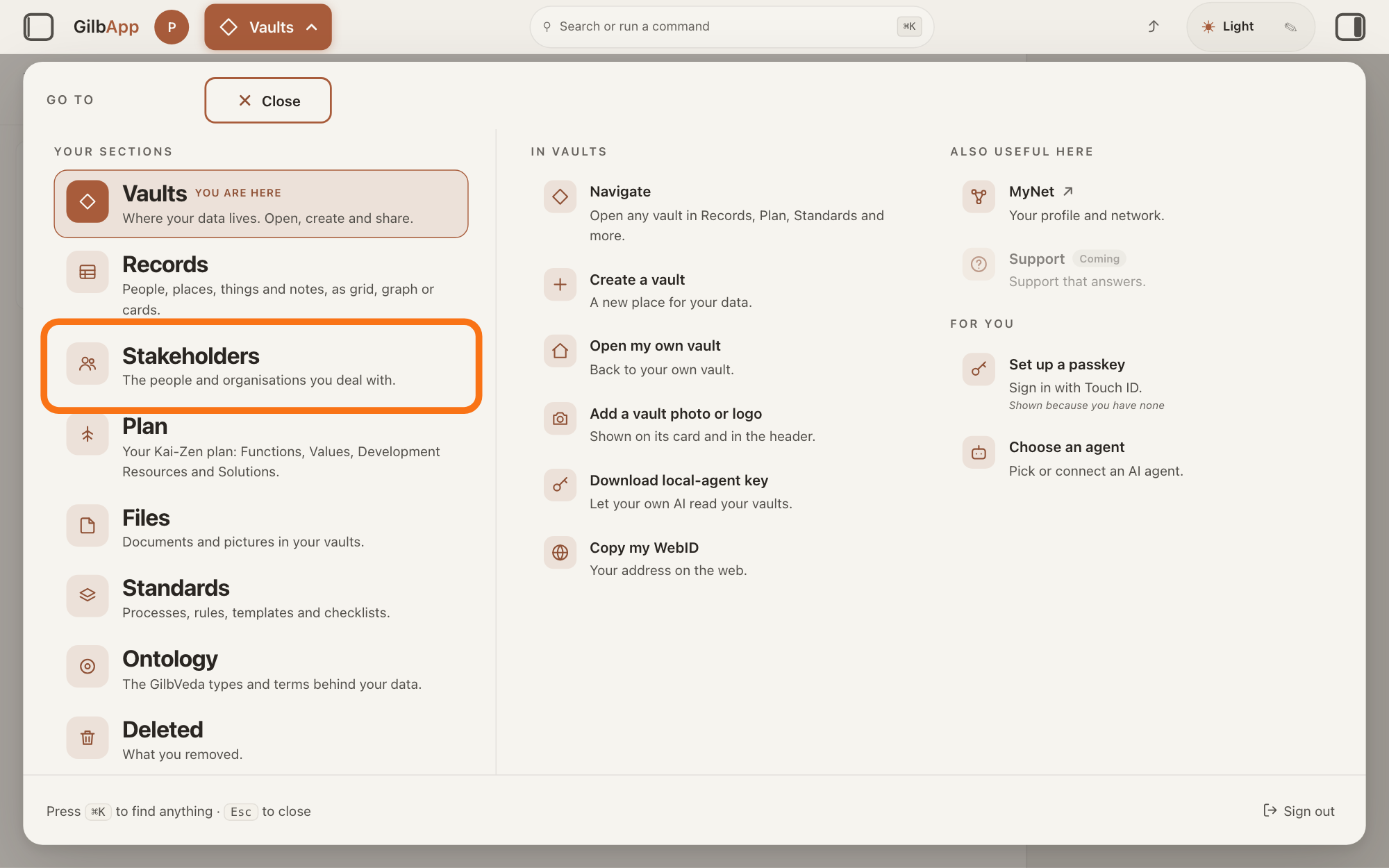
Press Main menu at the top left and choose Stakeholders.
Press Main menu, next to your profile picture at the top left, and under YOUR SECTIONS choose Stakeholders. A stakeholder is a person, group or system that cares whether a Value goes up or down.
Show as text
At the top left, press "Main menu" (it shows the name of the section you are in). In the panel headed "GO TO", look under "YOUR SECTIONS" and press "Stakeholders", "The people and organisations you deal with.", outlined in orange.
More about this
The button shows the name of the section you are in, such as Vaults. A panel headed GO TO opens; Stakeholders reads The people and organisations you deal with. You can also press the Stakeholders button on the card of a vault (the place where a person or a group keeps their records) in Vaults. The screen lists your stakeholders and has the views Grid, Graph, Both and Card. The list also holds organisations, systems and groups; the TYPE column says which are Person.
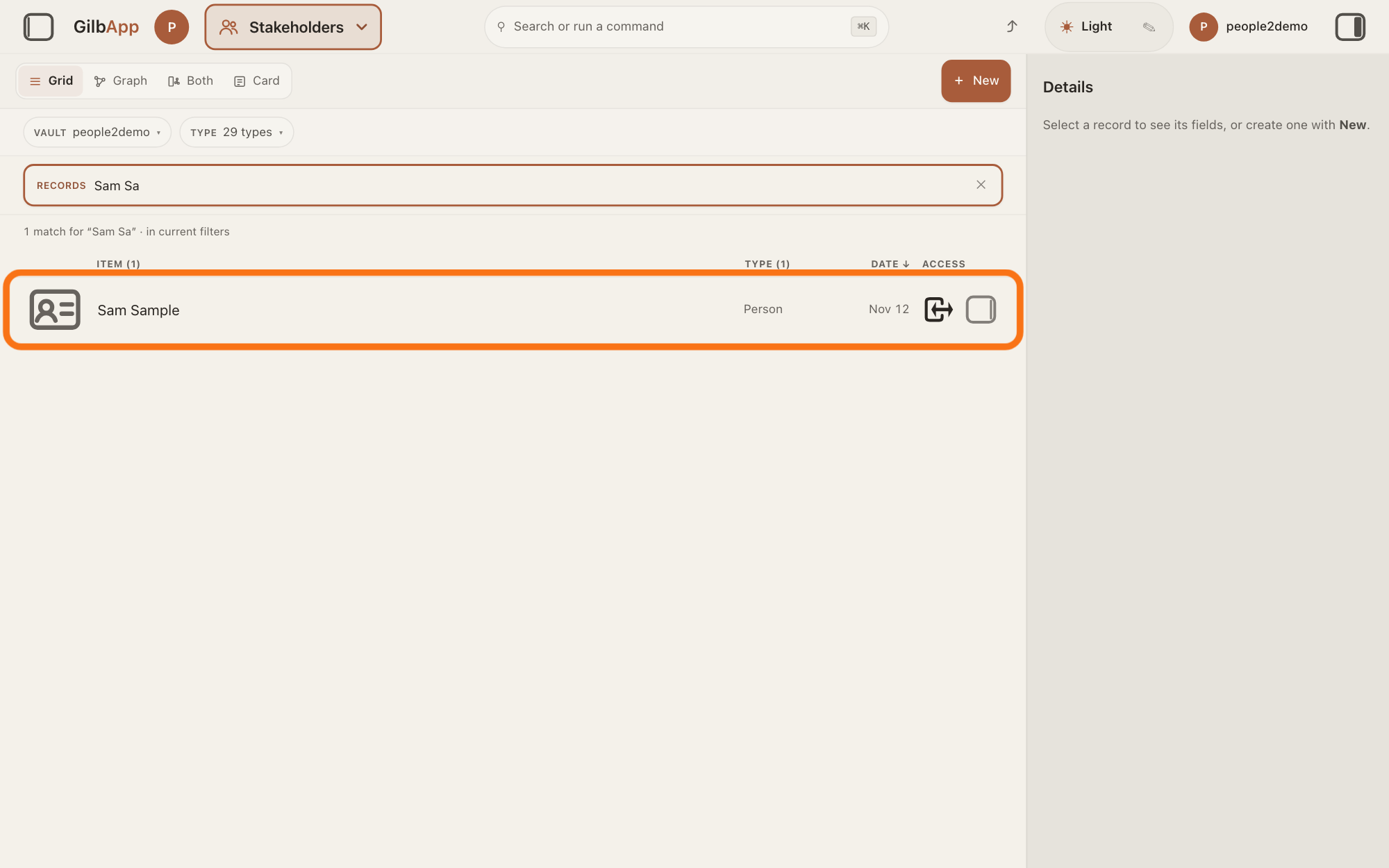
Search and select the person in the list.
Type a word of the person's name in the search box marked RECORDS above the list, and click the person in the list. The person's card opens in the middle of the screen, and the right pane, headed Actions, holds what you can do with it.
Show as text
In the box marked "RECORDS" above the list, type the person's name or its first letters until the line under the box reads "1 match" and only their row is left. Press that row, outlined in orange, to open their card.
More about this
The box shows Search in current filters…, because the list holds only stakeholders; the answer on avoiding adding the same person twice shows more about the search. If you can only read the vault that holds the card, nothing on it can be changed. You do not need the right pane here.
See which vault holds the card, at the left of the card's header.
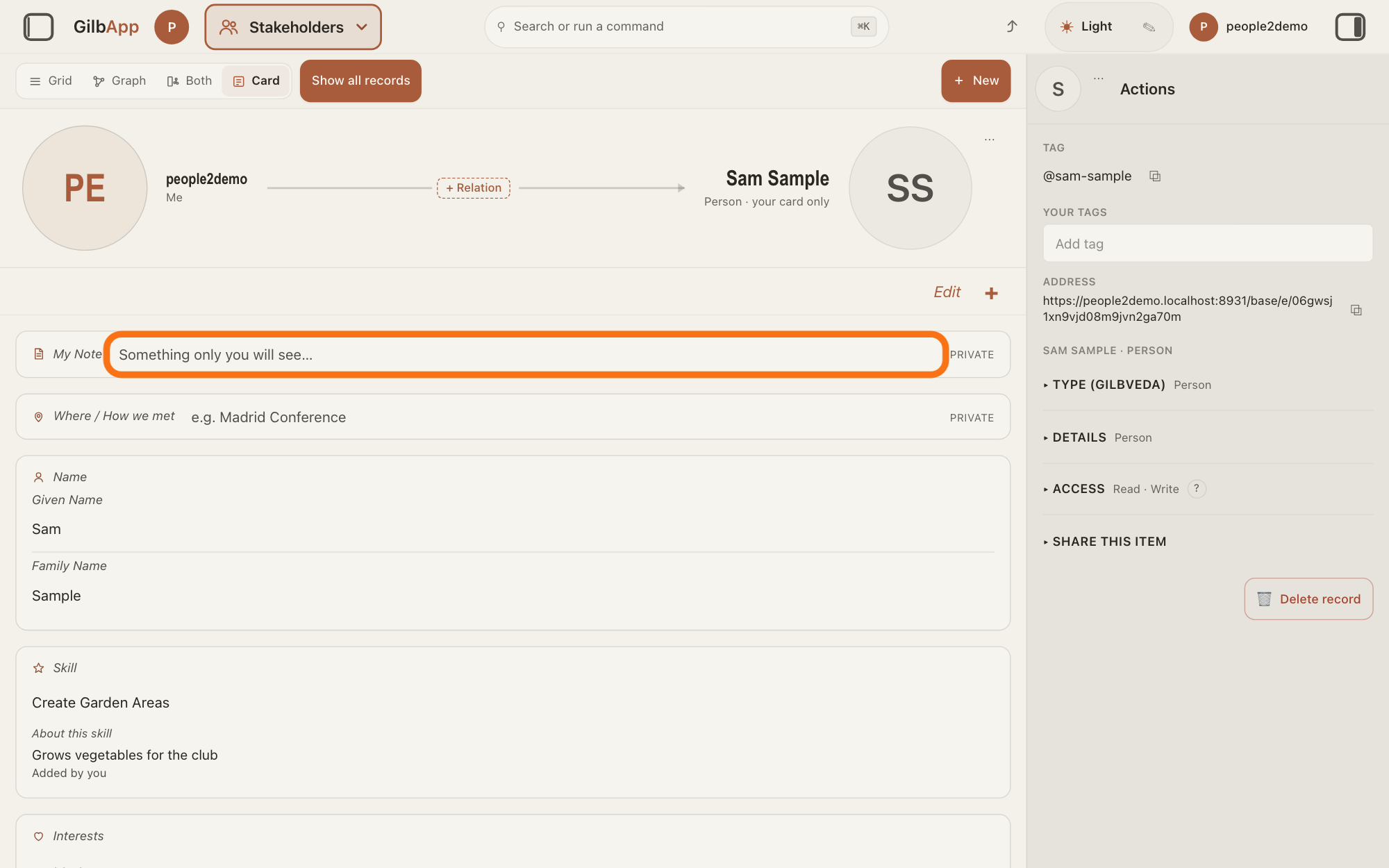
At the left of the header at the top of the person's card, GilbApp shows the picture and name of the vault that holds the card, with Me when it is your own vault. Everyone who may read that vault can read the card's e-mails, phones and links.
More about this
If it is your own vault and you have given no one access to it or shared the card itself, only you read them. A card kept in a vault you share, such as a team's, is read by everyone who may read that vault, by everyone if the vault is public, and by an AI you gave access to it. To see who can reach a vault, open its pane in Vaults; the answer on seeing who can reach your vault shows how. To keep a new card to yourself, choose your own vault under CREATE IN when you add it.
Type anything only you should read in My Note.
At the top of the card, click the box beside My Note, which shows Something only you will see…, and type. GilbApp saves it by itself.
Show as text
At the left of the card's header, the vault that holds the card is named, with "Me" under it; under the person's name it says "your card only". At the top of the card, type in the box beside "My Note", outlined in orange; it is marked "PRIVATE".
More about this
GilbPlatform lets only you read My Note and Where / How we met, when you are signed in: not the person the card is about, not the people you share your vault with, and not an AI you gave access to it. My Note is offered only on a card kept in your own vault; the answer on writing a private note tells more. An interest, a language or a note on a skill can also be kept for you alone with Make private to me only, as the answer on languages, skills and interests says; an e-mail, a phone or a link cannot.
Deeper
Kai-Zen's rule for stakeholders says a person's contact details stay private unless the person made them public. In GilbApp you follow it by keeping the card in a vault only you can read, and by writing what must stay with you in My Note.
These details are kept on your card of the person, in its vault. GilbApp has no setting for who sees each one: whoever may read the card sees them all, and a card about someone else publishes nothing. Sharing the card or the vault has its own answers. GilbPlatform lets anyone who may read a vault read what it holds, unless an entry carries its own sharing level, as My Note does.
What the person publishes about themselves is theirs to share: a card linked to their own online card shows their details, shaded, only as far as they let you see them, and you cannot change those.
The same rules say to add what you learn about a person over time, with its date and source, and to change a field rather than delete it. GilbPlatform keeps every earlier version of a record, as the answer on a record's history says.
This answer is written for a computer screen.
Source: GilbApp af0f04ee838a4d55887d2ff1f72edd49a4ff7ca0 (https://gilb.com/app/version.json, built 2026-11-09, read 2026-11-10). Step 3: components/records/StakeholderContactHeader.tsx:1-12 (the shared ContactHeader; holder far left: the vault that holds the record, its picture, its name, and 'Me' for the holder's own vault), :56-66 (holderCaption: 'Me', '<type> vault', 'Vault'), :159-161 (holderVault: the vault that holds the record), :246-267 (holder name and caption); RecordDetail.tsx:1779 (holderVault = the record's vault); Step 4 (records/HolderNoteGroup.tsx:39-48 'My Note', 'Something only you will see…'; lib/contact/contactAnnotation.ts:66-69 own vault only); components/records/HeldVisibilitySwitch.tsx:6, :44 ('Make private to me only' / 'Everyone in this vault'); Deeper: Kai-Zen.StakeholderRules (kaizen.gilb.com/base/e/06ge0rjtj5zm7bvmrk2gnxyn9w, Standards 2026-11-10) rule 9 Private ('Contact details stay private unless the person made them public.') and rule 6 Grow ('Add what you learn over time, with its date and source. Change a field; do not delete it. A GilbPlatform vault keeps the history; …'); GilbPlatform 4d008a55: src/authz/audience-tier.ts:22-28 (an entity carrying no a:visibilityTier keeps the vault's reach for every principal; the tier term can only deny), :212-223 (an entry with a tier is read only inside its rung); src/routes/connect-annotations.ts:1-12 and src/baseconnect/connection-annotation.ts:1-46 (My Note and Where/How we met: holder only). GilbVeda: t:ContactPoint (Approved), read publicly 2026-11-10.
Checked against GilbApp d529620.