
← Back to Do I need to know how to code?
How do I let my AI build in a folder on my computer from GilbApp's chat?
Short answer
Press Choose a code folder and Make ~/MyJackfruitCode, switch on Code in, type your message, press Send, then Approve.
Before you start
Claude Code connected to GilbApp's chat, with the chat open on the left and an agent chosen in the list at its top; the answer How do I connect my AI to GilbApp chat? shows how. The pictures show a made-up person on a test site; your screen shows your own name and address.
Words used here (4)
- GilbApp
- GilbApp is the app, opened in a web browser at https://gilb.com/app, where you open, fill and share your vaults.
- agent
- An agent is your AI following one written procedure, its standing instructions, for one kind of work.
- Kai-Zen
- Kai-Zen is the planning agent: it finds out what you want, chooses the way, hands the work to other agents and reports back.
- session
- A session is one stretch of work with an agent, from its start until you close it; with Kai-Zen it ends in a handoff.
Steps
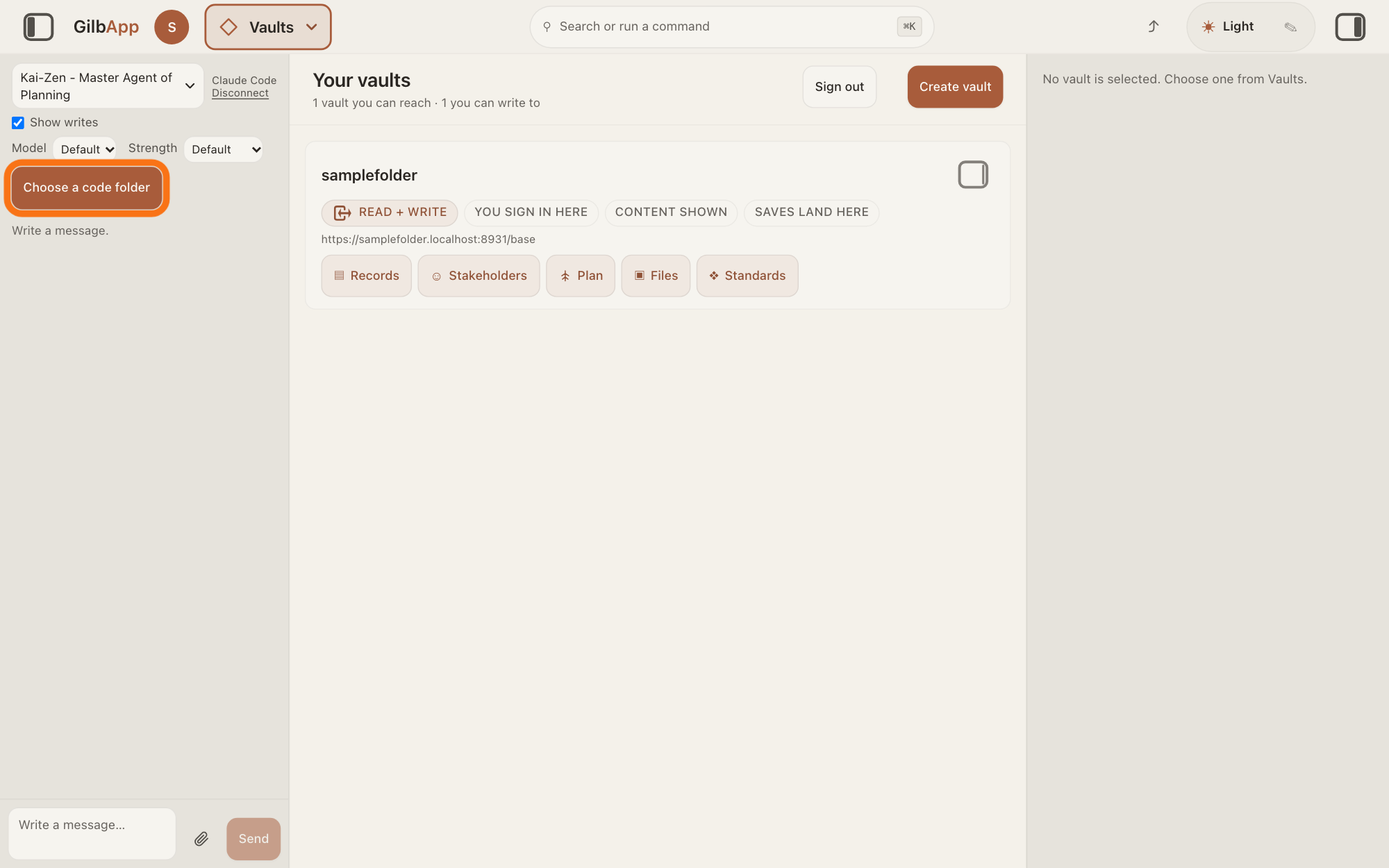
Press Choose a code folder at the top of the chat.
At the top of the chat, under Disconnect and Model and Strength, press Choose a code folder. A small menu opens with Make ~/MyJackfruitCode, Choose a folder… and Close.
Show as text
On the left, the chat shows the agent list and "Disconnect" at its top. Right under them, the button "Choose a code folder" is outlined in orange. Press it to open the folder menu.
More about this
A code folder is the folder on your computer where your app's code is kept. The button shows only while Claude Code, Anthropic's AI, is connected and no folder is chosen. If the chat already shows Code in and a folder's name, go to step 3. If there is no button and the chat says Your Claude Code bridge is out of date. (the bridge is the small program on your computer that links GilbApp's chat to Claude Code), press Copy there, paste the line in Terminal, the window where you type commands (PowerShell on Windows), press Return, and send a message again.
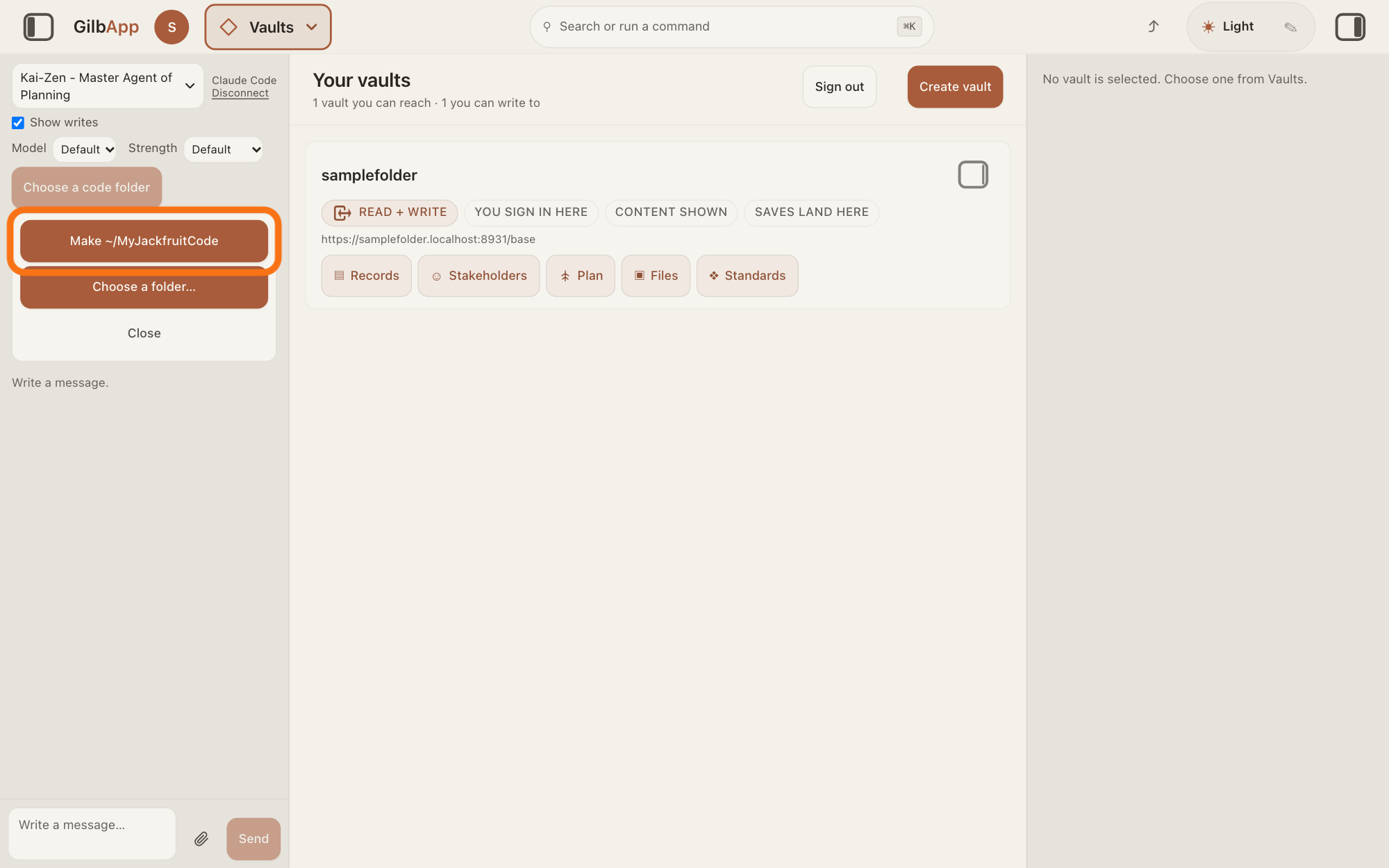
Press Make ~/MyJackfruitCode.
Press Make ~/MyJackfruitCode. It makes a new, empty folder named MyJackfruitCode in your home folder, the folder with your user name, and chooses it.
Show as text
At the top of the chat, a small menu shows three buttons. The first, "Make ~/MyJackfruitCode", is outlined in orange; press it to make the folder. "Choose a folder…" under it picks a folder of your own, and "Close" closes the menu.
More about this
To use a folder of your own, press Choose a folder… instead: your computer's own folder window opens to pick or make one, and the chat says A folder dialog opened on your computer. Pick or make a folder there. The folder must be inside your home folder, not the home folder itself, nor a folder for keys or settings such as .ssh; otherwise the chat says why. If MyJackfruitCode has files already, the chat says "The folder ~/MyJackfruitCode already has files. Choose it with the folder dialog instead." Close closes the menu. On Linux the folder window needs zenity, a small program that shows folder windows; without it, Choose a folder… gives an error, so press Make ~/MyJackfruitCode instead.
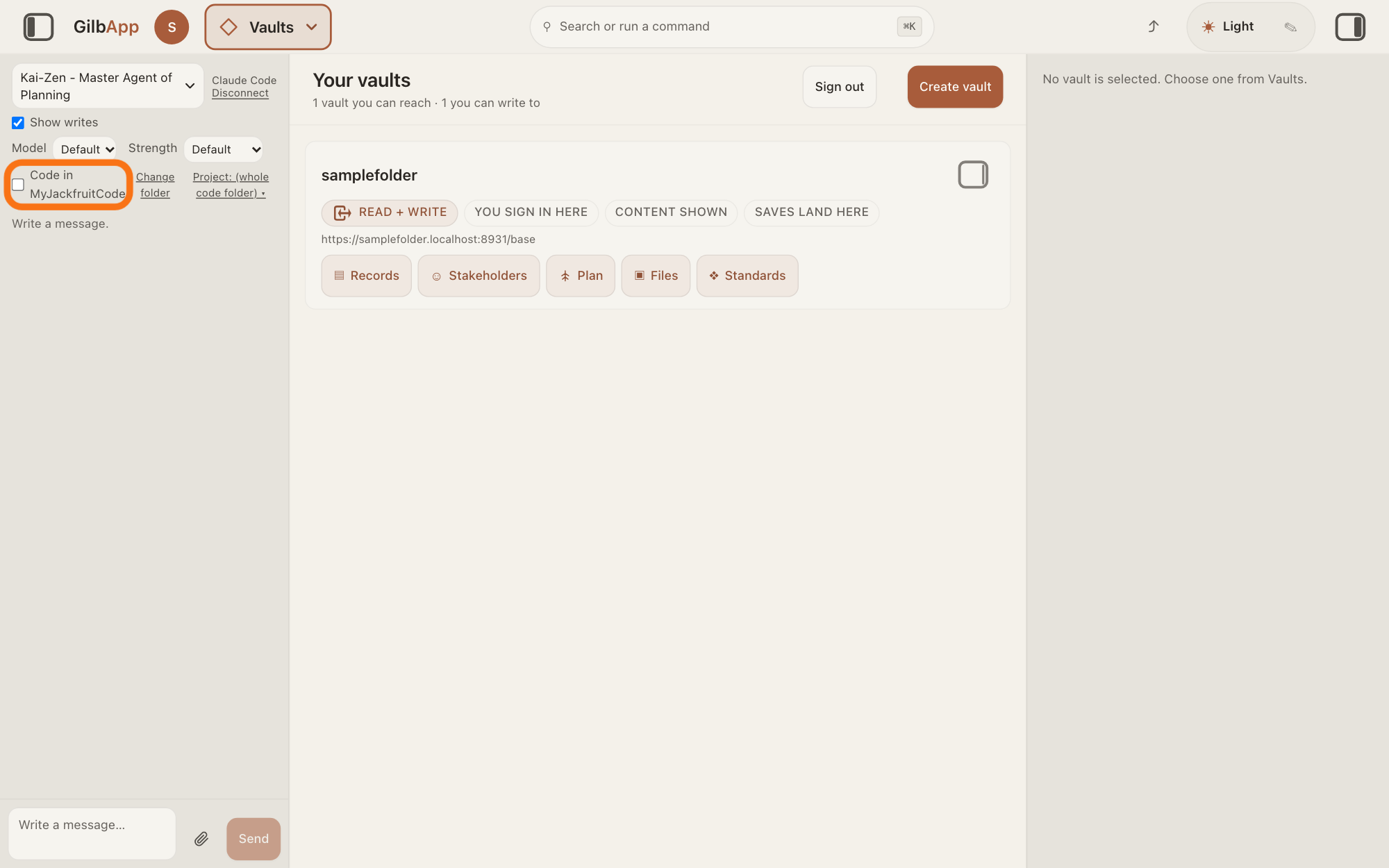
Switch on Code in MyJackfruitCode.
The switch Code in with your folder's name now shows at the top of the chat, off. Switch it on, so your messages work in that folder.
Show as text
At the top of the chat, where the button was, the switch "Code in MyJackfruitCode", a small box with its label, is outlined in orange; it is off (empty box). Click it to switch it on. "Change folder" beside it is not needed.
More about this
It stays on in this browser tab only; in another tab, switch it on again. Off, the chat answers as before, without the folder. Once it is on, Opus hands coding to Sonnet shows above it; it is not needed now. Change folder beside it opens the same menu to choose another folder; it and Project: are not needed now. On Windows without WSL2, a part of Windows that runs Linux programs, the switch adds (files only): there your AI can read and write files in the folder but cannot install, build or run, and is told to give you the command to run yourself.
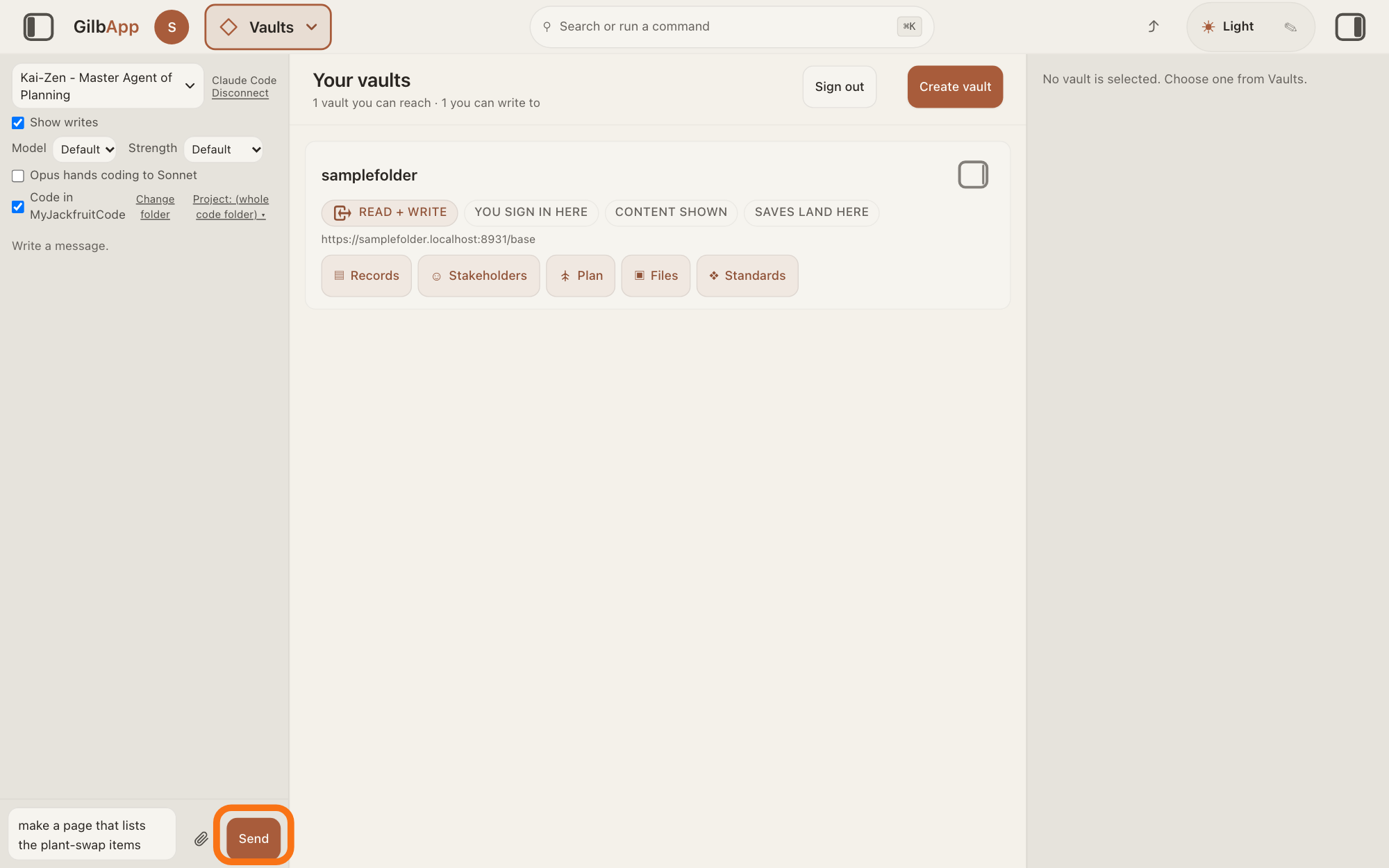
Type what to build in Write a message… and press Send.
Type, in your own words, what your AI should build or change, such as: make a page that lists the plant-swap items. Press Send, to the right of the box.
Show as text
At the top of the chat the switch "Code in MyJackfruitCode" is on. At the foot of the chat, your message is typed in the box, and the button "Send" to its right is outlined in orange. Press it.
More about this
The first time in this tab, nothing is sent yet: the chat first asks for your approval, in the next step. Your message goes to the agent you chose in the list at the top of the chat (an agent is your AI following one written procedure for one kind of work), such as Kai-Zen, the planning agent, and your own Claude Code does the work on your computer, on your own Claude subscription.
Press Approve on the card that asks for your approval.
The card asks Let this AI read, change and run commands in MyJackfruitCode for this session?, with the folder's full place on your computer under it. Press Approve to let it work in the folder until you close this tab.
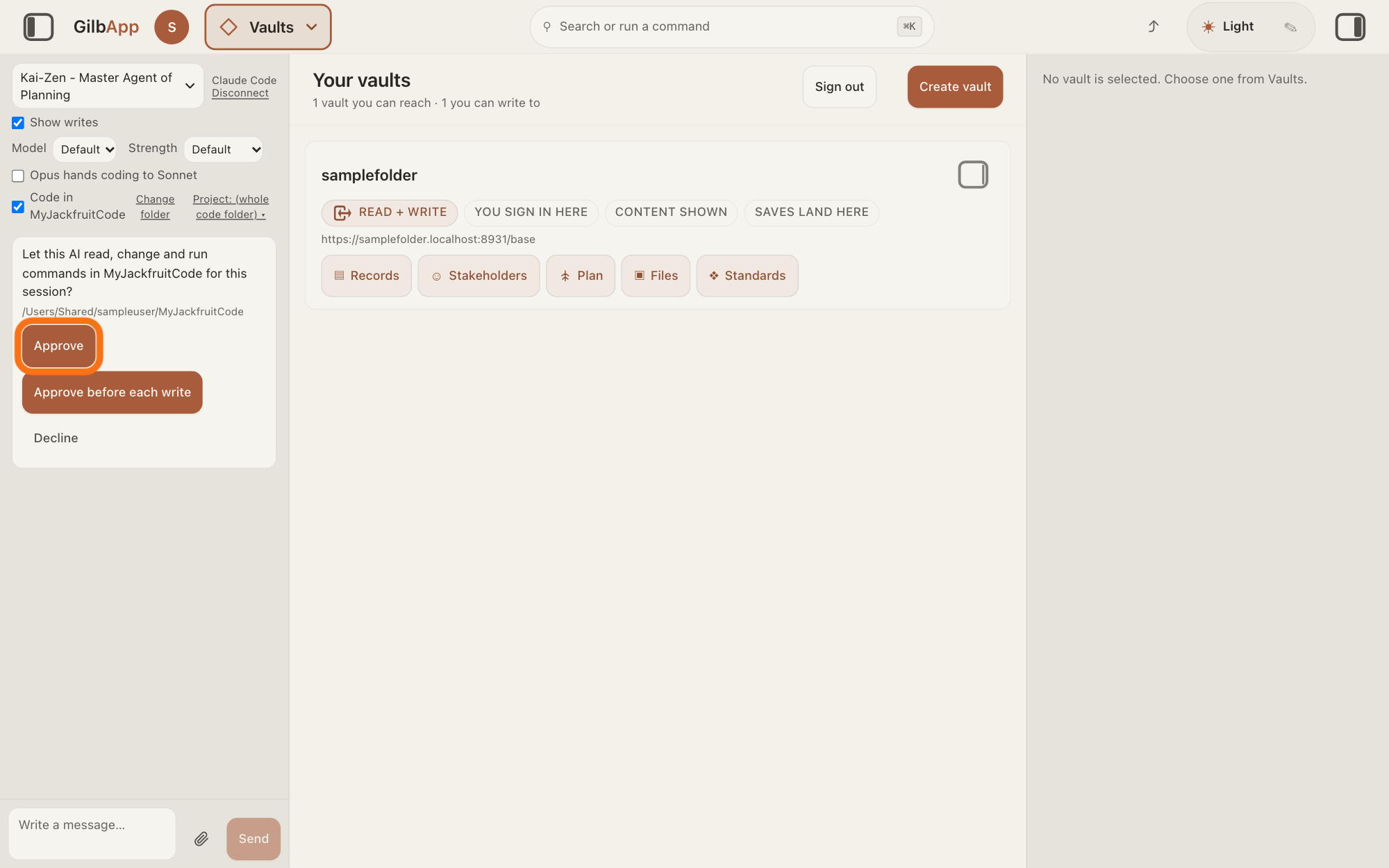
Show as text
In the conversation, a card asks whether this AI may read, change and run commands in MyJackfruitCode for this session, with the folder's place on your computer under the question. Its first button, "Approve", is outlined in orange; press it. "Approve before each write" and "Decline" sit beside it.
More about this
Approve before each write asks you first for each file it writes and each command it runs (Allow this AI to write and the file, or Allow this AI to run this command?), with Allow and Decline; reading files in the folder is not asked. No answer in 10 minutes counts as no. Decline on the card switches Code in off and sends your message as an ordinary chat message. A new tab or another folder asks again, and so does your next message after you press Change beside the switch.
Open Files under the line Changed in.
When your AI is done, under its answer are the steps list, such as 4 steps, and the line Changed in with your folder's name, such as Changed in MyJackfruitCode: 3 added. Open Files under it to see each file: + added, ~ changed, − removed.
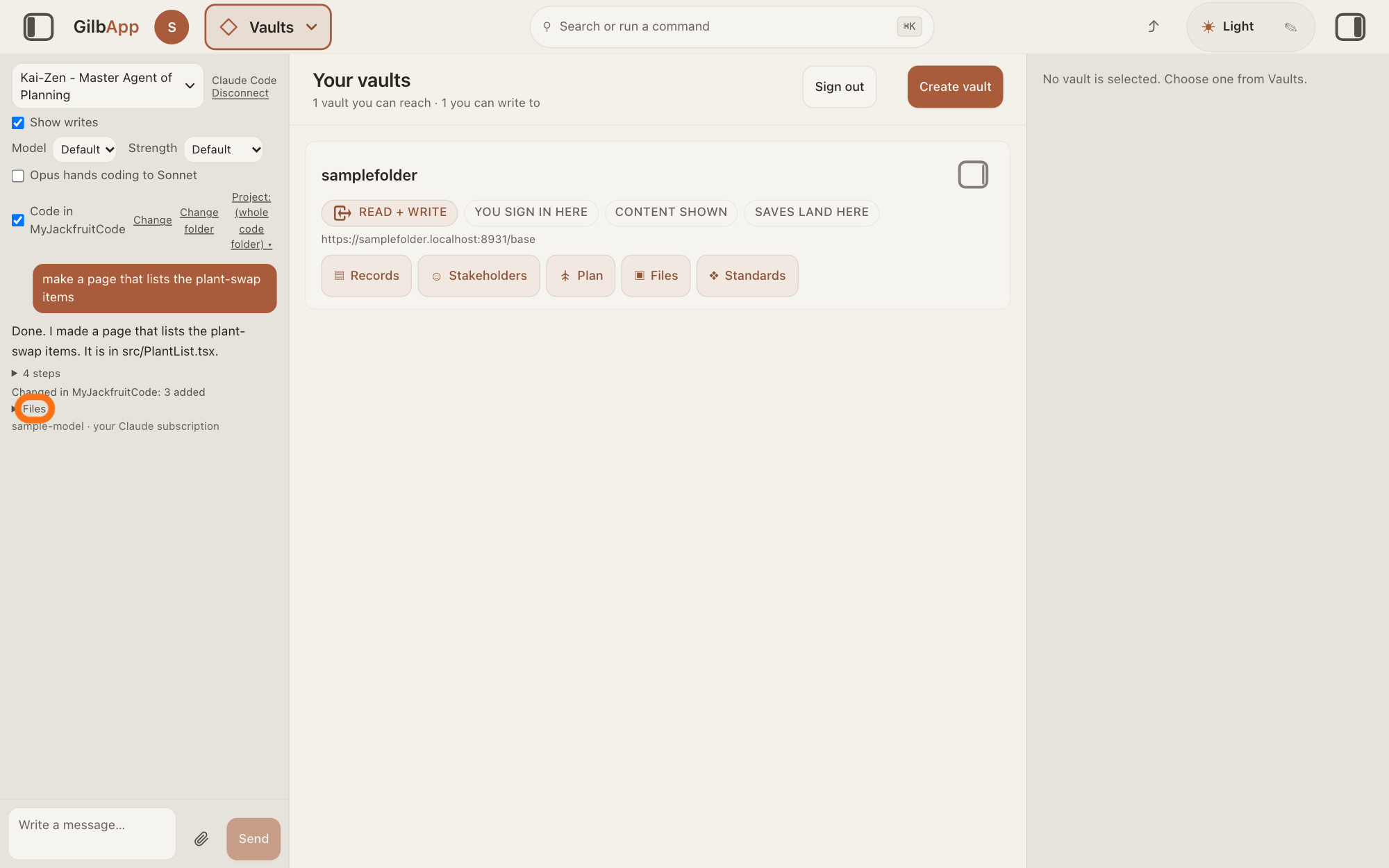
Show as text
Under your AI's answer, the small steps list and the line "Changed in MyJackfruitCode" count what it did. The fold "Files" under that line is outlined in orange. Click it to see each file it added, changed or removed.
More about this
While it works, a line that starts Working shows the time and its last act, such as Writing and a file; Stop under it stops the work. In the steps list, a line that starts Refused: is an act that was not allowed or failed, such as a write outside the folder. No files changed in and the folder's name means the answer changed no file. The answer on what changed shows the steps list in full. While it works, Send reads Queue. If a long job runs out of steps, the chat says "The turn ran out of tool rounds, so I am going on by myself (1 of 15). Press Stop to stop." and carries on up to 15 times; press Stop to end it after this turn, then send continue to go on.
Deeper
What it lets your AI do. With Code in switched on and your approval, your own Claude Code reads and changes the files in that folder and runs commands there, such as installing, building and starting your app. Its commands run in Claude Code's sandbox, a fence that holds them to what the bridge allows.
What it does not let it do. It cannot write outside the folder or open web pages, and it reaches the internet only to download code packages from npm, Yarn and PyPI, the public stores of code packages, and files from GitHub. It cannot read the places where your computer keeps keys and passwords, such as the .ssh folder, and keys set on your computer for programs are not passed to it. So a command that needs another address, such as sending your code to GitHub, a website where programmers keep code, does not work there; use Claude Code in Terminal for that. All this holds unless full computer access was turned on when the bridge was installed: then Code in adds (full computer access), the card says so, and the AI can use your whole computer, as in Terminal.
Who it works for. Only Claude Code, connected through the bridge, has a code folder. Grok in the chat does not build in a folder on your computer: the code folder is for Claude Code only. Codex, OpenAI's AI for writing code, is not connected to GilbApp's chat; you run it in a terminal.
Which computers. On a Mac and on Linux it works in full; on Linux the commands need Claude Code's sandbox to start, and if it cannot, the work stops and the chat says so. On Windows it works in full inside WSL2; without WSL2 it is files only, and the approval card adds "On this computer the AI can write files but cannot install, build or run. Set up WSL2 to lift this."
What is kept. Your files stay in your folder. GilbApp keeps the chat in this browser tab only, and only its last 32 messages and replies; a reload keeps each answer's steps and files, a closed tab loses them, but not the files in your folder.
The answer Where can I test what I've built, and try it myself before anyone else sees it? tells how to try what your AI built.
This answer is written for a computer screen.
Source: GilbApp d5296208 (https://gilb.com/app/version.json, read 15 November 2026): src/components/agent/AgentChat.tsx:1900-1906 (Choose a code folder, shown with Claude Code connected and no folder), :1907-1926 (Make ~/MyJackfruitCode, Choose a folder…, Close, A folder dialog opened on your computer. Pick or make a folder there.), :1787 and src/components/agent/ModelOptionsRow.tsx:26, :48 (Model, Strength), AgentChat.tsx:618-621 and :1800-1851 (the switch Code in and the folder's name, (files only), (full computer access), Change, Change folder, Project:), :193-215 (switch, approval and project kept in this browser tab), :1165 and :1541-1544 (Decline switches Code in off and sends a chat message), :1983 (Your Claude Code bridge is out of date.), :2072-2076 and src/components/agent/AgentWorkingIndicator.tsx:60-80 (Working, Stop), AgentChat.tsx:2104-2128 (tool rounds, 15 times), :2288, :2333 (Write a message…, Send/Queue), :136 (32 messages); src/components/agent/CodeFolderParts.tsx:35-58 (Writing, Running:, Refused:, Changed in, No files changed in), :60-110 (Let this AI read, change and run commands in … for this session?, the full-access card, "On this computer the AI can write files but cannot install, build or run. Set up WSL2 to lift this.", Approve, Approve before each write, Decline), :184-212 (Allow this AI to run this command?, Allow this AI to write …?, Allow), :222-247 (steps list, Files, +, ~, −). Claude Code bridge 0.3.6 (https://gilb.com/app/claude-code-bridge.mjs, read 15 November 2026): 10 minutes to answer a card, which folders are refused, the sandbox (no web pages; network only to the npm, Yarn and PyPI registries and GitHub downloads; secret places unreadable), files only on Windows, --full-access, The folder ~/<name> already has files. Choose it with the folder dialog instead.. Live answers, sentences shared: How do I see what changed, and who changed it?, Where can I test what I've built, and try it myself before anyone else sees it?, Does my computer have to stay on while my AI builds? (Grok, Codex), How do I connect my AI to GilbApp chat?, How do I chat with an agent in GilbApp? (Send).
Checked against GilbApp d529620.