
How do I make a folder and put records in it?
Short answer
In Records, press + New, choose Create a virtual folder, type a name, press Create, search and select records under Add item or nested folder.
Before you start
You need to be signed in to GilbApp on a computer, with a vault you can write to that holds the records you want in the folder. The pictures show a made-up person on a test site; your screen shows your own name and address.
Words used here (3)
- virtual folder
- A virtual folder is a view that groups records and files without moving them; each may sit in several folders.
- record
- A record is one piece of data with its own address, such as a person, a place, a thing or a note.
- GilbApp
- GilbApp is the app, opened in a web browser at https://gilb.com/app, where you open, fill and share your vaults.
Steps
Press Main menu at the top left and choose Records.
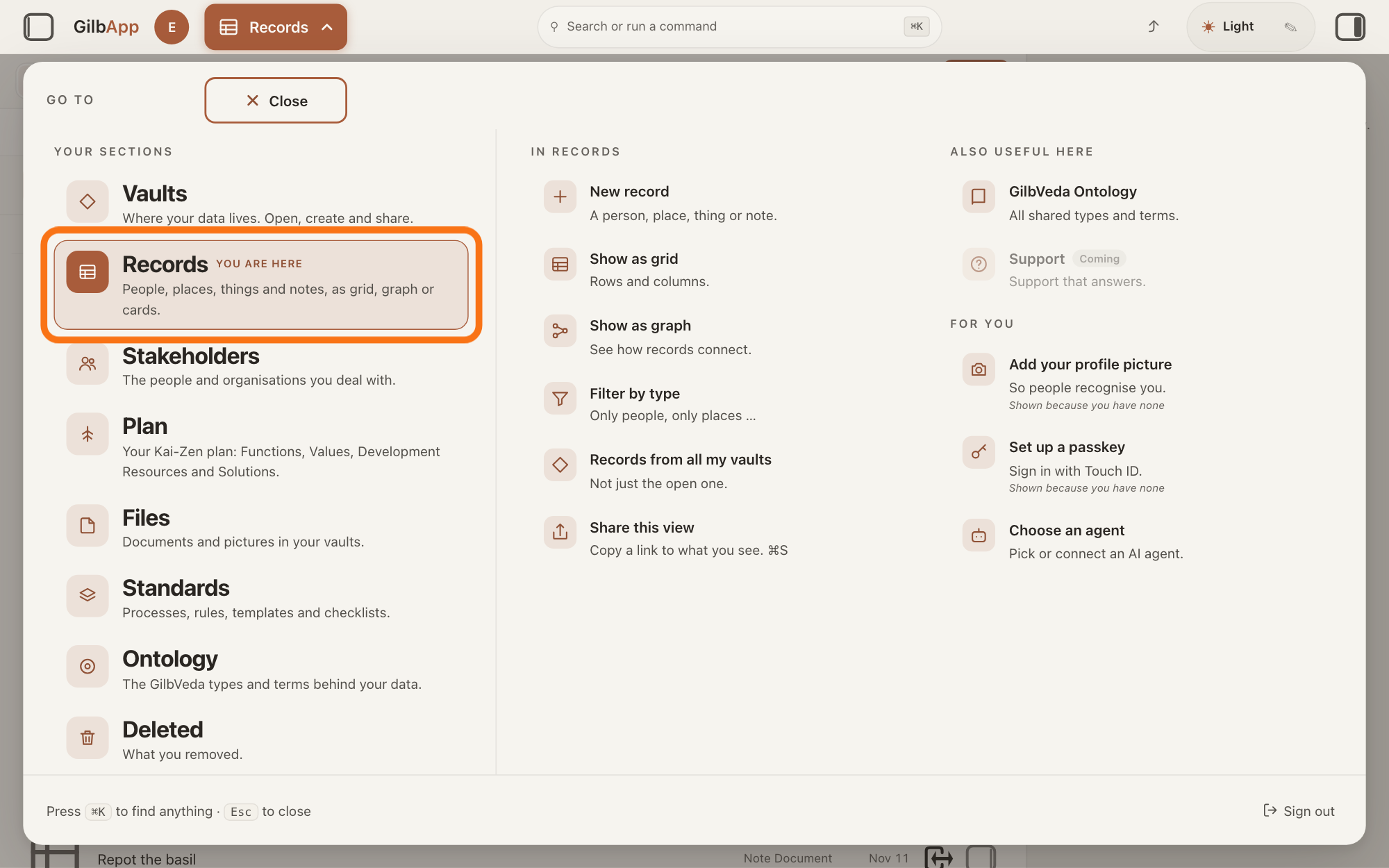
Press Main menu, next to your profile picture at the top left, and under YOUR SECTIONS choose Records. The button shows the name of the section you are in, such as Vaults.
Show as text
At the top left, the button with the section name is pressed and the panel headed "GO TO" covers the screen. In the left column under "YOUR SECTIONS", the outlined row reads "Records" with "People, places, things and notes, as grid, graph or cards." under it. It carries "YOU ARE HERE" because the Records screen is already open behind the panel. Click that row.
More about this
A panel headed GO TO opens; Records reads People, places, things and notes, as grid, graph or cards. A record is one piece of data with its own address, such as a person, a place, a thing or a note. Records shows the vault you picked in Vaults, or your own vault if you picked none; a vault is the place where a person or a group keeps their records. You can also press Records on a vault's card in Vaults. The folder is made in the vault Records shows, unless you choose another in step 4.
Press + New.
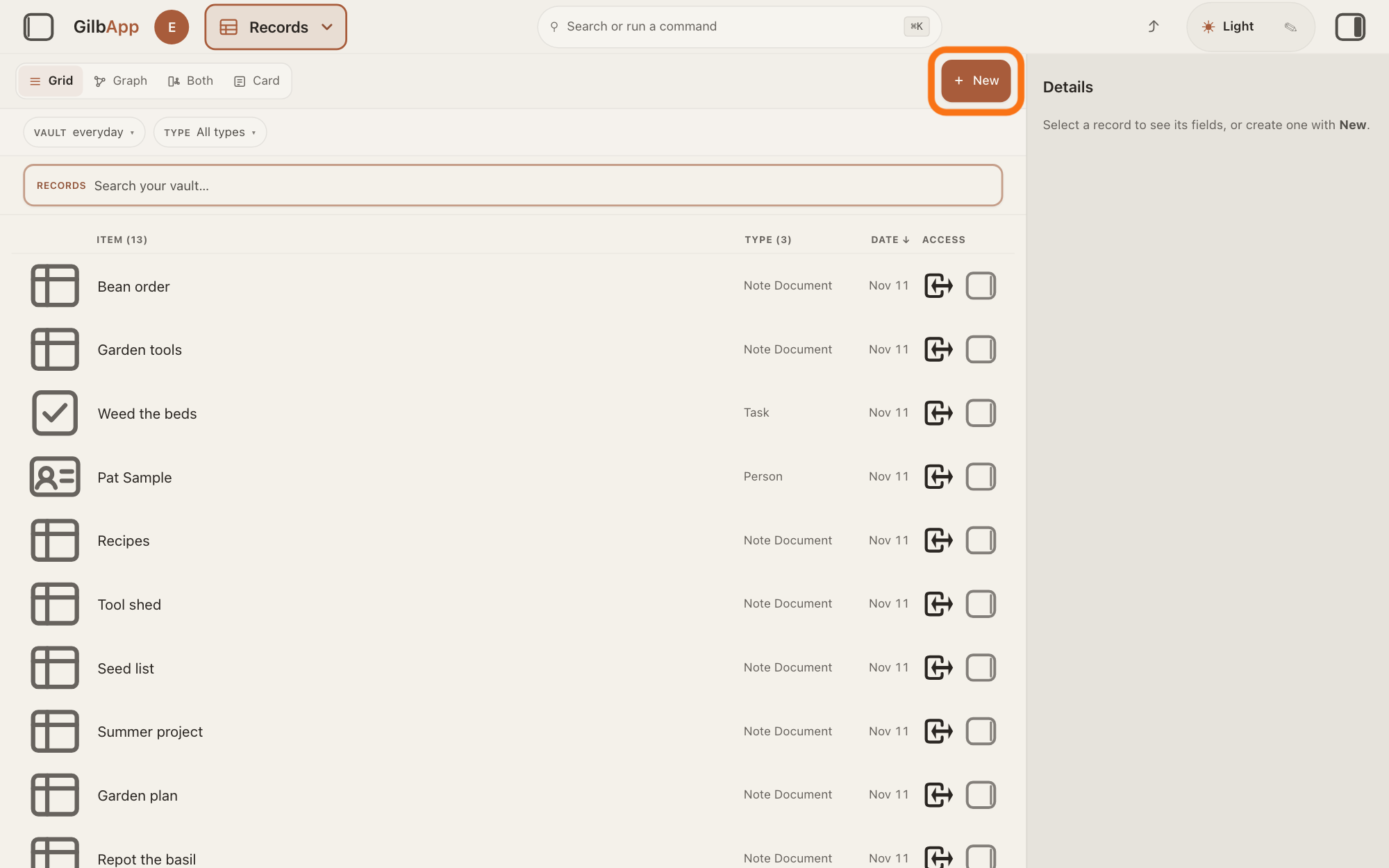
Press + New at the right end of the bar with the views Grid, Graph, Both and Card. A window headed New opens with five choices.
Show as text
The Records screen shows the list in "Grid", with nothing selected. At the top right of the middle, the outlined button reads "+ New". Click it.
More about this
If + New is greyed, hover on it for the reason; one reason is that the vault you are viewing is one you can only read. The GO TO panel also has New record (A person, place, thing or note.) under IN RECORDS; it opens the same window. Close at the top right, or a click outside the window, closes it and makes nothing.
Choose Create a virtual folder.
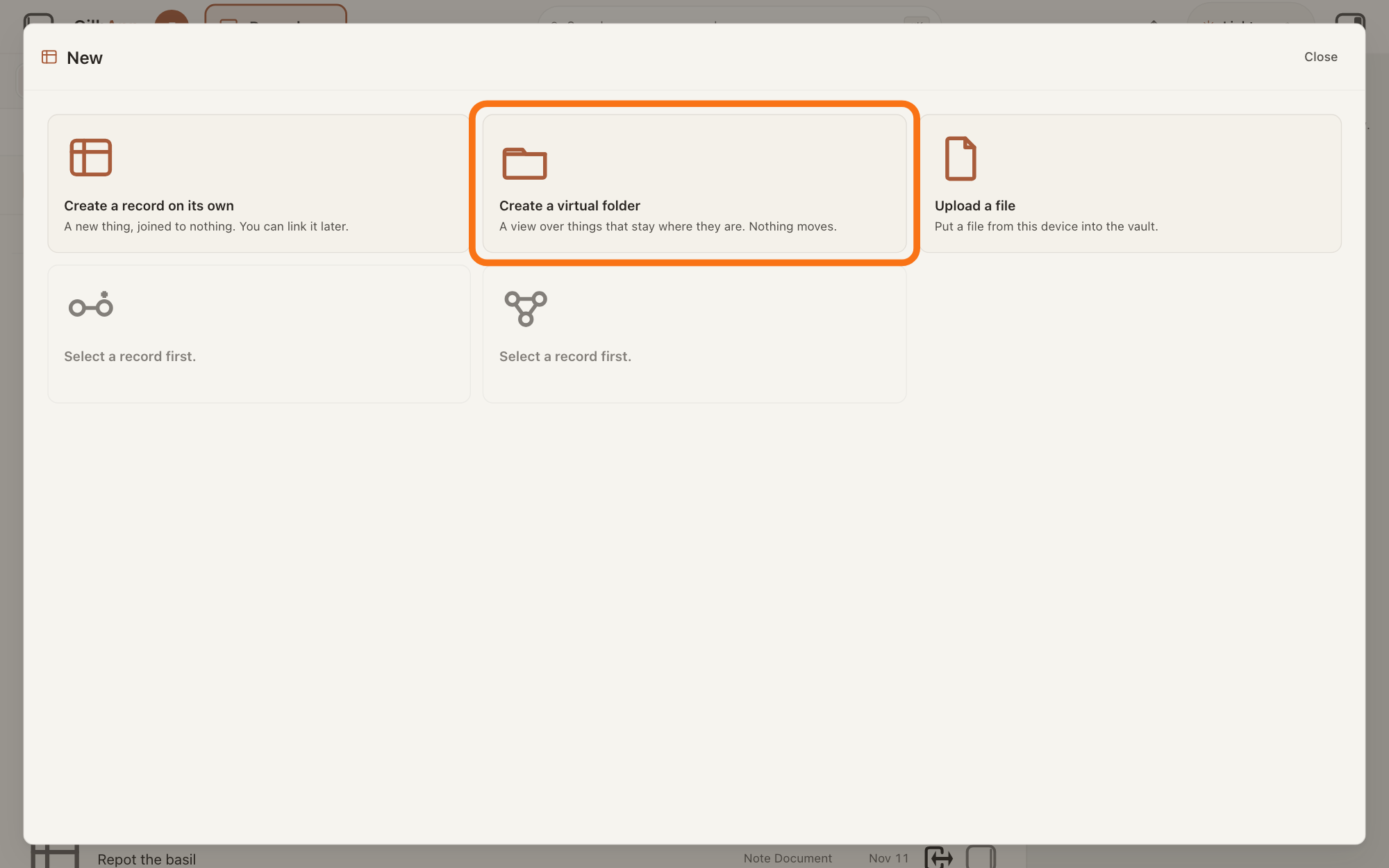
Choose the card Create a virtual folder: A view over things that stay where they are. Nothing moves. The window then asks for the folder's name, with the type Folder already chosen.
Show as text
A window headed "New" shows five cards. The outlined second card reads "Create a virtual folder" and "A view over things that stay where they are. Nothing moves." Click it.
More about this
A virtual folder is a view that groups records and files without moving them; each may sit in several folders. Create a record on its own makes a record joined to nothing, and Upload a file puts a file from your computer into the vault. The two cards that read Select a record first. link to a record you have selected; with one selected they read Create a record and link it to it and Link it to a record that already exists. You need none of them here.
Type a name in the box that shows Folder name.
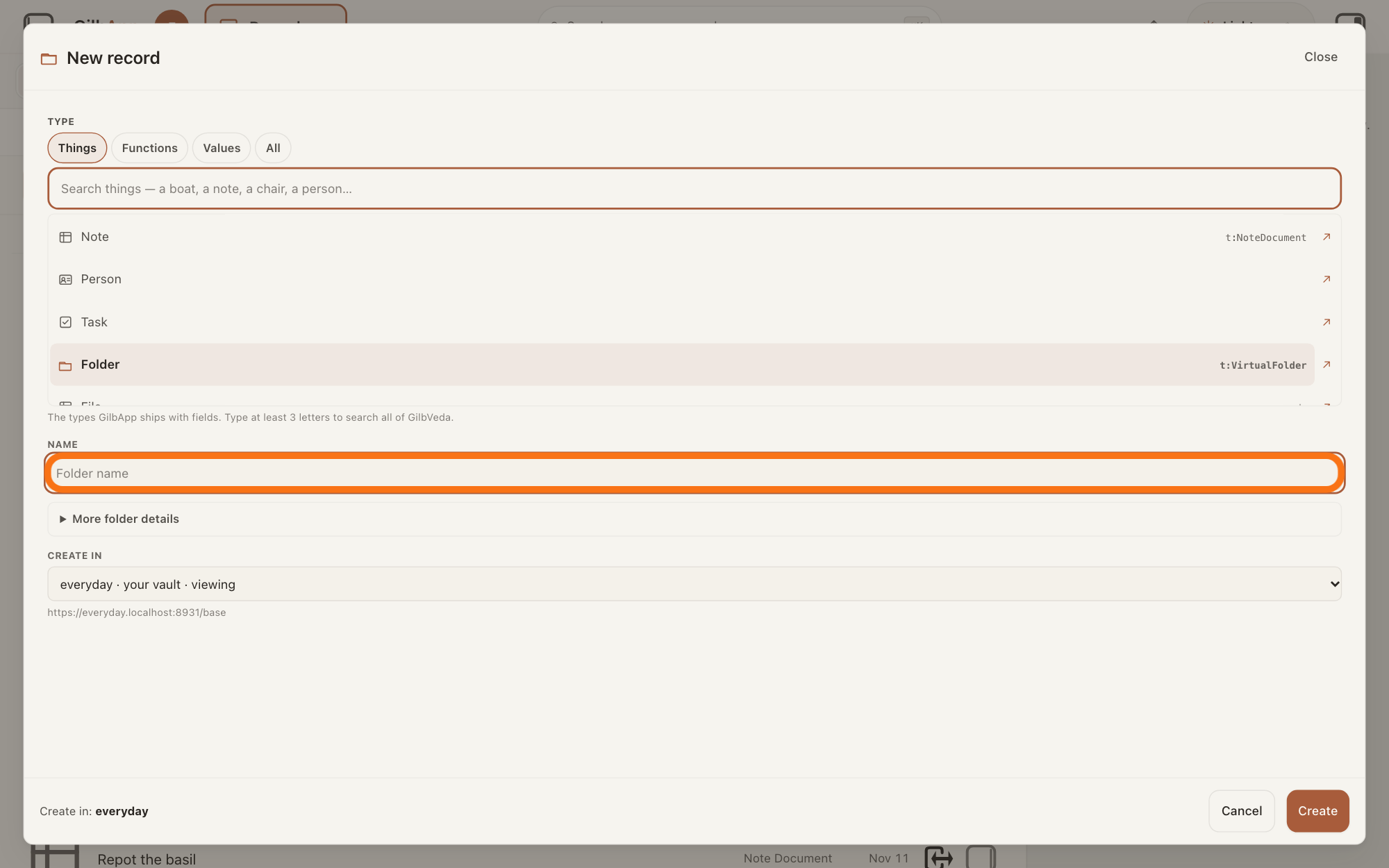
Under NAME, type a name for the folder in the box that shows Folder name, such as Garden plans. The window is now headed New record.
Show as text
The window is headed "New record" and "Folder" is chosen in the type list. Under "NAME", the outlined empty box shows "Folder name". Click it and type the folder's name.
More about this
Above it, TYPE shows Folder chosen, with t:VirtualFolder, its name in GilbVeda, the shared list of terms, beside it; leave it, or the record made is not a folder. The tabs Things, Functions, Values and All and the search box under TYPE pick another type, and ↗ shows a type's meaning; you do not need them. More folder details opens NOTES, a box that shows Optional — this is a view, not a box. Items stay in the flat list.; you do not need it. CREATE IN names the vault the folder is made in; if you can write to more than one vault, you can choose another there.
Press Create.
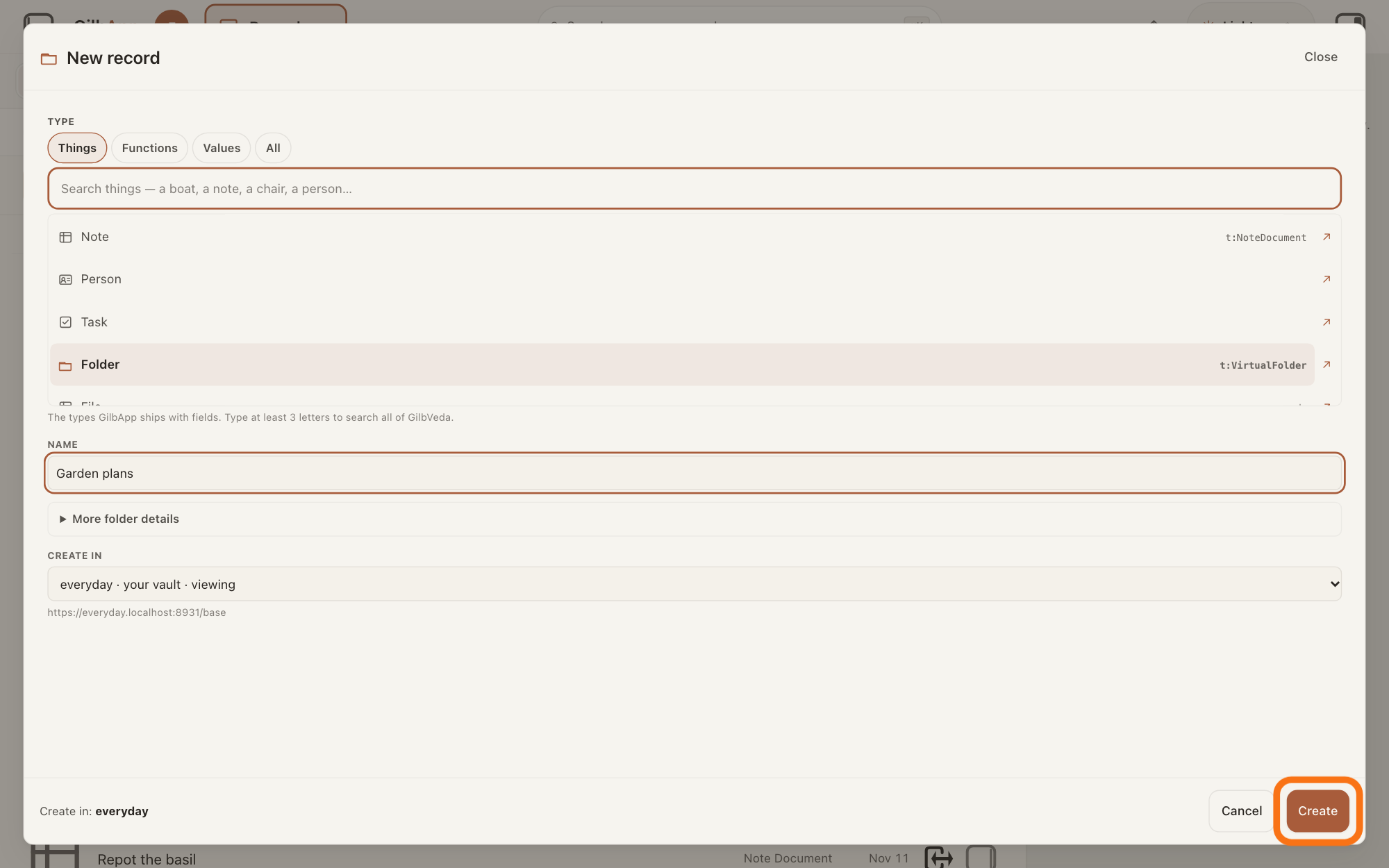
Press Create at the bottom right of the window. The window closes and the new folder opens in the middle of the screen, with its details in the right pane.
Show as text
The box under "NAME" now holds the name, here Garden plans. At the bottom right, beside "Cancel", the outlined button reads "Create". Click it.
More about this
The button reads Creating… while it works. Create in: beside it names the vault again. Cancel closes the window and makes nothing. The folder is a record of its own and shows in the list like any other record. If the right pane is hidden, press the square button at the far right of the top bar.
Search and select a record under Add item or nested folder.
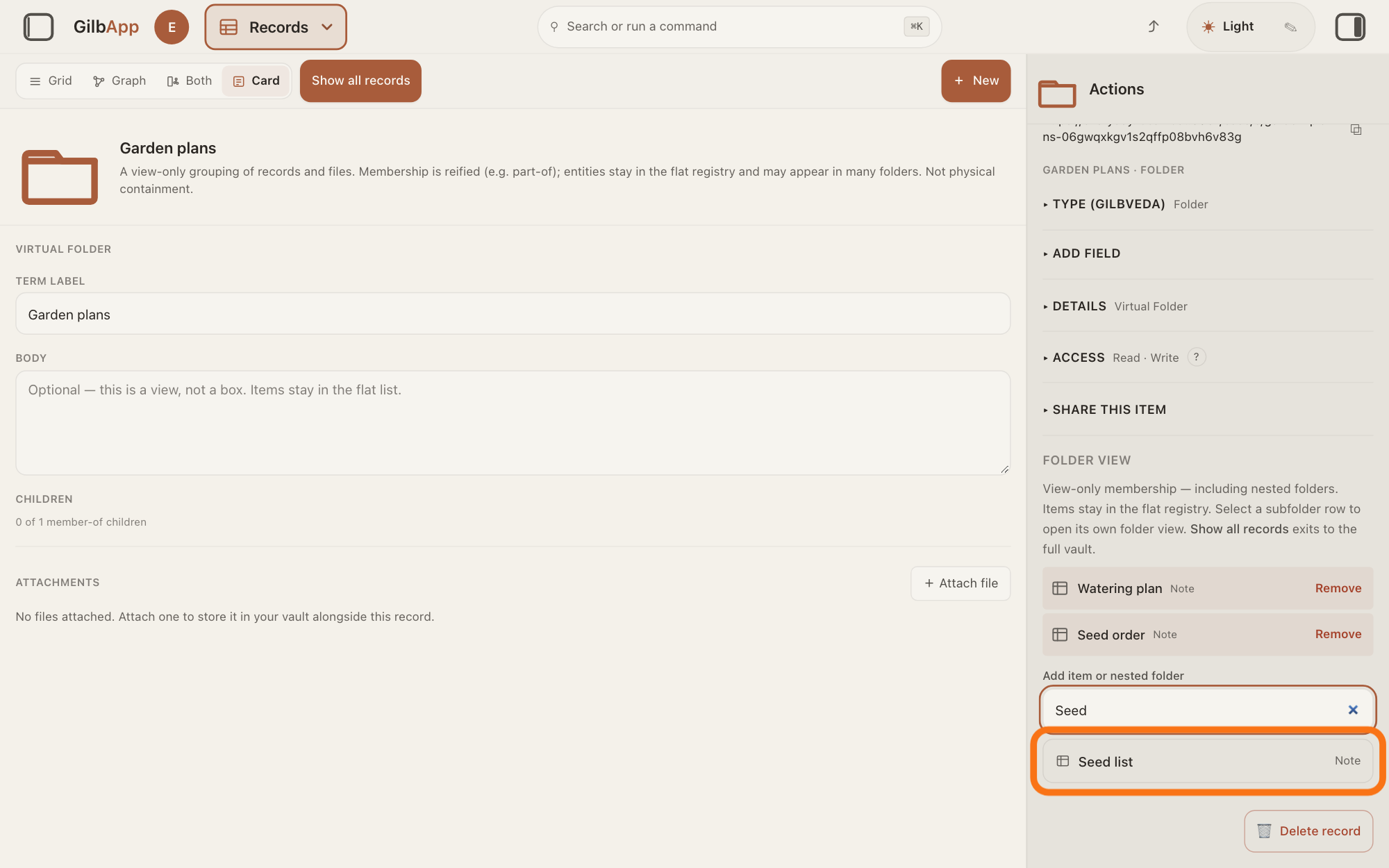
In the right pane, under FOLDER VIEW, type a word of a record's name in the box that shows Search this vault by name… and select the record in the list under it. GilbApp says Added to folder view (still in flat list).
Show as text
The folder is open in the middle. In the right pane, under "FOLDER VIEW", the records already in it are listed, each with "Remove". Under "Add item or nested folder", "Seed" is typed, and the outlined line below reads "Seed list" with "Note". Type part of a name and click the record to add it.
More about this
Repeat for each record. The folder's records are listed under FOLDER VIEW; each has Remove, which takes it out of this folder only (Removed from this folder (item still in the vault list).) and deletes nothing. The search also finds files, marked Registered file, and other folders, marked Nest folder, which then sit inside this one. From a record instead: open it and, in its right pane, open ▸ ADD TO FOLDER (shown once the vault has a folder), choose the folder under Choose folder… and press Add to folder view.
To see the folder in the list, press Show all records.
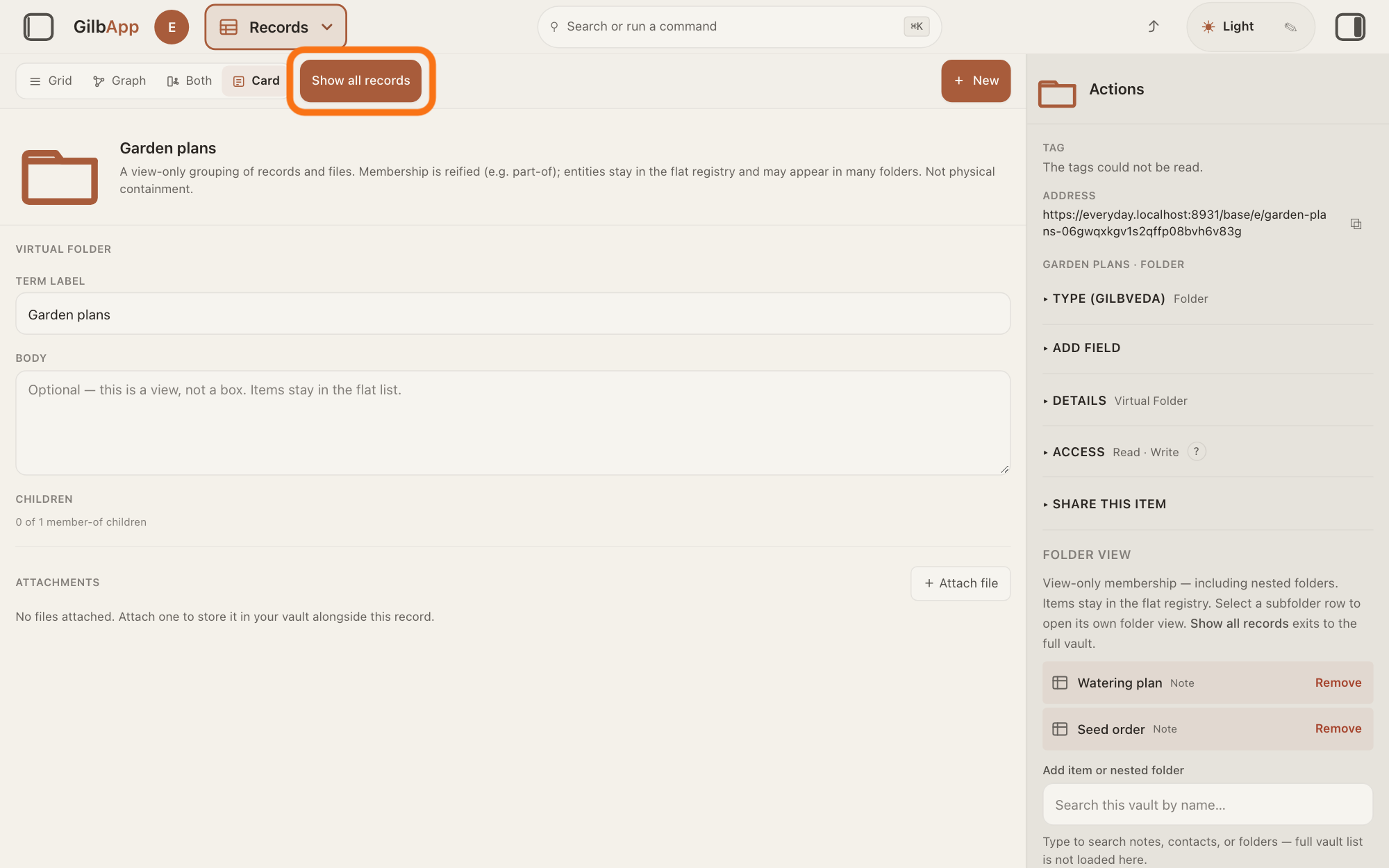
Press Show all records in the bar with the views, right of Card; its hover text is Return to the list and filters. The whole list of the vault shows again, in Grid.
Show as text
The folder is open in the middle, and in the right pane two records are listed under "FOLDER VIEW", each with "Remove". In the bar at the top left, right of "Card", the outlined button reads "Show all records". Click it.
More about this
You do not need this step to fill the folder: the right pane of step 6 already lists what the folder holds.
Choose the folder in the list.
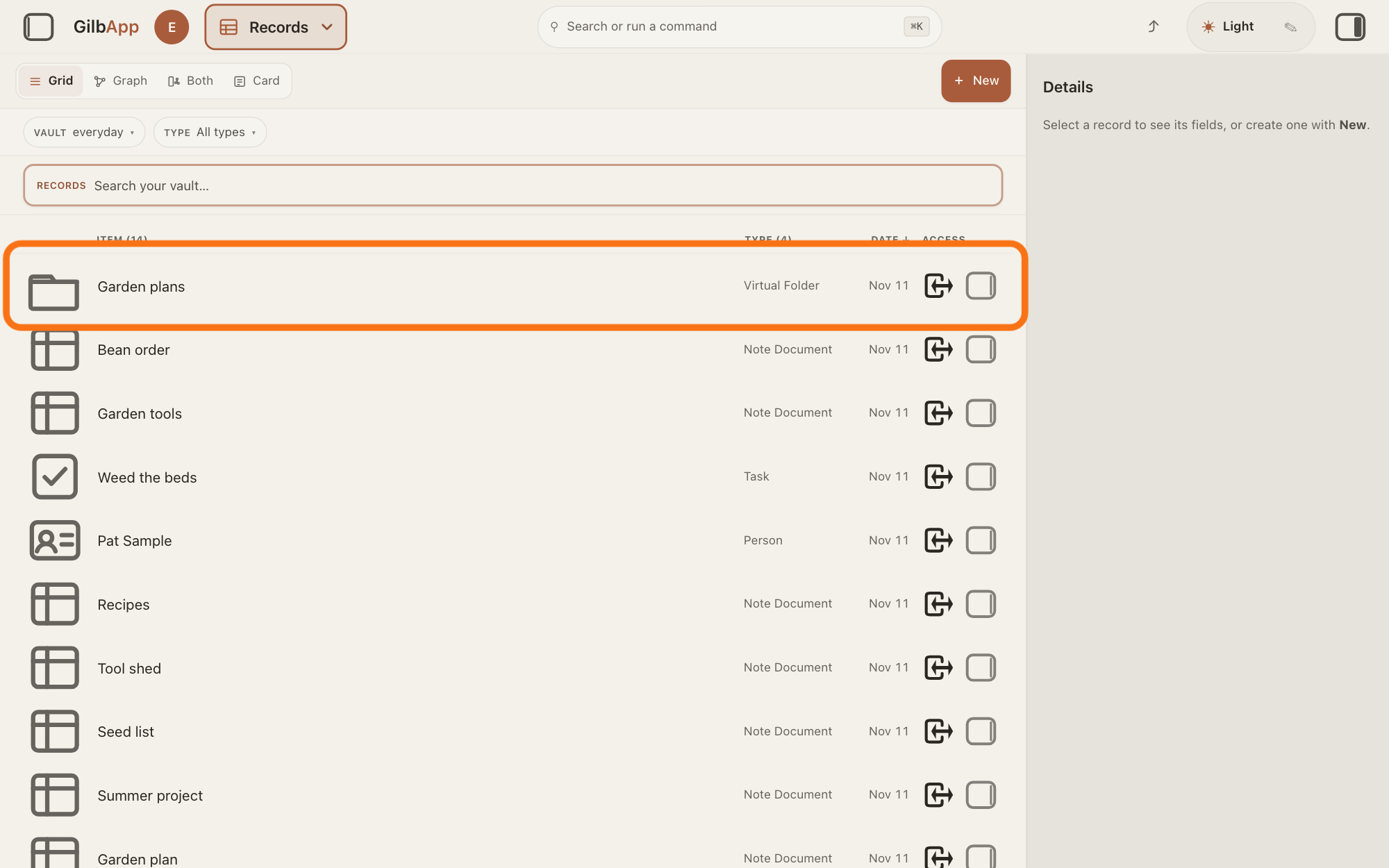
Click the folder's row in the list. The list then shows the folder at the top and the records in it under it.
Show as text
The Records screen shows the whole list in "Grid" with an empty search box. The first row, outlined, is the folder Garden plans, with "Virtual Folder" in the type column. Click it to open the folder.
More about this
A folder opens this way, not as a card: the list stays, and the right pane shows the folder with its records under FOLDER VIEW. With many records, find the row by sorting or filtering, as the answer on sorting and filtering the list explains. If you search for it instead, press ✕ in the search box after you select it, or the list keeps showing the search. With the folder selected, + New offers Create a record inside the folder and Upload a file into it. Show all records, whose hover text is now Leave folder view and show every record in this vault, leaves the folder.
Deeper
Also asked:
What is a virtual folder? A virtual folder is a view inside a vault that groups records and files without moving or copying them; one record may sit in several.
Can one record sit in two folders at once? Yes. A virtual folder moves nothing and copies nothing, so a record may sit in several folders at once and stays in the vault's list.
Can I put records into a folder without moving them? Yes, that is how folders work here: a virtual folder is a view that groups records and files without moving them. Taking a record out of a folder does not delete it.
What is the difference between a vault and a folder? A vault is the place where a person or a group keeps their records, and its access decides who may reach them. A folder is a view inside a vault that groups records without moving them; one record may sit in several.
How do I take a record out of a folder without deleting it? Open the folder, and in the right pane under FOLDER VIEW press Remove beside the record. It leaves this folder only and stays in the vault's list.
A virtual folder moves nothing and copies nothing. A record in it stays in the vault's list, keeps its address, and may sit in several folders at once. Taking it out of a folder does not delete it.
If the folder is public, readable by anyone, GilbApp makes whatever you put in it public too; taking it out of the folder does not make it private again. If something cannot be made public, GilbApp says The folder is public, but how many things in it could not be made public, and names them.
A folder can hold other folders, but not one that already holds it: GilbApp then says Can't nest that folder here — it already contains this folder (cycle).
A file that an app stored with a folder path of its own shows FOLDER PATH in its details, with "The file records this path itself. It is not a folder membership — this file will not appear inside that folder in the list." Put it in a folder as in step 6.
This answer is written for a computer screen.
Checked against GilbApp d529620.