
How do I make a vault public?
Short answer
Press Main menu, choose Vaults, press the vault card's panel button, open ▸ GRANT ACCESS, press Make public and then Yes, make public.
Before you start
You need to be signed in to GilbApp on a computer, with Control on the vault. The pictures show a made-up person on a test site; your screen shows your own name and address.
Words used here (3)
- GilbApp
- GilbApp is the app, opened in a web browser at https://gilb.com/app, where you open, fill and share your vaults.
- record
- A record is one piece of data with its own address, such as a person, a place, a thing or a note.
- AI vault
- An AI vault is a small vault that stands for your AI; your AI reaches only the vaults you grant it.
Steps
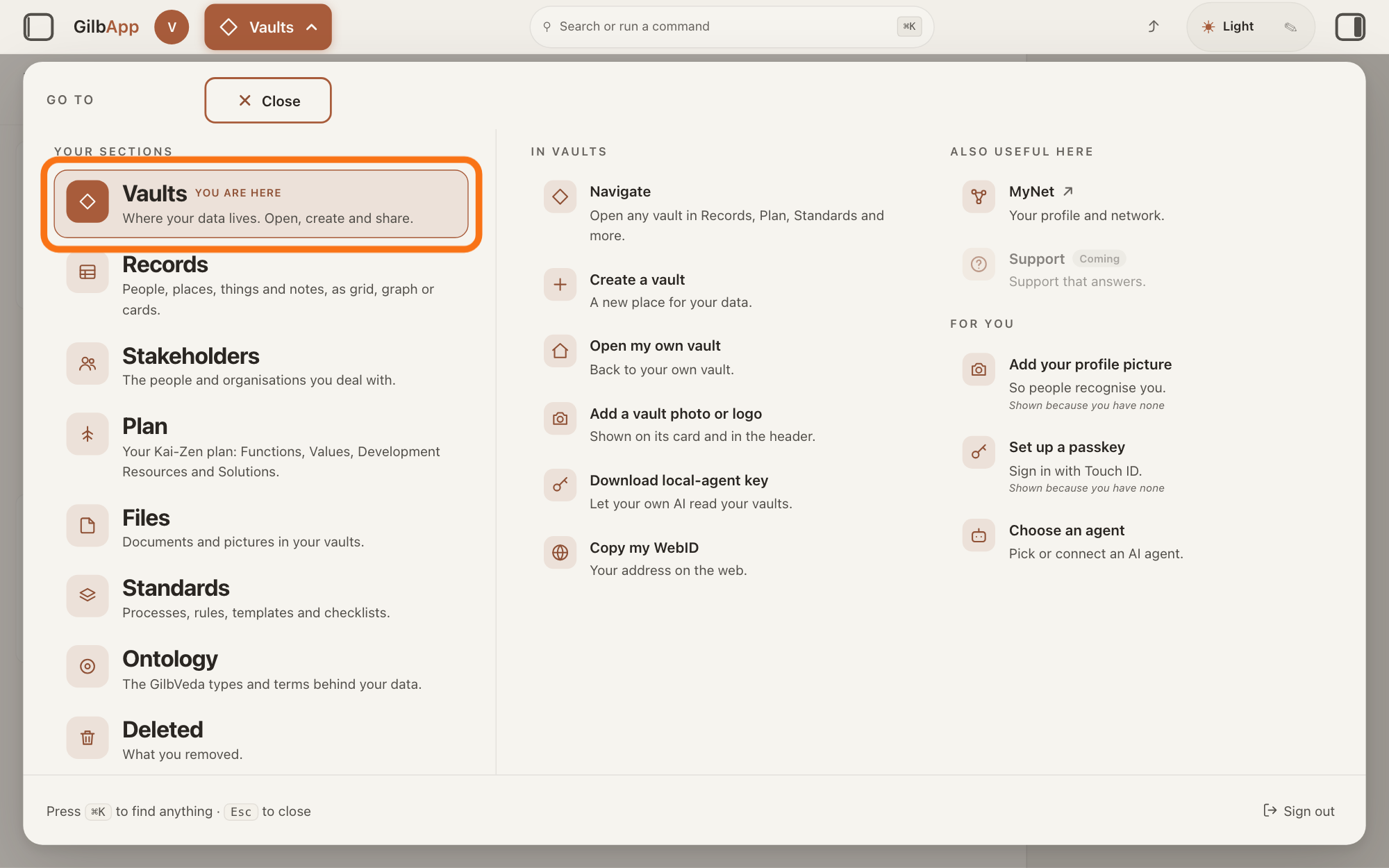
Press Main menu at the top left and choose Vaults.
Press Main menu, next to your profile picture at the top left, and under YOUR SECTIONS choose Vaults. The button shows the name of the section you are in, such as Vaults.
Show as text
At the top left, "Main menu" is open and the panel headed "GO TO" fills the window. In the left column under "YOUR SECTIONS", the outlined row "Vaults" reads "Where your data lives. Open, create and share." Click it.
More about this
Open GilbApp on a computer. A panel headed GO TO opens. A vault is where a person or a group keeps their records; the Vaults screen lists your vaults as cards.
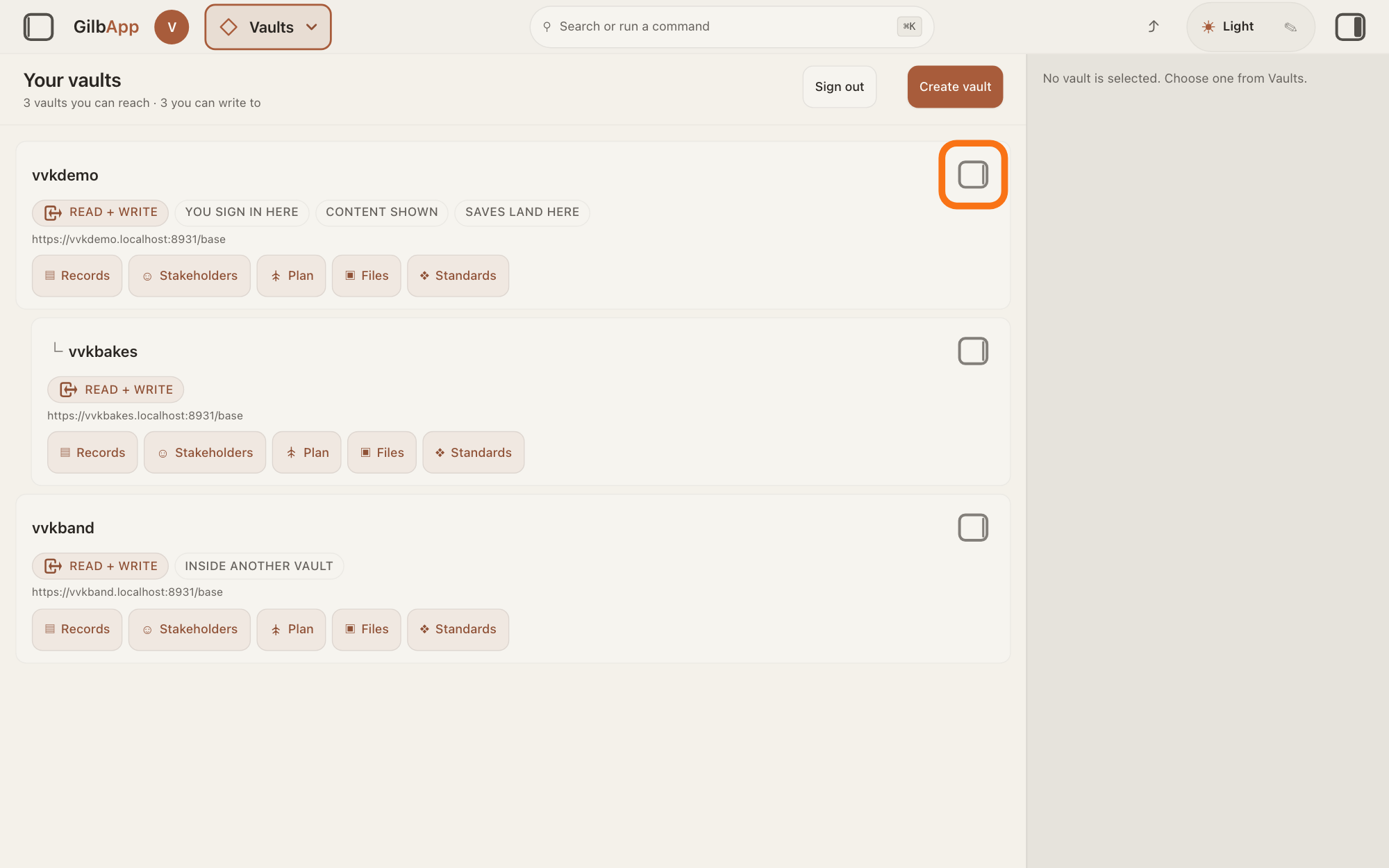
Press the panel button at the top right of the vault's card.
Press the small square button at the top right of the card of the vault you want to make public; its hover text is Show vault info. The pane on the right shows that vault's details.
Show as text
The "Your vaults" screen lists your vaults as cards, and the pane on the right reads "No vault is selected. Choose one from Vaults." At the top right of your own vault's card, the first card, the small square button is outlined. Click it to show that vault in the pane.
More about this
Clicking the card itself only selects it; on a computer it does not open the pane.
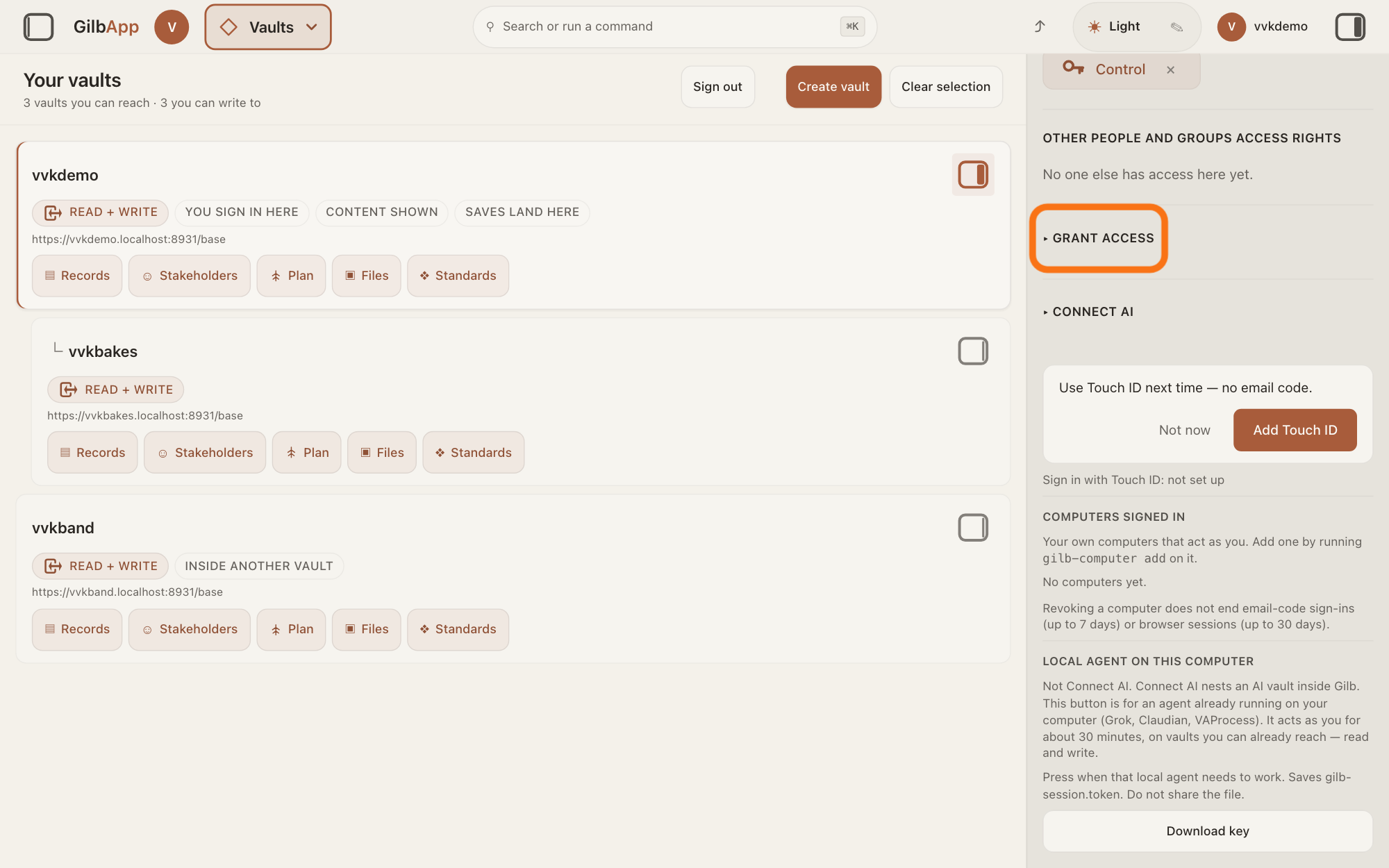
In that panel, scroll down and open ▸ GRANT ACCESS.
Below the vault's details find OTHER PEOPLE AND GROUPS ACCESS RIGHTS and open ▸ GRANT ACCESS. Its first part is PUBLIC, with a line of text and the button Make public.
Show as text
The pane on the right is scrolled to "OTHER PEOPLE AND GROUPS ACCESS RIGHTS", which reads "No one else has access here yet." Below it, the outlined fold reads "▸ GRANT ACCESS". Click it to open it.
More about this
Only someone who holds Control on the vault sees this part of the screen. If it is missing, you do not hold Control here; Control lets a person manage who else has access to a vault. While the vault is not public, the line starts This vault is not public on its own. The rest of ▸ GRANT ACCESS, from SHARE WITH down, gives access to one person or one vault, as the answer on sharing a vault with a person shows, and ▸ CONNECT AI further down is for your own AI; you do not need them here.
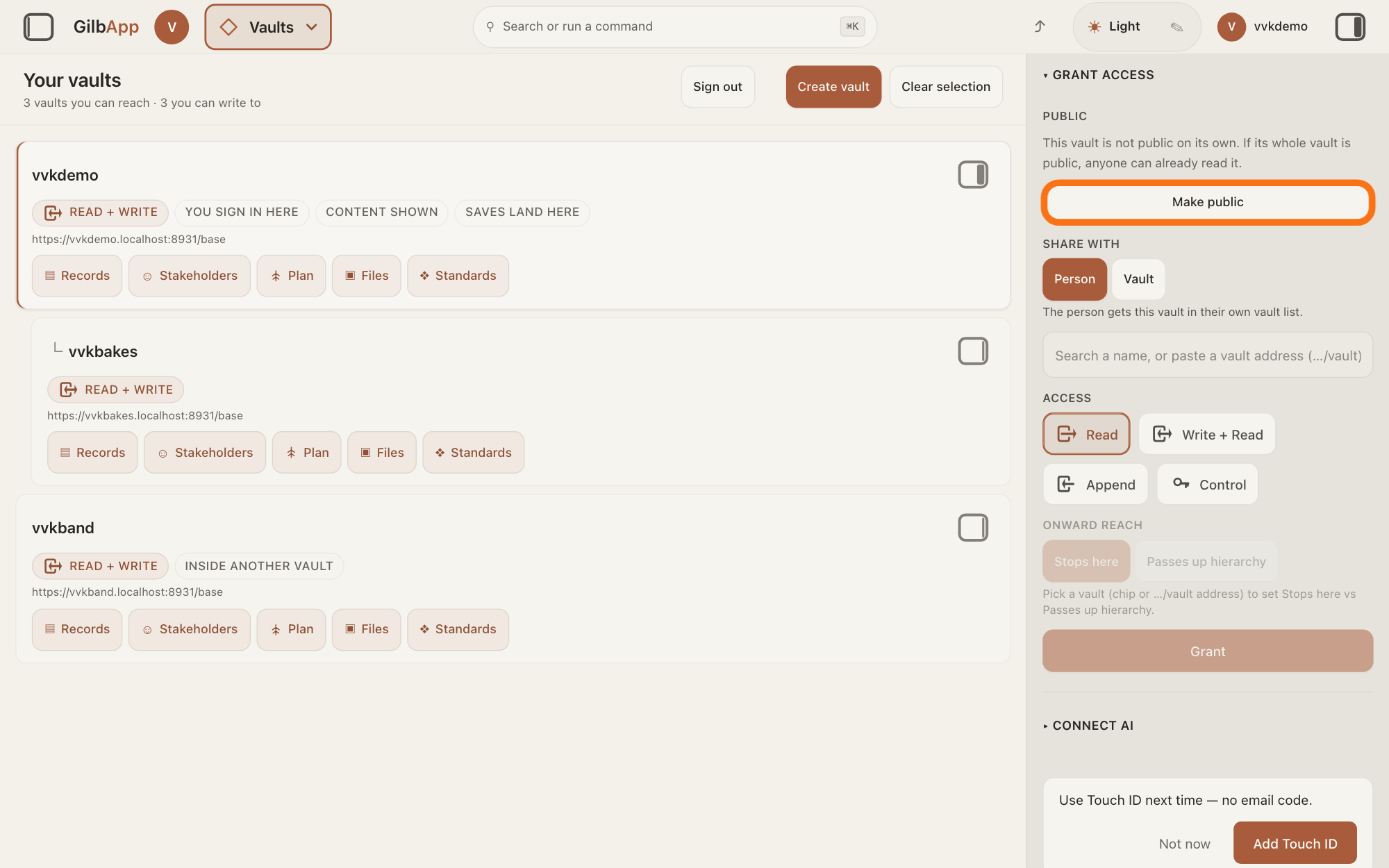
Press Make public.
Press Make public. Nothing changes yet: GilbApp first asks "Anyone on the internet will be able to read this vault and everything in it. Continue?"
Show as text
At the top of the pane, "▾ GRANT ACCESS" is open. Its first part, "PUBLIC", reads "This vault is not public on its own. If its whole vault is public, anyone can already read it." The outlined button below reads "Make public". Press it.
More about this
Cancel closes the question and changes nothing.
Press Yes, make public.
Press Yes, make public. It reads Working… while it works; then the pane loads again and the line reads Anyone can read this vault, signed in or not. Nobody can change it.
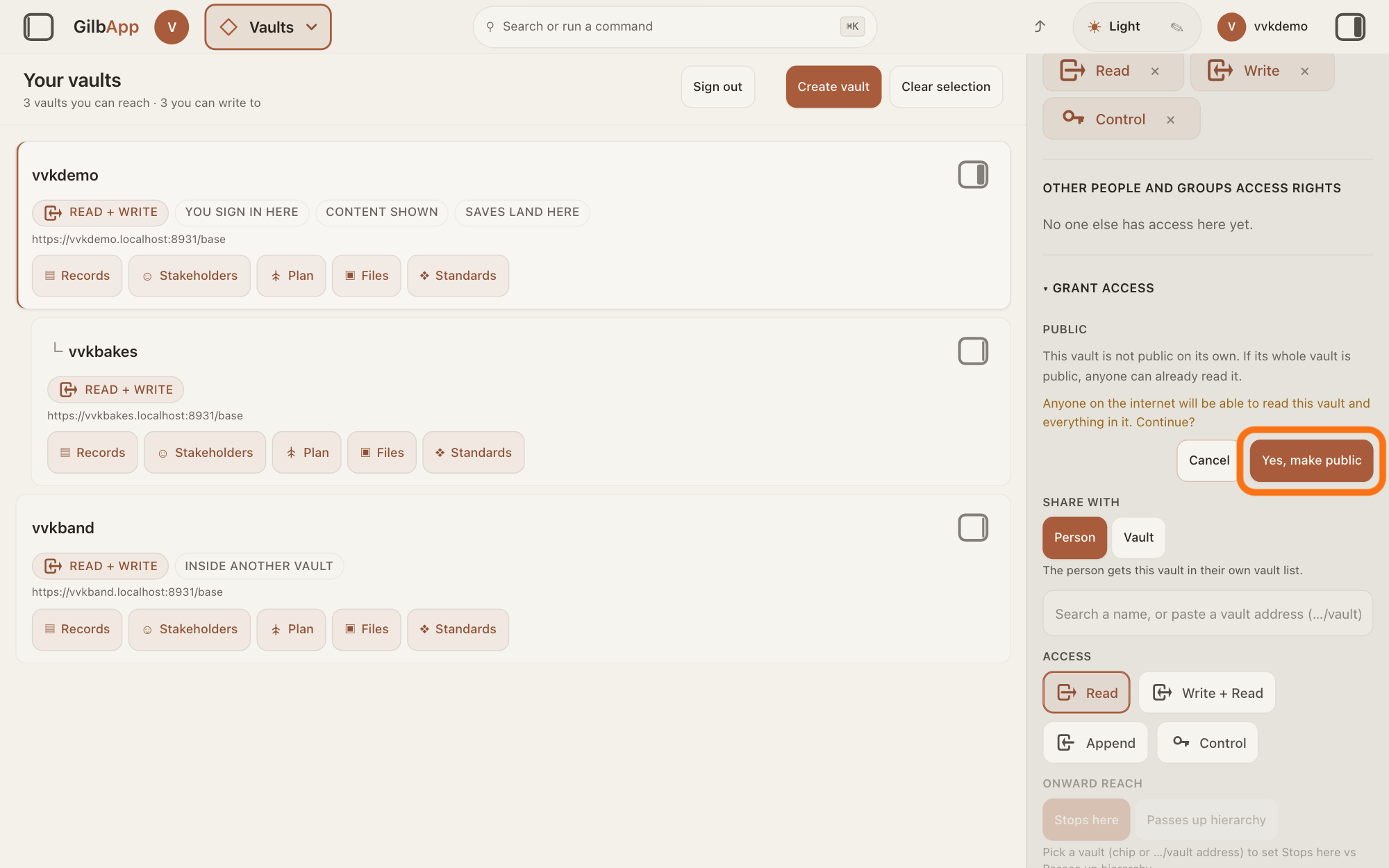
Show as text
Under "PUBLIC" in the pane, the question now reads "Anyone on the internet will be able to read this vault and everything in it. Continue?" Below it are "Cancel" and the outlined "Yes, make public". Press "Yes, make public" only if you are sure.
More about this
The list above the form gets a line Everyone (public). From then on anyone, signed in or not, can read the vault, except a record whose holder narrowed who may see it, such as a detail in MyNet, Gilb's app for your profile and network, set to Private; being public lets no one change it. If it fails, the reason shows under the button; without Control it is You don't hold Control on this vault, so you can't make it public or private. An AI vault cannot be made public. A line Everyone (public) means anyone can read the vault; its ×, or Make private under ▸ GRANT ACCESS, makes the vault private again.
Deeper
Also asked:
What does public mean for a vault? Anyone on the internet, signed in or not, can read the vault and everything in it, and nobody can change it. Being public is not the same as being findable by name.
Public is not the same as findable. Make public lets anyone read the vault; WHO CAN FIND THIS VAULT in the same pane only decides whether people can find it by name, and gives no one access. The answer on making a vault findable by name tells more.
GilbPlatform also puts a public vault on its public list of public vaults, which anyone can read; the list gives each vault's address and what it stands for. A deleted vault is left off it.
Vaults made inside a public vault are not made public with it; each vault is made public on its own.
Making the vault private again ends only its Everyone (public) line. A record or file made public on its own, under its ▸ SHARE THIS ITEM, stays public, and so does what a public folder made public; the answer on sharing one record shows where that is.
For an app: some things public, others private. Being public goes with a whole vault, or with one record or file made public on its own. So keep what everyone may see in a vault you make public, or make those records public one by one, and keep the rest in a vault that is not public. Each person who uses your app keeps their own things in their own vault, which is private unless they share it. The answer How do I share one record (not the whole vault)? shows where that control is.
On a phone or a window narrower than 840 pixels, choosing a vault card opens its details at once, in a sheet from the right. This answer is written for a computer screen.
Checked against GilbApp d529620.