
← Back to How do I set my name and picture?
How do I make myself findable by name?
Short answer
Press Main menu, choose MyNet, press your picture, press the badge by your first and last name, and choose who may find you.
Before you start
You need to be signed in to GilbApp on a computer. The pictures show a made-up person on a test site; your screen shows your own name and address.
Words used here (5)
- GilbApp
- GilbApp is the app, opened in a web browser at https://gilb.com/app, where you open, fill and share your vaults.
- sharing level
- A sharing level says who may see one thing you share in MyNet, from Public, for everyone, to Private, for you alone.
- GilbPlatform
- GilbPlatform is the service that keeps people's and organisations' data in vaults, each at its own web address.
- Circle
- A Circle label, such as Professional Inner Circle, says whether you know a contact personally or through work, and how closely; it grants no access.
- circle in MyNet
- A circle in MyNet is a group of people you placed, personal or professional, close or wider; it decides what of yours they see.
Steps
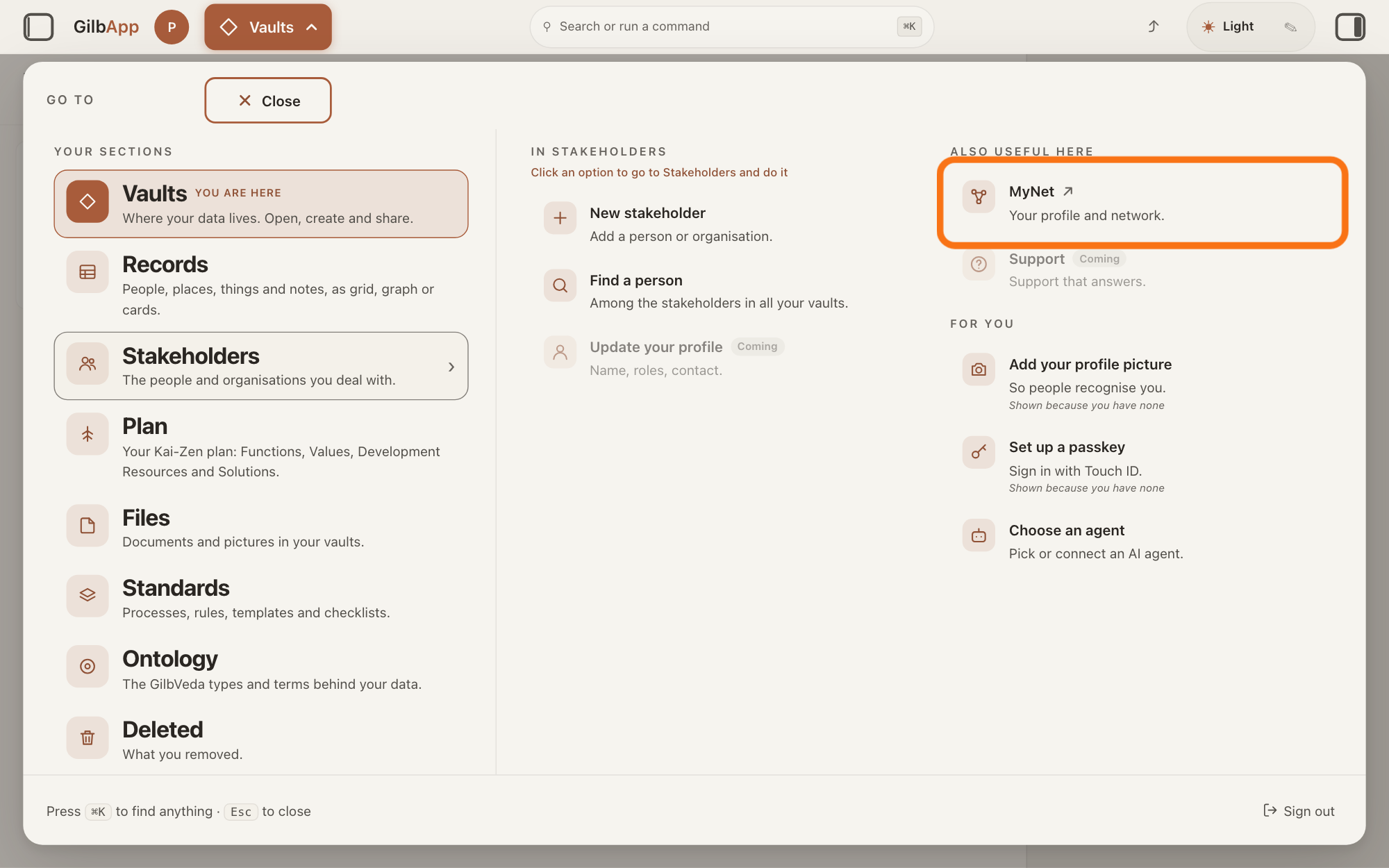
Press Main menu at the top left and choose MyNet.
Press Main menu, next to your profile picture at the top left, rest the pointer on Stakeholders and choose MyNet under ALSO USEFUL HERE. MyNet, Gilb's app for your profile and network, opens in a new tab.
Show as text
Press "Main menu" at the top left and rest the pointer on "Stakeholders". In the right-hand column "ALSO USEFUL HERE", press "MyNet ↗", "Your profile and network.", outlined in orange. MyNet opens in a new tab.
More about this
The button shows the name of the section you are in, such as Vaults. MyNet reads Your profile and network., and ↗ beside it means it opens in a new tab. MyNet may ask you to sign in first, with your e-mail address and a code, as GilbApp does. You can also type https://gilb.com/mynet in your browser's address bar. On your own card in Stakeholders, Edit in MyNet opens your profile at once.
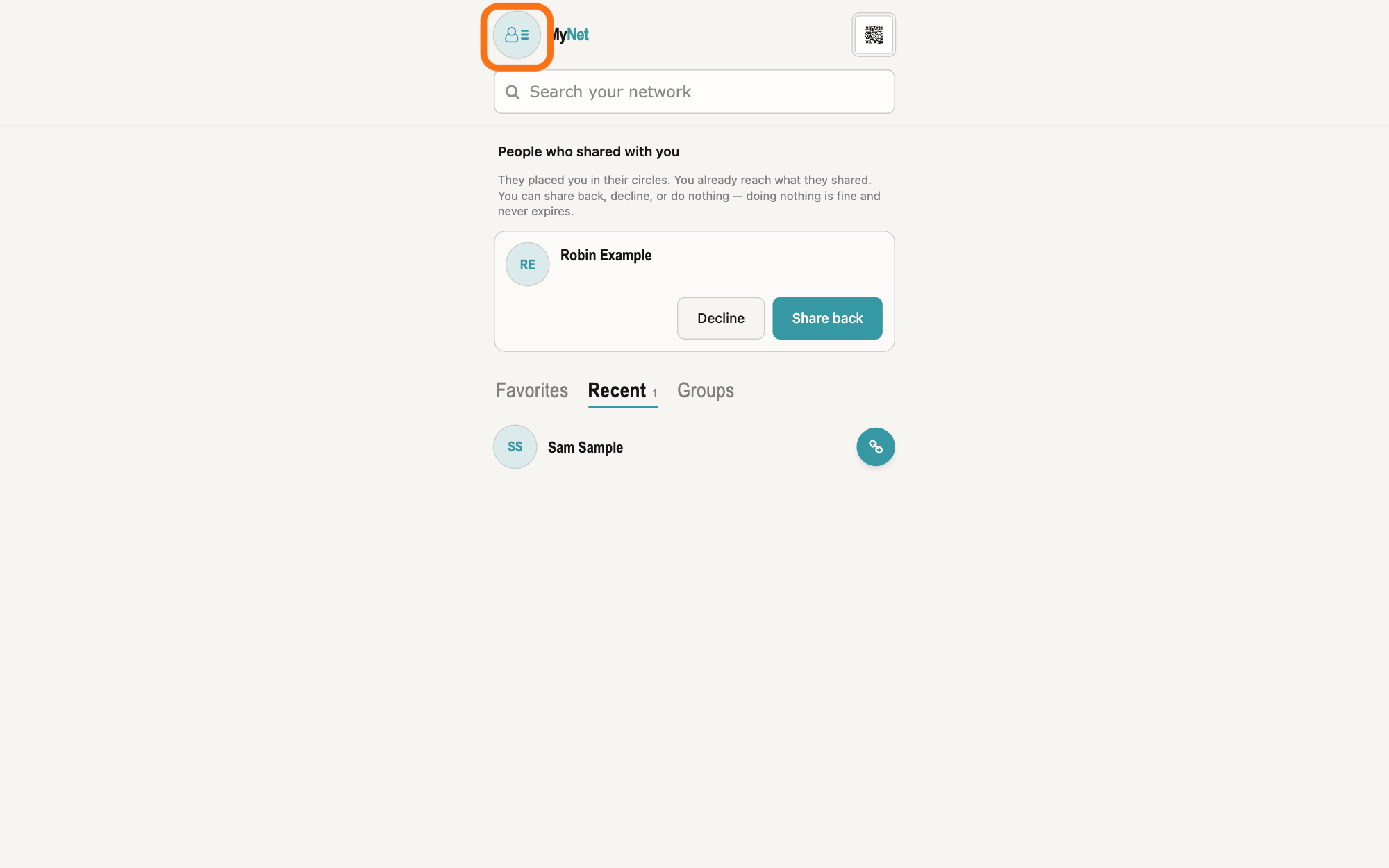
Press your picture at the top left to open your profile.
In MyNet, press your picture at the top left; its hover text is Open your profile. Your profile opens, with your details in cards headed First Name, Last Name and more.
Show as text
MyNet's home screen in its new tab. Your picture at the top left, left of the MyNet name, is outlined; resting the pointer on it shows "Open your profile". Press it to open your profile.
More about this
If there is no First Name card, press the plus sign at the top right and, in Select New Property under Name, choose First Name; then type your first name. To change a name, click it, type the new name and press Return; MyNet saves it when you press Return or click elsewhere, and Escape undoes the change. Edit beside the plus sign only adds a red round (−) at the left of each line, to remove it, and Save ends that; you need neither to change a name or to choose who may find you.
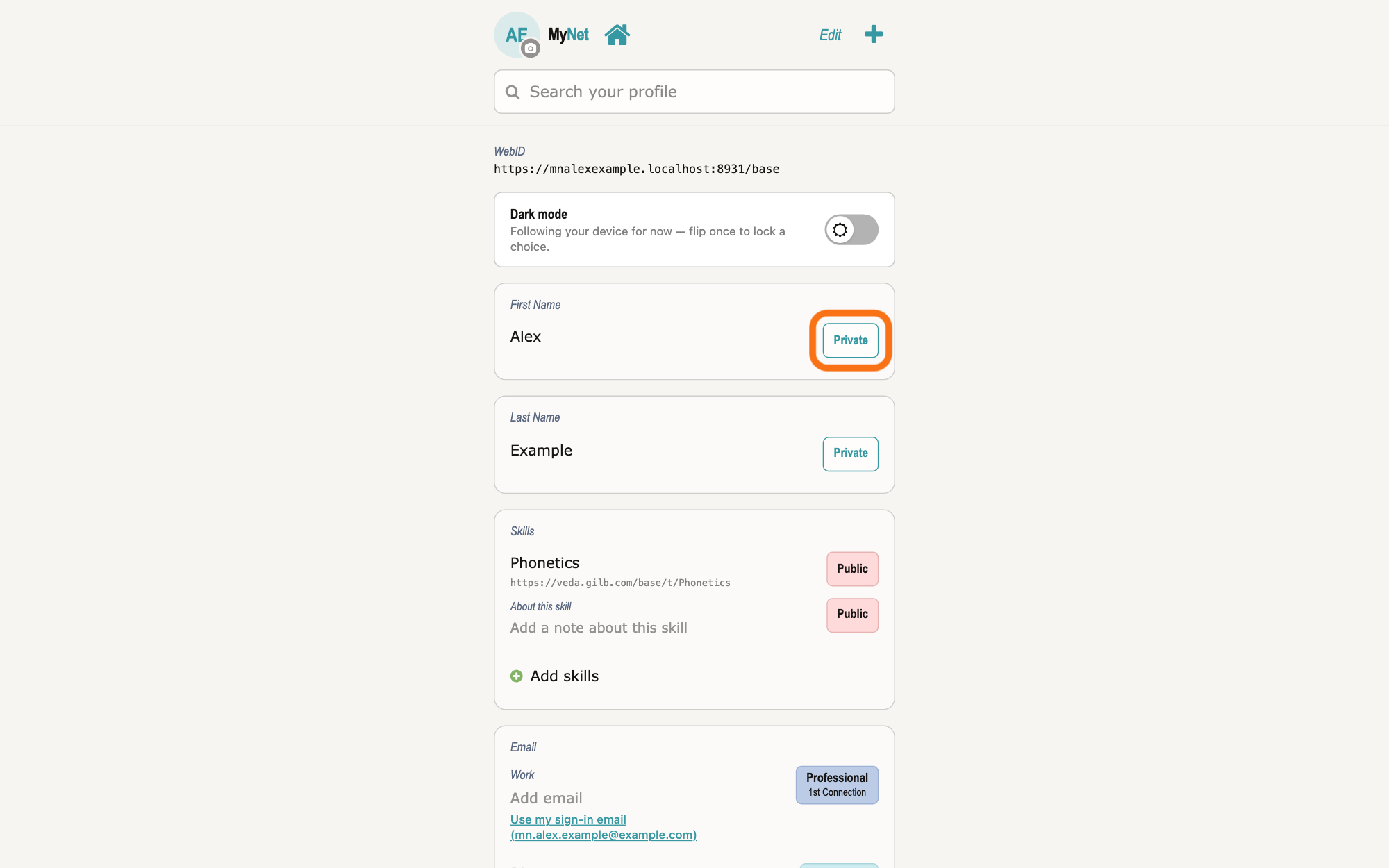
Press the badge beside your first name and choose who may find it.
Press the small coloured badge at the right of your first name, such as Private, and choose a level in the list it opens. MyNet saves it at once: saving, then saved.
Show as text
Your profile shows your WebID, "Dark mode", then a box for each detail. In the box "First Name", the small badge "Private" at the right is outlined. Press it and choose a level in the list that opens. The box "Last Name" below has its own badge.
More about this
A sharing level says who may see and find this detail. Public (Public / Read) means anyone, signed in or not. GilbPlatformPublic (Anyone signed in can Read) means anyone signed in to GilbPlatform. Professional, Personal and Pers & Pro, each with 1st Connection or 1st Inner Circle, mean the people you placed in that circle in MyNet. Private (For your eyes only) means only you. not saved · retry means it was not saved; press it to try again. Escape or a click outside closes the list.
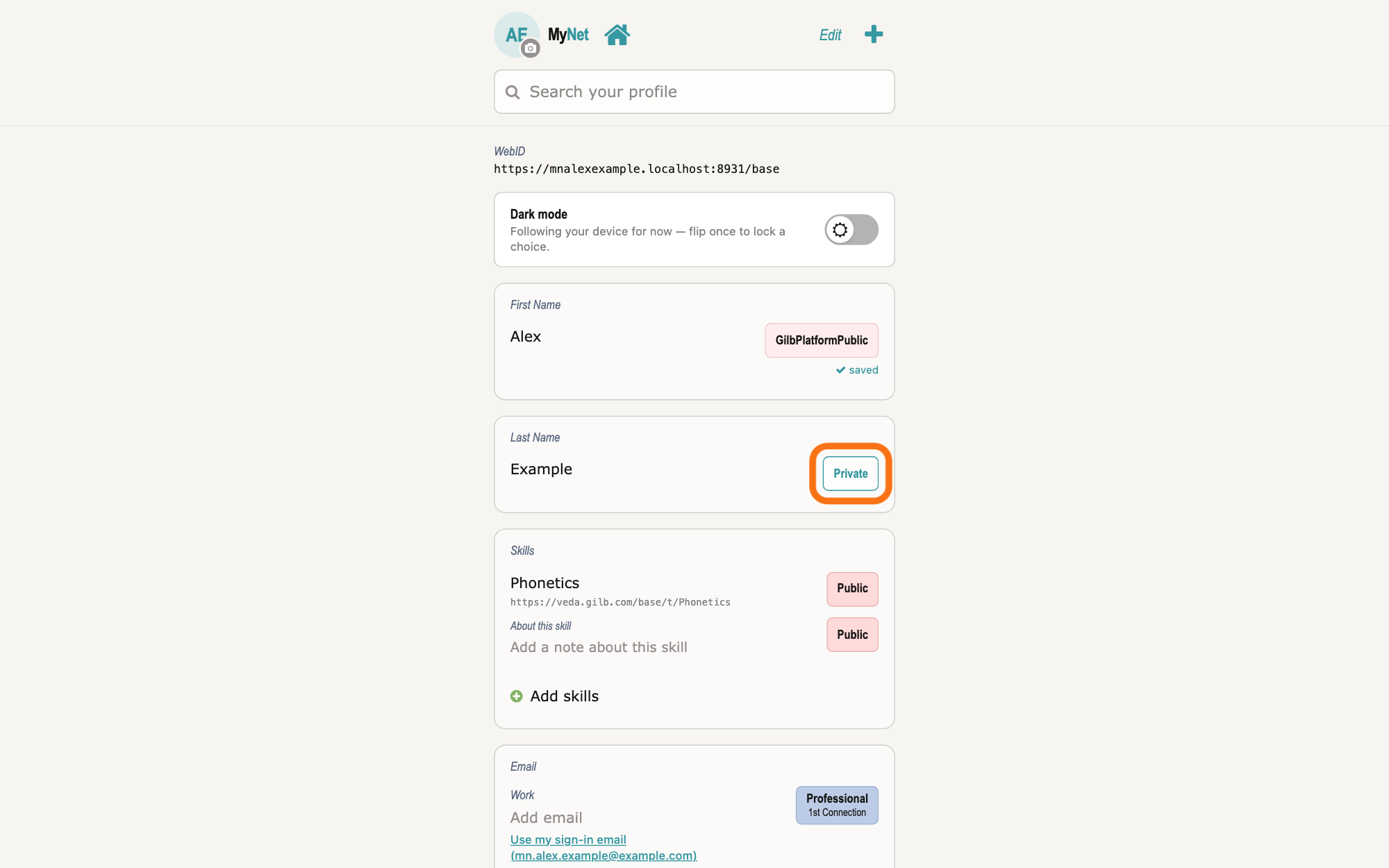
Press the badge beside your last name and choose who may find it.
Press the badge at the right of your last name and choose a level, as for your first name. Each name has its own level.
Show as text
The first name's badge now reads "GilbPlatformPublic", with "saved" under it. In the box "Last Name" below, the badge "Private" is outlined. Press it and choose a level for your last name in the same way.
More about this
A person can find you by either name they may see: the search matches the start of a first or last name. If there is no Last Name card, add it with the plus sign as in step 2. To stop being findable by a name, choose Private for it.
Deeper
Findable by name means that people can find you by your first or last name, but only the people you chose for that name: they find you in MyNet's search for people, in Find their online card in GilbApp, and in GilbApp's boxes where they share a record or a vault with a person. A name set to Private is found by no one, and an empty name publishes nothing.
Only your first and last name are searched by name. Each other line on your profile has a badge of its own, which decides who sees that line on your card: a person who finds you sees only the lines whose level takes them in. A skill's badge also decides who can find you by that skill.
GilbApp itself has no place for this today: Update your profile under Stakeholders in the GO TO panel is marked Coming, and the switch under WHO CAN FIND THIS VAULT is not on your own vault. Making your vault public also lets people find it by name in GilbApp's sharing boxes, but then anyone can read it; the answer on making a vault public tells more.
This answer is written for a computer screen.
Source: MyNet served build e894951bcfda372a6218c512c15bb4b582c1a794 (https://gilb.com/mynet/version.json read 2026-11-10, built 2026-10-27, dirty false); every MyNet screen word checked in the live bundle gilb.com/mynet/assets/index-Bw15VNOy.js, source read at the same commit code read at e894951b: src/App.tsx:35 (/profile), components/AppShell.tsx:455-512 (avatar, Edit/Save, + Add new property), components/profile/FieldRow.tsx:1-5 ("Tap the value → it edits in place ... blur / Enter auto-saves ... Escape reverts ... In edit mode a red delete handle appears"), :369-373 (the value is a button that starts editing, with or without Edit), :191-214 (edit mode adds only the swipe Delete and the (−) RemoveControl; re-read at e894951b, https://gilb.com/mynet/version.json, read 2026-11-12), components/profile/Avatar.tsx:137-145 (hover Open your profile), model/profile.ts:523-524 (cards First Name, Last Name), :169-179 and :315-356 (the nine levels: Public Public / Read, GilbPlatformPublic Anyone signed in can Read, Professional/Personal/Pers & Pro · 1st Connection / 1st Inner Circle Read, Private For your eyes only), :565-570 (Select New Property heading Name: First Name, Last Name, Nickname), components/profile/AccessTag.tsx:206-300 (the badge is a button; the list of levels; Escape or a click outside closes), components/profile/FieldRow.tsx:398-433 (badge at the right of the line; saving, saved, not saved · retry), lib/base/hooks.ts:2759-2830 (a level chosen for a name with text publishes the name claim at once; an empty name publishes nothing), lib/base/nameClaim.ts (PUT /base/connect/name-claims). GilbApp af0f04ee: shell/gilbAppMenuRows.ts:142-156 (Stakeholders: also mynet; Update your profile coming), components/menu/sectionMenuList.ts:305-306 (MyNet, Your profile and network., href), section-menu 0.2.4 SectionMenu.tsx:88 (Also useful here), :942-948 (CSS capitals), :857-876 (↗, new tab); lib/base/granteePublicCard.ts:35-38 (https://gilb.com/mynet); OwnCardBand.tsx:13-26, :80-88 (Edit in MyNet); VaultDetail.tsx:96 (no findable switch on your own vault). GilbPlatform 4d008a55 (https://id.gilb.com/version read 2026-11-10): src/routes/connect-name.ts:1-18 (only first and last name are searchable by name), :603-640 (PUT name-claims: signed in; one field at one audience), :942-943 (anonymous: public names only); src/baseconnect/name-find.ts:9-16 (the audience filter in the SQL), :47-51 (a private name is never put in the find index); audience-key-projection.ts:106-124 (public; signed-in; the circles a holder placed the viewer in); src/authz/registry-lookup-visible.ts:9-20, :46-56, :250-270 (the share boxes' name search offers a person vault whose holder placed a name the caller may see (arm 4) or whose vault is public (arm 3), people only); connect-name.ts:215 (a card shows a viewer only the fields placed for them; a stranger the public ones). GilbVeda public read 2026-11-10: t:VisibilityTier (the sharing tier its owner chose: who may discover it), t:SignedInGrantee (every signed-in principal; the token public-base), t:GivenName, t:FamilyName.
Checked against GilbApp d529620.