
← Stakeholders, Plan, Standards and Ontology on screen
How do I paste numbers into a plan table, and fix units that differ?
Short answer
Copy the numbers; in Plan, press Main menu, choose Table, press the first cell, paste, press Write; on Units differ, press Count it as.
Before you start
You need to be signed in to GilbApp on a computer, with a vault you can write to, such as your own vault, and a plan whose Solutions already have an impact each; the answer on comparing Solutions in a VDT shows how to write one. Steps 7 and 8 need an impact written in another unit than its Value's or Development Resource's, such as $/month against €/month, as in the pictures. The pictures show a made-up person on a test site; your screen shows your own name and address.
Words used here (5)
- GilbApp
- GilbApp is the app, opened in a web browser at https://gilb.com/app, where you open, fill and share your vaults.
- Kai-Zen
- Kai-Zen is the planning agent: it finds out what you want, chooses the way, hands the work to other agents and reports back.
- record
- A record is one piece of data with its own address, such as a person, a place, a thing or a note.
- Value Decision Table
- A Value Decision Table (VDT) is a table that ranks options by how much they move the level's Values for their cost.
- Budget
- A Budget is the most of a Development Resource you plan to use, such as the money for one month.
Steps
In your spreadsheet, copy the block of numbers.
In your spreadsheet, select the numbers and copy them, with Command (⌘) and C on a Mac. Each number is the change a Solution makes on a Value, or how much of a Development Resource it uses, in the row's own unit, such as -40.
More about this
The block is one row per line with the cells side by side, as a spreadsheet copies them. Order it as the table is drawn: the Development Resources first, then the Values, and the Solutions in the order of the columns. An empty cell is skipped. This step happens in your spreadsheet, so it has no picture.
Press Main menu at the top left and choose Plan.
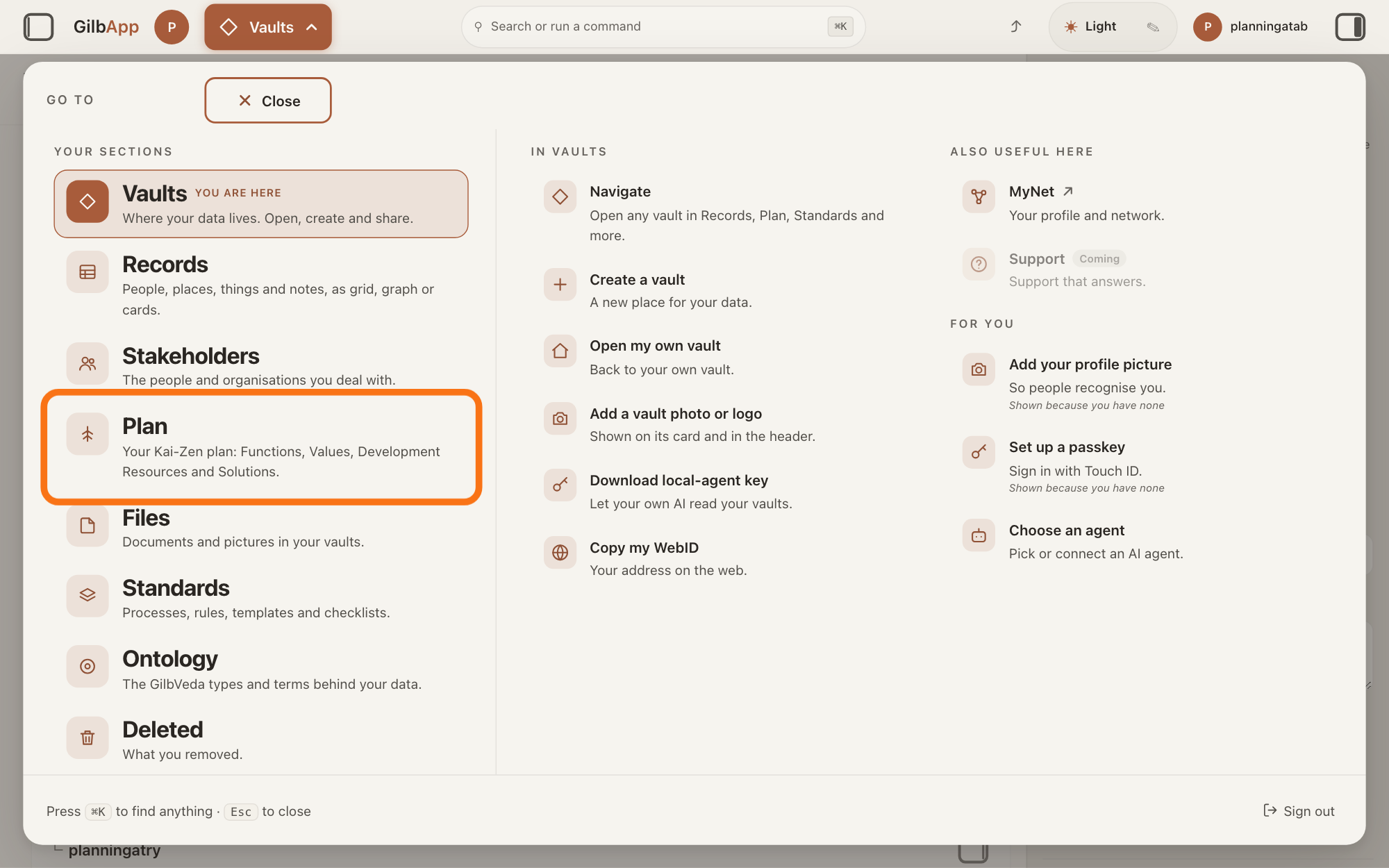
Press Main menu, next to your profile picture at the top left, and under YOUR SECTIONS choose Plan. The button shows the name of the section you are in, such as Vaults.
Show as text
The "GO TO" panel is open over the screen. Look in the left column under "YOUR SECTIONS": the outlined row is "Plan", with the line "Your Kai-Zen plan: Functions, Values, Development Resources and Solutions." Press it to open the Plan screen.
More about this
A panel headed GO TO opens; Plan reads Your Kai-Zen plan: Functions, Values, Development Resources and Solutions. You can also press the Plan button on the card of a vault (the place where a person or a group keeps their records) in Vaults. The Plan screen lists your plan records and has the views Grid, Graph, Both and Card.
Press Main menu again and choose Table.
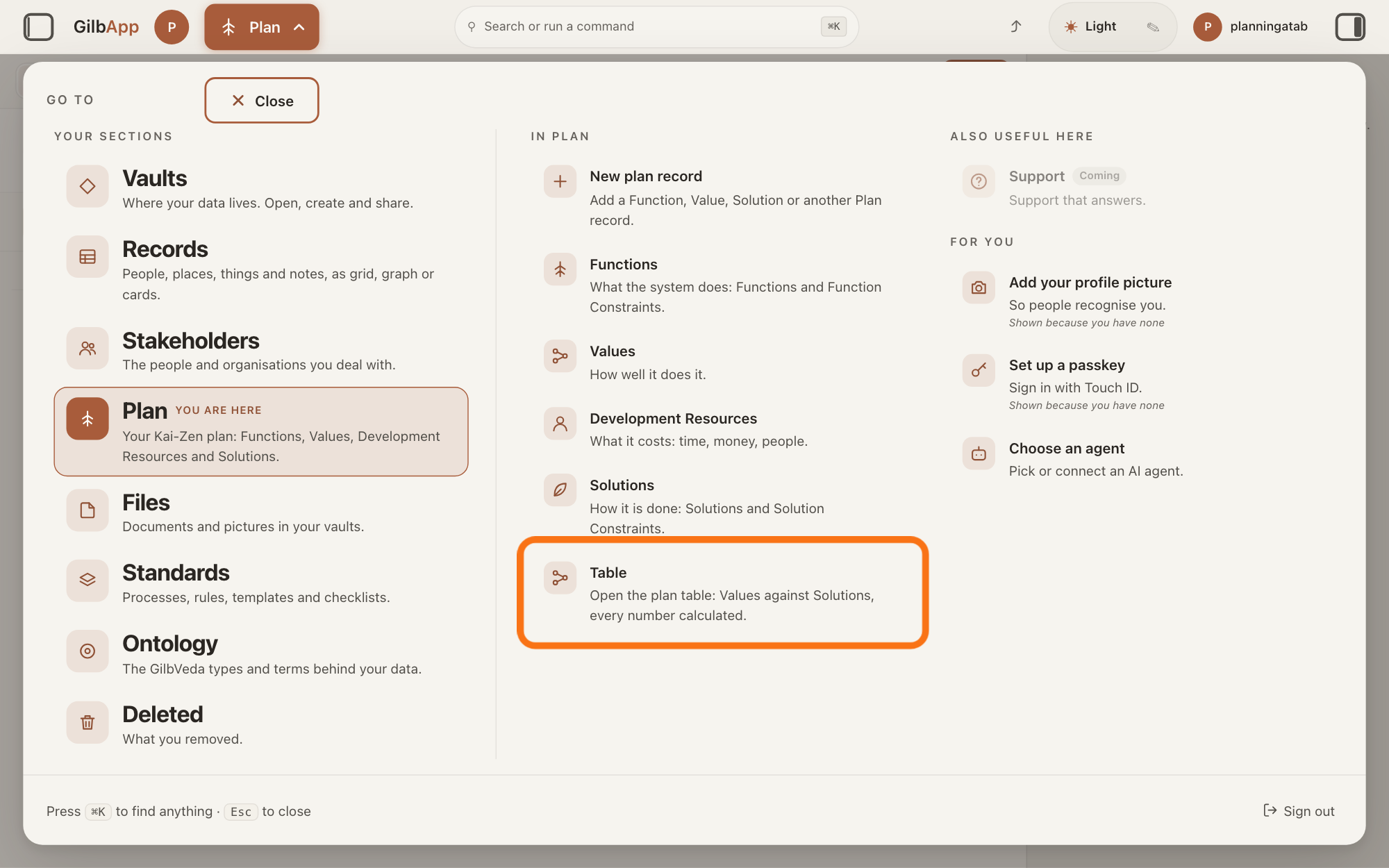
Press Main menu and, among the choices for Plan, choose Table. The plan table opens, headed Plan table:, the vault's name and today's date.
Show as text
You are in "Plan" and the "GO TO" panel is open again. In the middle column under "IN PLAN", the outlined row is "Table", with the line "Open the plan table: Values against Solutions, every number calculated." Press it.
More about this
The answer on reading the plan table's charts and numbers explains what it shows. A table you filed, such as a Value Decision Table (VDT), a table that ranks options by how much they move the level's Values for their cost, takes a paste too, but only while its + Add Ends & Means reads Done. Where you can edit no column, a paste says Paste is not available here: you cannot edit any column of this table.
Press the cell where the first number goes, and paste.
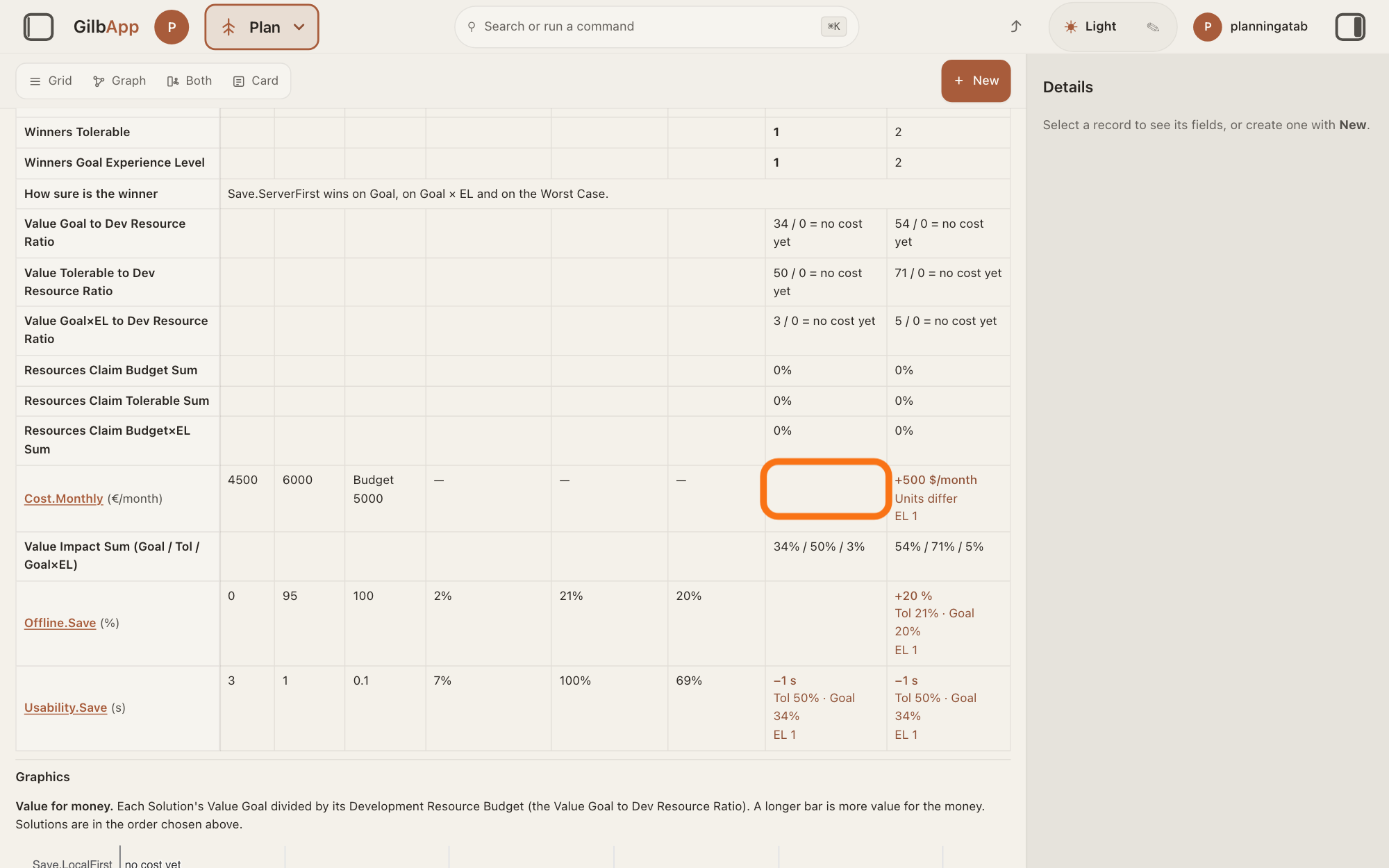
Press the cell in the first Solution's column and the first row the block fills, then paste with Command (⌘) and V. The numbers fill from that cell to the right and down.
Show as text
The plan table is open, scrolled down to the "Cost.Monthly" row. In that row the cell of the right-hand Solution says "Units differ". Press the outlined empty cell in the left-hand Solution column, then paste your numbers.
More about this
The right pane shows that cell's impact. Nothing is written yet: GilbApp shows a preview first (step 5). A Value used as a column, or a Solution you may not edit, is refused cell by cell. A table whose columns are all Values says "Paste is not available here: this table has no development cost, and its columns are Values, which are read-only."
Under Paste preview, press the button that starts with Write.
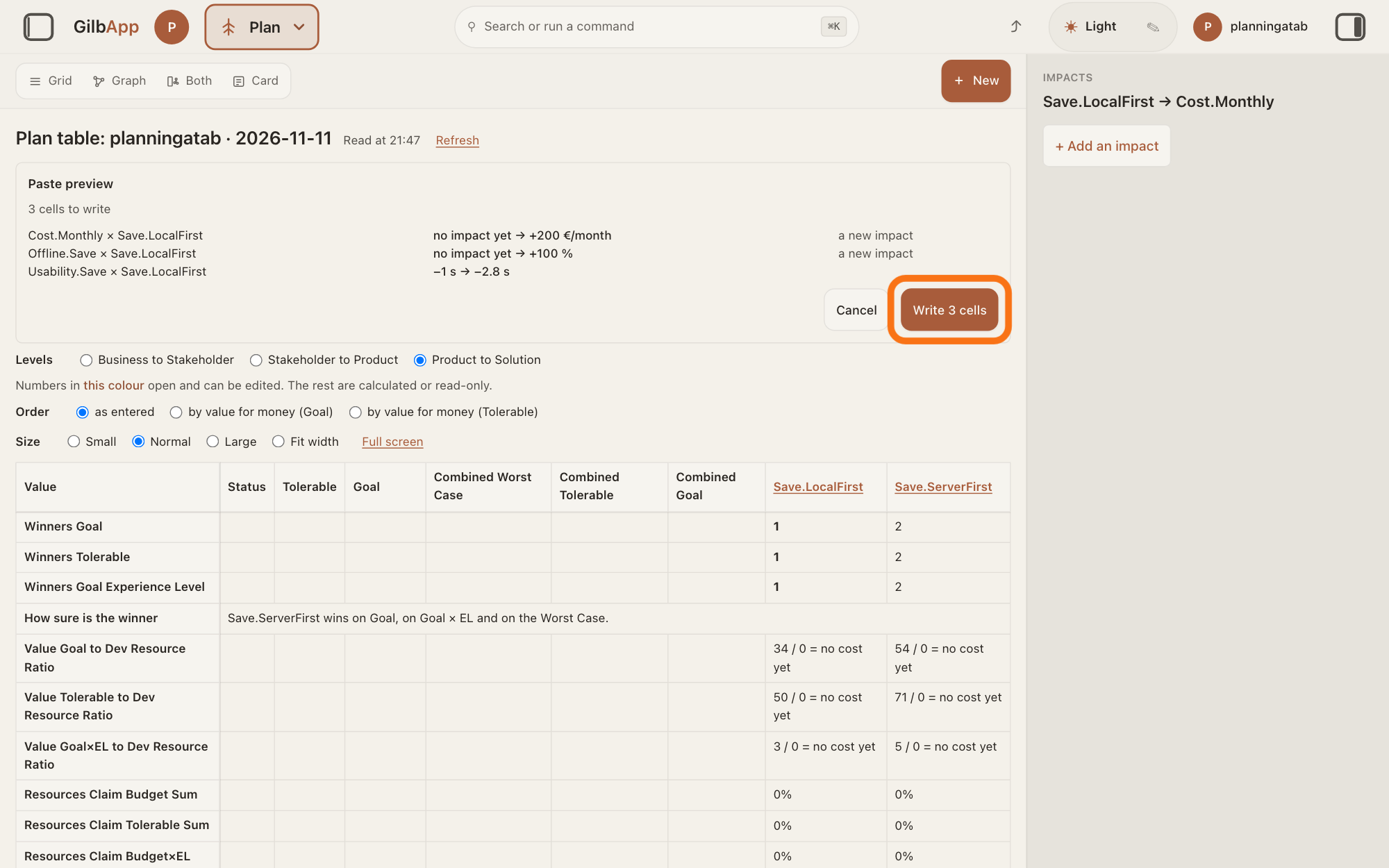
Under Paste preview, check each cell's number now and after, then press the button that starts with Write, such as Write 3 cells. The line above the list says how many cells will be written, such as 3 cells to write, and adds how many are skipped or not written when there are any.
Show as text
"Paste preview" shows above the table: "3 cells to write", each row with its old and new number. Check them, then press the outlined "Write 3 cells" button at the right; "Cancel" is beside it.
More about this
Each line of the list gives the cell, its number now and after, such as -1 s → -2.8 s, and a note: a new impact, set by a name with — will replace, or a mark that starts AI estimate. Lines in another colour say why a cell is not written, such as one that ends is not a number. or … is a Value, so its impacts are read-only here. If a number was set by someone else, tick Replace … numbers set by others first; Kai-Zen changes a number a person set only with a yes from that person or from you. Cancel writes nothing. While it writes, the heading reads Writing the paste; then Paste written, Wrote 3 cells. or which cells could not be written, and Close.
In the right pane, drag the handle on the arrow.
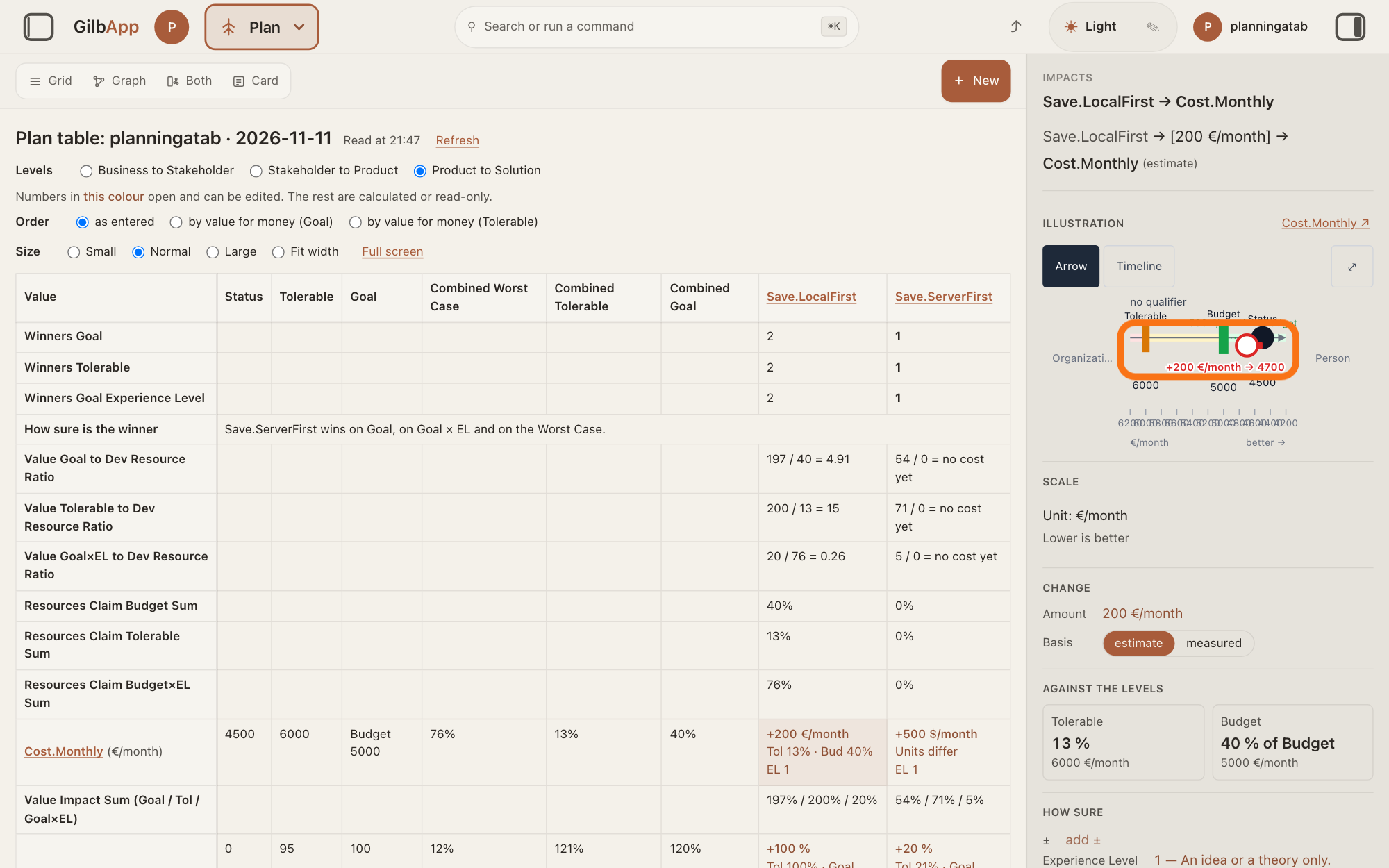
This step is optional: to change a number by hand, drag the handle at the end of the bar on the arrow to where the Solution takes the Value or the Development Resource. The bar runs from today's Status by the impact's change.
Show as text
The right pane shows "IMPACTS" for "Save.LocalFirst → Cost.Monthly", with the arrow under "ILLUSTRATION". The outlined part is the bar from the Status, labelled "+200 €/month → 4700". Drag the handle at the end of the bar to change the number.
More about this
Nothing is written while the handle moves: letting go writes it. With the handle chosen, the arrow keys move it (Shift moves ten steps), Enter writes and Escape puts it back. The bar is green when the change is better on the Scale and red when worse; the label under the handle shows the change and where it ends. A number someone else set asks first: … set this number. Replace it with yours?, with Replace and Keep theirs. You can also press the number under CHANGE to type it.
Press the name of a Solution whose cell says Units differ.
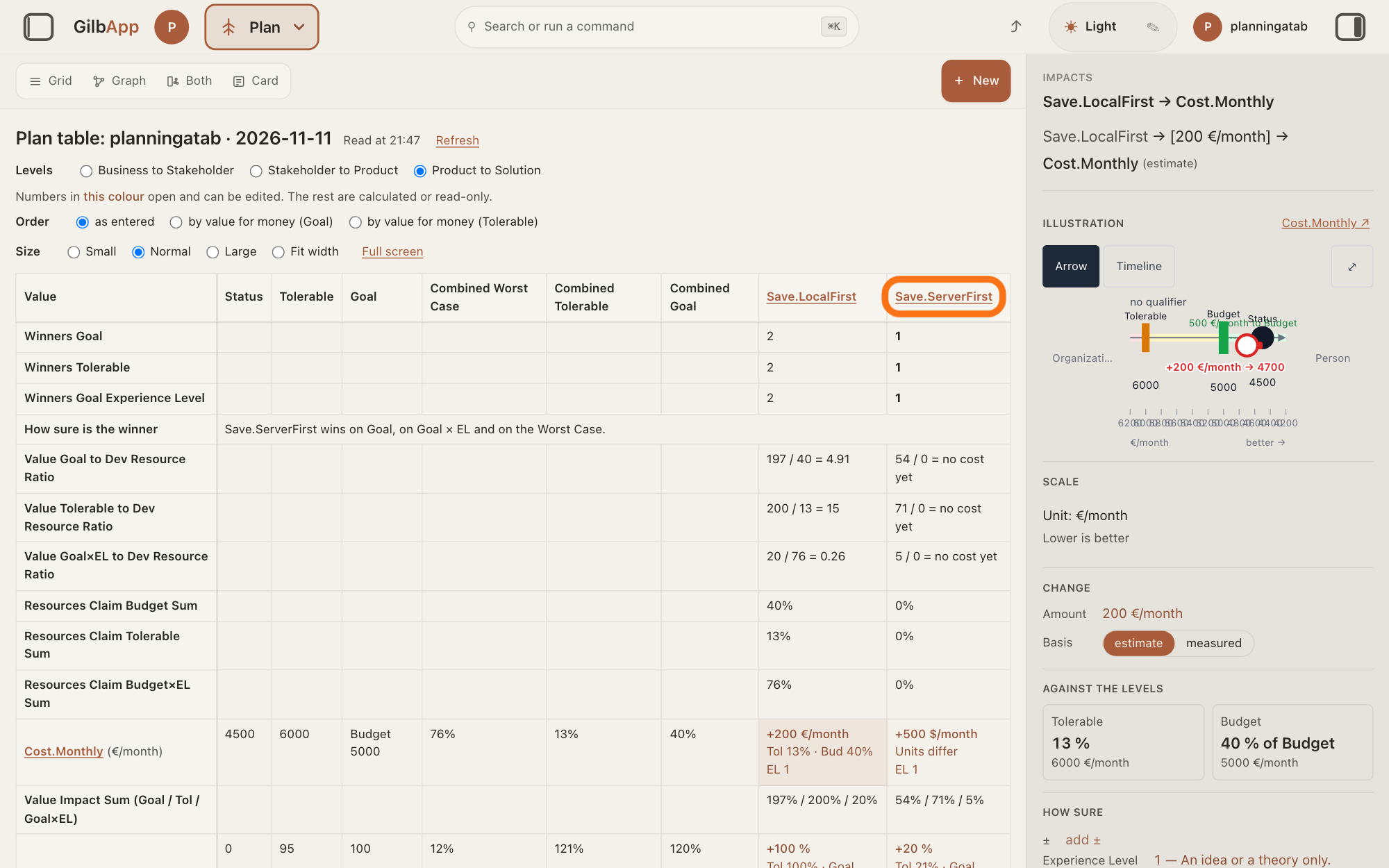
In the table, press the name of a Solution whose cell says Units differ. Its card opens in the right pane.
Show as text
In the plan table, the Cost.Monthly cell under Save.ServerFirst says "+500 $/month" and "Units differ". Press the outlined Solution name Save.ServerFirst at the top of its column to open its card.
More about this
Pressing the cell itself also opens the pane, where AGAINST THE LEVELS shows the same line and the same button that starts with Count it as; step 8 uses the Solution's card, as the pictures do. A cell says Units differ and shows no % when its impact is written in another unit than the Value's Scale, such as minutes against seconds: a different unit is a different amount, and GilbApp does not convert it. A Development Resource's cost works the same way.
Under Impacts, press the button that starts with Count it as.
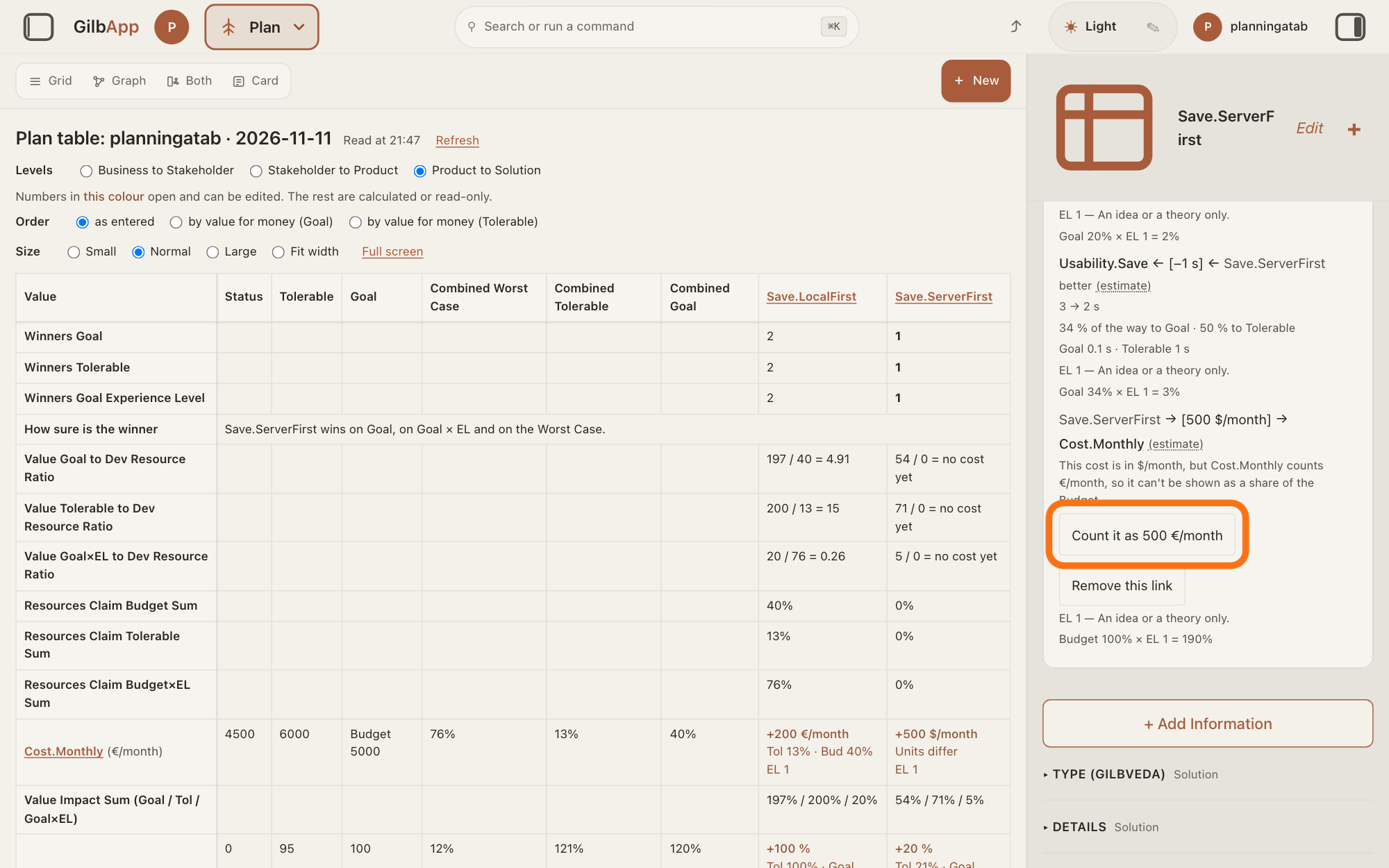
Under Impacts on the Solution's card, find the line "This change is in …, but … counts …, so it can't be shown as a share of the way to Goal." and press the button under it that starts with Count it as. The impact then takes the Scale's unit, and its number stays as it is.
Show as text
Save.ServerFirst's card is in the right pane, scrolled to its impacts. Under Cost.Monthly it says "This cost is in $/month, but Cost.Monthly counts €/month, so it can't be shown as a share of the Budget." Press the outlined "Count it as 500 €/month"; "Remove this link" is below it.
More about this
The number is not converted, so check that it is right in the Scale's unit. For a cost the line starts This cost is in and ends a share of the Budget. Remove this link removes the impact instead, after the question Remove the link between … and …? The … on it goes with it., with Cancel and Remove. Only a person who may edit the Solution sees these buttons.
Deeper
What you paste is always the change, not the end number: -2.8 on a Status of 3 makes 0.2. A cell whose number would not change is skipped. One cell that fails stops nothing else, and the end of the preview lists those that could not be written, such as one that someone changed after the preview.
A new impact needs the Value's Status to be one number: otherwise the cell says Set …'s Status first. A Value or Development Resource with no unit yet is refused: … has no unit yet: add its first impact from its card.
Kai-Zen writes each impact as the change on the Value's Scale, with a ± range, an Experience Level (how much experience stands behind the number) and the evidence. A paste writes the numbers; the right pane takes the rest, as the answer on comparing Solutions in a VDT shows.
This answer is written for a computer screen.
Source: GilbApp af0f04ee838a4d55887d2ff1f72edd49a4ff7ca0 (version.json read 2026-11-10, dirty false), read. Paste: lib/base/planPaste.ts:1-8 (tab-separated, one row per line, lands at the focused cell and goes right and down over the rows as drawn, Development Resources then Values; the CHANGE in the row's own unit; empty skipped; not a number refused; Value column or not editable refused; others' numbers asked once), :12-16, :72-73 (NO_PASTE_COSTLESS, NO_PASTE_READ_ONLY), :104, :146-177 (refusal and item words); PlanTable.tsx:1708-1752 (paste only in edit; in a table card `editing` is + Add Ends & Means, TableCard.tsx:268, :648, :746; the whole-plan table has no card-mode provider, so it counts as editing, cardMode.tsx:64-85 Without a provider: always editing; RecordsCenter.tsx:131); PlanPaste.tsx:5, :71-80, :122-127, :155-162 (notes), :185-190 (Wrote …), :228-296 (headings Paste preview, Writing the paste, Paste written; count line; Cell, Now and then, Note; refusals; checkbox Replace n numbers set by others; Cancel, Write n cells, Close); PlanHumanSet.tsx:94 (AI estimate pill), :258-277 (Replace question, Replace, Keep theirs). Bar: ImpactEstimateBar.tsx:1-5 (bar from today's Status by the change; nothing written while moving; release or Enter commits through the replace question), :189-210 (Escape, Enter, arrow keys, Shift ×10), :218-229 (green better, red worse, label change → end); ImpactTargetGraph.tsx:1-3 (top of the right pane's Impacts view; same block for a Development Resource); PlanImpactPane.tsx:95-160 (click-to-edit); Units: lib/base/planTable.ts:288-291, :324-325 (Units differ, no %); lib/base/planImpacts.ts:620-624 (unitsDiffer, trimmed, case-insensitive); lib/base/valueLimits.ts:80-88 (unitsDifferText "This change is in …, but … counts …, so it can't be shown as a share of the way to Goal." / This cost is in … the Budget); PlanUnitsFix.tsx:1-3 (Count it as 6 € takes the Scale's unit, not converted; Remove this link after a question; only for a person who can edit), :20-85 (question with Cancel and Remove), :126-180; PlanCell.tsx:490; PlanImpacts.tsx:827, :924, :1305, :1406 (question text); Standards: Kai-Zen.ValueRules.HumanSet (read 2026-11-10: changed by an AI agent only with a yes from that person or the requester); Units differ. step 5, the column names Cell, Now and then, Note are screen-reader-only (PlanPaste.tsx:248 `<thead className="sr-only">`), each line draws `rowTag × colTag`, `was → becomes`, the note (256-262; lib/base/planPaste.ts:167-171, planImpacts.ts:697-702 changeText); step 7, pressing the cell opens the pair pane (PlanTable.tsx:452, :1347; PlanImpactsPane.tsx:129-141, layout pane), whose Against the levels section (drawn in capitals, PlanImpactPane.tsx:290-291) shows the units words and the Count it as and Remove this link buttons (PlanImpacts.tsx:815-835 for a Value, :1293-1312 for a Development Resource; PlanCell.tsx:482-491); Before you start, the fixture cell Save.ServerFirst × Cost.Monthly written in $/month against €/month (shots.json); a new impact takes the Scale's unit (PlanImpacts.tsx:1931, :1968), and a Unit box shows only when the Value or Resource has no unit yet (PlanCell.tsx:606, :783-797), so the page says what steps 7 and 8 need, not how to make one. Also: Kai-Zen.VDTRules.
Checked against GilbApp d529620.