
← Last checks before going live (Testing)
How do I put test data into my app, and clear it out before going live?
Short answer
Ask your AI to add made-up records; before going live, press Main menu, choose Records, search and select each one, and press 🗑 Delete record.
Before you start
You need to be signed in to GilbApp on a computer, with write access to the vault that holds the made-up records. The pictures show a made-up person on a test site; your screen shows your own name and address.
Words used here (5)
- record
- A record is one piece of data with its own address, such as a person, a place, a thing or a note.
- GilbApp
- GilbApp is the app, opened in a web browser at https://gilb.com/app, where you open, fill and share your vaults.
- Jackfruit
- Jackfruit is the vault agent: it finds, reads, writes and links records in your vaults, and makes new vaults for you.
- agent
- An agent is your AI following one written procedure, its standing instructions, for one kind of work.
- AI vault
- An AI vault is a small vault that stands for your AI; your AI reaches only the vaults you grant it.
Steps
Ask your AI to add made-up records to a vault.
Tell your AI, in your own words, which made-up records you want and in which vault, such as ten sample orders. Check the list of records it gives back.
More about this
In GilbApp's chat, Jackfruit, the vault agent, writes them as you; the answer How do I work with Jackfruit? shows how to choose it. It reuses a record of the same type and name instead of making a second one, asks you before it writes in a vault that is not open, and at the end lists every record it wrote, with its address. In Terminal, the window where you type commands, your AI reaches only the vaults you gave its AI vault, the small vault that stands for your AI. You can also try your app yourself and type made-up entries into it.
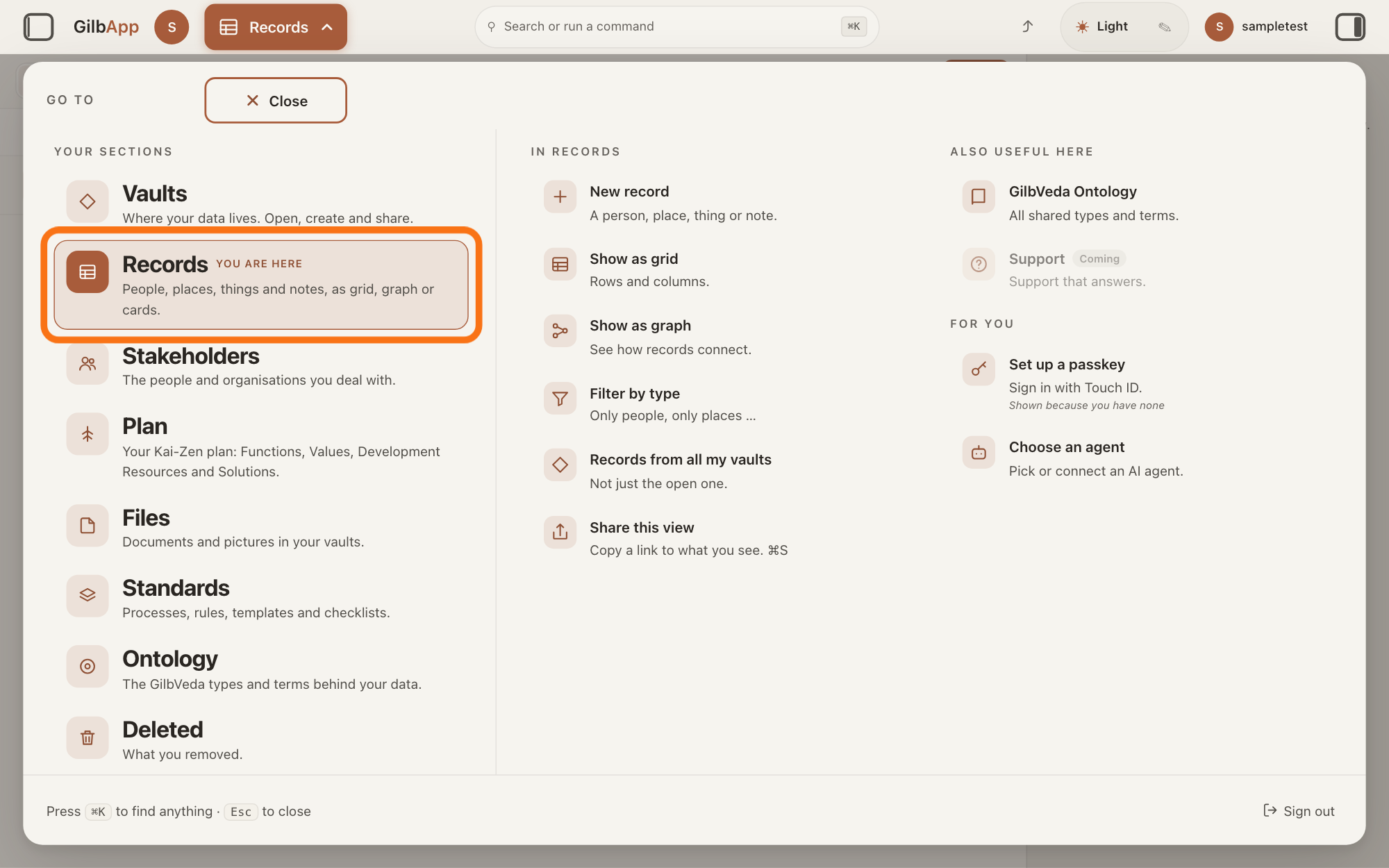
Press Main menu at the top left and choose Records.
When you no longer need the made-up records, before your app goes live, press Main menu, next to your profile picture at the top left, and under YOUR SECTIONS choose Records. The button shows the name of the section you are in, such as Vaults.
Show as text
Top left, "Main menu" is open, and the "GO TO" panel fills the screen. Under "YOUR SECTIONS", the row "Records" ("People, places, things and notes, as grid, graph or cards.") has the orange outline. Click it.
More about this
Records shows the vault you picked in Vaults, or your own vault if you picked none; VAULT above the list chooses which vaults it lists. You can also press ▤ Records on a vault's card in Vaults.
Search and select a made-up record in the list.
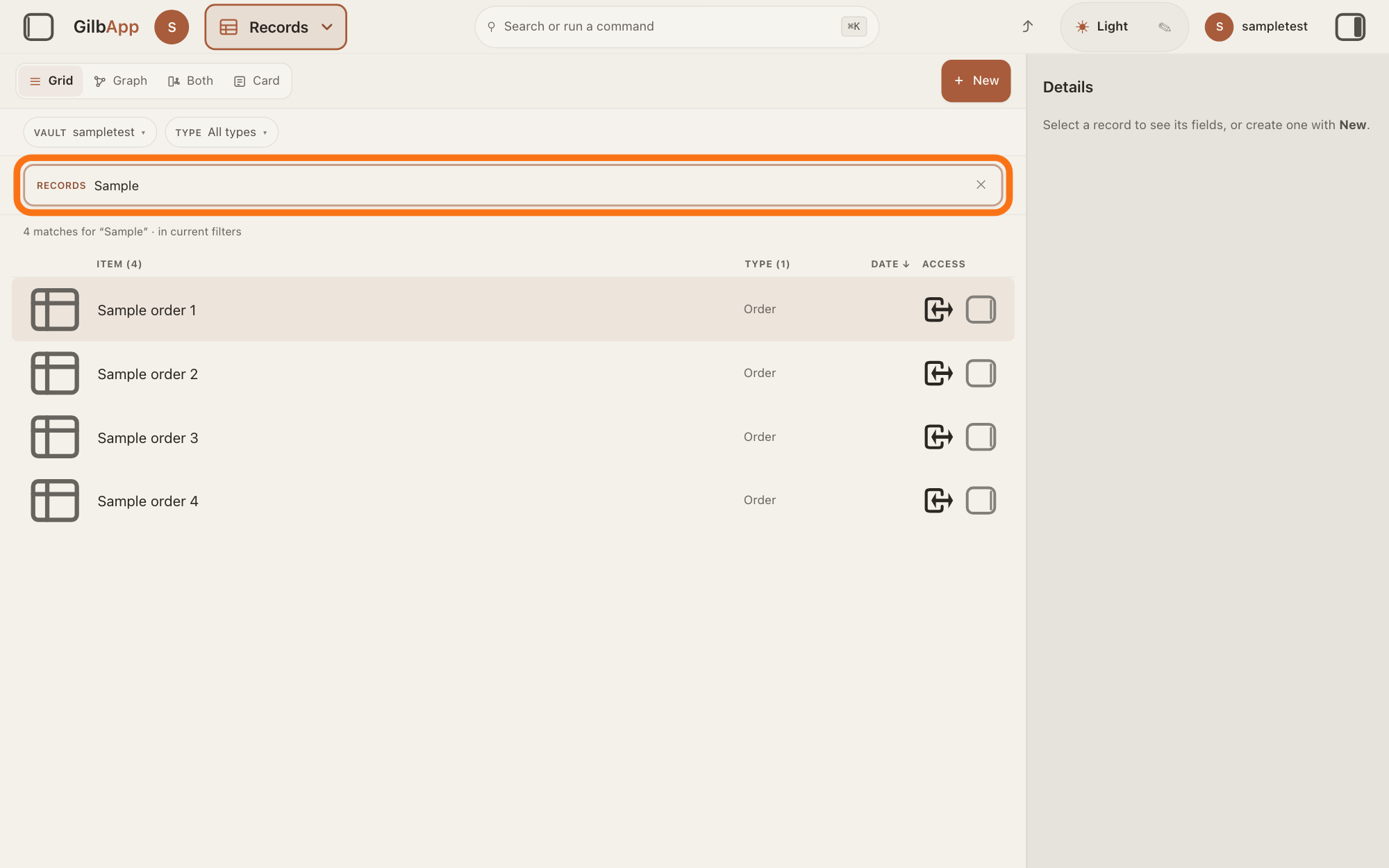
Type a word of the record's name in the search box marked RECORDS above the list, and click the record in the list. The record opens in the middle of the screen, and the right pane, headed Actions, holds what you can do with it.
Show as text
The middle of the screen lists the vault's records, with "VAULT" and "TYPE" above them. The search box marked "RECORDS", outlined in orange, holds a word, and the list shows the records whose name holds it. Click the made-up record you want to delete.
More about this
TYPE above the list keeps only records of the kinds you choose. If the right pane is hidden, press the square button at the far right of the top bar. The answer How do I find a record? shows more about the search. The view buttons above the list, such as Grid and Graph, change how records are drawn, and + New makes a new record; you do not need them here.
Press 🗑 Delete record.
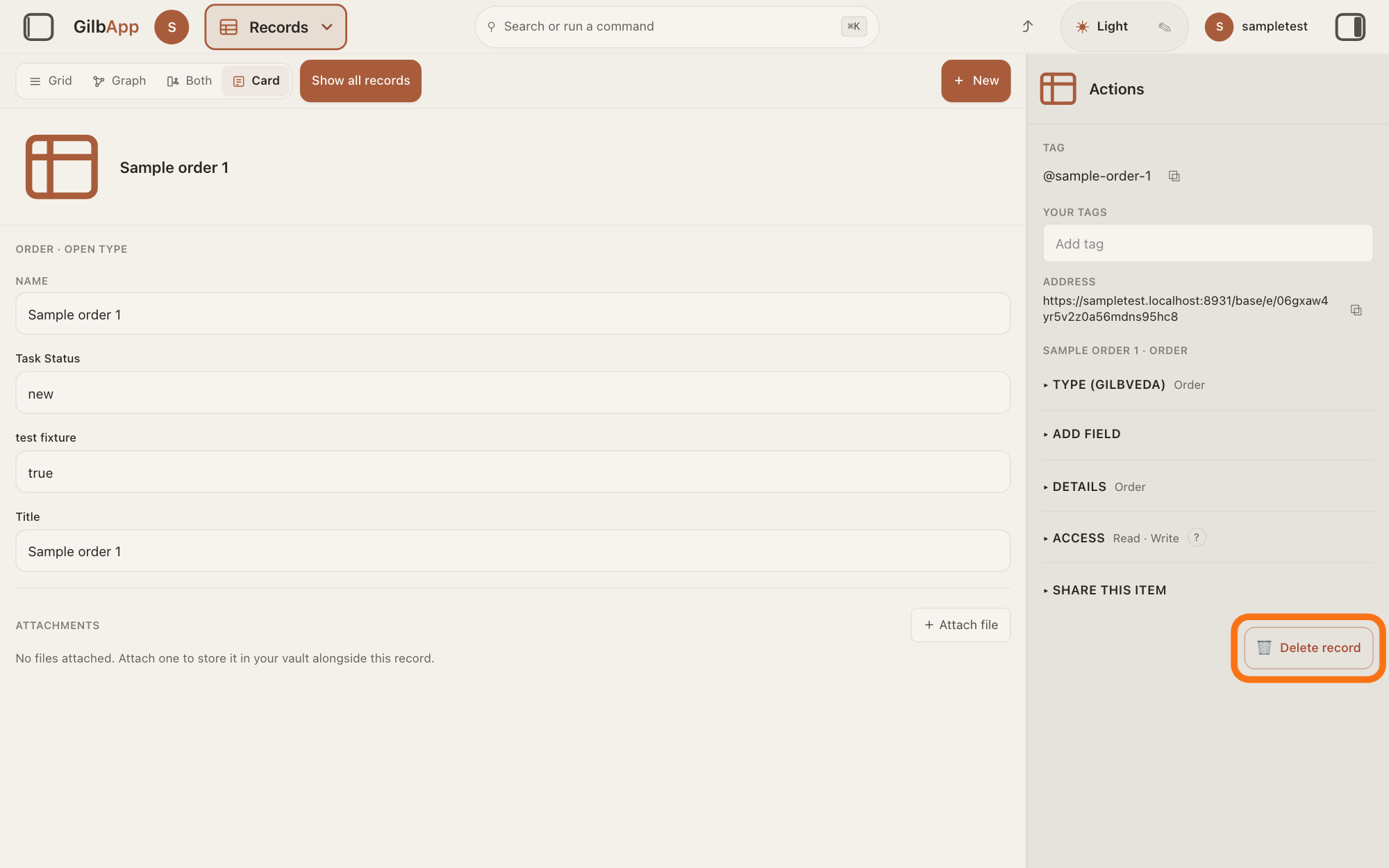
Press 🗑 Delete record at the foot of the right pane. GilbApp deletes the record at once, with no question, and it leaves the list; do the same for each made-up record.
Show as text
The made-up record is open in the middle of the screen with its fields. In the right pane, headed "Actions", the button "🗑 Delete record" at the bottom has the orange outline. Pressing it deletes the record at once, with no question.
More about this
GilbApp has no button that deletes many records at once. To clear many, ask Jackfruit: it ends a record only when you ask for that record, and names it before it ends it, so say which records and check its list. Deleted in Main menu lists what you deleted. The button is not there on a record you may only read, on a file that is a record's picture, or on a process or a process step; the pane then says where to go instead.
Deeper
Test data is made-up data you put in only to try your app, such as a sample customer or an order nobody placed; real data is what real people put in. The rules your AI follows when it builds say it tests with the account you name, and never reads another person's vault.
Where test data ends up. An app built on GilbPlatform does not keep its own copy of its users' data: it signs them in, then reads and writes in their vaults. So made-up records you add while signed in as yourself stay in your vaults, and the people who use your app do not see them. Content your app shows to everyone, such as a list of products, is different: it can be kept in a vault of yours that your app reads for everyone, and made-up records there can then be seen by the people who use your app. Before going live, check every vault your app shows to others, and ask your AI which vaults those are.
A vault for tests. Keeping made-up records in a vault of their own, used only for trying the app, keeps them apart from real data; the answer How do I create another vault? shows how to make one. If your AI works in Terminal, give its AI vault access to that vault; the answer How do I give my AI access to a vault? shows how. You cannot delete a whole vault yourself; the answer Can I delete a vault? says what you can do.
Deleted is not erased. Deleting ends a record; it does not erase it. GilbPlatform keeps the record's address and its history, and an ended record cannot be changed. GilbApp has no button to bring a deleted record back; the answer How do I delete a record, and can I get it back? says more.
To bring in real data from a spreadsheet, see Can I bring in my data from spreadsheets or another tool? When your app is ready, How do I put my app or website live on the internet? tells what happens next.
This answer is written for a computer screen. In a window narrower than 840 pixels, such as a phone, the side panes are hidden and the right pane is Detail in the bar at the bottom.
Source: GilbApp 49b1ae53 (https://gilb.com/app/version.json, read 13 November 2026): src/shell/gilbAppMenuRows.ts:122 (Records), :207 (Deleted, What you removed.); src/components/records/RegisterScopedSearch.tsx:73-74; src/components/records/WorkingSetFacetBar.tsx:133-140; src/components/records/RecordDetail.tsx:2530 (🗑 Delete record); no control in src/components/records that deletes several records at once. Standards read 13 November 2026: Agent.Coder.HumanActs (you test with the account the owner names; never read another user's vault content); Jackfruit.Vaults (asks before writing in a vault that is not open), Jackfruit.Find, Jackfruit.End, Jackfruit.Report. Live help pages, sentences shared: How do I delete a record, and can I get it back? (steps, deleted is not erased); Do I need a new vault for each app or project? (an app does not keep its own copy of its users' data); Can I delete a vault?; How do I work with Jackfruit?; Can I bring in my data from spreadsheets or another tool?; How do I give my AI access to a vault?; What is an AI vault?
Checked against GilbApp d529620.