
← Back to How do I find a term?
How do I read a term's details and history?
Short answer
Press Main menu, choose Ontology, search and select the term in CONCEPTS, and read the right pane down to CHANGE HISTORY.
Before you start
You need to be signed in to GilbApp on a computer. The pictures show a made-up person on a test site; your screen shows your own name and address.
Words used here (3)
- GilbApp
- GilbApp is the app, opened in a web browser at https://gilb.com/app, where you open, fill and share your vaults.
- record
- A record is one piece of data with its own address, such as a person, a place, a thing or a note.
- agent
- An agent is your AI following one written procedure, its standing instructions, for one kind of work.
Steps
Press Main menu at the top left and choose Ontology.
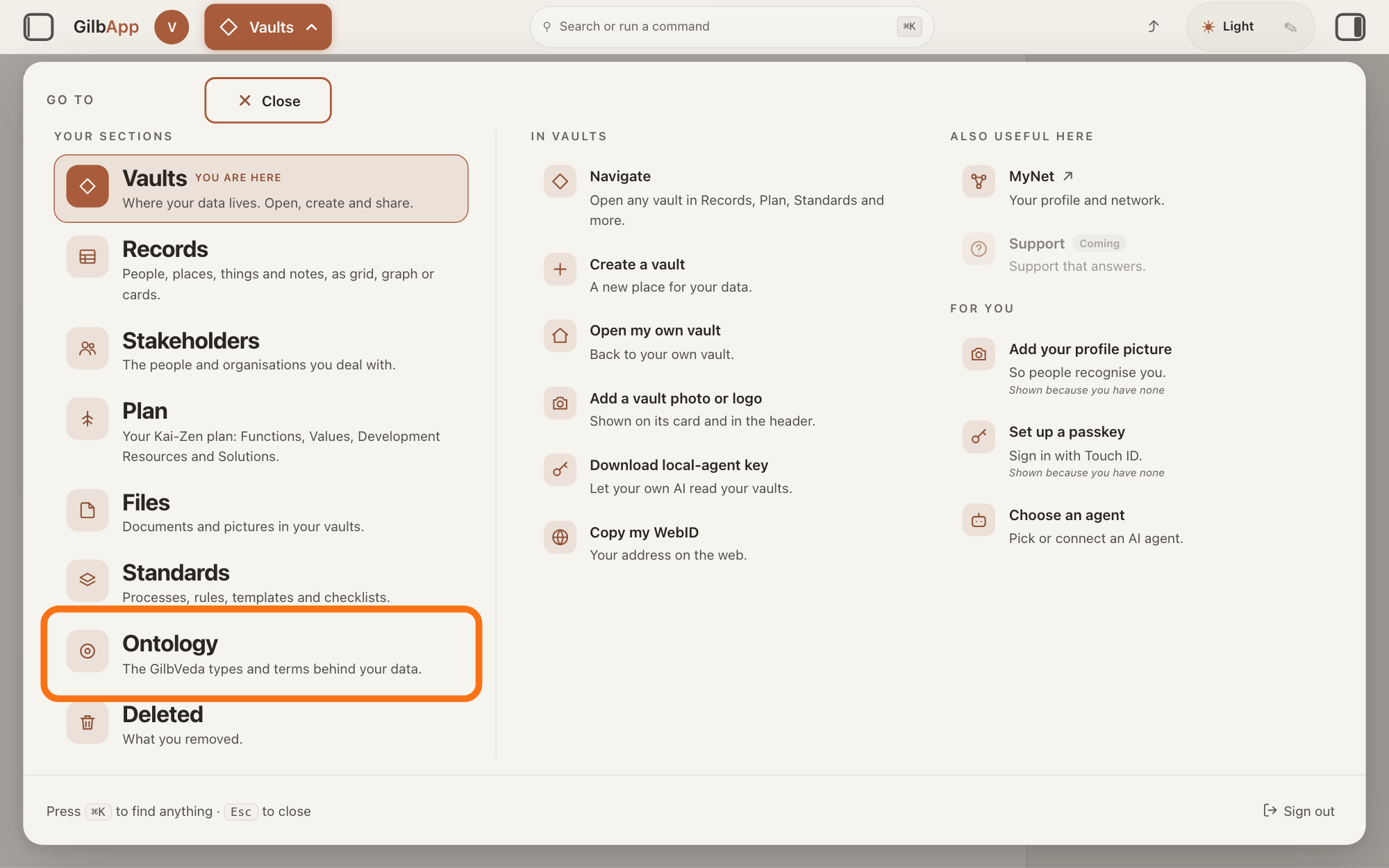
Press Main menu, next to your profile picture at the top left, and under YOUR SECTIONS choose Ontology. The button shows the name of the section you are in, such as Vaults.
Show as text
The panel headed "GO TO" is open over the window. In the left column under "YOUR SECTIONS", near the bottom, the outlined row reads "Ontology" and "The GilbVeda types and terms behind your data." Click it to open the Ontology screen.
More about this
A panel headed GO TO opens; Ontology reads The GilbVeda types and terms behind your data. It always opens on GilbVeda, the shared list of terms: the button at the top left of the screen reads GilbVeda Ontology, the cursor is in the box marked CONCEPTS, and below are three columns, TYPES, FUNCTIONS and VALUES. A type is a kind of thing; a Function is what a system does, written as an action; a Value is a perceived benefit, measured as a number. A term is the shared name GilbVeda keeps for a kind of thing, a detail of it, a link between two things, or a species. The right pane says No concept selected. Resting the pointer on Ontology in the panel shows more choices under IN ONTOLOGY; you need none of them here.
Search and select the term in the box marked CONCEPTS.
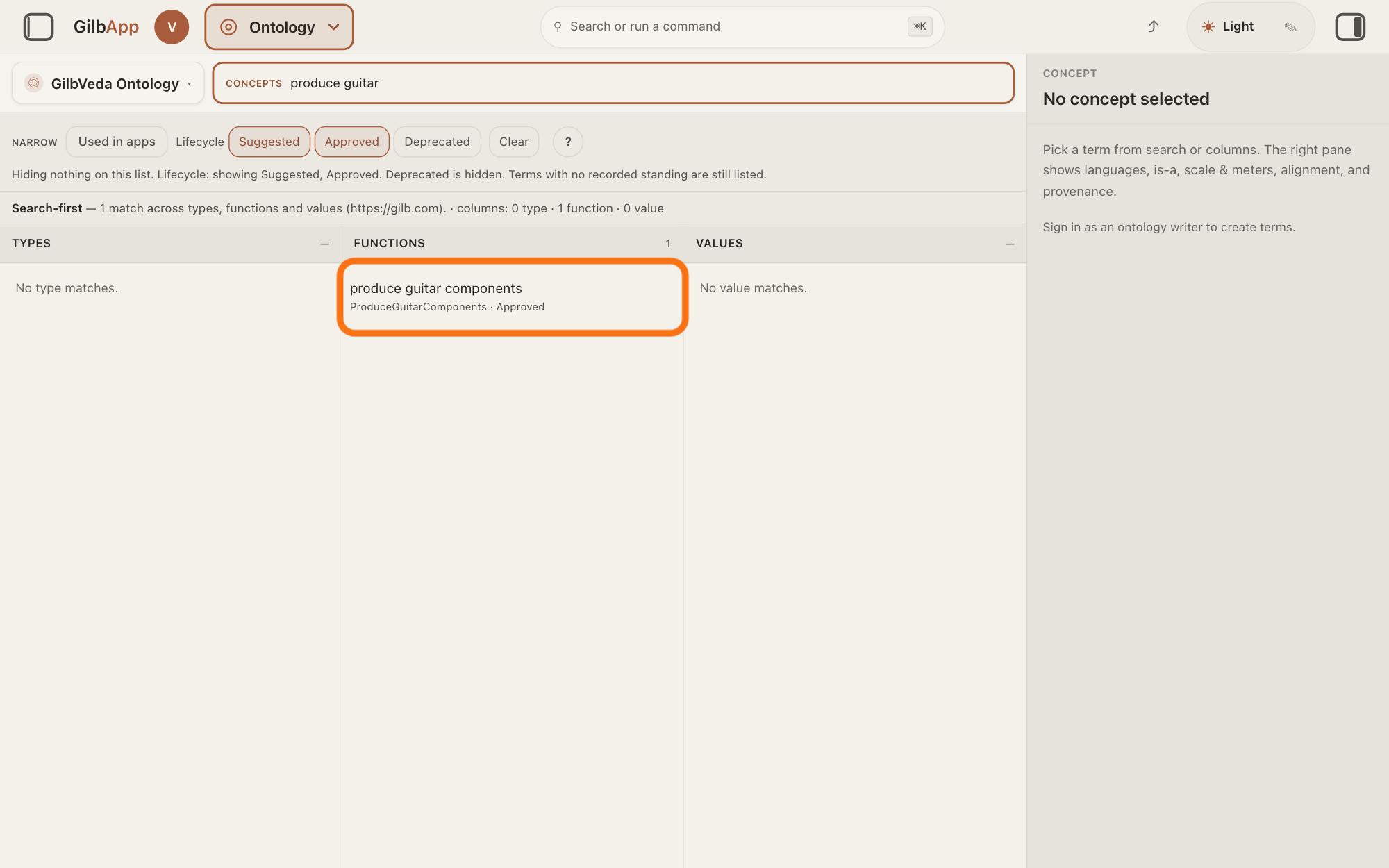
Type at least three letters of the term's name in the box marked CONCEPTS and click the term in its column. The right pane shows the term.
Show as text
"produce guitar" is typed in the box marked "CONCEPTS". In the middle column, "FUNCTIONS", the outlined row reads "produce guitar components" and "ProduceGuitarComponents · Approved". Click it to open the term.
More about this
The answer on finding a term says more about the search, and about deprecated terms, which it hides at first. You can also click a term while browsing the columns, or the Type link in a record's ▸ DETAILS, which opens that type here.
Read the term's details in the right pane.
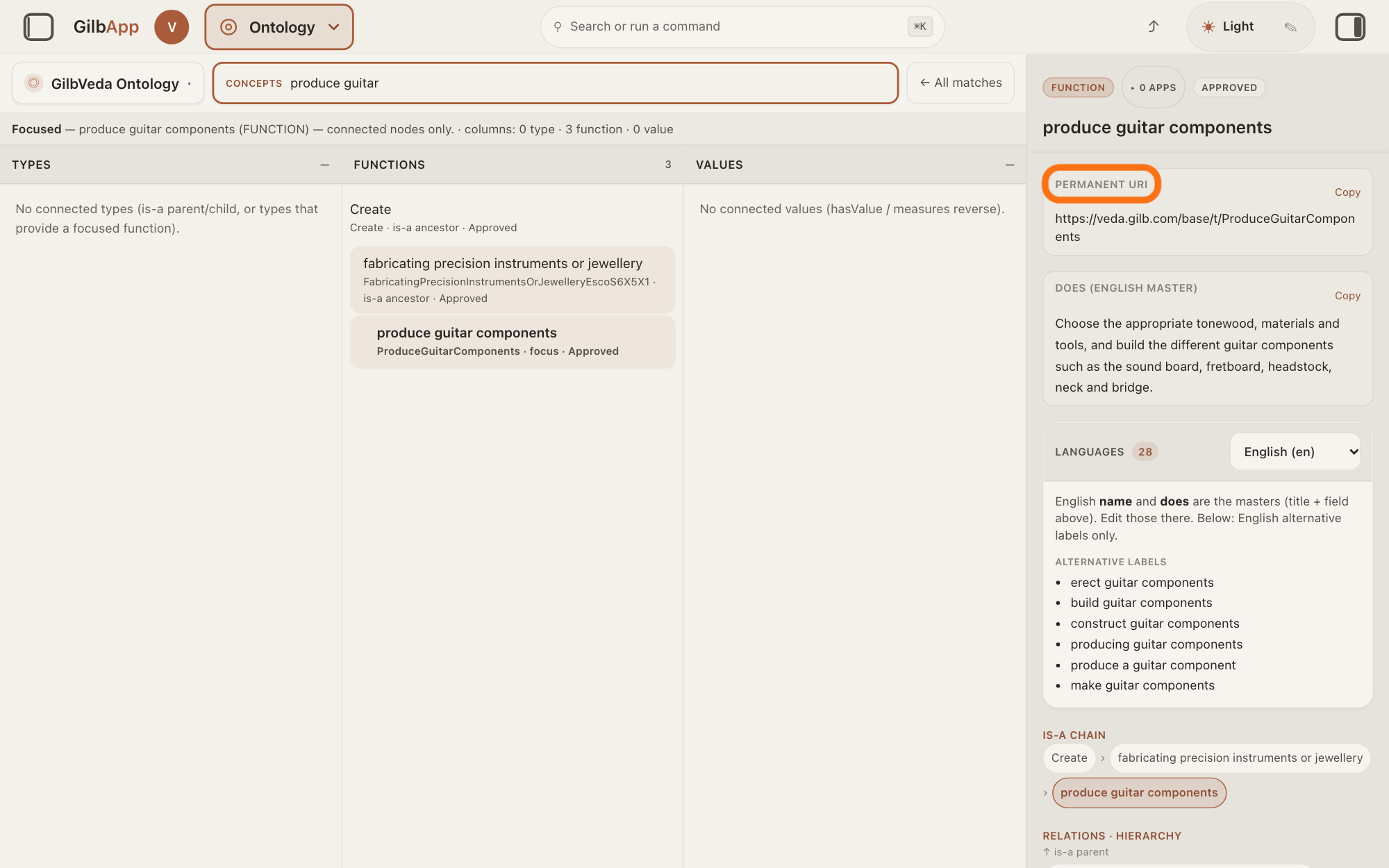
Read the right pane from the top: the term's kind, such as FUNCTION, how many apps are recorded as using it, such as ▸ 0 APPS, and its status, such as APPROVED, then its name, its technical name and its picture, if it has one. PERMANENT URI is the term's address, with Copy.
Show as text
The pane on the right shows "produce guitar components" with the badges "FUNCTION", "▸ 0 APPS" and "APPROVED". Its first box is the outlined "PERMANENT URI", with the term's address and "Copy"; "DOES (ENGLISH MASTER)" follows. Read the details there.
More about this
Its meaning follows, under DEFINITION (ENGLISH MASTER) for a type, DOES (ENGLISH MASTER) for a function or DEFINITION (DOES) for a value. IS-A CHAIN lists the terms it is a kind of, from the top, then its DIRECT CHILDREN; RELATIONS · HIERARCHY names its parent; click a name to move there. A type lists PROVIDES (FUNCTIONS); a function MEASURED BY (VALUES) and PROVIDED BY (TYPES); a value MEASURES (FUNCTION), SCALE, the ruler it is measured on, with its Best and Worst ends, and METERS, the ways it is measured. EXAMPLES, EXTERNAL ALIGNMENT and PROVENANCE & GOVERNANCE show when the term has them (Deeper).
If it has names in other languages, choose one beside LANGUAGES.
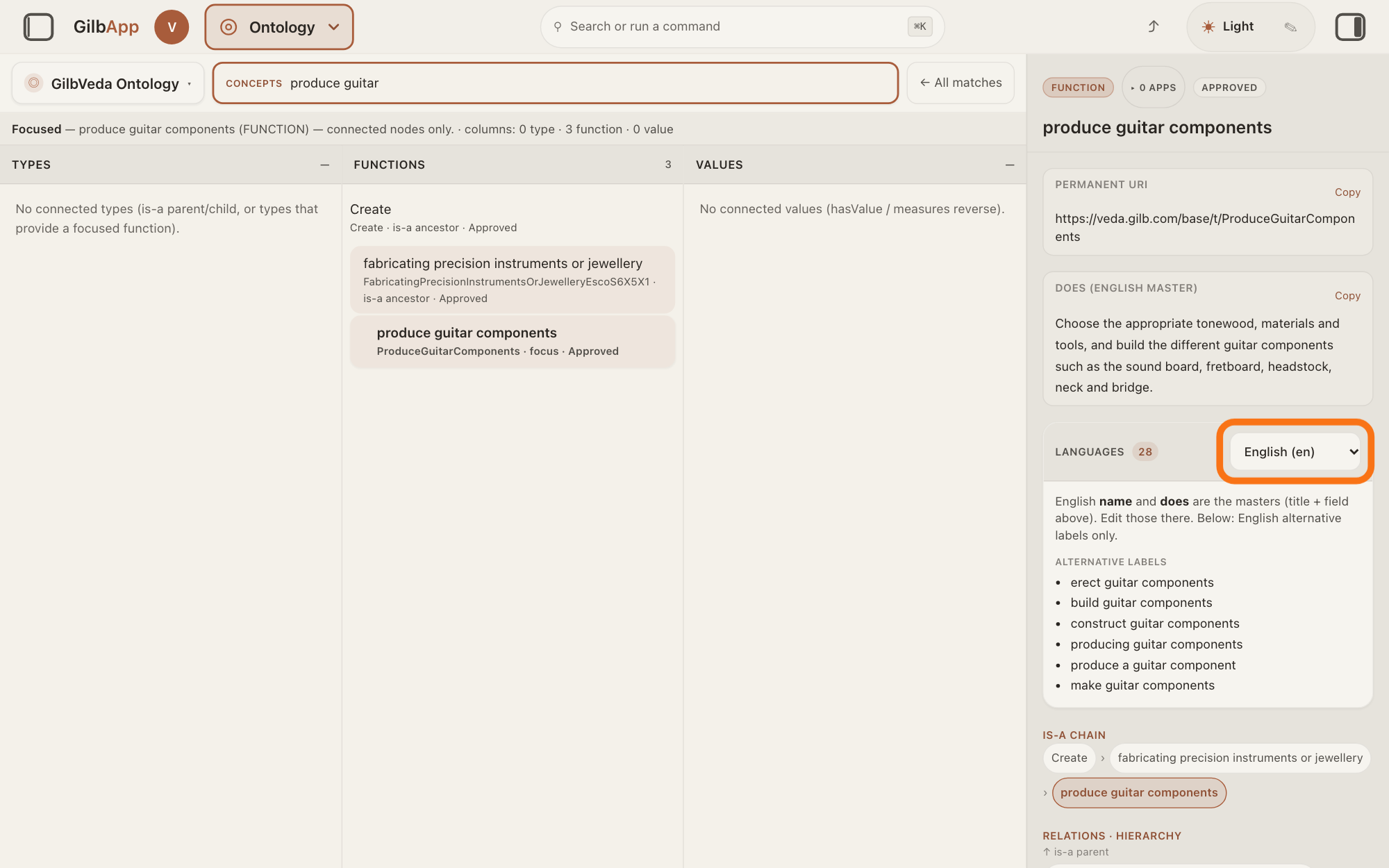
Choose a language in the list at the right of LANGUAGES; the number beside the heading counts the term's languages. The card then shows the term's NAME and DESCRIPTION in that language, and its ALTERNATIVE LABELS, other names it is found by.
Show as text
Further down the pane on the right, the card "LANGUAGES" shows a count, "28". At its right, the outlined list reads "English (en)". Choose another language in the list to read the term's name in that language.
More about this
For English the card says the English name and definition are the ones above, and lists only the other English names. A language with no name or description says so, such as no name provided for and the language's code. A term with names in English only has no LANGUAGES card.
Scroll down the right pane to CHANGE HISTORY.
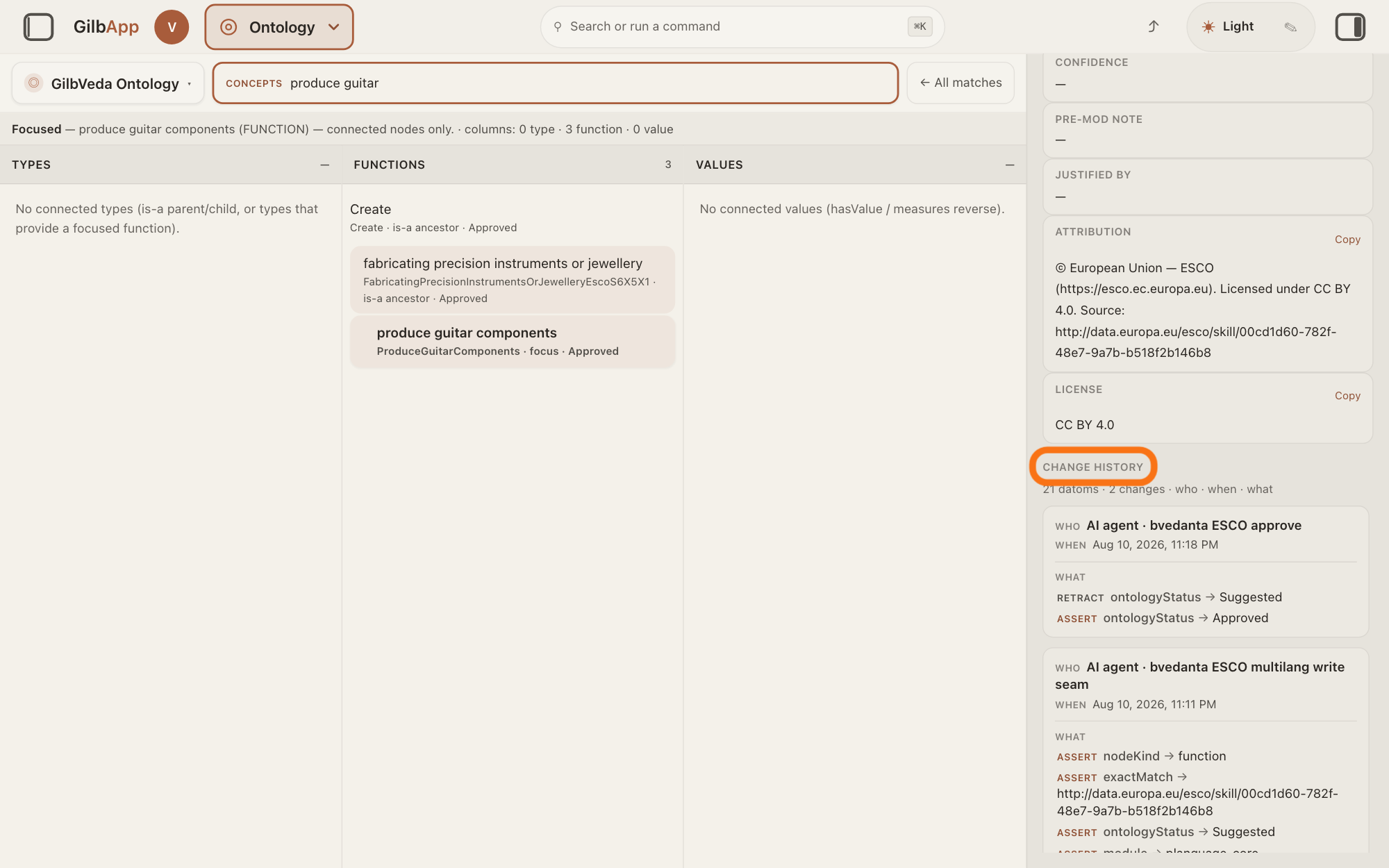
Scroll down the right pane to CHANGE HISTORY. Each change shows WHO made it, WHEN, and under WHAT the facts it wrote, newest change first.
Show as text
The pane on the right is scrolled down past "ATTRIBUTION" and "LICENSE". The outlined heading reads "CHANGE HISTORY", with a count of changes under it. Each change below shows "WHO", "WHEN" and "WHAT".
More about this
WHO names the writer, such as a person's public name, Person (name not public), an account's name, or AI agent · and the agent's name. Under WHAT, ASSERT marks a fact added, RETRACT one removed and CHANGE a name or description in one language changed, each with the fact's name, → and its value. The line under the heading counts the changes; it shows Loading bitemporal datoms… while it loads. No change events. means none were found; if the history cannot be read, the line says why and shows none. GilbApp shows a CHANGE HISTORY only in Ontology, for GilbVeda's terms and the species of the tree of life, not for the records in your vaults.
Deeper
A badge beside the kind, such as MAYA, names which of GilbVeda's three top kinds of thing the term sits under: BRAHMAN, The Unchanging; MAYA, The Actual; or KALPANA, The Imagined & Planned. A deprecated term shows → and the name of the term that replaces it; click it to go there.
A function may also show VERB, the action word it is written with. EXTERNAL ALIGNMENT links to the same term in another list, such as the European Union's skills list, ESCO. PROVENANCE & GOVERNANCE shows the names programs use for the term (PREDICATE, TYPE BIND, CLASSIFIER), the part of GilbVeda it belongs to (MODULE), how sure its maker was, from 0 to 1 (CONFIDENCE), the checks made before it was added (PRE-MOD, PRE-MOD NOTE), why it exists (JUSTIFIED BY), and its source and licence (ATTRIBUTION, LICENSE). Copy beside a field copies its text.
A change may write more facts than WHAT lists: GilbApp shows the main ones, or the first eight.
Without an account the same pane shows, read only, at https://gilb.com/app/?section=ontology; the answer on browsing GilbVeda's types says more. GilbApp lets you read GilbVeda here, not change it: unless your account may write to GilbVeda, the right pane says Sign in as an ontology writer to create terms. while no term is chosen. The answer on suggesting a new term shows how to have a term made.
This answer is written for a computer screen. In a window narrower than 840 pixels, such as a phone, the side panes are hidden and the right pane is Detail in the bar at the bottom; in a window narrower than 768 pixels the three columns also stand one under another.
Source: GilbApp ebd9415e (Ontology code identical to af0f04ee), code read. Steps 1-2 shared; step 2: OntologyConceptPane via ?oc= (ontologySelection.ts:13-43), sentence on the Type link. Step 3: OntologyConceptPane.tsx:964-1105 (+ New writers only; kind badge Type/Function/Value/Attribute uppercase; pole badge; ▸ + <n> App(s) uppercase, Usage unavailable; status span uppercase for readers), :1106-1180 (title, technical name, picture), :1241 (Permanent URI + Copy, Field :2123-2158 uppercase), :1266-1286 (definition labels), :1288-1300 (Languages card), :1307-1352 (Is-a chain, Direct children), :1353-1405 (Relations · hierarchy), :1406-1540 (function: Verb, Measured by (values), Provided by (types); type: Provides (functions); value: Measures (Function); ValueFacets), :1544-1626 (External alignment, Examples), :1628-1732 (Provenance & governance fields), SectionTitle :2111-2117 (uppercase); inlineEdit.tsx:12-70 (read-only field with Copy). Step 4: OntologyConceptPane.tsx:1814-1962 (Languages + count, select <language> (<code>), English note, Name, Description, Alternative labels, no name provided for “<code>”), :1288 (card only with languages). Step 5: OntologyHistoryPanel.tsx:71-136 (Change history, Loading bitemporal datoms…, No change events., Who, When, What, op uppercase, →), ontologyHistory.ts:161-300 (who: name, Person (name not public), account, AI agent · …, System · …, Unknown actor), :362-395 (change for one language), :400-480 (priority facts or first 8; newest first), :585-693 (reach N datoms · N changes · who · when · what; History fetch failed (…)). Deeper: ontologyTermView.ts:373-383 (pole), GilbVeda t:Brahman/t:Maya/t:Kalpana labels The Unchanging / The Actual / The Imagined & Planned; :1095-1104 (successor →); public read t:ProduceGuitarComponents (Approved, function, languages incl. de, skos:exactMatch ESCO, attribution and CC BY 4.0). writer sentence; computer-screen sentence.
Checked against GilbApp d529620.