
← Back to Why does my plan need Constraints?
How do I release a Constraint?
Short answer
Press Main menu, choose Plan, search and select the Solution Constraint, press Edit, choose Solution under Type, press Change, then write a Value.
Before you start
You need to be signed in to GilbApp on a computer, with a vault you can write to, such as your own vault. The person who requires the constraint, its Authority, must have agreed to release it. The pictures show a made-up person on a test site; your screen shows your own name and address.
Words used here (5)
- GilbApp
- GilbApp is the app, opened in a web browser at https://gilb.com/app, where you open, fill and share your vaults.
- Kai-Zen
- Kai-Zen is the planning agent: it finds out what you want, chooses the way, hands the work to other agents and reports back.
- record
- A record is one piece of data with its own address, such as a person, a place, a thing or a note.
- short name
- A short name is the one word you give one AI on one computer, such as gilb-example; it keeps that AI's key and tools apart.
- field
- A field is one named fact on a record, such as its title or a due date; its name comes from GilbVeda.
Steps
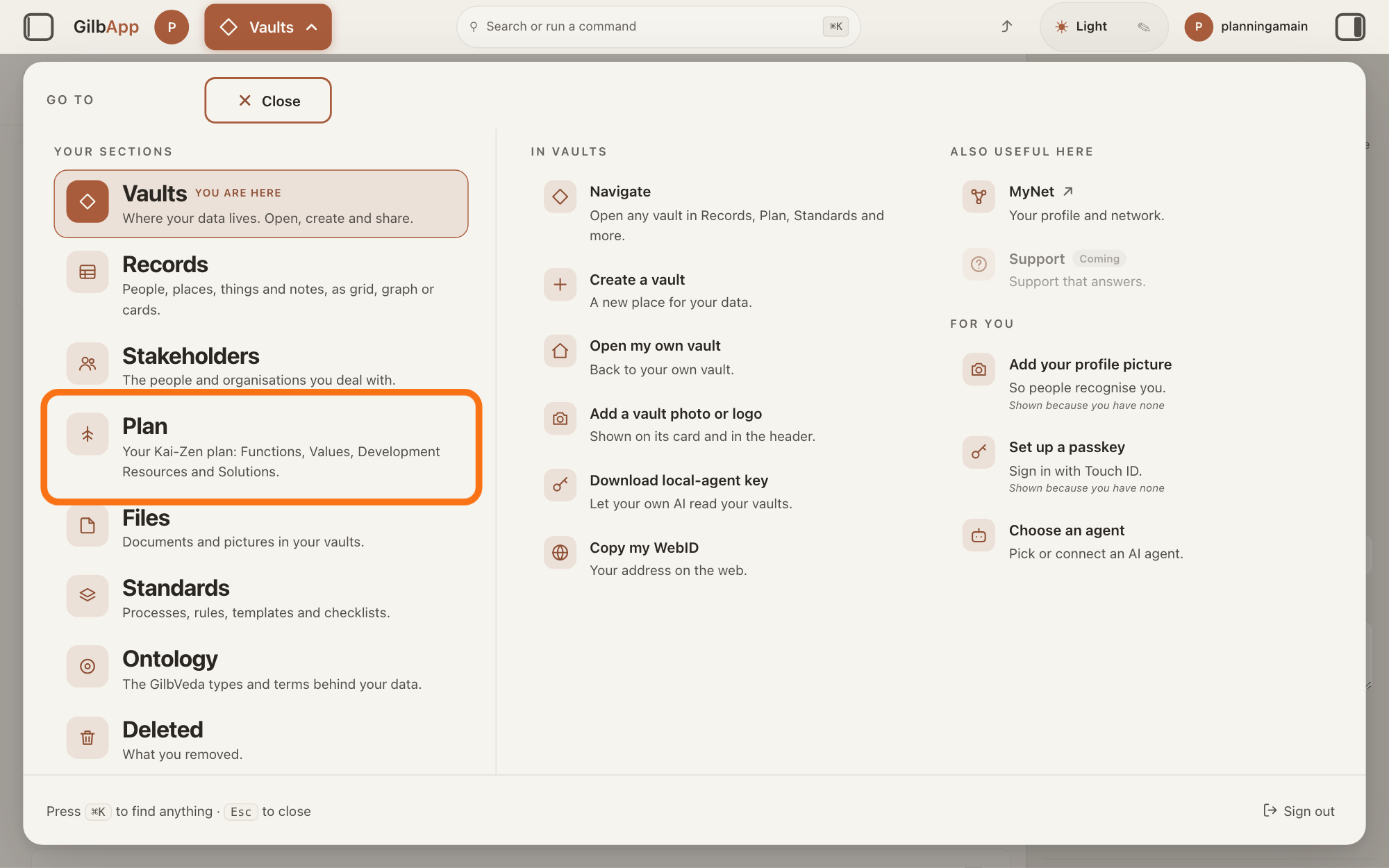
Press Main menu at the top left and choose Plan.
Press Main menu, next to your profile picture at the top left, and under YOUR SECTIONS choose Plan. The button shows the name of the section you are in, such as Vaults.
Show as text
The "GO TO" panel is open over the screen. Look in the left column under "YOUR SECTIONS": the outlined row is "Plan", with the line "Your Kai-Zen plan: Functions, Values, Development Resources and Solutions." Press it to open the Plan screen.
More about this
A panel headed GO TO opens; Plan reads Your Kai-Zen plan: Functions, Values, Development Resources and Solutions. You can also press the Plan button on the card of a vault (the place where a person or a group keeps their records) in Vaults. The Plan screen lists your plan records and has the views Grid, Graph, Both and Card.
Search and select the Solution Constraint in the list.
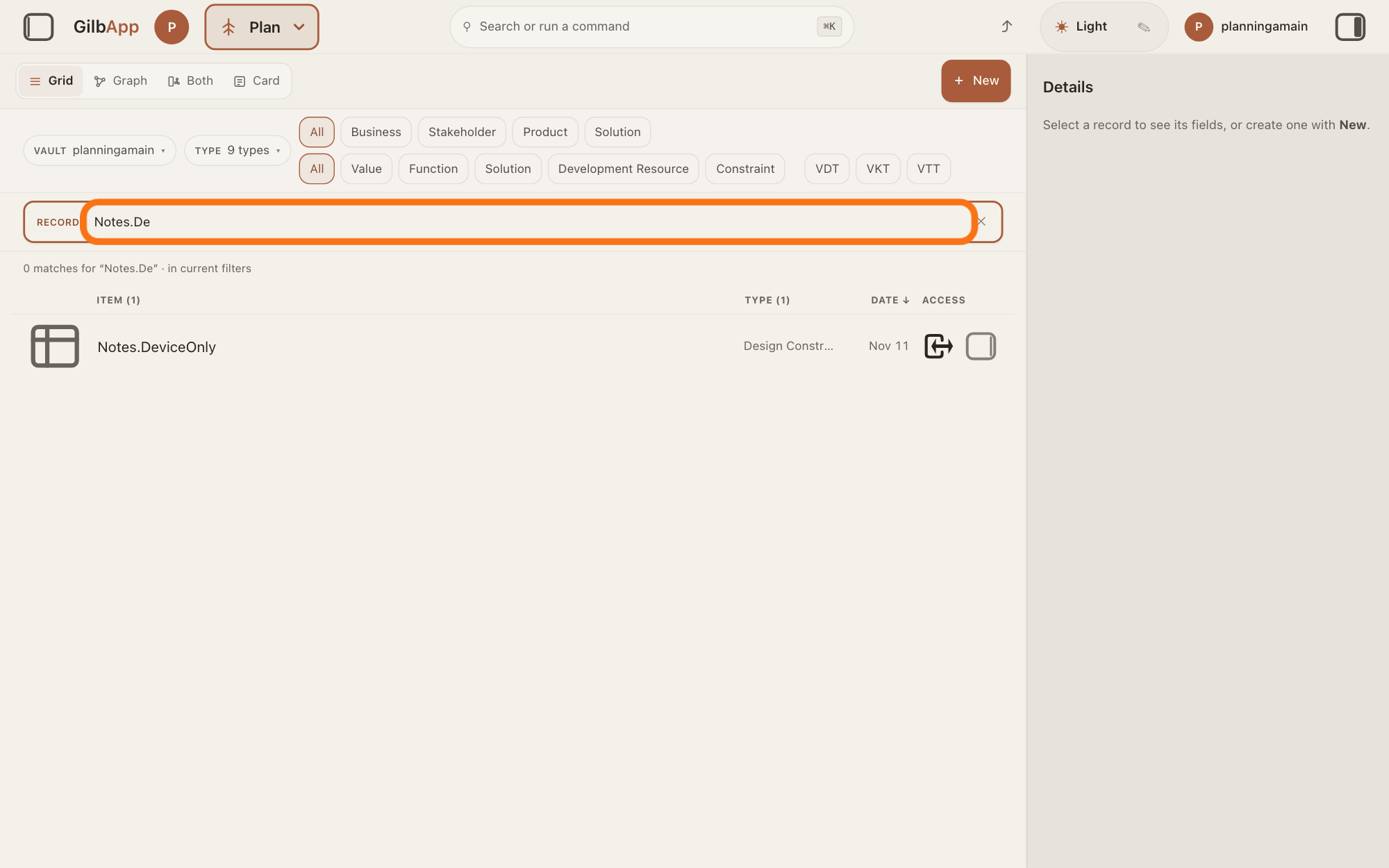
Type part of the constraint's tag (its short name) in the search box and select the Solution Constraint in the list. A Solution Constraint is a Solution that must be used, because a named person requires it.
Show as text
You are on the "Plan" screen in "Grid" view. The outlined search box holds the start of the constraint's tag, and the list shows one hit, Notes.DeviceOnly, typed "Design Constr…". Press its row to select it.
More about this
A Solution is how a Function (what a system does) gets done. The search box shows Search in current filters… while a filter is on, and Search your vault… otherwise. The button Constraint in the row of kinds shows only constraints. The card shows the person who requires it under Authority, with the word required. For a Function Constraint, see Deeper, below the steps.
Press Edit.
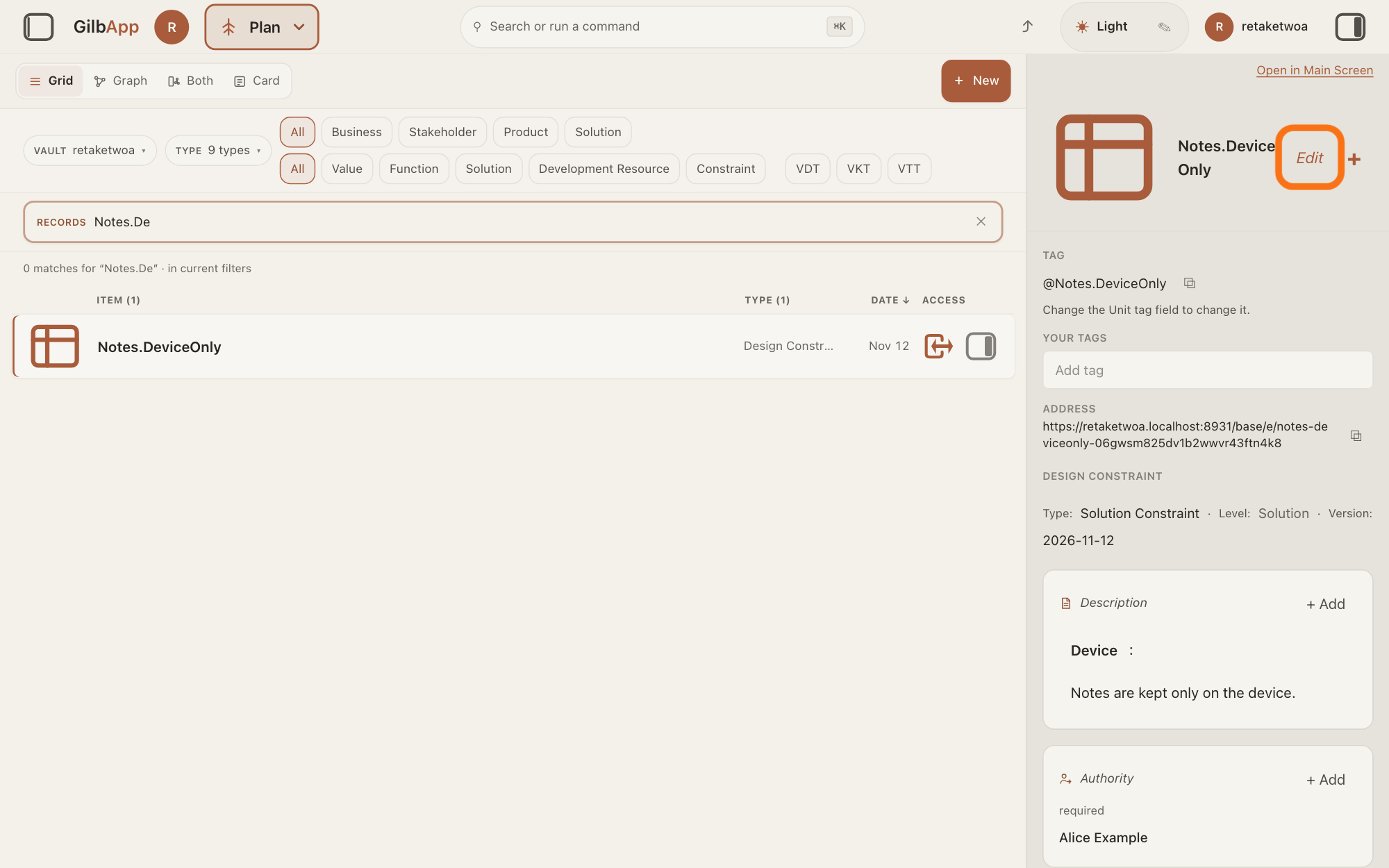
At the top right of the constraint's card, press Edit. The button then reads Done.
Show as text
The constraint is selected and its card shows in the right pane: "Type: Solution Constraint", "Level: Solution", its "Description" and "Authority required" with a made-up person. Press the outlined "Edit" at the top right of the card.
More about this
The card says Editing. Changes save as you leave a field. There is no Save button. Beside Done, a + does what + Add Information at the foot of the card does; you do not need it. The card shows Edit only to a person who may write in its vault. Without Edit, pressing the type word Solution Constraint on the line under the card's header shows the same two radio buttons; Edit is clearer, because every box of the card is then shown.
Under Type, choose Solution and press Change.
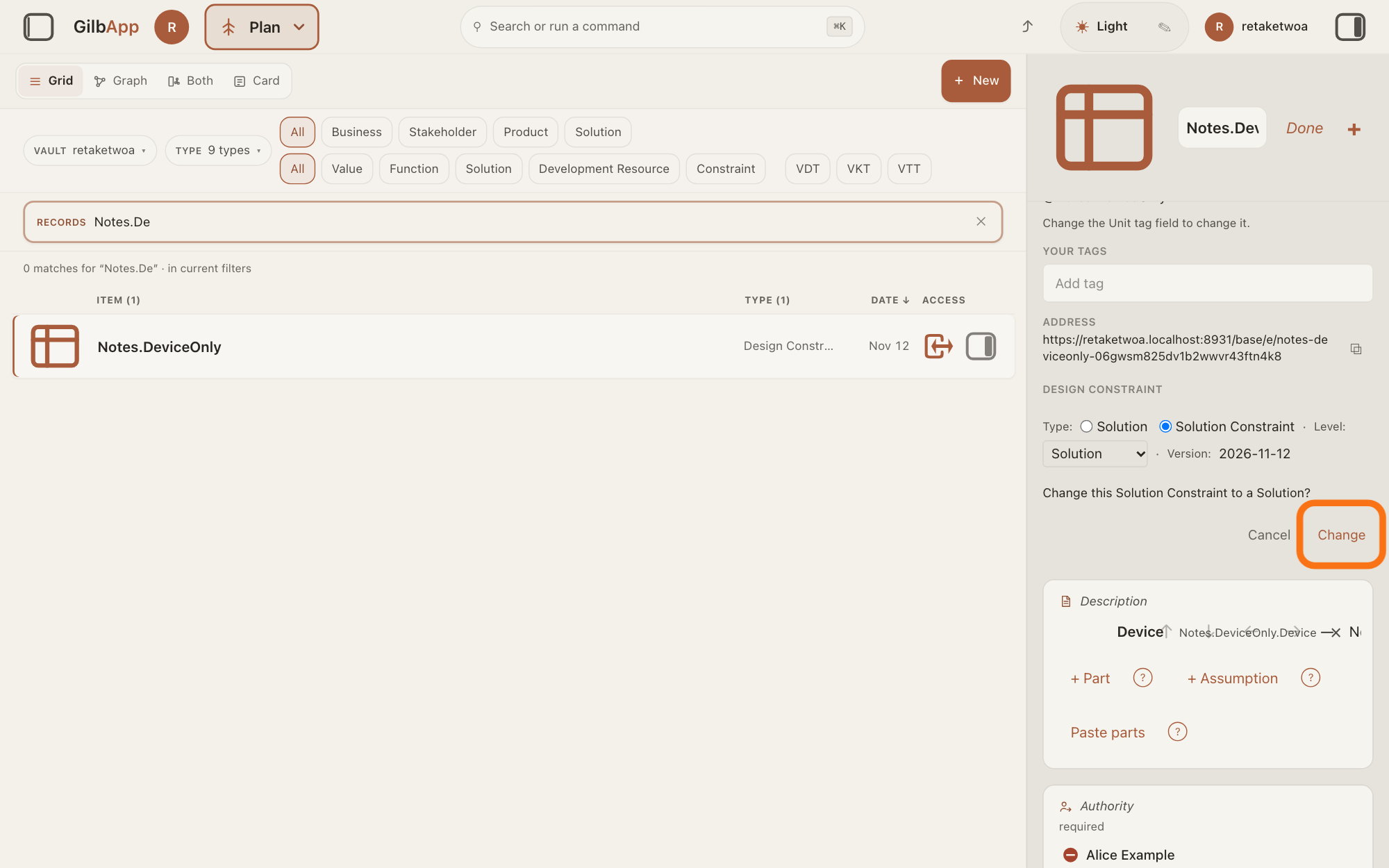
On the line under the card's header, after Type:, choose the radio button Solution. The card asks Change this Solution Constraint to a Solution?; press Change.
Show as text
The card is in edit mode. On the "Type:" line, "Solution" was pressed, so the question "Change this Solution Constraint to a Solution?" shows with "Cancel" and the outlined "Change". Press "Change".
More about this
Cancel keeps it a constraint. The card is then a Solution, kept in the plan as one option. Its level stays Solution (a level says which part of the plan a card belongs to): the Kai-Zen method puts a Solution Constraint, like a Solution, at that level. GilbApp changes only the type: the Description, Solution of Function and Impacts stay as they were, and so does the person under Authority, which a Solution does not need.
Press Done when you have finished.
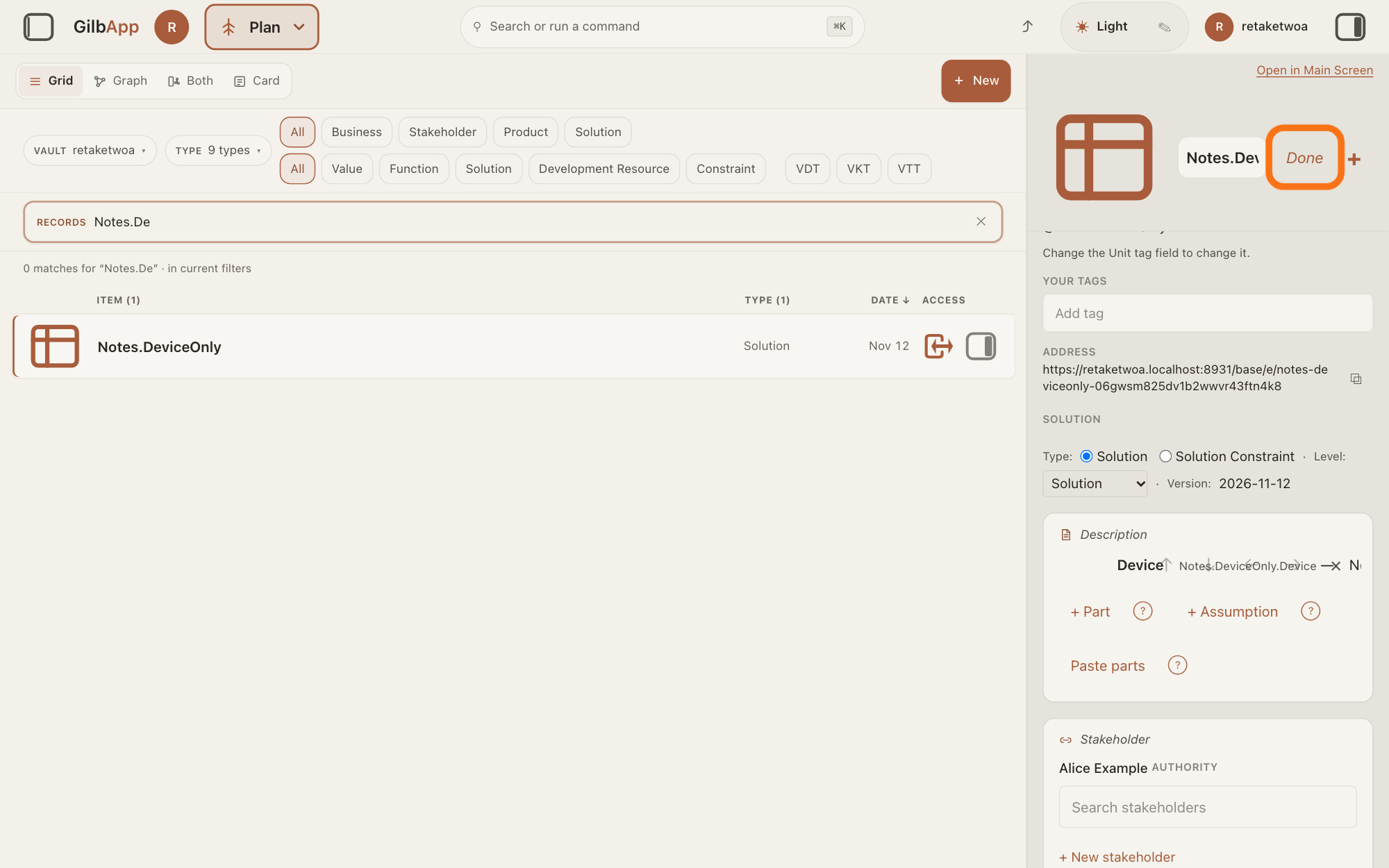
Press Done at the top right of the card. What you changed is already saved.
Show as text
The "Type:" line now shows "Solution" chosen, and the list behind says "Solution". The card is still in edit mode; press the outlined "Done" at the top right when you have finished.
More about this
The line under the header now shows Solution after Type:. In the Plan list the card now shows under the button Solution in the row of kinds, not under Constraint.
Write the guarded result as a Value with a Scale and a Tolerable.
Write the result the constraint was there to protect as a Value, with a Scale and a Tolerable; the answers on writing a Value in your plan and on setting a Goal and a Tolerable level show how. A Value is a perceived benefit, measured as a number; a Scale is the ruler it is measured on, and Tolerable is the worst number you can live with.
More about this
For example, if the constraint said to keep notes only on the device so that no one else can read them, the result is that no one else can read them: a Value counted in the people outside the team who can read a note, with a Tolerable of 0. In the Kai-Zen method the result becomes the Value, and what the constraint required stays as one option. To weigh that Solution, and others, against the new Value, the answer on comparing Solutions in a VDT shows how.
Deeper
Also asked:
What if a limit no longer applies? Release it, if the person named as its Authority agrees: in Plan, open the Solution Constraint, press Edit, choose Solution under Type and press Change, then write the result it guarded as a Value.
In the Kai-Zen method a constraint holds until the person named as its Authority decides to release it.
When a Solution Constraint only guards a result, Kai-Zen proposes turning that result into a Value with a Scale and a Tolerable, and keeping what the constraint required as one option. It writes the proposal as a finding: a note kept with the project, in its folder or its vault, titled FINDING- with the date, what it is about and the project, marked as an open finding, holding three lines: where, what was chosen, and why. It tells you where the note is and does not wait for an answer.
Each kind of constraint has its level. A Function Constraint, a Function that must be done because a named person requires it, goes at the Product level, and a Solution Constraint at the Solution level, beside the Functions and Solutions. At the Business and Stakeholder levels the only constraints are the Tolerable and Budget limits of their Values and Development Resources (a Budget is the most of a Development Resource you plan to use); they are numbers in the Levels of a Value or a Resource, not constraint cards.
The method's release rule speaks of a Solution Constraint only. GilbApp changes a Function Constraint back to a Function the same way: under Type, choose Function and press Change; the card asks Change this Function Constraint to a Function?.
GilbApp does not ask for the Authority's agreement: anyone who may write in the vault can change the type.
You can also ask Kai-Zen to make the change: say in GilbApp's chat which constraint to release and that its Authority agrees. Kai-Zen takes a change to a spec, a requirement written in your plan, by handing your words to the agents that write each level of the plan, and then sharpens the plan. An agent is your AI following one written procedure, its standing instructions, for one kind of work. The answer on continuing a project with Kai-Zen shows how to ask it for a change.
The answer on writing a Constraint in your plan shows how a constraint is written, and how a Solution is turned into one.
This answer is written for a computer screen.
Source: GilbApp af0f04ee838a4d55887d2ff1f72edd49a4ff7ca0 (https://gilb.com/app/version.json read 2026-11-09, buildTime 2026-11-09.522Z, dirty false); code from the unpack (at af0f04ee). Step 2: RegisterScopedSearch.tsx:73-74; planFilterRows.ts:19-29 (Constraint = FunctionConstraint + DesignConstraint; Solution = Solution); PlanConstraint.tsx:32-66 (Authority with required on a Solution Constraint). Step 3 (cardMode.tsx:257-278); PlanTypeLevelVersion.tsx:93-103 (the type word is a button that opens the radios when the card may be written). Step 4: PlanTypeLevelVersion.tsx:56-92 (Type:, radiogroup with plainWord and constraintWord, shown in edit mode); planKinds.ts:215-238 (planTypePair: Solution / Solution Constraint; planTypeChangeSentence: Change this Solution Constraint to a Solution?, Change this Function Constraint to a Function?); PlanFunctionForm.tsx:895-947 (changeType: a Person pick only when becoming a constraint), :1515-1563 (question, Cancel, Change); recordHooks.ts:2436-2470 (useRetypeRecord: the type is changed, the facts are sent as they are; no merge, relations untouched); planKinds.ts:138-160 (SOLUTION_LINES hold description, authority, solutionOf, impacts). PlanTypeLevelVersion.tsx:64,78 (Type: then the word). Standards (2026-11-09, all 200): Kai-Zen.ConstraintRules (Kinds, MustDo, Authority, Release, Level), Kai-Zen.StopRules (Finding, by follow and get), Kai-Zen.Existing (Change), Kai-Zen.SolutionTemplate (Blank: Authority Solution-Constraint only; Example.Constraint: Level Solution). published 'What is a Solution Constraint?', 'What is a Function Constraint?', 'What is a Level?', 'What is a Budget?'
Checked against GilbApp d529620.