
How do I reuse a Solution or a Constraint?
Short answer
Press Main menu, choose Plan, search and select the Solution or Solution Constraint, press Edit, search and select the Function, press Done.
Before you start
You need to be signed in to GilbApp on a computer, with a vault you can write to, such as your own vault. The Solution and the Function that needs it must already be in your plan, in the same vault. The pictures show a made-up person on a test site; your screen shows your own name and address.
Words used here (5)
- GilbApp
- GilbApp is the app, opened in a web browser at https://gilb.com/app, where you open, fill and share your vaults.
- Kai-Zen
- Kai-Zen is the planning agent: it finds out what you want, chooses the way, hands the work to other agents and reports back.
- record
- A record is one piece of data with its own address, such as a person, a place, a thing or a note.
- short name
- A short name is the one word you give one AI on one computer, such as gilb-example; it keeps that AI's key and tools apart.
- field
- A field is one named fact on a record, such as its title or a due date; its name comes from GilbVeda.
Steps
Press Main menu at the top left and choose Plan.
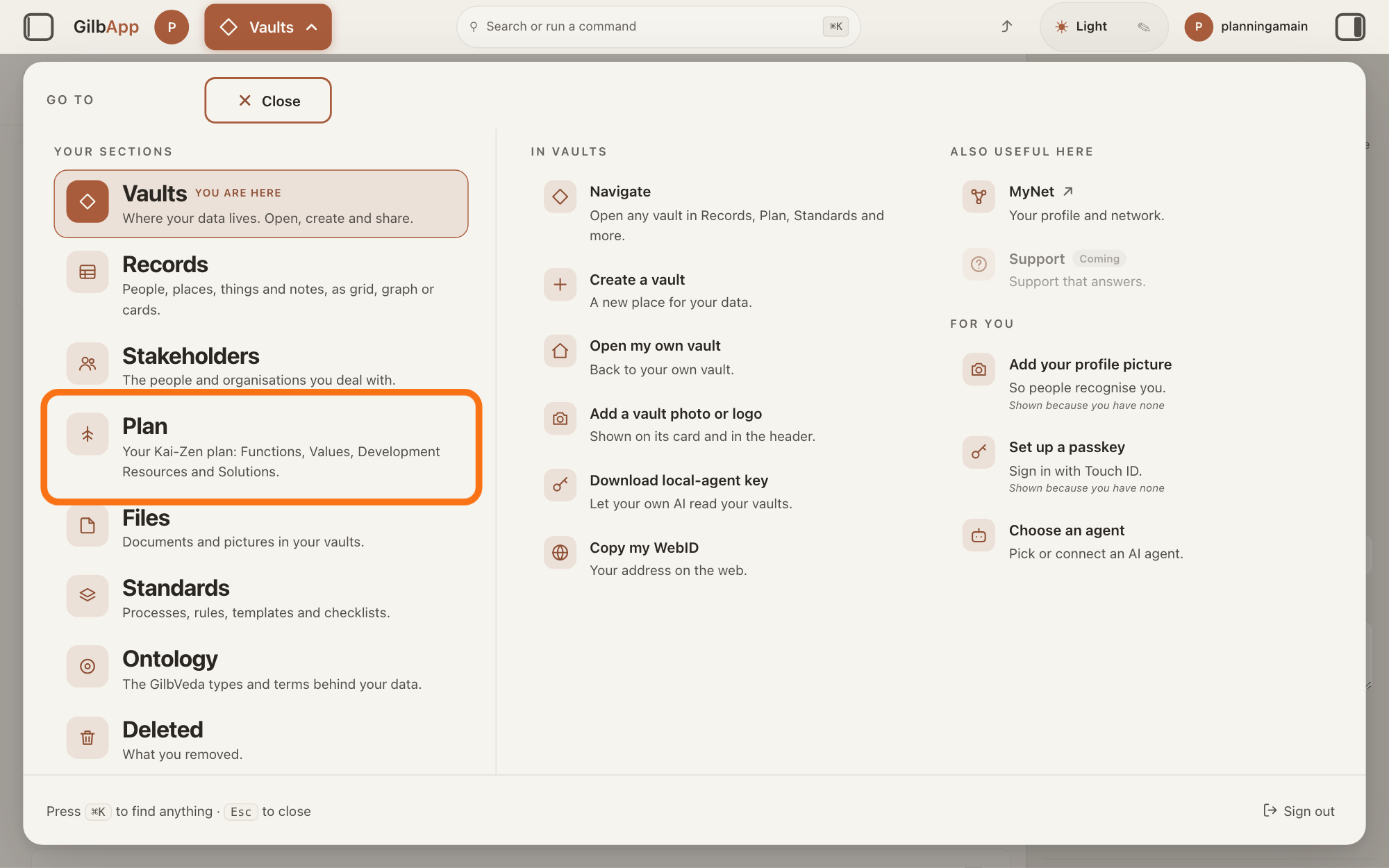
Press Main menu, next to your profile picture at the top left, and under YOUR SECTIONS choose Plan. The button shows the name of the section you are in, such as Vaults.
Show as text
The "GO TO" panel is open over the screen. Look in the left column under "YOUR SECTIONS": the outlined row is "Plan", with the line "Your Kai-Zen plan: Functions, Values, Development Resources and Solutions." Press it to open the Plan screen.
More about this
A panel headed GO TO opens; Plan reads Your Kai-Zen plan: Functions, Values, Development Resources and Solutions. You can also press the Plan button on the card of a vault (the place where a person or a group keeps their records) in Vaults. The Plan screen lists your plan records and has the views Grid, Graph, Both and Card.
Search and select the Solution in the list.
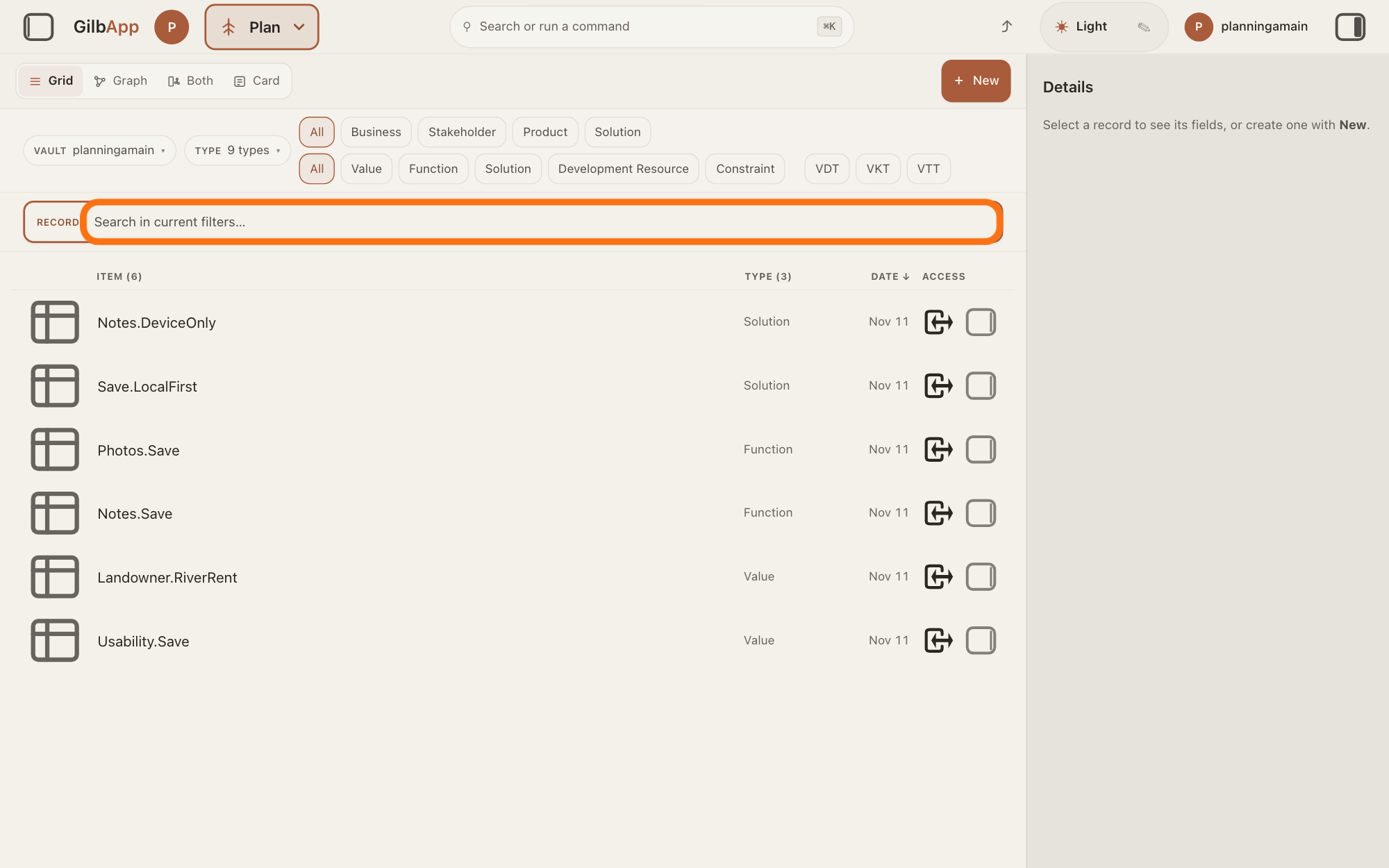
Type part of the Solution's tag (its short name) in the search box and select the Solution in the list. A Solution is how a Function (what a system does) gets done.
Show as text
You are on the "Plan" screen in "Grid" view. The outlined box is the search box under the filter rows, marked "RECORDS" and "Search in current filters…". Type part of the tag of the record you want; the list below shows the matching records.
More about this
The search box shows Search in current filters… while a filter is on, and Search your vault… otherwise. The button Solution in the row of kinds shows only Solutions, and Constraint only constraints. A Solution Constraint, a Solution that must be used because a named person requires it, is reused the same way. Reusing means one Solution serves another Function too, instead of a second Solution that means the same. If none fits, the answer on writing a Solution in your plan shows how to write one.
Press Edit.
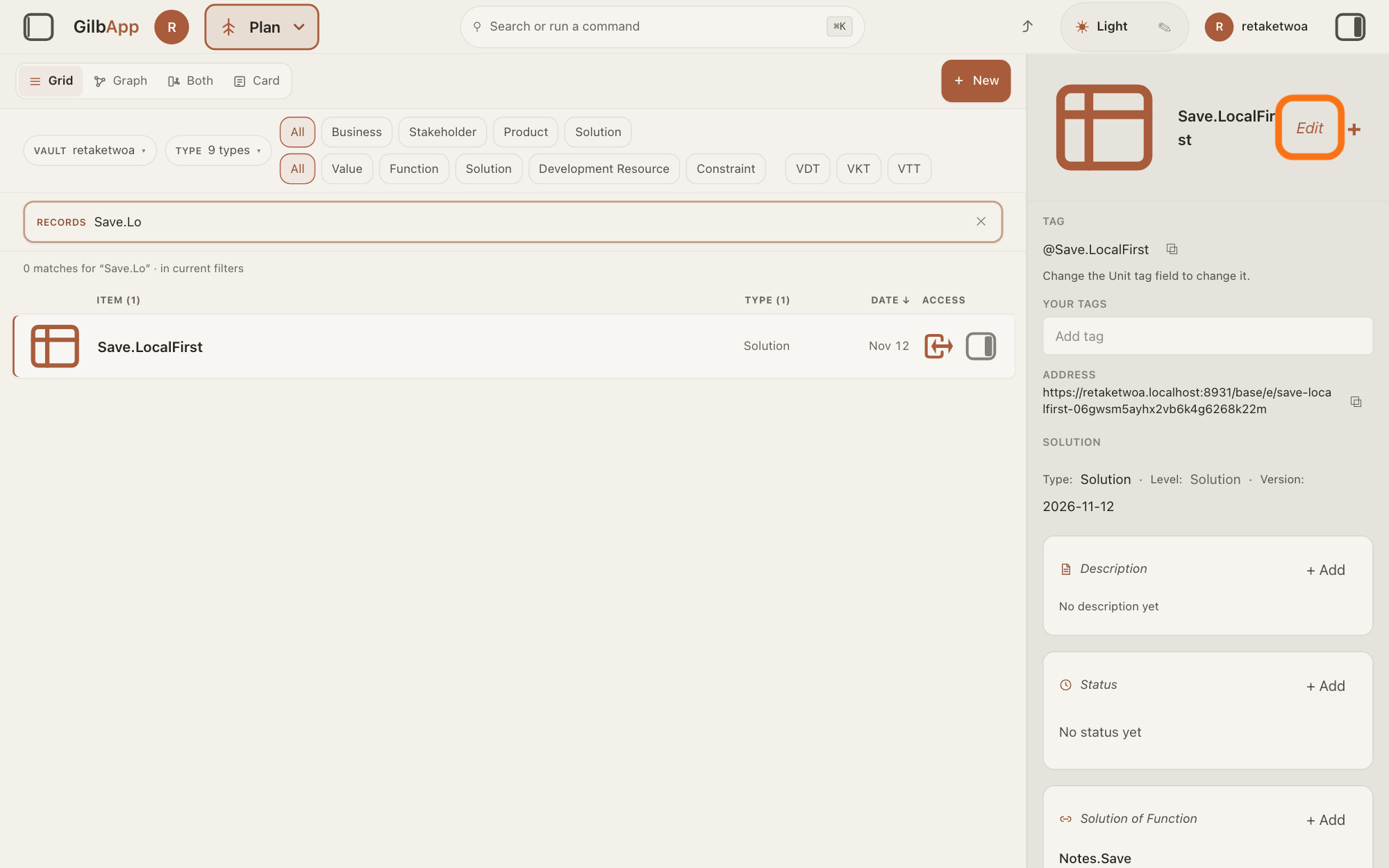
At the top right of the Solution's card, press Edit. The button then reads Done.
Show as text
The Solution is selected in the list and its card shows in the right pane, not in edit mode; at the foot, "Solution of Function" lists the Function it serves. Press the outlined "Edit" at the top right of the card.
More about this
The card says Editing. Changes save as you leave a field. There is no Save button. Beside Done, a + does what + Add Information at the foot of the card does; you do not need it. The card shows Edit only to a person who may write in its vault. Without Edit, + Add on the Solution of Function line, where it shows, opens the same box; Edit is clearer, because every box of the card is then shown.
Under Solution of Function, search and select the Function.
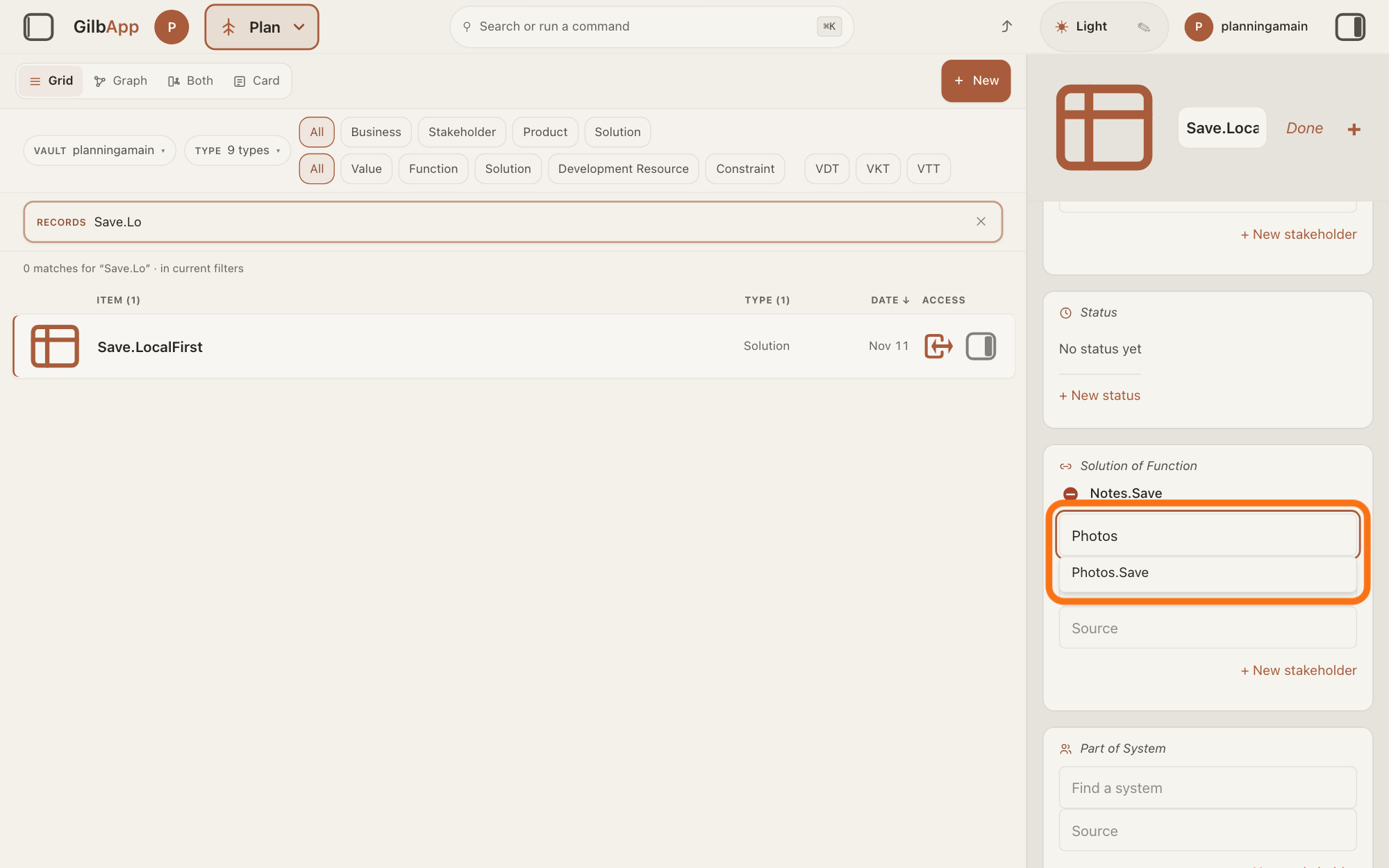
Under Solution of Function, type in the box that shows Find a Function by tag and select the Function that needs the Solution. The Solution now serves that Function too.
Show as text
The card is in edit mode, scrolled to "Solution of Function", which already lists Notes.Save with a red round button. The outlined box below it, "Find a Function by tag", holds the typed word Photos, and the one match Photos.Save shows under it. Choose the match.
More about this
The Functions it already serves are listed above the box, and the box does not offer them again. It finds Functions in the Solution's own vault and lists up to eight; Type to search all says there are more. The Function then lists this Solution under Solutions. The button that starts with Create Function makes a new Function with the text you typed; you do not need it here. A red round (−) at the left of a Function removes that link. A Source box under the line can name who said it; when you select a Function, GilbApp names you there, by your own card, in place of a person named before. The other way: open the Function's card, press Edit, and under Solutions search and select the Solution in the box that shows Find a Solution by tag; it lists Solution Constraints too.
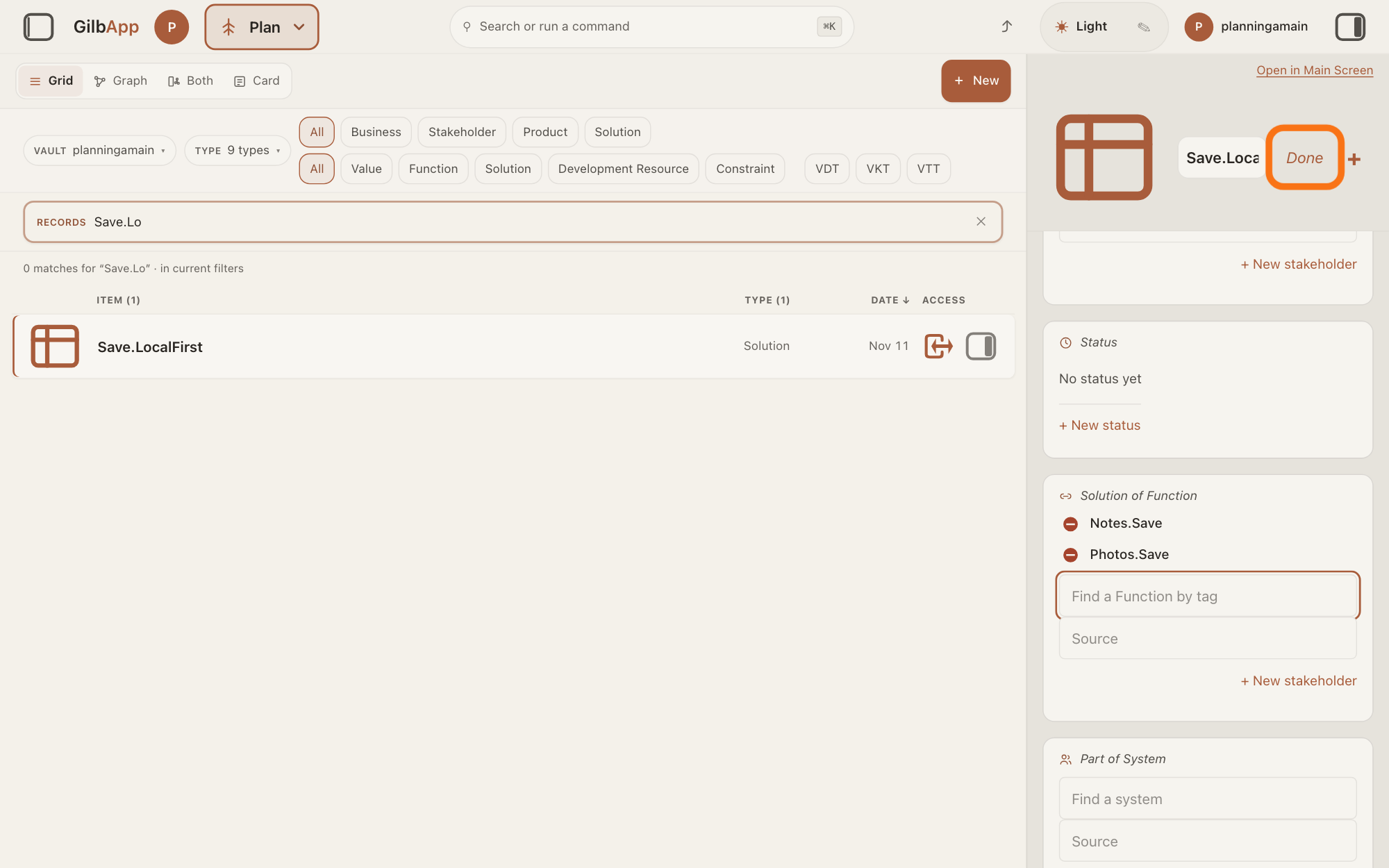
Press Done when you have finished.
Press Done at the top right of the card. What you typed is already saved.
Show as text
Under "Solution of Function" the card now lists Notes.Save and Photos.Save, each with a red round button, and the empty "Find a Function by tag" box below. Press the outlined "Done" at the top right of the card.
More about this
Under Solution of Function, the card now lists every Function the Solution serves.
Deeper
Only a Solution or a Solution Constraint is reused this way: both cards have Solution of Function, and one Solution can serve more than one Function. A Function Constraint, a Function that must be done because a named person requires it, has no Solution of Function; its Part of names one bigger Function only.
When Kai-Zen writes a Solution, it looks first for one with the same meaning: in the project, then in the Solution library, GilbPlatform's store of code to reuse. If one exists, it reuses or refines it, and does not write a second one. For a Function it looks the same way, in the project and in GilbVeda, the shared list of terms. Before it writes a Function or a Value (a perceived benefit, measured as a number), it also asks what GilbVeda holds for that kind of thing, such as Functions and Values used before, and reuses or adapts what fits.
Before a Solution is chosen, Agent.Architect, an agent Kai-Zen hands work to, checks that five ways to get it were each on the table; in its own words: build new, reuse our own, borrow, share, and wrap what exists. An agent is your AI following one written procedure, its standing instructions, for one kind of work. It stores the check as one record about that Solution, with one line for each way: what it considered, what it found and why.
Every project that builds software carries the Solution Constraint Reuse, with the project owner, by name, as its Authority, the person who requires it. It says to reuse the app's existing code, screen parts and ways of doing things; to build something new only when nothing fits, and then make it the one the whole app uses; and never to have a second look or a second way for the same thing. Before Kai-Zen hands a round of delivery or a change to the builder, such as Agent.Coder for an app on GilbPlatform, it adds the Reuse constraint if the project does not have it yet, and sends the project's constraints with the work.
After each build, Kai-Zen has Agent.Scaling check what was built: among other things, that nothing the app already has was built again, and that new screens use the app's existing screen parts and ways of doing things. A second look or a second way for the same thing counts as a problem. When an agent asked Agent.Scaling to check, the work does not go on while a problem is open; when a person asked it, that person decides.
Kai-Zen does this lookup by itself when it writes your plan; the answer on continuing a project with Kai-Zen shows how to ask it for a change.
A Solution from another project: each project has its own vault, and the box under Solution of Function finds Functions only in the Solution's own vault, so a Solution in another project cannot be linked this way. Kai-Zen's rules have it look in this project, then in the Solution library; they do not name your other projects. To use it here, write the same Solution in this plan, as the answer on writing a Solution in your plan shows. If you need to reuse one from another project directly, write to [email protected].
This answer is written for a computer screen.
Source: GilbApp af0f04ee838a4d55887d2ff1f72edd49a4ff7ca0 (https://gilb.com/app/version.json read 2026-11-09, buildTime 2026-11-09.522Z, dirty false); code read at af0f04ee. Step 1: identical to (gilbAppMenuRows.ts:158-166, :163 Your Kai-Zen plan: ...). Step 2 (RegisterScopedSearch.tsx:73-74); kind buttons planFilterRows.ts:19-29 (Solution = Solution only; Constraint = FunctionConstraint and DesignConstraint); planKinds.ts:10 (DesignConstraint is Solution Constraint). Step 3 (cardMode.tsx:257-305 Edit/Done, Editing. Changes save as you leave a field., :278 +; AddInformation.tsx:33); + Add outside edit mode PlanFunctionForm.tsx:521-529 (AddAside, not drawn while editing), :2156-2163 (Solution of Function group with AddAside). Step 4: PlanFunctionForm.tsx:2159 (Solution of Function), PlanTagLinks.tsx:963-1094 (PlanSolutionOf: chips of linked Functions, excluded from the hits :993; picker Find a Function by tag :1049, typeName Function; create button `Create Function "<text>"` :362 with kindLabel; link written with writeSolutionOf), :930-960 (SolutionChips: red round RemoveControl Remove <tag> only in edit mode), :277 and :86 (search in the record's own vault), orgCard/OrgRecordPicker.tsx:166-171 (up to 8 hits), :294 (Type to search all); PlanFunctionForm.tsx:2178-2192 (Source under the line; stampLine :767-771 and stamped :756-760 name the person by their own card, useSelfSource, in place of an older person; a picked source wins); other way: PlanFunctionForm.tsx:2198-2220 (Solutions group on a Function), PlanTagLinks.tsx:1097-1210 (PlanSolutions, Find a Solution by tag :1179, typeNames Solution and DesignConstraint :1183). Deeper: planKinds.ts:127-160 (FUNCTION_CONSTRAINT_LINES has partOf, no solutionOf; DESIGN_CONSTRAINT_LINES and SOLUTION_LINES have solutionOf), PlanTagLinks.tsx:398-488 (Part of is one link, fvParent). Standards (read 2026-11-09): Kai-Zen.SolutionRules (Lookup, Links), Kai-Zen.WriteSolution (Rules: Start with the lookup), Kai-Zen.FunctionRules.Lookup, Kai-Zen.ConceptRules.Reuse, Kai-Zen.ConstraintRules (MustDo, Authority, Reuse), Kai-Zen.Cycle (Build, Check), Kai-Zen.Update (Values, Build, Check), Agent.Architect (Options), Agent.Scaling (Reuse, Block). GilbVeda public read 2026-11-09: t:SolutionReuseCheck ("whether each of the five ways to get the means was on the table ... build new, reuse our own, borrow, share, and wrap what exists ... whether it was considered, what was found ... and why"; written by Agent.Architect), t:DesignConstraint, t:Solution. Another-project paragraph: Kai-Zen.SolutionRules.Lookup, read 2026-11-12 ("Look for a Solution with the same meaning first: in the project, then in the Solution library"); one vault holds one project as on Do I need a new vault for each app or project?; the own-vault search as step 4 here.
Checked against GilbApp d529620.