
← Back to How can I see what I've built?
How do I see what changed, and who changed it?
Short answer
In GilbApp's chat, open the steps list under your AI's answer, such as 8 steps, then open Files to see each file your AI changed.
Before you start
Claude Code connected to GilbApp's chat, a code folder with Code in switched on, and an answer from your AI in this browser tab that changed files. The pictures show a made-up person on a test site; your screen shows your own name and address.
Words used here (2)
Steps
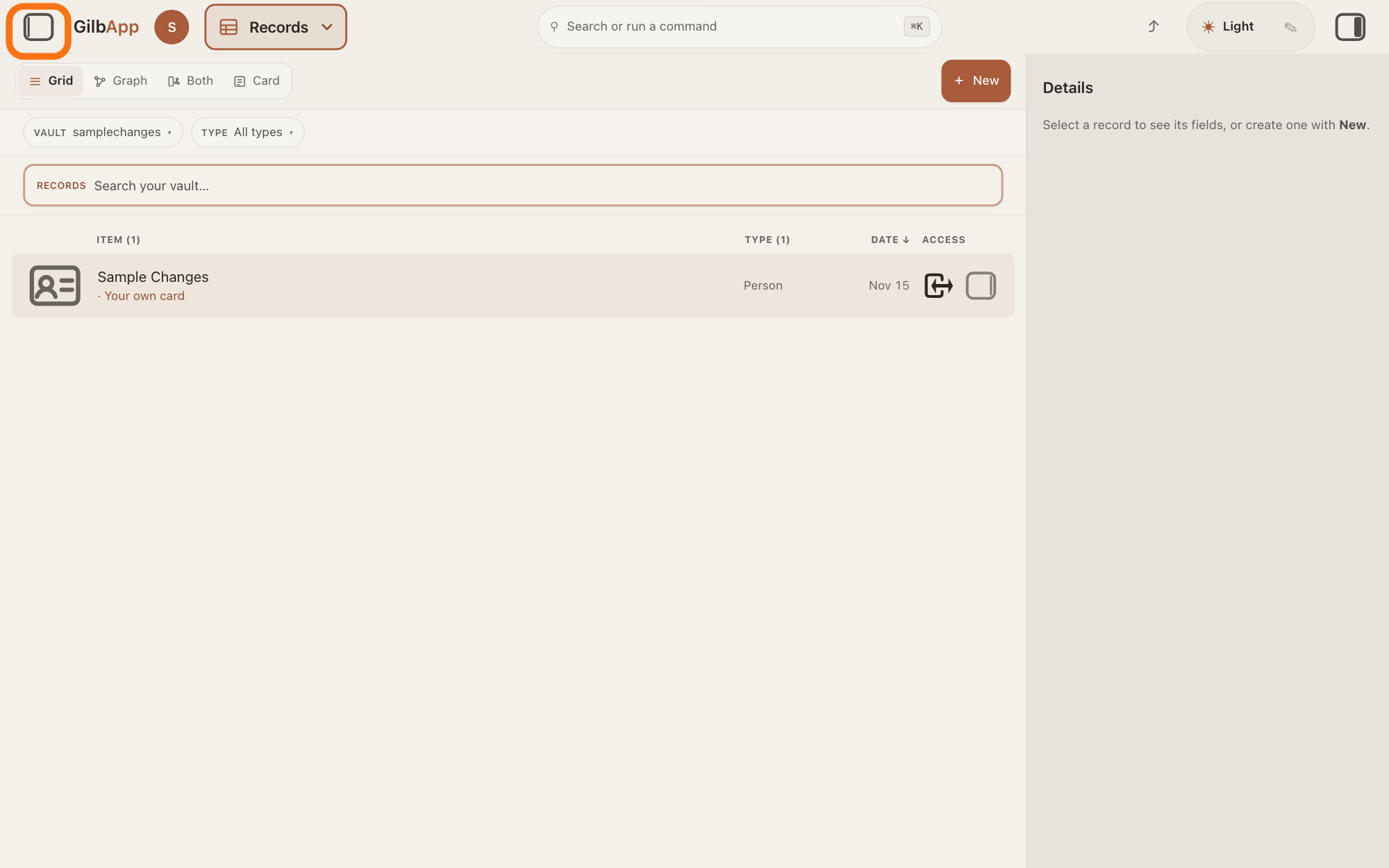
If the chat is hidden, press the square button at the far left of the top bar.
If the chat is not showing on the left, press the square button at the far left of the top bar. The left pane opens with the chat and your AI's answers in this tab.
Show as text
The left pane is hidden and the records fill the screen. At the far left of the top bar, the small square button is outlined in orange. Press it to open the chat on the left.
More about this
The same button hides the pane again. At the top of the chat, under Disconnect (it disconnects Claude Code) and Model and Strength, the switch Opus hands coding to Sonnet (Opus plans and checks; a Sonnet agent writes the code; you do not need it) shows while Code in is on, and below it the switch Code in MyJackfruitCode turns the code folder on or off; beside it, Change (once you have approved) asks for your approval again and Change folder picks another folder. You do not need them for this; keep Code in on. If the card asks to approve the folder, Decline switches Code in off. GilbApp keeps the chat in this browser tab only: a reload keeps each answer's steps and files, a closed tab loses them, but not the files in your folder.
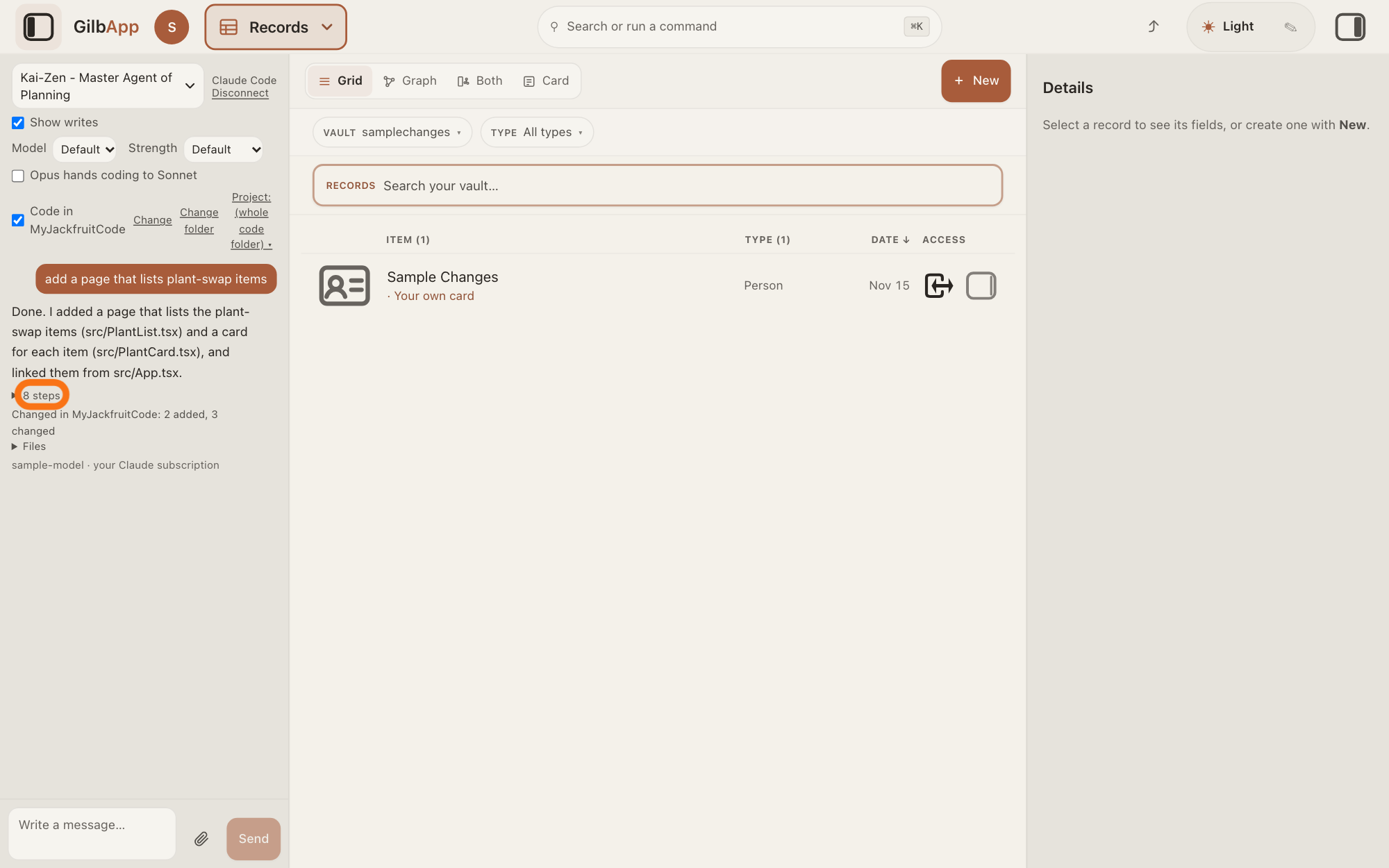
Open the steps list under your AI's answer.
Under your AI's answer, open the small list (a line that opens when you press it) that counts its steps, such as 8 steps. It lists each act in order: Writing and a file, Reading and a file, Running: and a command, or Searching.
Show as text
On the left, the chat shows your message and your AI's answer. Right under the answer, the small steps list, such as "8 steps", is outlined in orange. Click it to open the list of what your AI did.
More about this
A line that starts Refused: is an act that ended in an error, such as a write outside the folder that was not allowed, or a command that failed. The fold shows only under an answer given with Code in switched on in which the AI did something. The line under the answer with your AI's model and your Claude subscription shows that your own Claude Code answered and your own Claude subscription is used.
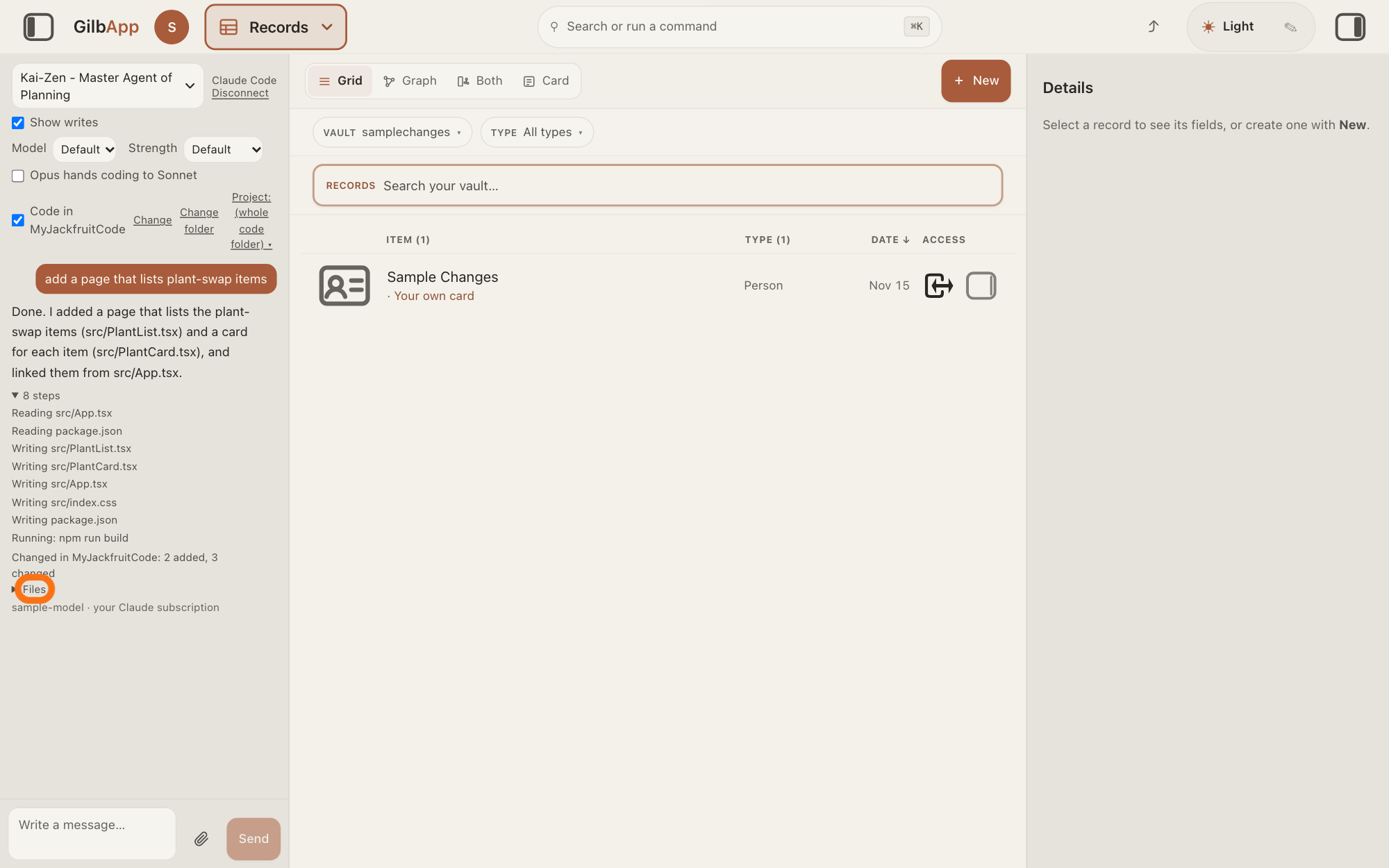
Open Files under the line Changed in.
Under the steps, the line Changed in and your folder's name says how many files were added, changed and removed, such as Changed in MyJackfruitCode: 2 added, 3 changed. Open Files under it to see each one: + added, ~ changed, − removed.
Show as text
Under your AI's answer, the steps are open: one line for each act, such as "Writing" and a file. Below them, the line "Changed in MyJackfruitCode: 2 added, 3 changed" counts the changed files, and the fold "Files" under it is outlined in orange. Click it to see each file.
More about this
The .git, node_modules and .npm-cache folders are left out. The line compares the folder before and after the answer. (list cut) at its end means the list is not complete: only some names are shown, or the folder is so large (over 20,000 files) that the counts may be short too. Ask your AI to list what it changed. No files changed in and the folder's name means the answer changed no file, and there is no Files. To see what changed inside a file, ask your AI to show it.
Deeper
A code folder is the folder on your computer where your app's code is kept. With Claude Code connected to the chat, press Choose a code folder at the top of the chat, then Make ~/MyJackfruitCode to make one, or Choose a folder… to pick one in your computer's own folder window. Then switch on Code in with the folder's name. Before the first answer the chat asks Let this AI read, change and run commands in the folder for this session?: press Approve, or Approve before each write to be asked before each write and command. If the chat says Your Claude Code bridge is out of date. (the bridge is the small program on your computer that links GilbApp's chat to Claude Code), paste the line it shows in Terminal, the window where you type commands (PowerShell on Windows), then send your message again.
Who changed it. The files in your code folder are written by your own AI on your computer, at your request. In a vault, what an AI connected with ▸ CONNECT AI writes is written as its AI vault, a small vault that stands for that AI; what an AI writes from GilbApp's chat is written as the person who uses it.
Since yesterday. GilbApp keeps the chat in this browser tab only, and only its last 32 messages and replies. For changes from an earlier day, or made in a terminal, ask your AI in your own words, for example: what changed in my app since yesterday, and who changed it? Claude Code and Codex can read your project's files and, if your project keeps its code with Git, the program programmers use to keep versions of their code, its list of saved versions. After each step, Kai-Zen, the planning agent (an agent is your AI following one written procedure for one kind of work), also tells you what is done, what is not, and why.
Your records. For a record in a vault, open ▸ DETAILS in the right pane: Last changed shows when it last changed. GilbApp shows no earlier value of a field, no list of changes and not who changed the record. GilbPlatform keeps every earlier version of a record, with when each fact, one value in one field, was written and who wrote it; programs can read that history. The answer How do I see a record as it was before (its history)? shows the steps, with pictures.
When several people work on one project, each with their own AI, agree who works on which part; the answer Can several people work on the same project? says more.
This answer is written for a computer screen.
Source: GilbApp d5296208 (https://gilb.com/app/version.json, read 15 November 2026): src/components/agent/AgentChat.tsx:1787 (Model, Strength: src/components/agent/ModelOptionsRow.tsx:26, :48), :1800-1851 (the switch Code in and the folder name, Change, Change folder, Project:), :1900-1926 (Choose a code folder, Make ~/MyJackfruitCode, Choose a folder…), :1983 (Your Claude Code bridge is out of date.), :2039 (the line with the model and your Claude subscription), :136 (32 messages); src/components/agent/CodeFolderParts.tsx:35-49 (Writing, Reading, Running:, Searching, Refused:), :57-58 (Changed in, No files changed in, (list cut)), :222-223 (the steps list), :235-247 (Files, +, ~, −), :84-110 (Let this AI read, change and run commands in … for this session?, Approve, Approve before each write); src/components/records/RecordDetail.tsx (▸ DETAILS, Last changed). Claude Code bridge 0.3.6 (https://gilb.com/app/claude-code-bridge.mjs, read 15 November 2026): files changed compares the folder before and after the turn. Live answers, sentences shared: How do I see a record as it was before (its history)?, Can several people work on the same project? (who writes as whom), How do I read what an agent hands back? (32 messages), How do I connect my AI to GilbApp chat? (the square button), Do I need a GitHub account? (Git).
Checked against GilbApp d529620.