
How do I see who can reach my vault?
Short answer
Press Main menu, choose Vaults, press the vault card's panel button, and look under YOUR ACCESS RIGHTS and OTHER PEOPLE AND GROUPS ACCESS RIGHTS.
Before you start
You need to be signed in to GilbApp on a computer; to see everyone else's access, you need Control on the vault. The pictures show a made-up person on a test site; your screen shows your own name and address.
Words used here (2)
Steps
Press Main menu at the top left and choose Vaults.
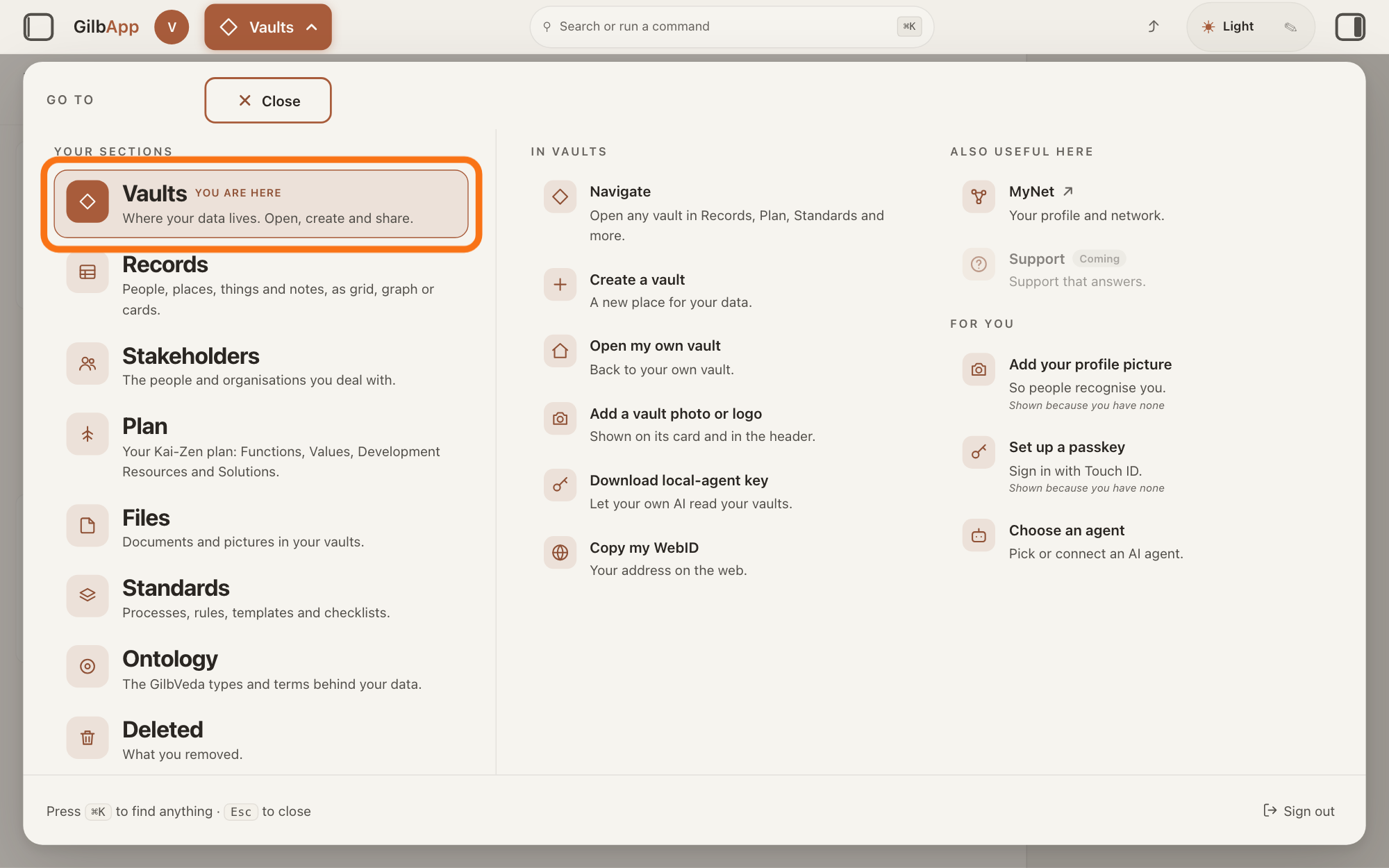
Press Main menu, next to your profile picture at the top left, and under YOUR SECTIONS choose Vaults. The button shows the name of the section you are in, such as Vaults.
Show as text
At the top left, "Main menu" is open and the panel headed "GO TO" fills the window. In the left column under "YOUR SECTIONS", the outlined row "Vaults" reads "Where your data lives. Open, create and share." Click it.
More about this
A panel headed GO TO opens; Vaults reads Where your data lives. Open, create and share. The Vaults screen lists your vaults as cards; a vault is the place where a person or a group keeps their records. The label on each card, such as READ + WRITE or READ ONLY, says in short what you may do there.
Press the panel button at the top right of the vault's card.
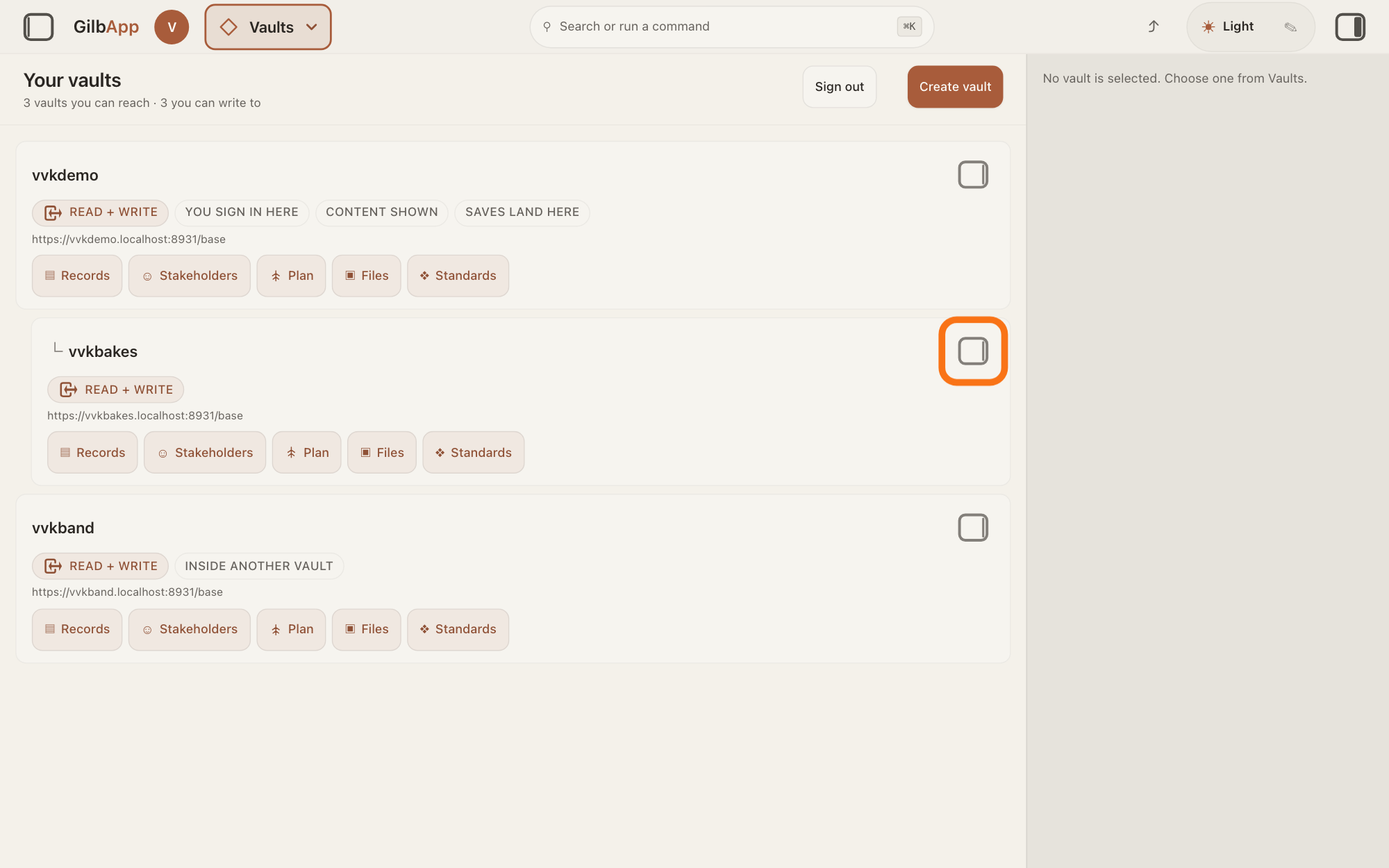
Press the small square button at the top right of the vault's card; its hover text is Show vault info. The pane on the right shows that vault's details.
Show as text
The "Your vaults" screen lists your vaults as cards, and the pane on the right reads "No vault is selected. Choose one from Vaults." At the top right of the second card, the small square button is outlined. Click it to show that vault in the pane.
More about this
Clicking the card itself only selects it; on a computer it does not open the pane. The buttons on the card, such as ▤ Records, open the vault in those sections, and Sign out and Create vault sit above the cards; you do not need them here.
Scroll down to YOUR ACCESS RIGHTS for your own access.
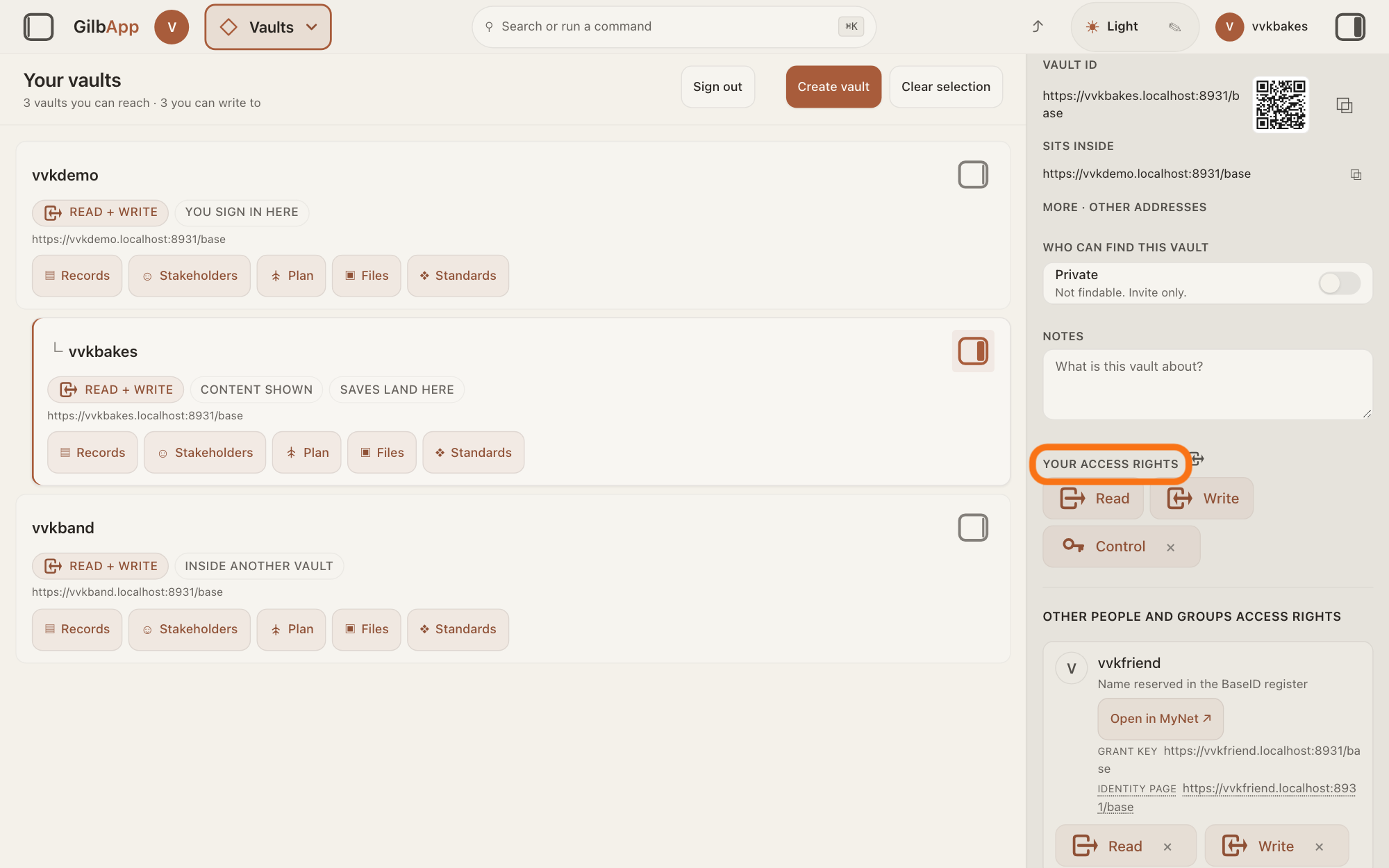
Scroll down the pane, past the vault's addresses and NOTES, to YOUR ACCESS RIGHTS. A label there shows each kind of access you hold on this vault: Read, Write or Control; with none of them, it says No read/write on this vault from here.
Show as text
In the pane on the right, below "NOTES", read the outlined heading "YOUR ACCESS RIGHTS". The labels under it, here "Read", "Write" and "Control", are your own access to this vault. Nothing needs to be pressed.
More about this
The answer on sharing a vault with a person says what each kind lets you do; Control gives no Read or Write by itself, but whoever holds it can take a copy of the whole vault, every record and file, and can give themselves Read or Write. Where an × shows on a label, it gives that access up, with the hover text Give up your own, the kind and the vault's name; that is the answer on leaving a vault someone shared with you, and you do not need it here.
Scroll further down to OTHER PEOPLE AND GROUPS ACCESS RIGHTS.
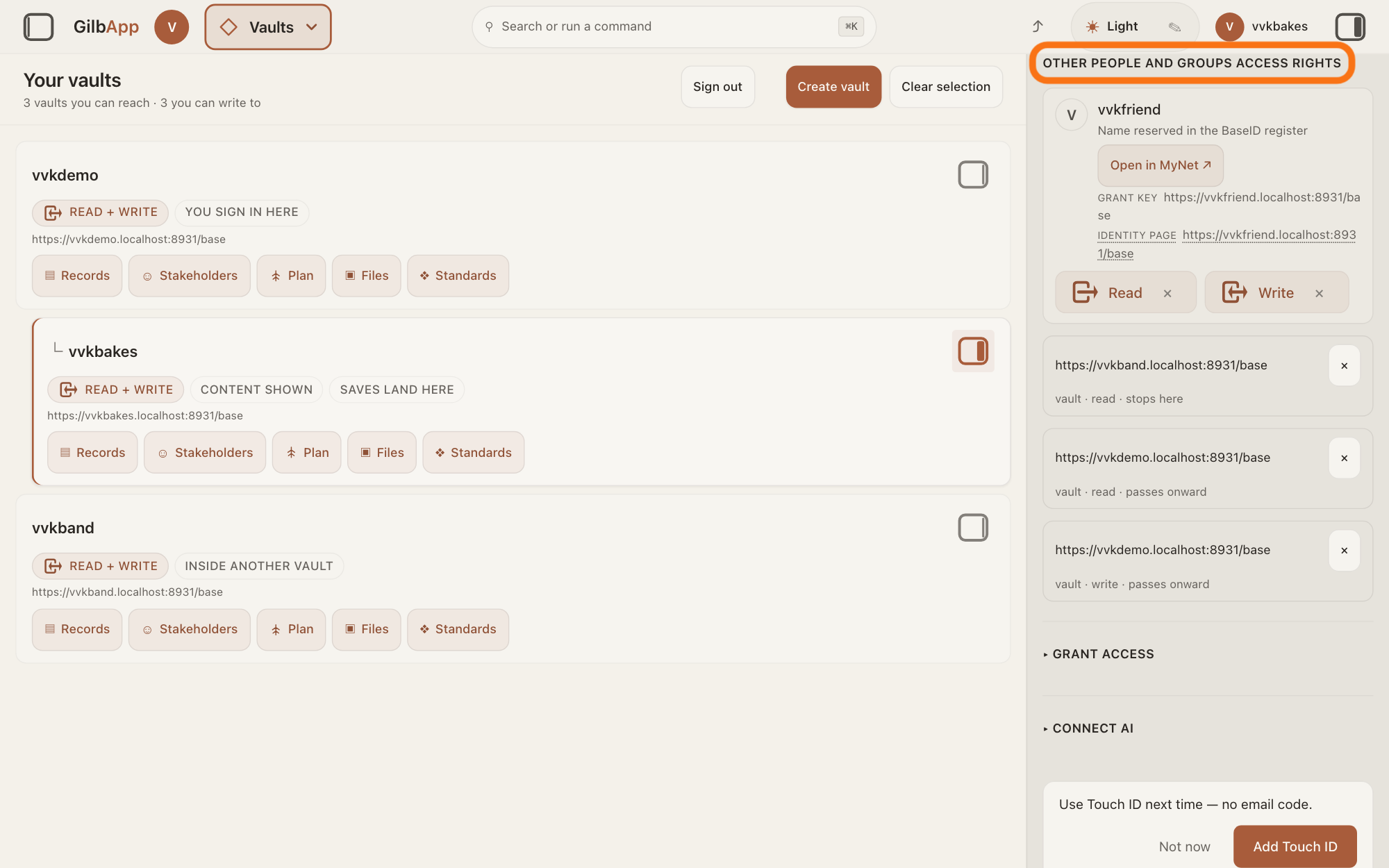
Scroll further down the pane to OTHER PEOPLE AND GROUPS ACCESS RIGHTS. It lists everyone else who has been given access to the whole vault, or says No one else has access here yet.
Show as text
At the top of the pane, the outlined heading reads "OTHER PEOPLE AND GROUPS ACCESS RIGHTS". Below it, a person's card shows "Read" and "Write", and each vault line shows its address and a line such as "vault · read · stops here". Read who can reach the vault.
More about this
Each person has a card with a label for each kind of access, Read, Write, Append or Control; OWNER marks the vault's owner. Under the name: where the name came from, GRANT KEY with the address that holds the access, Open in MyNet ↗, which opens their profile in a new tab, and sometimes IDENTITY PAGE and Show who this is. A vault given access shows as its address, with a line such as vault · read · stops here (it reaches this vault and no further); Everyone (public) means anyone can read the vault. The picture shows a person given Read and Write and a vault given read, made as the answers on sharing a vault with a person and on giving your AI access to a vault show. Each × takes that access away, as the answer on taking access away shows; the owner's Control has none.
Deeper
Also asked:
Who can see my vault right now? In the vault's pane, OTHER PEOPLE AND GROUPS ACCESS RIGHTS lists everyone who has access to the whole vault now; Everyone (public) there means anyone can read it. You need Control to see it; access to one record only is not listed.
Can I see who has opened or read my vault? No: GilbApp shows who can reach your vault, not who opened or read it. GilbPlatform keeps request logs for security, for up to 30 days, and does not show them to you.
Can I see everything I have shared, and with whom, in one place? No: GilbApp shows access one vault at a time, in each vault's pane, and access to one record in that record's ▸ ACCESS.
Only someone who holds Control on the vault sees OTHER PEOPLE AND GROUPS ACCESS RIGHTS. If it is missing, you do not hold Control here, and you see only your own access.
The list shows access given on the whole vault. Access given on one record only is not in it; the answer on sharing one record shows where that is. Access given to a group shows a card for each member of the group.
A person or a group given Read or Write on a vault this one sits inside also reaches this one, unless this one is an AI vault, and shows in this list too, as a card like any other, without saying where it came from. Its × there does not end that access: take it away on the vault it was given on. A vault that reaches this one only through another vault it was given access to with Passes up hierarchy is not in the list in GilbApp today, though GilbPlatform knows of it; the vault it goes through is in the list.
An app can also ask GilbPlatform what you yourself may do with one record: read, write or control. GilbPlatform answers only about the person asking, never about someone else, and GilbApp does not show that answer today.
This answer is written for a computer screen. In a window narrower than 840 pixels, such as a phone, choosing a vault card opens its details at once, in a sheet from the right.
Checked against GilbApp d529620.