
How do I set a term's picture?
Short answer
In Ontology, search and select the term, type a credit in Credit, choose a licence in Licence, press Add picture and choose the file.
Before you start
You need to be signed in to GilbApp on a computer, with the right to write to GilbVeda, and a picture file on your computer; most people do not have that right, and Deeper says what they can do. The pictures show a made-up person on a test site; your screen shows your own name and address.
Words used here (3)
- GilbApp
- GilbApp is the app, opened in a web browser at https://gilb.com/app, where you open, fill and share your vaults.
- record
- A record is one piece of data with its own address, such as a person, a place, a thing or a note.
- picture's credit
- A picture's credit is the name of the person who holds the rights to it, kept with the picture, such as © 2026 Example Demo.
Steps
Press Main menu at the top left and choose Ontology.
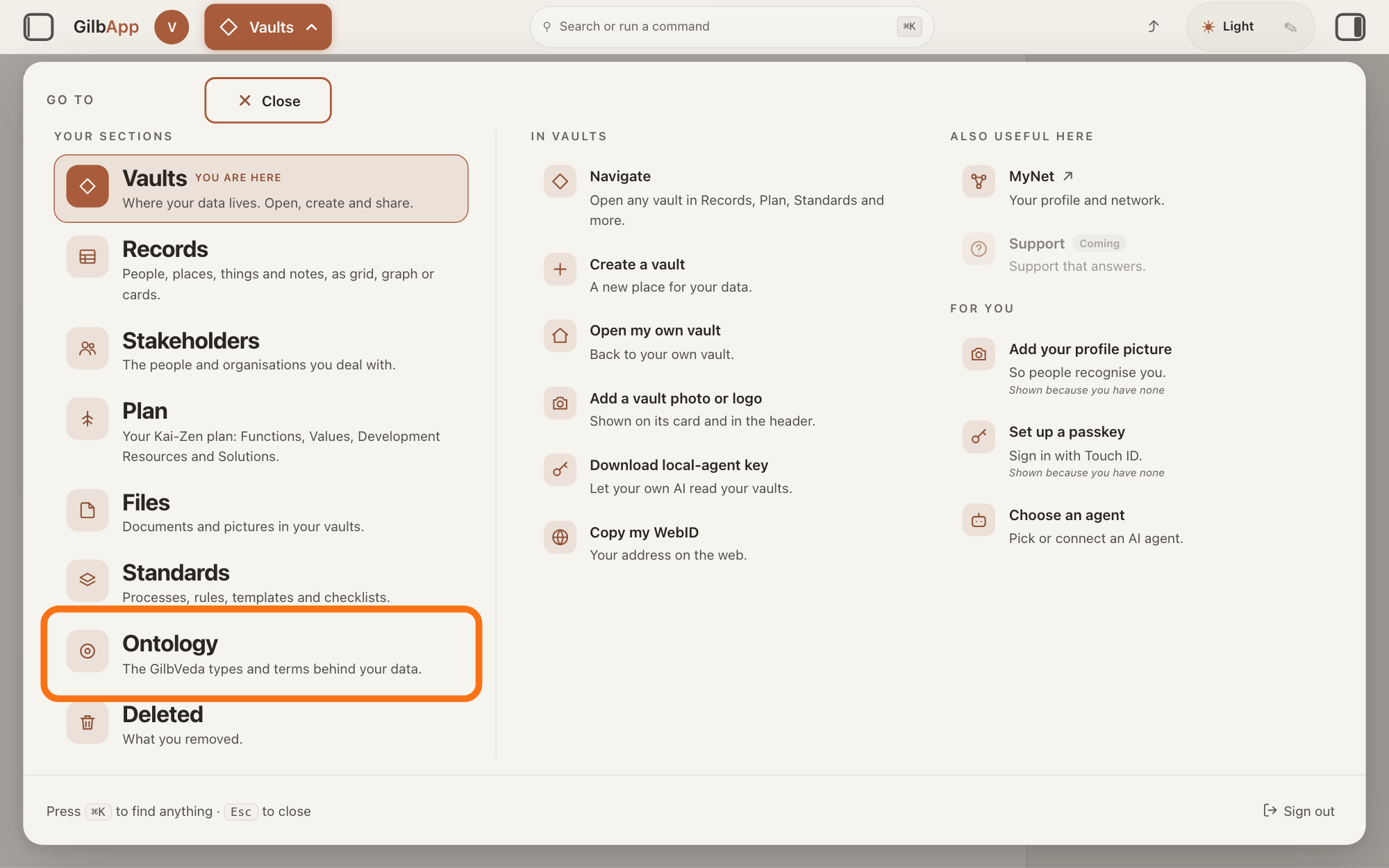
Press Main menu, next to your profile picture at the top left, and under YOUR SECTIONS choose Ontology. The button shows the name of the section you are in, such as Vaults.
Show as text
The panel headed "GO TO" is open over the window. In the left column under "YOUR SECTIONS", near the bottom, the outlined row reads "Ontology" and "The GilbVeda types and terms behind your data." Click it to open the Ontology screen.
More about this
A panel headed GO TO opens; Ontology reads The GilbVeda types and terms behind your data. It always opens on GilbVeda, the shared list of terms: the button at the top left of the screen reads GilbVeda Ontology, the cursor is in the box marked CONCEPTS, and below are three columns, TYPES, FUNCTIONS and VALUES. A type is a kind of thing; a Function is what a system does, written as an action; a Value is a perceived benefit, measured as a number. A term is the shared name GilbVeda keeps for a kind of thing, a detail of it, a link between two things, or a species. The right pane says No concept selected. Resting the pointer on Ontology in the panel shows more choices under IN ONTOLOGY; you need none of them here.
Search and select the term in the box marked CONCEPTS.
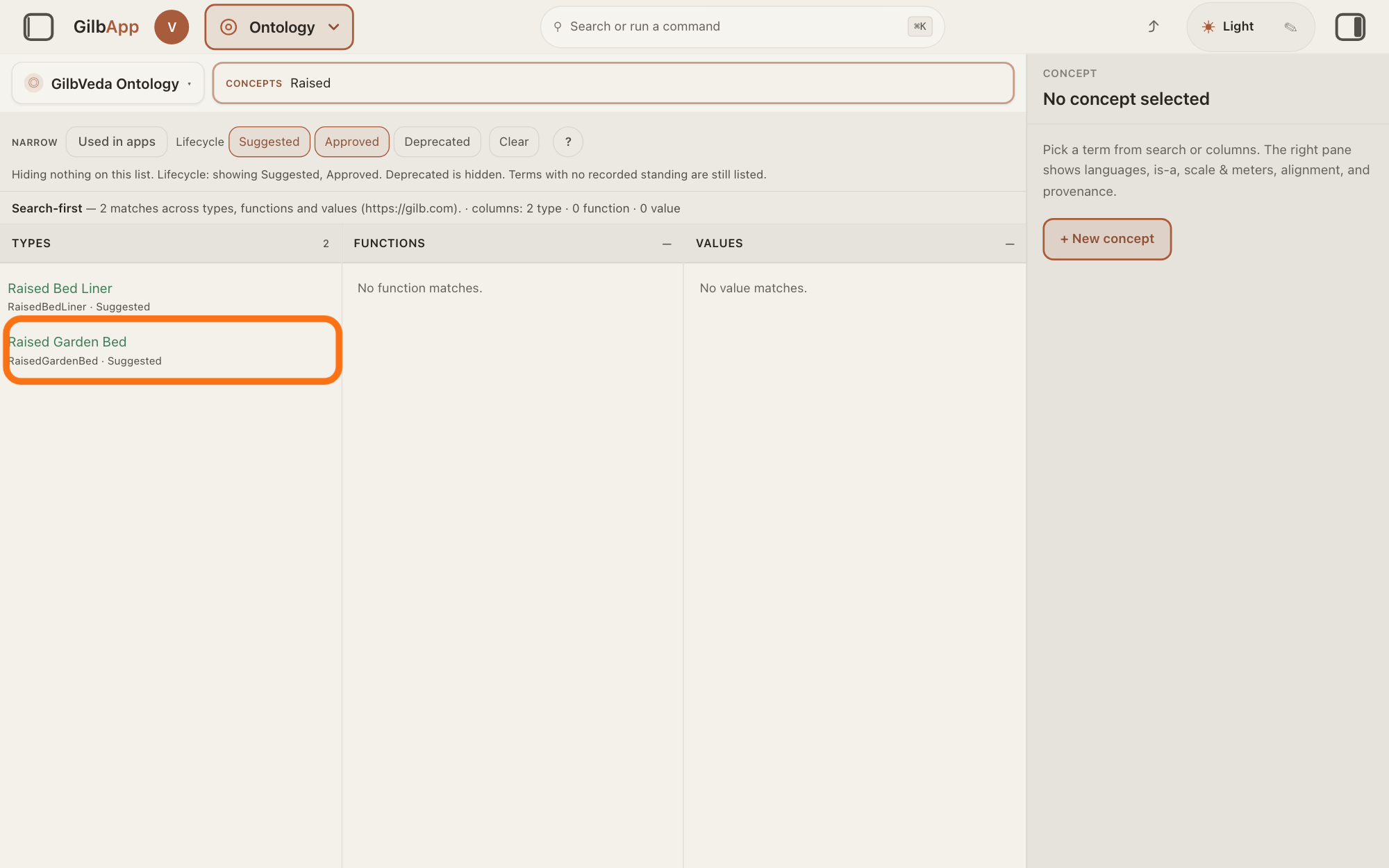
Type at least three letters of the term's name in the box marked CONCEPTS and click the term in its column. The right pane shows the term.
Show as text
A name is typed in the box marked "CONCEPTS", and the matches fill the three columns. In "TYPES", one match is outlined. Click your term in its column; the pane on the right then shows it.
More about this
The answer on finding a term says more about the search, and about deprecated terms, which it hides at first. You can also click a term while browsing the columns, or the Type link in a record's ▸ DETAILS, which opens that type here.
Type the picture's credit in Credit.
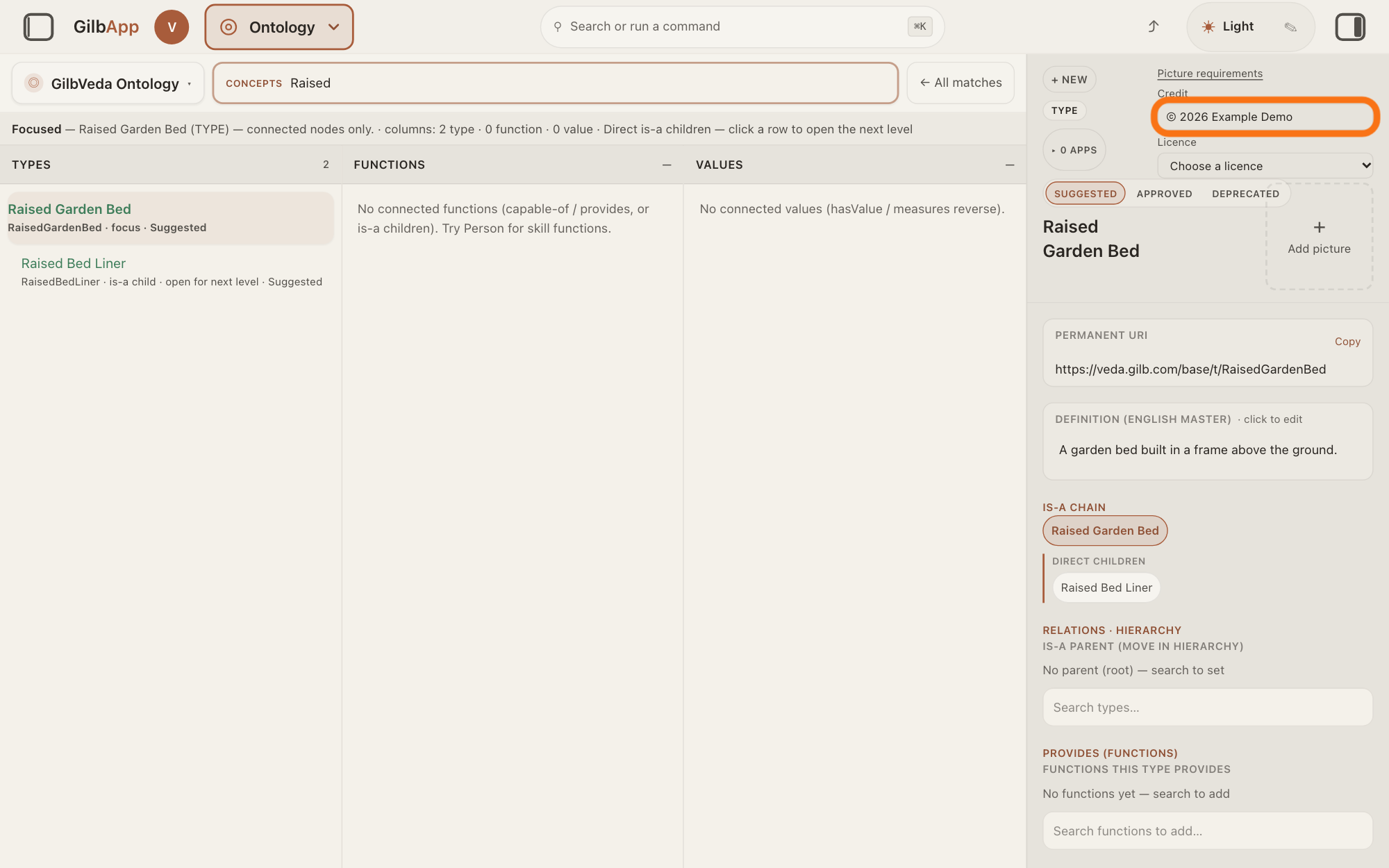
At the top right of the right pane, type in the box under Credit the name of whoever holds the rights to the picture, such as © 2026 Example Demo. The box shows © 2026 Your name until you type.
Show as text
At the top right of the right pane, below "Picture requirements", is the box under "Credit". It is outlined, with a copyright line typed in it: the year and the name of whoever holds the rights to the picture. Until you type, the box shows "© 2026 Your name".
More about this
A credit is the name kept with the picture, and GilbApp asks for it whichever licence you choose. Picture requirements above the box opens What a picture must be: the two licences, Your name is required, whichever licence you choose., JPEG, PNG, WebP, GIF, TIFF or AVIF., "The whole picture is kept. It is not cut to a square. A clear background stays clear.", "The original is stored as you sent it. The small copy shown while browsing has its long side at 256." and The picture is public, on a species and on a GilbVeda type.; Close closes it. The pane's other controls have their own answers; you do not need them here.
Choose a licence in Licence.
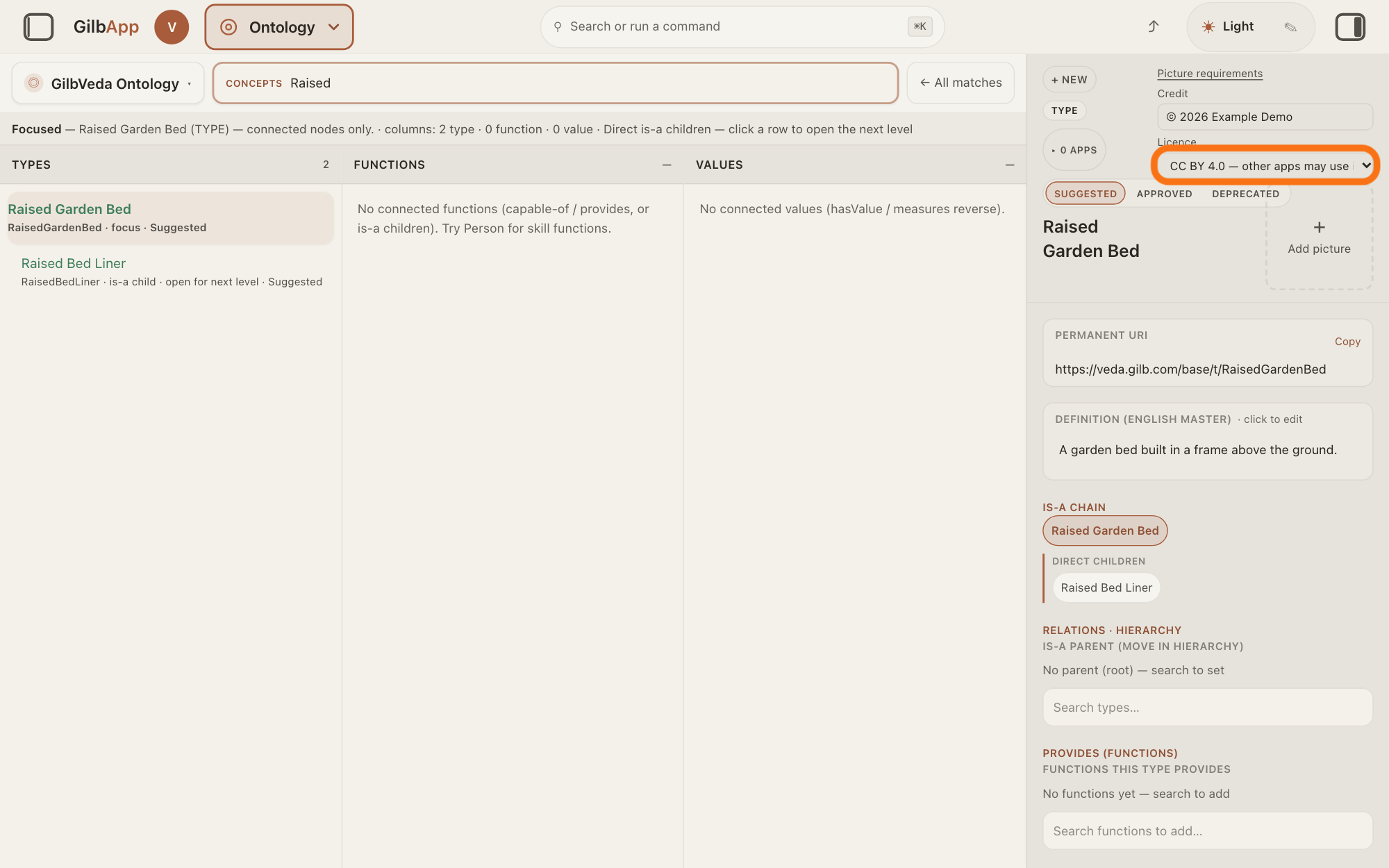
Click the list under Licence, which shows Choose a licence, and choose CC BY 4.0 — other apps may use it, and must show your name or CC0 1.0 — other apps may use it, and need not show your name. A licence says what others may do with the picture.
Show as text
Just below the credit box is the list under "Licence", outlined. Until you choose, it shows "Choose a licence"; here "CC BY 4.0 — other apps may use it, and must show your name" is chosen. Click the list to choose that one or "CC0 1.0".
More about this
No other licence is offered: "Nothing else. All rights reserved is not accepted. Nor is a licence that blocks an app, a resized copy, or use without payment." For a picture made by AI, Agent.Concept's rule is CC0 1.0; for your own real photo you may choose either (Deeper).
Press Add picture.
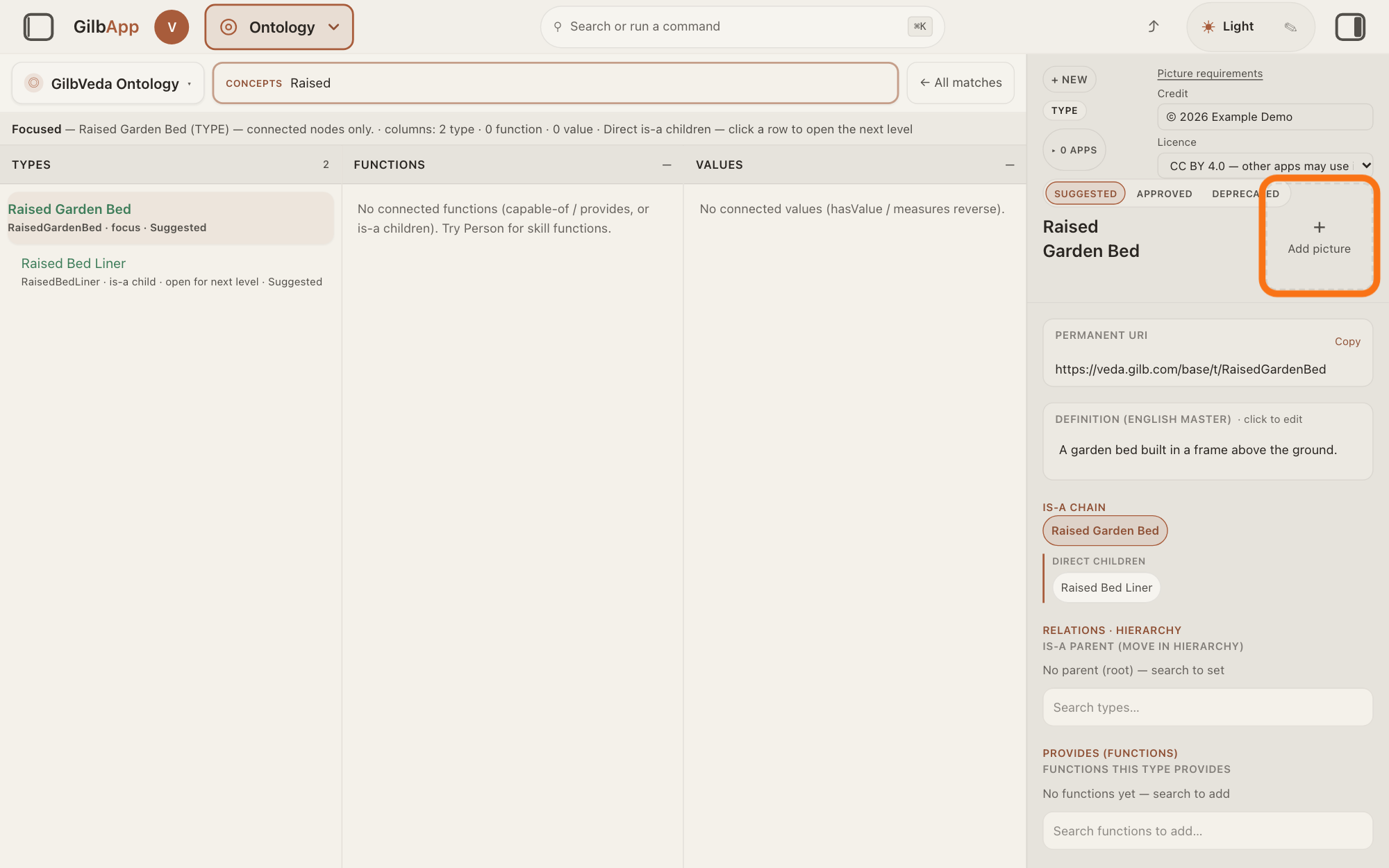
Press Add picture below the credit and the licence; on a term that already has a picture it reads Change picture. Your computer opens its window for choosing a file.
Show as text
With the credit and the licence filled in, look just below the licence list on the right: the dashed square with "+" and "Add picture" is outlined. Press it, and your computer opens its window for choosing a file.
More about this
While the picture is sent, the button reads Uploading…. If the credit or the licence is missing when you choose the file, GilbApp says Write the credit and the licence before adding the picture. Nothing was stored. A file the browser cannot show gets "That picture format can't be used here (for example HEIC). Save it as JPEG or PNG and try again."
Choose the file in the window your computer opens.
Select the picture in that window and confirm it there. GilbApp stores it and shows it small at the top right of the term.
More about this
A click on the picture opens it whole over the page, and Close closes it. Adding a picture leaves the term's standing as it was. If the small copy cannot be made, GilbApp says the picture was saved but not added, and nothing on the page changes. The window that chooses files is your computer's own, so it looks different on a Mac and on Windows.
Deeper
GilbApp shows Credit, Licence and Add picture only to a person whose sign-in may write to GilbVeda's own vault, the place where the shared list of terms is kept, and most people may not. On a species in the tree of life it shows them to a person who may write to that tree's vault, for a species with at most one picture. Everyone else sees a term's picture when it has one, and can open it whole.
Agent.Concept, the agent that finds and makes GilbVeda's terms, has a standard that gives every type a picture: when it makes a type, it makes the picture in the same job, a painted drawing of the thing on a clear background in one shared style, and it makes one for any type in use that still has none. Under that standard a function, a value, an attribute or a relation gets no picture, though GilbApp offers Add picture on functions and values too. A picture made by AI is under CC0 1.0, a licence that lets anyone use it with no credit owed; for your own real photo you choose CC BY 4.0, which asks for credit, or CC0 1.0; when it is not known which, it asks you whether AI made it.
GilbPlatform makes a small copy of a picture, at most 256 pixels on its longest side, when a program asks for one. In GilbApp that happens for a picture added to a GilbVeda type or a species in Ontology, and for a profile photo. The type or species copy is never cut, and for a JPEG, the usual kind of photo file, it also removes the place the photo was taken and the camera's serial numbers. The picture you send is kept as you sent it, and the picture is public.
In GilbApp's chat, Agent.Concept has no tool to store a picture. On a terminal, your own AI acting as Agent.Concept can add pictures to a species in GilbLife, GilbPlatform's list of species, with GilbPlatform's mint program, gilb-mint.ts, and change the credit and licence of a picture you added there; it has no command for a type's picture. The answer on minting and looking up species shows how to send a species' pictures.
This answer is written for a computer screen.
Source: GilbApp ebd9415e7a90de8c289eaa7bb02f40c8ee80cf79 (https://gilb.com/app/version.json read 2026-11-11, dirty false); every GilbApp file cited is byte-identical to af0f04ee (between af0f04ee and ebd9415e, the cited files: empty), so line numbers are read from the unpack (no checkout): src/components/picture/EntityPicture.tsx:15 (HEIC message), :115-127 (credit check, The picture could not be saved.), :155 (no picture and no right: nothing drawn), :168-236 (Picture requirements, What a picture must be, Licence, the list items, Close, Credit, © 2026 Your name, Choose a licence, the two options), :247-296 (Open the full picture button, Add picture, Change picture, Uploading…); OntologyConceptPane.tsx:170-179 (canEditPicture: a type needs GilbVeda write, a tree record needs write on the tree vault), :552-588 (credit and licence required for a type and for a species), :1173-1182 (picture spot at the top right, requireCredit on), :1725-1730 (a species shows Picture credit · licence); src/lib/base/picture.ts:89-101 (canAddRecordPicture: write on the vault and at most one a:associatedMedia), :104-156 (thumbnail whole, JPEG strip, PictureNotLinkedError "The picture was saved, but its small copy could not be made ..., so it was not added here. Nothing on this page changed."), :158-195 (addTypePicture stores credit and licence with it, leaves a:ontologyStatus as it is); src/components/picture/PictureViewer.tsx (Close); ontologyWrite.ts:64-81. GilbPlatform 498d29a0dec9a15d167f4b6b5d731382a6bcede0 (https://id.gilb.com/version read 2026-11-11, dirty false); every platform file cited is byte-identical to 4d008a55 except docs/BASE-DEVELOPER-GUIDE.md, whose changes touch none of the parts cited; code read at 498d29a0: scripts/devkit/gilb-mint.ts:186-221 (GilbVeda: search, mint, change, retire of terms; GilbLife: mint pictures, change a picture's attribution and license; no type-picture command); src/ai/chat-mint-tools.ts:136-235 (no picture tool); src/routes/files.ts:259-303 (thumbnail=whole) as read for. Standards: Agent.Concept get 2026-11-10 (Standards: RuleBvTypePicture "Every GilbVeda type Agent.Concept mints, and every type an app uses ... carries an a:typePicture. Agent.Concept makes it when it mints the type, in the same job ... and makes it for any live type that still has none"; Task 4 An attribute, a relation, a Function or a Value gets no picture.; PictureLicence "Made by AI ... CC0 1.0 ... The person's own real picture ... they choose CC BY 4.0 or CC0 1.0. Not known which: ask the person whether AI made it."; ClosedSend "A picture on a species and a picture on a GilbVeda type follow one list: CC BY 4.0 or CC0 1.0"); Proc_v_i_bv_MintTypePicture follow (catalog plate in the locked paint, transparent background, 320×320, licence by Agent.Concept.PictureLicence). GilbVeda public read 2026-11-11: t:TypePicture.
Checked against GilbApp d529620.