
← Back to The data I saved is not there. Where did it go?
How do I sign in to GilbApp?
Short answer
Type gilb.com/app in your browser's address bar, type your e-mail, press Send Code to Email, and type the 6-digit code; GilbApp opens your vaults.
Before you start
You need an account: the e-mail address you signed up with, and its inbox open. The pictures show a made-up person on a test site; your screen shows your own name and address.
Words used here (4)
- GilbApp
- GilbApp is the app, opened in a web browser at https://gilb.com/app, where you open, fill and share your vaults.
- GilbPlatform
- GilbPlatform is the service that keeps people's and organisations' data in vaults, each at its own web address.
- passkey
- A passkey is a sign-in kept on your device and unlocked the way you unlock the device, so you sign in with no e-mail code.
- sign-in code
- A sign-in code is a 6-digit number GilbPlatform e-mails to you; typing it proves the address is yours and signs you in.
Steps
Type gilb.com/app in your browser's address bar and press Return.
Type gilb.com/app in the address bar and press Return. If this browser is signed in already, GilbApp opens on Vaults and you are done.
More about this
Otherwise the card Welcome to GilbApp opens: Sign in to your account, or create a new account. If you began a sign-in in the last 15 minutes, the card goes straight to the code box. While GilbApp starts it can show Connecting to GilbPlatform… for a moment.
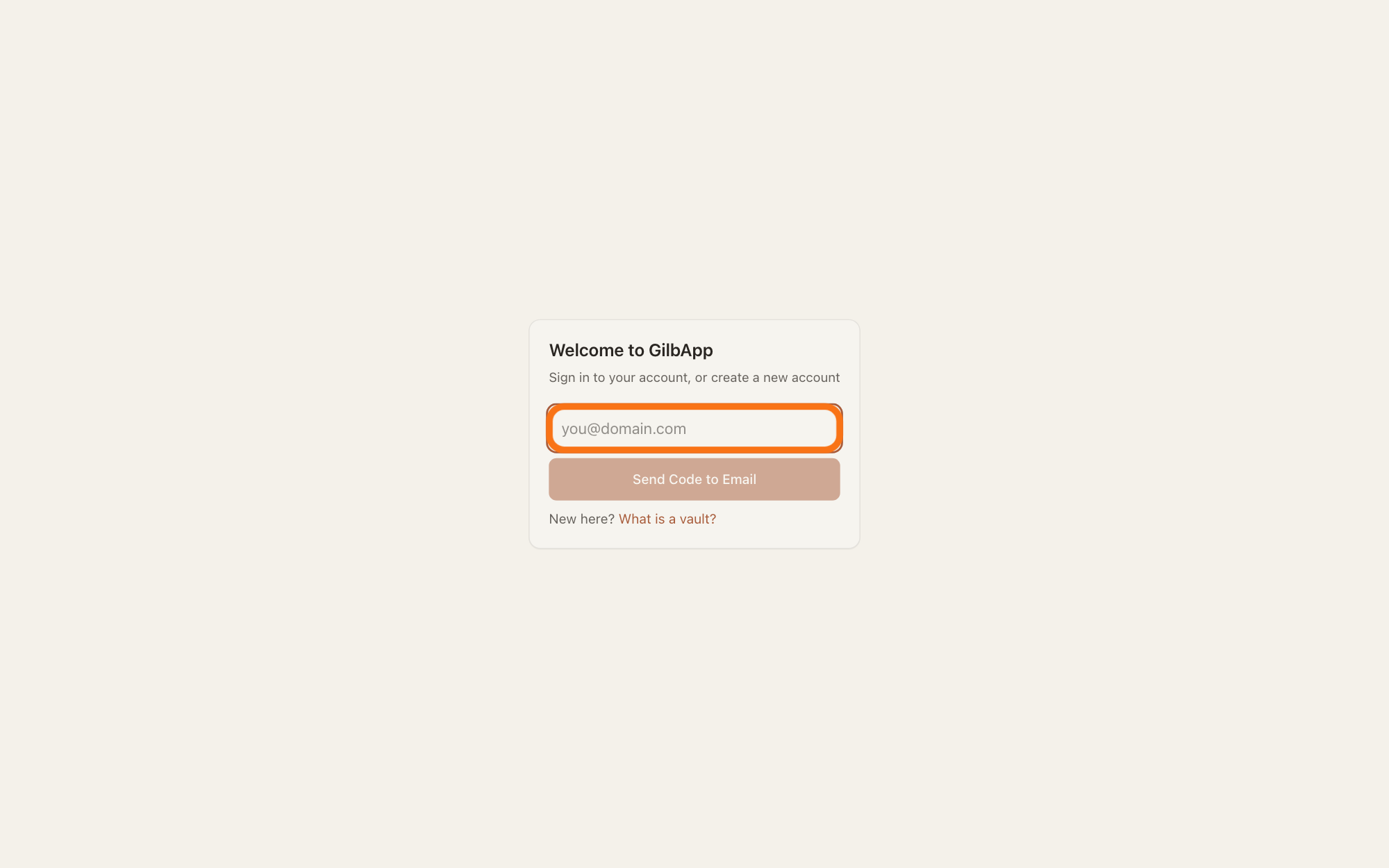
Type your e-mail in the box that shows [email protected].
Click the box that shows [email protected] and type the e-mail address you signed up with.
Show as text
In the middle of the screen is the card "Welcome to GilbApp" with one empty box under "Sign in to your account, or create a new account". Click that box, outlined in orange, where a sample address shows in grey, and type the e-mail address you signed up with. Below it are the pale button "Send Code to Email" and "New here? What is a vault?".
More about this
If you added a passkey (a sign-in kept on your device and unlocked the way you unlock the device), your browser may offer it when you click the box. Choose it, and GilbApp opens without a code. A passkey is added after you sign in. New here? What is a vault? opens a page about vaults in a new tab; you do not need it.
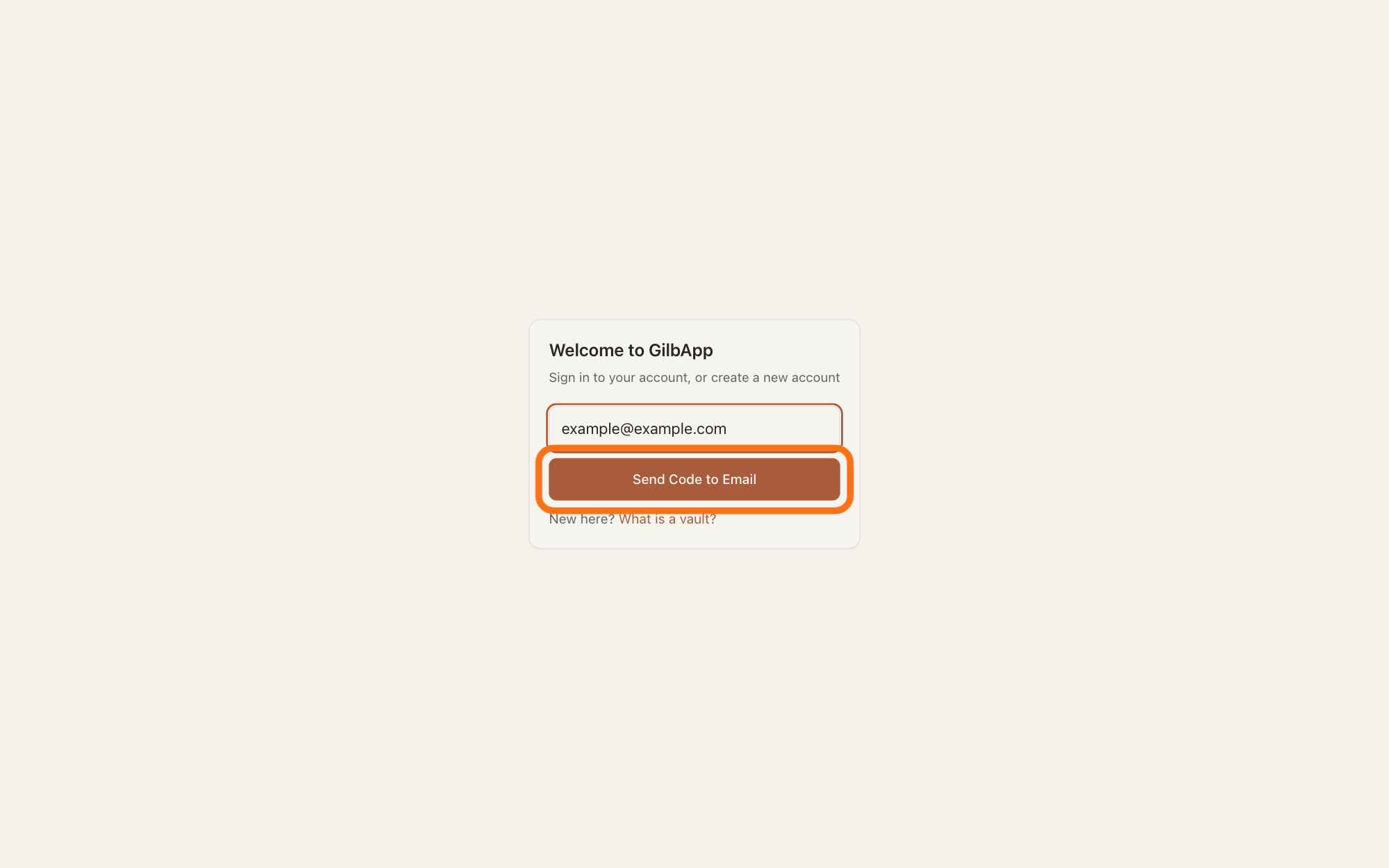
Press Send Code to Email.
Press Send Code to Email, or press Return in the box. The card shows Code sent to and your address.
Show as text
Your e-mail address is in the box in the middle of the card, and the button "Send Code to Email" right under it is now dark. Press that button, outlined in orange. You do not need "New here? What is a vault?" at the bottom of the card.
More about this
For an address that has an account the card says Enter code from email. and shows no Vault name. If it shows Vault name, this address has no account, or no vault yet: check its spelling and press Change email to fix it. The button stays grey until the box holds a whole address, and reads Sending a code… while it works.
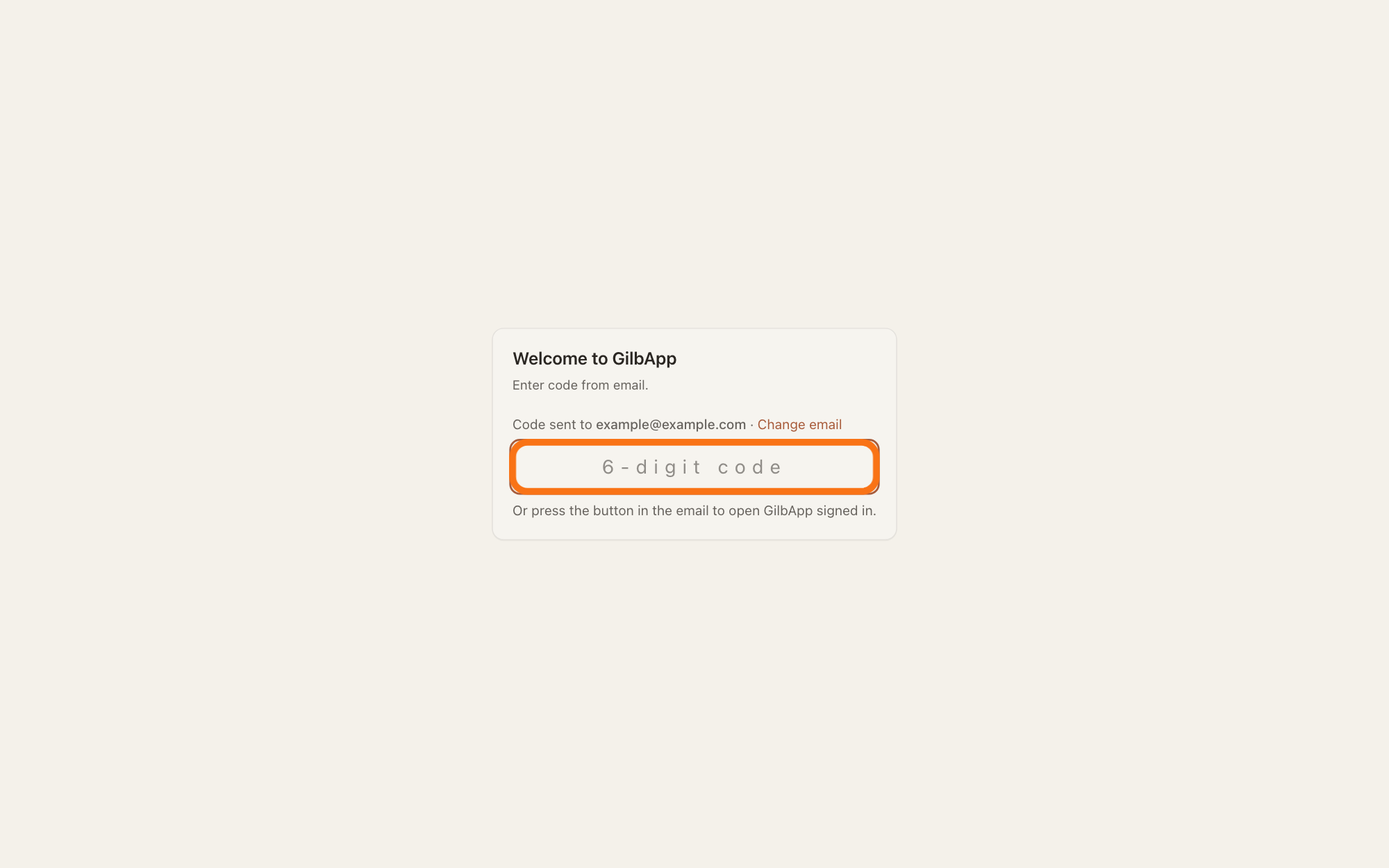
Type the code from the e-mail in the box that shows 6-digit code.
Type the code from the e-mail Your GilbApp sign-in code. At the sixth digit GilbApp signs you in and opens on Vaults.
Show as text
The card in the middle now says "Enter code from email." and, under it, "Code sent to", your address and "Change email"; there is no "Vault name". Click the wide box "6-digit code", outlined in orange, and type the code from the e-mail. Under it: "Or press the button in the email to open GilbApp signed in."
More about this
The card shows Signing in… first. You are signed in to the vault you have; signing in never makes a second vault. You can instead press the button Sign in to GilbApp in the e-mail. The related answer on the e-mail code has its limits and what to do when a code does not work.
Deeper
You stay signed in on this browser for 30 days after you last used GilbApp; each visit starts the 30 days again. You do not need a code each time. Another browser or another computer needs its own sign-in.
To end it sooner, sign out; the answer on signing out says what that ends. When you are signed out, the card shows again, and you sign in the same way.
The same card makes a new account for an e-mail that has none; that is the answer on signing up. An account made on the page Create your vault at id.gilb.com signs in here the same way.
This answer is written for a computer screen. On a Mac the steps are the same in any browser; the key Enter is called Return there.
Checked against GilbApp d529620.