
← Back to How do I sign in to GilbApp?
How do I sign in with a passkey?
Short answer
Type gilb.com/app in your browser's address bar, choose your passkey in the box that shows [email protected], and unlock it as you unlock your computer.
Before you start
You need a passkey for your account, added in GilbApp after you signed in with the e-mail code; the end of this answer says how. You also need a browser where you are not signed in to GilbApp.
The pictures show a made-up person on a test site; your screen shows your own name and address.
Words used here (3)
- passkey
- A passkey is a sign-in kept on your device and unlocked the way you unlock the device, so you sign in with no e-mail code.
- GilbApp
- GilbApp is the app, opened in a web browser at https://gilb.com/app, where you open, fill and share your vaults.
- GilbPlatform
- GilbPlatform is the service that keeps people's and organisations' data in vaults, each at its own web address.
Steps
Type gilb.com/app in your browser's address bar and press Return.
Type gilb.com/app in the address bar and press Return. If this browser is signed in already, GilbApp opens on Vaults and you are done.
More about this
Otherwise the card Welcome to GilbApp opens: Sign in to your account, or create a new account. If you began a sign-in in the last 15 minutes, the card goes straight to the code box; press Change email beside your address to come back to the e-mail box, the only place the passkey is offered. While GilbApp starts it can show Connecting to GilbPlatform… for a moment.
In the box that shows [email protected], choose your passkey.
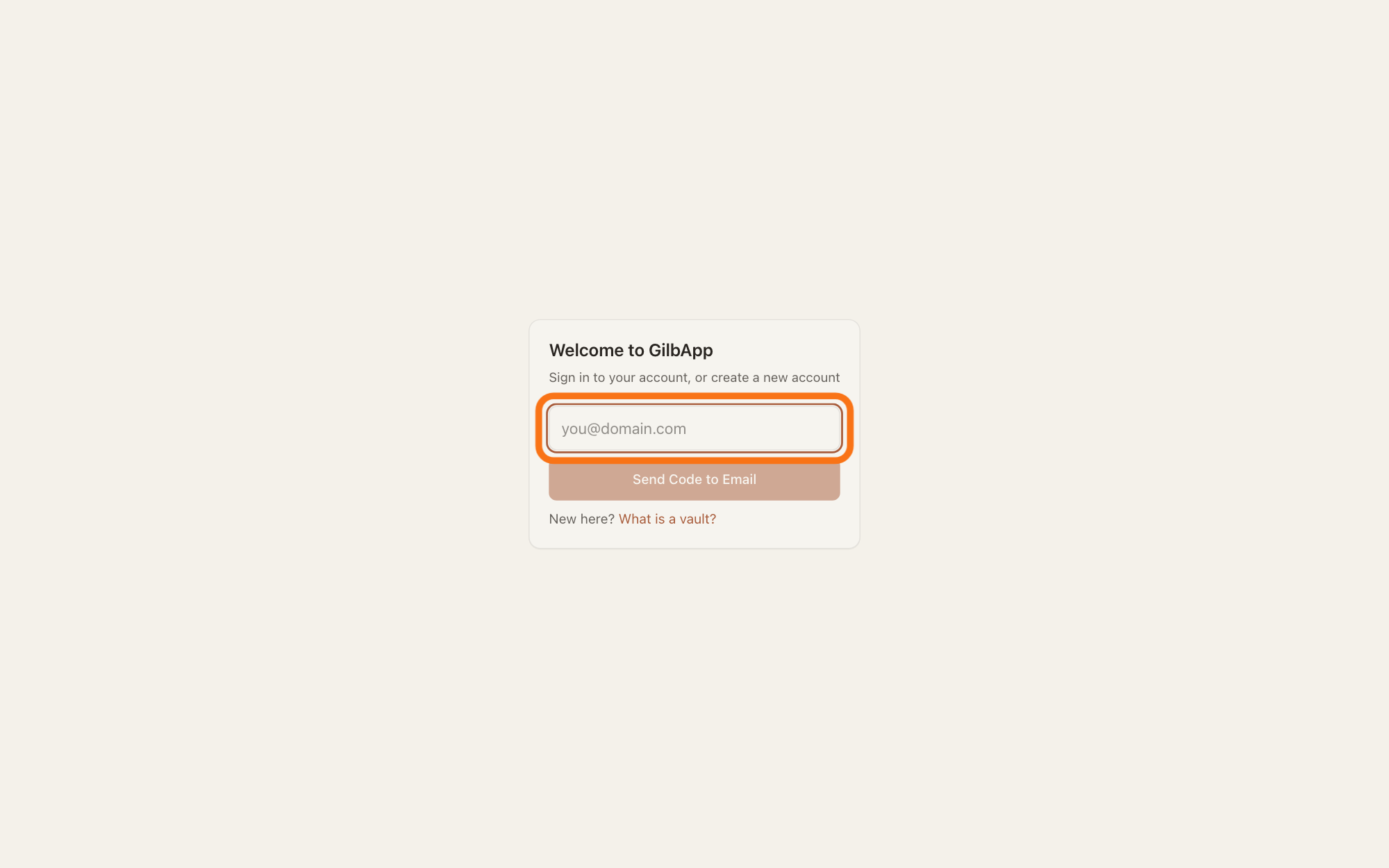
Click the box that shows [email protected]; if this computer can use a passkey for your account, your browser may offer it there. Choose it.
Show as text
In the middle of the window, the card "Welcome to GilbApp" reads "Sign in to your account, or create a new account". The outlined e-mail box shows an example address in grey, above "Send Code to Email". Click the box; if your browser offers your passkey there, choose it.
More about this
GilbPlatform saves each passkey under gilb.com and your e-mail address, so that is what the offer names. GilbApp draws no passkey button of its own: the offer is your browser's, and it shows only on this first box of the card. If the browser offers nothing, type your e-mail and sign in with the code as usual. Send Code to Email and New here? What is a vault? are not needed for a passkey.
Unlock the passkey the way you unlock your computer.
Unlock the passkey the way you unlock your computer, such as with Touch ID. GilbApp opens without a code.
More about this
GilbPlatform accepts a passkey only after that check, and keeps each passkey sign-in open for 2 minutes. If the card stays on the e-mail box, the passkey sign-in did not work, and the card shows no message: reload the page and choose the passkey again, or sign in with the e-mail code.
Deeper
Also asked:
How do I remove a passkey? You cannot in GilbApp today: it has no button to remove a passkey from your account. If you need one removed, write to [email protected].
Can I sign in with a passkey (Touch ID, Face ID)? Yes, once you have added one: you unlock it the way you unlock your device, such as with Touch ID on a Mac. Apple's page About the security of passkeys says Touch ID or Face ID can be used for a passkey on Apple devices that have them.
The menu says Shown because you have none next to a picture or passkey. Why? Under FOR YOU in Main menu, Add your profile picture and Set up a passkey show only while you have none, to help you set them up. Once your own vault has a picture, or your account a passkey, that line goes away.
How do I sign in with Touch ID or Face ID? Add a passkey first with Set up a passkey under FOR YOU in Main menu. Then at gilb.com/app choose your passkey in the box that shows [email protected] and unlock it as you unlock your device, such as with Touch ID or Face ID.
What is a passkey, and is it safer than the e-mail code? Not for your account as a whole. A passkey is kept on your device and unlocked as you unlock it, so it cannot be used from your e-mail inbox. But it does not replace the code: the code still signs you in, so your account stays only as safe as your e-mail account.
A passkey is a sign-in kept on your device and unlocked the way you unlock the device. It does not replace the e-mail code: the code still signs you in, on this computer and on any other. Signed in with a passkey, you stay signed in on this browser as with the code, for 30 days after you last used GilbApp.
To add a passkey, sign in with the e-mail code first. Then press Main menu, next to your profile picture at the top left, and under FOR YOU choose Set up a passkey (Sign in with Touch ID.); it shows only while you have none, and says Shown because you have none. GilbApp opens your own vault's details in the pane on the right, where Use Touch ID next time — no email code. has Not now and Add Touch ID. Press Add Touch ID and unlock it as you unlock your computer. The pane then says Sign in with Touch ID: on (1 passkey). Not now hides the offer in this browser tab.
These are the words on a Mac. On a computer GilbApp does not take for a Mac, they say passkey, such as Add a passkey. If your account already has a passkey on another device, the pane shows the count and Add Touch ID on this Mac to add one here too. If GilbApp says "This device already has a passkey for this account. If it does not sign you in, delete it in your device's passwords, then try again.", this device holds a passkey for your account already.
GilbPlatform takes passkey sign-ins only from pages at https://gilb.com, such as GilbApp; a passkey does not sign you in at id.gilb.com.
GilbApp has no button to remove a passkey from your account.
This answer is written for a computer screen. Whether and how your browser offers a passkey in the box is up to the browser; the key Enter is called Return on a Mac.
Source: GilbApp af0f04ee (https://gilb.com/app/version.json read 2026-11-10, dirty false): src/components/SignInPane.tsx:19-35 (onOfferPasskey -> passkeyClient.startConditionalPasskeySignIn -> completePasskeySignIn); src/components/AppShell.tsx:2050-2067 (the card, Connecting to GilbPlatform…, onSignedIn refetches the session); src/components/PasskeySignedIn.tsx:132-136 (not set up, on (1 passkey)), :234-237, :279-310 (status line Sign in with {noun}: …, button addPasskeyHereLabel); src/lib/base/passkeyHere.ts:8-20 (… on this Mac); src/components/menu/sectionMenuList.ts:322-330 (Set up a passkey, Sign in with Touch ID., Shown because you have none, openOwnVault(passkey)), :358-359 (command Passkey); section menu 0.2.4 SectionMenu.tsx:89, :777, :941-947 (For you, CSS capitals); src/components/regions/RightRegion.tsx:1264-1270 (offer at the foot of the vault pane); AppShell.tsx:1721-1723 (openOwnVault opens your own vault's pane). Sign-in card package gilb-signin 0.12.3 (GilbApp package-lock.json:81-82, file:../gilb-signin), read at c548c79 (origin/main): src/SignInCard.tsx:79-90 (the offer runs only on the e-mail step; a failure is caught with no message: email path stays the floor), :261-301 (autoComplete username webauthn, placeholder [email protected], Send Code to Email, New here?), :304-322 (Change email back to the e-mail step); src/passkey.ts:1-3 (The email code stays the floor. There is no second signed-out button), :223-249 (enrol), :331-368 (conditional sign-in), :167-168 (PASSKEY_ALREADY_ON_DEVICE), :385-418 (passkeyWords, biometricLabel: Touch ID on a Mac, Face ID on iPhone, else passkey); src/PasskeyOffer.tsx:93-146 (Not now, add button, Try again; dismissal kept in sessionStorage). GilbPlatform 4d008a55 (https://id.gilb.com/version): src/routes/webauthn.ts:1-19 (five routes; user verification required; discoverable), :150-185 (userName = e-mail, platform authenticator), :252-262, :265-322 (sign-in verify; createSession, Same refresh root the OTC path leaves); src/auth/webauthn-rp.ts:12-34 (RP ID gilb.com, chooser shows gilb.com and the account's name, accepted origin only https://gilb.com, challenge TTL 120 s). No route removes a passkey (webauthn.ts:4-8). GilbVeda t:Passkey (Suggested). Row: Capability.Setup.PasskeySignIn (and PasskeyAdd for the last part). GilbApp 49467c2b (live build, 14 November 2026): src/components/menu/sectionMenuList.ts:322-330 (Shown because you have none). Apple Support, About the security of passkeys, https://support.apple.com/en-us/102195 (read 14 November 2026).
Checked against GilbApp d529620.