
How do I sign in with the e-mail code?
Short answer
Open the e-mail Your GilbApp sign-in code and type its 6 digits in the box that shows 6-digit code in GilbApp.
Before you start
You have pressed Send Code to Email on the GilbApp card in the last 10 minutes, and the card shows Code sent to and your address. The pictures show a made-up person on a test site; your screen shows your own name and address.
Words used here (4)
- GilbApp
- GilbApp is the app, opened in a web browser at https://gilb.com/app, where you open, fill and share your vaults.
- sign-in code
- A sign-in code is a 6-digit number GilbPlatform e-mails to you; typing it proves the address is yours and signs you in.
- vault name
- A vault name is the short name your vault is known by on GilbPlatform: small letters and digits, the first part of its address.
- GilbPlatform
- GilbPlatform is the service that keeps people's and organisations' data in vaults, each at its own web address.
Steps
Open the e-mail Your GilbApp sign-in code.
In your mail, open the e-mail Your GilbApp sign-in code. It shows the 6-digit code in large digits.
More about this
It goes to the address the card shows after Code sent to. If you cannot find it, look in the junk or spam folder too. The e-mail also says It expires in 10 minutes. Its button Sign in to GilbApp signs you in without typing; the card says the same under the code box: Or press the button in the email to open GilbApp signed in. For a new e-mail, GilbApp then asks for the vault name again. If the button does not work, the e-mail says Or paste the code above if the button does not work.
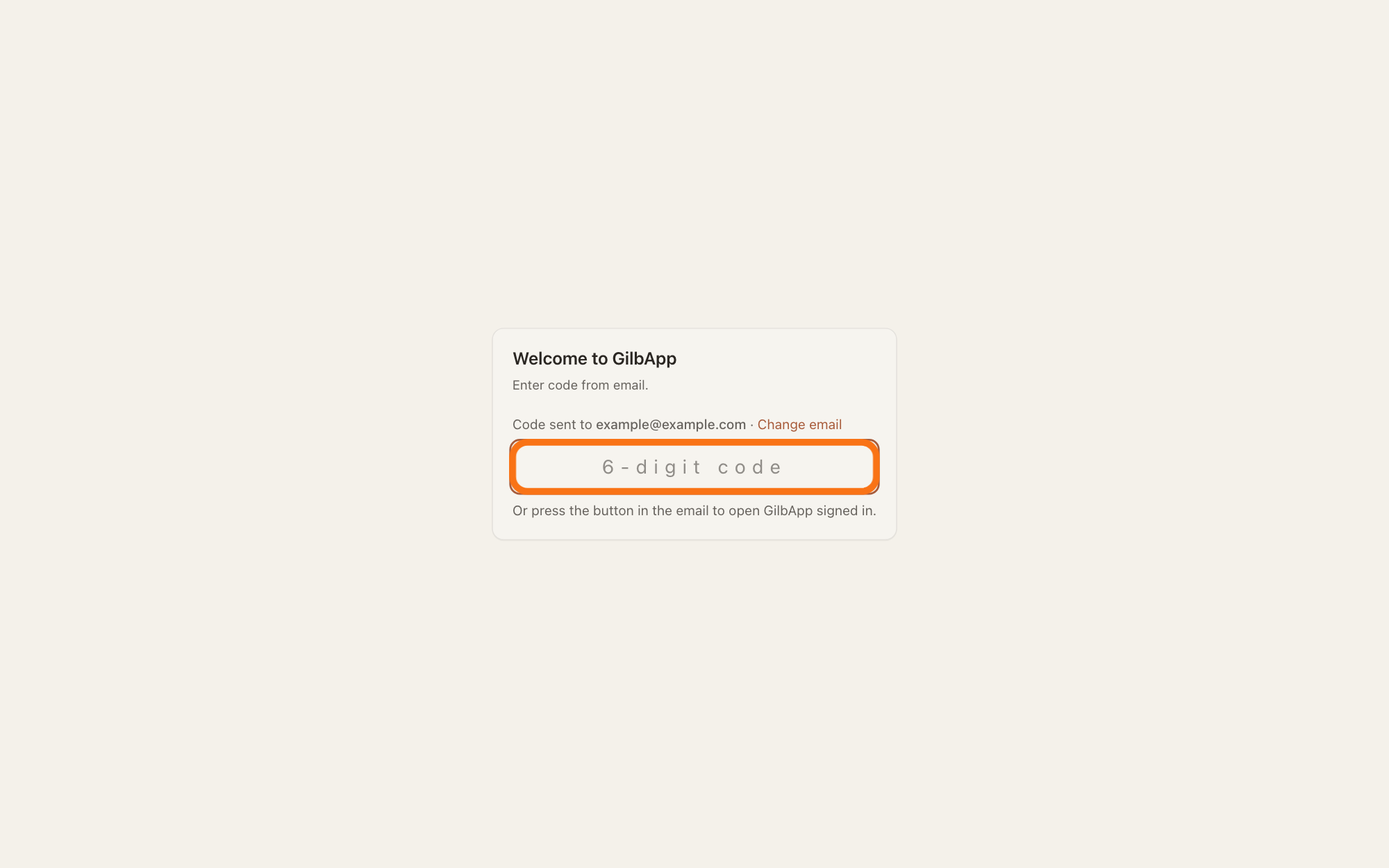
Type the 6 digits in the box that shows 6-digit code.
Back in GilbApp, click the box that shows 6-digit code and type the 6 digits. At the sixth digit the card signs you in by itself.
Show as text
In the middle of the screen the card says "Enter code from email." Under "Code sent to", your address and "Change email" is the wide box with the spaced grey words "6-digit code", outlined in orange. Click it and type the 6 digits from the e-mail; there is no button. The last line reads "Or press the button in the email to open GilbApp signed in."
More about this
There is no button to press. The box takes digits only, so you can paste the code too. The card shows Signing in… and then opens GilbApp. For a new e-mail the card also shows Vault name above the code box: a name must be in it first, or the card says Choose a vault name first.
If the code still does not work, press Change email.
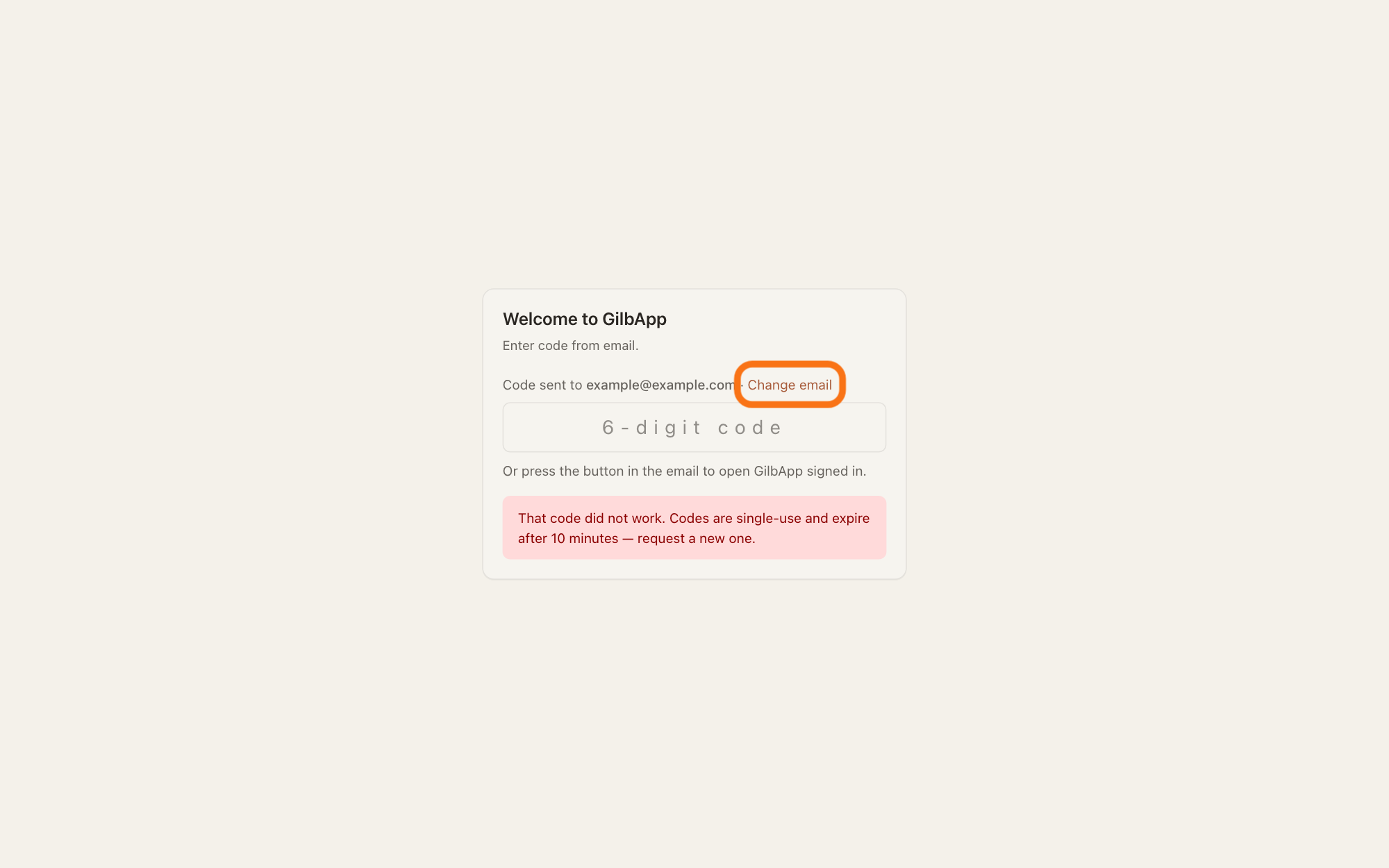
If the card says "That code did not work. Codes are single-use and expire after 10 minutes — request a new one.", check the 6 digits and type them again. If it still does not work, press Change email beside your address; the card goes back to the e-mail box with your address in it.
Show as text
At the bottom of the card a pink box says in red that the code did not work and to request a new one, and the code box above it is empty again. If typing the digits again does not help, press "Change email", outlined in orange, near the top of the card, right after your address on the line "Code sent to".
More about this
A code that did not work was wrong, already used, or older than 10 minutes. A wrong code does not use the code up: you can type the right digits again. But 5 wrong codes, counted for your address as a whole and not for one code, end the code and lock the address. A used or old code is gone too, so you need a new one.
Press Send Code to Email again.
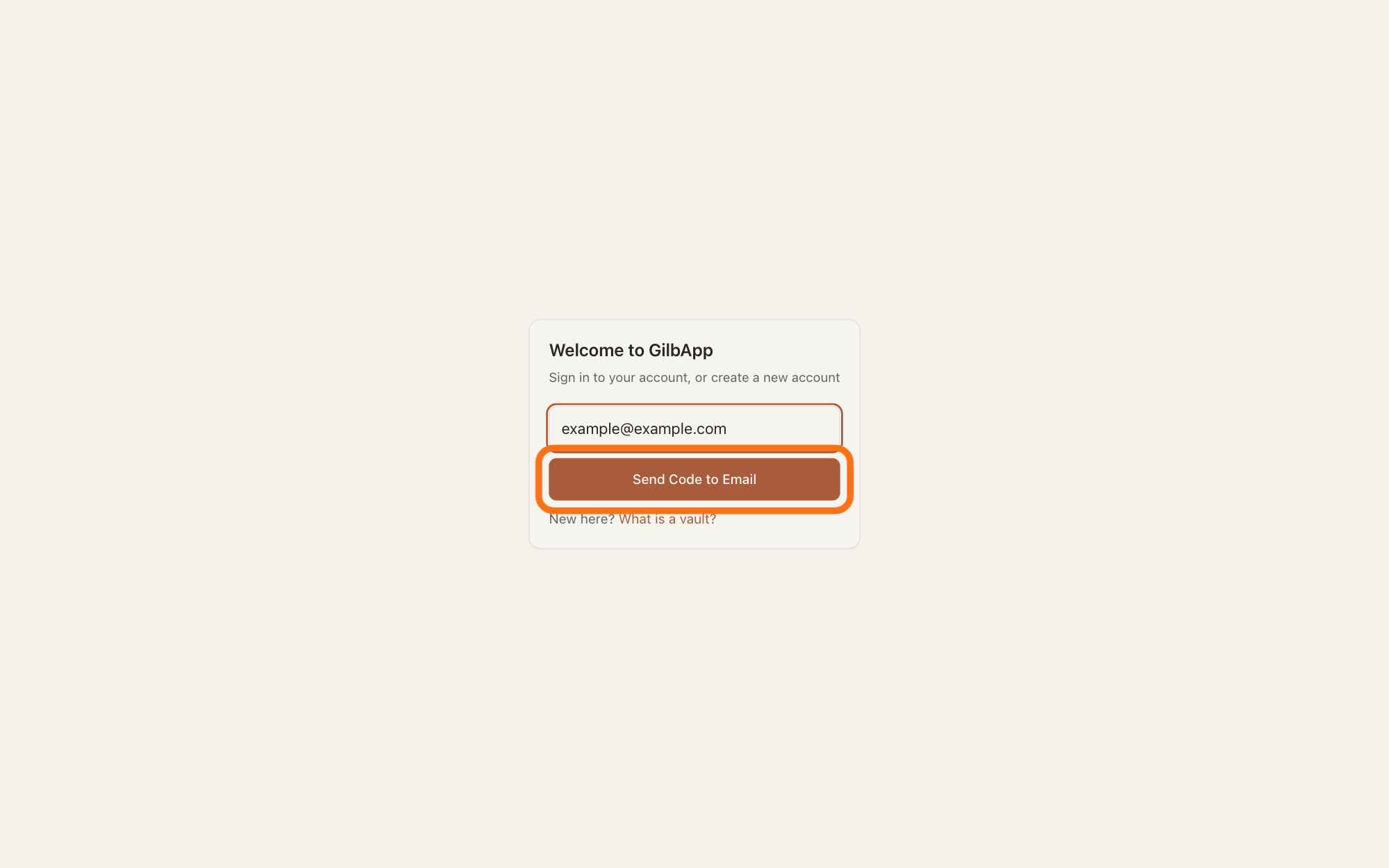
Press Send Code to Email again. A new code comes by e-mail; type it as in step 2.
Show as text
The card is back at its first view, "Sign in to your account, or create a new account", with your e-mail address still in the box. Press the dark button "Send Code to Email" just under the box, outlined in orange, to get a new code by e-mail; then type it as in step 2.
More about this
Only the code from the newest e-mail works now. If the card says GilbPlatform refused the sign-in (HTTP 401). Wait a moment, then try again., the address is locked after 5 wrong codes: wait 15 minutes or more. The same words with another number mean GilbPlatform turned the request down for another reason; wait a moment and try again. Asking too soon or too often sends no e-mail, as the limits below say.
Deeper
Also asked:
Does GilbApp send me e-mails, and can I stop them? Only two kinds: the sign-in code you ask for, Your GilbApp sign-in code, and a note A computer was added to your Gilb account when a computer is added. There is no news mail and no note when someone shares a vault with you.
A code works once, and for 10 minutes. Only the newest code you asked for works: asking again replaces the old one.
You can ask for a new code 45 seconds after the last one, and at most 3 times in 10 minutes for one address. From one network, at most 8 codes go out in 10 minutes, and 3 in 15 seconds. Past a limit the card still shows Code sent to, but no e-mail is sent; the code you already have still works. After you sign in, the count for your address starts again.
After 5 wrong codes the address is locked for 15 minutes, and longer each time it happens again, up to a day. The 5 wrong codes are counted for your address as a whole: asking for a new code does not start the count again. While it is locked, a correct code does not work either, and asking for a new one is refused or sends nothing.
The card remembers your address for 15 minutes: if you reload GilbApp, it comes back to the code box.
This answer is written for a computer screen. On a Mac the steps are the same in any browser; the key Enter is called Return there.
Checked against GilbApp 49467c2.