
← Finding things: search, sort and filter
How do I sort and filter the list?
Short answer
In Records, press ITEM, TYPE or DATE over the list to sort; to filter, press TYPE above the search box, choose types and press Done.
Before you start
You need to be signed in to GilbApp on a computer, with some records in a vault you can read. The pictures show a made-up person on a test site; your screen shows your own name and address.
Words used here (3)
- GilbApp
- GilbApp is the app, opened in a web browser at https://gilb.com/app, where you open, fill and share your vaults.
- record
- A record is one piece of data with its own address, such as a person, a place, a thing or a note.
- vault's type
- A vault's type says what the vault stands for, such as a project, an organization or a person, chosen from the types in GilbVeda.
Steps
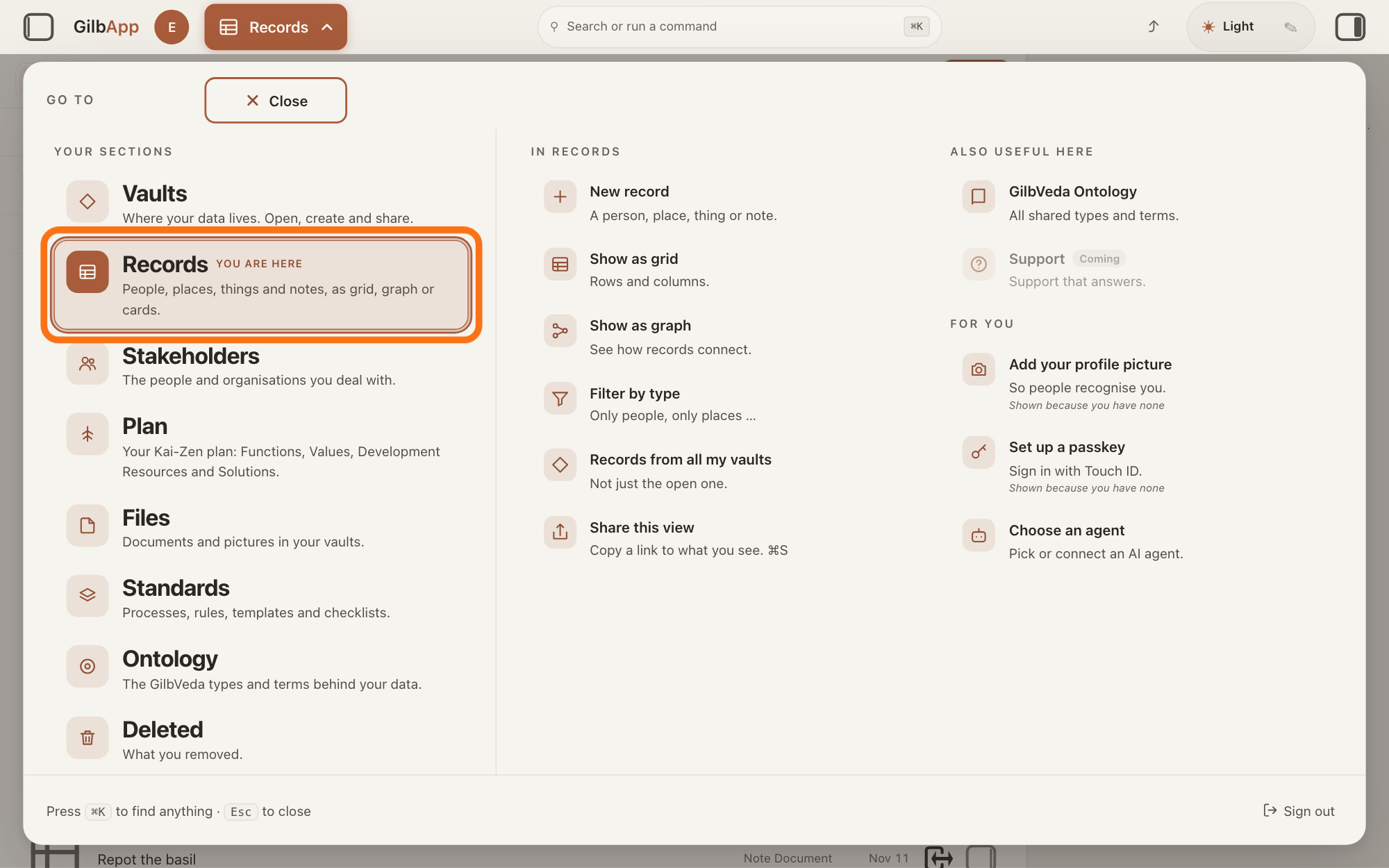
Press Main menu at the top left and choose Records.
Press Main menu, next to your profile picture at the top left, and under YOUR SECTIONS choose Records. The button shows the name of the section you are in, such as Vaults.
Show as text
At the top left, the button with the section name is pressed and the panel headed "GO TO" covers the screen. In the left column under "YOUR SECTIONS", the outlined row reads "Records" with "People, places, things and notes, as grid, graph or cards." under it. It carries "YOU ARE HERE" because the Records screen is already open behind the panel. Click that row.
More about this
A panel headed GO TO opens; Records reads People, places, things and notes, as grid, graph or cards. A record is one piece of data with its own address, such as a person, a place, a thing or a note. Records shows the vault you picked in Vaults, or your own vault if you picked none; a vault is the place where a person or a group keeps their records. You can also press Records on a vault's card in Vaults. The headings and buttons of the next steps are on the list, the view Grid; if Graph, Both or Card is chosen in the bar at the top, press Grid. + New at the right of that bar makes a record; you do not need it here.
Press ITEM, TYPE or DATE over the list.
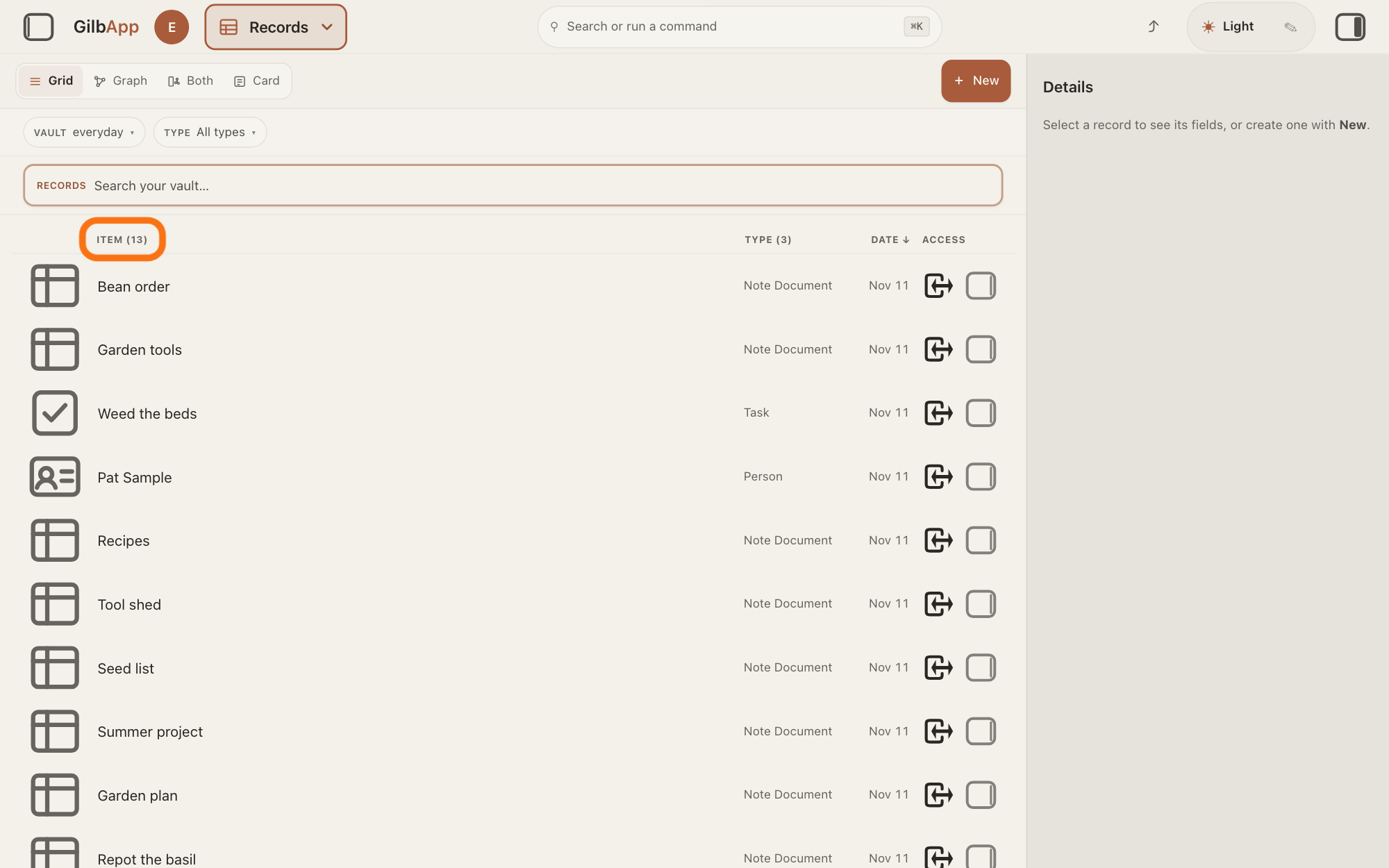
Press the heading over the column you want: ITEM sorts by name from A to Z, TYPE by the name of the type, the kind of record, such as a note or a person, and DATE by when each record last changed. Press the same heading again to turn the order round.
Show as text
The Records screen shows the list in "Grid". Over the list are the headings "ITEM (13)", "TYPE (3)", "DATE ↓" and "ACCESS". The outlined heading is "ITEM (13)". Click a heading to sort by it; click again to turn the order round.
More about this
The list starts as DATE ↓: newest first. An arrow, ↑ or ↓, stands after the heading the list is sorted by; rows that are equal there are in name order. The numbers after ITEM and TYPE count the rows shown and their types. ACCESS is not a button: it heads the small signs of your access to each row. Clicking a row opens that record in the middle of the screen; the square button at the end of a row, whose hover text is Show card info, shows it in the right pane instead. GilbApp sorts the rows it has read; more are read as you scroll to the end of the list, and each takes its place. Sorting changes only the order on your screen, nothing in the vault.
Press the TYPE button above the search box.
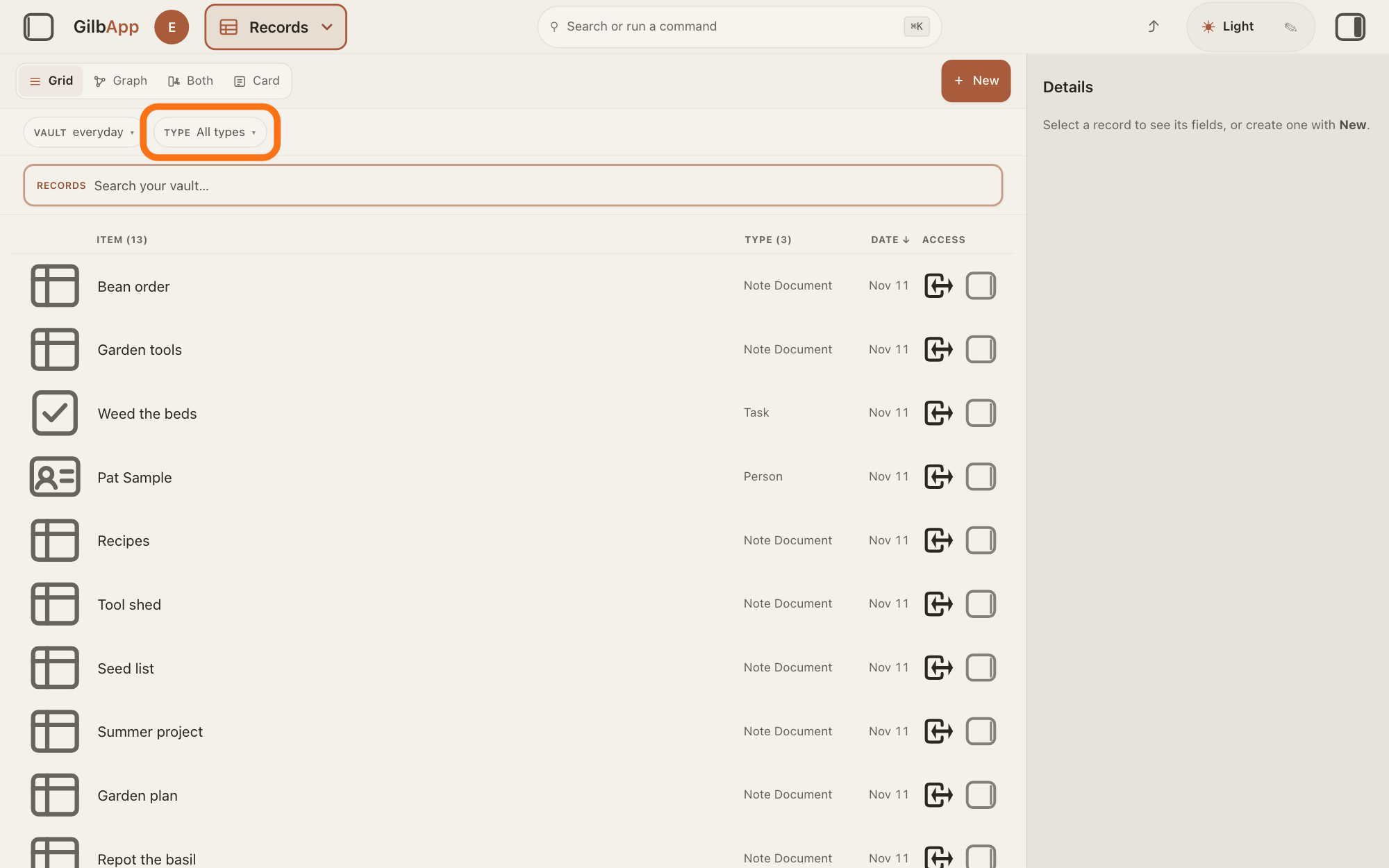
Press the round button TYPE in the bar above the search box; until you filter, it shows All types. The list of the vault's types opens under it.
Show as text
Above the search box marked "RECORDS" are two round buttons, "VAULT" with the vault's name and "TYPE All types". The outlined button is "TYPE All types". Click it.
More about this
Main menu at the top left opens the same list: under IN RECORDS choose Filter by type. The button VAULT beside it is step 5. The search box under the bar shows Search your vault…. While a filter is on, the box shows Search in current filters…, keeps only records of the types you chose under TYPE, and looks only in the vaults you ticked under VAULT; with All reachable vaults ticked, as at first, it also asks your other vaults. The answer on finding a record explains the search.
Choose the types you want and press Done.
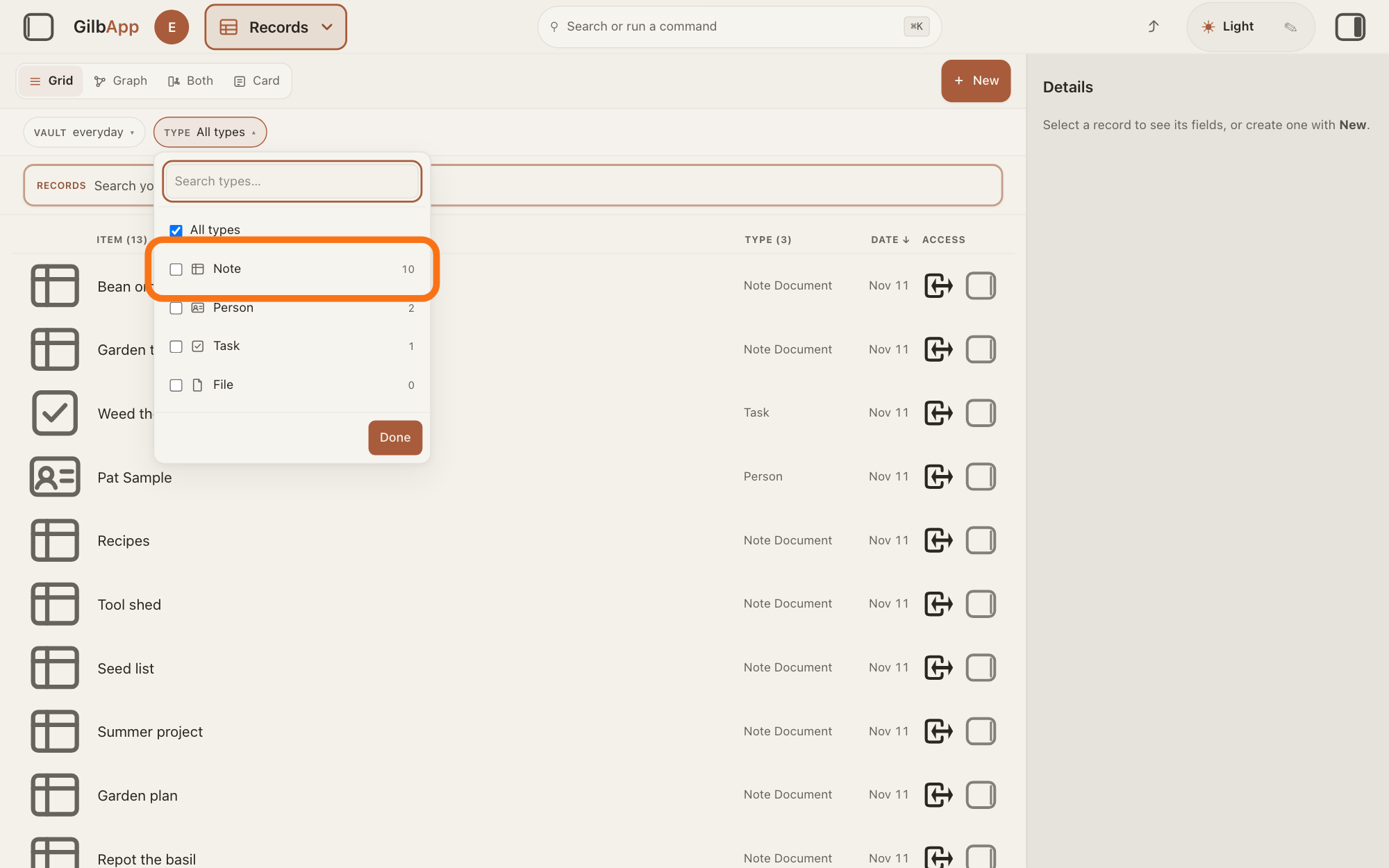
Tick the box of each type you want and press Done. The list then shows only the rows of those types.
Show as text
A list is open under the "TYPE" button: "Search types…", "All types" ticked, then "Note 10", "Person 2", "Task 1", "File 0", and "Done" at the bottom. The outlined row is "Note". Tick the types you want, then press "Done".
More about this
Each type has a count beside it. All types, ticked at first, shows every type: ticking a type unticks it, and ticking All types again clears your choice. With many types, type part of a name in Search types… at the top. A click outside the list also applies your choice. The button then shows the type you chose, or how many, such as 2 types. File is listed too: files in the vault that are not attached to a record are rows in this list. If none of the newest records read is of your types, GilbApp reads further, or says so and offers Read further. A filter only hides rows on your screen; it changes nothing in the vault.
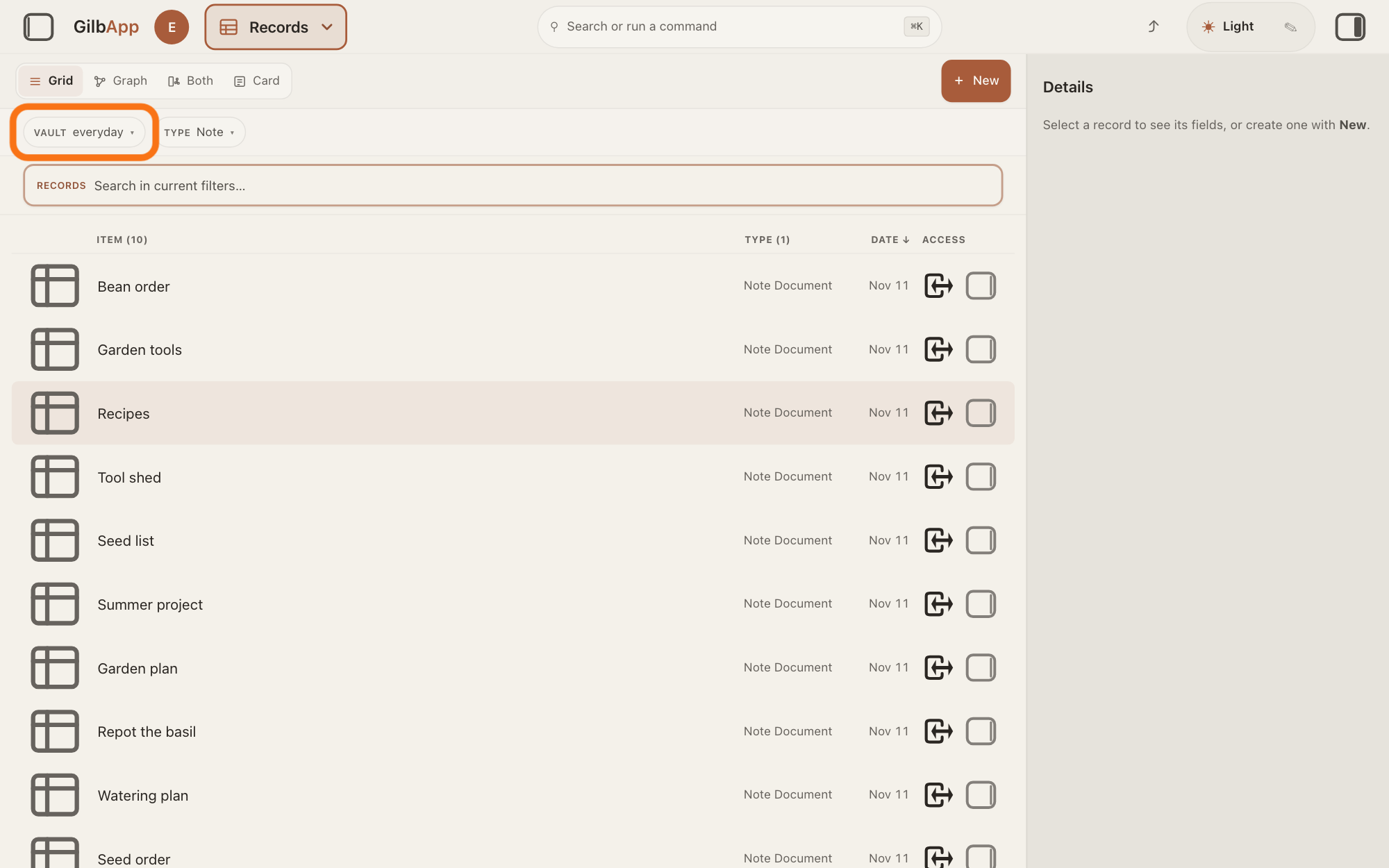
To filter by vault, press the VAULT button.
If you can reach more than one vault, press VAULT, the round button left of TYPE; it shows the name of the vault you are viewing. The list of the vaults you can reach opens under it.
Show as text
The list now shows notes only; the button reads "TYPE Note" and the search box shows "Search in current filters…". The outlined button at the left reads "VAULT" with the vault's name. Click it.
More about this
With All reachable vaults ticked, as it is at first, the list shows only the vault the button names, not all of them. To see several vaults at once, tick each one you want, in step 6. The GO TO panel also has Records from all my vaults under IN RECORDS; the answer on searching across all your vaults explains it. The picture shows a second made-up vault.
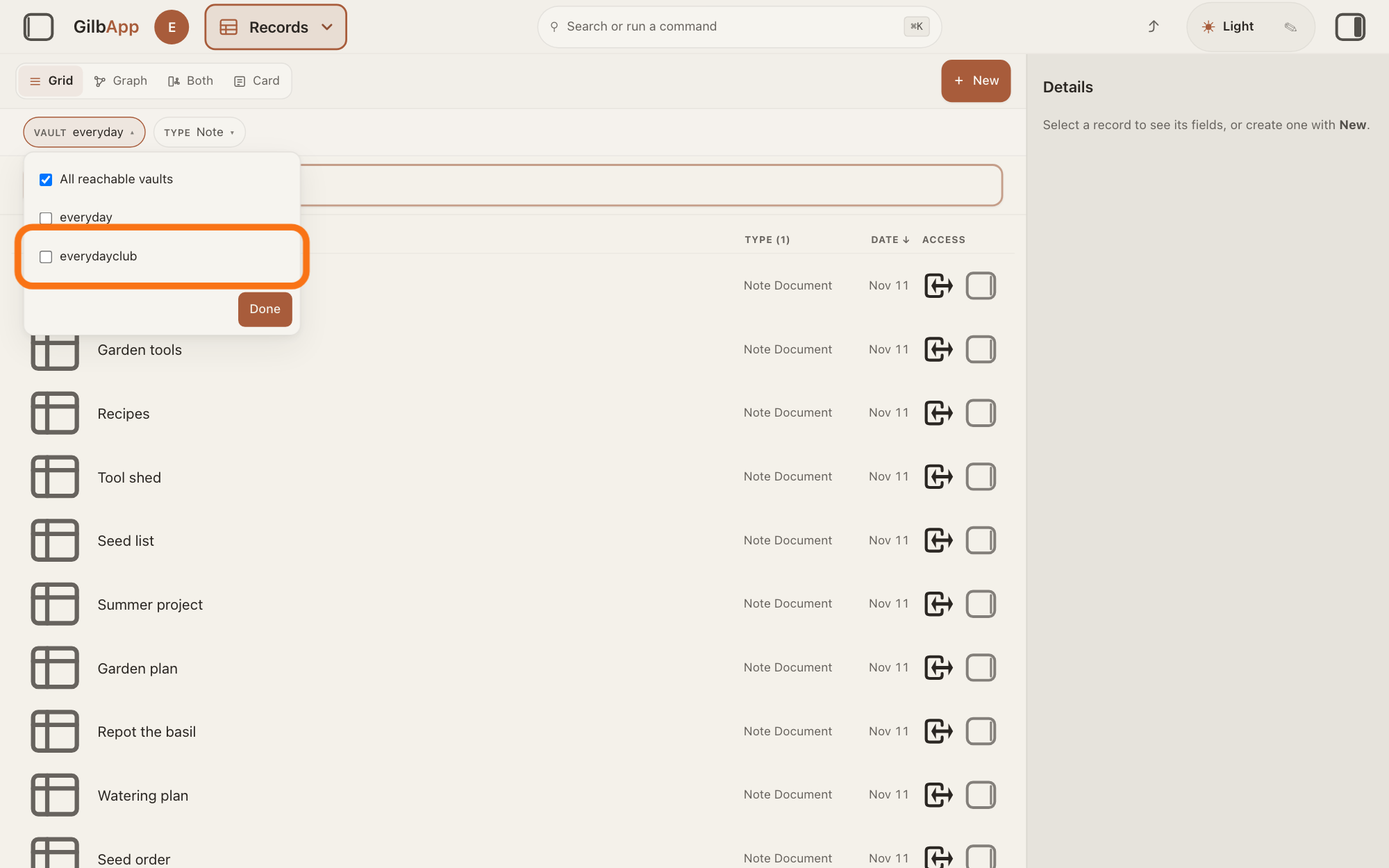
Choose the vaults you want and press Done.
Tick the box of each vault you want and press Done. The list then shows the records of those vaults together.
Show as text
A list is open under the "VAULT" button: "All reachable vaults" ticked, then one row for each of your vaults, and "Done" at the bottom. The outlined row is the second vault. Tick the vaults you want, then press "Done".
More about this
The button then shows the vault's name, or how many, such as 2 vaults. When a vault you tick has vaults made inside it, Show children appears: Include files and records from vaults under the selection. With several vaults, a line over the list says how many rows came from how many vaults, such as 12 rows from 2 of 2 vaults read; Not all loaded names any vault whose rows are not all shown, and why. The sort and the type filter work on the vaults you chose. Ticking All reachable vaults again goes back to the one vault.
Deeper
Also asked:
How do I see only people, or only places? Filter by type: in Records, press TYPE above the search box, tick the type you want, such as a person or a place, and press Done.
How do I put the newest records at the top? The list starts that way, DATE ↓: newest first. If it is sorted another way, press DATE over the list until it shows DATE ↓.
GilbApp keeps the sort and the filters in the page's address, so they stay when you reload the page.
Stakeholders and Plan have the same headings and the same VAULT and TYPE buttons. In Plan the bar also has buttons for the levels and kinds of plan records; the answer on the levels of a plan explains them. Files has the two buttons but no headings: it lists the newest file first.
Inside a virtual folder, a view that groups records and files without moving them, the folder stays at the top of the list and its contents are sorted under it; the answer on making a folder and putting records in it explains folders.
This answer is written for a computer screen. In a window narrower than 768 pixels the headings are hidden, so the order cannot be changed there.
Checked against GilbApp d529620.