
← Back to What is GilbVeda, and why do apps use it?
How do I suggest a new term?
Short answer
Press Main menu, choose Choose an agent, choose Agent.Concept - Master of Concepts, type what you need a term for, and press Send.
Before you start
You need to be signed in to GilbApp on a computer, with your own AI, Claude Code or Grok, connected in the chat, each by its own answer. The pictures show a made-up person on a test site; your screen shows your own name and address.
Words used here (4)
- agent
- An agent is your AI following one written procedure, its standing instructions, for one kind of work.
- GilbApp
- GilbApp is the app, opened in a web browser at https://gilb.com/app, where you open, fill and share your vaults.
- GilbPlatform
- GilbPlatform is the service that keeps people's and organisations' data in vaults, each at its own web address.
- Jackfruit
- Jackfruit is the vault agent: it finds, reads, writes and links records in your vaults, and makes new vaults for you.
Steps
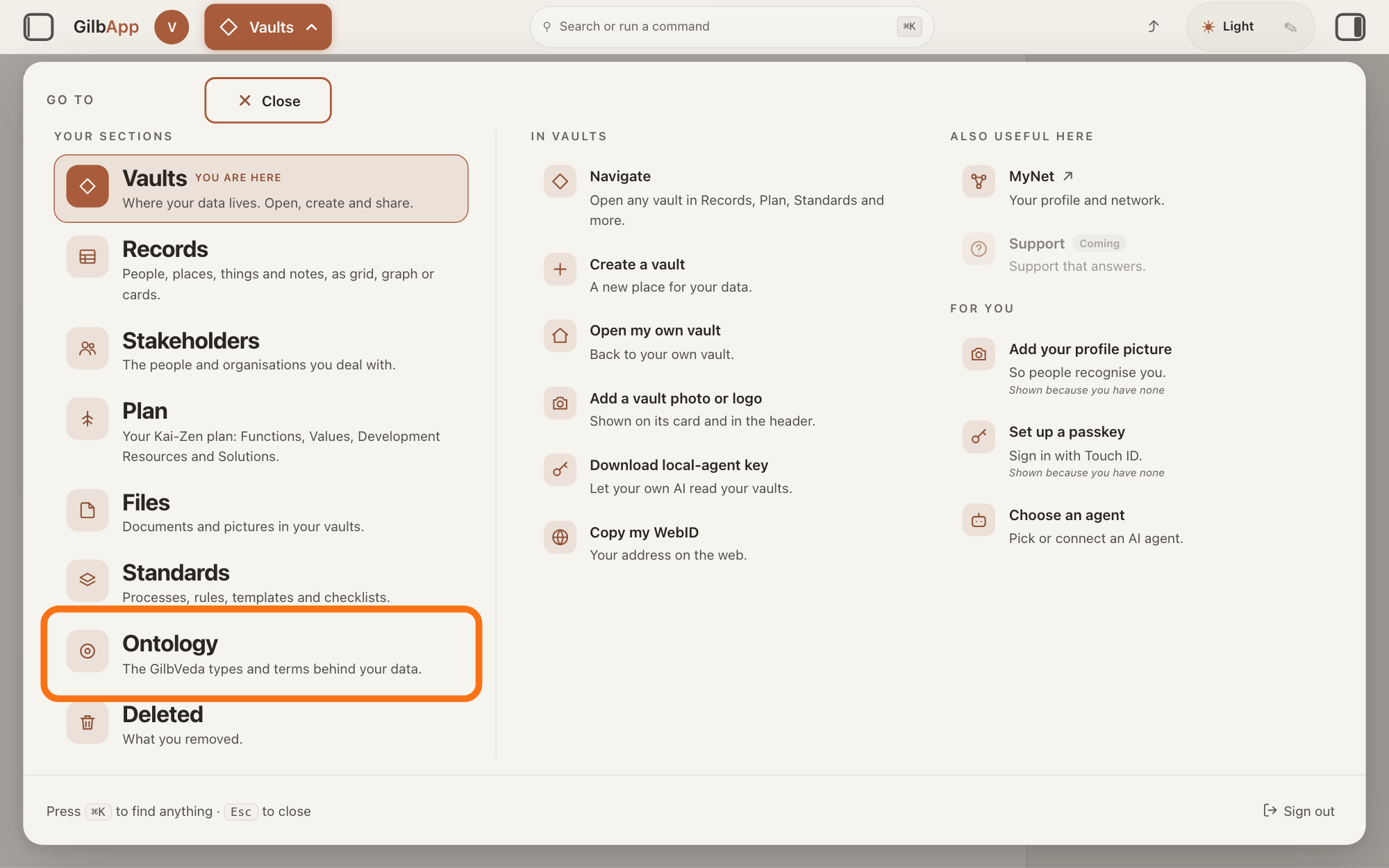
Press Main menu at the top left and choose Ontology.
Press Main menu, next to your profile picture at the top left, and under YOUR SECTIONS choose Ontology. The button shows the name of the section you are in, such as Vaults.
Show as text
The panel headed "GO TO" is open over the window. In the left column under "YOUR SECTIONS", near the bottom, the outlined row reads "Ontology" and "The GilbVeda types and terms behind your data." Click it to open the Ontology screen.
More about this
A panel headed GO TO opens; Ontology reads The GilbVeda types and terms behind your data. It always opens on GilbVeda, the shared list of terms: the button at the top left of the screen reads GilbVeda Ontology, the cursor is in the box marked CONCEPTS, and below are three columns, TYPES, FUNCTIONS and VALUES. A type is a kind of thing; a Function is what a system does, written as an action; a Value is a perceived benefit, measured as a number. A term is the shared name GilbVeda keeps for a kind of thing, a detail of it, a link between two things, or a species. The right pane says No concept selected. Resting the pointer on Ontology in the panel shows more choices under IN ONTOLOGY; you need none of them here.
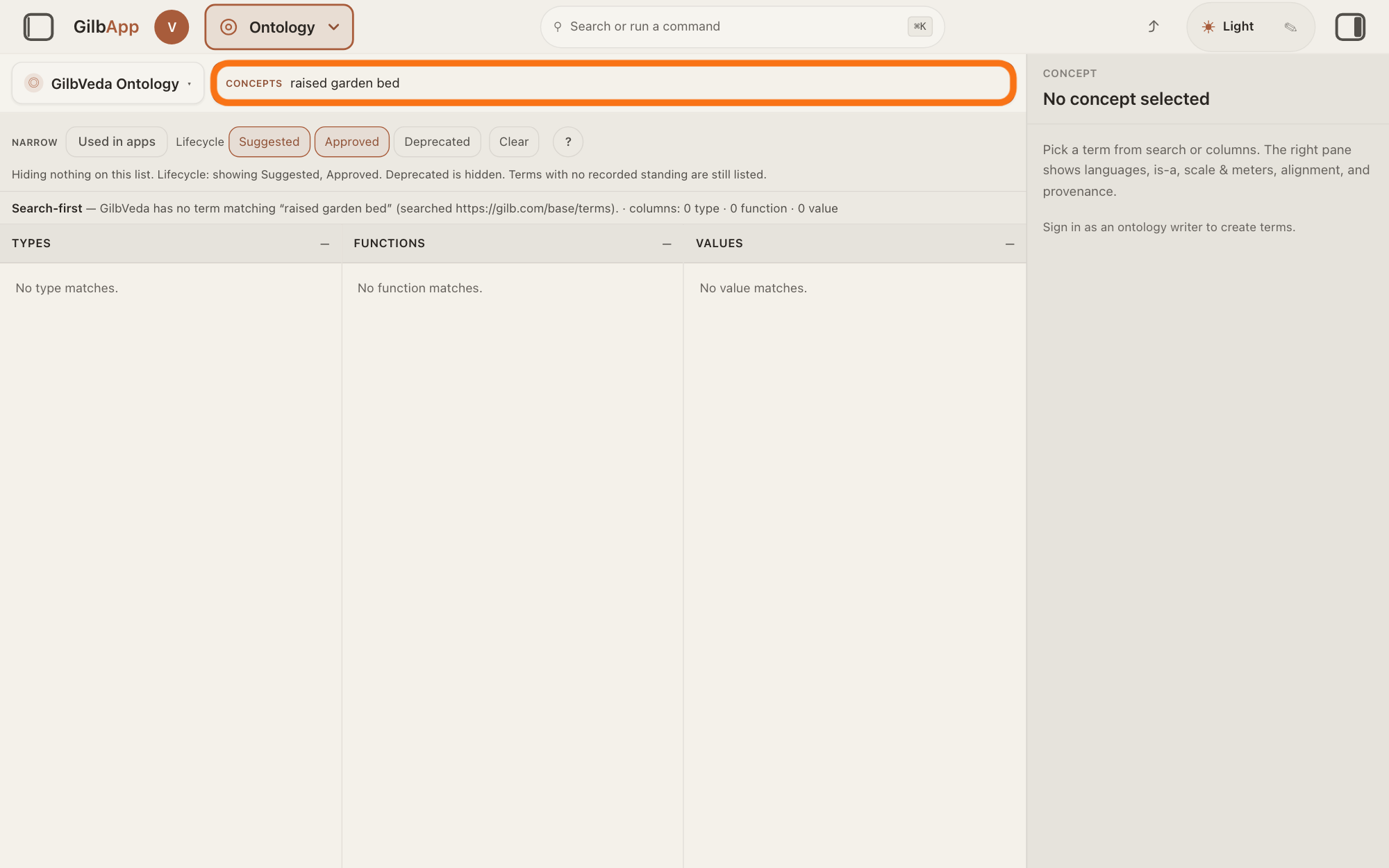
Search for the term in the box marked CONCEPTS to check it is missing.
Type at least three letters of the term's name in the box marked CONCEPTS. If GilbVeda has it, use it, as the answer on finding a term shows; if the line above the columns says GilbVeda has no term matching and what you typed, go on.
Show as text
"raised garden bed" is typed in the outlined box marked "CONCEPTS". The line above the columns reads "GilbVeda has no term matching", and all three columns say there are no matches. Then suggest the term through Agent.Concept.
More about this
This check is not needed: Agent.Concept, the agent that finds and makes GilbVeda's terms, looks the term up too, by its name and by its meaning, and a term may be there under another name. Deprecated terms are hidden at first; press Deprecated under Lifecycle to see them. The Ontology screen makes no term for you: unless your account may write to GilbVeda, the right pane says Sign in as an ontology writer to create terms. while no term is chosen; an account that may write sees + New concept there instead.
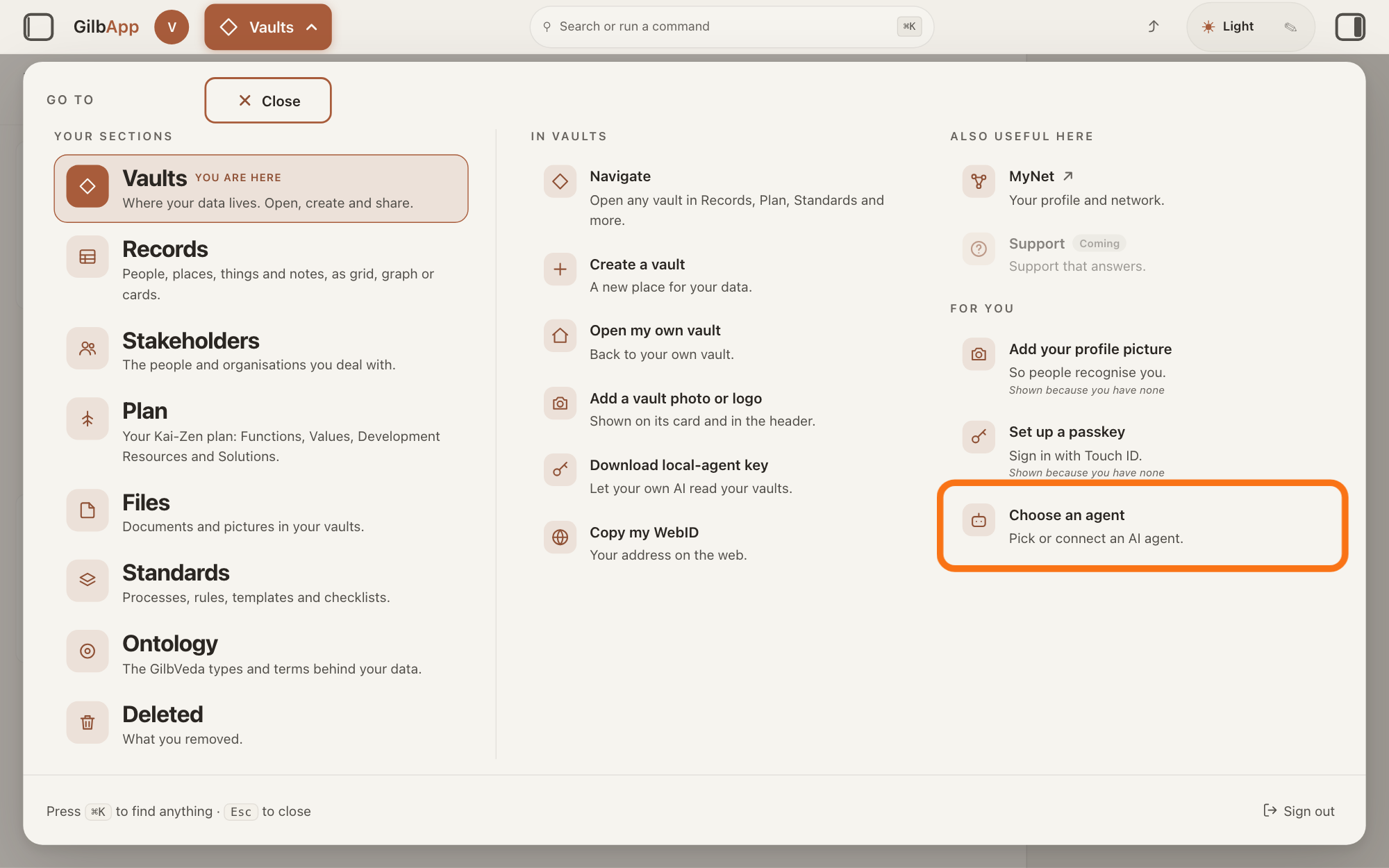
Press Main menu at the top left and choose Choose an agent.
Press Main menu, next to your profile picture at the top left, and under FOR YOU choose Choose an agent (Pick or connect an AI agent.). The button shows the name of the section you are in, such as Vaults. GilbApp opens the left pane, where you chat, and puts the cursor on the agent list at the top of it.
Show as text
The panel headed "GO TO" is open. In the right-hand column under "FOR YOU", the outlined row reads "Choose an agent" and "Pick or connect an AI agent." Click it; the chat opens in a pane on the left.
More about this
The square button at the far left of the top bar also shows or hides the left pane. You can also search for Choose an agent in Search or run a command.
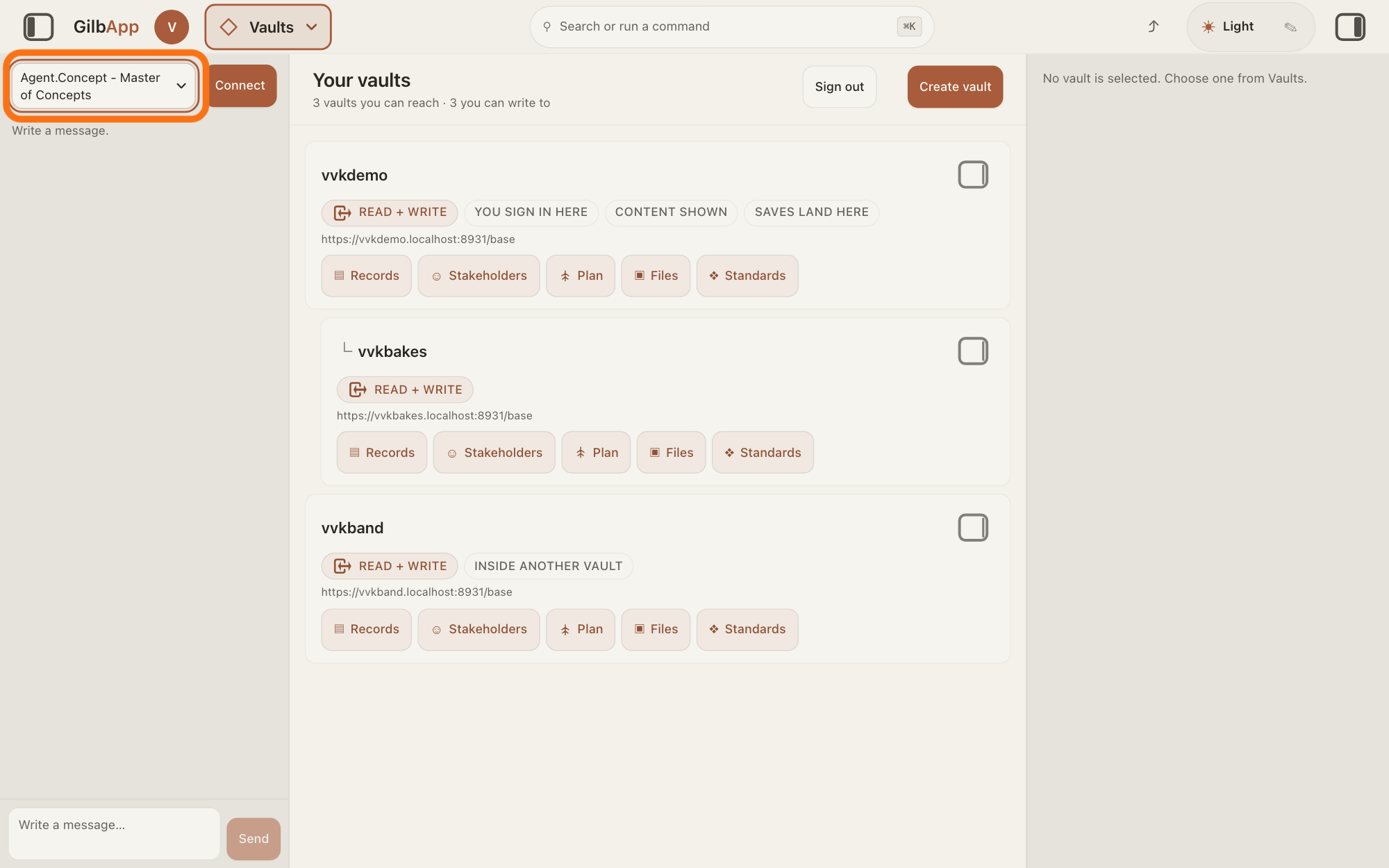
Choose Agent.Concept - Master of Concepts in the agent list.
Press the agent list at the top of the left pane and choose Agent.Concept - Master of Concepts. Each agent has its own chat, and the list shows which one you are in.
Show as text
The chat is open in a pane at the left. At the top of that pane, the outlined agent list reads "Agent.Concept - Master of Concepts", with "Connect" to its right. Choose this agent in the list.
More about this
Agent.Concept is the agent that finds and makes GilbVeda's terms. GilbVeda is the shared list of terms that every fact name and every type on GilbPlatform comes from. A new chat starts on the first agent in the list, Jackfruit - Master Agent of Vaults and Information. The list comes from GilbPlatform each time the chat opens. GilbApp keeps your choice for this browser tab. While an agent is answering, the list is greyed out.
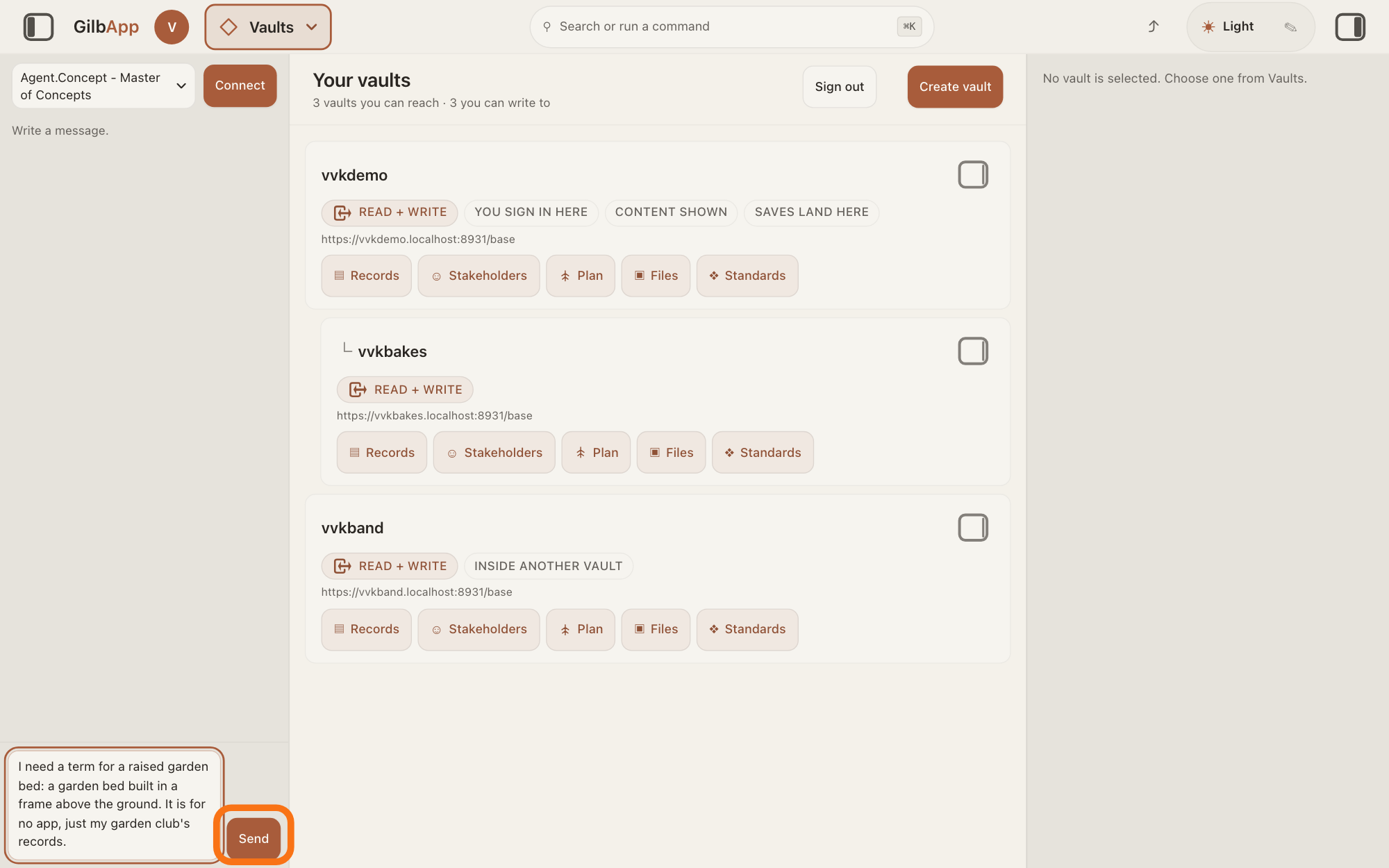
Type what you need a term for in Write a message… and press Send.
Click the box that shows Write a message…, say in your own words what you need a term for and what it means, and press Send. A term is the shared name GilbVeda keeps for a kind of thing, a detail of it, a link between two things, or a species.
Show as text
At the bottom of the chat pane on the left, a message about a raised garden bed is typed in the box "Write a message…". The outlined "Send" button is to the right of the box. Press it to send the message.
More about this
Agent.Concept looks the term up first, by its name and by its meaning. If it finds one, it gives you that one; if not, it makes it at once, as a suggested term with you as its maker, without asking anyone to confirm. If you have not named the app the term is for, it asks only that; a term for no app says so. A suggested term can be used at once; approving it is later, separate work. Return also sends; Shift and Return starts a new line. While it works, the pane says The agent is writing…, then Ran and the name of each tool it uses.
Deeper
Also asked:
What does mint mean, as in Mint AI vault or Mint as Suggested? To mint is to make something new with its own address. Mint AI vault makes a new AI vault; Mint as Suggested makes a new GilbVeda term with the standing Suggested.
An agent is your AI following one written procedure, its standing instructions, for one kind of work. Agent.Concept's standard tells it to do the right thing with each term: one meaning per term, never a second term for a meaning a term already carries, and the right kind of term. It never lets a record in your vault stand in for a term.
For a species, Agent.Concept looks in GilbLife, GilbPlatform's list of species, by the species' scientific or common name, and adds the species there when it is missing.
When the new term is a kind of thing, Agent.Concept's standard has it make the term's picture in the same job, but in GilbApp's chat it has no tool to store a picture, so a type made there has none until one is added; the answer on setting a term's picture says how. A picture made by AI is under CC0 1.0, a licence that lets anyone use it with no credit owed; for your own real photo you choose CC BY 4.0, which asks for credit, or CC0 1.0; when it is not known which, it asks you whether AI made it.
If you say it should ask you nothing, it asks nothing: it takes a stated default for each thing it would ask, and names each default in its answer as an assumption. A new term that would change or break a term already in use still stops and asks first.
You need not ask yourself when another agent is working for you: Jackfruit, working on your own request, asks Agent.Concept at once when what it writes needs a term GilbVeda does not have, and Kai-Zen asks it before it writes a Function or a Value of your plan; the answer on tagging and linking specs says more. No other agent finds or makes a GilbVeda term. GilbApp's Search GilbVeda types… on a card in Plan lists only terms GilbVeda already has, and makes none.
On a terminal, your own AI acts as Agent.Concept with GilbPlatform's mint program, gilb-mint.ts, in the same way: look up first, make a term only when none is found.
Without your own AI, the chat answers only if GilbPlatform has switched on its shared AI; otherwise it says Connect your own AI first — press Connect. Your AI works only for you.
In Ontology, the form for making a term, + New concept, shows only to an account that may write to GilbVeda; every other account sees Sign in as an ontology writer to create terms. in the right pane while no term is chosen, and that screen makes no term for it. A term Agent.Concept makes for you shows in Ontology with the status Suggested; the answer on finding a term shows how to search for it.
This answer is written for a computer screen.
Source: Steps 3-5, the short answer, Before you start and Deeper (all but one paragraph) are answer.json word for word (copied by script; its sources stand: Agent.Concept Task, PictureLicence, ClosedSend; Jackfruit; Dev.Guide.Overview.Vocabulary; GilbPlatform ai-chat.ts mint tools; GilbApp sectionMenuList.ts:330-331, AgentSelector.tsx). Re-read 2026-11-11: Agent.Concept (16 steps, unchanged: Mint-for-a-need, lookup by name and meaning, mint at once, Suggested, person as minter, ask only for the app); Rule_Code_gilbveda-ontology-master RuleBvmasterSoleMinter ('Only Agent.Concept writes ontology'). GilbPlatform 498d29a0 ai-chat.ts:473-478 (mint tools only on an Agent.Concept turn; unchanged from 4d008a55 in those lines); docs/BASE-DEVELOPER-GUIDE.md:54, :8794, :8810 (mint routes need the Agent.Concept mint pass, else 403 NotThroughAgentConcept). Steps 1-2 and the new paragraph, GilbApp ebd9415e (Ontology code identical to af0f04ee): step 1 shared; step 2 termSearch.ts:197-202 (GilbVeda has no term matching “…”), ontologyNarrowing.ts:508-560 (Lifecycle hides Deprecated by default); OntologyConceptPane.tsx:163-168 (canWrite = session holds write on a veda.gilb.com vault, ontologyWrite.ts:69-81), :938-952 (+ New concept for writers, else Sign in as an ontology writer to create terms.), :904-913 + OntologyCreatePane.tsx:73, :252 (Mint as Suggested); ontologyWrite.ts:1288-1400 (the form writes the term straight into the GilbVeda vault, not through Agent.Concept); OntologyFacetColumn.tsx:146-153 (status on the row). Shared: step 1, finding-a-term cross reference.
Checked against GilbApp d529620.