
← Back to How do I leave a vault someone shared with me?
How do I take access away?
Short answer
Press Main menu, choose Vaults, press the vault card's panel button, and press × on each access you want to take away.
Before you start
You need to be signed in to GilbApp on a computer, with Control on the vault the access is on. The pictures show a made-up person on a test site; your screen shows your own name and address.
Words used here (2)
Steps
Press Main menu at the top left and choose Vaults.
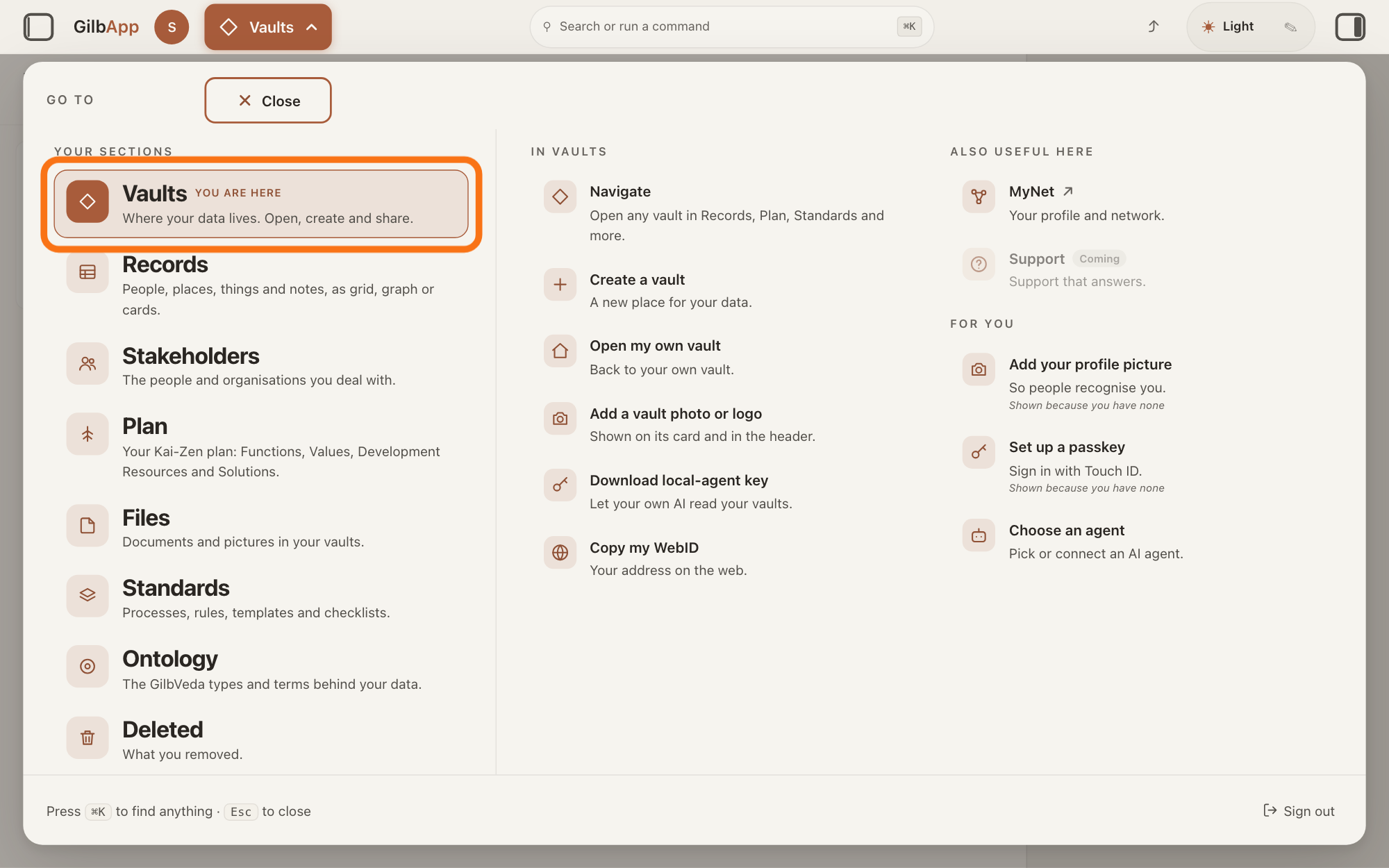
Press Main menu, next to your profile picture at the top left, and under YOUR SECTIONS choose Vaults. The button shows the name of the section you are in, such as Vaults.
Show as text
Top left, the "Main menu" button next to your profile picture now reads "Vaults" with an arrow, and the "GO TO" panel is open under it. In the left column, under "YOUR SECTIONS", the first row "Vaults" ("Where your data lives. Open, create and share.") has the orange outline. Click that row.
More about this
The Vaults screen lists your vaults as cards.
Press the panel button at the top right of the vault's card.
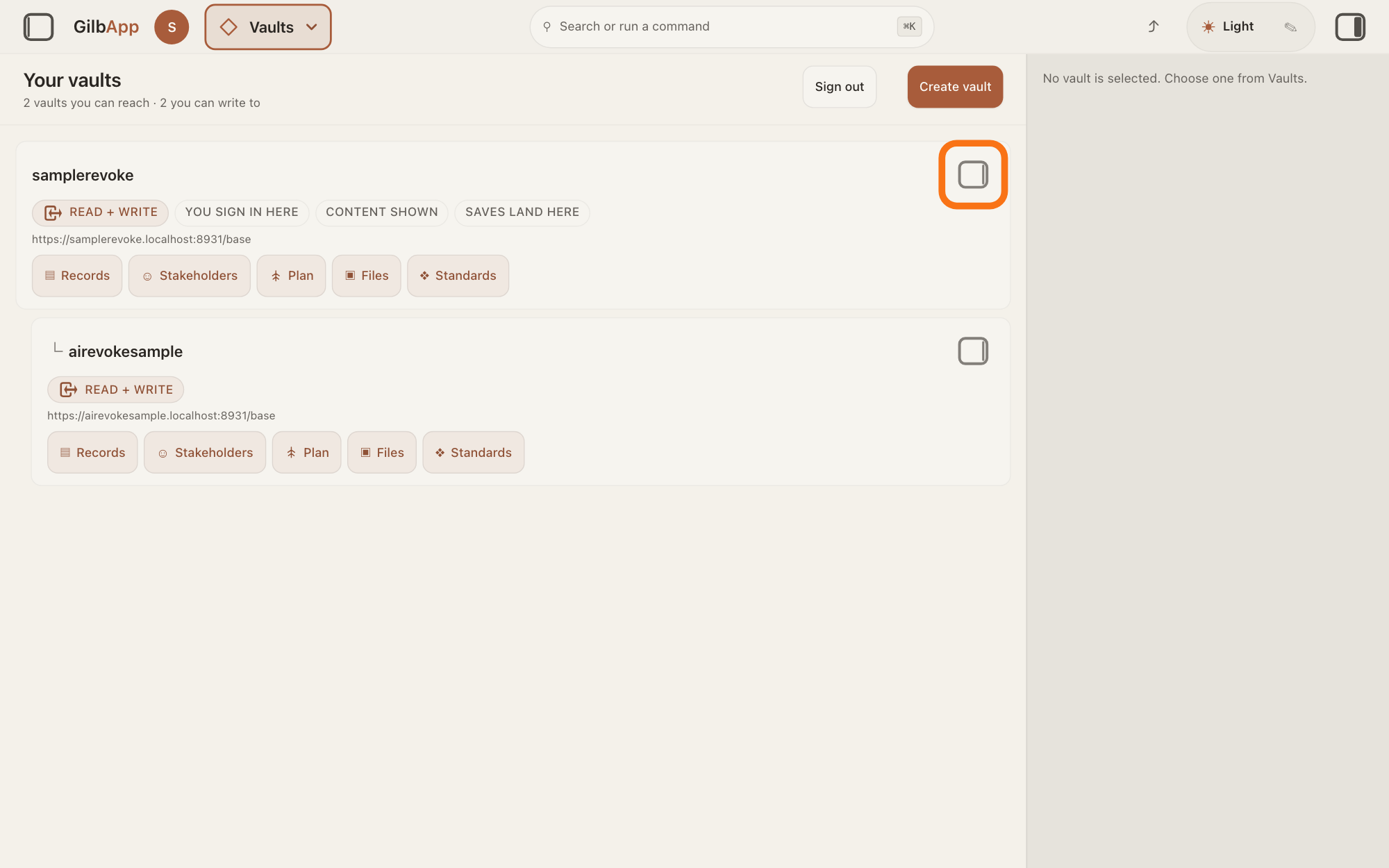
Press the small square button at the top right of the card of the vault the access is on; its hover text is Show vault info. The pane on the right shows that vault's details.
Show as text
On "Your vaults", the vaults are cards in the middle; a vault made inside another sits indented under it. The right pane says "No vault is selected. Choose one from Vaults." The small square button at the top right corner of the first card (hover text "Show vault info") has the orange outline. Click it on the card of the vault the access is on.
More about this
Clicking the card itself only selects it; on a computer it does not open the pane.
For a person, press × on each access label you want to take away.
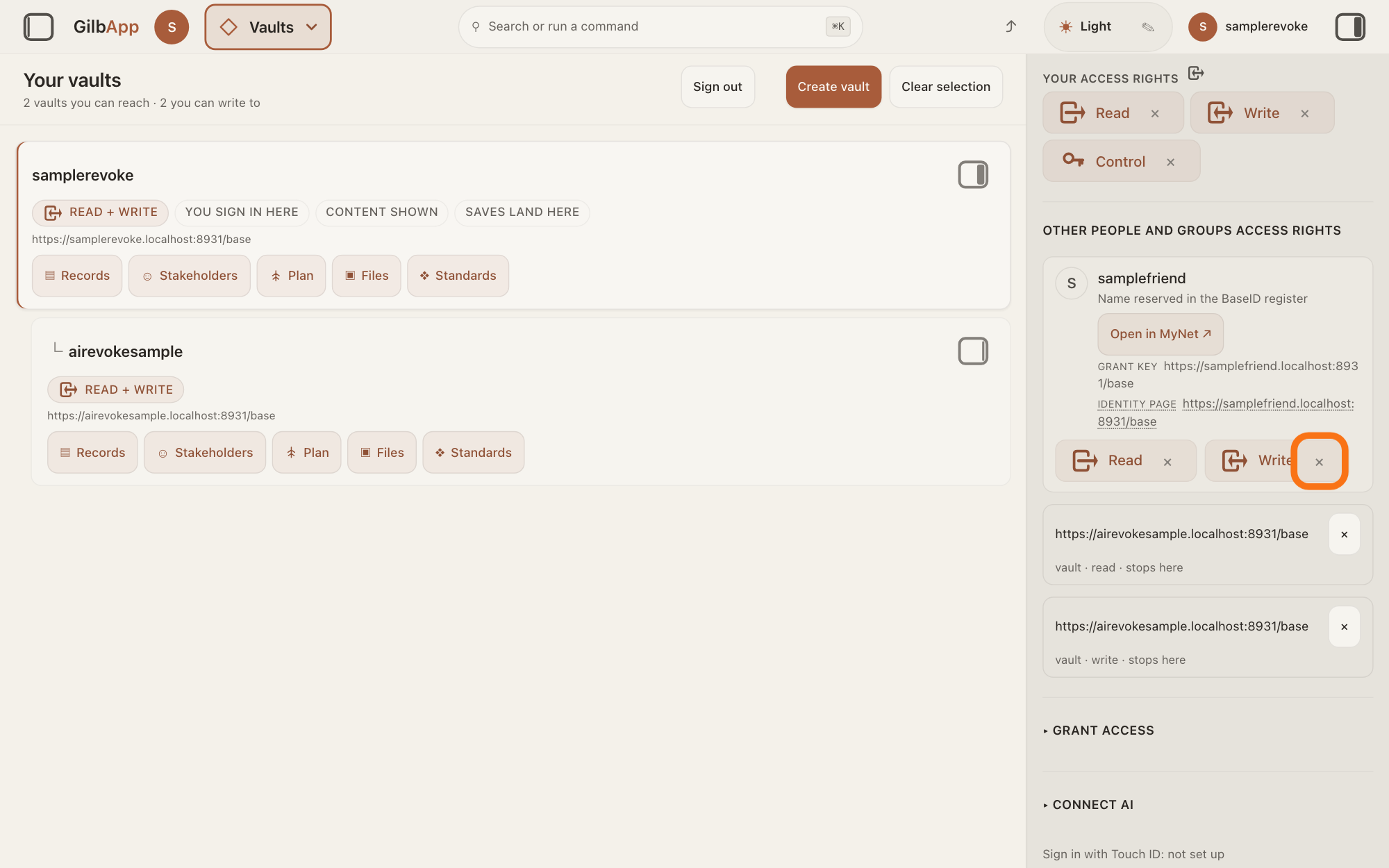
Scroll down to OTHER PEOPLE AND GROUPS ACCESS RIGHTS, where each person has a card with a label for each kind of access. Press × on the label, such as Write; its hover text is Revoke, the level, from and their name.
Show as text
In the right pane, under "OTHER PEOPLE AND GROUPS ACCESS RIGHTS", a person's card shows their name, "Open in MyNet ↗", a "GRANT KEY" line, and at its foot the labels "Read" and "Write", each with an "×". The "×" on the "Write" label has the orange outline. Click the "×" on each label you want to take away.
More about this
GilbApp does not ask first. Labels are Read, Write, Append and Control; Write + Read gives two, so press × on both to take all away. With Read gone and Write kept, they can still write but no longer read. A Control label on a card marked OWNER has no ×. Under the name a card shows where the name came from, such as Name supplied by BaseID (register not stated), a GRANT KEY line with the address that holds the access, sometimes an IDENTITY PAGE link, Open in MyNet ↗, which opens their profile in a new tab, and sometimes Show who this is; you do not need them.
For a vault, such as your AI vault, press × at the right of its line.
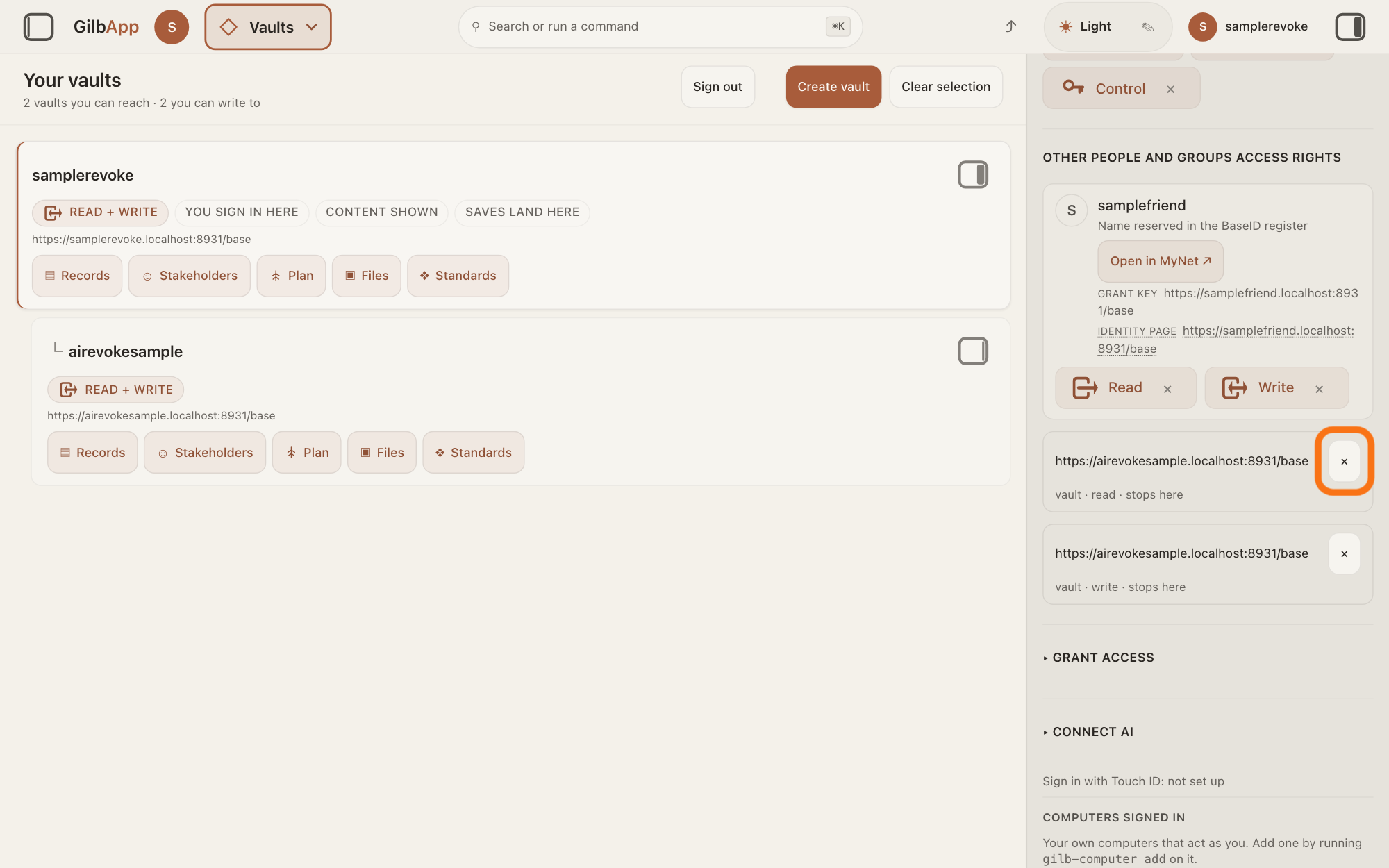
In the same list, a vault given access shows as its address, with a line such as vault · read · stops here under it. Press × at the right of that address.
Show as text
In the same list, under the person's card, a vault given access shows as two boxes, each with its address on top: one says "vault · read · stops here", the other "vault · write · stops here". The "×" at the right of the read box has the orange outline. Click the "×" on each line you want to take away.
More about this
Each line is one kind of access, so a vault given read and write has two lines; press × on both to take all its access away. For your AI vault, your AI loses this vault from its next request. A line Everyone (public) means anyone can read the vault; its ×, or Make private under ▸ GRANT ACCESS, makes the vault private again.
Deeper
Also asked:
How do I remove a helper when the work is done? On the vault's pane, press × on each label on their card. They are refused from their next request.
How do I stop my AI from reaching my vaults at once? On each vault you gave its AI vault access, press × at the right of the AI vault's lines. It loses that vault from its next request, without waiting for a sign-out.
Someone I shared with is misusing my vault. What do I do? Take their access away at once: press × on each label on their card; they are refused from their next request. If they held Control, check who else has access now, as Control lets them give access. For more help, write to [email protected].
Does a person see it when I take their access away? They get no message: GilbPlatform sends no e-mail about access. From their next request they are refused, and the vault no longer shows in their list.
What happens to the records I added to someone's vault when they take my access away? They stay in that vault, since every record lives in one vault. You can no longer read or change them there.
Someone leaves our company. How do we keep the company's vault and take back their access? Someone holding Control presses × on each of their labels; the vault and its records stay. If they alone hold Control, ask them to give it to someone else first.
Taking access away works from the person's or the vault's next request: from then on they are refused, without waiting for a sign-out or a time limit.
Read or Write taken away on a vault is also taken away on the vaults made inside it, unless it was also given to them in another way.
For the labels and lines in this list, GilbApp shows no message when taking access away fails: the label or line simply stays. If it stays, press × again. On a vault made inside another, a label can also stay because that Read or Write was given on the vault around it: its × here does not end that access; take it away on the vault it was given on.
Your own access shows under YOUR ACCESS RIGHTS in the same pane. Where that access was given to you and you hold Control on the vault, each label there has an × that gives it up. Access given on one record only is taken away in that record's ▸ ACCESS with Revoke. To stop your AI making new vaults, untick This AI may create vaults in ▸ CONNECT AI; the vaults it already made stay.
This answer is written for a computer screen.
Checked against GilbApp d529620.