
How do I write a Function in parts and link them?
Short answer
Search and select the Function, press Edit, + Part, type Keyword and Text, press Add, search and select its bigger Function and its Value.
Before you start
You need to be signed in to GilbApp on a computer, with a vault you can write to, such as your own vault. Your plan needs the Function, the bigger Function it belongs to and the Value that measures it; the answers on writing a Function and a Value in your plan show how to make them. The pictures show a made-up person on a test site; your screen shows your own name and address.
Words used here (5)
- GilbApp
- GilbApp is the app, opened in a web browser at https://gilb.com/app, where you open, fill and share your vaults.
- Kai-Zen
- Kai-Zen is the planning agent: it finds out what you want, chooses the way, hands the work to other agents and reports back.
- record
- A record is one piece of data with its own address, such as a person, a place, a thing or a note.
- short name
- A short name is the one word you give one AI on one computer, such as gilb-example; it keeps that AI's key and tools apart.
- field
- A field is one named fact on a record, such as its title or a due date; its name comes from GilbVeda.
Steps
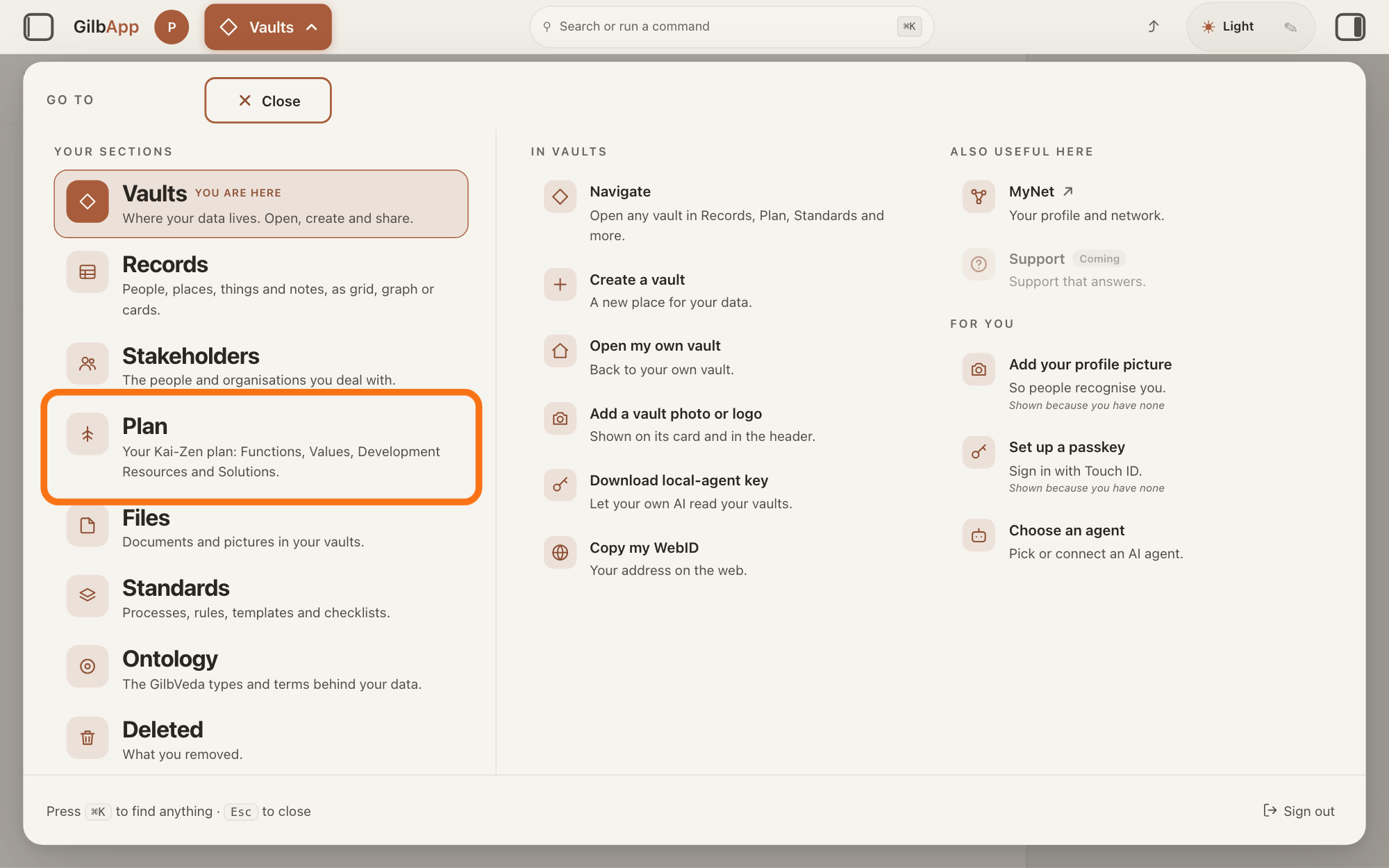
Press Main menu at the top left and choose Plan.
Press Main menu, next to your profile picture at the top left, and under YOUR SECTIONS choose Plan. The button shows the name of the section you are in, such as Vaults.
Show as text
In the GO TO panel that opens from "Main menu" at the top left, look under YOUR SECTIONS on the left. The outlined row is "Plan", with the line "Your Kai-Zen plan: Functions, Values, Development Resources and Solutions." Press it to open the Plan screen.
More about this
A panel headed GO TO opens; Plan reads Your Kai-Zen plan: Functions, Values, Development Resources and Solutions. You can also press the Plan button on the card of a vault (the place where a person or a group keeps their records) in Vaults. The Plan screen lists your plan records and has the views Grid, Graph, Both and Card.
Search and select the Function in the list.
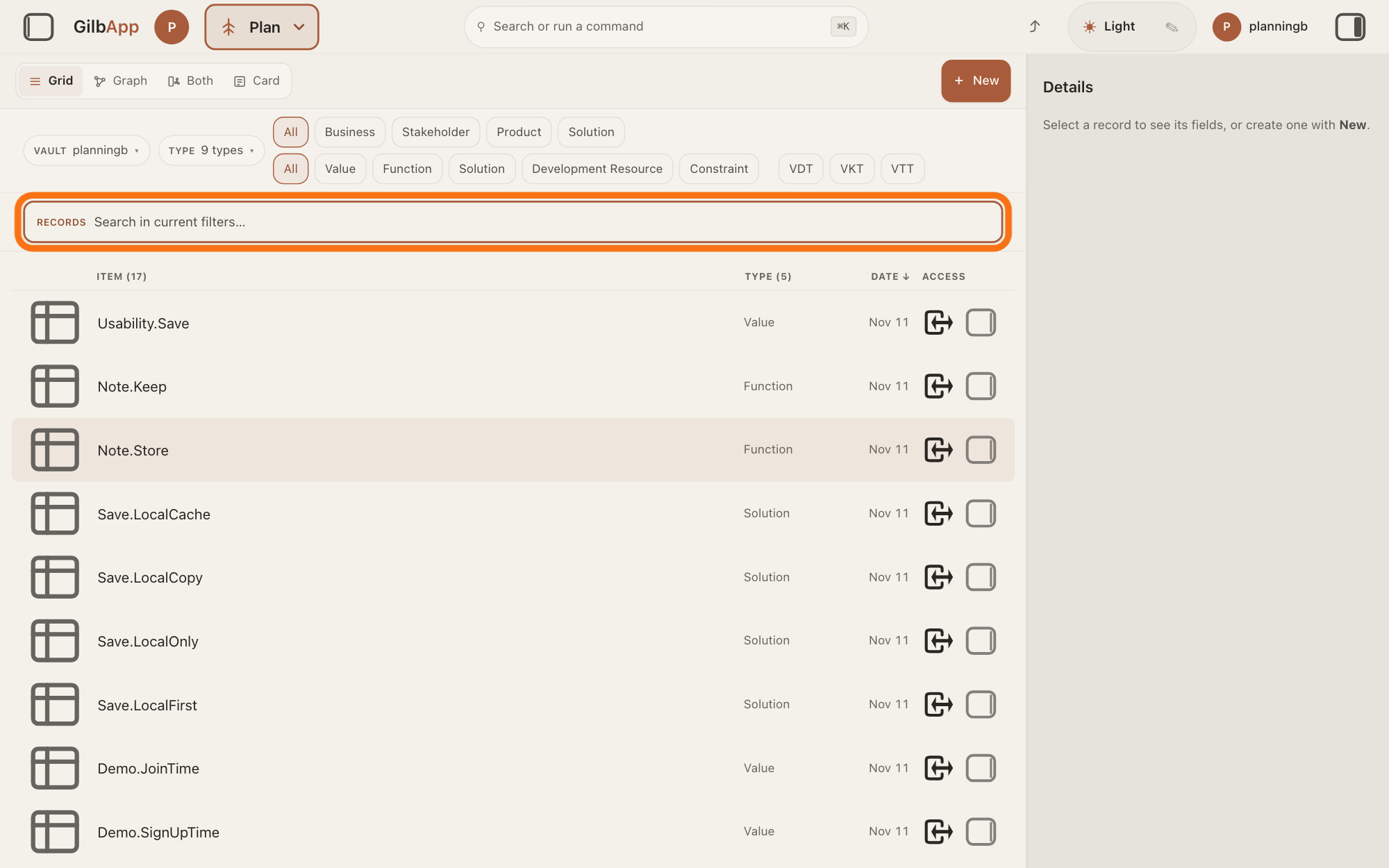
Type part of the Function's tag (its short name) in the search box and select the Function in the list. A Function is what a system does, written as an action.
Show as text
Look above the list on the Plan screen, under the type filters. The outlined box starts with "RECORDS" and reads "Search in current filters…". Click in it, type the tag of the record you want, and select it in the list.
More about this
The search box shows Search in current filters… while a filter is on, and Search your vault… otherwise. The button Function in the row of kinds shows only Functions.
Press Edit.
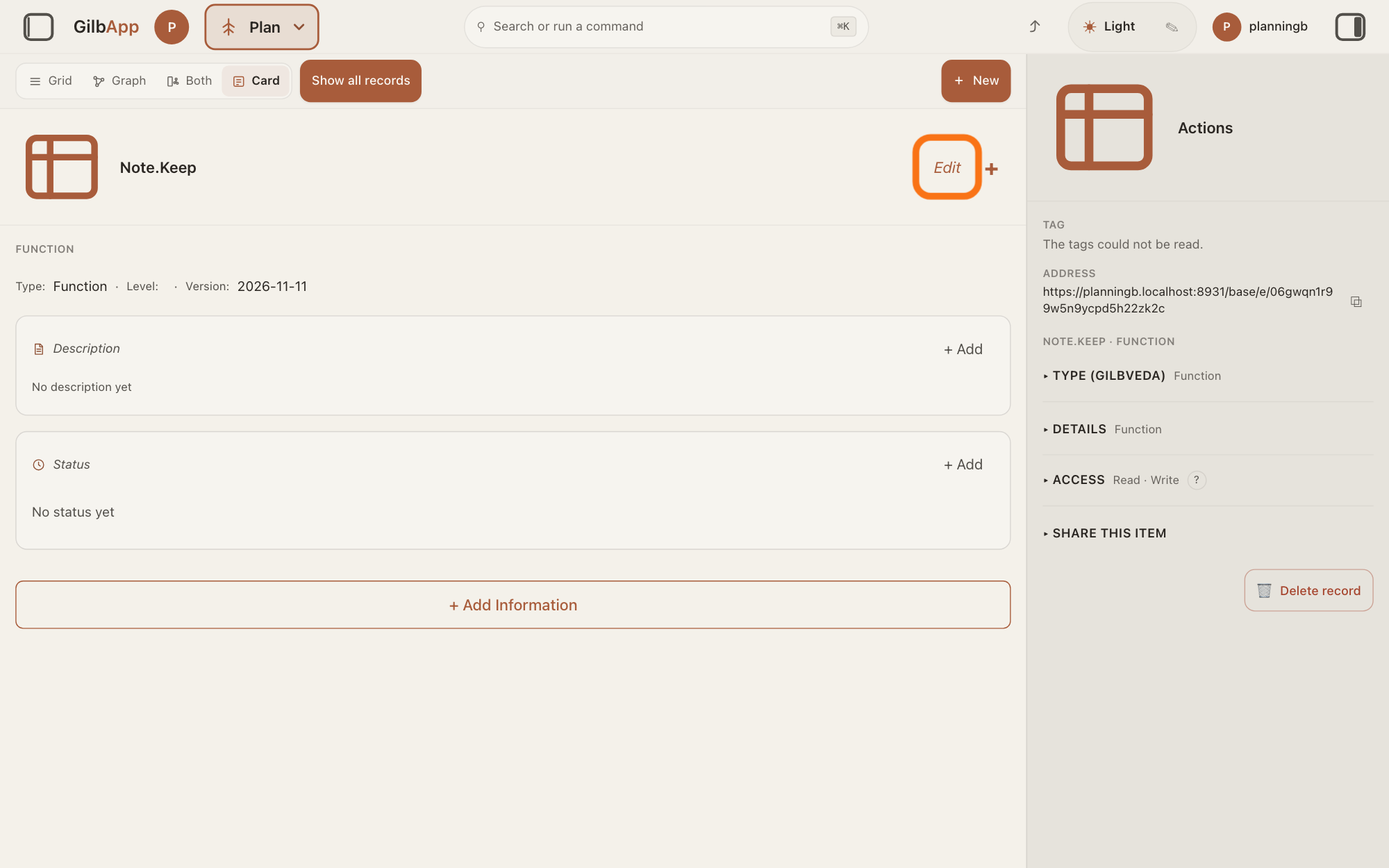
At the top right of the Function's card, press Edit. The button then reads Done.
Show as text
The Function's card is open, not in edit mode. "Description" reads "No description yet" and "Status" reads "No status yet". At the top right, the outlined word is "Edit". Press it.
More about this
The card says Editing. Changes save as you leave a field. There is no Save button. Beside Done, a + does what + Add Information at the foot of the card does; you do not need it. The card shows Edit only to a person who may write in its vault.
Under Description, press + Part, type a Keyword and Text, and press Add.
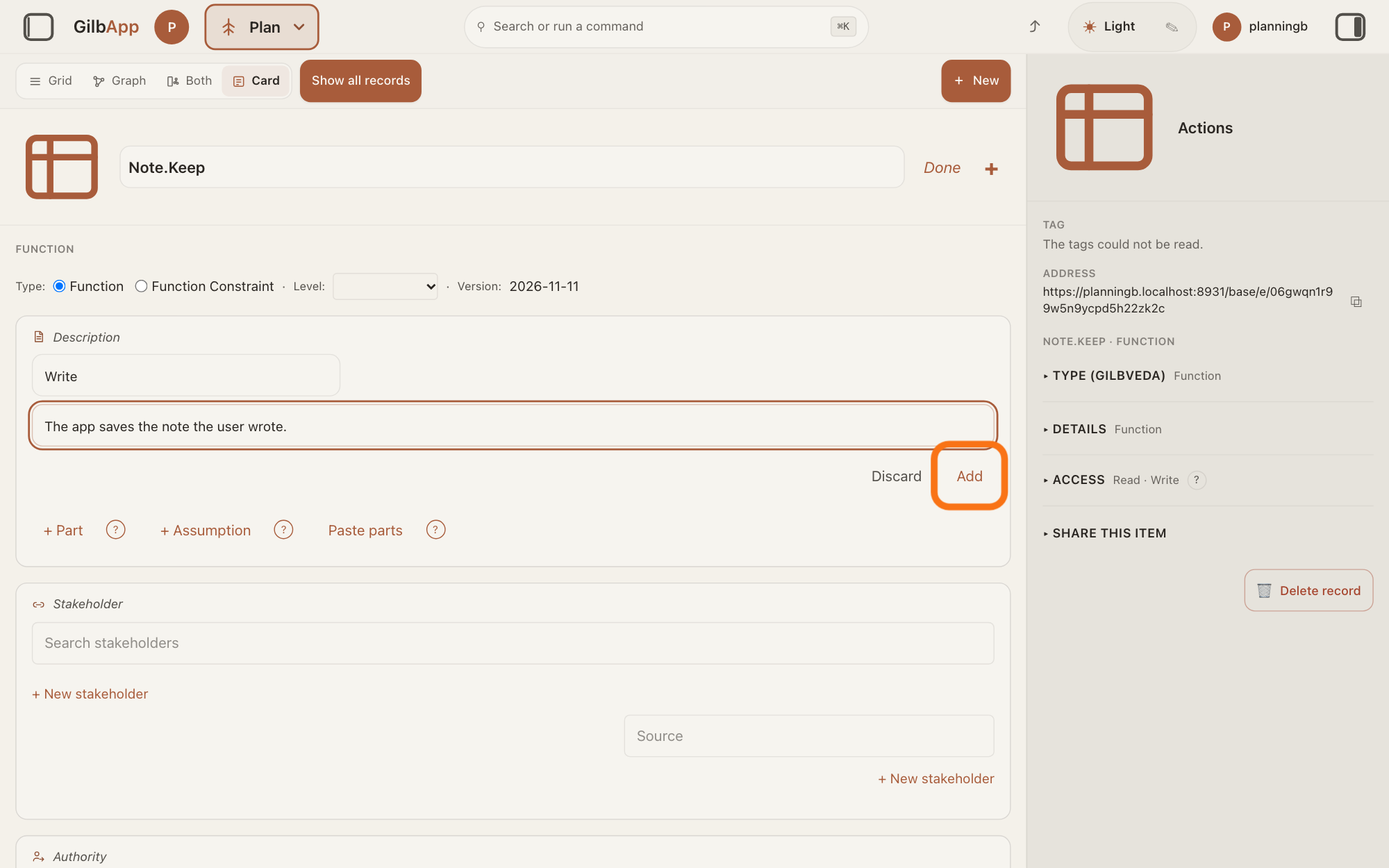
Under Description, press + Part, type a Keyword and the Text, and press Add. A Description says what the Function does, one short part at a time.
Show as text
In edit mode, under "Description", the add row is open: the short box holds the keyword and the long box the text. The outlined button is "Add", after "Discard". Press it.
More about this
The Keyword is one word: letters only, starting with a capital, such as Write; otherwise the screen says Keyword: letters only, starting with a capital, e.g. Sync. If you type the Text first, the box suggests its first word. Each part gets its own tag: the Function's tag, a dot, the Keyword, such as Note.Save.Write. Press + Part again for the next part. ↑ and ↓ move a part, × removes it after Confirm delete (Keep keeps it), and a grip drags it. Paste parts adds many, one Keyword: text per line; + Assumption adds a plain claim a test can prove wrong; ? beside each opens help. Kai-Zen writes a Function as what the system does: how well is a Value, how is a Solution. A Solution's Description works the same.
Under Part of, search and select the bigger Function.
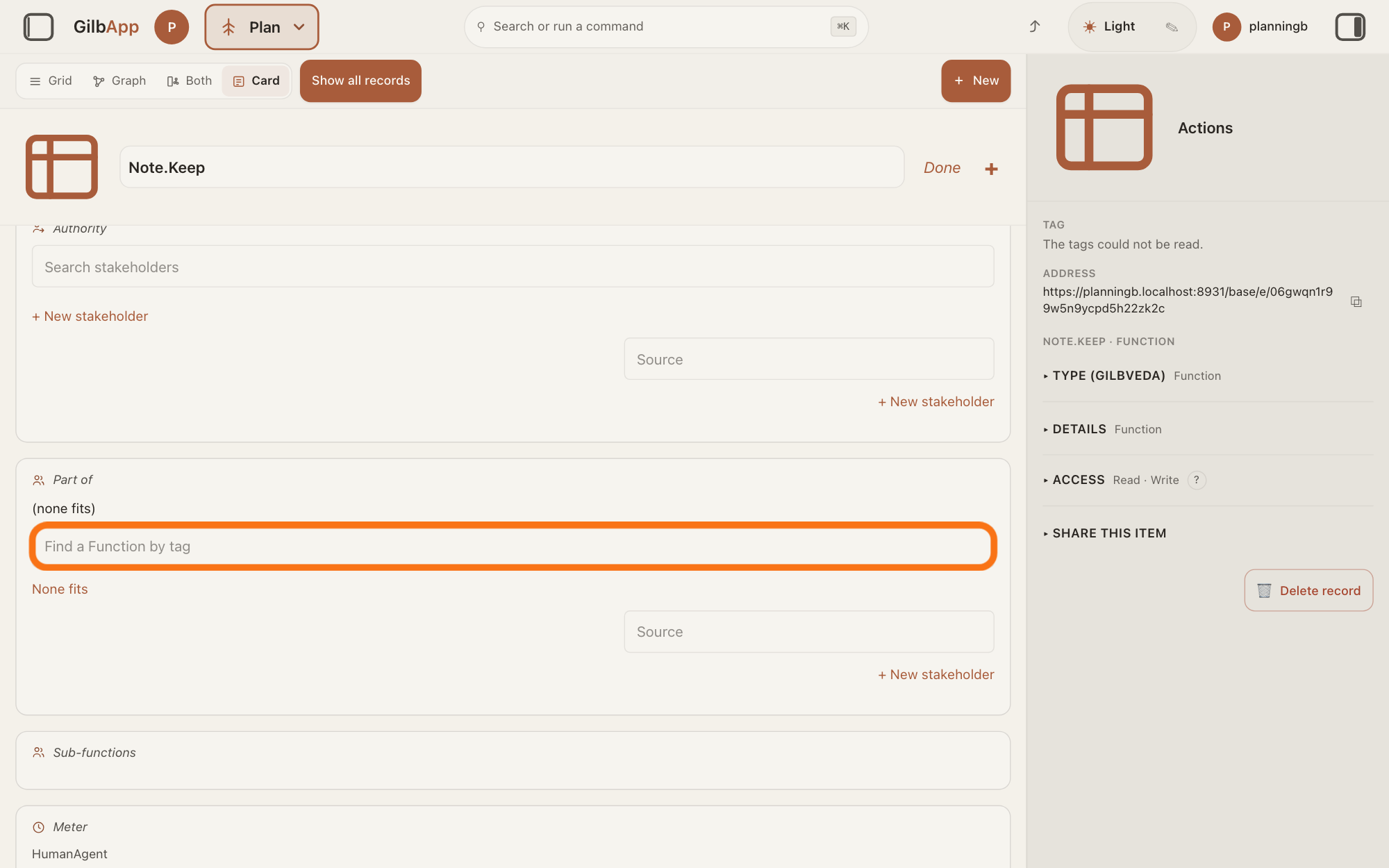
Under Part of, type part of the bigger Function's tag in the box that shows Find a Function by tag and select it. Part of names the bigger Function this Function belongs to.
Show as text
Scroll down to "Part of", which reads "(none fits)". The outlined box reads "Find a Function by tag", with "None fits" below it. Type the bigger Function's tag and select it.
More about this
The bigger Function then lists this one under Sub-functions, which fills itself: you type nothing there. A Function has one Part of: picking another replaces it, and the red round (−) at its left removes it. If none matches, the button that starts with Create Function makes one with the tag you typed. A Function that is already under this one is refused: the screen says it is under this Function, so it cannot be its Part of. None fits says that no bigger Function applies, and the line then shows (none fits); when none fits, Kai-Zen tells you. A Source box under it is optional.
Under Function of Value, press + Value, then search and select the Value.
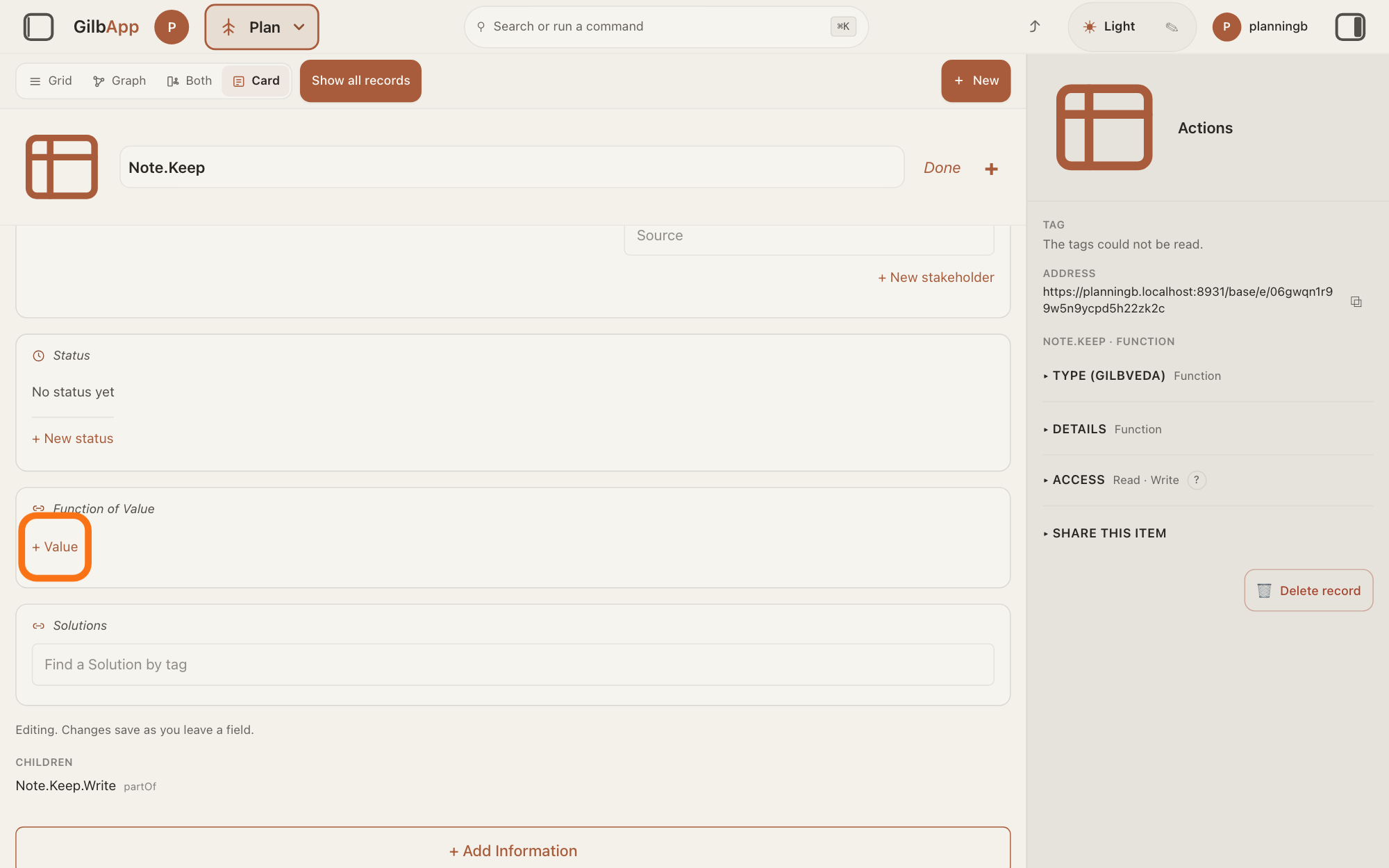
Under Function of Value, press + Value, search in the box that shows Find a Value by tag and select the Value. A Value says how well the Function does its job, as a number.
Show as text
Further down, under "Function of Value", the outlined button is "+ Value". Press it, type part of the Value's tag and select the Value. "CHILDREN" near the foot lists the part you added.
More about this
The Value then shows this Function under Value of Function: it is one link, seen from both cards, so you can also set it from the Value. If no Value matches, press the button that starts with Create Value to make one with the text you typed. A Value can measure only one Function: if it already measures another, the screen says … already measures … and nothing is linked. A Function can have more than one Value. Kai-Zen keeps both sides the same: the Values a Function names, and the Function each of those Values names.
Press Done.
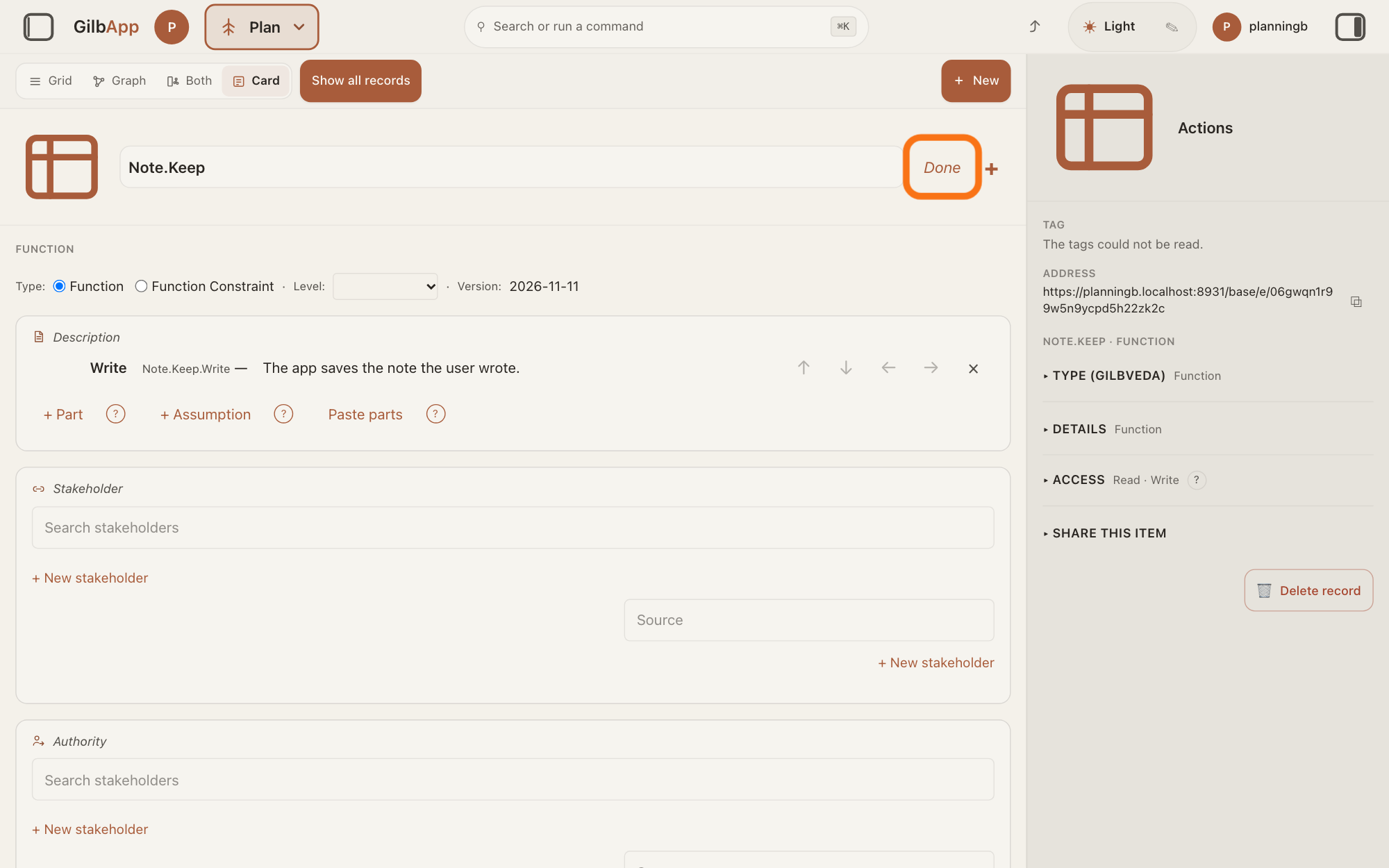
At the top right of the card, press Done. What you typed is already saved, and the card leaves edit mode.
Show as text
The card is scrolled to the top and is still in edit mode. At the top right, beside the box with the tag, the outlined word is "Done". Press it when you have finished; each field was saved when you left it.
More about this
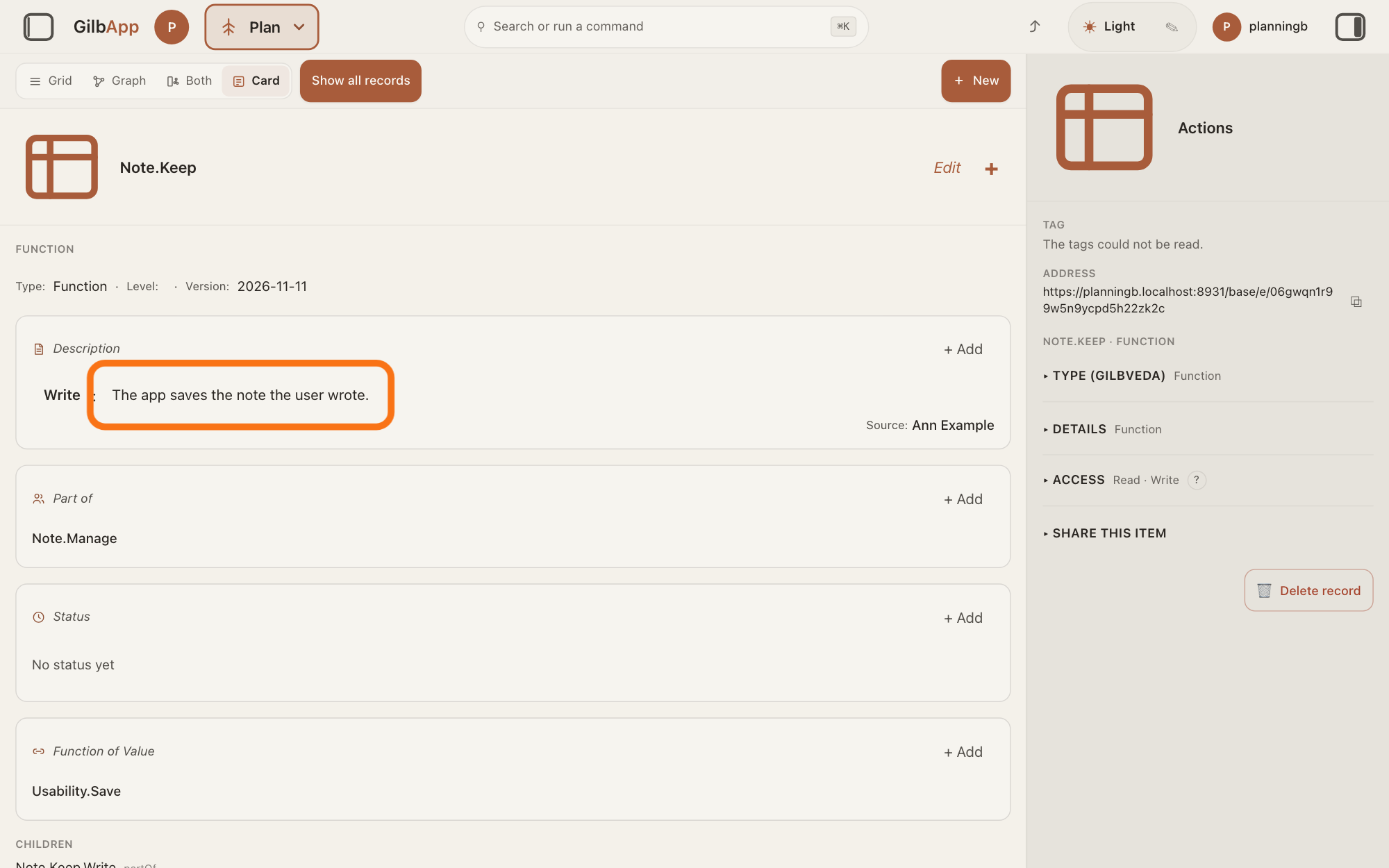
The card now shows the parts under Description, the bigger Function under Part of and the Value under Function of Value. Steps 8 and 9 put a part under a part, which works only outside edit mode; skip them if you need no smaller parts.
Under Description, press the text of a part.
Press the text of the part that should get a smaller part under it. Its text opens in a box, and + Sub-part shows under it.
Show as text
Out of edit mode, "Description" shows the part's keyword and text, "Part of" the bigger Function and "Function of Value" the Value. The outlined line is the part's text. Click it to open the part.
More about this
Click away or press Escape to leave the text as it is; a change you type there is saved when you click away. Enter starts a new line in the text. Only a person who may write in the vault can open it.
Press + Sub-part, type a Keyword and Text, and press Add.
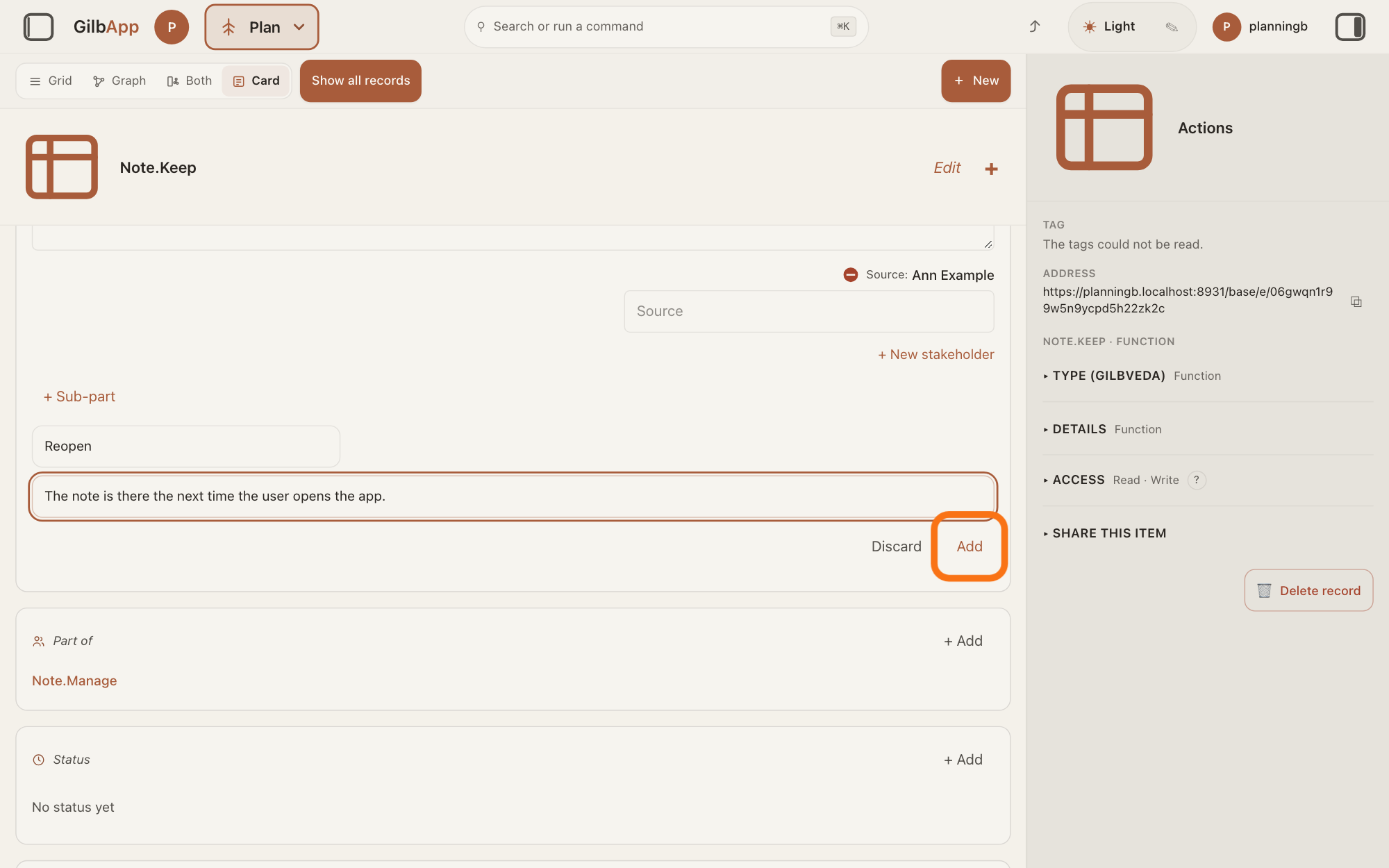
Press + Sub-part, type a Keyword and the Text of the smaller part, and press Add. The new part shows under the one above, and its tag is that part's tag, a dot and the Keyword, such as Note.Save.Write.Reopen.
Show as text
The part is open for editing. Below it is "+ Sub-part"; after pressing it, the add row shows the keyword and the text of the smaller part. The outlined button is "Add", after "Discard". Press it.
More about this
Kai-Zen splits a Solution's Description the same way: each part a keyword and its text, a smaller part marked with a dash, and each with a full tag. In edit mode, → also moves a part in under the part above and ← moves it out one level, but a moved part keeps the tag it had, such as Note.Save.Reopen; + Sub-part gives the full tag. Discard throws away what you typed.
Deeper
Also asked:
How do I split a big Function into parts? Make each part a Function of its own and choose the big one under Part of. For short pieces of one Function's text, press + Part under Description instead.
What is an Assumption in my plan? A plain claim a Function or a Solution counts on, which a test can prove wrong. Add one under Description with + Assumption.
What are Parts, Sub-parts and a Keyword in a Description? A part is a short piece of a card's Description, with its own tag; a sub-part is a part under a part. The Keyword names the part in its tag, such as Sync in Save.LocalFirst.Sync.
What is Part of? The line on a Function that names the one bigger Function it belongs to; None fits says none applies. The bigger Function then lists it under Sub-functions.
What is a Description? It says what a Function or a Solution is, one part at a time. Each part has a Keyword, its one-word name, and a Text, the sentence that says one thing about it.
Two kinds of parts: the Description parts of steps 4 and 9 are short pieces of one Function's text, each with its own tag. A sub-function (step 5) is a whole Function of its own, with its own Values, Meter and Status, that sits under a bigger one. Kai-Zen's form for a Function has one Description and one Part of; its form for a Solution splits the Description into parts and smaller parts.
Kai-Zen's example: the Function Note.Save is Part of Note.Manage, and the Value Usability.Save names Note.Save under Value of Function. The Solution Save.LocalFirst splits its Description into the parts Local, Sync and Show, with Queue and Conflict under Sync, each with a full tag such as Save.LocalFirst.Sync.Queue.
At Product, Kai-Zen writes a Function only when more than one Value needs it, or when you ask; usually a Value's Value of Function line is enough.
In GilbApp each Description part is its own record, joined to the card it belongs to. Moving a part with ↑, ↓, →, ← or the grip keeps its tag. Without Edit, Part of and Function of Value have a + Add that opens the same search.
This answer is written for a computer screen.
Source: GilbApp af0f04ee838a4d55887d2ff1f72edd49a4ff7ca0 (https://gilb.com/app/version.json read 2026-11-10, buildTime 2026-11-09.522Z, dirty false), read. Lines and order: lib/base/planKinds.ts:114-125 (FUNCTION_LINES: description, stakeholder, authority, partOf, subFunctions, meter, status, functionOfValue, solutions, gilbveda); lib/base/planFilterRows.ts:21 (Function kind button); RegisterScopedSearch.tsx:73-74; cardMode.tsx:257-278, :301. Description parts: PlanDescriptionParts.tsx:1525-1590 (add row: Keyword, Text, suggestKeyword, Discard what you typed?, Keep, Discard, Add), :1597-1655 (↑ ↓ ← → ×, aria Move <kw> in under <kw>), :1712-1728 (Keep, Confirm delete), :1695-1705 (press the text opens it), :1778-1789 (+ Sub-part only when open and not in edit mode), :1029 (The part keeps its a:unitTag on a move), :643-678 (submitAdd: tag `<card tag>.<keyword>`, a sub-part `<parent tag>.<keyword>`), :1848-1893 (+ Part, + Assumption, Paste parts, help ?, placeholder Keyword: text); lib/base/planParts.ts:16 (KEYWORD_MESSAGE), :91-97 (suggestKeyword). Part of / Sub-functions: PlanFunctionForm.tsx:1689-1735 (Part of group, None fits, Source; Sub-functions group), :328-333 (noneFitsPatch clears the parent); PlanTagLinks.tsx:369-503 (PlanPartOf: (none fits), RemoveControl Remove Part of, picker Find a Function by tag, Create Function \<text>\"", loop sentence <chosen> is under <self>, so it cannot be its Part of.), :509-535 (PlanSubFunctions read-only list); lib/base/planLinks.ts:108-125 (partOfExcludedIds), :170-199 (wouldLoop). Function of Value: PlanTagLinks.tsx:540-660 (+ Value in edit mode, Find a Value by tag, Create Value), lib/base/planLinks.ts:205-207 (alreadyMeasuresSentence `"<value>" already measures "<function>".`). Standards (2026-11-10): Kai-Zen.FunctionTemplate (Blank, Example Note.Save), Kai-Zen.FunctionRules (What, PartOf, Meter, Values), Kai-Zen.SolutionRules (Description, SubTags, Assumption), Kai-Zen.SolutionTemplate (Example Save.LocalFirst), Kai-Zen.ProductLevelRules.Functions. Part of gloss = What is Part of?; red round (−). step 8, the open part text is a multi-line box: components/mynet/FieldRow.tsx:82 (A textarea. Enter inserts a newline; blur still commits.), :264-285 (the textarea handles only Escape), :146-150 (Escape reverts and closes), :171-190 (leaving commits the trimmed text); PlanDescriptionParts.tsx:1731-1752 (the open part is a FieldRow, multiline, retainFocusWithinSection).
Checked against GilbApp d529620.