
I connected the wrong AI or the wrong vault. What now?
Short answer
In the chat, press Disconnect and Connect; for a wrong vault, press × on the AI vault's line and grant the right vault.
Before you start
You need to be signed in to GilbApp on a computer, in the browser where you connected the AI, and Control on the vaults you change. The pictures show a made-up person on a test site; your screen shows your own name and address.
Words used here (4)
- AI vault
- An AI vault is a small vault that stands for your AI; your AI reaches only the vaults you grant it.
- GilbApp
- GilbApp is the app, opened in a web browser at https://gilb.com/app, where you open, fill and share your vaults.
- pairing code
- A pairing code is the short code your computer's program shows; type it once in GilbApp's chat so that browser can use your Claude Code.
- short name
- A short name is the one word you give one AI on one computer, such as gilb-example; it keeps that AI's key and tools apart.
Steps
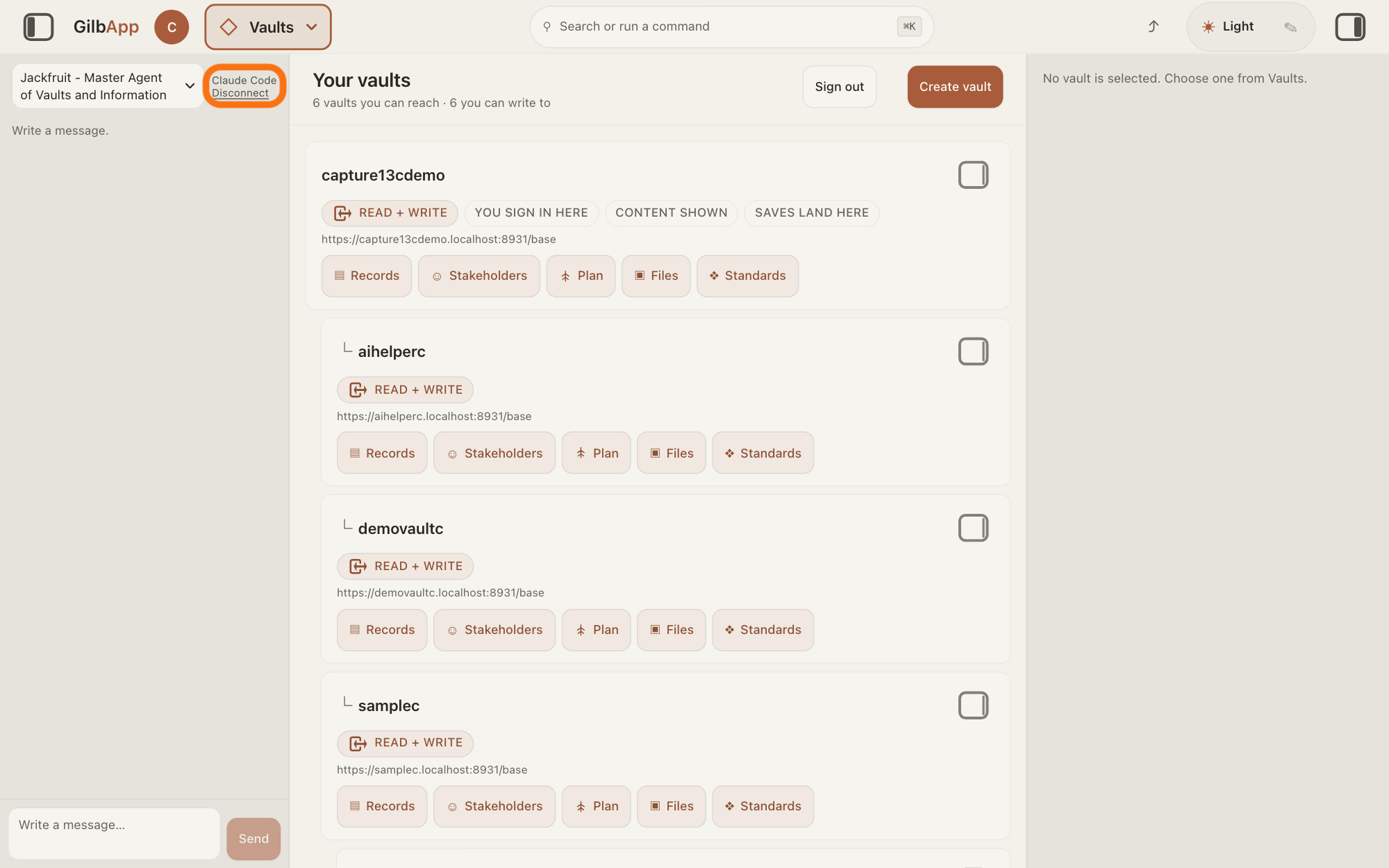
For the wrong AI in the chat, press Disconnect under its name.
If the chat is not showing on the left, press the square button at the far left of the top bar. At the chat's top right, press Disconnect under Claude Code or Grok.
Show as text
The chat is open in the left pane. At its top is the agent list, and to its right, in small type, your AI's name "Claude Code" with the word "Disconnect" just under it, both outlined together in orange: click "Disconnect". The name then goes and "Connect" shows in its place.
More about this
The name goes, and Connect shows in its place. Your conversation stays. Disconnect does not cancel your Claude or SuperGrok subscription, and does not sign Claude Code out on your Mac. If the AI in the chat is the right one, skip steps 1 and 2.
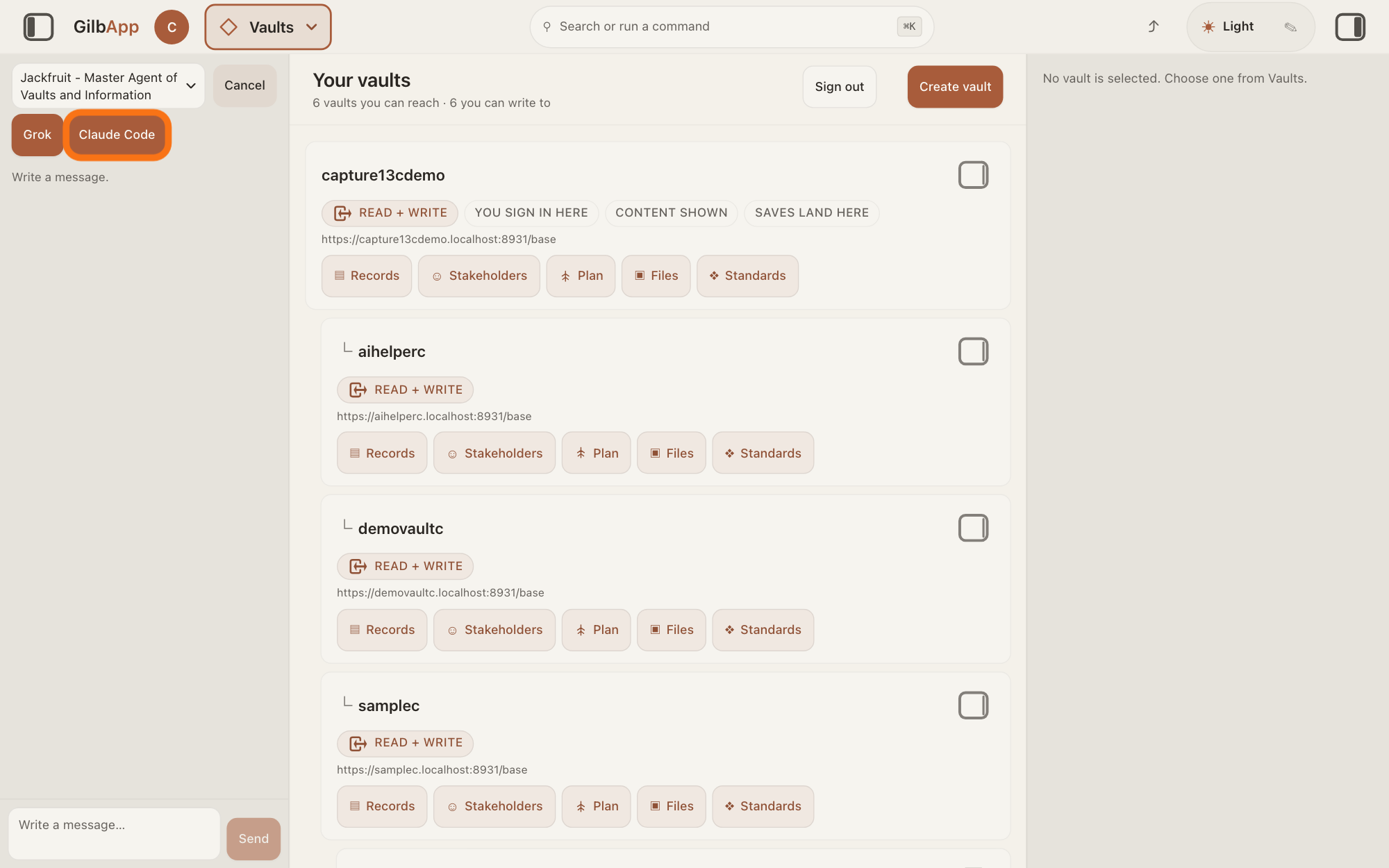
Press Connect and press the AI you want, Grok or Claude Code.
Press Connect, then press Grok or Claude Code, and finish as the answer on connecting your AI to GilbApp chat shows.
Show as text
At the top of the left pane, "Cancel" now stands where "Connect" was. Just below the agent list are two buttons, "Grok" and "Claude Code"; "Claude Code" is outlined in orange. Press the one you want; "Cancel" closes the choice.
More about this
Connect shows only while none of your AIs is connected: the chat uses one at a time. Claude Code then needs a new pairing code. For Grok, GilbApp opens xAI's page in a new tab.
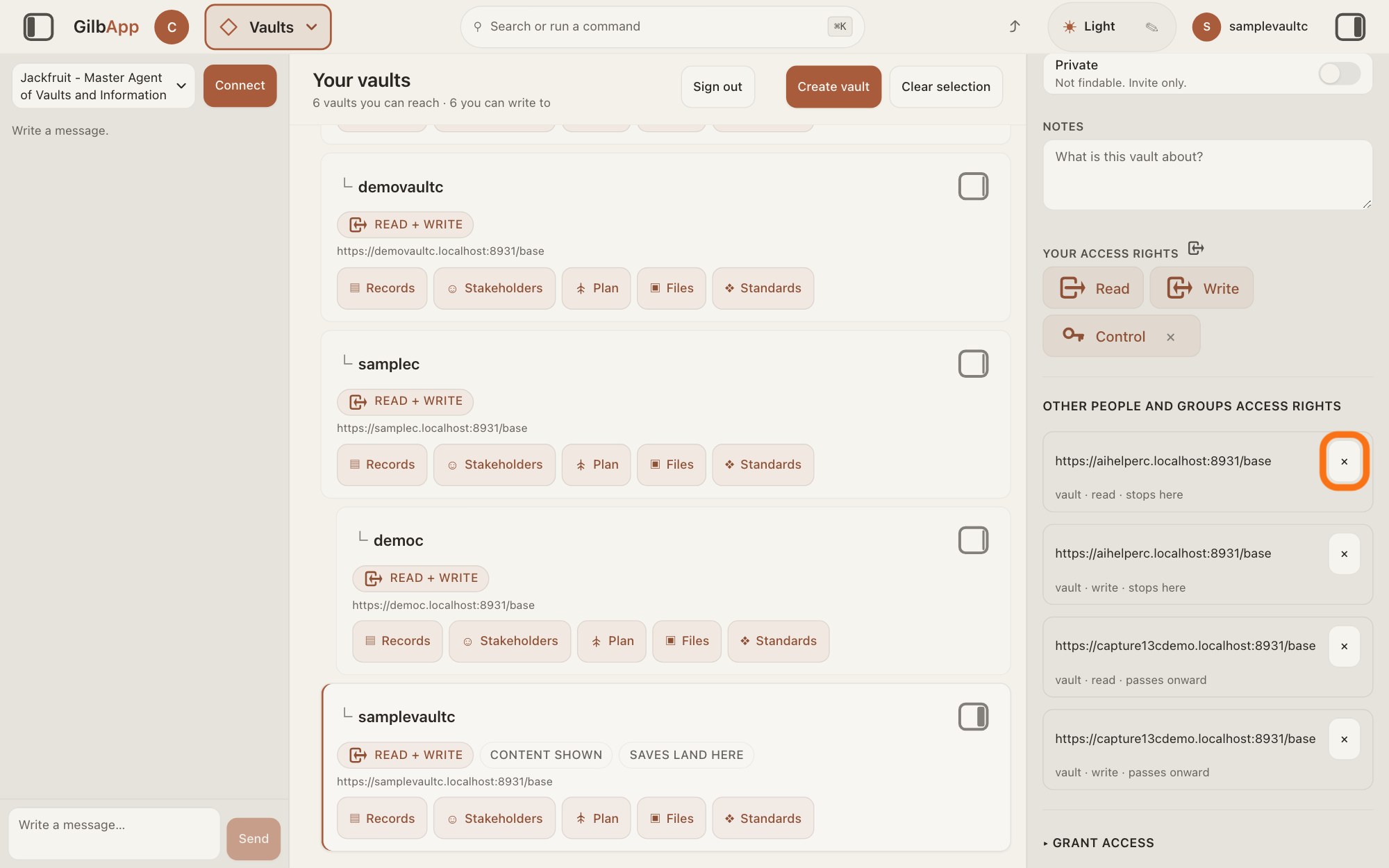
For the wrong vault, press × on each line of your AI vault there.
Press Main menu, the button at the top left, next to your profile picture, that shows the name of the section you are in; choose Vaults and press the panel button on the card of the vault your AI should not reach. In the list under OTHER PEOPLE AND GROUPS ACCESS RIGHTS, press × at the right of each line with your AI vault's address.
Show as text
In the grey pane on the right, under "OTHER PEOPLE AND GROUPS ACCESS RIGHTS", your AI vault shows as two boxes, each with its address on top: one says "vault · read · stops here", the other "vault · write · stops here". Two more boxes below belong to another vault and say "passes onward"; leave them. The "×" at the right of the first box, the read line, is outlined in orange. Click the "×" on each of your AI vault's two lines.
More about this
Each line is one kind of access, such as vault · read · stops here, so a vault given read and write has two lines; press × on both. GilbApp does not ask first. Your AI loses this vault from its next request. If a line stays, press × again.
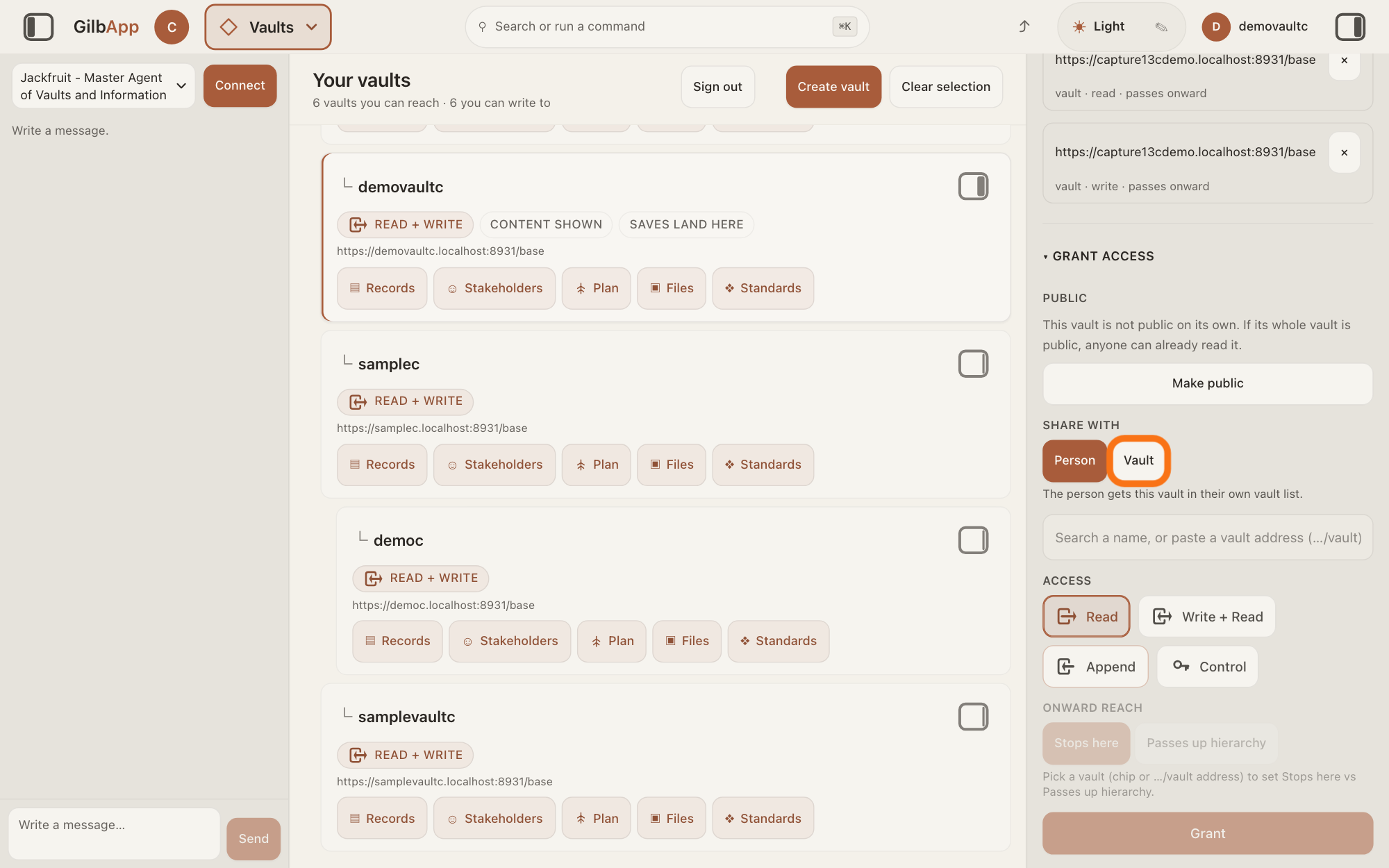
On the right vault, grant the AI vault read and write with Vault.
In GilbApp, press Main menu, choose Vaults, press the panel button at the top right of the card of the vault your AI should reach, scroll down and open ▸ GRANT ACCESS. Choose Vault, paste the AI vault's address, choose read, leave ONWARD REACH on Stops here, and press Grant; then do the same with write.
Show as text
In the right pane, now showing the vault your AI should reach, "▾ GRANT ACCESS" is open. Under "SHARE WITH" are "Person", chosen, and "Vault", outlined in orange: click "Vault", then paste your AI vault's address in the box below, choose "read", leave "ONWARD REACH" on "Stops here", and press "Grant"; then do the same with "write".
More about this
Use Vault, not Person: your AI acts as its AI vault. Typing the AI vault's name does not find it; paste its address, which its own pane shows under VAULT ID. Ignore PUBLIC at the top of the section. Stops here lets the AI reach this vault and no further; you do not need the other choice, Passes up hierarchy. See: How do I give my AI access to a vault?
In Claude Code, tell your AI which vault to work in.
If your AI in Claude Code is working in the wrong vault, type this with your own short name and the vault's name, and press Return:
use gilb-<short name>: work in <the vault's name>More about this
When Claude Code asks to allow gilbplatform_use_vault, choose Yes, not don't ask again: each vault switch stays your decision. To see the vaults your AI can reach, use the check line in the answer on checking that your AI can reach your vault.
Deeper
If you bound the wrong AI to an AI vault, a small vault that stands for your AI, it cannot be moved: an AI is bound once, to one AI vault, and an AI vault takes no second AI. Connect the right AI with its own short name, as the answer on connecting your computer to your vault shows: a second AI on the same Mac gets its own short name and its own Client ID. Make a new AI vault for it and bind it, then take the old AI vault's access away on each vault, as in step 3. To stop the old AI making new vaults, open the old AI vault's own pane in Vaults, open ▸ CONNECT AI there and untick This AI may create vaults; the vaults it already made stay.
Disconnect in the chat does not touch an AI you connected to your vaults in Terminal, or its AI vault. The agent you chat with in GilbApp is not your AI vault: it works as you, with your own access.
Taking access away works from the AI's next request: from then on it is refused, without waiting for a sign-out or a time limit.
With Codex, OpenAI's AI for writing code, step 5 is typed in Codex instead: use the GilbPlatform vault <the vault's name>, with gilb- and the short name in place of GilbPlatform if you typed a short name in ▸ CONNECT AI. When Codex asks to allow gilbplatform_use_vault, choose Yes for this time, not always.
This answer is written for a computer screen.
Source: GilbApp 96968de7c3e3e685296f20a2599cbc8d305c9ea7 (live at https://gilb.com/app/version.json, read 12 November 2026): src/components/agent/AgentChat.tsx:735-739 (Disconnect under the name), :762-774 (Connect, Grok, Claude Code, Cancel), src/components/VaultAccessManager.tsx:434 (Other People and Groups Access Rights), :559-575 (× and stops here / passes onward on each vault line), :609-679 and :753 (Vault grant), :951-956 (work in <the vault's name>; choose Yes, not don't ask again), :996 (vaults it already made stay); src/components/VaultsView.tsx:257 (Show vault info). GilbPlatform 670005ccd64c229c59f905a00430d906781eb942 (live at https://id.gilb.com/version, read 12 November 2026): src/auth/bind-agent-vault.ts:136-150 (an acting identity is adopted once; the seat register refuses a vault already seated by another client). Shared sentences word for word with the live answers How do I disconnect my AI?, How do I connect my AI to GilbApp chat?, How do I take access away?, How do I give my AI access to a vault?, How do I connect my computer to my vault?, How do I make an AI vault and connect Claude Code to it? and What is an AI vault?. Codex (added 13 November 2026): GilbApp 4557cf80 (https://gilb.com/app/version.json, read 13 November 2026), src/components/VaultAccessManager.tsx:105 (Claude Code on Windows is not available yet. Choose Codex.), :109 ("Choose Sign in with ChatGPT. Hand-offs run only on your ChatGPT sign-in, never on an API key."), :180-183 and :1014-1015 (Claude Code and Codex under the computer tabs), :581-657 (the Codex steps); src/lib/base/gilbConnector.ts:44-79. OpenAI, read 13 November 2026: https://learn.chatgpt.com/docs/pricing ("ChatGPT Work and Codex are included in your ChatGPT Free, Go, Plus, Pro, Business, Edu, or Enterprise plan"), https://github.com/openai/codex (npm install -g @openai/codex; Sign in with ChatGPT). Live answer: How do I make an AI vault and connect Codex to it?
Checked against GilbApp d529620.