
I have an idea. Where do I begin making it?
Short answer
Press Main menu, choose Choose an agent, choose Kai-Zen - Master Agent of Planning, type your idea in your own words, and press Send.
Before you start
You need to be signed in to GilbApp on a computer, with your own AI, Claude Code or Grok, connected in the chat, each by its own answer. The pictures show a made-up person on a test site; your screen shows your own name and address.
Words used here (5)
- agent
- An agent is your AI following one written procedure, its standing instructions, for one kind of work.
- Kai-Zen
- Kai-Zen is the planning agent: it finds out what you want, chooses the way, hands the work to other agents and reports back.
- GilbApp
- GilbApp is the app, opened in a web browser at https://gilb.com/app, where you open, fill and share your vaults.
- Jackfruit
- Jackfruit is the vault agent: it finds, reads, writes and links records in your vaults, and makes new vaults for you.
- GilbPlatform
- GilbPlatform is the service that keeps people's and organisations' data in vaults, each at its own web address.
Steps
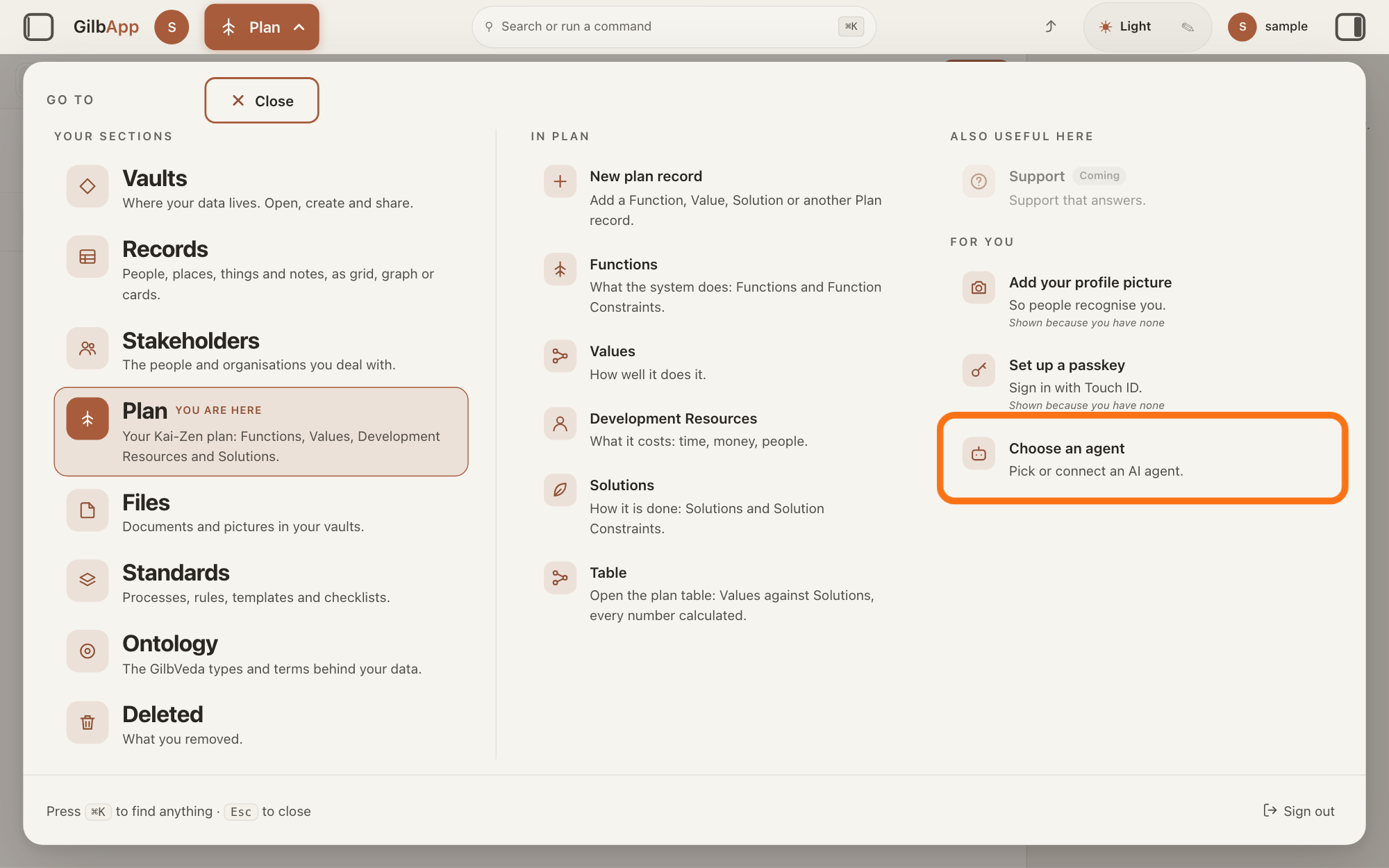
Press Main menu at the top left and choose Choose an agent.
Press Main menu, next to your profile picture at the top left, and under FOR YOU choose Choose an agent (Pick or connect an AI agent.). GilbApp opens the left pane, where you chat, and puts the cursor on the agent list at the top of it.
Show as text
At the top left, "Main menu", the button next to your profile picture, is open, and the "GO TO" panel fills the screen. In the right column, under "FOR YOU", the last row "Choose an agent" ("Pick or connect an AI agent.") has the orange outline. Click it.
More about this
The button shows the name of the section you are in, such as Vaults. The square button at the far left of the top bar also shows or hides the left pane. You can also search for Choose an agent in Search or run a command.
Choose Kai-Zen - Master Agent of Planning in the agent list.
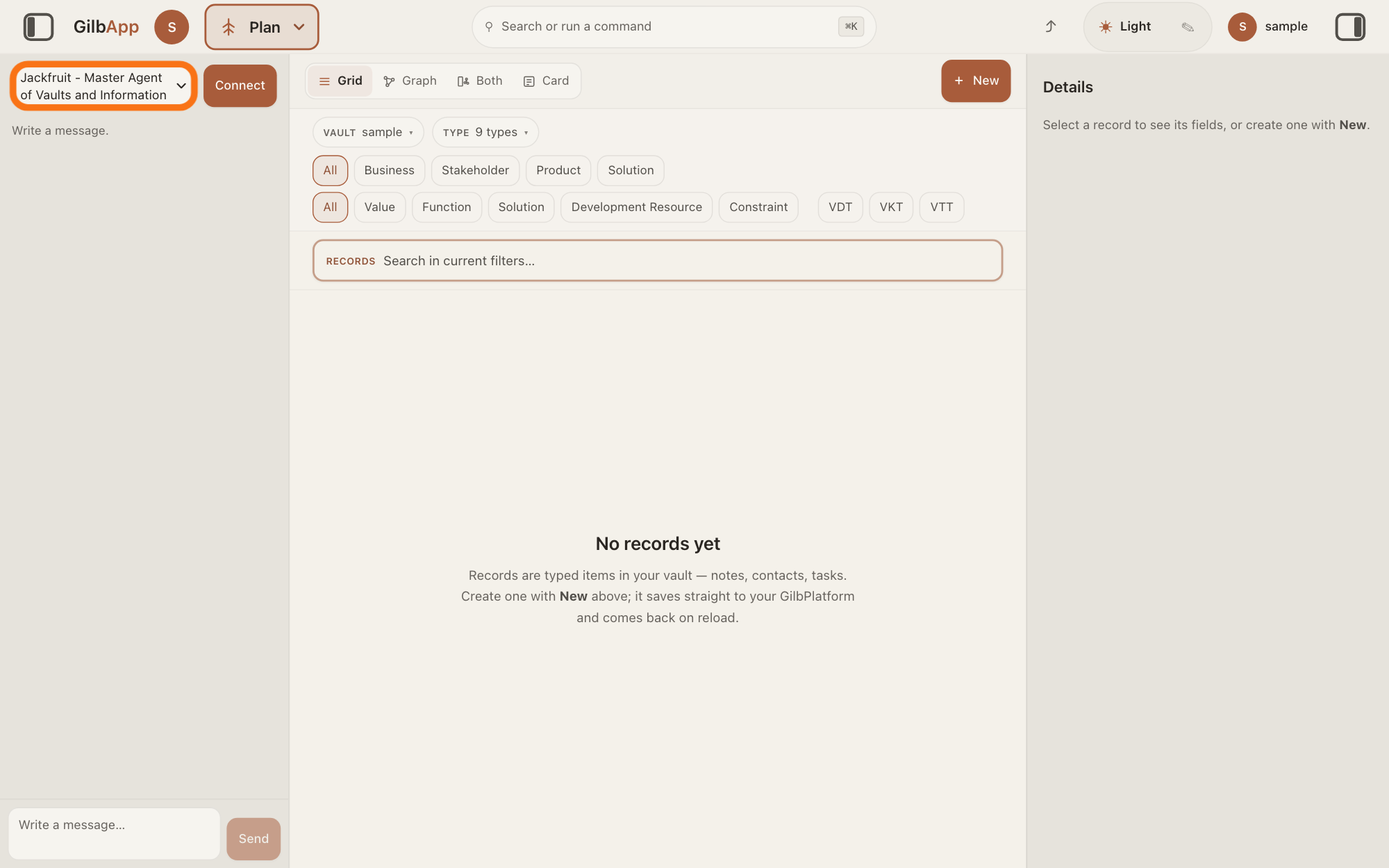
Press the agent list at the top of the left pane and choose Kai-Zen - Master Agent of Planning. Each agent has its own chat, and the list shows which one you are in.
Show as text
The chat pane is now open on the left. At its top, the agent list has the orange outline; it still shows "Jackfruit - Master Agent of Vaults and Information", the first agent. Beside it, this picture shows "Connect" because no AI is connected here; on your screen your own AI's name shows instead. Click the list and pick "Kai-Zen - Master Agent of Planning".
More about this
A new chat starts on the first agent in the list, Jackfruit - Master Agent of Vaults and Information. The list comes from GilbPlatform each time the chat opens. GilbApp keeps your choice for this browser tab. While an agent is answering, the list is greyed out.
Type your idea in Write a message… and press Send.
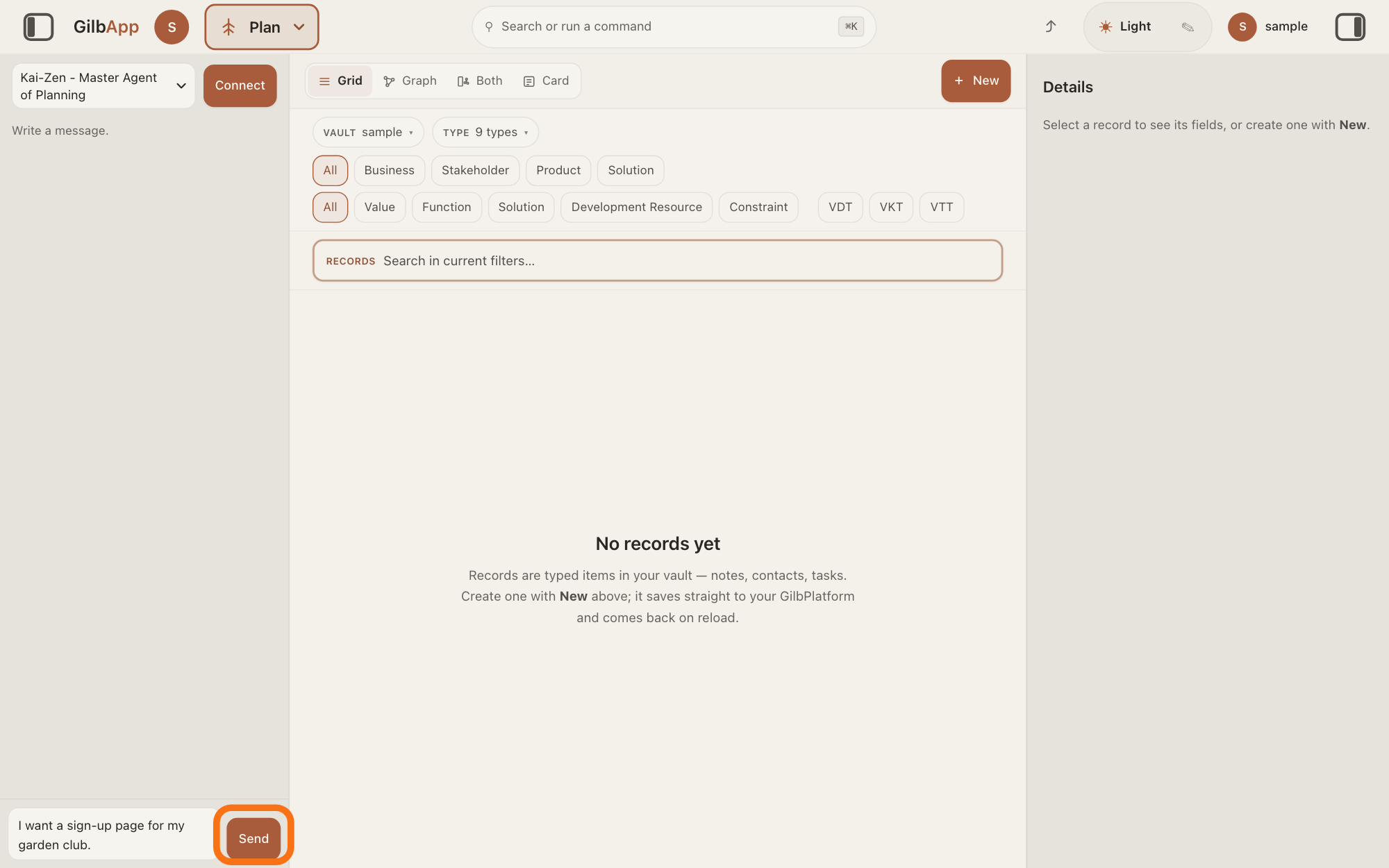
Click the box that shows Write a message… at the bottom of the left pane, type in your own words what you want to make, and press Send.
Show as text
The list at the top of the left pane now shows "Kai-Zen - Master Agent of Planning". At the bottom of the pane, a short request is typed in the message box, and "Send" to its right has the orange outline. Type your idea in your own words, then click "Send".
More about this
Return also sends; Shift and Return starts a new line. To the right of the agent list, your AI's name, Claude Code or Grok, shows with Disconnect under it; Connect there means none is connected, and connecting has its own answer. While Kai-Zen works, the pane says The agent is writing…, then Ran and the name of each tool it uses, and Send reads Queue: a message you send then waits under Waiting to send until the agent is done, and Slip in now hands it to the agent at its next step.
Deeper
Also asked:
Is there something I need to start with? Only your idea in your own words, and your own AI connected in GilbApp's chat. You need no plan, no drawing and no code: Kai-Zen asks for the rest.
What's the best way to start a project? Start small and plain: one idea, in your own words, with who it is for and what should be better for them when it works. Tell it to Kai-Zen in the chat.
You begin with Kai-Zen, the planning agent in GilbApp's chat. An agent is your AI following one written way of working; Kai-Zen's is to turn what you want into a plan for a first version, then hand the building to other agents and report back to you. You do not need a plan, a drawing or any code to begin: your idea in your own words is enough.
Without your own AI, the chat answers only if GilbPlatform has switched on its shared AI; otherwise it says Connect your own AI first — press Connect. Your AI works only for you. The answer on connecting your AI to GilbApp chat shows how.
Kai-Zen first works out what you want: a new project, a project you already have, written requirements outside any project, or an idea to keep for later. Then it asks all its questions in one message, each with a default, the answer it uses if you give none. For a new project they include who owns the project, by name, who approves the plan, where to keep it, and the currency for its costs. To keep it, Kai-Zen offers a new vault first, and Jackfruit, the vault agent, makes it. Answer with each question's number and your choice, or write use your defaults. The answer on answering Kai-Zen's questions shows how.
After your one reply, Kai-Zen works to the end. It writes the plan with you and suggests the steps to build it, then shows you the whole plan for one approval before the first coding brief, the first instructions for writing your app's code, unless you said in your own words that you need none. It stops to ask you again only before some acts, such as putting work live, deleting a vault or giving access to a vault.
The best way to start is small and plain. Start with one idea, and say who it is for and what should be better for them when it works; the answer on describing your idea so the AI understands it gives more advice and an example. If you are not ready to start, ask Kai-Zen to keep the idea for later; that has its own answer.
In Claude Code in Terminal you can begin the same way. Start Claude Code, type this line with your own short name, the one you gave your AI when you connected your computer, and press Return:
/mcp__gilb-<short name>__agent
Then type your idea and press Return.
This answer is written for a computer screen.
Source: Kai-Zen standards: Kai-Zen (Intent: find the intent, ask what only the requester knows in one round; Delegate: vault work to Jackfruit; Report), Kai-Zen.Intent, Kai-Zen.AskRules.One (all questions in one message, each with its default; use your defaults skips the round), Kai-Zen.New.Setup (for a new project: the owner by name, the approver, where the project is kept, the currency). Live help pages, sentences shared: How do I start work with Kai-Zen?; How do I answer Kai-Zen's questions?; How do I start my first plan?; How do I keep an idea for later?; How do I connect my AI to GilbApp chat?; How do I set up a project's kind and standards?. GilbApp 96968de7 (live at https://gilb.com/app/version.json, read 12 November 2026): src/components/menu/sectionMenuList.ts:330 (Choose an agent, Pick or connect an AI agent.); src/components/agent/AgentChat.tsx:1046 (Write a message…). GilbPlatform 670005cc (live at https://id.gilb.com/version, read 12 November 2026): src/routes/ai-chat.ts:231 (Connect your own AI first — press Connect. Your AI works only for you.). The agent's name Kai-Zen - Master Agent of Planning comes from GilbPlatform's agent list, as on the page How do I start work with Kai-Zen?. GilbApp 96968de7 src/components/agent/AgentSelector.tsx:57-79, src/components/agent/AgentChat.tsx:723-766, :954-1013 (badge, Waiting to send, Slip in now); live page How do I start work with Kai-Zen? (steps and pictures); Kai-Zen.AskRules.EndApproval.
Checked against GilbApp d529620.