
Where are the settings in GilbApp, and what are "FOR YOU" and "ALSO USEFUL HERE" in the menu?
Short answer
GilbApp has no settings page: press Main menu, choose what to set up under FOR YOU, and find related places under ALSO USEFUL HERE.
Before you start
You need to be signed in to GilbApp on a computer. The pictures show a made-up person on a test site; your screen shows your own name and address.
Words used here (3)
- GilbApp
- GilbApp is the app, opened in a web browser at https://gilb.com/app, where you open, fill and share your vaults.
- passkey
- A passkey is a sign-in kept on your device and unlocked the way you unlock the device, so you sign in with no e-mail code.
- agent
- An agent is your AI following one written procedure, its standing instructions, for one kind of work.
Steps
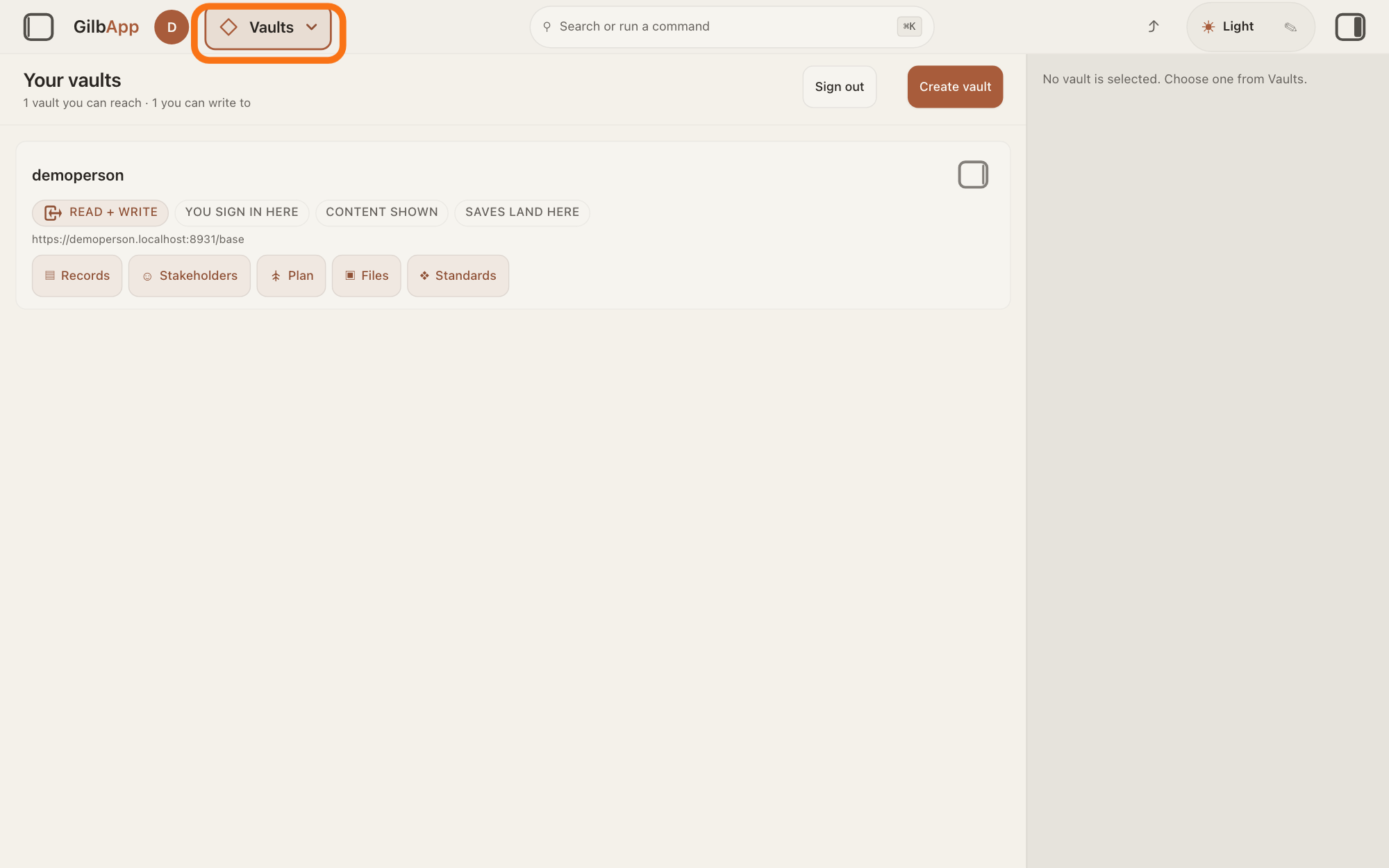
Press Main menu at the top left; it shows your section, such as Vaults.
Press Main menu, next to your profile picture at the top left. The button shows the name of the section you are in, such as Vaults, with a small arrow.
Show as text
At the top left, next to your profile picture, the button outlined in orange shows the name of the section you are in, "Vaults". Press it to open the panel "GO TO".
More about this
A panel headed GO TO opens. On the left, under YOUR SECTIONS, are your sections; next to them, under IN and the section's name, such as IN VAULTS, is what you can do there; the column at the right holds ALSO USEFUL HERE and FOR YOU. GilbApp has no section named settings: what you can set yourself is reached from this panel, from the theme button in the top bar and from Search or run a command. The panel also opens when the pointer rests on the button; Close or Esc closes it. Sign out at its bottom right signs you out.
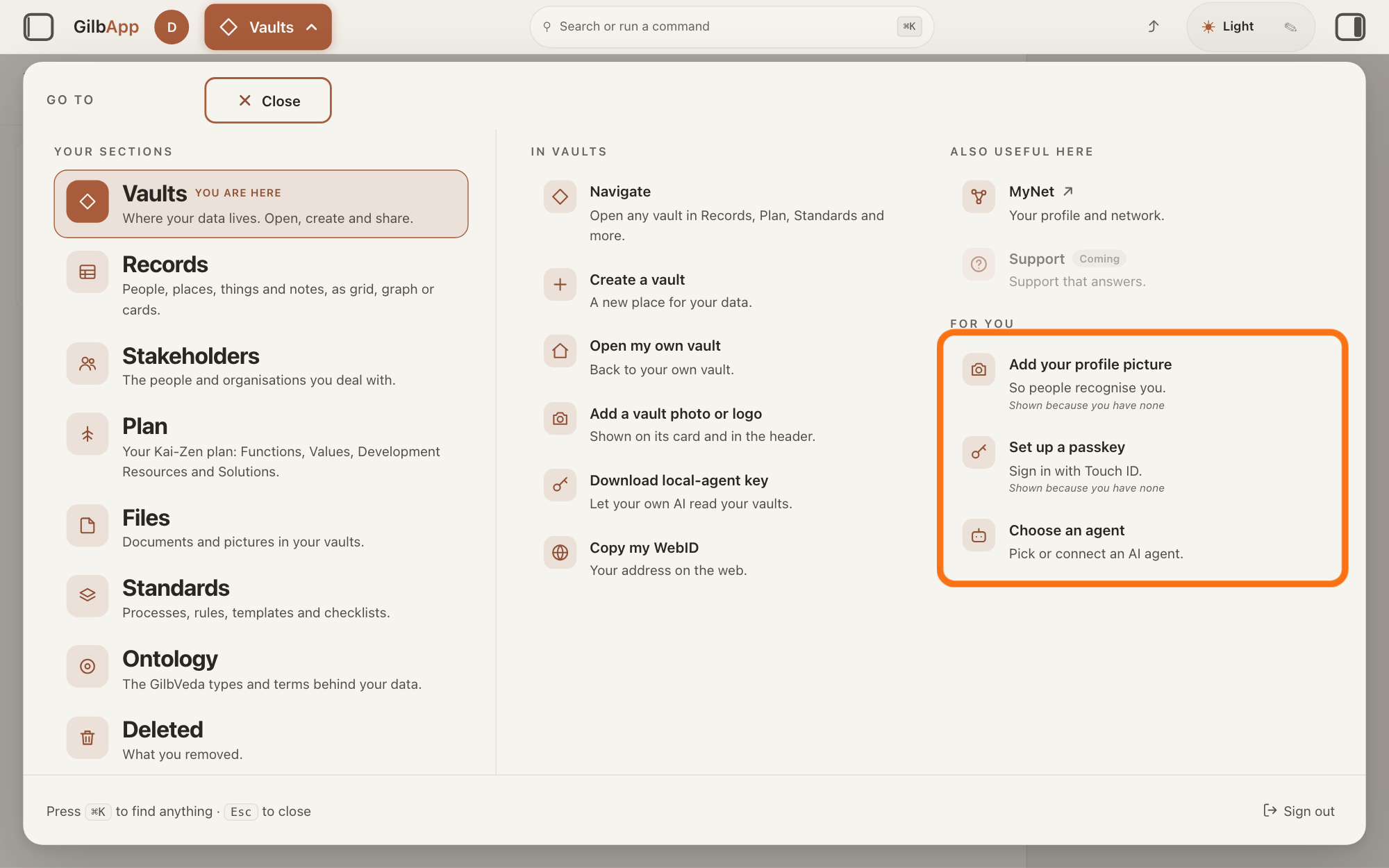
Under FOR YOU, choose what you want to set up.
Under FOR YOU, in the right column of the panel, choose Add your profile picture, Set up a passkey or Choose an agent.
Show as text
The panel "GO TO" covers the screen. In its right column, under "FOR YOU", the outlined list holds "Add your profile picture", "Set up a passkey" and "Choose an agent". Choose the one you want to set up.
More about this
FOR YOU lists what you have not set up yet, and the agent. Add your profile picture (So people recognise you.) opens your own vault's details with its picture menu. Set up a passkey (Sign in with Touch ID.) opens your own vault's details at the passkey part; a passkey lets you sign in with Touch ID instead of an e-mail code. Under these two it says Shown because you have none: once your own vault has a picture, or your account a passkey, that line goes away. The pictures show an account with neither. Choose an agent (Pick or connect an AI agent.) opens the chat on the left with the list of agents.
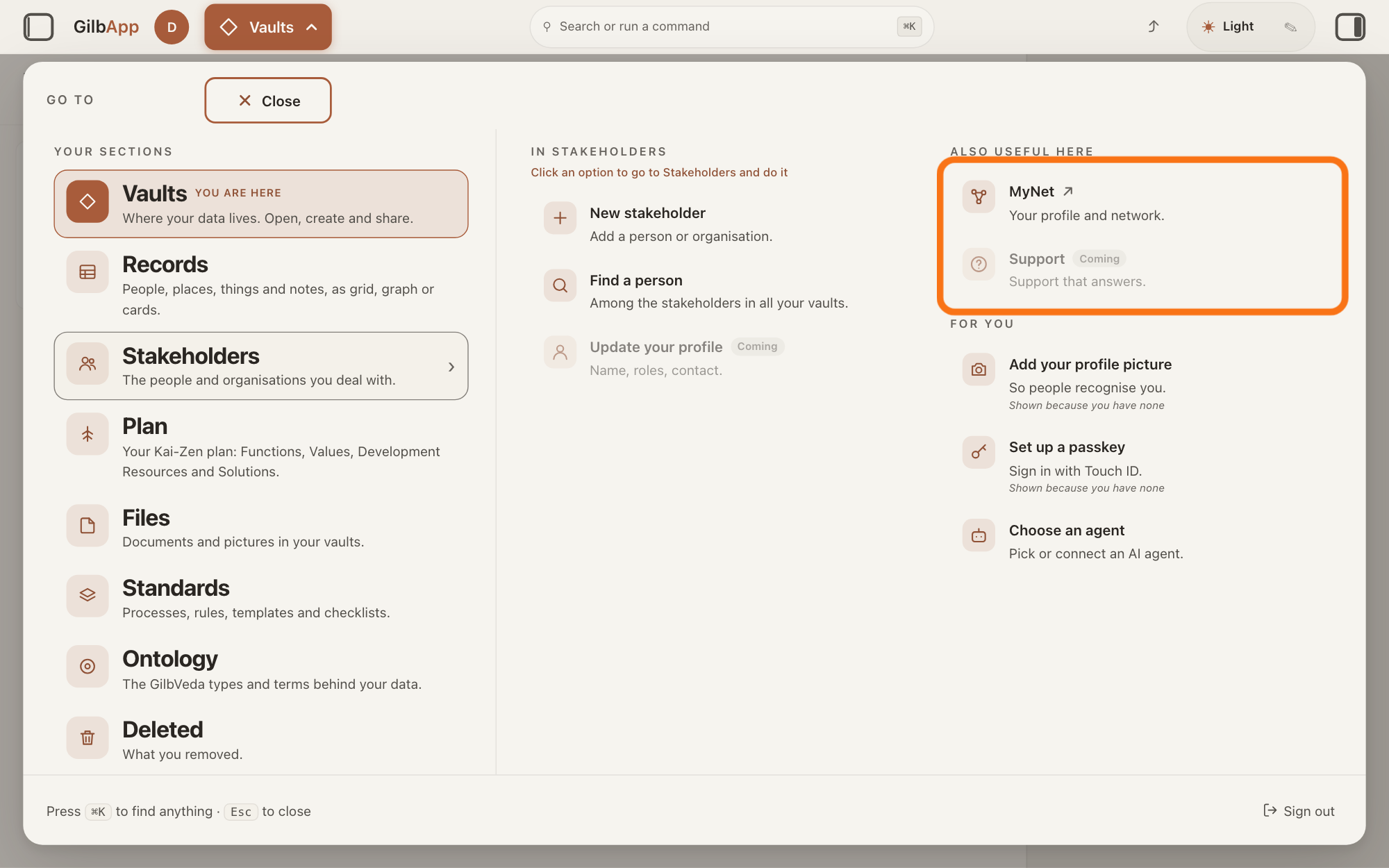
Rest the pointer on a section and choose a place under ALSO USEFUL HERE.
Rest the pointer on a section on the left, such as Stakeholders, and choose a place under ALSO USEFUL HERE. These are other places that fit that section.
Show as text
The pointer rests on "Stakeholders" on the left, and the middle column now reads "IN STAKEHOLDERS". At the top of the right column, under "ALSO USEFUL HERE", the outlined list holds "MyNet", which opens in a new tab, and "Support", greyed and marked "Coming".
More about this
Vaults and Stakeholders show MyNet (Your profile and network.); Records and Standards show GilbVeda Ontology (All shared types and terms.), which opens the shared types in Ontology; Ontology shows MyJackfruit News (What's new.). Every section also shows Support (Support that answers.), greyed and marked Coming: it does nothing yet. MyNet and MyJackfruit News carry ↗ and open in a new tab. Resting the pointer only shows a section's options; clicking the section takes you there.
Deeper
Also asked:
Where are the settings in GilbApp? GilbApp has no settings page. In Main menu, under FOR YOU, you find Add your profile picture and Set up a passkey until you have set them up, and Choose an agent; your colours are on the theme button in the top bar; your name is set in MyNet.
What is Also useful here in the menu? ALSO USEFUL HERE in Main menu lists other places that fit the section the pointer rests on, such as MyNet for Stakeholders.
Your theme and colours change with the theme button at the right of the top bar; the answer How do I switch between light and dark, or change colours? shows how. GilbApp keeps your choice when you come back in this browser.
GilbApp has no place of its own for your name: Update your profile under Stakeholders is marked Coming. The answer How do I set my name and picture? shows how to set your name in MyNet, Gilb's app for your profile and network.
Search or run a command in the top bar finds some of the same things: type passkey, computers or picture and select Passkey, Computers signed in or Change profile picture; each opens your own vault's details at that part. Sign out is there too, and at the bottom right of the GO TO panel. Your own vault's details also open when you press your profile picture at the top left.
If you look for a setting this page does not name, write to [email protected].
In a window narrower than 600 pixels, such as a phone, the panel shows one column, and ALSO USEFUL HERE lists the places for the section you are in.
This answer is written for a computer screen.
Source: GilbApp d5296208 (https://gilb.com/app/version.json, read 2026-11-15): src/components/menu/sectionMenuList.ts (MENU_PLACES, MENU_FOR_YOU, EXTRA_COMMANDS); src/shell/gilbAppMenuRows.ts:92-253 (places per section, Update your profile coming :154); src/components/AppShell.tsx:2000 (the Main menu button, drawn as the section's name); src/components/menu/SectionMenu.tsx:33-38 (Sign out), :81-82; src/components/AppShell.tsx:1748-1754 (Choose an agent opens the chat); src/hooks/useWindowSizeClass.ts:11-17; shared section menu 0.2.4, src/SectionMenu.tsx:80-93 (Go to, Your sections, In …, Also useful here, For you, Coming), :942-948 (headings drawn in capitals), :767-780, :869-885 (new tab). Live help pages: How do I set my name and picture?; How do I switch between light and dark, or change colours?; How do I find my way around GilbApp?; How do I remove a computer from my account?
Checked against GilbApp d529620.