
← Back to How do I see all my stakeholders?
How do I avoid adding the same person twice?
Short answer
Press Main menu, choose Find a person, and search for the name; make a new card only if no one matches.
Before you start
You need to be signed in to GilbApp on a computer. The pictures show a made-up person on a test site; your screen shows your own name and address.
Words used here (2)
Steps
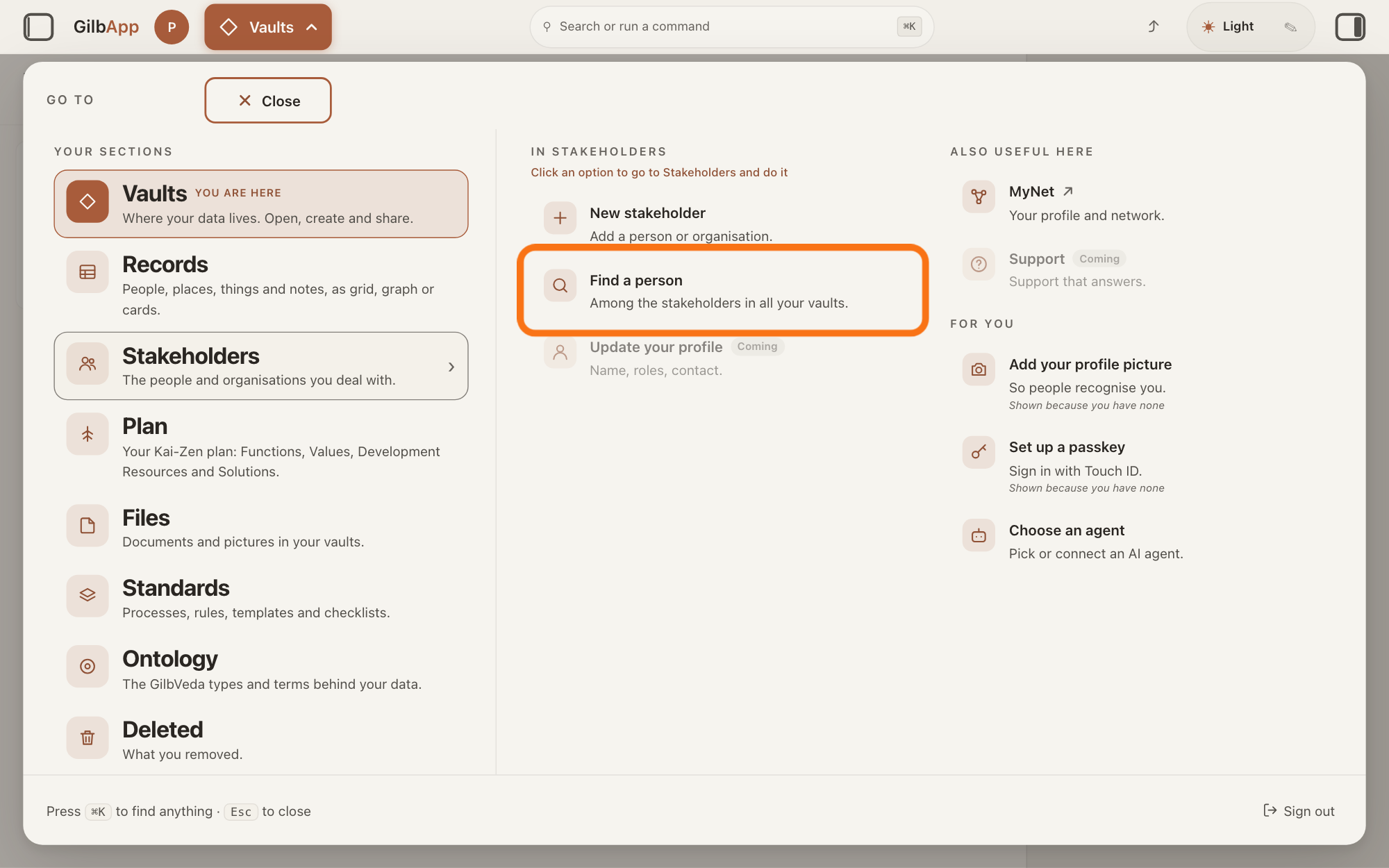
Press Main menu at the top left and choose Find a person.
Press Main menu, next to your profile picture at the top left, rest the pointer on Stakeholders and choose Find a person under IN STAKEHOLDERS. Stakeholders opens with the cursor in its search box.
Show as text
Press "Main menu" at the top left and rest the pointer on "Stakeholders". In the middle column "IN STAKEHOLDERS", press "Find a person", "Among the stakeholders in all your vaults.", outlined in orange.
More about this
The button shows the name of the section you are in, such as Vaults. Find a person reads Among the stakeholders in all your vaults. A stakeholder is a person, group or system that cares whether a Value goes up or down. If the list was in Graph or Card, it comes back as Grid, the list. New stakeholder beside it opens the dialog of step 5; Update your profile is marked Coming and does nothing yet.
Search for the person by a word of their name.
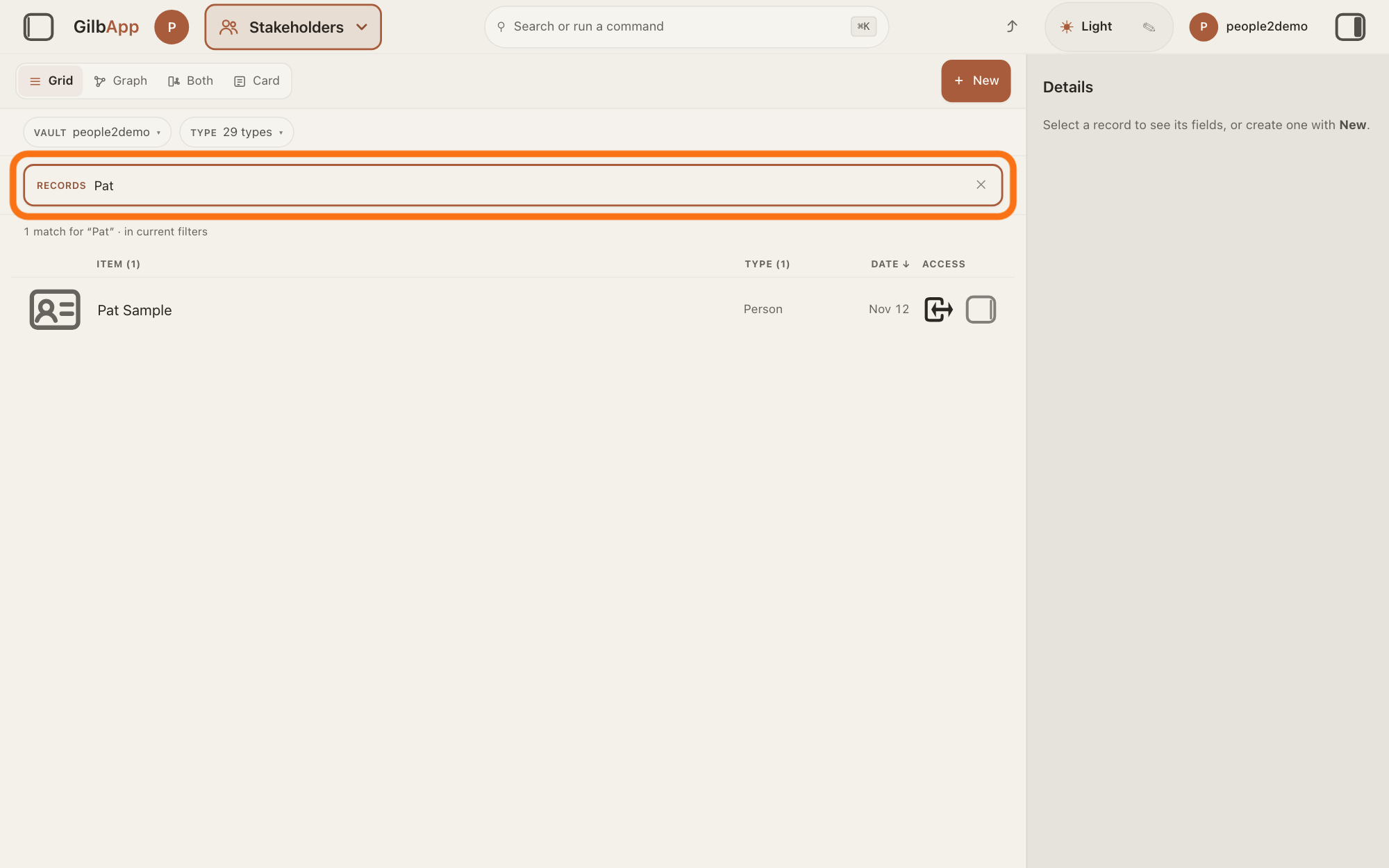
Type a whole word of the person's name, such as the first name, in the search box marked RECORDS, which shows Search in current filters…. The list keeps the stakeholders that match.
Show as text
The "Stakeholders" list opens. Type a word of the person's name in the box marked "RECORDS", outlined in orange. The line under it counts the matches.
More about this
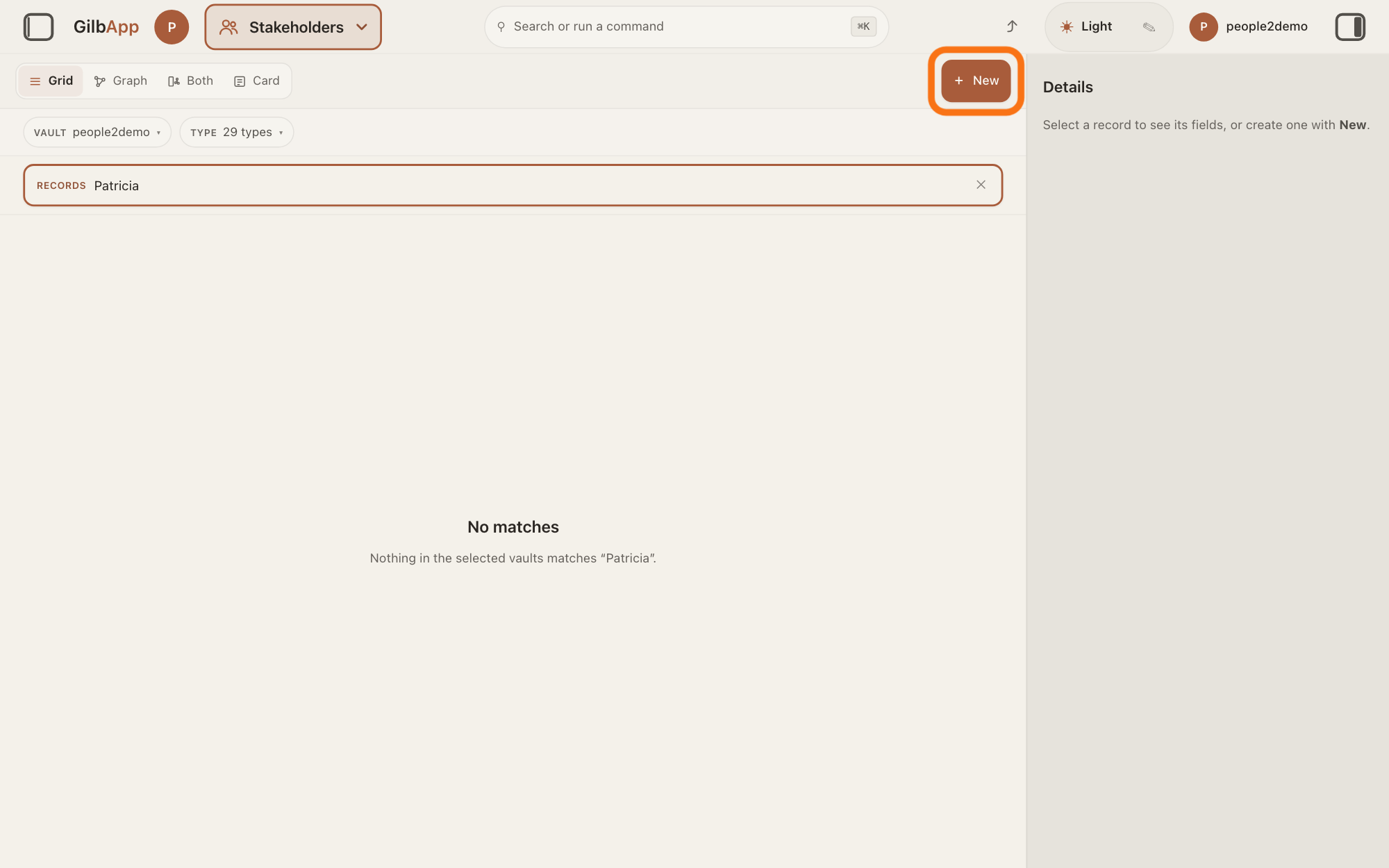
GilbApp also asks your other vaults. A few letters find a card among the rows the list has already read, in any of your vaults; a card further down is found only by a whole word, so try the family name and other spellings too. A line above the list says how many match; with none it says No matches and Nothing in the selected vaults matches with your words. ✕ in the box clears it.
If the person is listed, choose their row.
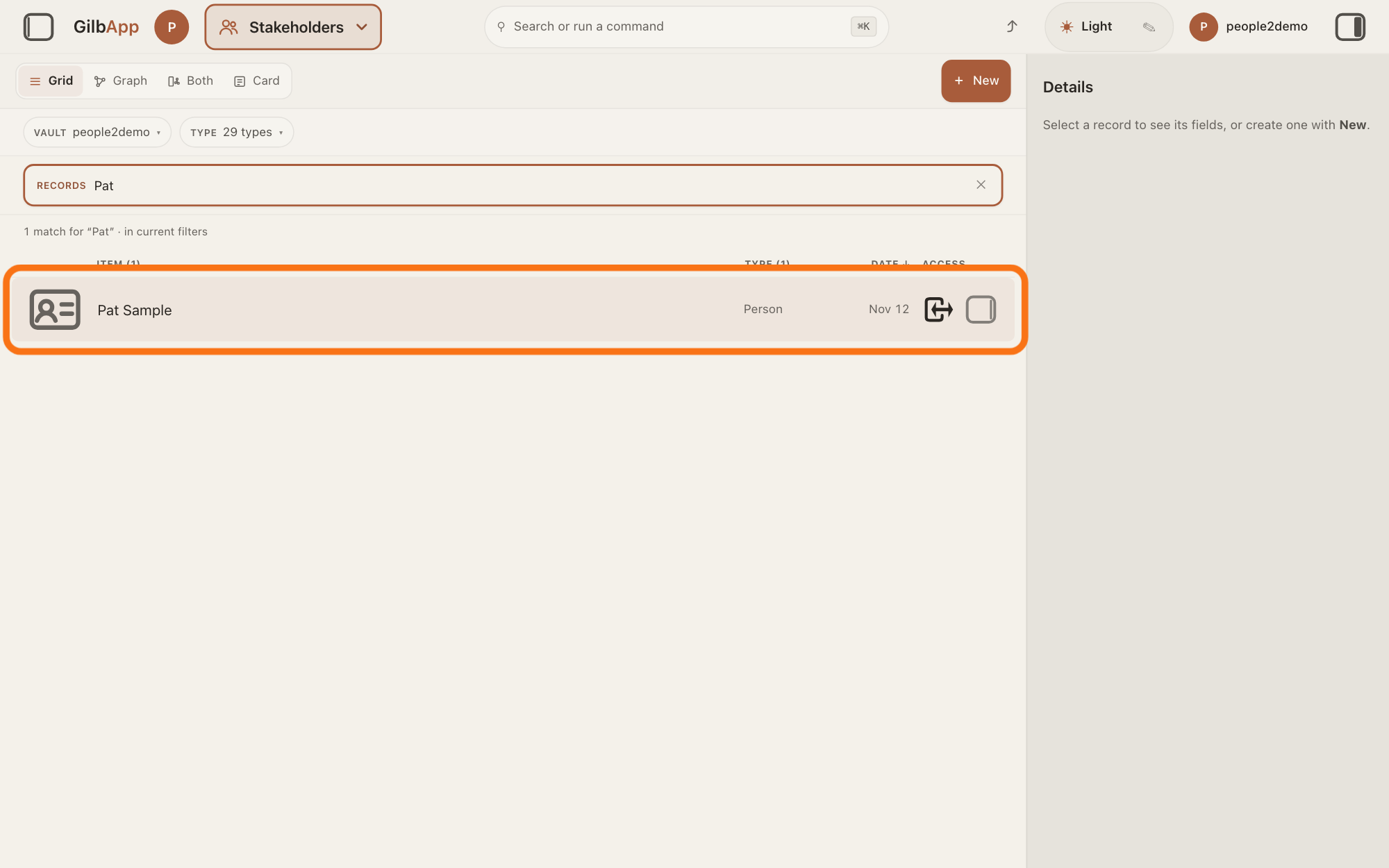
Click the person's row; their card opens, and you can add to it there. Do not make a second card.
Show as text
The list now shows each card whose name matches. If the person is there, press their row, outlined in orange, and use that card instead of making a new one.
More about this
Two rows with the same name can be two people or the same person twice; open each to see. The TYPE column says whether a row is a Person. A row with a chain-link sign is someone from your circles in MyNet, Gilb's app for your profile and network; the answer on seeing all your stakeholders explains those rows.
If no one is listed, press + New.
Press + New at the right end of the bar with the views Grid, Graph, Both and Card. The dialog headed New opens.
Show as text
When the search finds no one, the middle of the screen says "No matches". Press "+ New" at the top right of the list, outlined in orange, to start a new card.
More about this
Then choose Create a new Stakeholder on its own and Person, as the answer on adding a person as a stakeholder shows from its step 3.
In the dialog, search and select the person it lists.
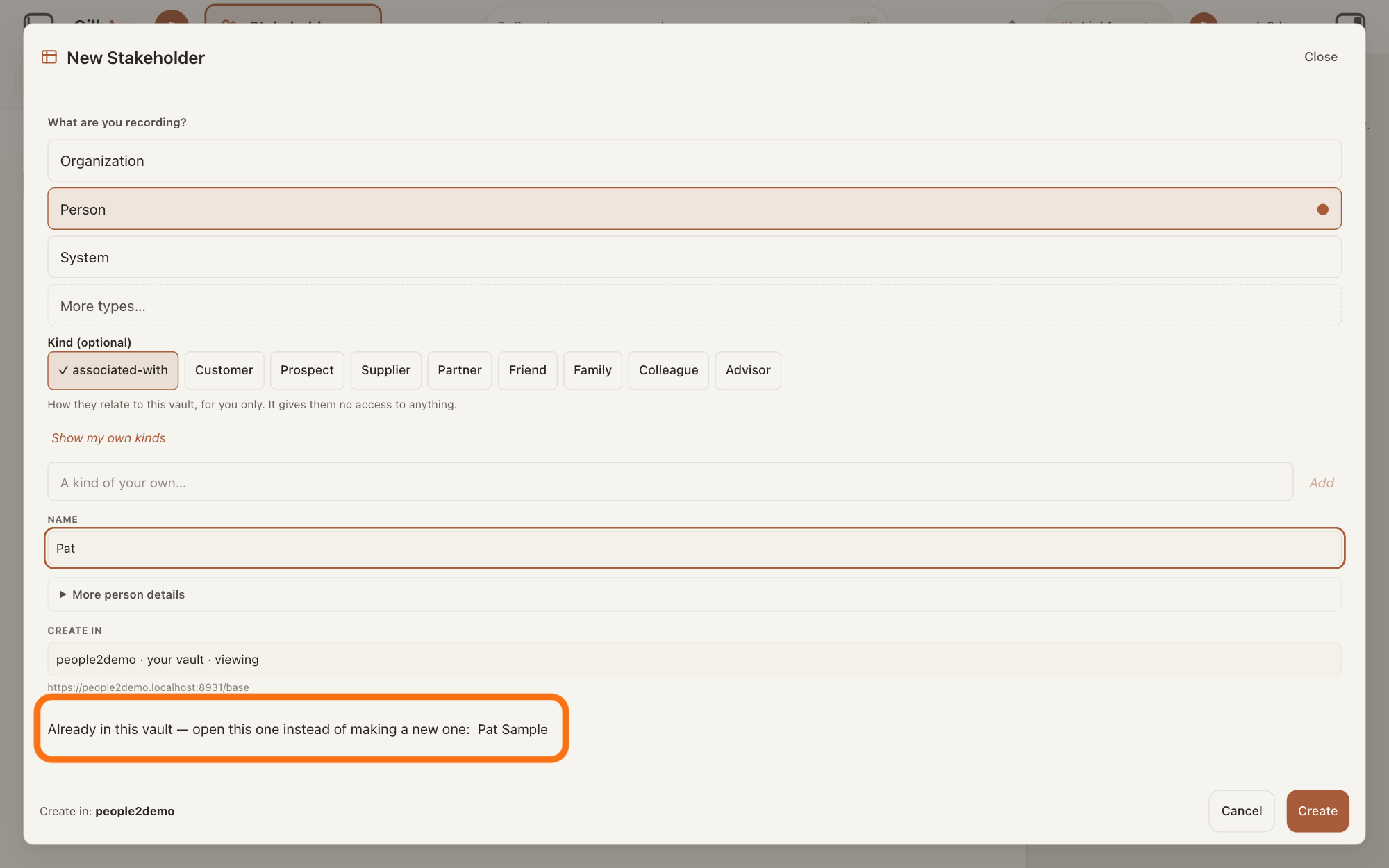
Type the name in NAME; after two letters the dialog may list stakeholders already in the vault under CREATE IN whose name holds what you typed. If the person is there, choose them under Already in this vault — open this one instead of making a new one:.
Show as text
In the "New Stakeholder" dialog with "Person" chosen, type the name under "NAME". Near the foot, read "Already in this vault — open this one instead of making a new one:" and the name beside it, outlined in orange. Press that name to open the card.
More about this
Choosing one closes the dialog and opens that card; nothing new is made. Letters in any case match, and part of a word is enough here. Two with the same name each show the last six characters of their address, after …. In a large vault it may add Not every record was read; there may be more. The list looks only in the vault under CREATE IN, so step 2 is still needed for your other vaults.
Deeper
GilbApp does not stop you making a second card, and it never joins two cards because they have the same name: each card is its own record.
If you already have two cards of one person, GilbApp cannot merge them. Copy what you need onto one card and delete the other; the answer on deleting a record shows how, and that GilbApp cannot bring a deleted card back.
This answer is written for a computer screen.
Source: GilbApp af0f04ee (https://gilb.com/app/version.json read 2026-11-10); live bundle gilb.com/app/assets/index-CEVUjjQB.js and src-C9tqYdiG.js. gilbAppMenuRows.ts:150-154 (New stakeholder, Find a person Among the stakeholders in all your vaults., Update your profile coming); section-menu 0.2.4 SectionMenu.tsx:86 (In {section}, CSS capitals), :92 (Coming), :845-866; AppShell.tsx:813-815 (Graph or Card -> Grid); RegisterScopedSearch.tsx:50-52 (focus), :70-74 (placeholder); RecordGrid.tsx:1203 (label Records); the list search: workingSetLoadVaults.ts heldVaultIds/contentVaultIds (every held vault under ?wsa=1), RecordGrid.tsx:266 (multiVault), :285-293 (records = each vault's first-rows snapshot, recordHooks.ts:1517-1540 caps), :964-990 matchWorkingSetQuery over the rows read (workingSetFacets.ts:88-102, part of a word, any case), :1030-1060 GilbPlatform whole-word hits merged after; useStakeholderCreate.ts:182-196 (300 ms, 2 letters, vaultId = CREATE IN); StakeholderMatches.tsx:31-63; sameLabel.ts:8-11 (last six characters after …); IdTail.tsx; ConnectedCreateDialog.tsx:896-990 (a pick without a link = handOverAndClose, nothing created); bundle src-C9tqYdiG.js@56442 (the package's find: the vault's records of a stakeholder kind whose label, lower-cased, includes the text; up to 200 pages; `complete`). No merge control in src (search for merge words: none for records).
Checked against GilbApp d529620.