
How do I change a standard safely?
Short answer
Press Main menu, choose Standards, the standard and the step, type the exact new text in TEXT, and press Save.
Before you start
You need to be signed in to GilbApp on a computer, with a standard in a vault you can write to, such as your own vault. The pictures show a made-up person on a test site; your screen shows your own name and address.
Words used here (8)
- GilbApp
- GilbApp is the app, opened in a web browser at https://gilb.com/app, where you open, fill and share your vaults.
- record
- A record is one piece of data with its own address, such as a person, a place, a thing or a note.
- entry condition
- An entry condition is something that must be true before a process may start; a process starts only when its entry conditions hold.
- exit condition
- An exit condition is what must be true before a process may finish; when it is true, the process hands back.
- agent
- An agent is your AI following one written procedure, its standing instructions, for one kind of work.
- Kai-Zen
- Kai-Zen is the planning agent: it finds out what you want, chooses the way, hands the work to other agents and reports back.
- short name
- A short name is the one word you give one AI on one computer, such as gilb-example; it keeps that AI's key and tools apart.
- GilbPlatform
- GilbPlatform is the service that keeps people's and organisations' data in vaults, each at its own web address.
Steps
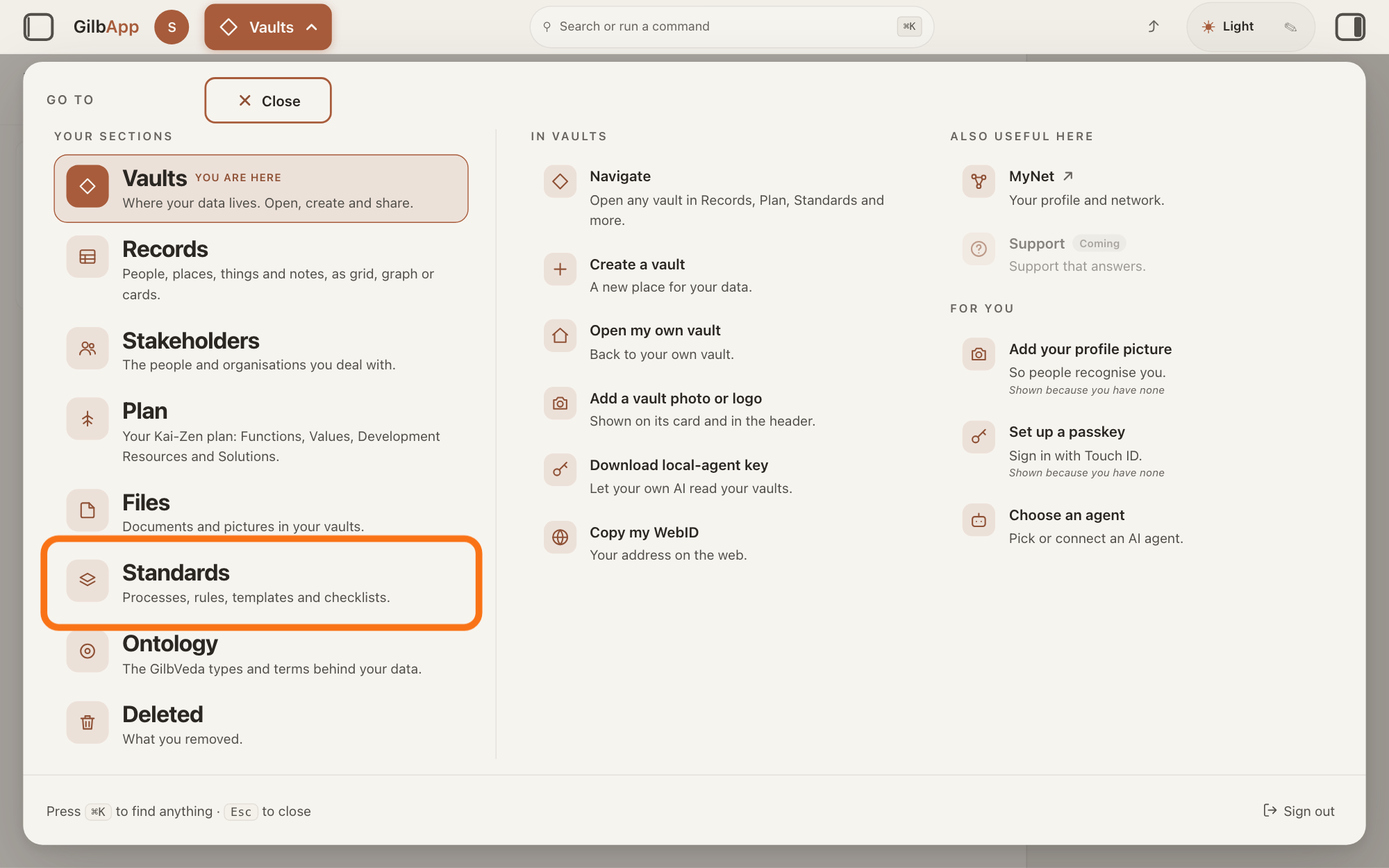
Press Main menu at the top left and choose Standards.
Press Main menu, next to your profile picture at the top left, and under YOUR SECTIONS choose Standards. The button shows the name of the section you are in, such as Vaults.
Show as text
The panel headed "GO TO" covers the screen. In the left column under "YOUR SECTIONS", the row "Standards" with the line "Processes, rules, templates and checklists." is outlined. Press it to open the Standards screen.
More about this
A panel headed GO TO opens; Standards reads Processes, rules, templates and checklists. Standards opens on the vault you picked in Vaults, or on your own vault if you picked none; a vault is the place where a person or a group keeps their records. It opens on the tab Processes, with Process chosen in the row under the tabs. A process is a standard that holds work: entry conditions, steps in order, and exit conditions; a standard is a written procedure, rule set, form or other guide that people and agents follow as they work. On the right, VAULT changes the vault, STANDARDS GROUP shows only the standards of one group, and + New group, shown only where you may write in the vault, makes a group; you need none of them here.
Choose the standard in the list.
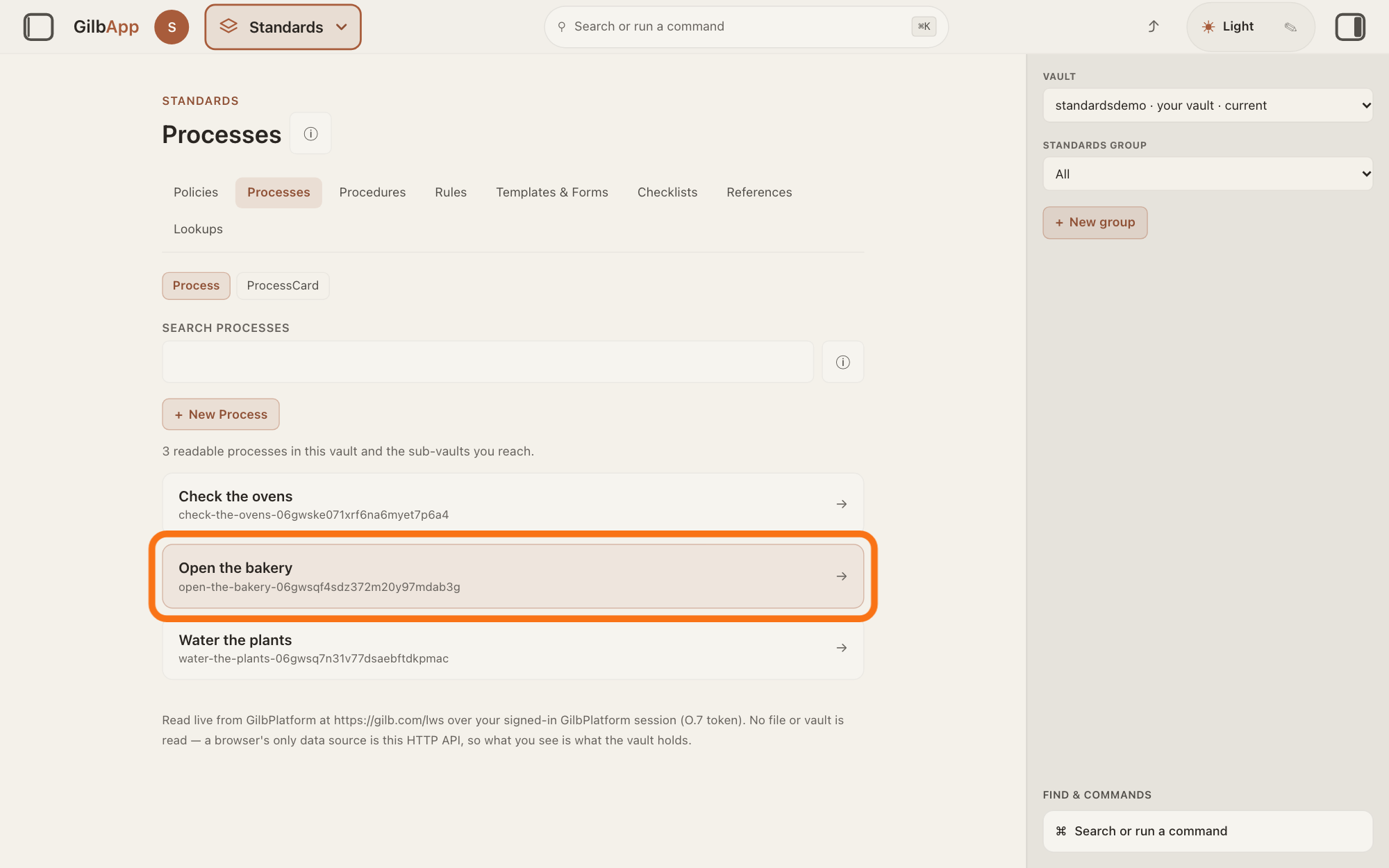
Click the row of the standard you want to change, such as a process under the tab Processes. It opens in the middle; a process shows the cards Entry conditions, Steps and Exit conditions, from top to bottom.
Show as text
In the middle, in the list of processes, the row Open the bakery is outlined. Press it to open the standard you want to change.
More about this
Each row shows the standard's name and, under it, the last part of its address. If the list is long, type a word of the name in the box under SEARCH PROCESSES. The other tabs, such as Rules or Checklists, list other kinds of standard and open the same way. + New Process makes a new process; the answer on writing a new standard shows it. ← All processes, at the top of an open process, brings the list back.
Choose the step you want to change.
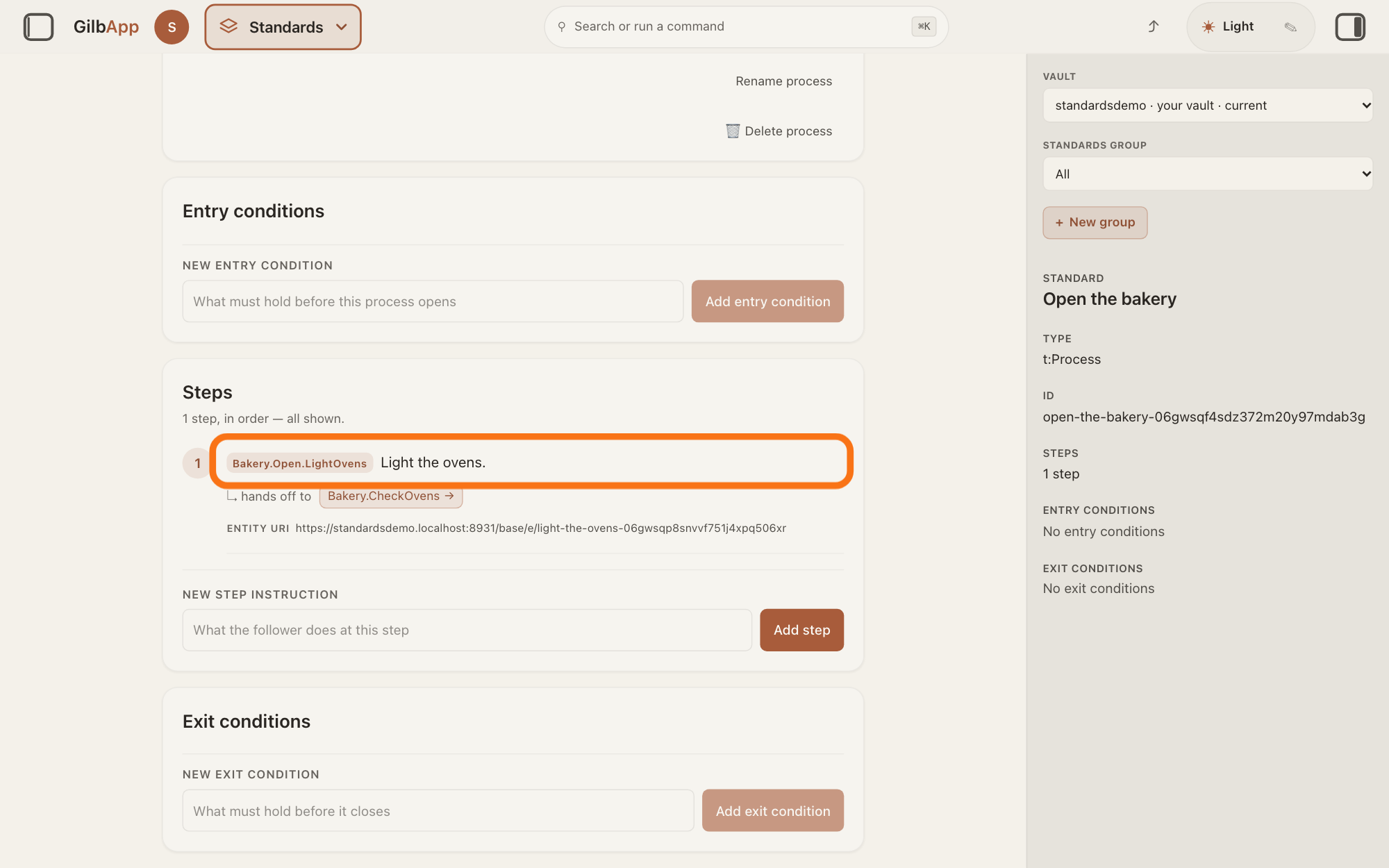
Look for a standard that already says the same thing, then click the text of the step you want to change in the card Steps. The right pane shows Edit step, with the step's TITLE, TAG, ENTITY URI (its address), TEXT and HANDS OFF TO.
Show as text
In the card "Steps", step 1 shows its tag Bakery.Open.LightOvens and the text Light the ovens., and that text is outlined. Under it is the line "hands off to" Bakery.CheckOvens. Press the text to open the step on the right.
More about this
In the Kai-Zen method a job is said in one place only: if another standard already says it, link that standard instead of writing it twice, as the answer on linking standards with hand-offs shows. On another kind of standard the point has its own name, such as a rule, and the pane says Edit rule; it works the same. 🗑 Delete step at the foot deletes the step; the answer on adding, editing, reordering or deleting a unit shows it.
Type the exact new text in TEXT.
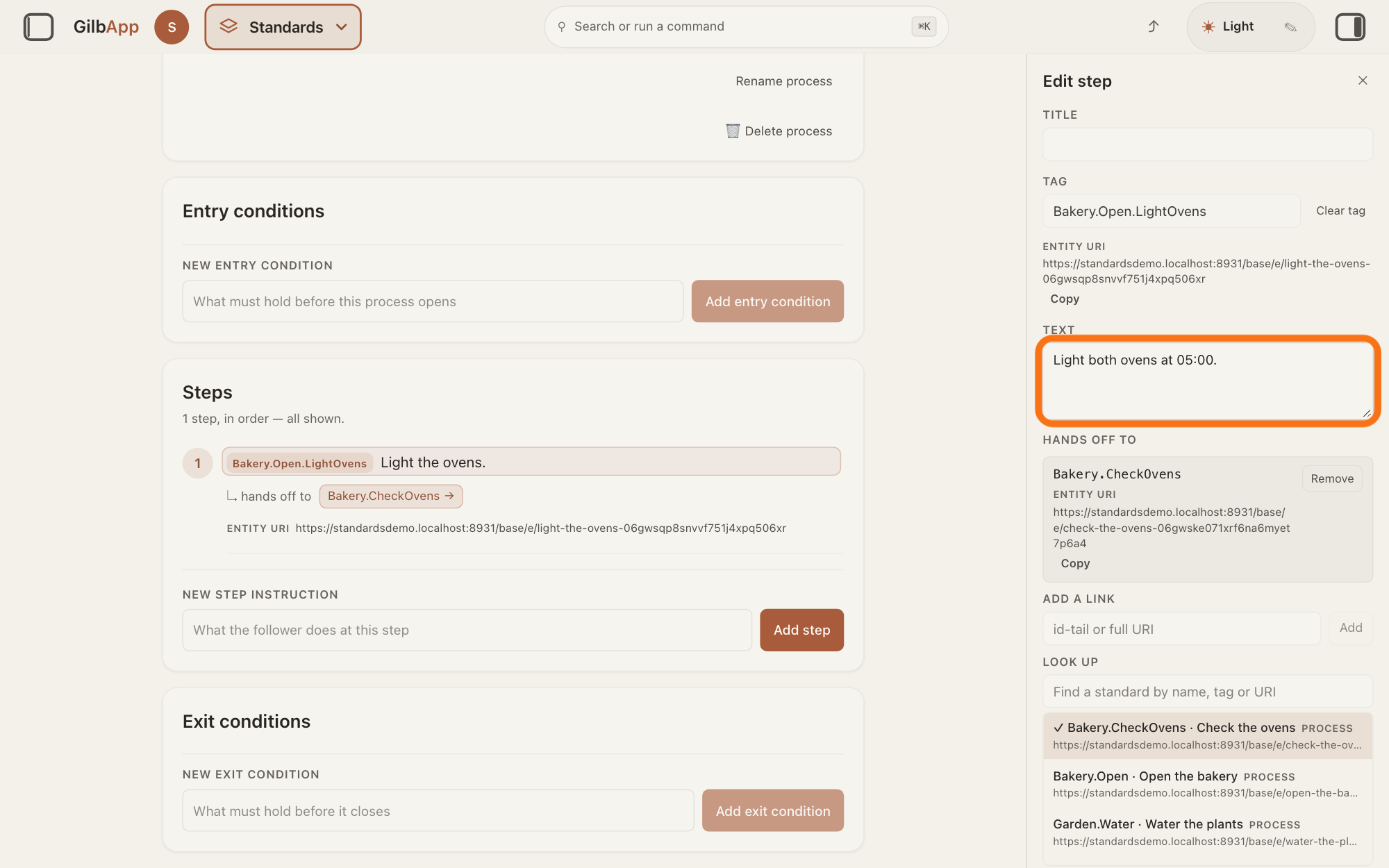
Change the words in TEXT until they say exactly what the step must say. Keep each text short.
Show as text
On the right, in the pane "Edit step", the box under "TEXT" now holds Light both ovens at 05:00. and is outlined. The tag above it and the "HANDS OFF TO" link below stay as they were. The card in the middle still shows the old text until you save.
More about this
Leave TAG as it is: in the Kai-Zen method a tag never changes once it is written, and if the text changes, the tag stays. TITLE holds a short name shown in bold before the text. Cancel or ✕ closes the pane and keeps the old text.
Press Save.
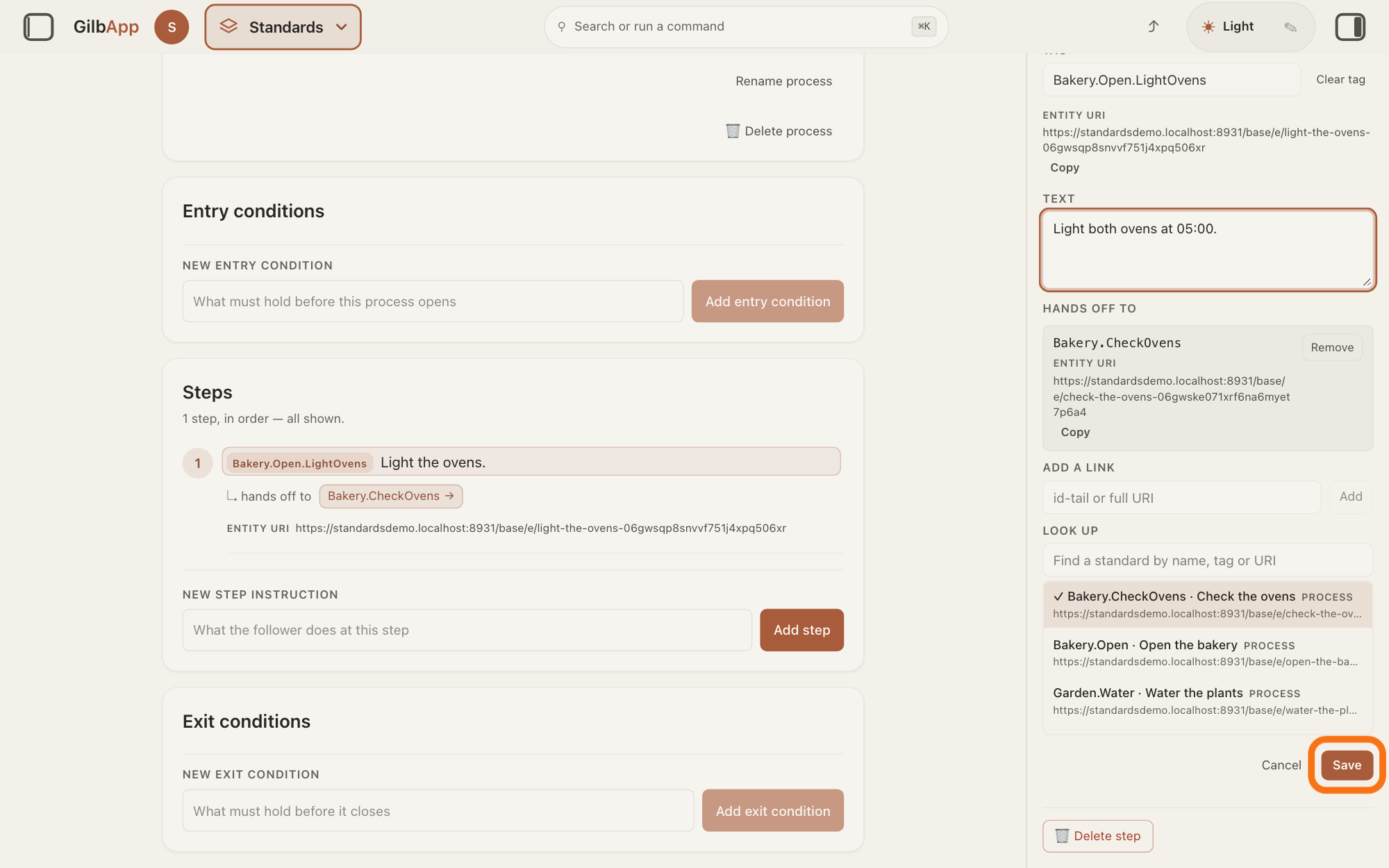
Press Save at the foot of the pane. The pane closes and the step shows the text GilbPlatform now holds; read it again to check it says what you meant.
Show as text
The pane "Edit step" is scrolled down: "TEXT" holds the new wording, "HANDS OFF TO" keeps Bakery.CheckOvens, and at the foot the outlined button "Save" is next to "Cancel". Press "Save".
More about this
The button reads Saving… while it works. If the save is refused, the pane stays open with your words and shows why in red; for someone who may only read the vault the reason starts You do not have write access to this record. Nothing changed then.
To rename the standard, press Rename process.
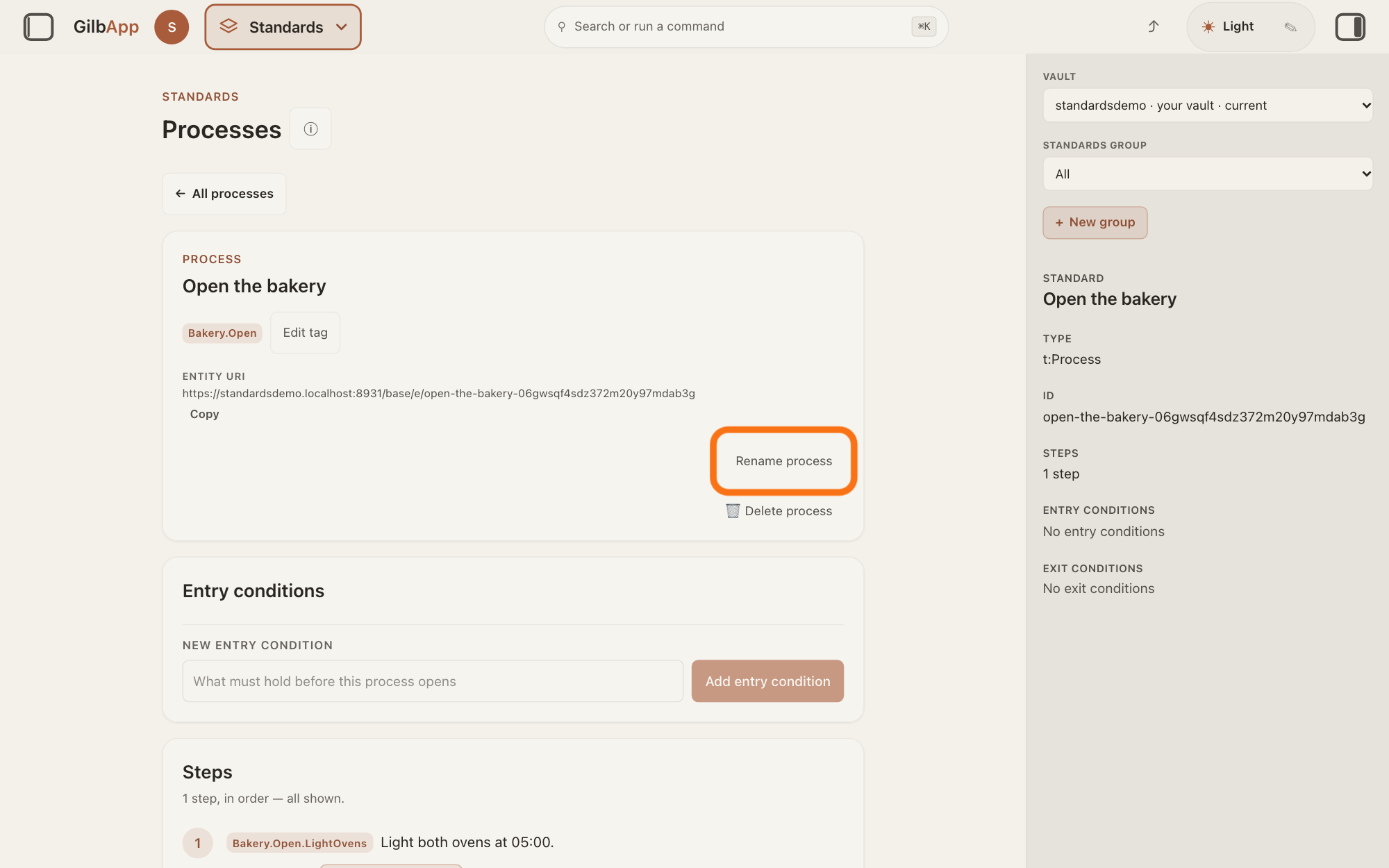
Press Rename process under the standard's address, in its card at the top. A box headed TITLE opens with the current title, and Cancel and Save under it.
Show as text
The process card at the top shows Open the bakery, its tag Bakery.Open and its "ENTITY URI". On the right of the card, the outlined button "Rename process" sits above "Delete process". The step below now reads Light both ovens at 05:00. Press "Rename process".
More about this
On another kind the button names it, such as Rename rule document. Below it, 🗑 Delete process deletes the whole standard; the answer on deleting a standards document shows it.
Type the new title in TITLE and press Save.
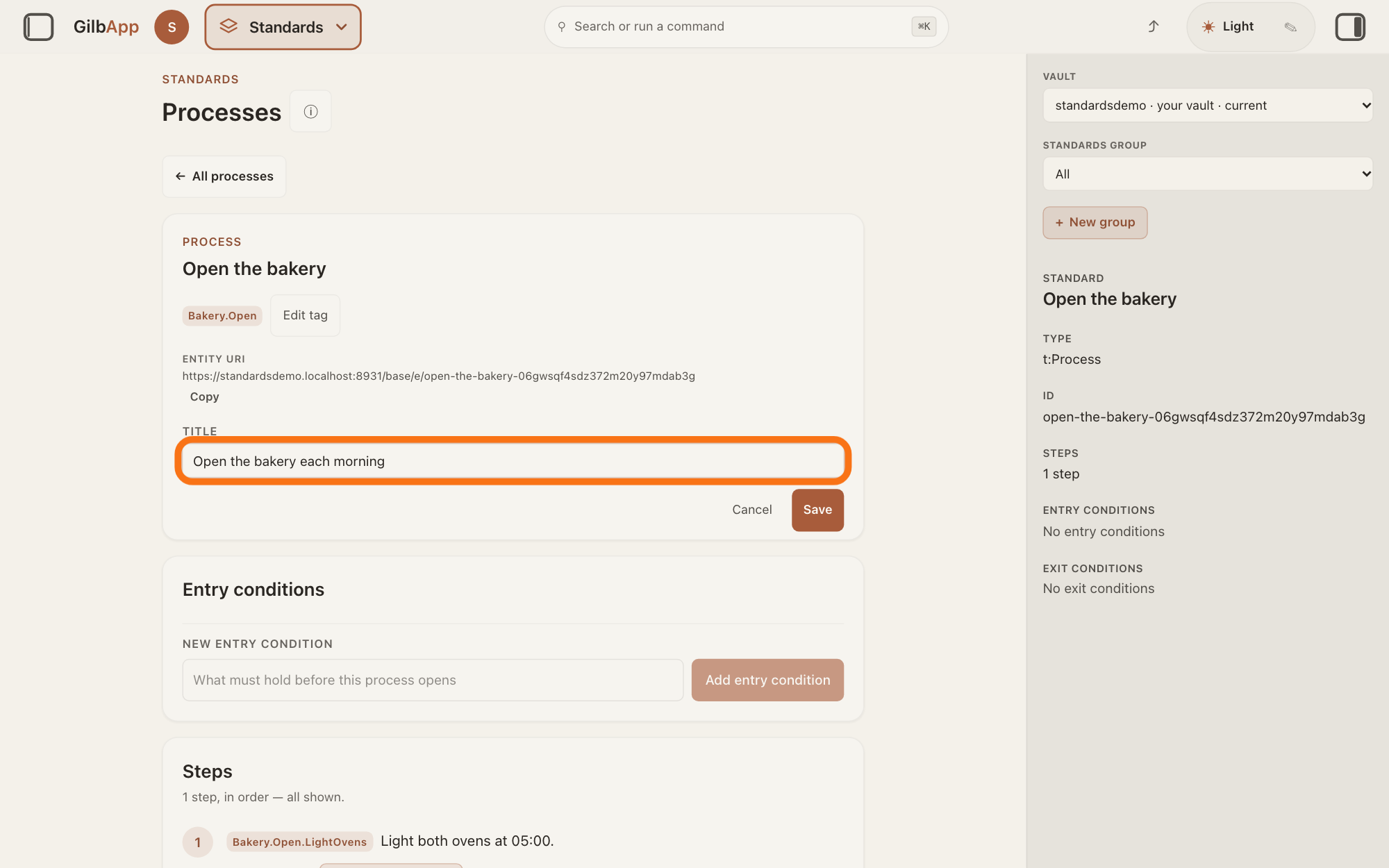
Type the new title in TITLE and press Save. The box closes and the new title shows.
Show as text
In the process card, a box under "TITLE" holds the new title Open the bakery each morning and is outlined. Under it are "Cancel" and "Save". Press "Save" to keep the new title.
More about this
Cancel closes the box without a change. If the save fails, the box stays open and says Not saved — and why. Renaming changes the title only; the standard's tag and address stay, so links to it still find it.
Deeper
Also asked:
Can I change how a built-in agent such as Kai-Zen works? Not yourself. Its standards belong to Kai Gilb: GilbPlatform.Licence lets you read, follow and run them, and any other use needs his written permission. You can make your own agent instead; the answer How do I make my own agent? shows how.
What does Agent.Standard do? It is the agent that writes and changes standards with a person who has write access to the vault. It follows GilbPlatform's process for changing a standard, and asks that person whenever there is a choice.
Whoever holds write access to the vault a standard lives in may change it; GilbPlatform refuses a change from anyone else, and the pane then shows You do not have write access to this record. in red. An agent changes a standard only with the go of a person who may write in the vault the standard is kept in.
When an agent changes a standard for you, it follows GilbPlatform's process for changing a standard, in seven steps. It says what the change is for and what goes wrong without it. It reads the live standard, and any standard that already says the same thing. It writes the exact new text by the rules for standards. It shows that text to a person with write access to the vault and waits for their go. It writes the change only after checking that the old text is still there, then reads it back twice. It keeps a record of what it did, with a receipt, in a folder on your computer, a code store or your vault. Last, it reads every part of the standard as someone who is not signed in; if a public part cannot be read, it asks the person with write access to publish its group. GilbApp's Save is not that process: it writes the text you typed at once, does not check first that the old text is still there, and keeps no receipt. The answer on publishing a standard tells more.
GilbApp changes a step's words, title, tag and hand-offs, and a process's title; it has no box for the body text of a process. On a process card, Edit opens TITLE, TAG and BODY together.
GilbPlatform never overwrites a fact: a change closes the old wording and adds the new one. GilbApp shows no earlier versions; the answer on seeing a record as it was before tells more.
This answer is written for a computer screen. In a window narrower than 840 pixels, such as a phone, the side panes are hidden and the right pane is Detail in the bar at the bottom.
Source: Re-checked 2026-11-11: live GilbApp is now ebd9415e7a90de8c289eaa7bb02f40c8ee80cf79 (https://gilb.com/app/version.json) and GilbPlatform 498d29a0dec9a15d167f4b6b5d731382a6bcede0 (https://id.gilb.com/version). the diff from af0f04ee to ebd9415e touches no file this page cites (src/components/process, RightRegion.tsx, gilbAppMenuRows.ts, the standards libs unchanged; processHooks.ts, records.ts and AppShell.tsx change only request headers and a palette note); the diff from 4d008a55 to 498d29a0 changes sign-in, DPoP and grant slices, not the write gate or deletes. Line numbers above hold at ebd9415e. GilbApp code read (unchanged at ebd9415e for these files). Step 3: ProcessViewer.tsx:1295-1308; StepEditPane.tsx:207-472. Step 4: StepEditPane.tsx:408-424 (Text), :255-305 (Tag frozen), :229-245 (Title), :455-463 (Cancel), RightRegion.tsx:280-282. Step 5: StepEditPane.tsx:157-173 and :449-472 (Saving…, red error, pane stays open on refusal); processHooks.ts usePatchUnitInFamily (invalidates the steps read; the step is drawn from the vault's answer); records.ts:187-200 and :270-277 (403 → You do not have write access to this record.); Base routes.ts:822-827. Step 6: StandardsDocumentActions.tsx:254-294 (Rename {documentLabel}, 🗑 Delete {documentLabel}), :53-125 (Title, Cancel, Save, Saving…, Not saved — ); ProcessViewer.tsx:2009-2022 (under the Entity URI); StandardsSection.tsx:1060-1070 (documentLabel process; showEdit for a process). Deeper: GilbPlatform.StandardRules.Owner, .WorkMode, .Short, .OnePlace; GilbPlatform.ChangeStandard steps Why, Read, Draft, Go, Write, Record, Publish (2026-11-10); Agent.Standard.Role, .Choices; Kai-Zen.TagRules.Frozen; StandardsDocumentActions.tsx:6-7 (Body edit is HELD … This rail has a Title field and no Body); StandardsSection.tsx:843-856 and :911-932 (process card Edit, StandardKindEditForm Title, Tag, Body); Dev.Guide.Overview.History as quoted in run 10h ("The platform never overwrites a fact. A change closes the old fact and adds a new one.") GilbPlatform.Licence (Use, Permission).
Checked against GilbApp d529620.