
← Standards: find, write and share
How do I link standards with hand-offs?
Short answer
Press Main menu, choose Standards, choose the standard, choose the step, search and select the other standard under LOOK UP, press Save.
Before you start
You need to be signed in to GilbApp on a computer, with two standards you can read, the one that hands off in a vault you can write to, such as your own vault. The pictures show a made-up person on a test site; your screen shows your own name and address.
Words used here (5)
- GilbApp
- GilbApp is the app, opened in a web browser at https://gilb.com/app, where you open, fill and share your vaults.
- record
- A record is one piece of data with its own address, such as a person, a place, a thing or a note.
- entry condition
- An entry condition is something that must be true before a process may start; a process starts only when its entry conditions hold.
- exit condition
- An exit condition is what must be true before a process may finish; when it is true, the process hands back.
- agent
- An agent is your AI following one written procedure, its standing instructions, for one kind of work.
Steps
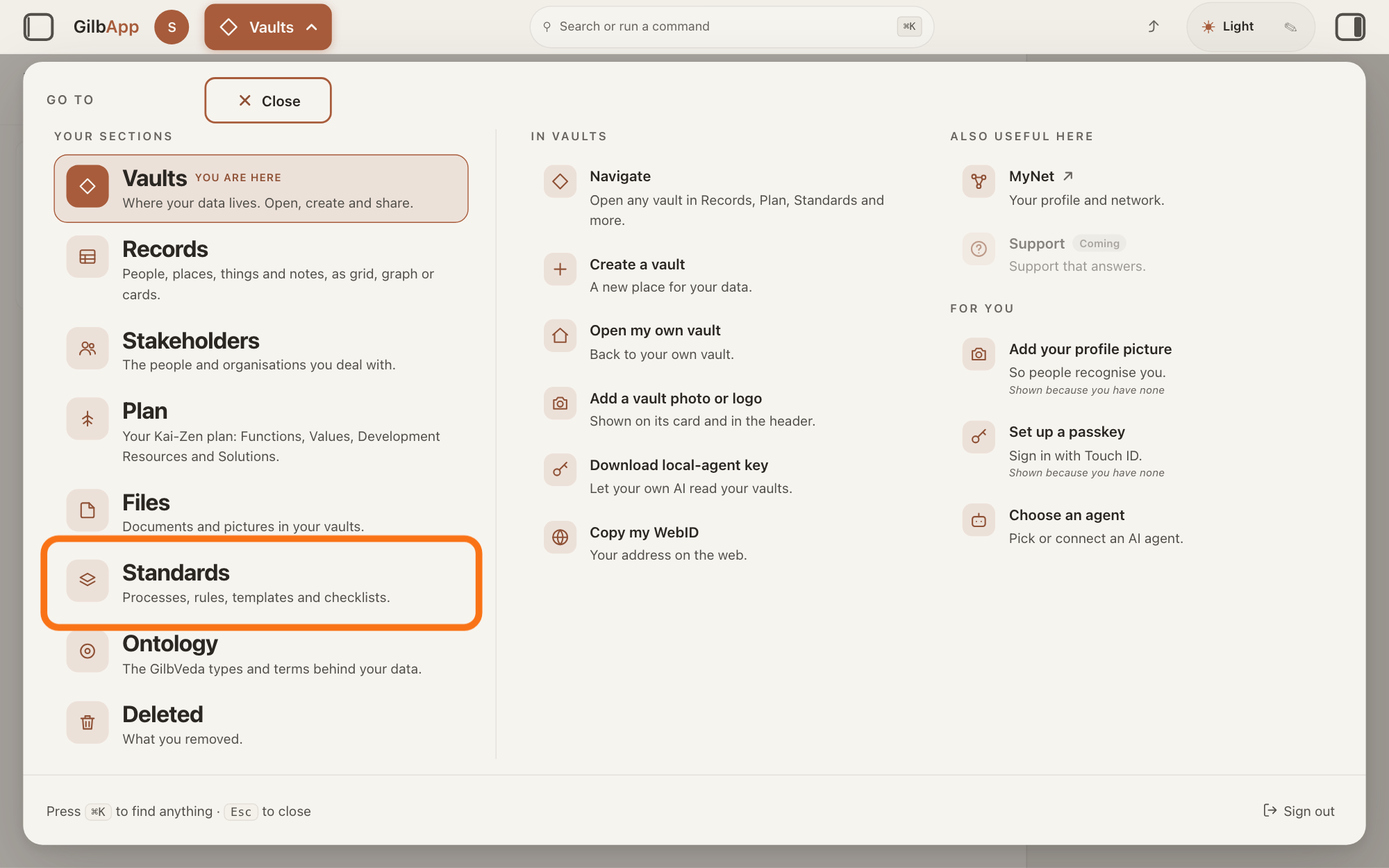
Press Main menu at the top left and choose Standards.
Press Main menu, next to your profile picture at the top left, and under YOUR SECTIONS choose Standards. The button shows the name of the section you are in, such as Vaults.
Show as text
The panel headed "GO TO" covers the screen. In the left column under "YOUR SECTIONS", the row "Standards" with the line "Processes, rules, templates and checklists." is outlined. Press it to open the Standards screen.
More about this
A panel headed GO TO opens; Standards reads Processes, rules, templates and checklists. Standards opens on the vault you picked in Vaults, or on your own vault if you picked none; a vault is the place where a person or a group keeps their records. It opens on the tab Processes, with Process chosen in the row under the tabs. A process is a standard that holds work: entry conditions, steps in order, and exit conditions; a standard is a written procedure, rule set, form or other guide that people and agents follow as they work. On the right, VAULT changes the vault, STANDARDS GROUP shows only the standards of one group, and + New group, shown only where you may write in the vault, makes a group; you need none of them here.
Choose the standard in the list.
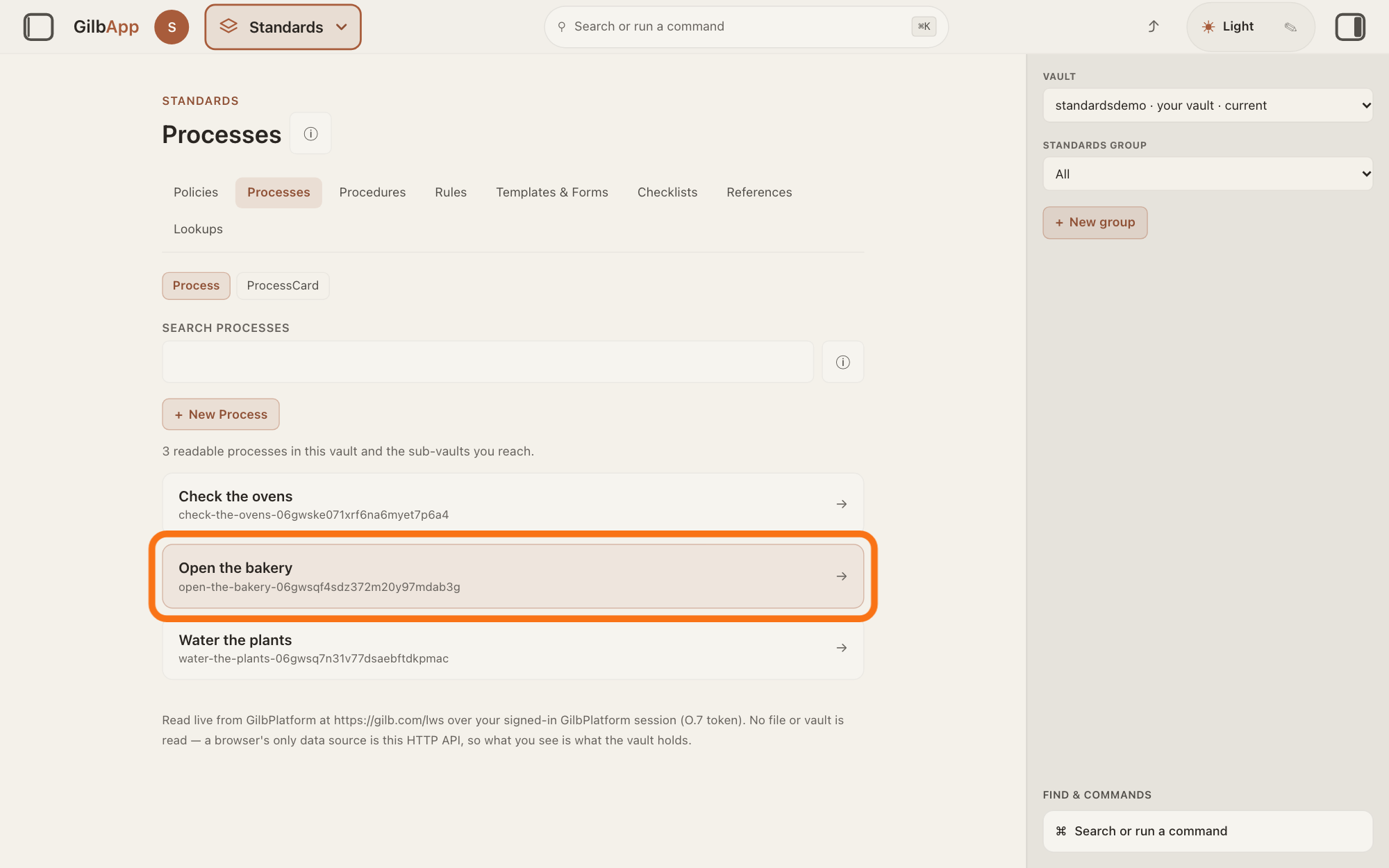
Click the row of the standard that hands off, such as a process under the tab Processes. It opens in the middle; a process shows the cards Entry conditions, Steps and Exit conditions, from top to bottom.
Show as text
In the middle, in the list of processes, the row Open the bakery is outlined. Press it to open the process that will hand off.
More about this
Each row shows the standard's name and, under it, the last part of its address. If the list is long, type a word of the name in the box under SEARCH PROCESSES. The other tabs, such as Rules or Checklists, list other kinds of standard and open the same way. + New Process makes a new process; the answer on writing a new standard shows it. ← All processes, at the top of an open process, brings the list back.
Choose the step that hands off.
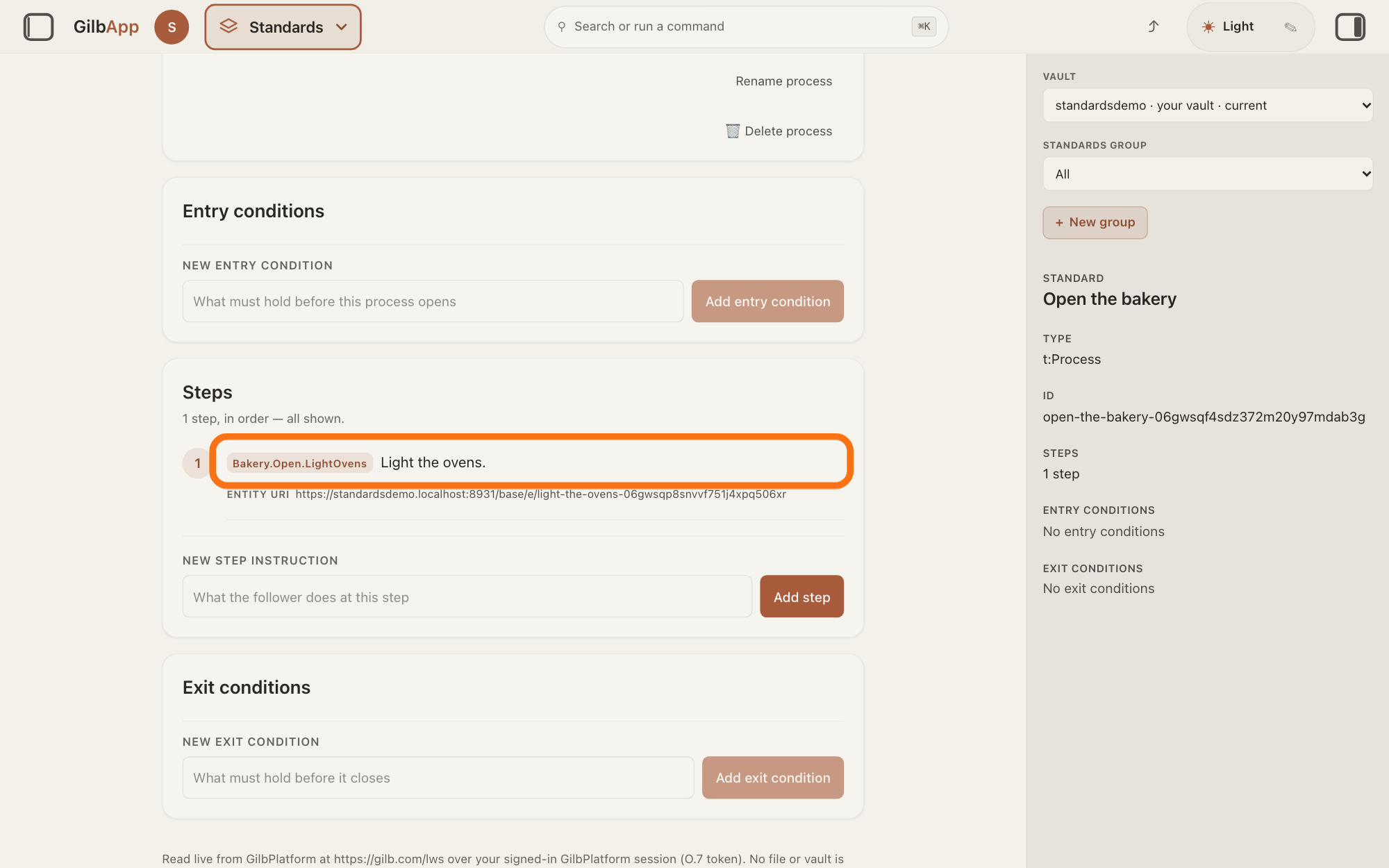
Click the text of the step that hands off, in the card Steps. The right pane shows Edit step with the step's TITLE, TAG, ENTITY URI (its address), TEXT and, under HANDS OFF TO, its links, or No hands-off links..
Show as text
In the card "Steps", the step Light the ovens. with its tag is outlined. Press the step's text to open the pane "Edit step" on the right. The right pane still shows the details of the process.
More about this
On another kind of standard the point has its own name, such as a rule, and the pane says Edit rule; it works the same. For an entry or exit condition, click the condition: its pane has the same HANDS OFF TO part. Copy under ENTITY URI copies the step's address. The rest of the pane is for the step's own words and tag; the answer on adding, editing, reordering or deleting a unit shows it, and 🗑 Delete step at its foot. ✕ or Cancel closes the pane without saving.
Search and select the other standard under LOOK UP.
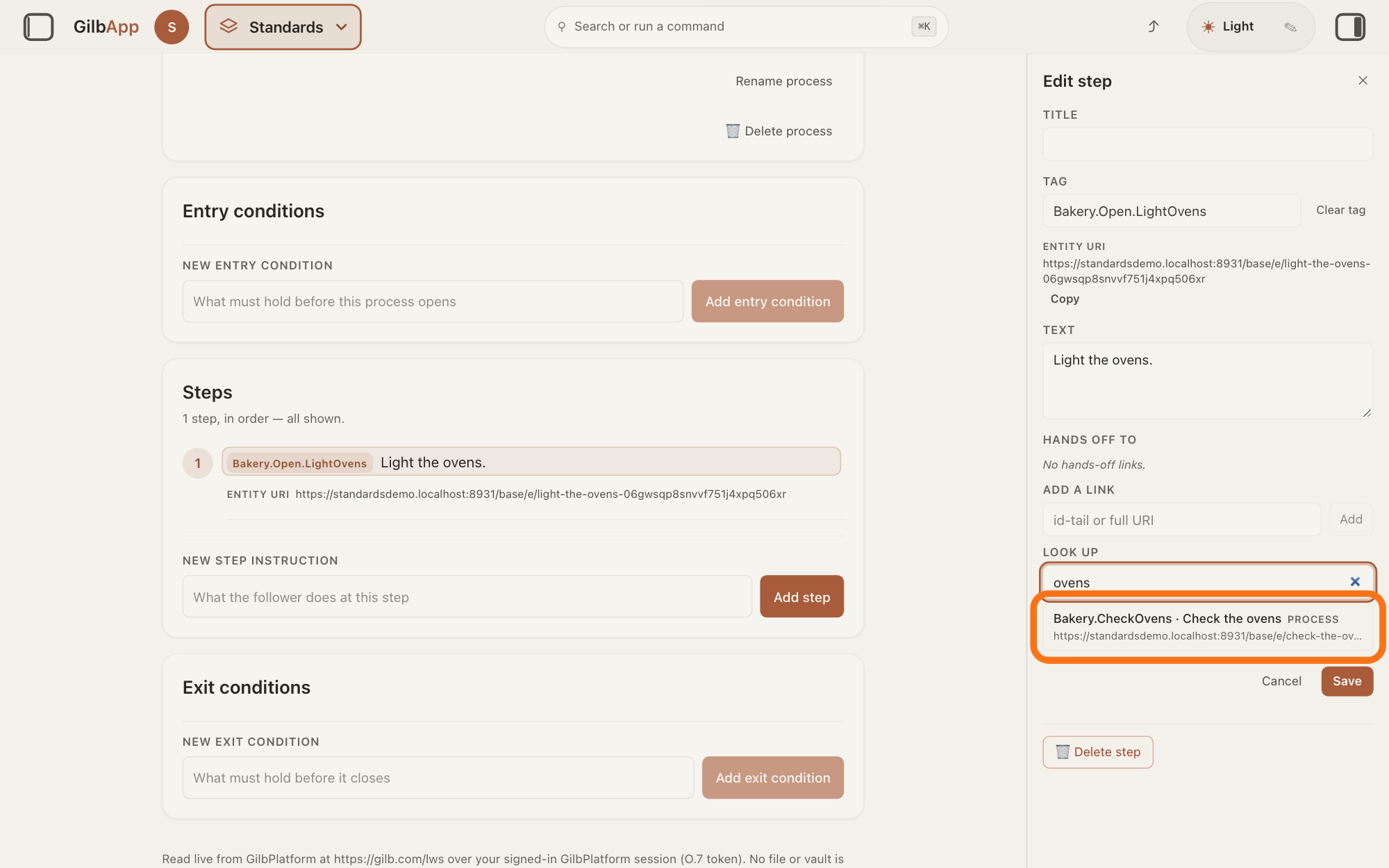
Type a word of the other standard's name, or its tag, in the box that shows Find a standard by name, tag or URI, and click the standard in the list. It is added under HANDS OFF TO with its tag or name, its address and Remove.
Show as text
On the right, in the pane "Edit step", "HANDS OFF TO" says "No hands-off links." Under "LOOK UP" the box holds ovens, and the one row found, Bakery.CheckOvens · Check the ovens with "PROCESS", is outlined. Press that row.
More about this
The list holds the standards of the vault on screen whose name, tag, address or kind holds what you typed, then standards in your other vaults that hold the whole word, with in and their vault; it shows at most 20. A row already linked shows ✓, and clicking it removes the link. While it looks it says Searching your other vaults…; with none found, No standard matches that look-up.. If you know the other standard's address, paste it instead in the box under ADD A LINK that shows id-tail or full URI, meaning the whole address or its last part, and press Add. A step may hand off to several standards; add them one at a time.
Press Save.
Press Save at the foot of the pane. GilbApp first checks that each new link points at something you can read in one of your vaults, then saves and closes the pane; the step shows ↳ hands off to and the other standard's tag or name.
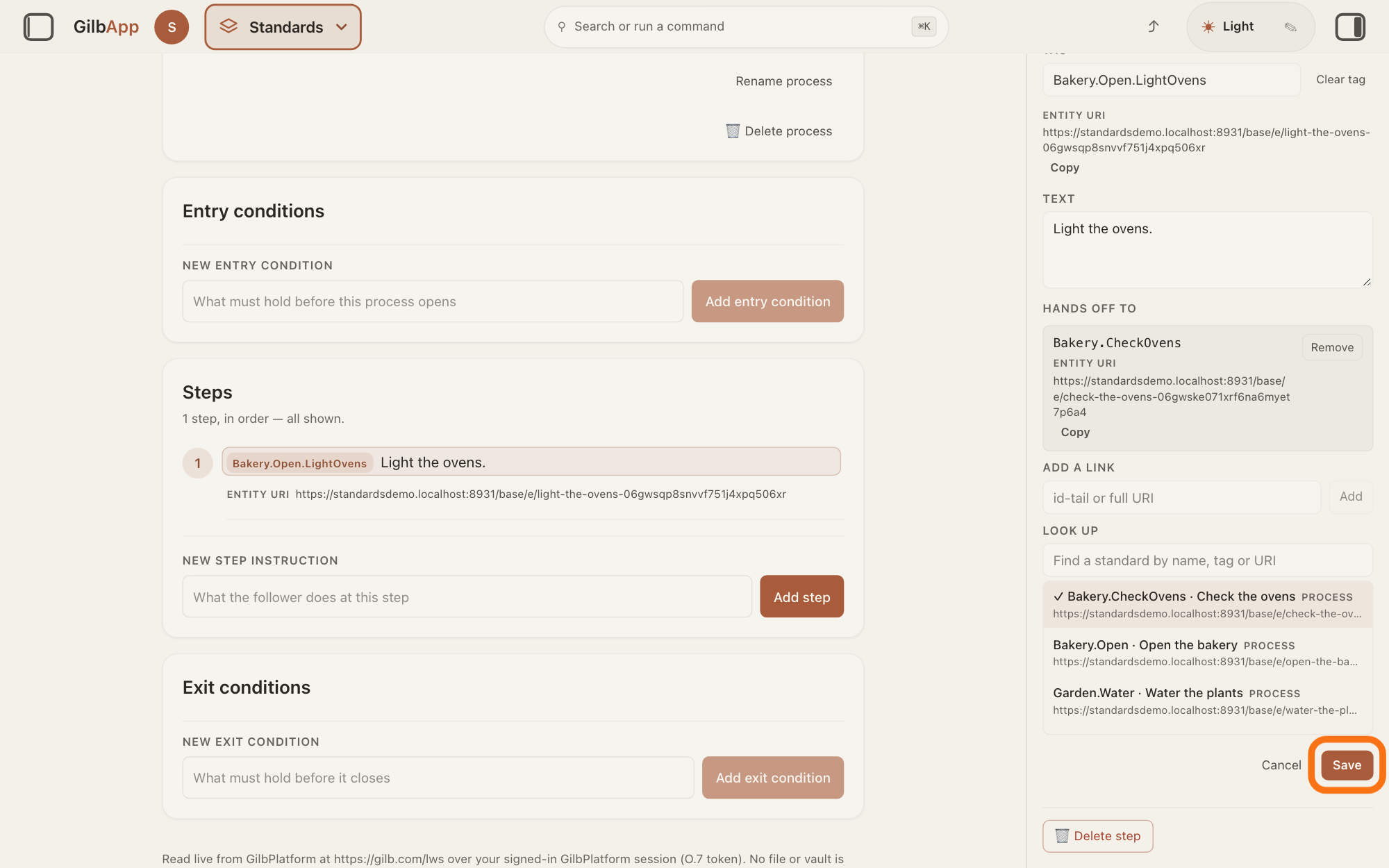
Show as text
The pane now shows Bakery.CheckOvens under "HANDS OFF TO", with its "ENTITY URI", "Copy" and "Remove". In the "LOOK UP" list that row has a tick. At the foot, the outlined button "Save" is next to "Cancel". Press "Save".
More about this
If a check fails, nothing is saved and the pane says why; for a link it cannot read, the reason ends is not readable from this vault — save refused. An address still typed under ADD A LINK is saved too, even if you did not press Add. To remove a link, press Remove beside it, then Save. Clicking the link on the step opens the other standard; the answer on following a hand-off to another standard shows it.
Deeper
In the Kai-Zen method a hand-off is a call and a return: a step points at another standard under HANDS OFF TO, and when that standard has finished, the step that handed off goes on with its next step. A job is written in one place only: a job more than one process needs is its own process, and the others hand off to it rather than copy its steps.
Link through HANDS OFF TO, never by writing an address in the text, and give every tag the text names its link. A standard may link a standard in any GilbPlatform vault rather than copy it. GilbApp saves a link only to a standard you can read in one of your vaults.
GilbApp adds hand-offs to the points of a standard, such as its steps, rules and questions, and to entry and exit conditions; it has no box for a hand-off on a whole standard.
Saving a link changes the standard, so GilbPlatform takes it only from someone who may write that standard. In the Kai-Zen method an agent changes a standard only with the go of a person who may write in the vault the standard is kept in.
This answer is written for a computer screen. In a window narrower than 840 pixels, such as a phone, the side panes are hidden and the right pane is Detail in the bar at the bottom.
Source: Re-checked 2026-11-11: live GilbApp is now ebd9415e7a90de8c289eaa7bb02f40c8ee80cf79 (https://gilb.com/app/version.json) and GilbPlatform 498d29a0dec9a15d167f4b6b5d731382a6bcede0 (https://id.gilb.com/version). the diff from af0f04ee to ebd9415e touches no file this page cites (src/components/process, RightRegion.tsx, gilbAppMenuRows.ts, the standards libs unchanged; processHooks.ts, records.ts and AppShell.tsx change only request headers and a palette note); the diff from 4d008a55 to 498d29a0 changes sign-in, DPoP and grant slices, not the write gate or deletes. Line numbers above hold at ebd9415e. GilbApp af0f04ee838a4d55887d2ff1f72edd49a4ff7ca0 (https://gilb.com/app/version.json read 2026-11-10, dirty false); code from the unpack (no checkout). GilbPlatform 4d008a55 (https://id.gilb.com/version). Step 1 (gilbAppMenuRows.ts:219-231; AppShell.tsx:496, :658; standardsTabs.ts; StandardsControls.tsx). Step 2: StandardsSection.tsx:427-447, :547-584, :838-841; ProcessViewer.tsx:2029-2213 (Entry conditions, Steps, Exit conditions); the other tabs mount the same viewer (RulesTab.tsx:692, ChecklistsTab.tsx:463, PoliciesTab.tsx:600, ProceduresTab.tsx:657, TemplatesTab.tsx:459, LookupTab.tsx:315, ReferenceTab.tsx:325). Step 3: ProcessViewer.tsx:1295-1308 (the step's text is the edit button); StandardsSection.tsx:973-979 and RightRegion.tsx:255-285 (Edit step host); StepEditPane.tsx:207 (Edit + unit noun: step, rule, question …), :219-226 (✕), :229-245 (Title), :255-305 (Tag, Clear tag), :397-406 and UnitIdentity.tsx:108-140 (Entity URI, Copy/Copied), :408-424 (Text), :433-447 (HandoffLookup, every family supportsHandoff: true, standardsFamilies.ts:218, 318, 411, 507, 605, 639, 666, 691), :455-472 (Cancel, Save), :529-539 (🗑 Delete step); HandoffLookup.tsx:286-294 (Hands off to CSS capitals, No hands-off links.); ConditionEditPane.tsx:276-289 (same part on a condition). Step 4: HandoffLookup.tsx:349-431 (Look up CSS capitals, placeholder Find a standard by name, tag or URI, local filter on name, tag, URI, id-tail, kind label :257-269, other vaults :253 and handoffCrossVaultSearch.ts:36-65 via fanoutSearch (whole-token, run 10i ruling (b)), Searching your other vaults…, No standard matches that look-up., at most 20 rows :390, ✓ and toggle :391-405, in <vault> :417-419), :316-348 (Add a link, id-tail or full URI, Add, Enter), :152-217 (link row: tag or name, Entity URI, Remove). Step 5: StepEditPane.tsx:157-173 (save; draft included, processTypes.ts:1351-1355); processHooks.ts:709-723 and :942 (added links verified; … is not readable from this vault — save refused.; handsOffReach.ts:181-189 outside-reach refusal); RightRegion.tsx:280-282 (pane closes on save); ProcessViewer.tsx:766-787 (↳ hands off to and chips). Deeper: GilbPlatform.StandardRules.HandOff, .OnePlace, .Link, .SelfContained, .Owner (2026-11-10); GilbVeda a:handsOffTo (public read: X may be any point or a whole document); HandoffLookup is mounted only by StepEditPane.tsx and ConditionEditPane.tsx (no document-level editor); Base routes.ts:822-827 (write gate).
Checked against GilbApp d529620.